Navigating Tasks
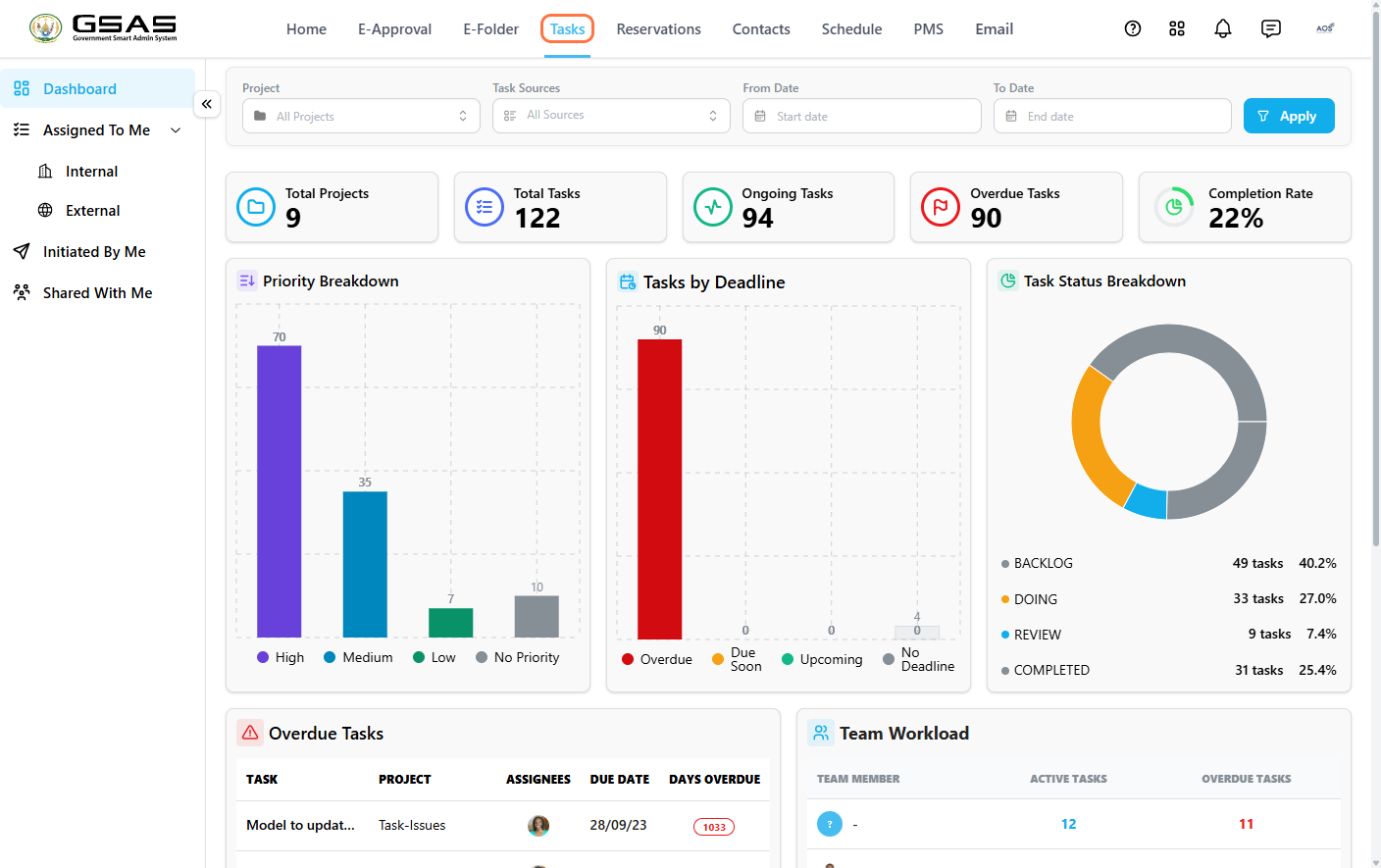
The Tasks dashboard gives you an overview of task projects, assigned work, deadlines, progress, and completion status.
Click Tasks in the main navigation menu.
Read the Dashboard
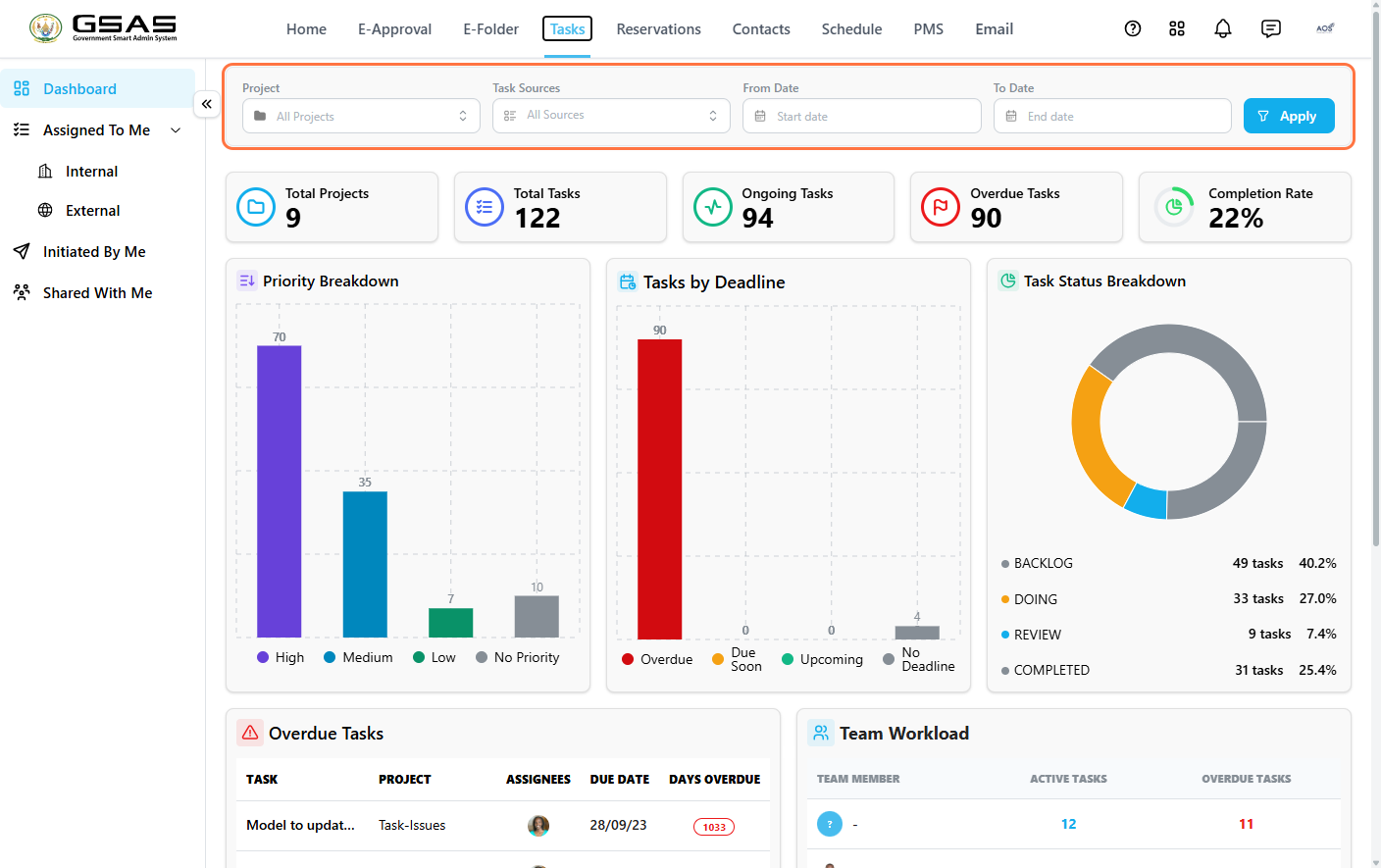
Use the filters at the top — Project, Task Sources, From Date, and To Date — to narrow the dashboard results, then click Apply.
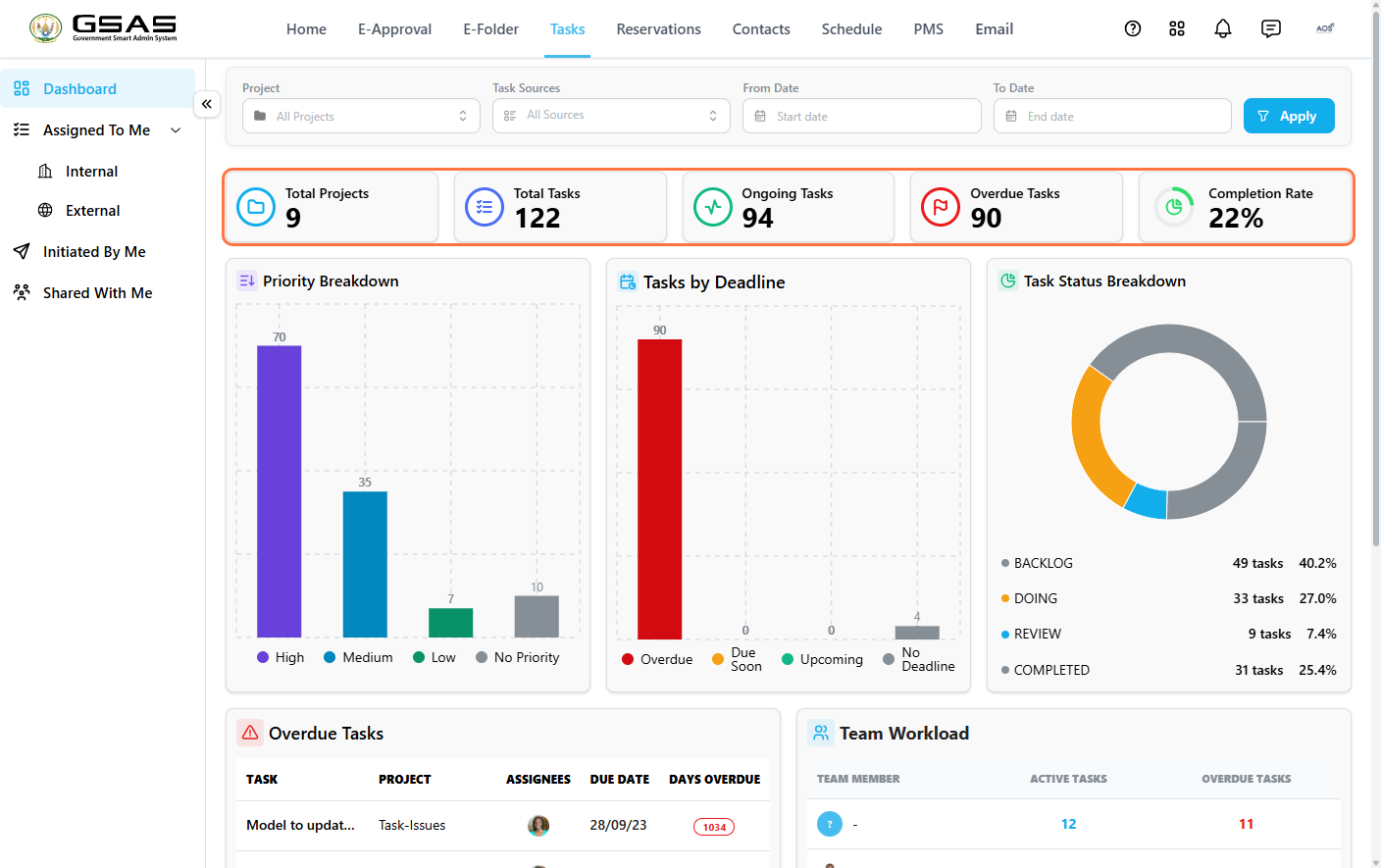
The summary cards show the main task figures at a glance.
| Card | Shows |
|---|---|
| Total Projects | Number of active task projects. |
| Total Tasks | All tasks across those projects, including tasks assigned to you and tasks created by you. |
| Ongoing Tasks | Tasks currently in progress. |
| Overdue Tasks | Tasks past their due date. |
| Completion Rate | Percentage of tasks marked complete. |
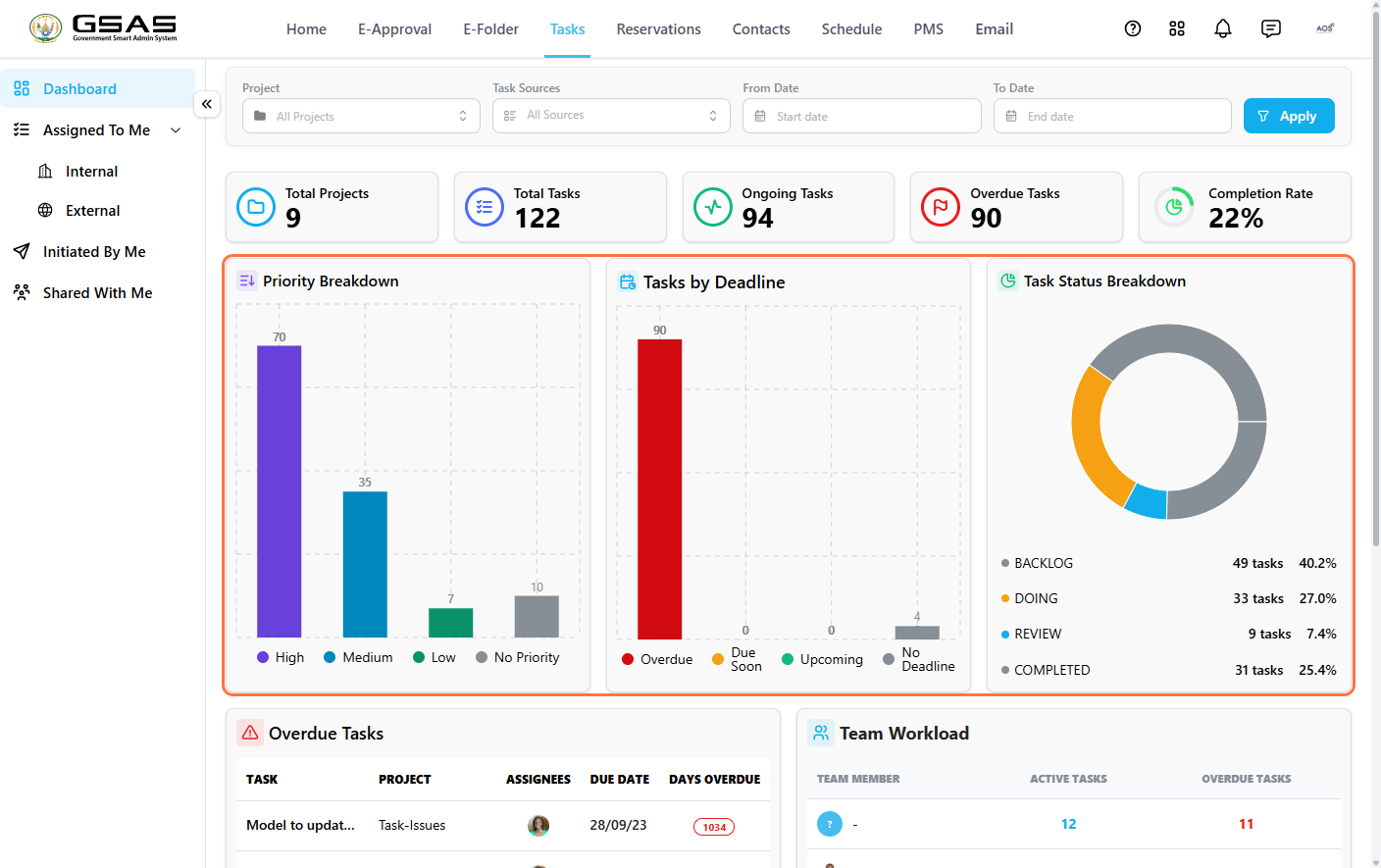
The charts show task distribution by priority, deadline, and status.
| Chart | Shows |
|---|---|
| Priority Breakdown | How tasks are distributed across High, Medium, Low, and No Priority. |
| Tasks by Deadline | How many tasks are due, overdue, or have no deadline set. |
| Task Status Breakdown | How tasks are split across Backlog, Doing, Review, and Completed. |
Task Categories
Tasks are grouped by origin. Tasks assigned to you appear under Assigned To Me, while task projects and tasks you created appear under Initiated By Me.
Assigned To Me
Use Assigned To Me to view tasks you are responsible for.
- Click Assigned To Me → Internal to view tasks assigned from within your institution.
- Click Assigned To Me → External to view tasks assigned by outside users.
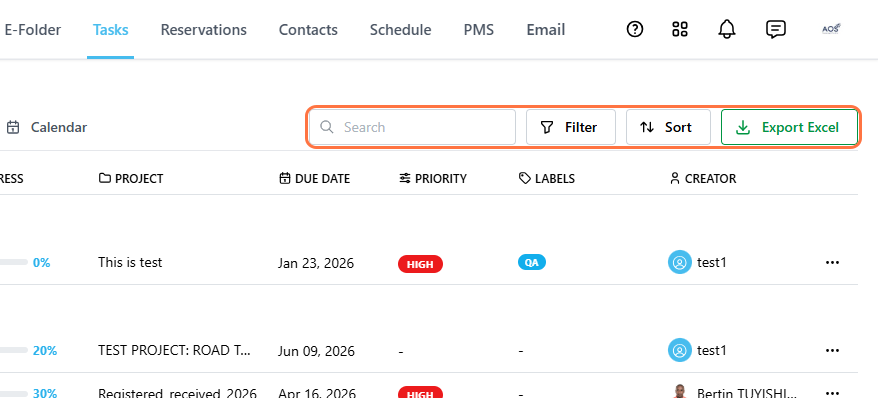
Use Search, Filter, and Sort to narrow the list, or click Export Excel to download it as a spreadsheet.
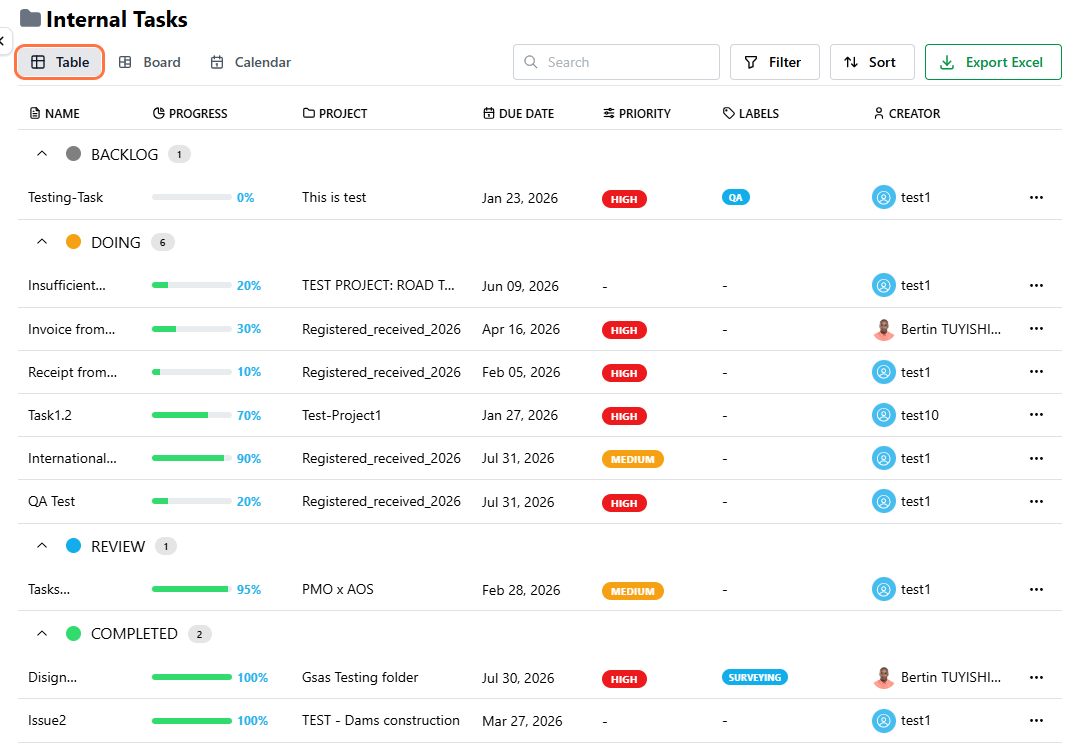
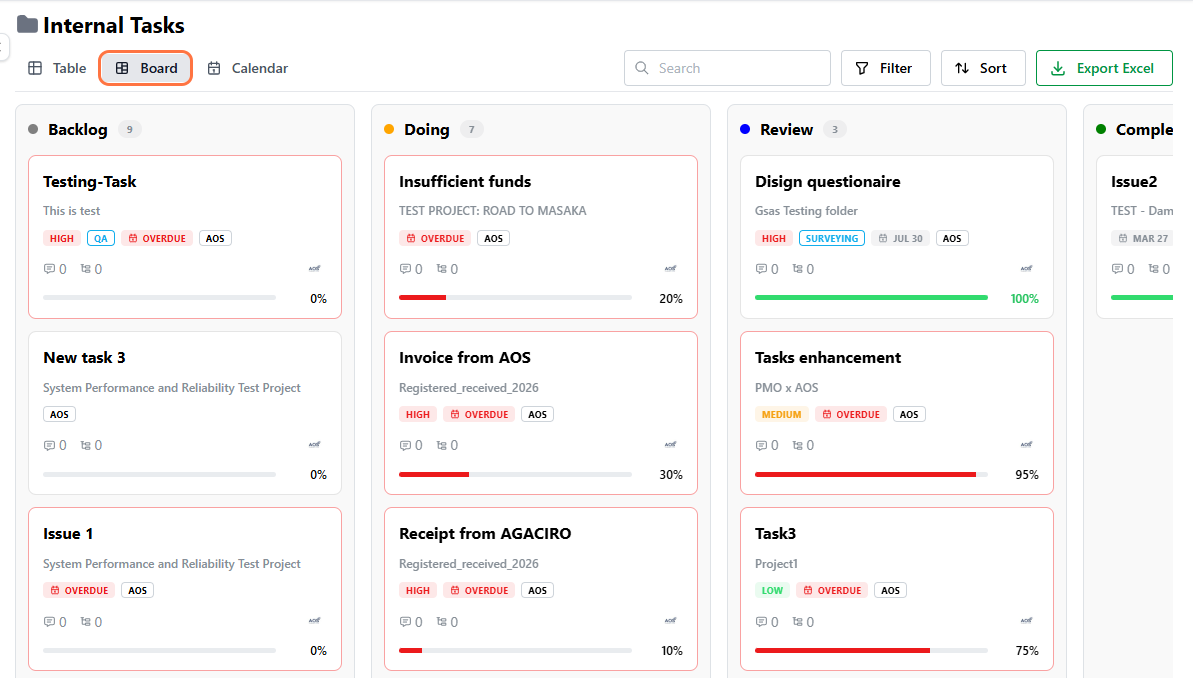
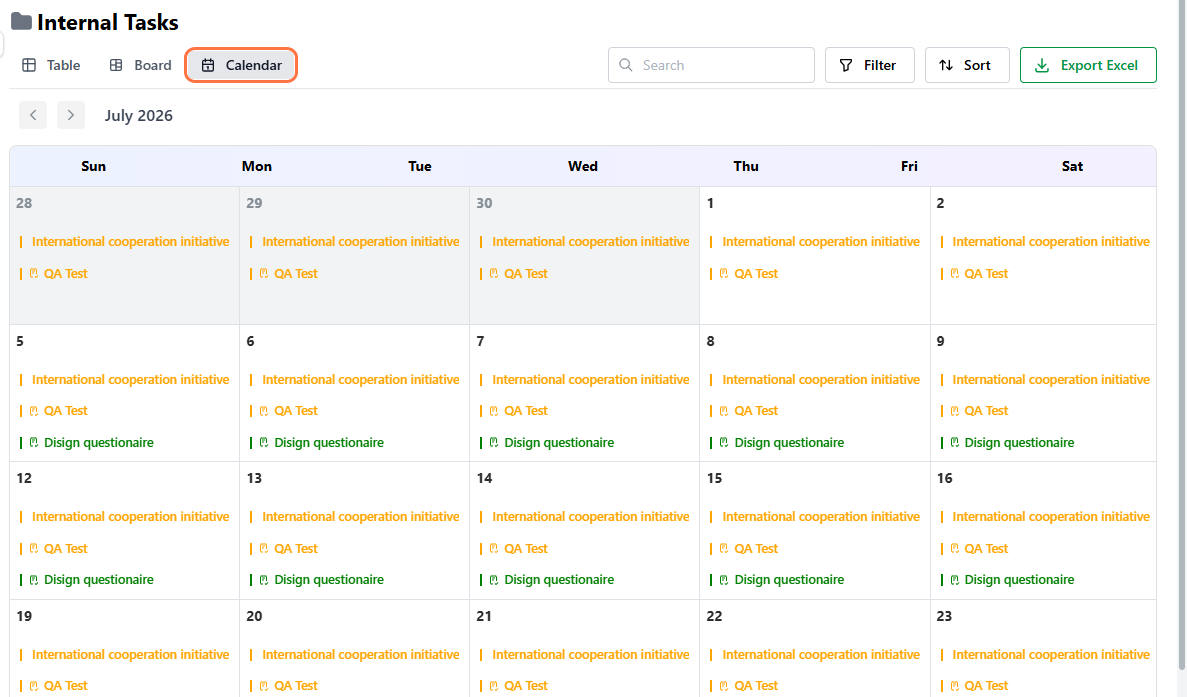
Assigned tasks can be viewed in three formats.
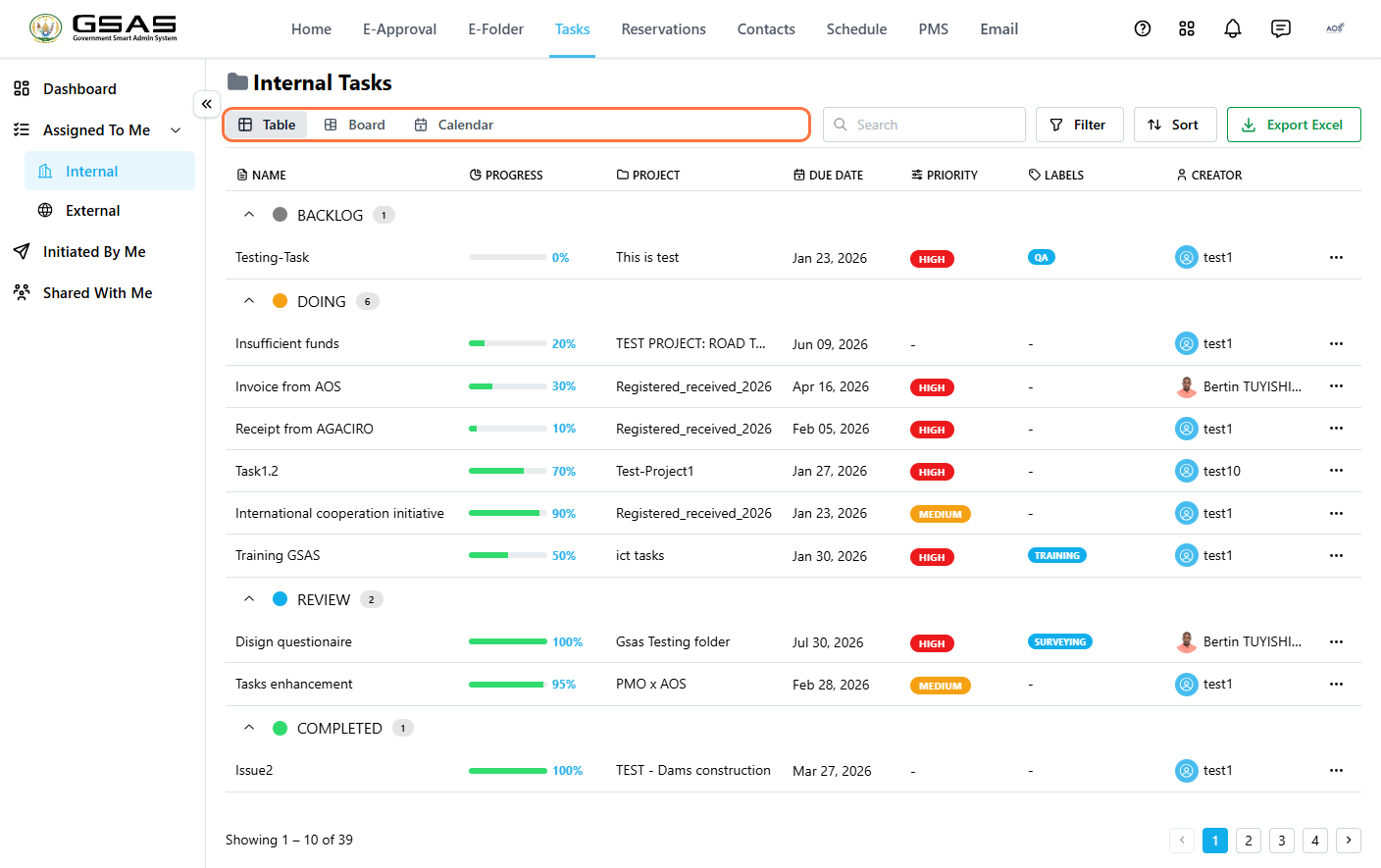
| View | Use it to |
|---|---|
| Table | View a detailed task list with sortable columns. |
| Board | Track task progress across Backlog, Doing, Review, and Completed. You can drag a task between columns to update its status. |
| Calendar | View tasks by scheduled dates, deadlines, and durations. |
| Related: For details on opening a task and updating its progress, see Responding to a Task. |
Initiated By Me
Use Initiated By Me to view task projects and tasks you created or delegated to others. Each project card shows its progress, the number of open tasks, and any relevant source tag such as CREATED IN PMS.
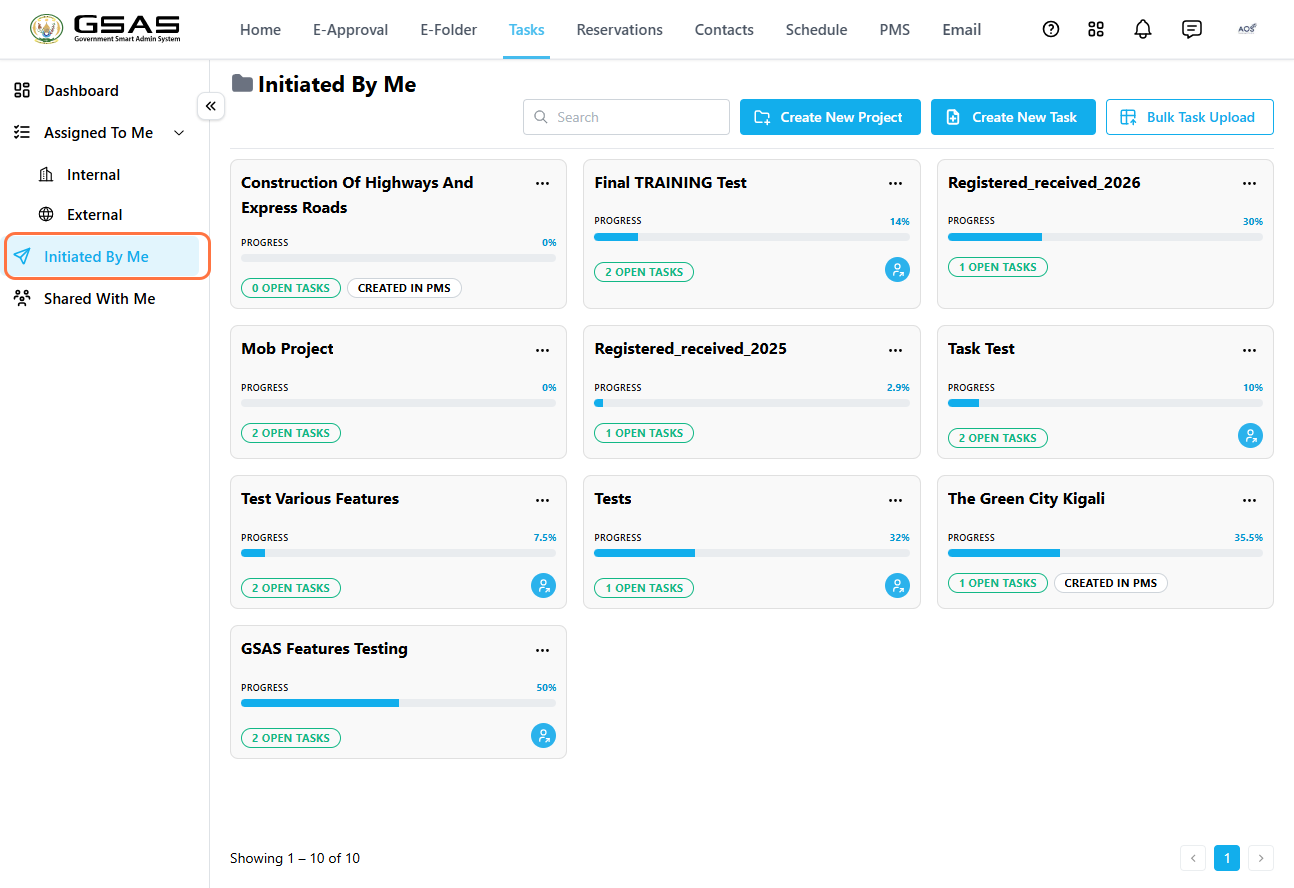
| Note: Task projects named in the Registered_Received_Year format come from e-Approval and are covered in the Share as Task page. |
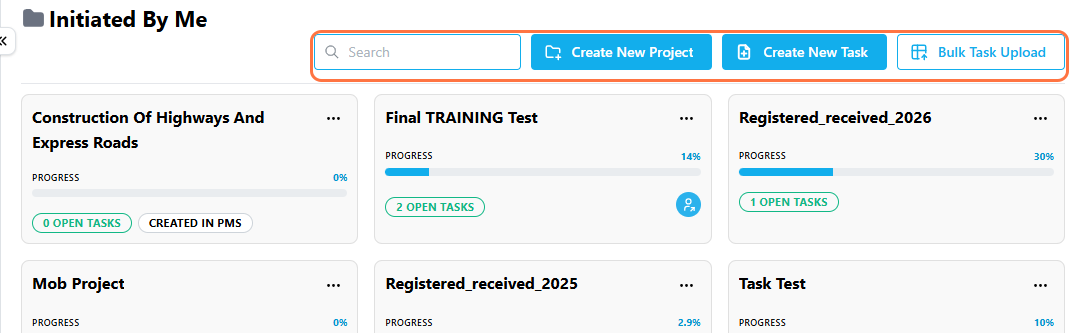
Use Create New Project, Create New Task, or Bulk Task Upload to add new work. Use Search to find a specific task project or task.
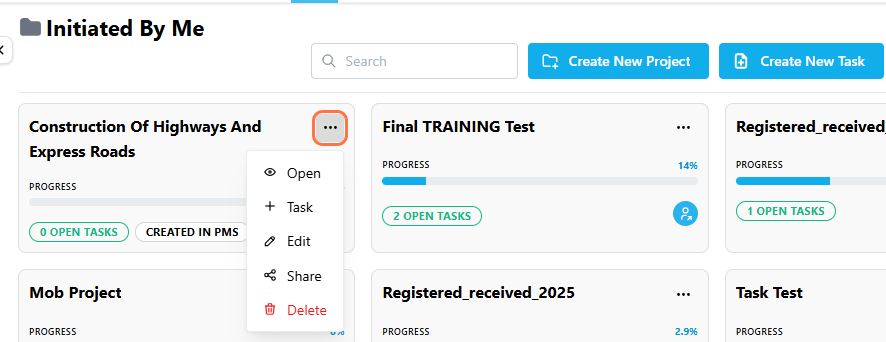
Click a task project title to open it. Click the … icon on a project card to access more options, including Add Task, Edit, Share, and Delete.
| Related: For details on creating a task project, creating a task, assigning a task, or uploading tasks in bulk, see Creating and Assigning Tasks. |