Dashboard and Overview
The Tasks dashboard provides a comprehensive overview of all assignments you manage or need to complete.
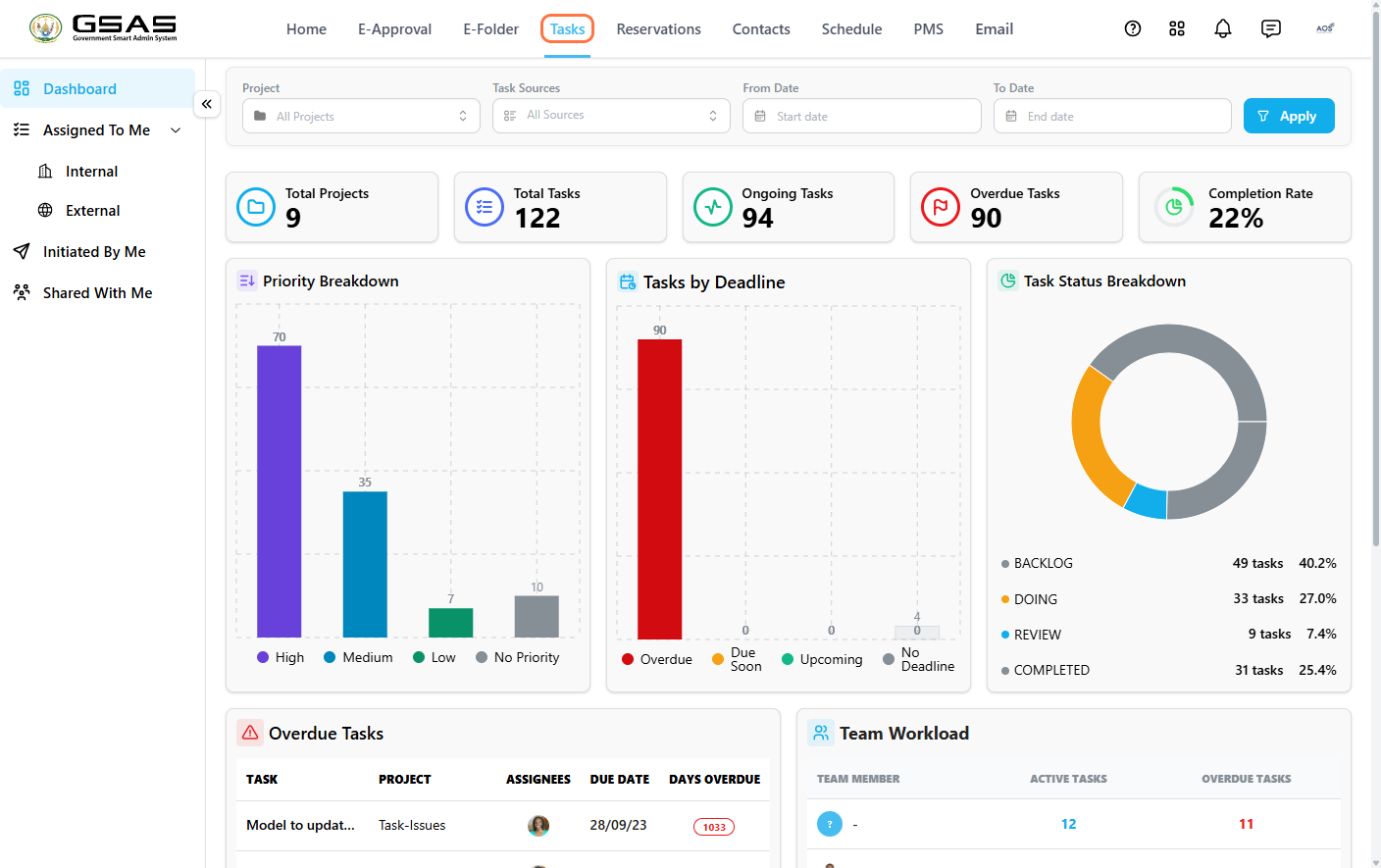
Click Tasks in the main navigation menu.
Reading the Dashboard
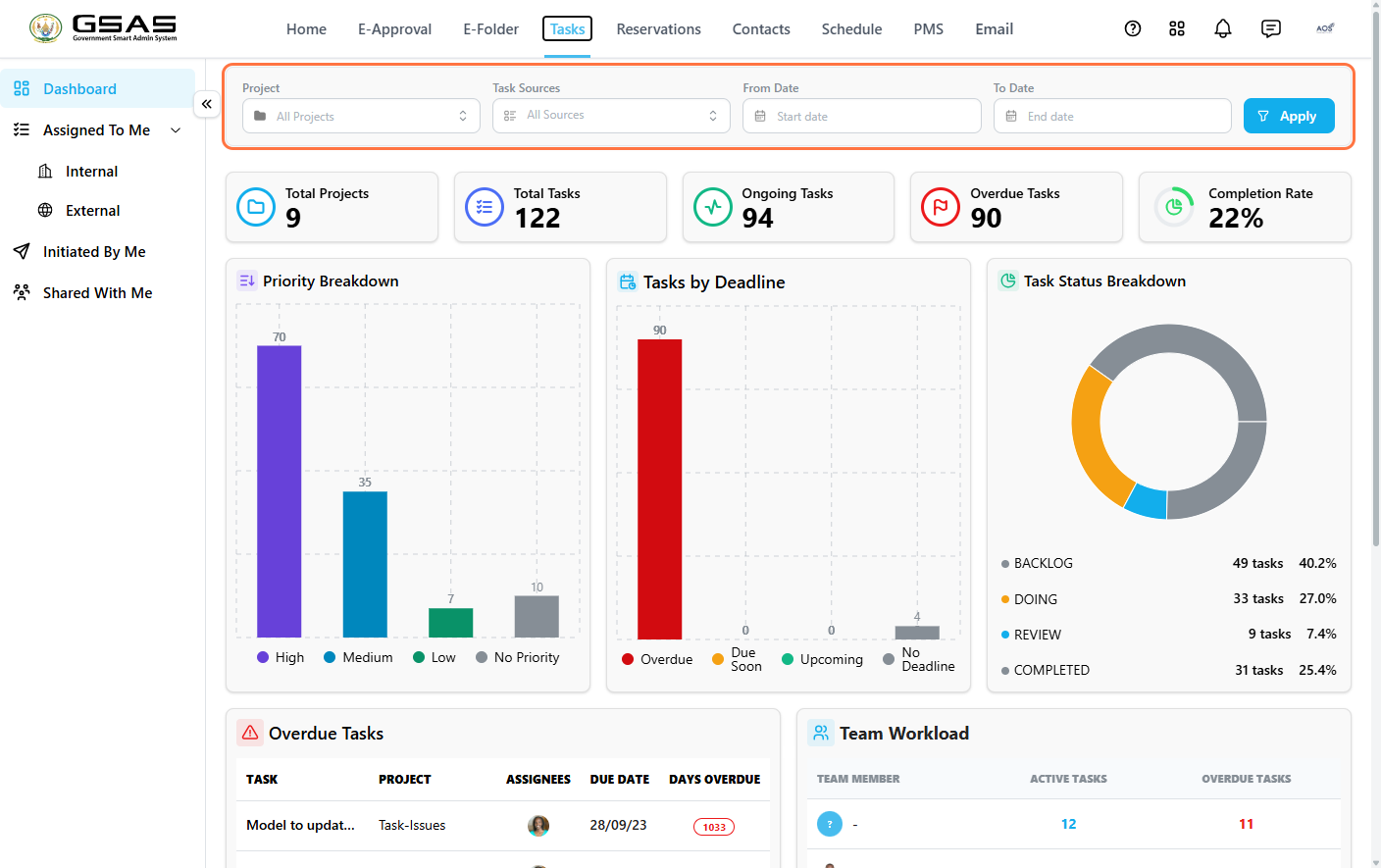
Use the filters at the top — Project, Task Sources, From Date, and To Date — to narrow the view if needed, then click Apply.
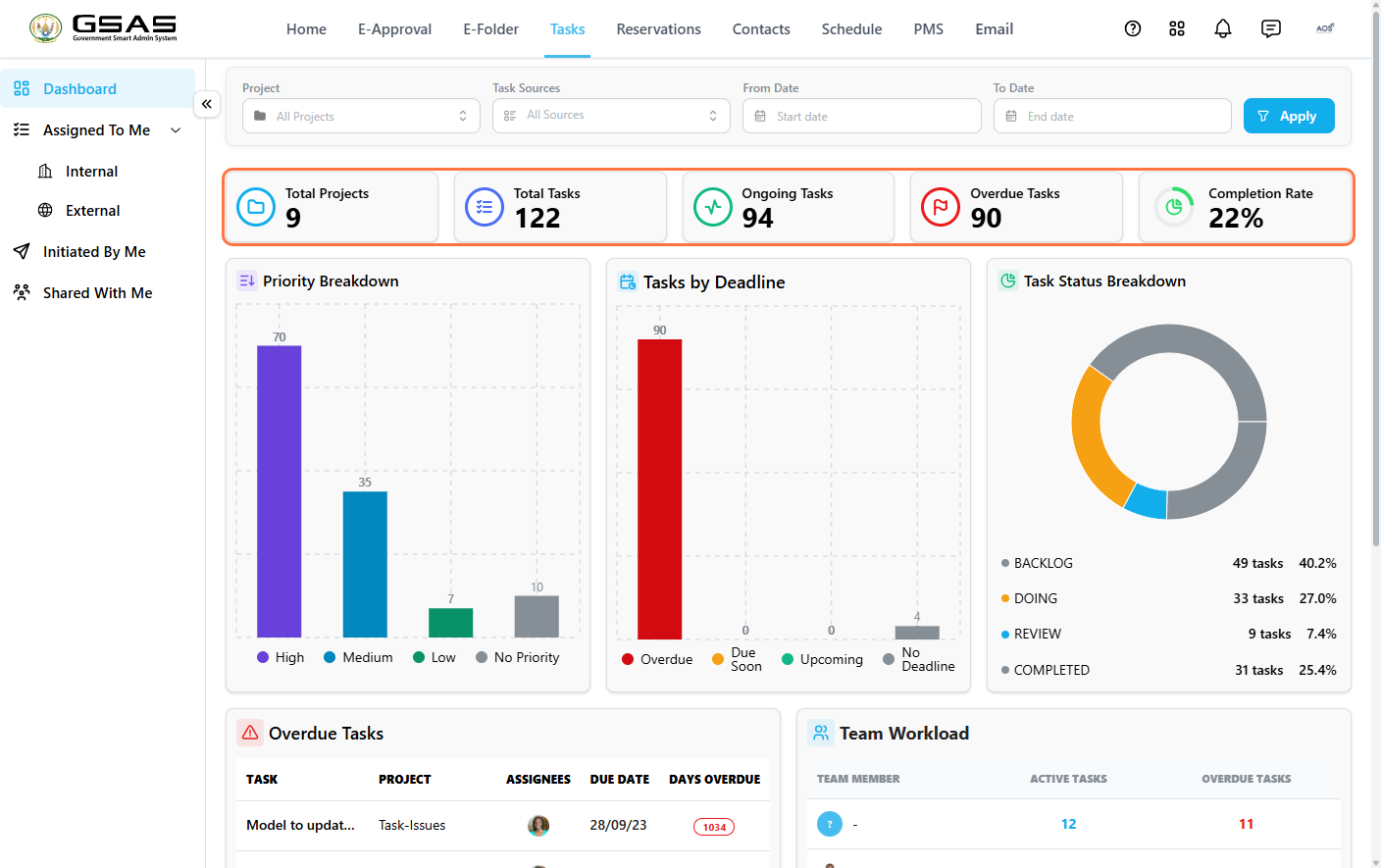
Five summary cards give you the headline numbers at a glance:
| Card | Shows |
|---|---|
| Total Projects | Number of active task projects. |
| Total Tasks | All tasks across those projects, assigned by you and to you. |
| Ongoing Tasks | Tasks currently in progress. |
| Overdue Tasks | Tasks past their due date. |
| Completion Rate | Percentage of tasks marked complete. |
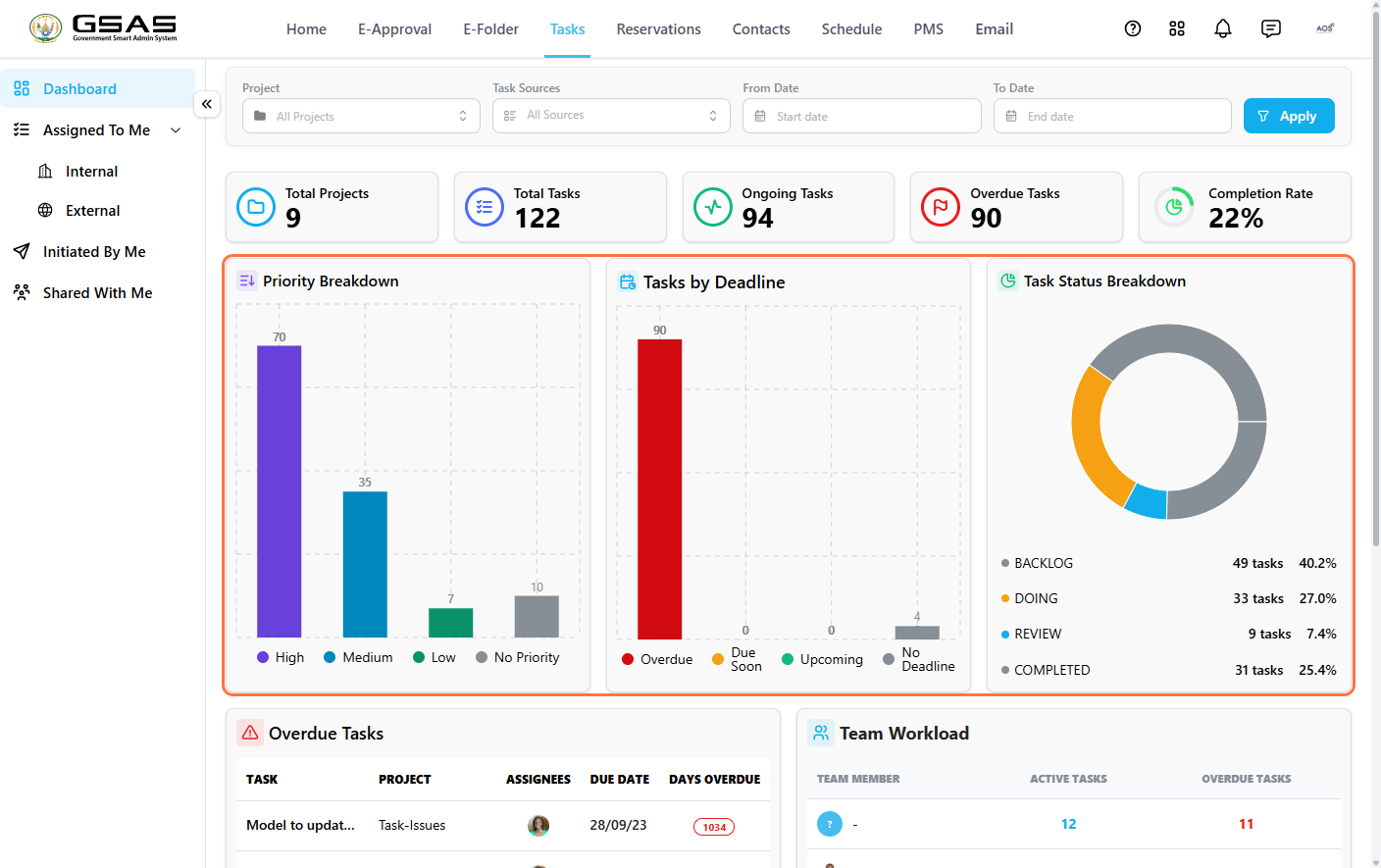
Three charts break this down further:
| Chart | Shows |
|---|---|
| Priority Breakdown | How tasks are distributed across High, Medium, Low, and No priority. |
| Tasks by Deadline | How many tasks are due, overdue, or have no deadline set. |
| Task Status Breakdown | The split between tasks based on status; Backlog, Doing, Review and Completed. |
Task categories
Tasks are grouped by their origin: tasks assigned to you by others fall under Assigned To Me, while tasks you've created and delegated fall under Initiated By Me.
1. Assigned To Me
To view tasks you are responsible for:
- Click Assigned To Me→ Internal for assignments originating from your institution.
- Click Assigned To Me→ External to view tasks assigned by outside users.
Use Search, Filter, and Sort to narrow down the list, or click Export Excel to download it as a spreadsheet.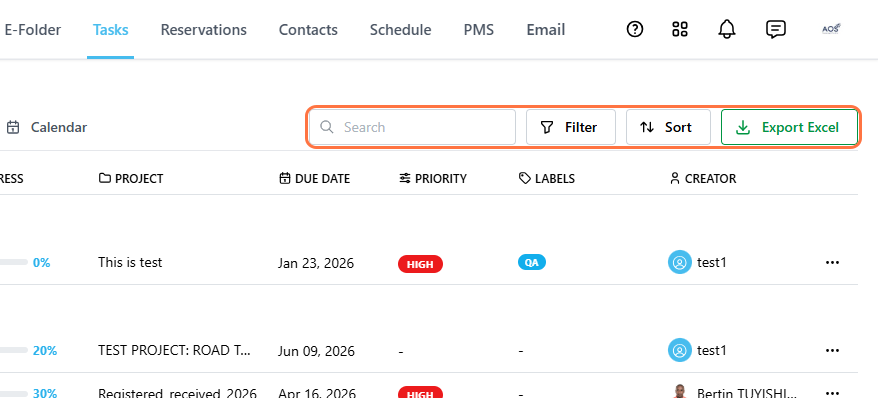
Within either list, you can visualize your workload using different formats:
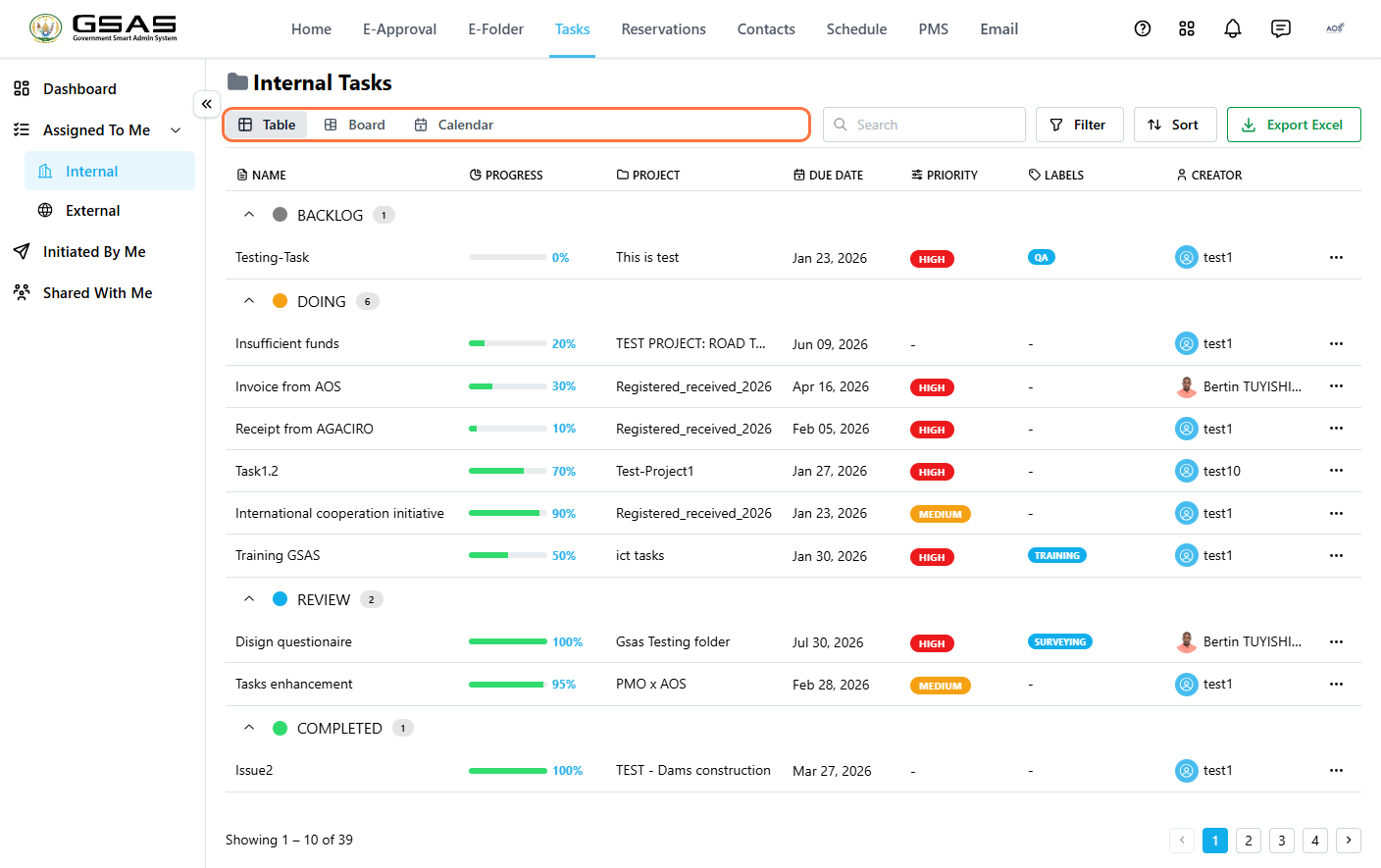
- Click Table to view a dense list of tasks with sortable columns.
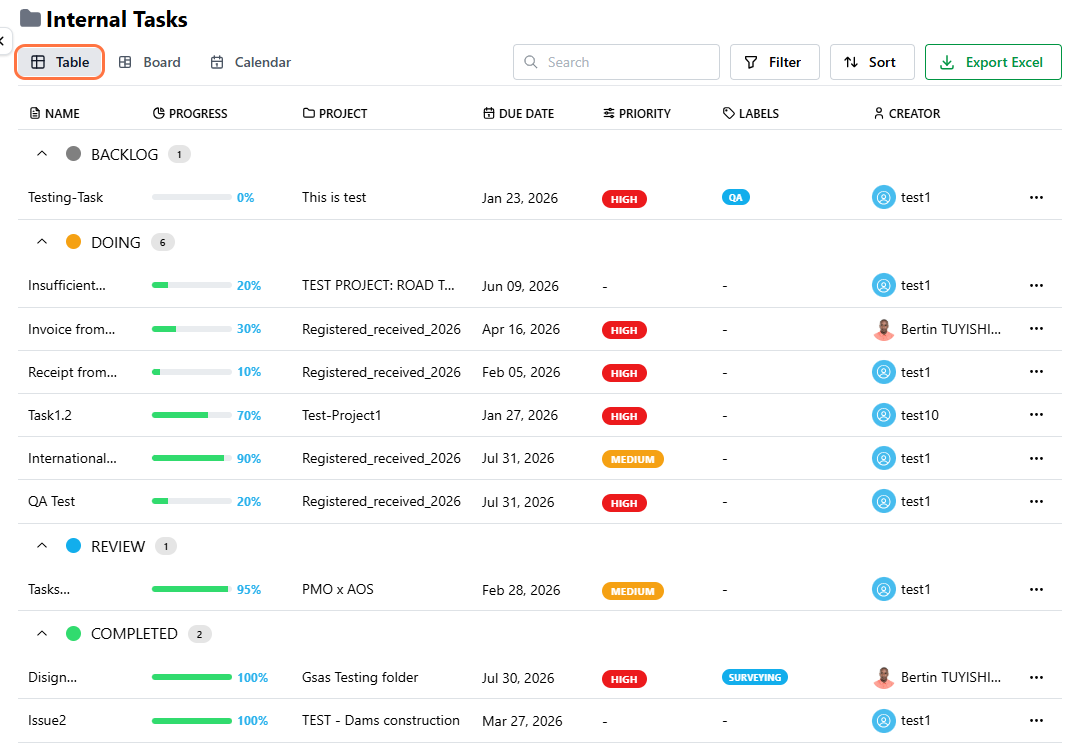
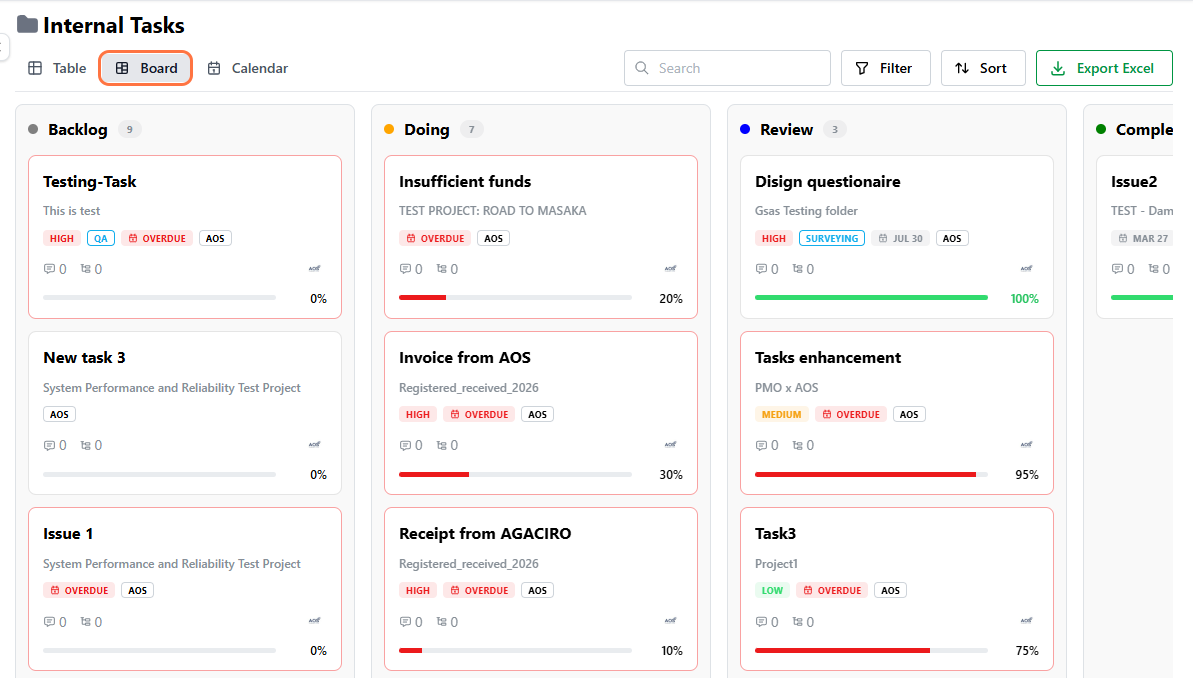
- Click Board to switch to the Kanban-style workflow layout, which tracks task progress across statuses like Backlog, Doing, Review, and Completed. From here, you can drag a task from one column to another to update its status.
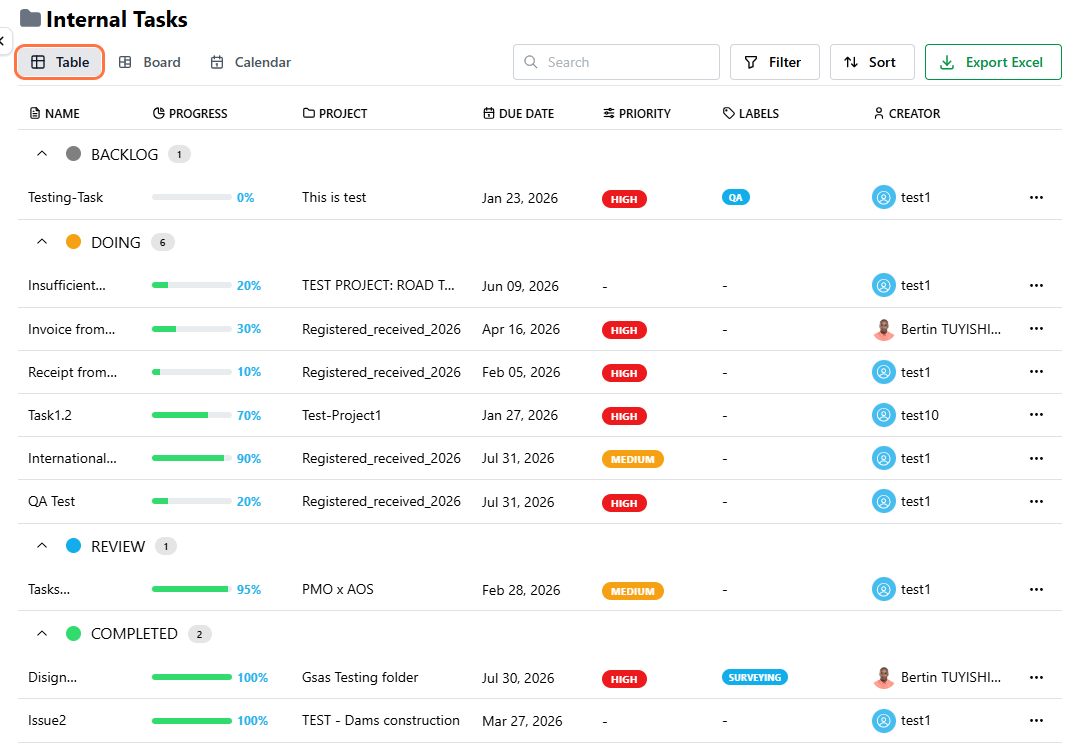
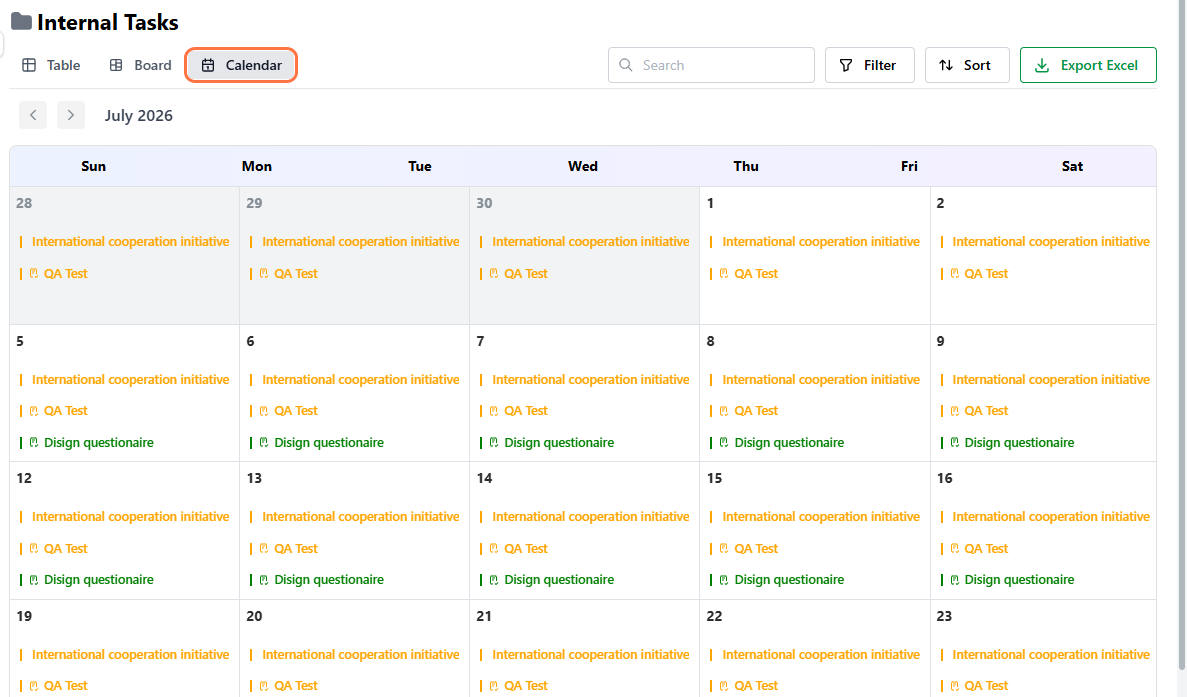
- Click Calendar to map tasks out by their scheduled dates and visualize deadlines and durations.
For details on opening a task and updating its progress, see Responding to a Task.
2. Initiated By Me
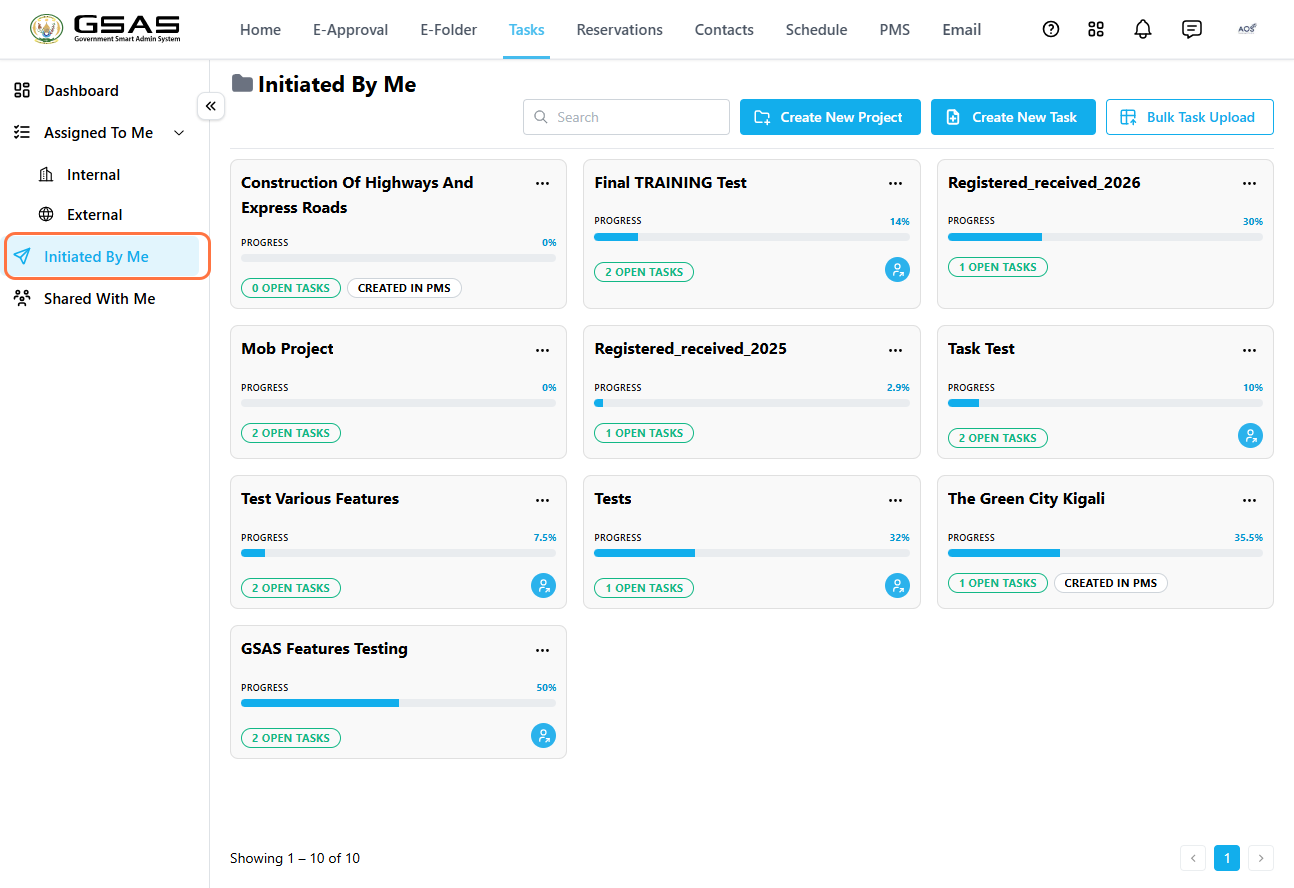
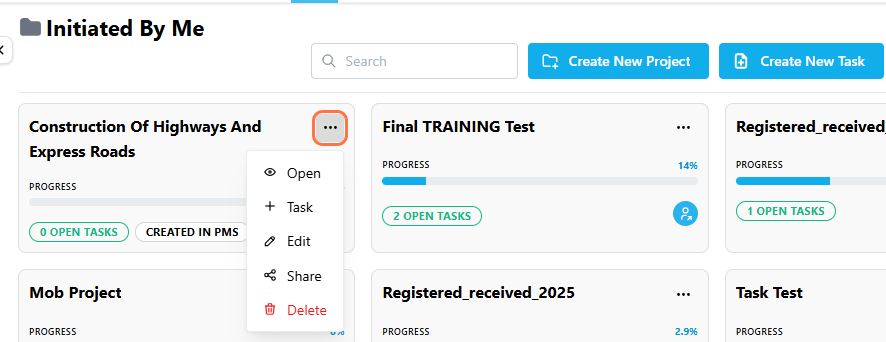
Click Initiated By Me to view the projects and tasks you've created and delegated to others. Each project card shows its progress, a tag indicating the number of open tasks and a CREATED IN PMS tag for projects originating from the PMS module.
|
Note: Task projects titled: "Registered_Received_Year" are documents shared as tasks from e-Approval. This is covered in detail in the Share as Task page. |
Use Create New Project, Create New Task, or Bulk Task Upload to add new work, and Search to find a specific task.
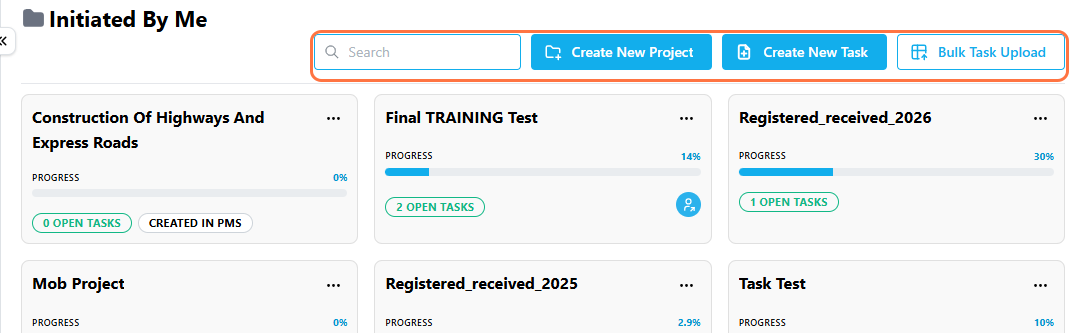
Click on the task project's title to open it or click on the … icon on the task project card to see more options; adding a Task, Edit, Share, or Delete the project.
For details on creating a task project, creating and assigning a task, see Creating and Assigning Tasks.