Dashboard
The Tasks dashboard provides a comprehensive overview of all assignments you manage or need to complete.
Click Tasks in the main navigation menu.
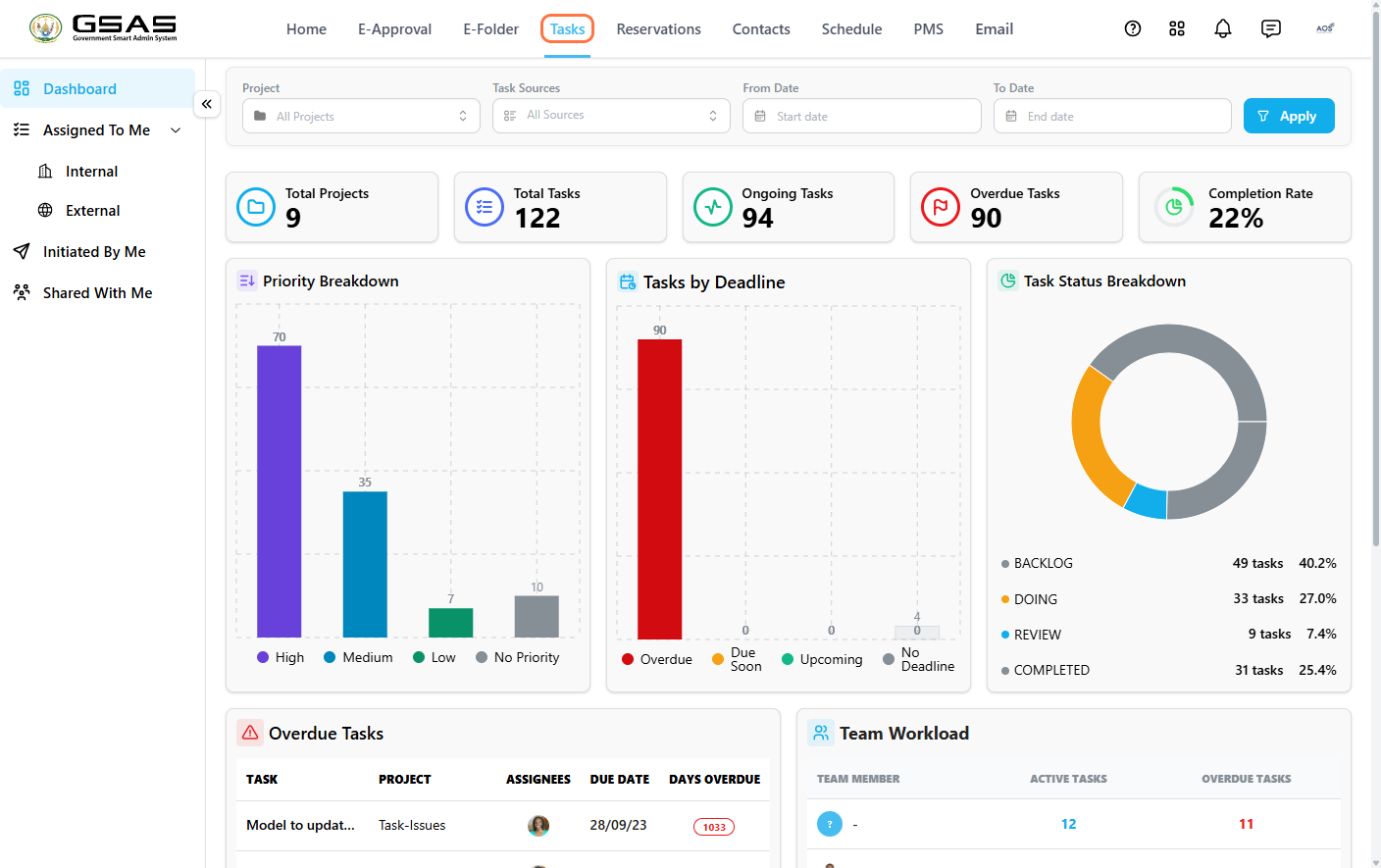
Task categories
Tasks are grouped into several key categories based on their origin:
| Task Category | Description |
|---|---|
| Internal | Tasks assigned to you by users within your institution. |
| External | Tasks assigned to you by system users outside your institution. |
| Initiated By Me | Tasks that you have created and delegated. |
- To initiate tasks, click on Initiated by Me
- Click Assigned To Me→ Internal for assignments originating from your institution.
- Click Assigned To Me→ External to view tasks assigned by outside users.
Switching view modes
Within tasks assigned to you, you can visualize your workload using different formats:
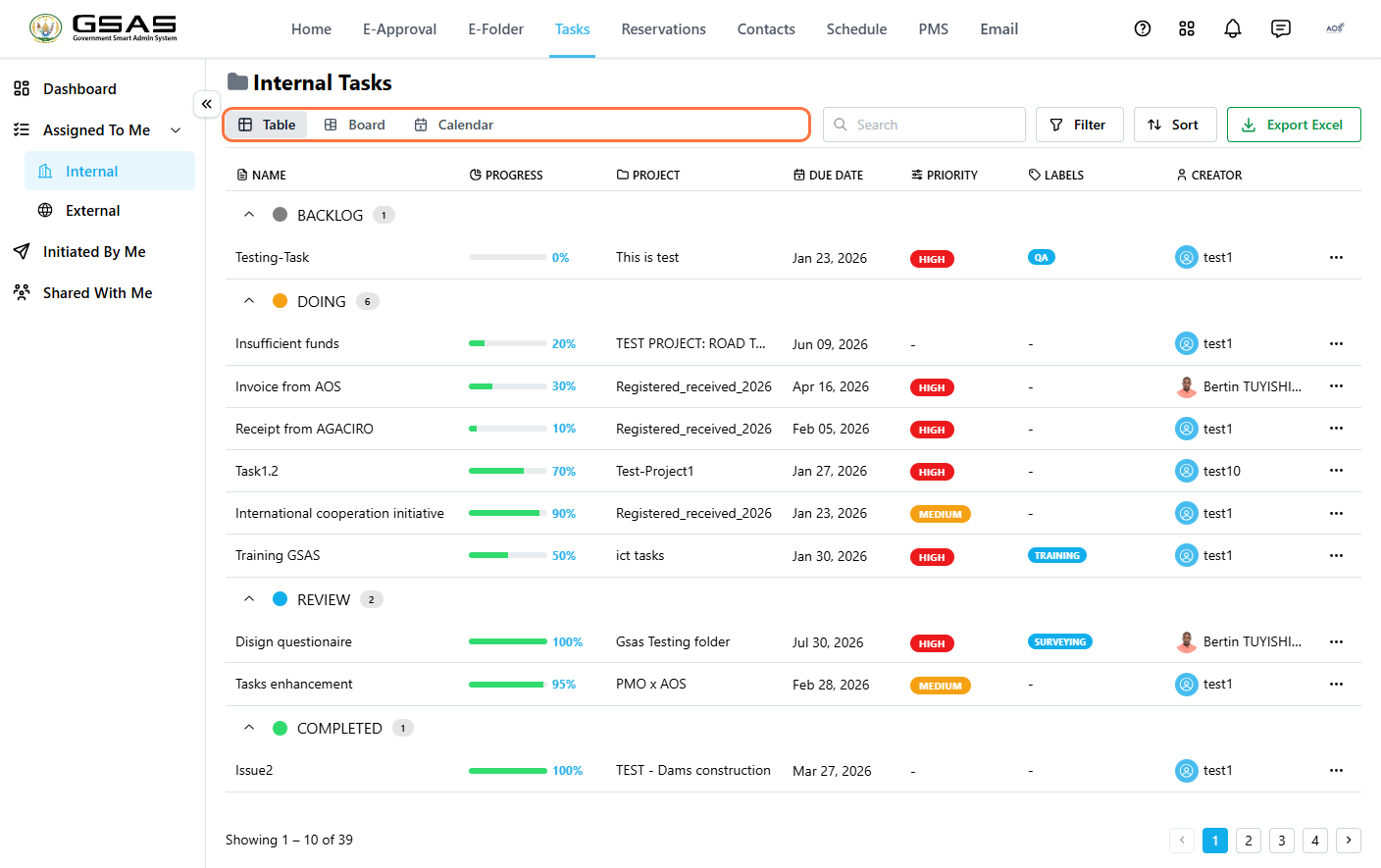
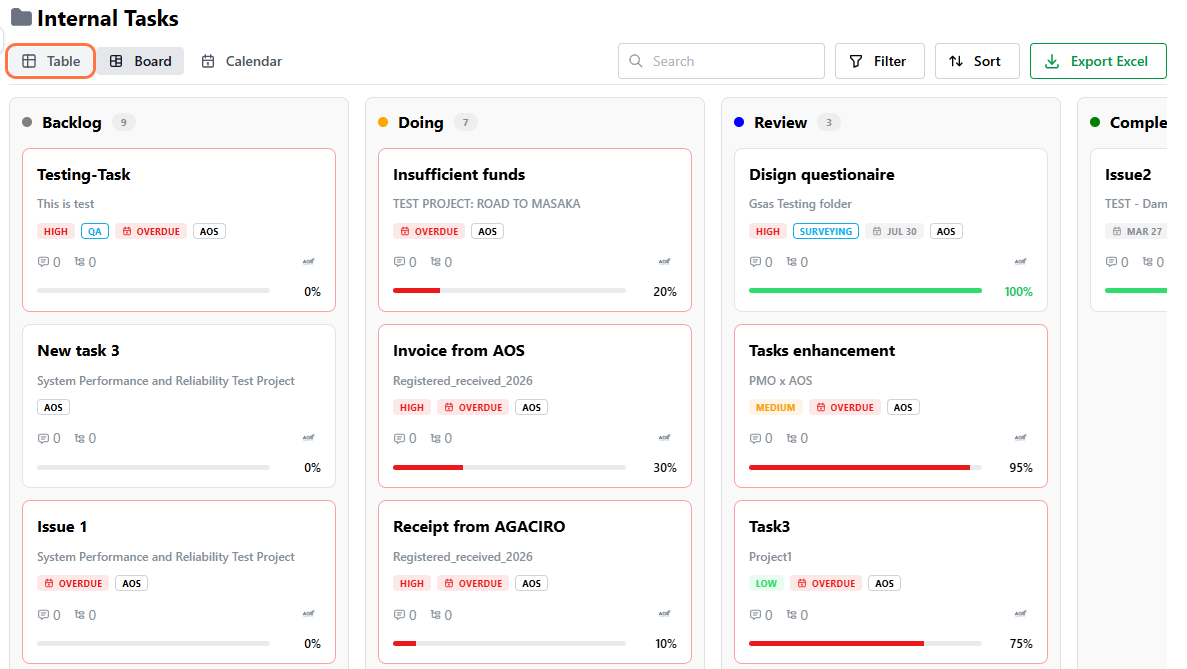
Click Table to track tasks you manage.
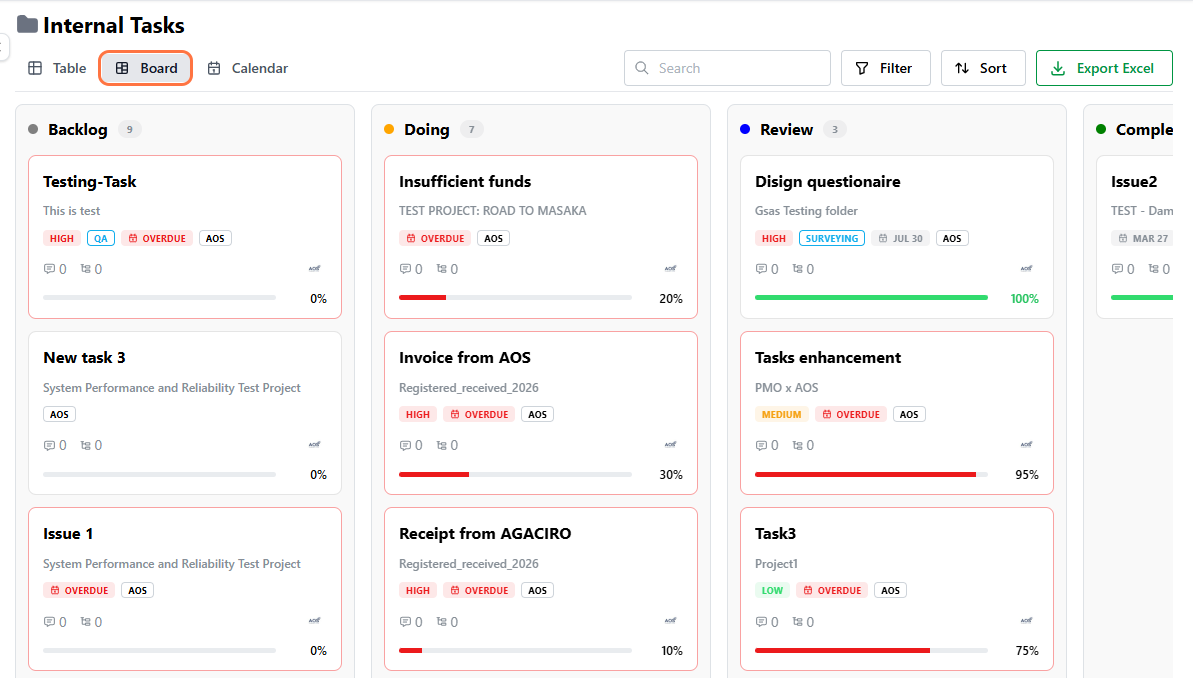
Click
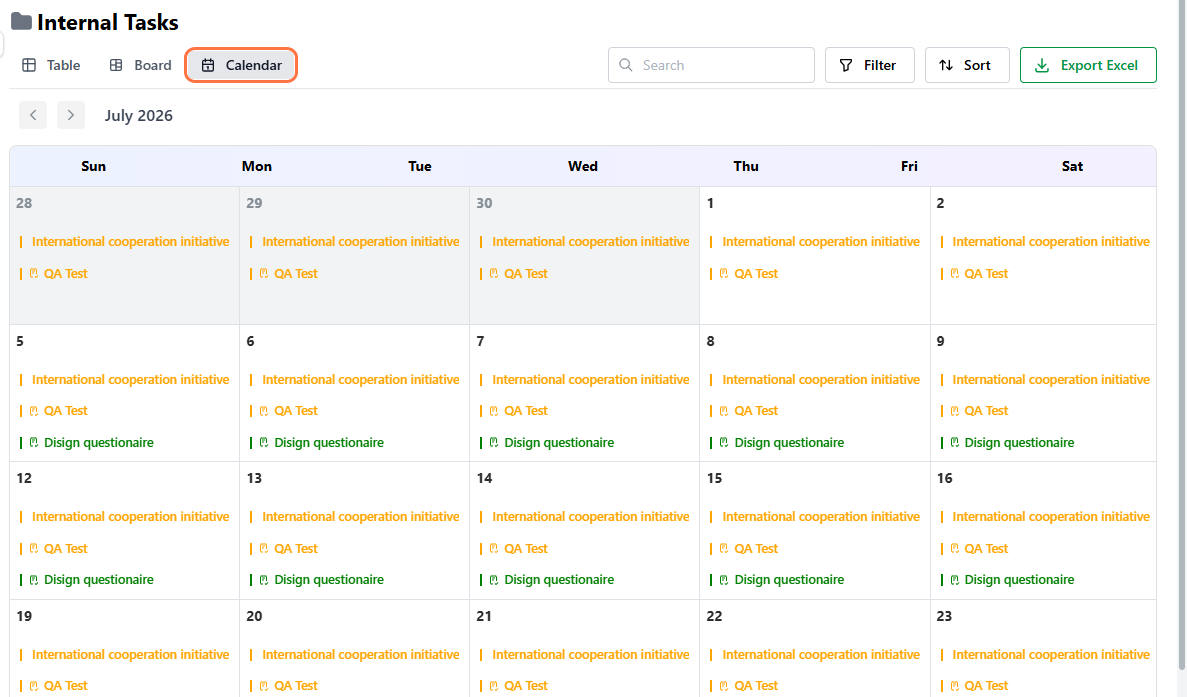
Reading the Dashboard
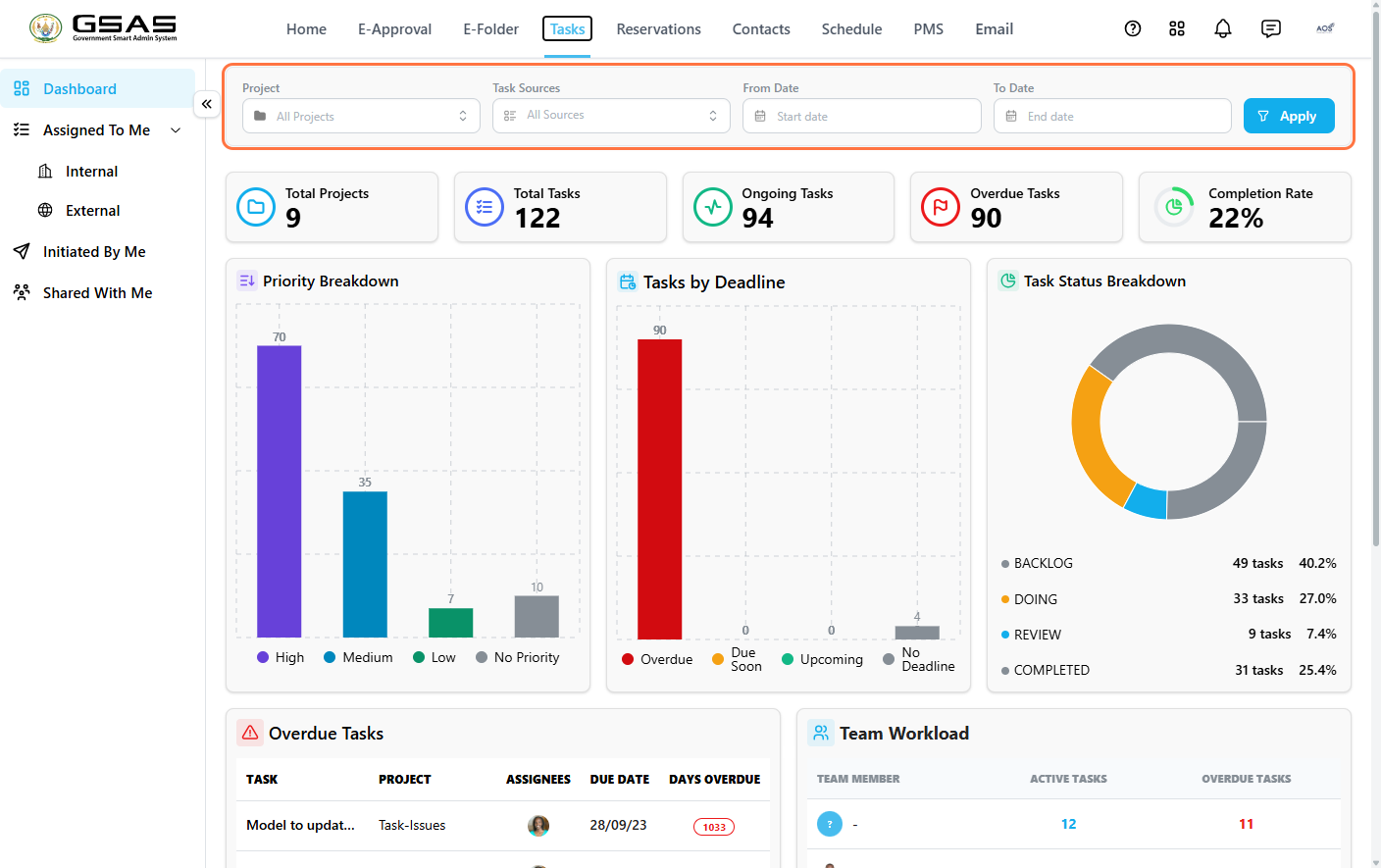
Click Dashboard in the sidebar to see a bird's-eye summary of everything at once. Use the filters at the top — Project, Task Sources, From Date, and To Date — to narrow the view, then click Apply.
Five summary cards give you the headline numbers at a glance:
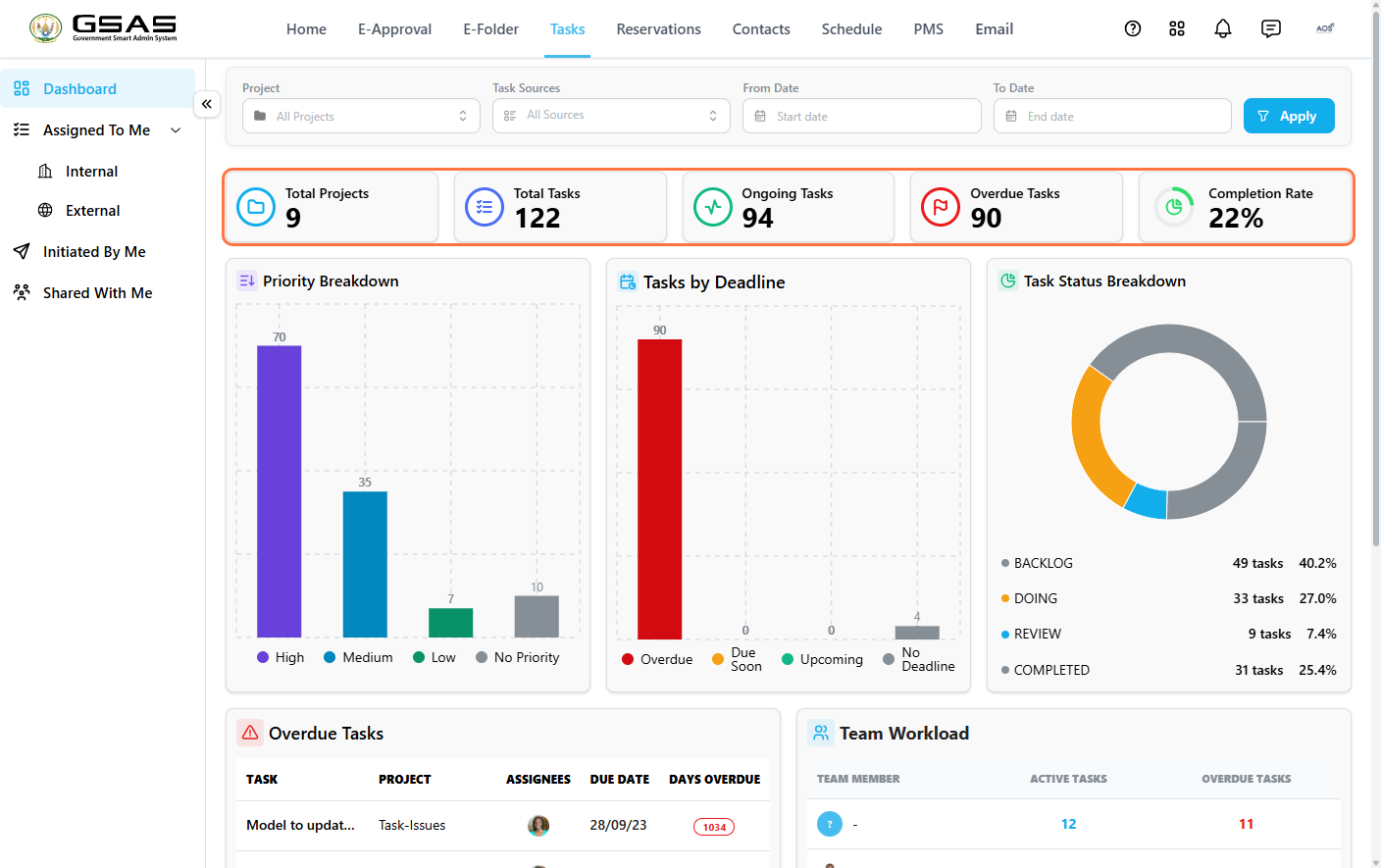
| Card | Shows |
|---|---|
| Total Projects | Number of active task projects. |
| Total Tasks | All tasks across those projects, assigned by you and to you. |
| Ongoing Tasks | Tasks currently in progress. |
| Overdue Tasks | Tasks past their due date. |
| Completion Rate | Percentage of tasks marked complete. |
Three charts break this down further:
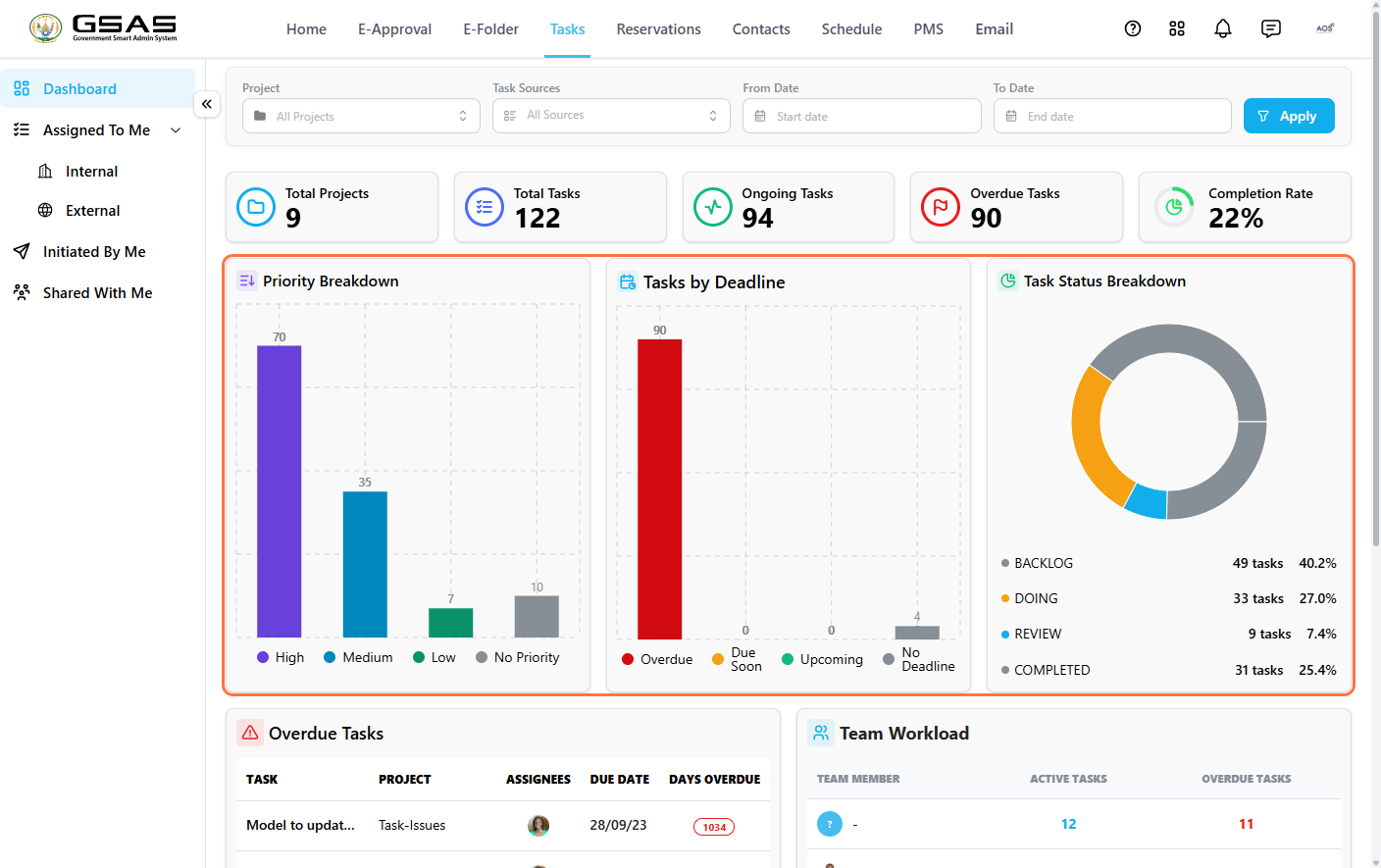
| Chart | Shows |
|---|---|
| Priority Breakdown | How tasks are distributed across High, Medium, Low, and No priority. |
| Tasks by Deadline | How many tasks are due, overdue, or have no deadline set. |
| Task Status Breakdown | The split between tasks based on status; Backlog, Doing, Review and Completed. |