Dynamic forms -Travel Clearance
Use this form to request official approval for international travel. The form is divided into five sections and is routed through a pre-defined approval line once submitted.
Step 1
Initiate request
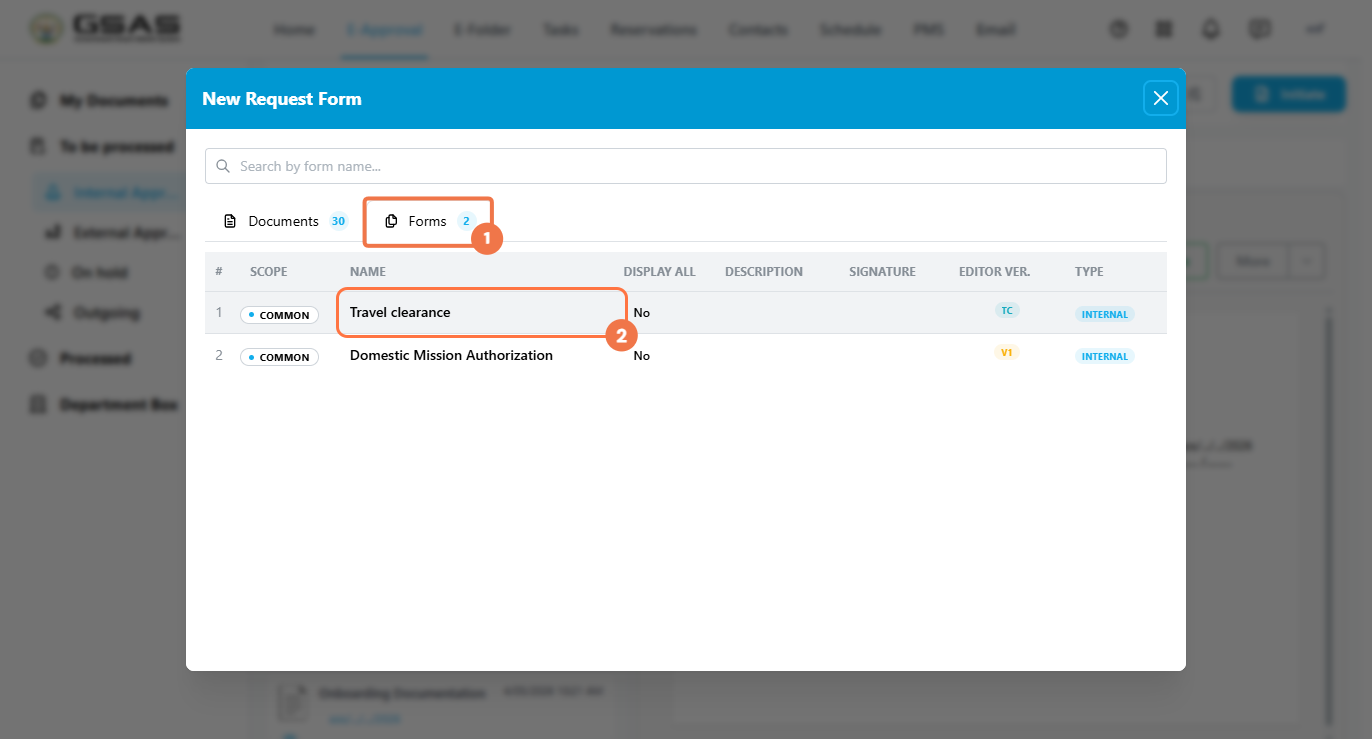
From the E-Approval module, click Initiate to open the New Request Form dialog. Select the Forms tab (1), then click Travel clearance (2) from the list.
Step 2
Fill in the Head section
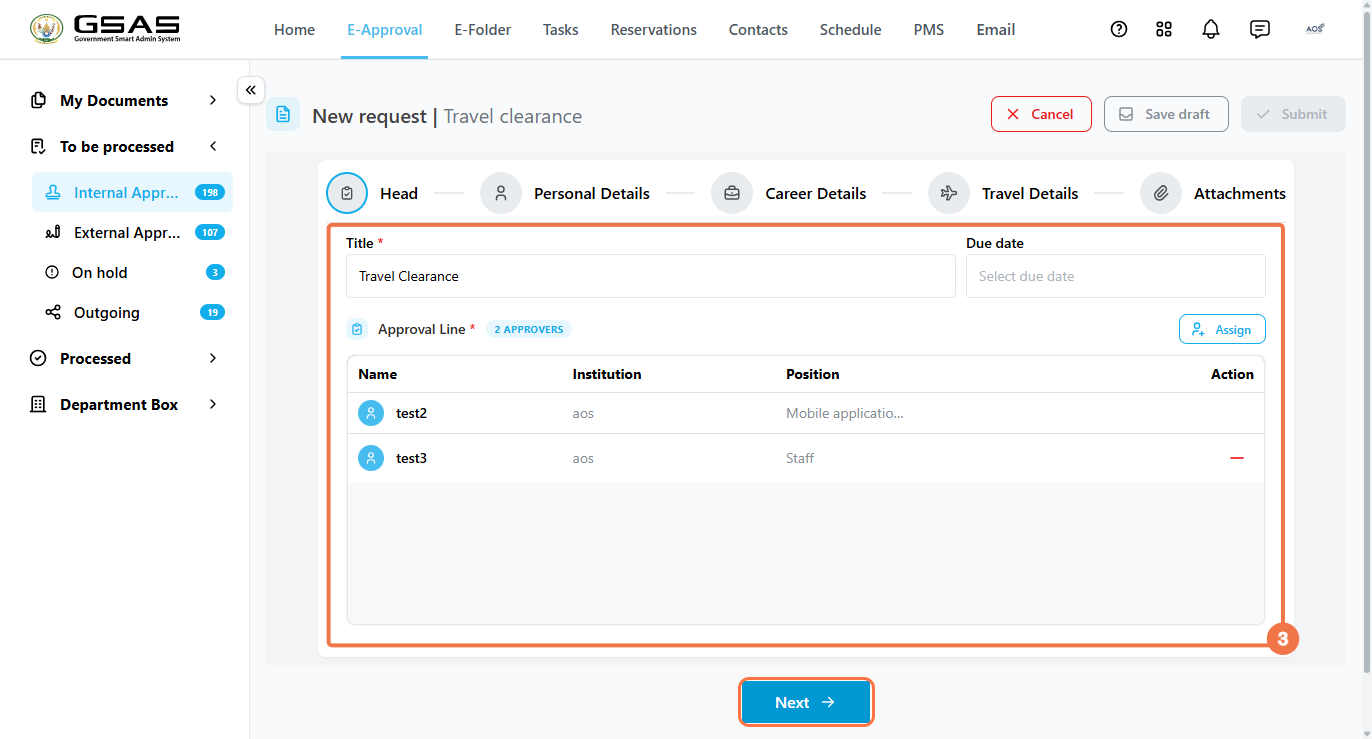
Enter a Title for the request and optionally set a Due Date. The Approval Line lists the approvers assigned to this request, click Assign to add approvers. Click Next when ready.
Step 3
Personal Details
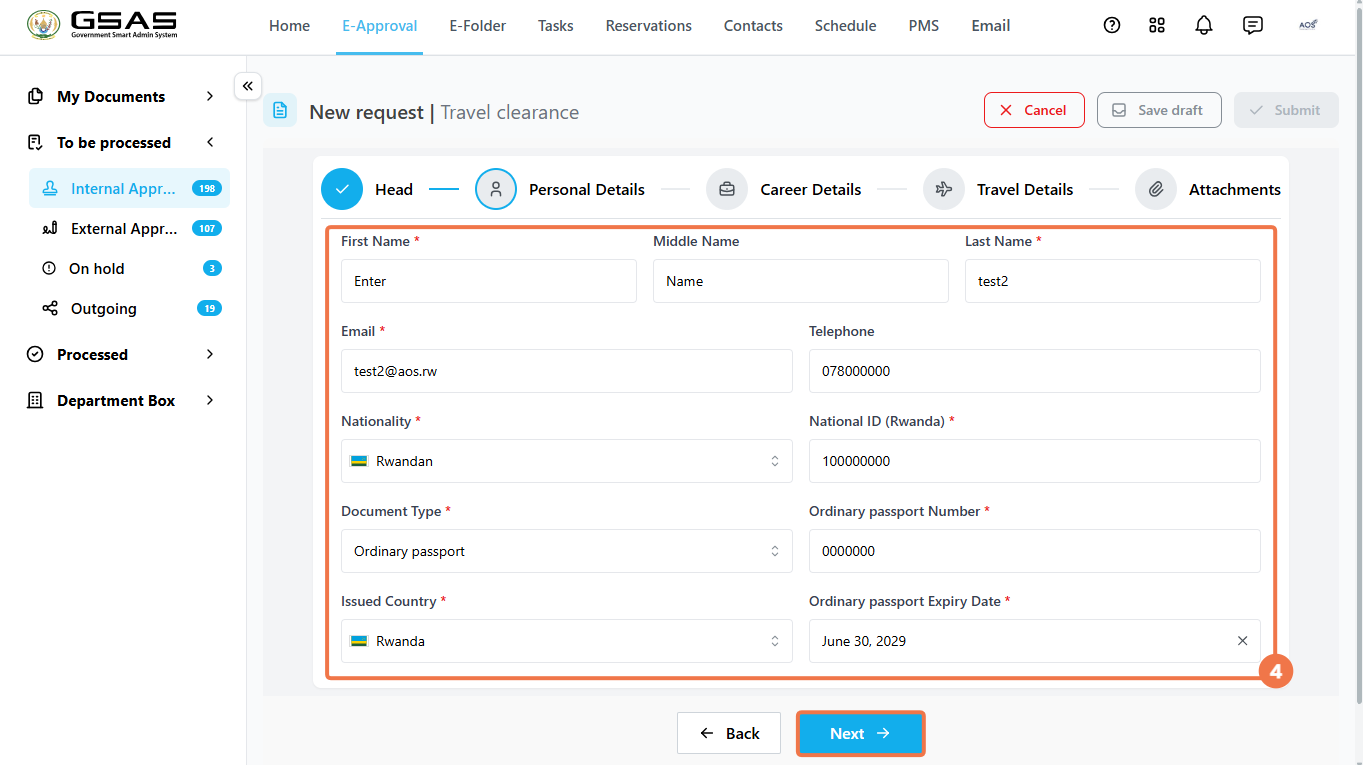
Fill in your First Name, Middle Name, and Last Name, along with your Email and Telephone.
Select your Nationality and enter your National ID.
Under document information, select your Document Type (e.g. Ordinary passport) and provide the Passport Number, Issued Country, and Expiry Date. Click Next to continue.
Step 4
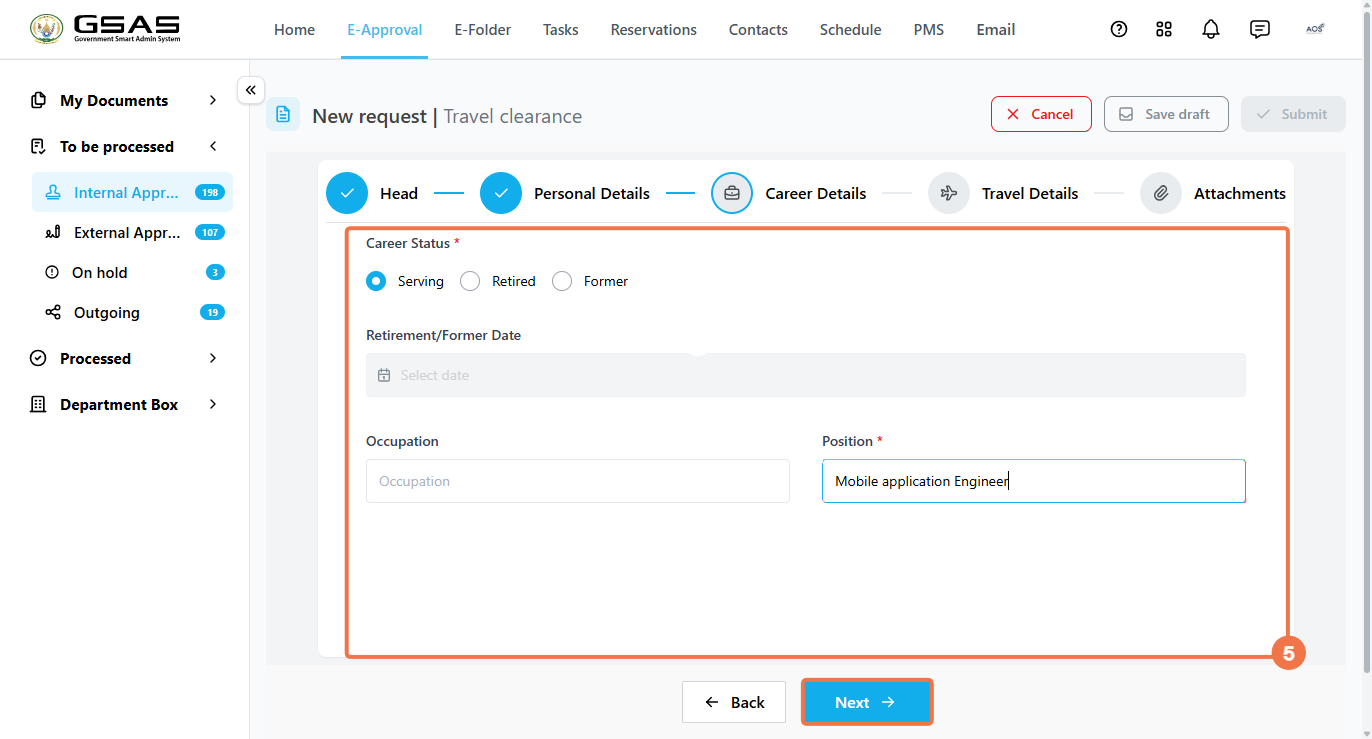
Career Details
Select your Career Status — Serving, Retired, or Former. If Retired or Former, provide the corresponding date in the Retirement/Former Date field.
Enter your Position (if it was not automatically filled in) and optionally your Occupation. Click Next to continue.
Step 5
Travel Details
Select the Destination Country and enter the Destination City. Set the Departure Date and Returning Date, then select a Travel Reason. The fields that follow will change depending on the reason selected. If you choose:
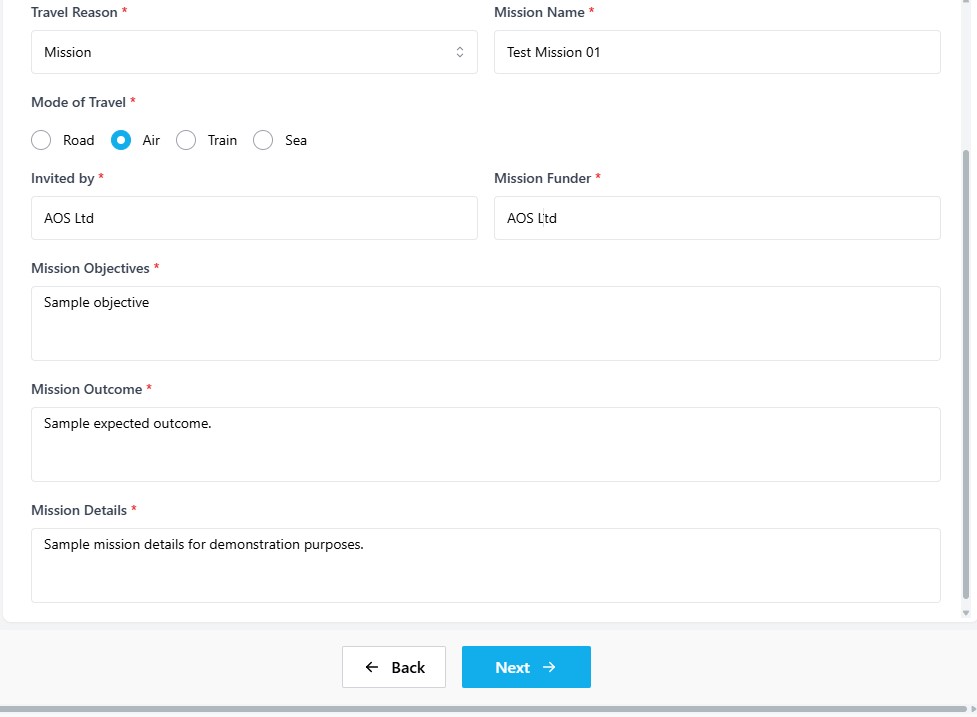
- Mission:
Enter the Mission Name and select the Mode of Travel. Provide the Invited by and Mission Funder, then fill in the Mission Objectives, Mission Outcome, and Mission Details.
2.
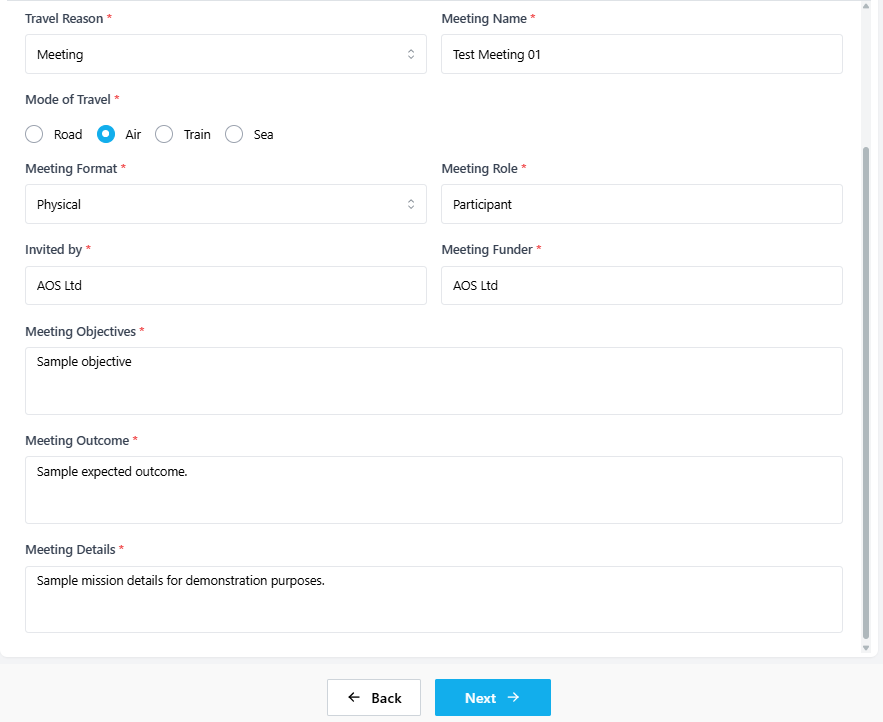
- Meeting:
Enter the Meeting Name and select the Mode of Travel. Select the Meeting Format, enter your Meeting Role, and provide the Invited by and Meeting Funder. Fill in the Meeting Objectives, Meeting Outcome, and Meeting Details.
3.
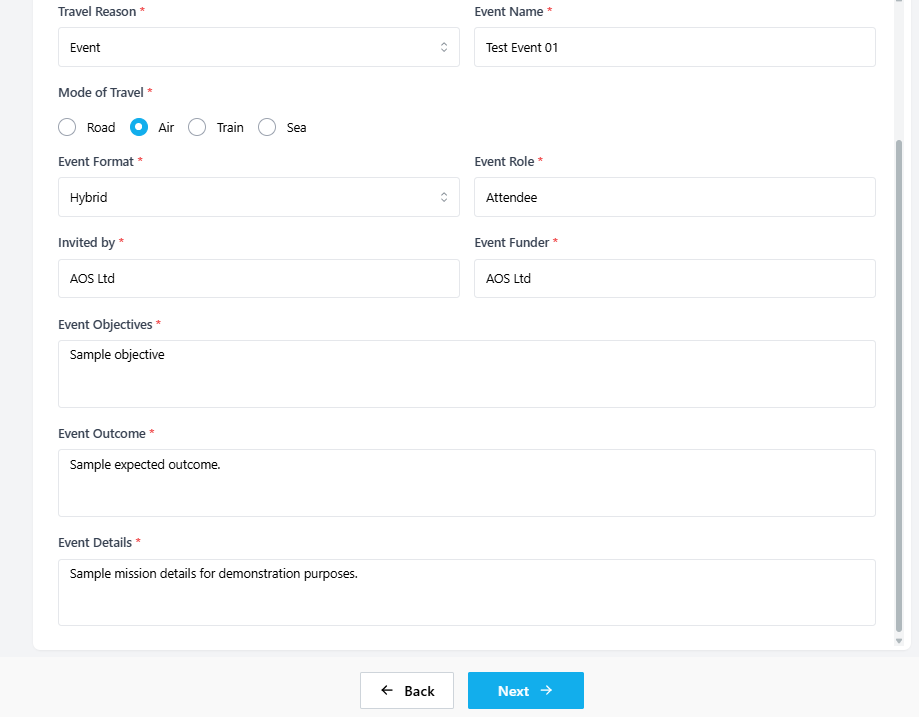
EventEvent:
Enter the Event Name and select the Mode of Travel. Select the Event Format, enter your Event Role, and provide the Invited by and Event Funder. Fill in the Event Objectives, Event Outcome, and Event Details.
4.
LeaveLeave:
Select the Mode of Travel (Road, Air, Train, or Sea) and enter the Leave Details describing the purpose of the trip. The Leave Name field is not required for this option.
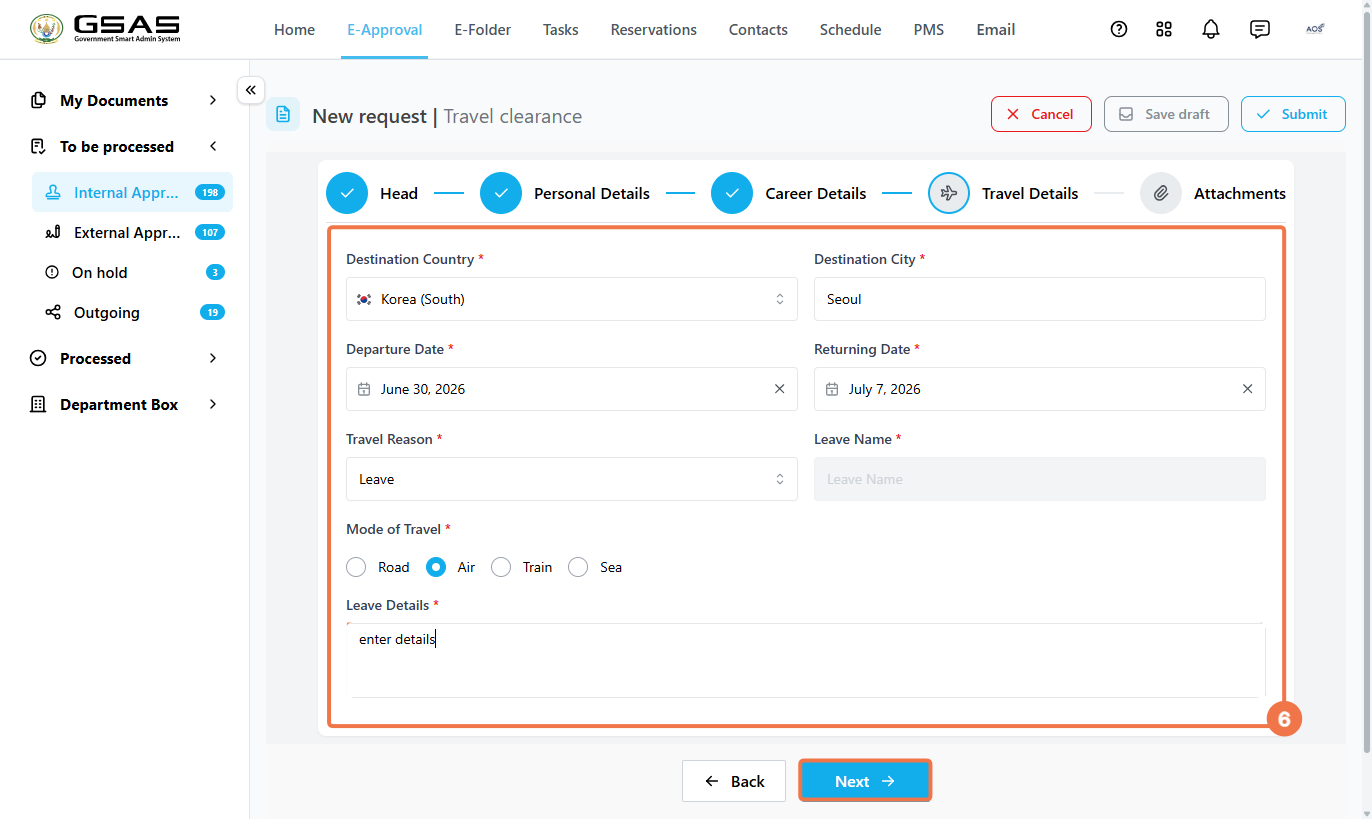
Click Next to proceed once all fields are completed.
Step 6
Attachments
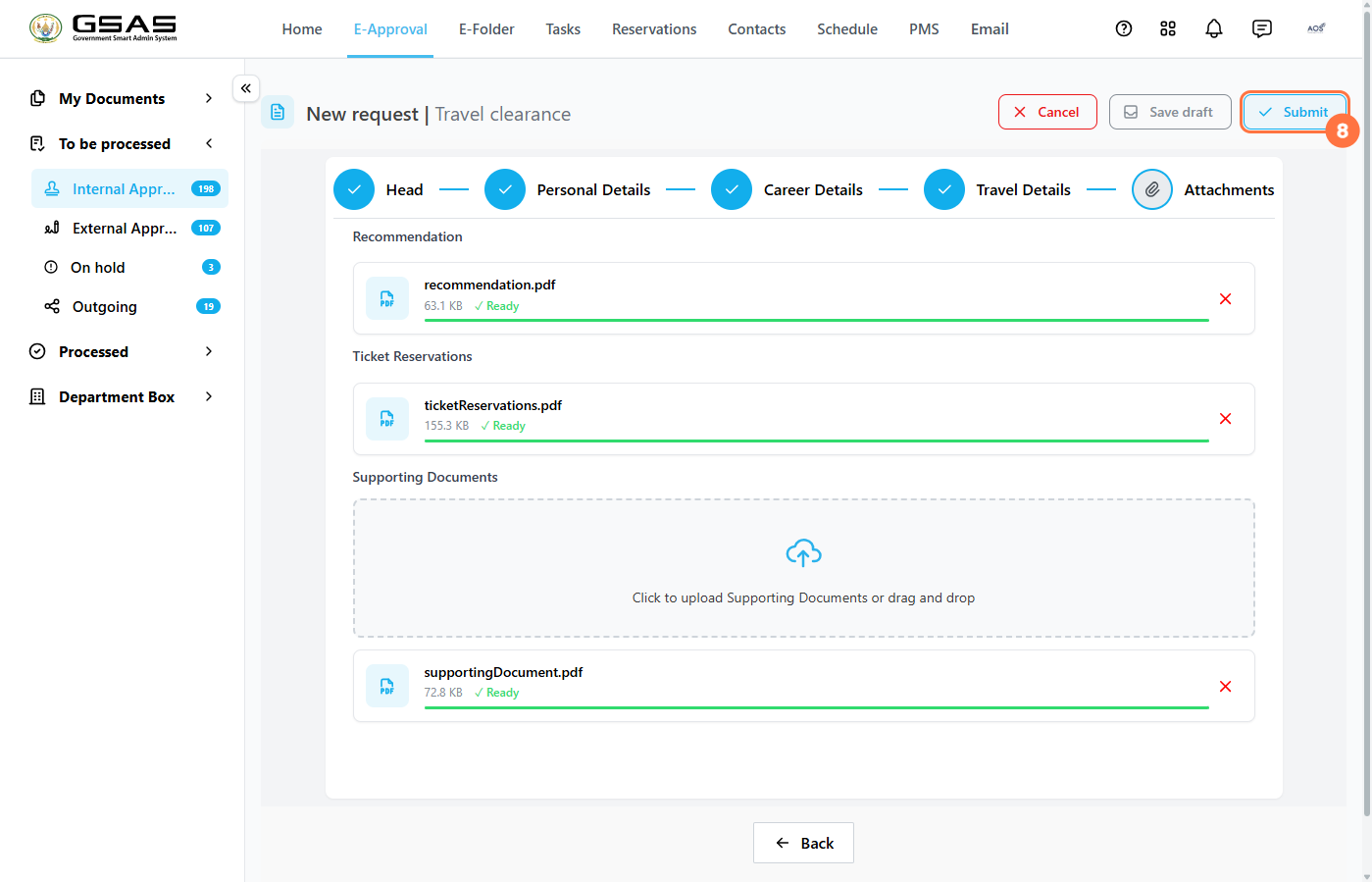
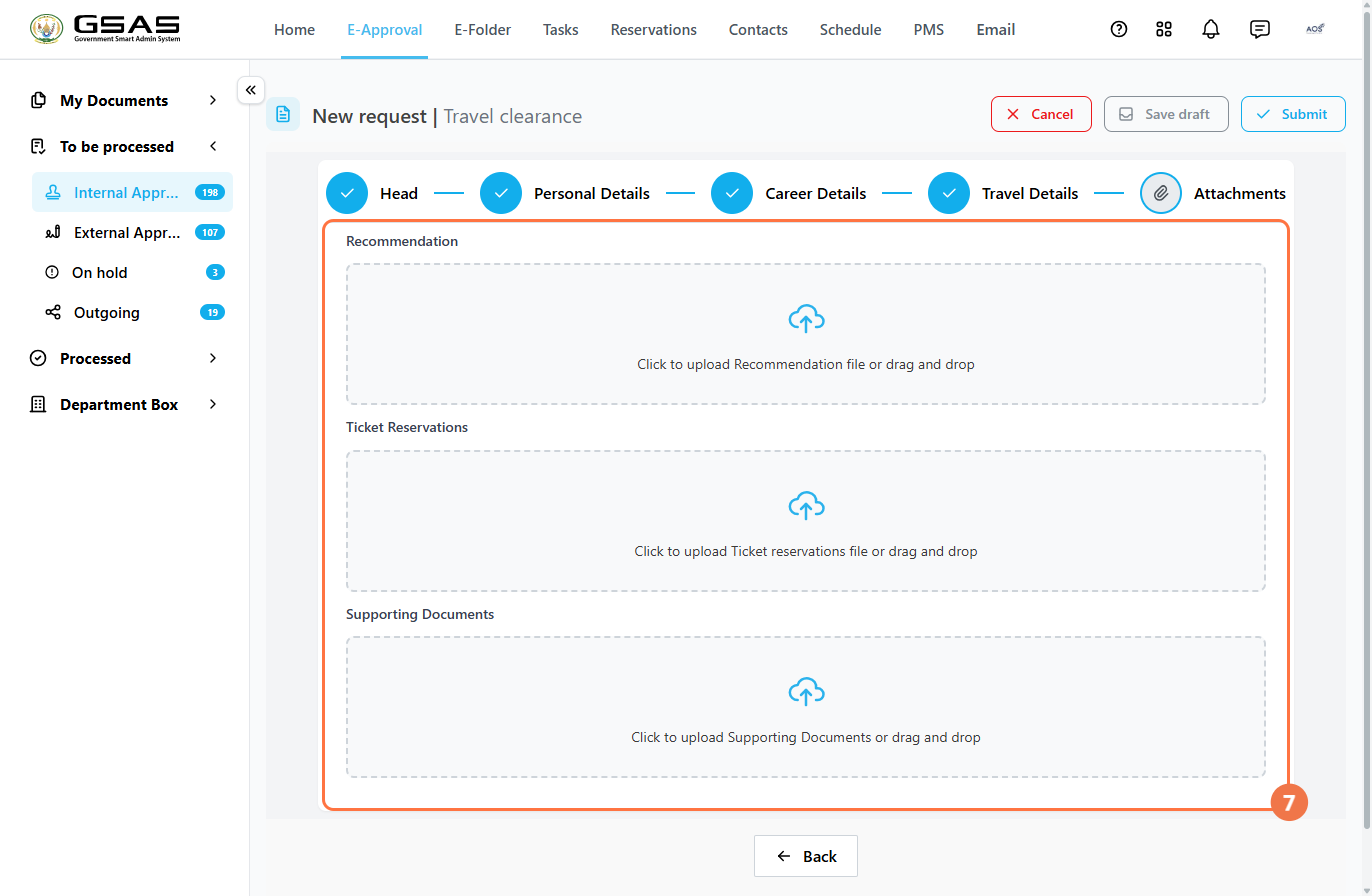
Attach any relevant documents to support your request. All attachment fields are optional. Upload files by clicking the upload area or dragging and dropping. Each file will display a green Ready status once successfully uploaded.
- Recommendation — upload a single recommendation letter.
- Ticket Reservations — upload a single flight or travel booking confirmation.
- Supporting Documents — upload one or more additional files relevant to the request.
Step 7
Submit your Request
Once all sections are complete, click Submit in the top right corner. A confirmation dialog will appear, click Submit again to confirm and send the request for approval.