Dynamic forms
Step 1 — Initiate
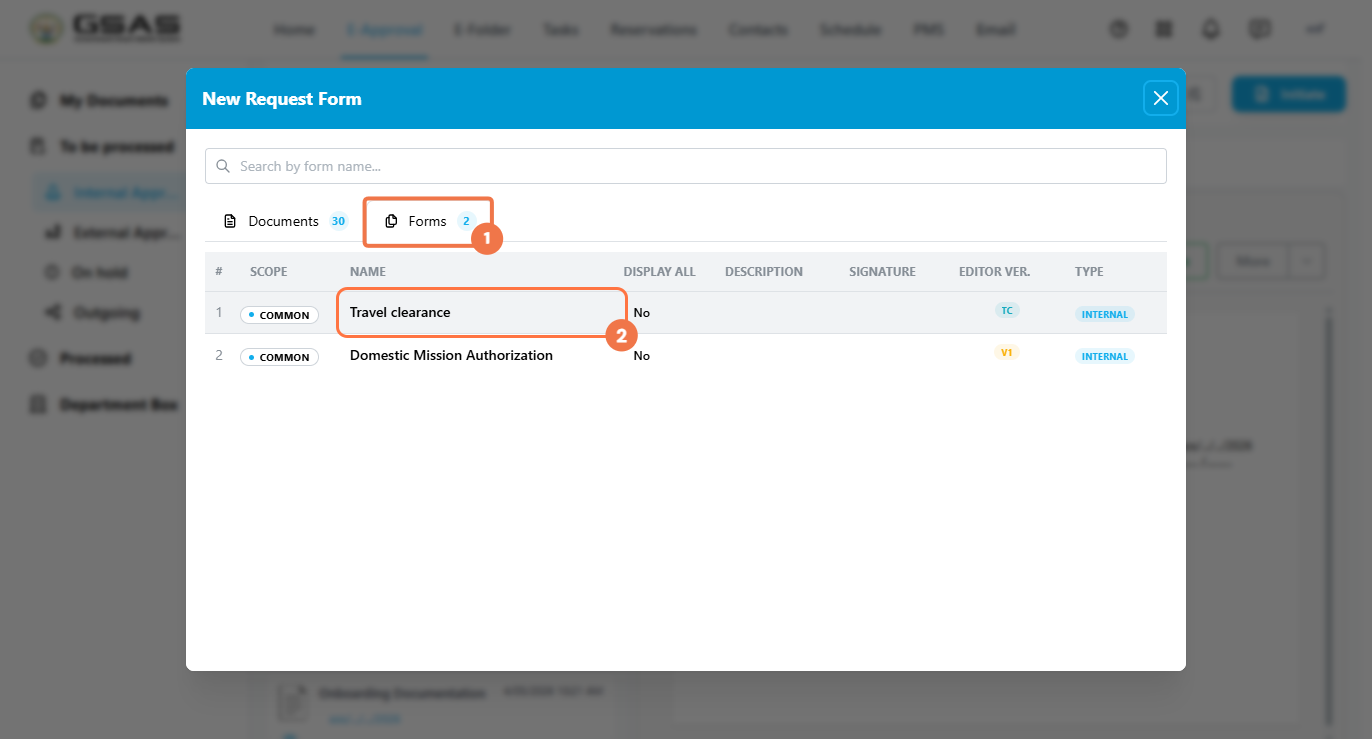
- From the E-Approval module, click + Initiate to open the New Request Form dialog.
- Click the Forms tab to view available form templates.
- Select Travel clearance.
Step 2 — Fill in the Head section
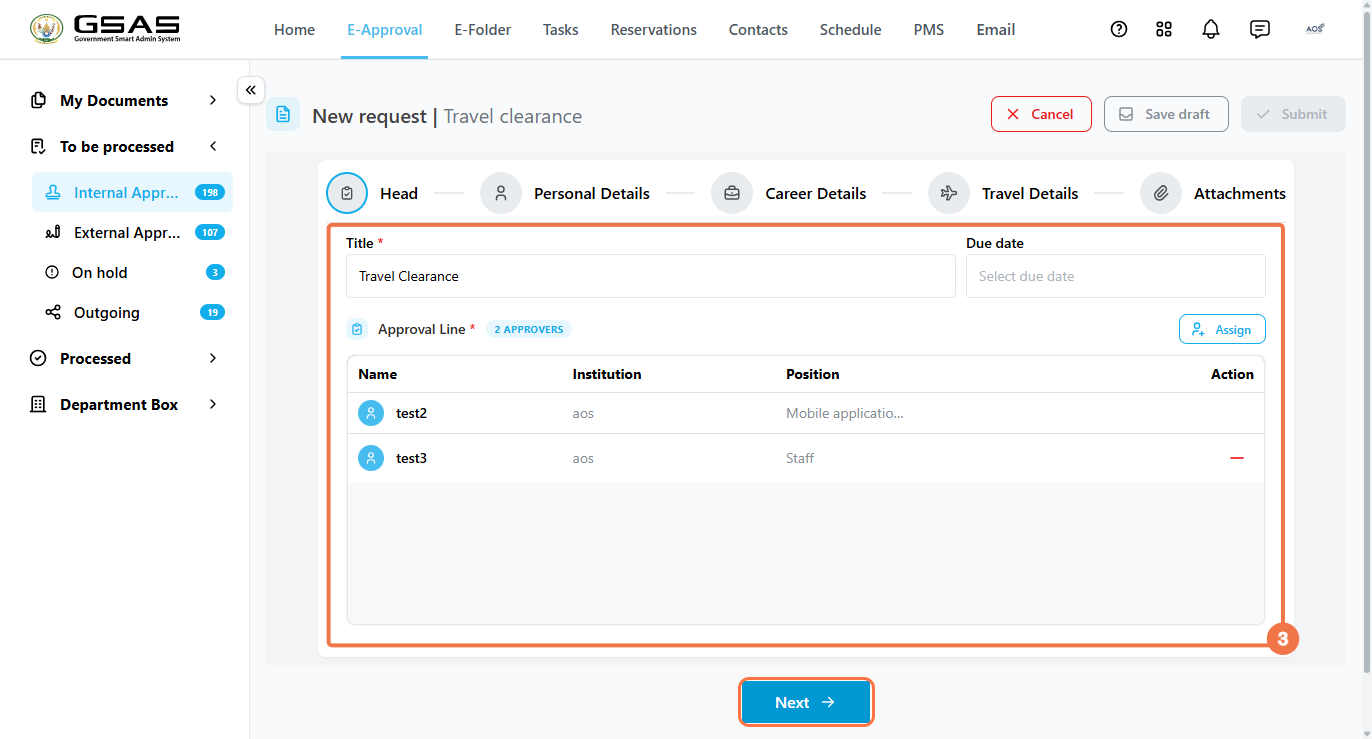
- Enter a Title for the request.
- Optionally set a Due Date.
- Review or modify the Approval Line — click Assign to change approvers.
- Click Next to proceed.
Step 3 — Fill in Personal Details
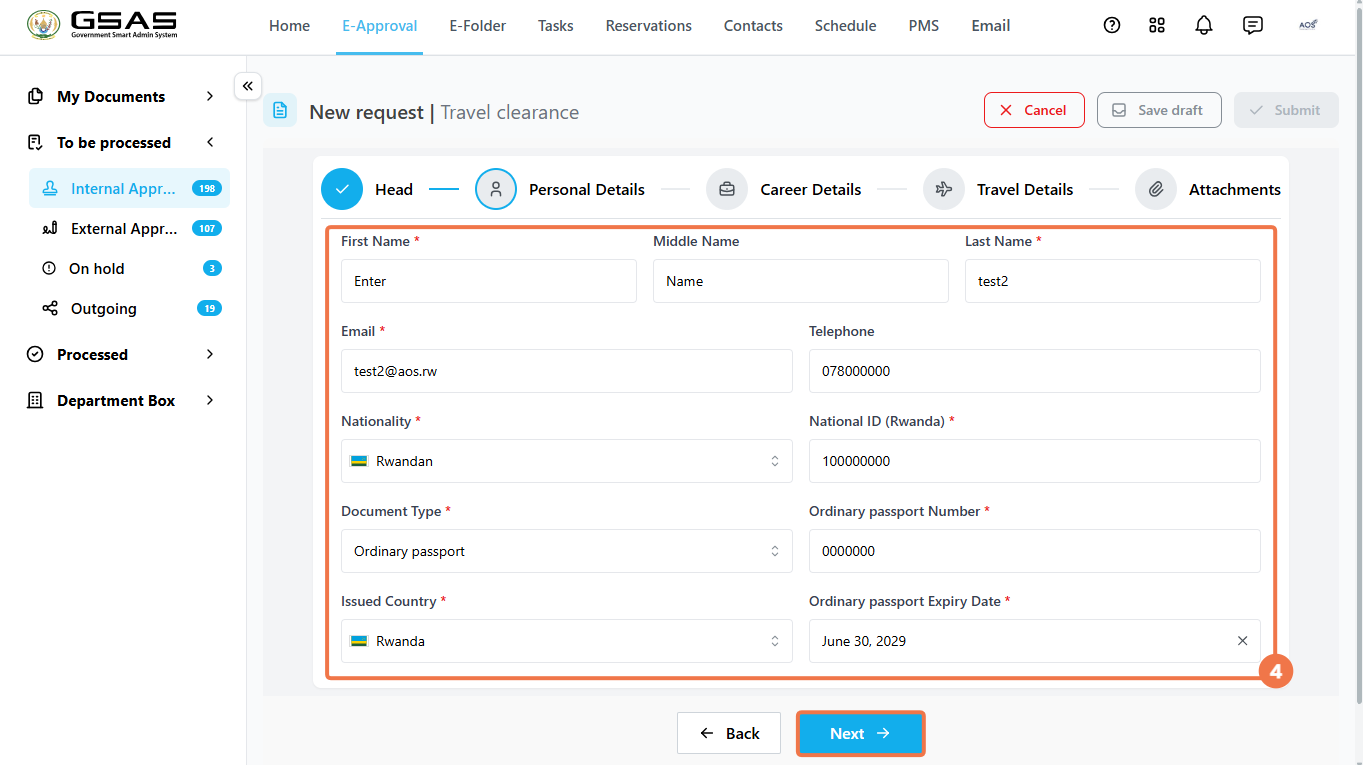
- First Name, Middle Name, and Last Name
- Email and Telephone
- Nationality and National ID
- Document Type and Passport Number
- Issued Country and Passport Expiry Date
- Click Next to continue.
Step 4 — Fill in Career Details
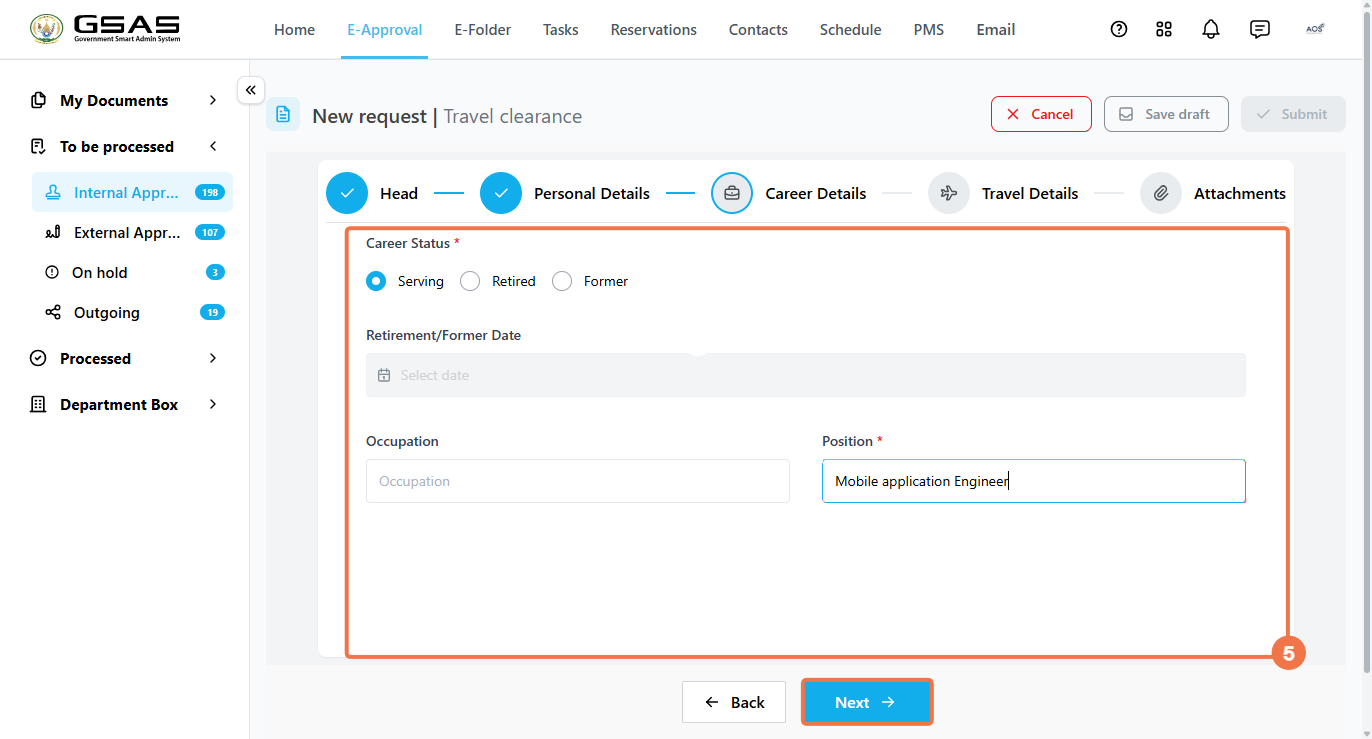
- Select your Career Status: Serving, Retired, or Former. If Retired or Former, provide the Retirement/Former Date.
- Optionally enter your Occupation.
- Enter your Position (required).
- Click Next to continue.
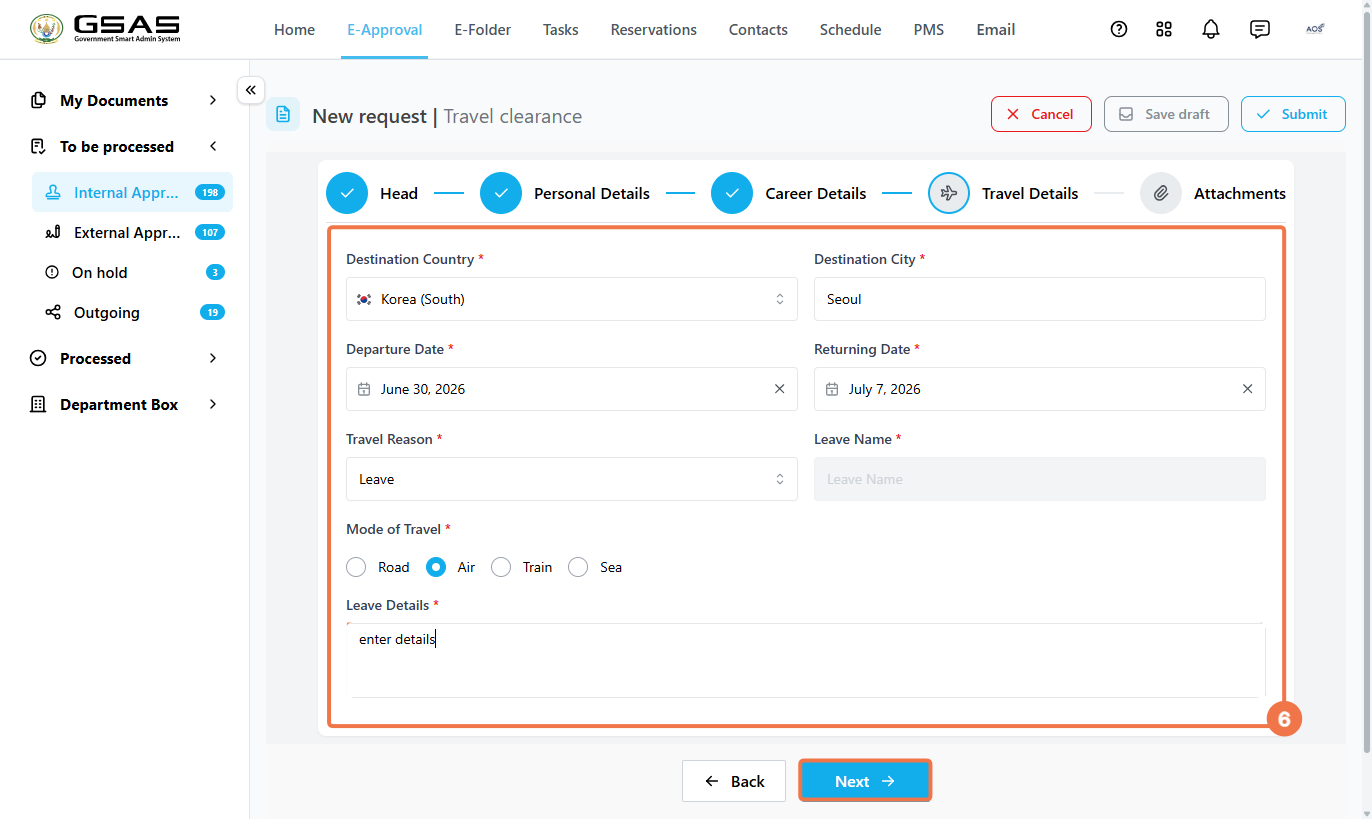
Step 5 — Fill in Travel Details
- Destination Country and Destination City
- Departure Date and Returning Date
- Travel Reason — if Leave is selected, fill in the Leave Name field.
- Mode of Travel: Road, Air, Train, or Sea.
- Leave Details — describe the purpose of travel.
- Click Next to proceed.
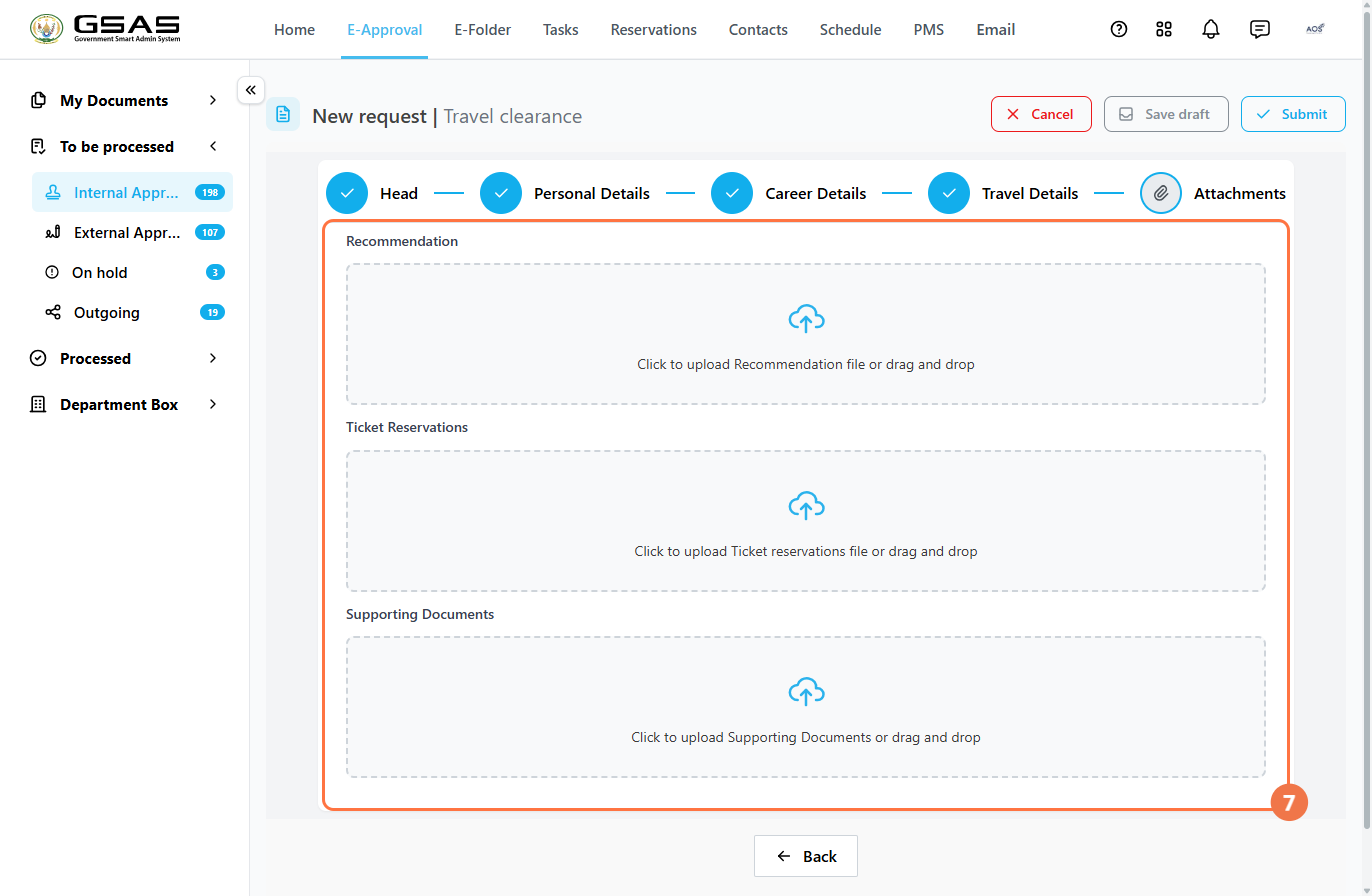
Step 6 — Upload Attachments
- Upload files by clicking each area or dragging and dropping:
- Recommendation — recommendation letter.
- Ticket Reservations — flight or travel booking.
- Supporting Documents — any additional files.
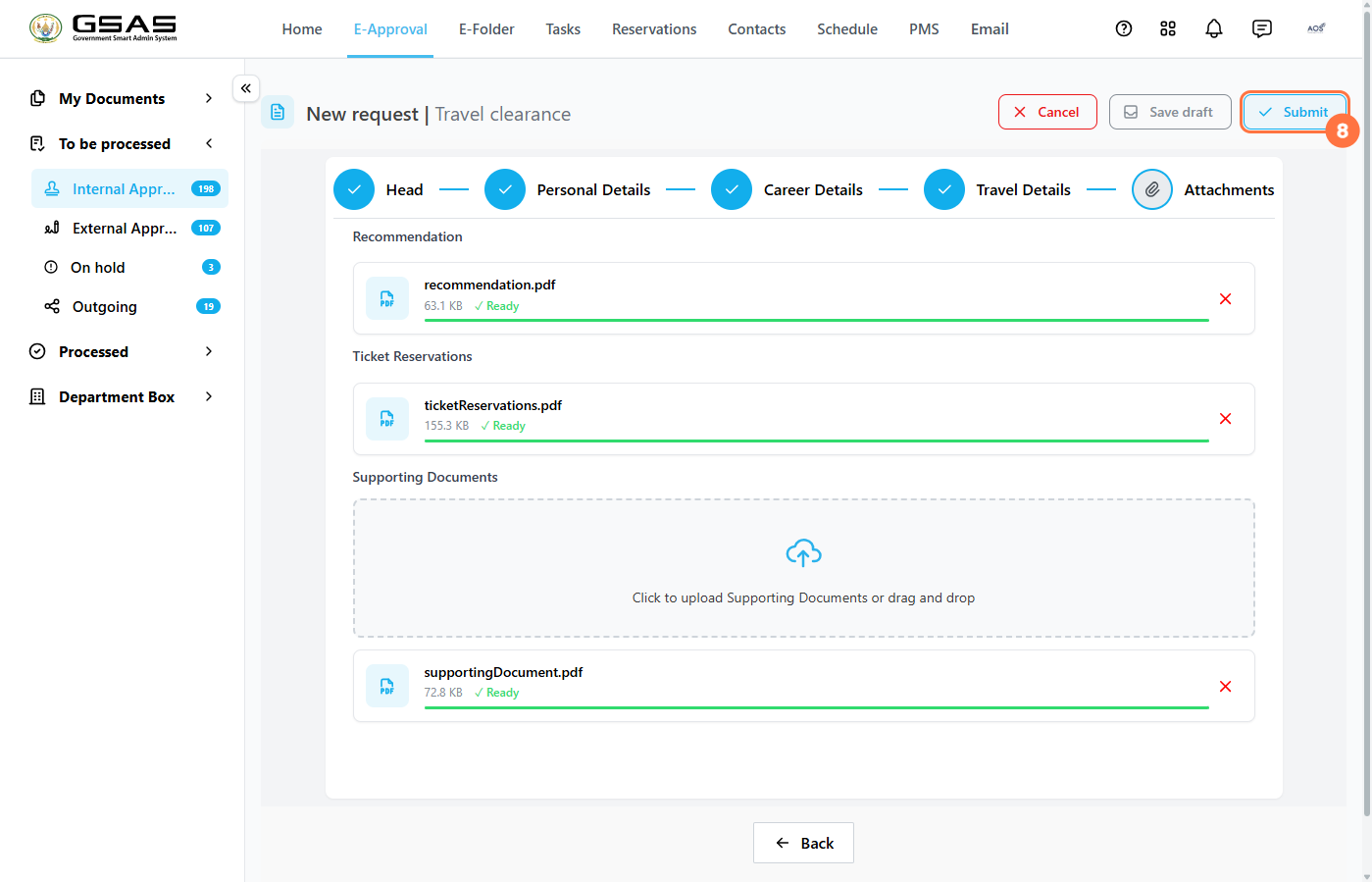
- Each file will show a green Ready status when successfully uploaded.
Step 7 — Submit your request
- Once all sections are complete, click Submit in the top right corner.
- A confirmation dialog will appear — click Submit again to confirm.