Invite to sign on Received PDF documents
This sectionfeature outlinesallows the stepsyou to invite internal users to sign a PDF documentsdocument usingdirectly within GSAS.
Step 1
Open the Invite-to-Sign feature in the Government Smart Administration System.document
Key Steps
Step 1: Access e-Approval
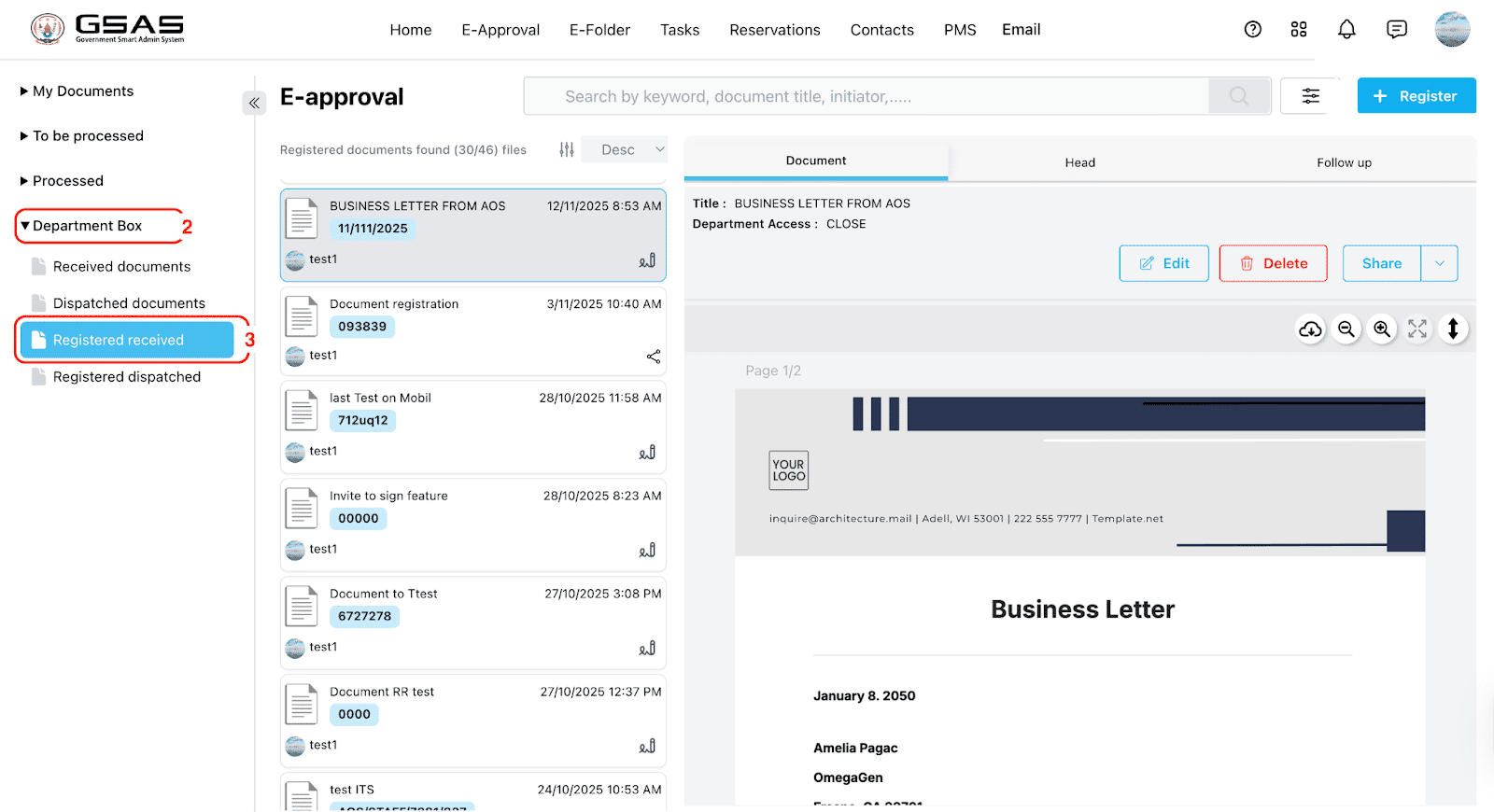
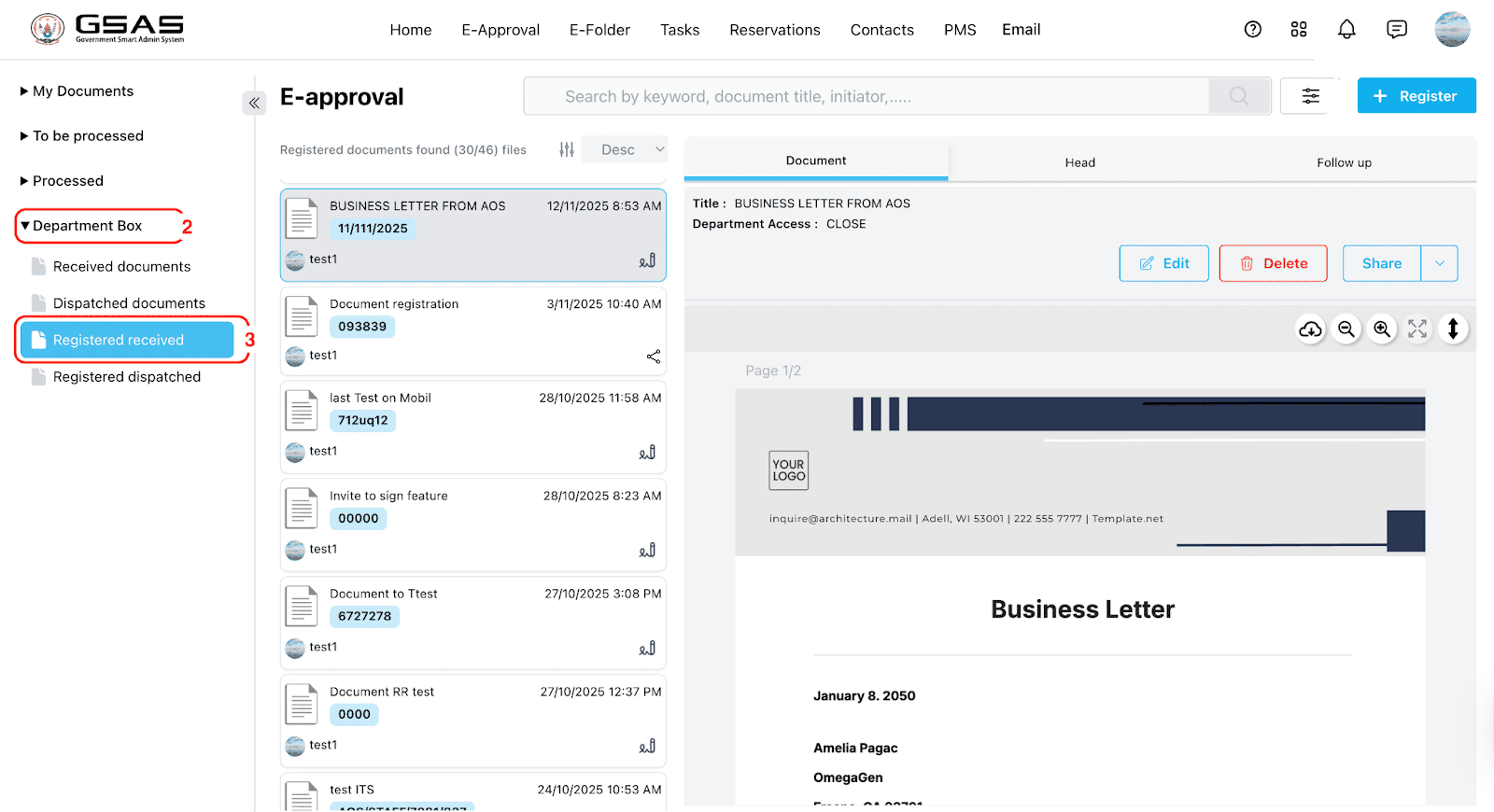
Gowant to thesend "Departmentfor box" folder
Go to "Registered Received" folder
signing.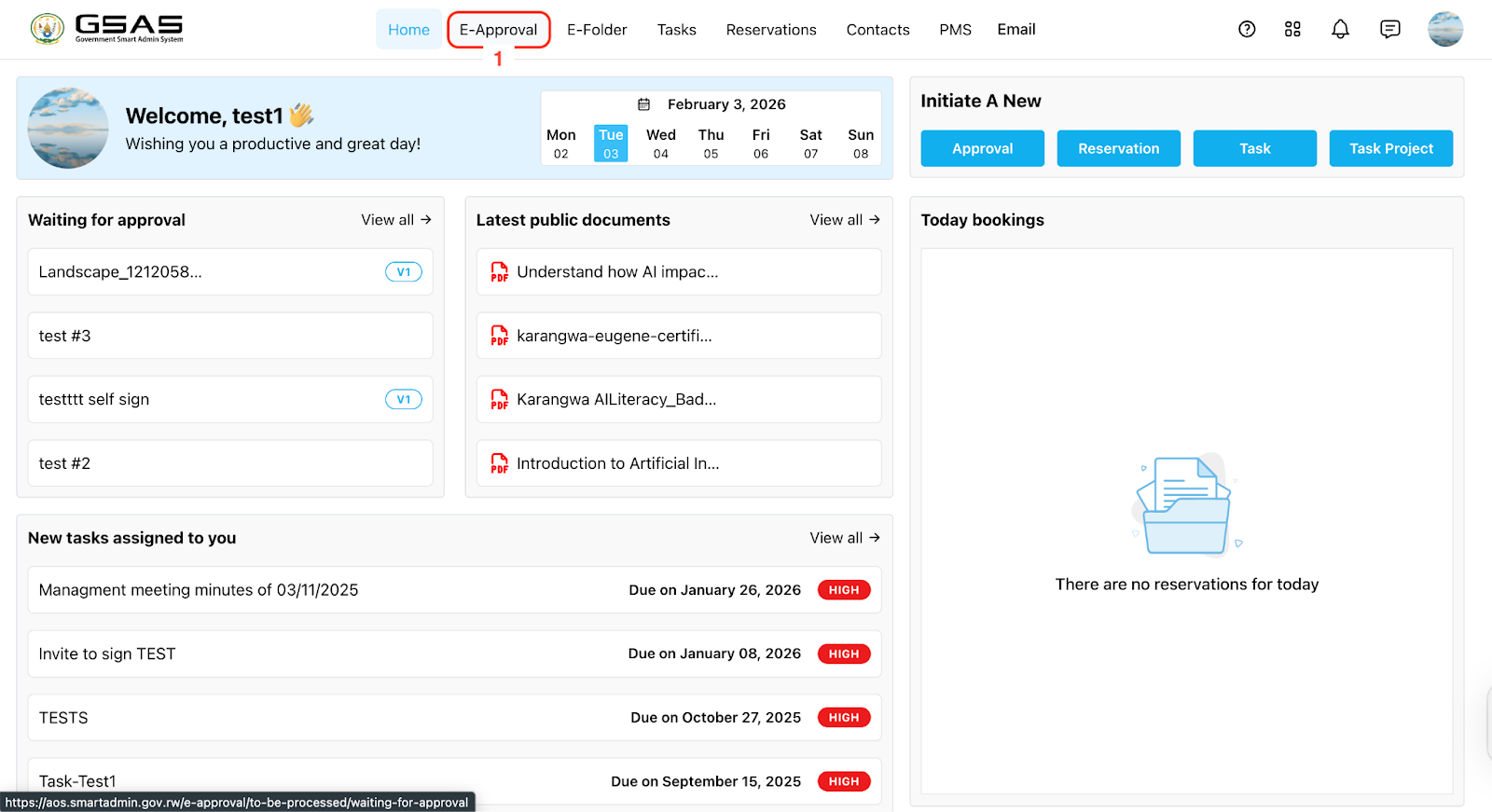
Step 2
Select 'Invite to sign'.
dropdown.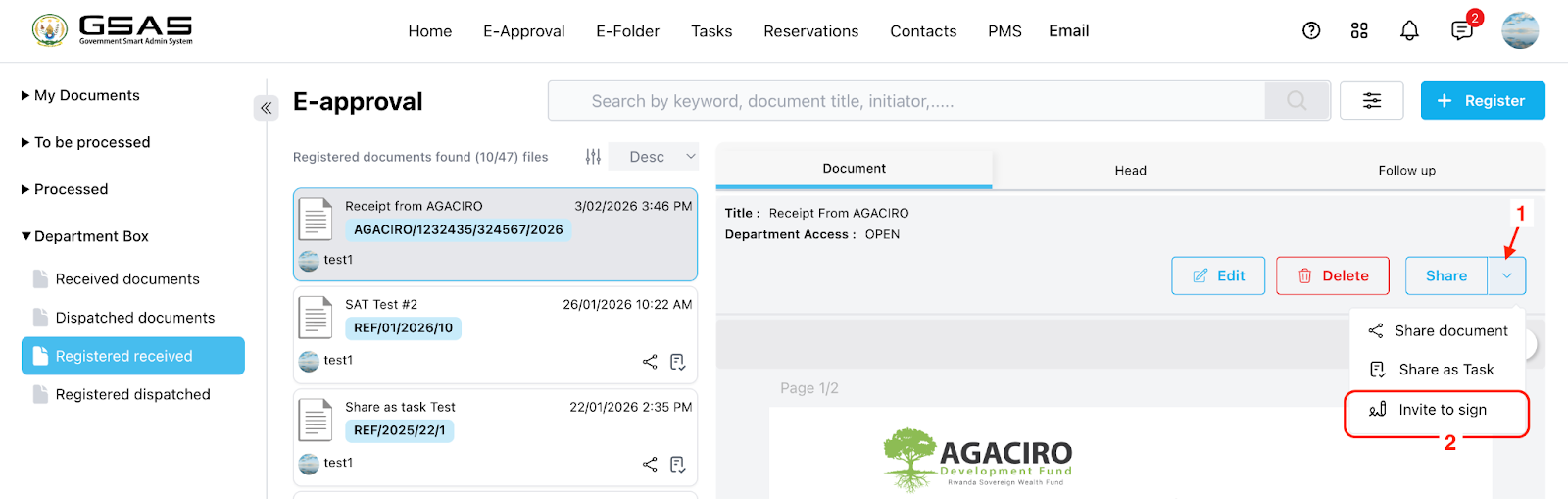
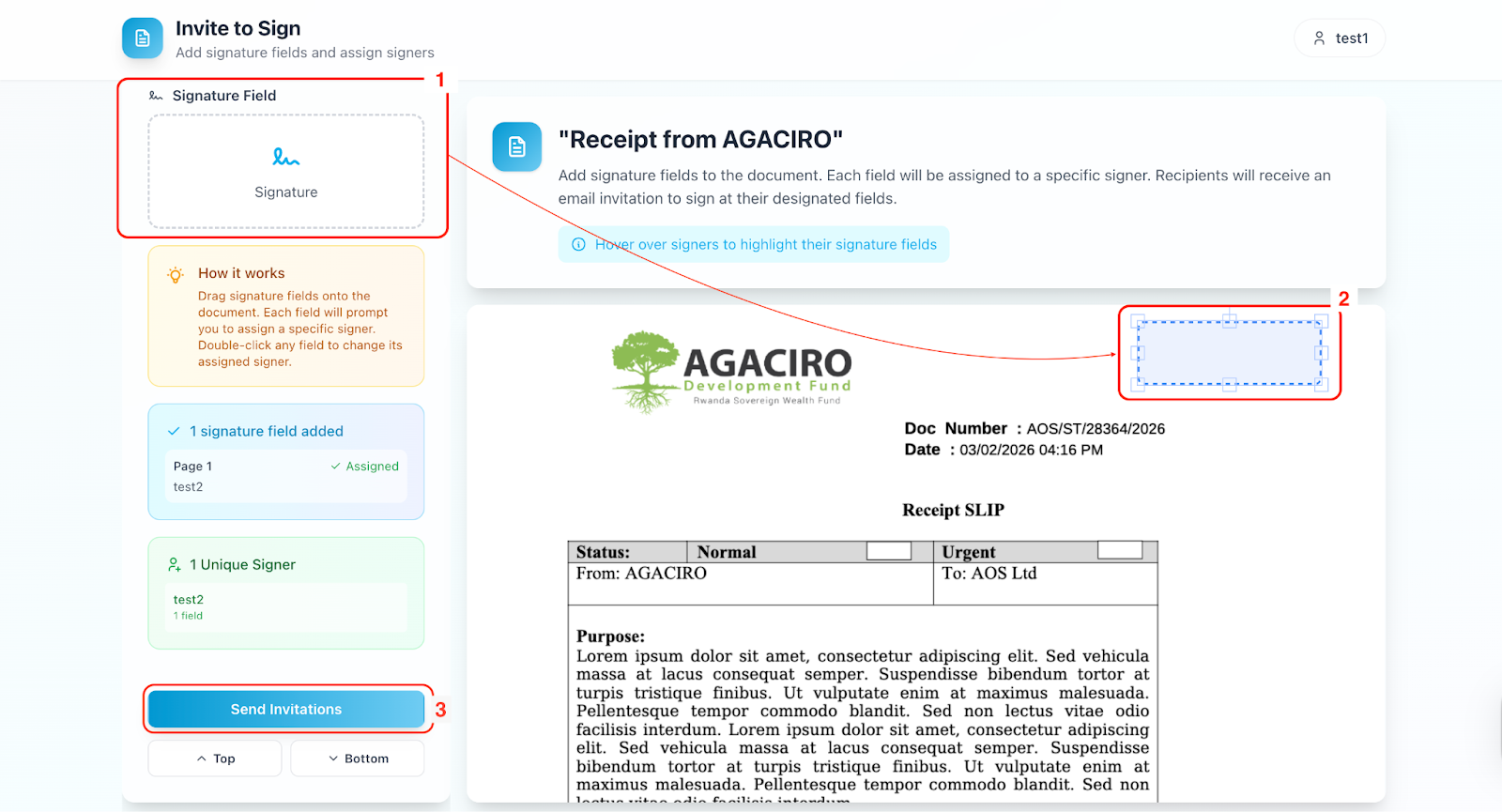
Step 5: Assigning Signers/Approvers3
Assign
signersDragSearch for the user(s) who need to sign the document, then drag and drop the signature field to the desired location inon the documentdocument. to select the user(s) who need to sign it ( by searching for the user's name).
Adjust the signature fields as necessary.
ClickSend on 'send invitation'Invitation to notify the selected users.
Step
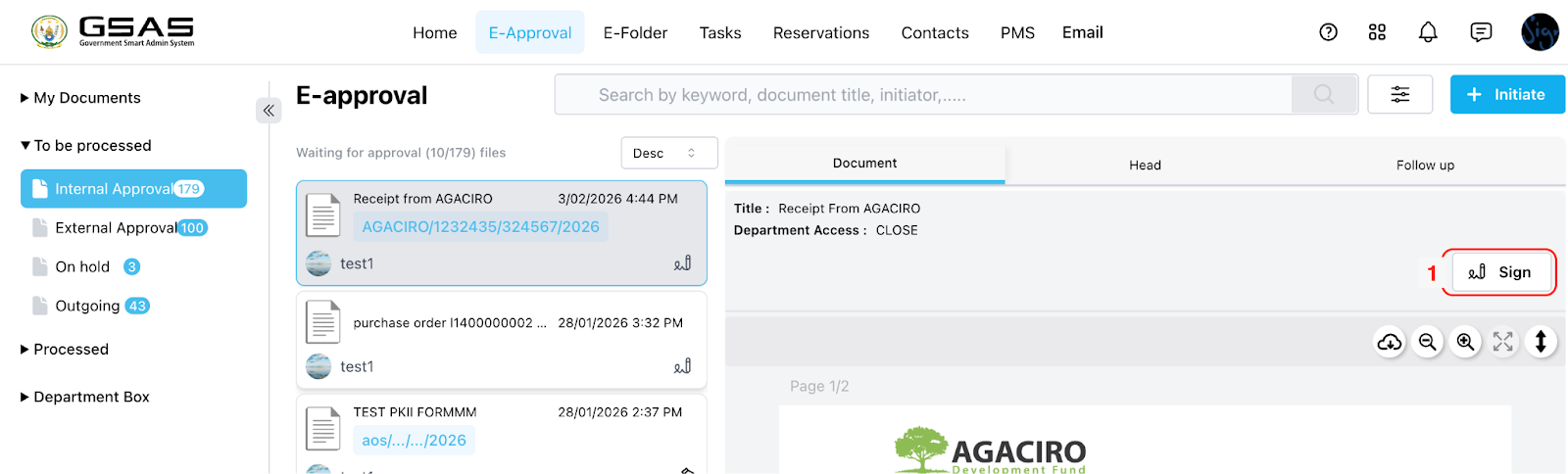
Step 6: Signing the Documentdocument
Selectcan open it and click Sign. In the document to be signed, then click ‘Sign.’
Newlynewly opened tab, ‘Dragdrag &and Drop’drop yourtheir signature to the highlighted field.
- Other
The user can also drag & drop other fields,fields such as date, name, or customtext.text can also be added. Once done, click Complete.

ClickStep 'complete' after signing.
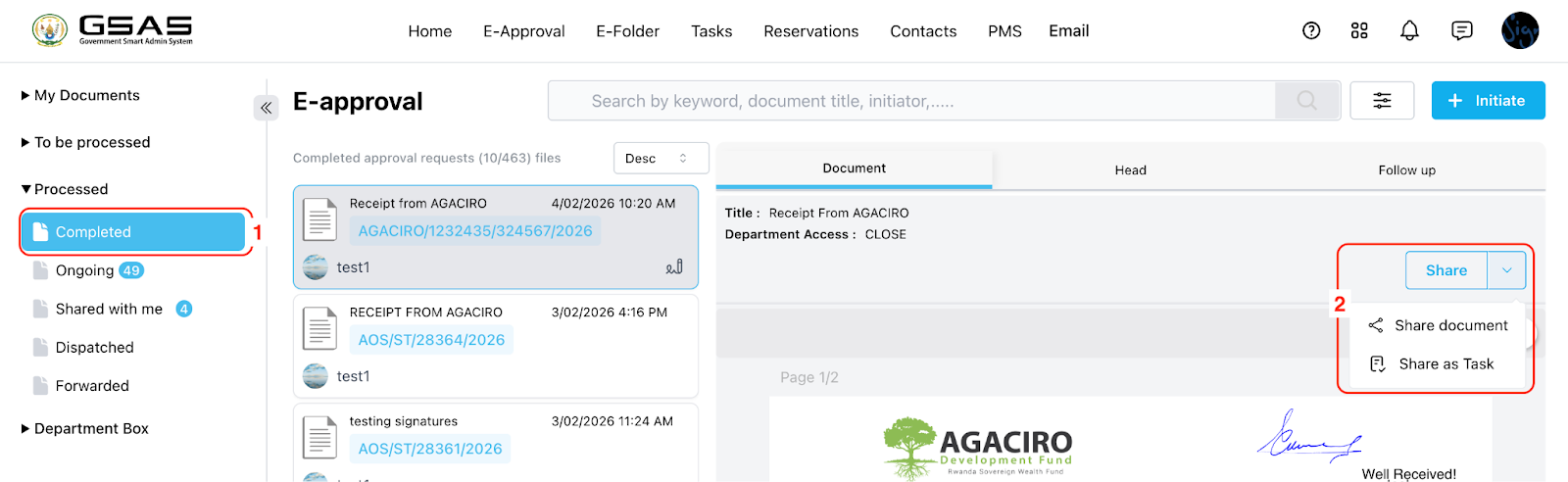
Step 7: Access Completedthe Documentcompleted document
Once all signatures arehave been collected, the document is marked as complete.
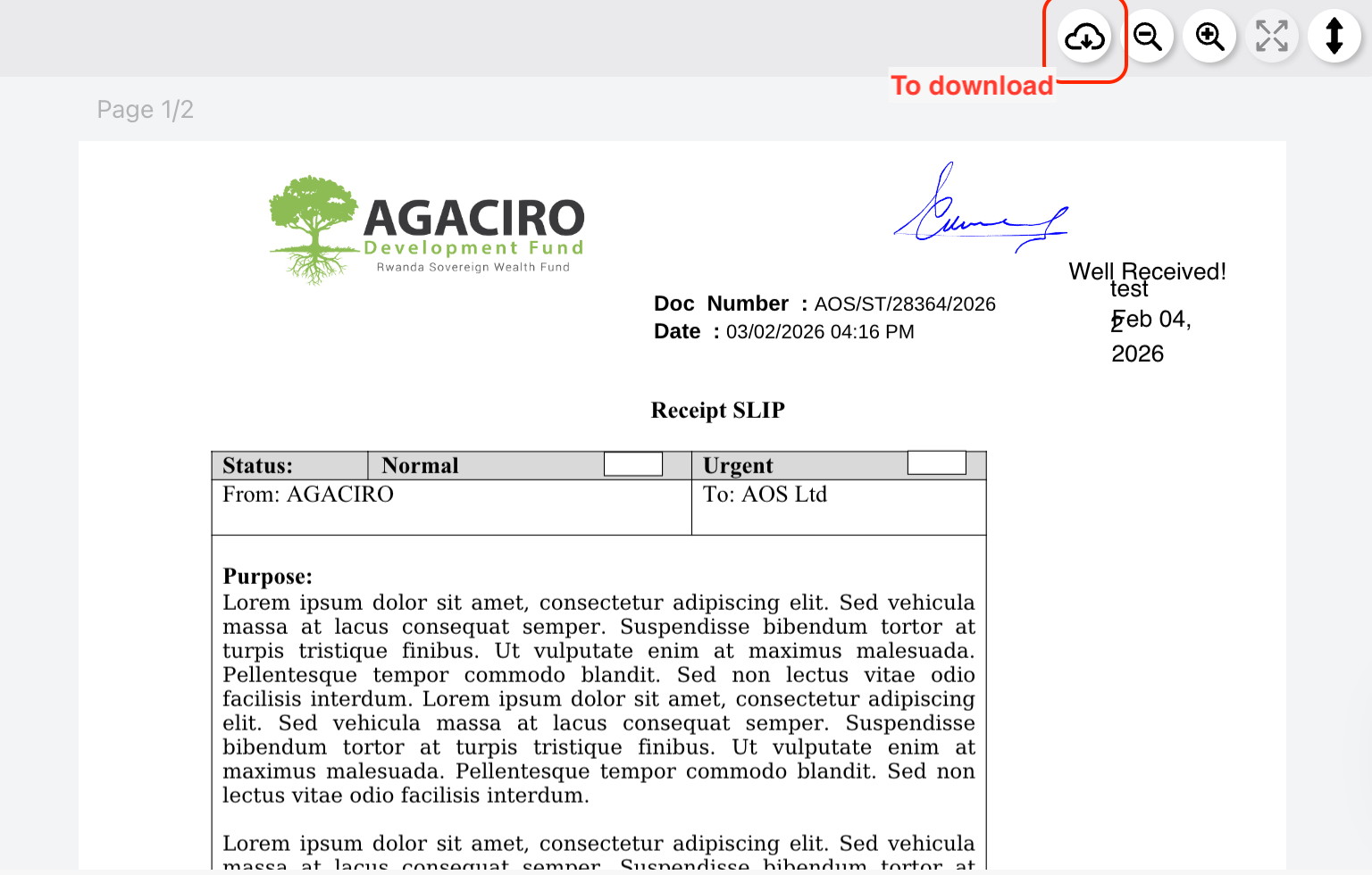
Thenow be downloaded, shared, or viewed by the drafter or approvers can now download, share, or view the completed document.
Notes
Ensure all required fields are filled out before saving the document.
Double-check the email addressesany of the users you are inviting to sign up to avoid sending invitations to the wrong individuals.signers.