Invite to sign on Received PDF documents
This section outlines the steps to invite internal users to sign PDF documents using the Invite-to-Sign feature in the Government Smart Administration System.
Key Steps
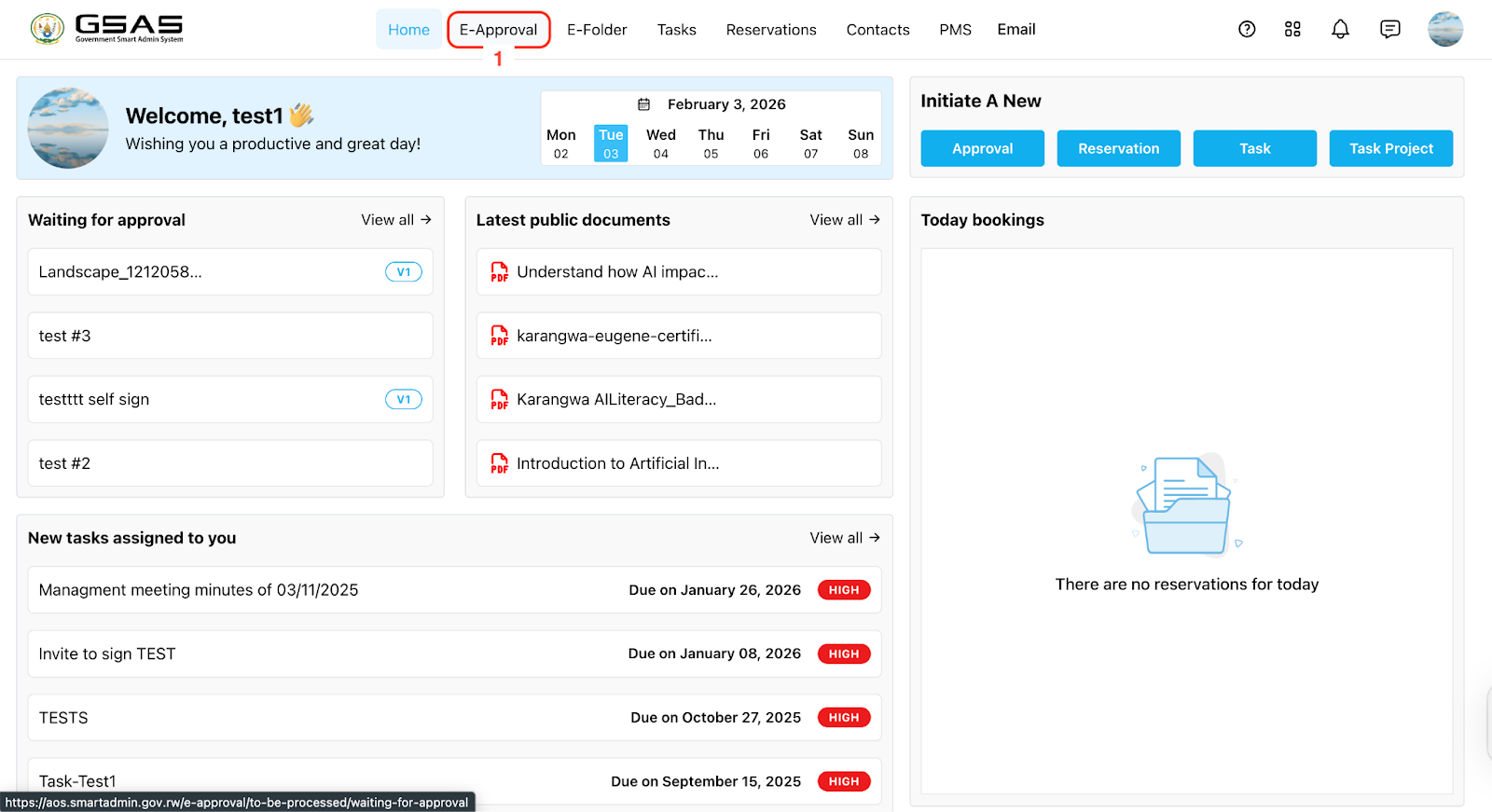
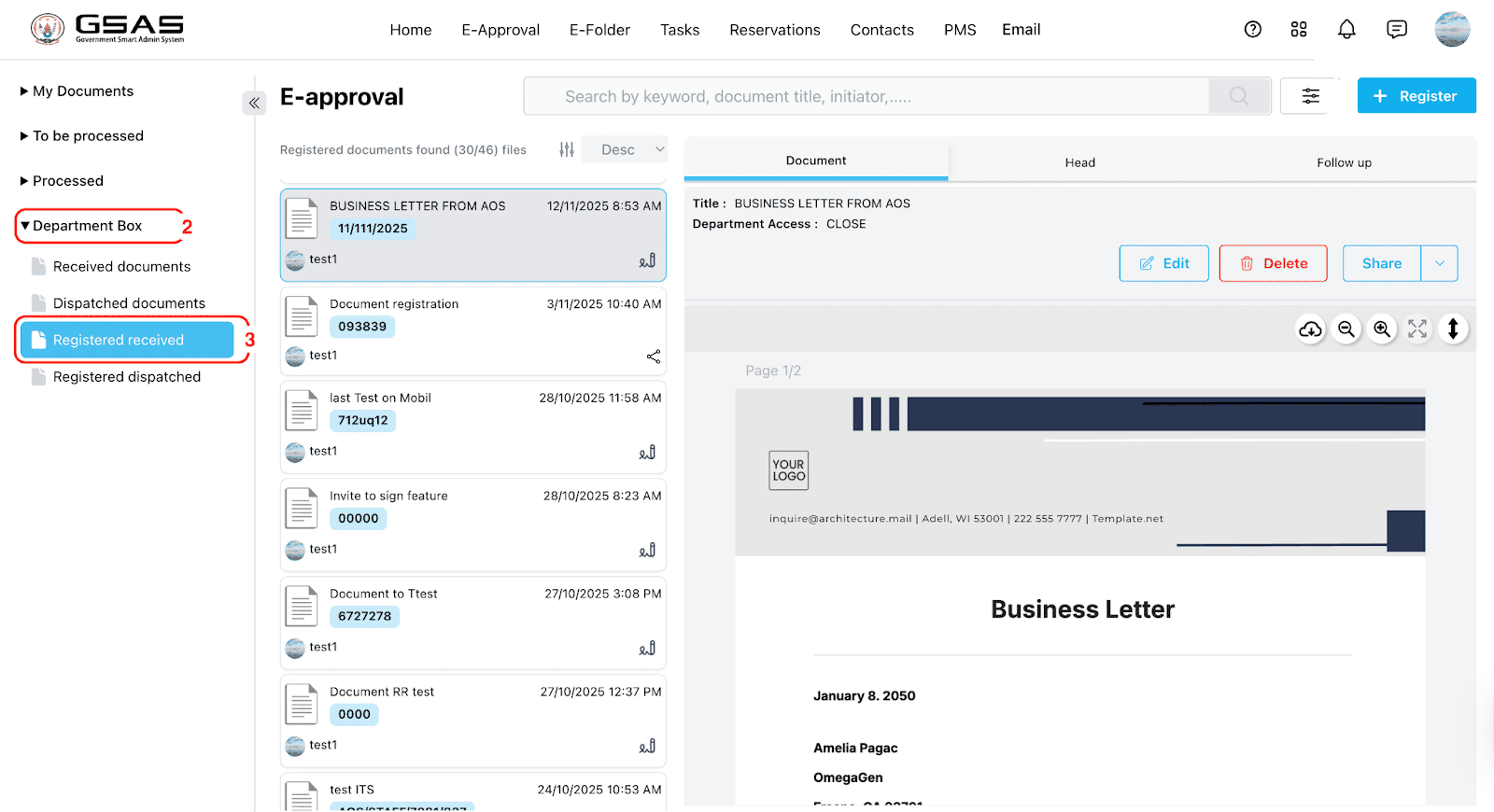
Step 1: Access e-Approval
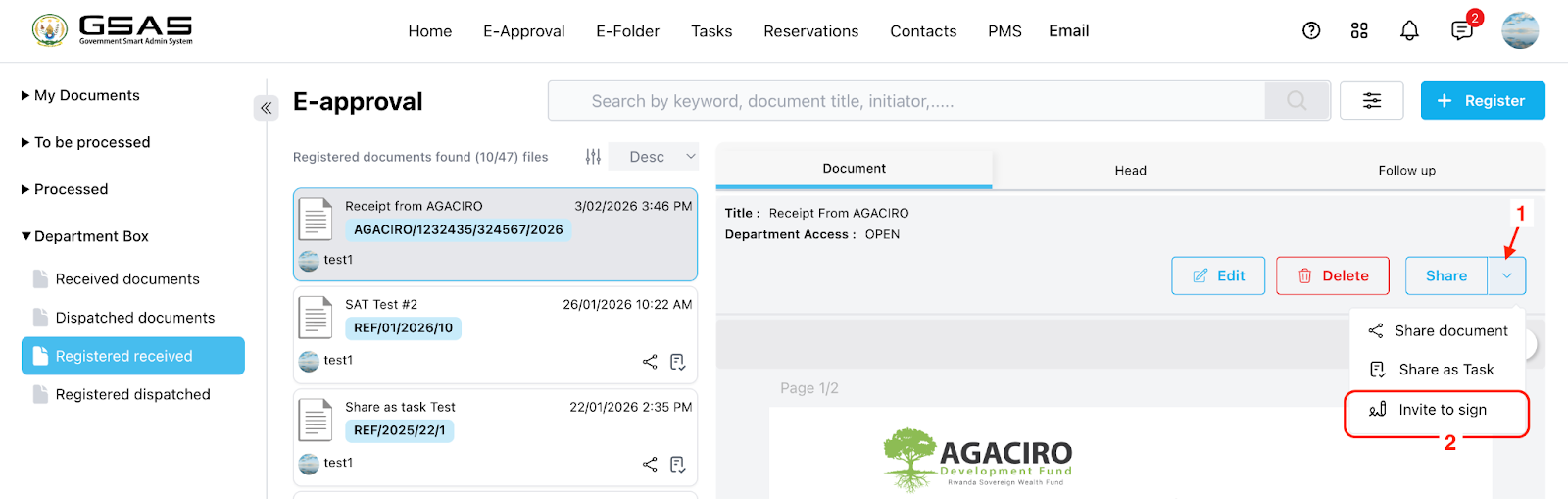
Step 5: Assigning Signers/Approvers
-
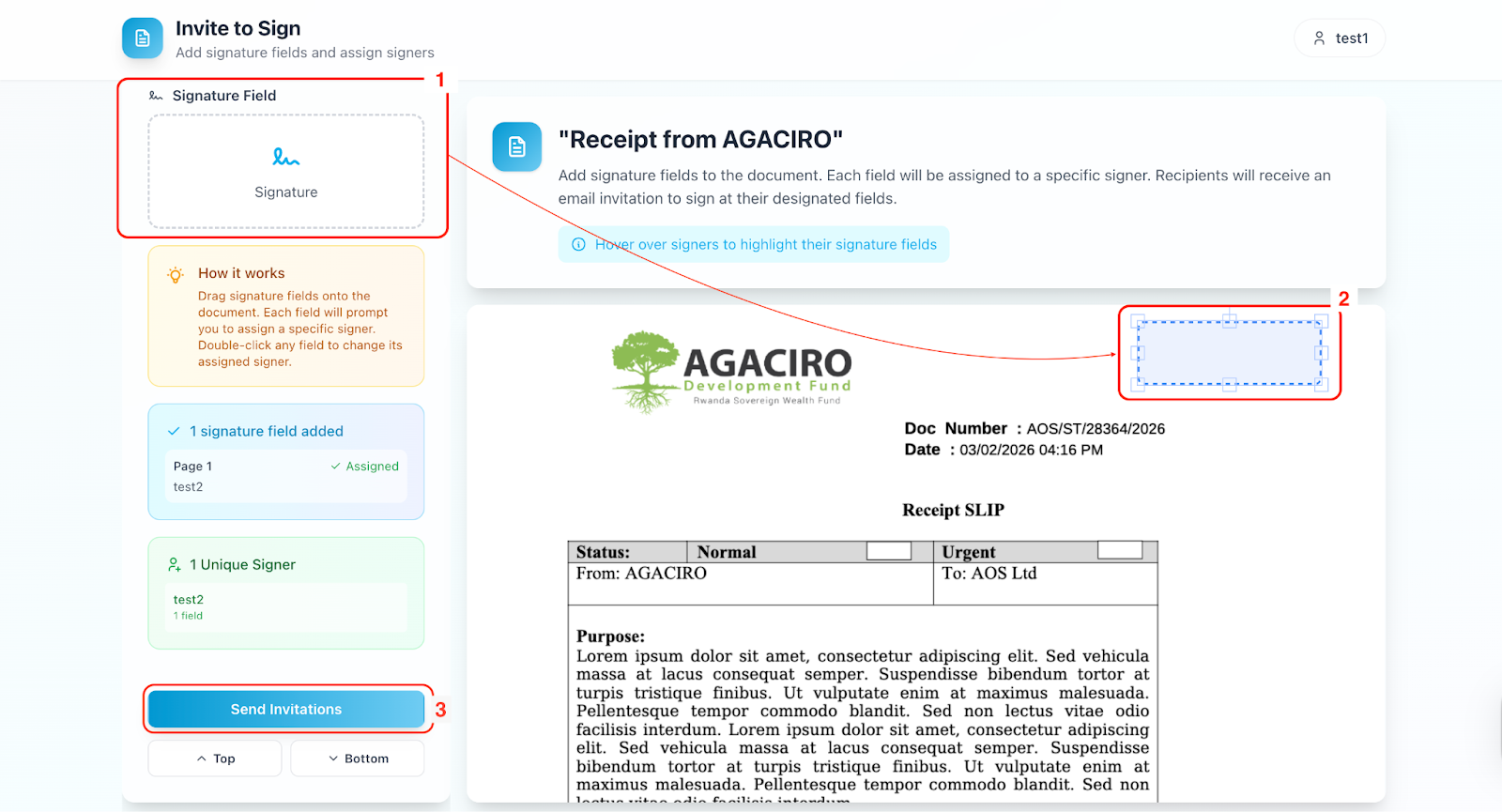
Drag and drop the signature field to the desired location in the document to select the user(s) who need to sign it ( by searching for the user's name).
-
Adjust the signature fields as necessary.
-
Click on 'send invitation' to notify the selected users.
Step 6: Signing the Document
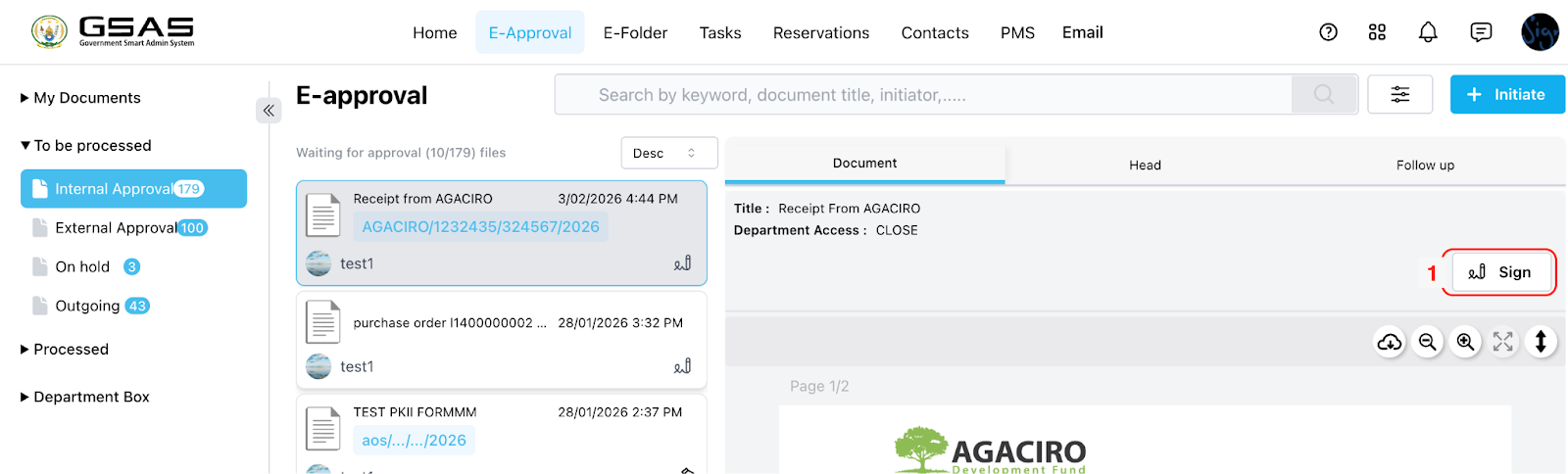
The approver will go to their account → go to e-Approval → Go to the ‘To be processed’ folder → Check for the pending document in ‘Internal Approval.’
-
Select the document to be signed, then click ‘Sign.’
-
Newly opened tab, ‘Drag & Drop’ your signature to the highlighted field.
-
The user can also drag & drop other fields, such as date, name, or custom text.
-
-
Click 'complete' after signing.

Step 7: Access Completed Document
-
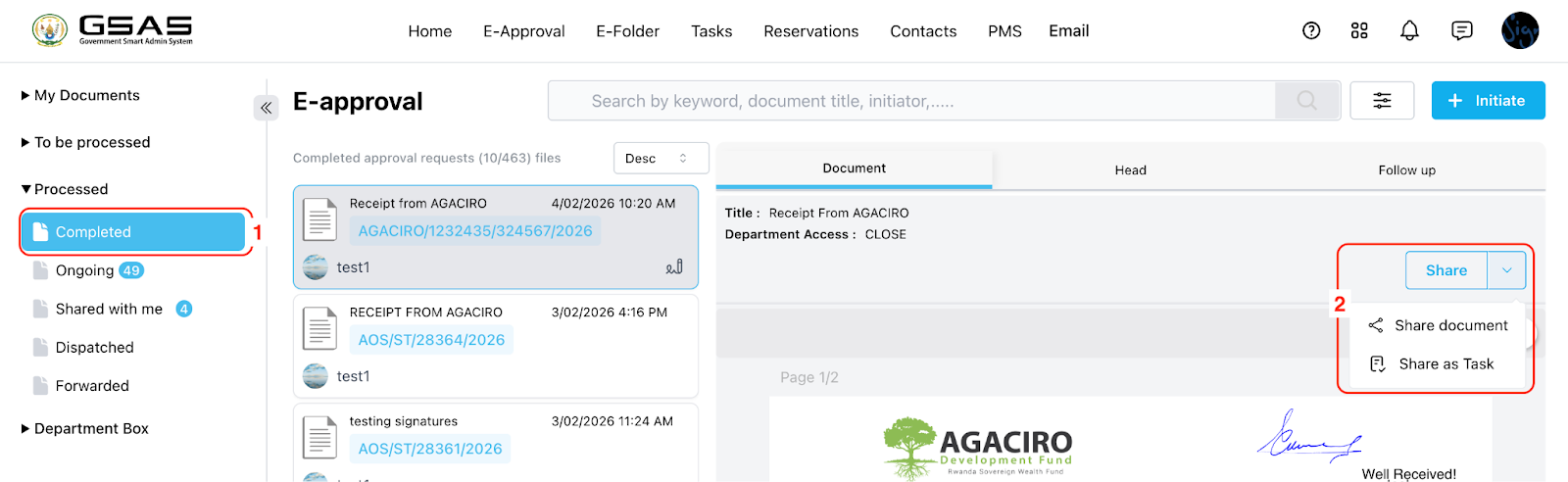
Once all signatures are collected, the document is marked as complete.
-
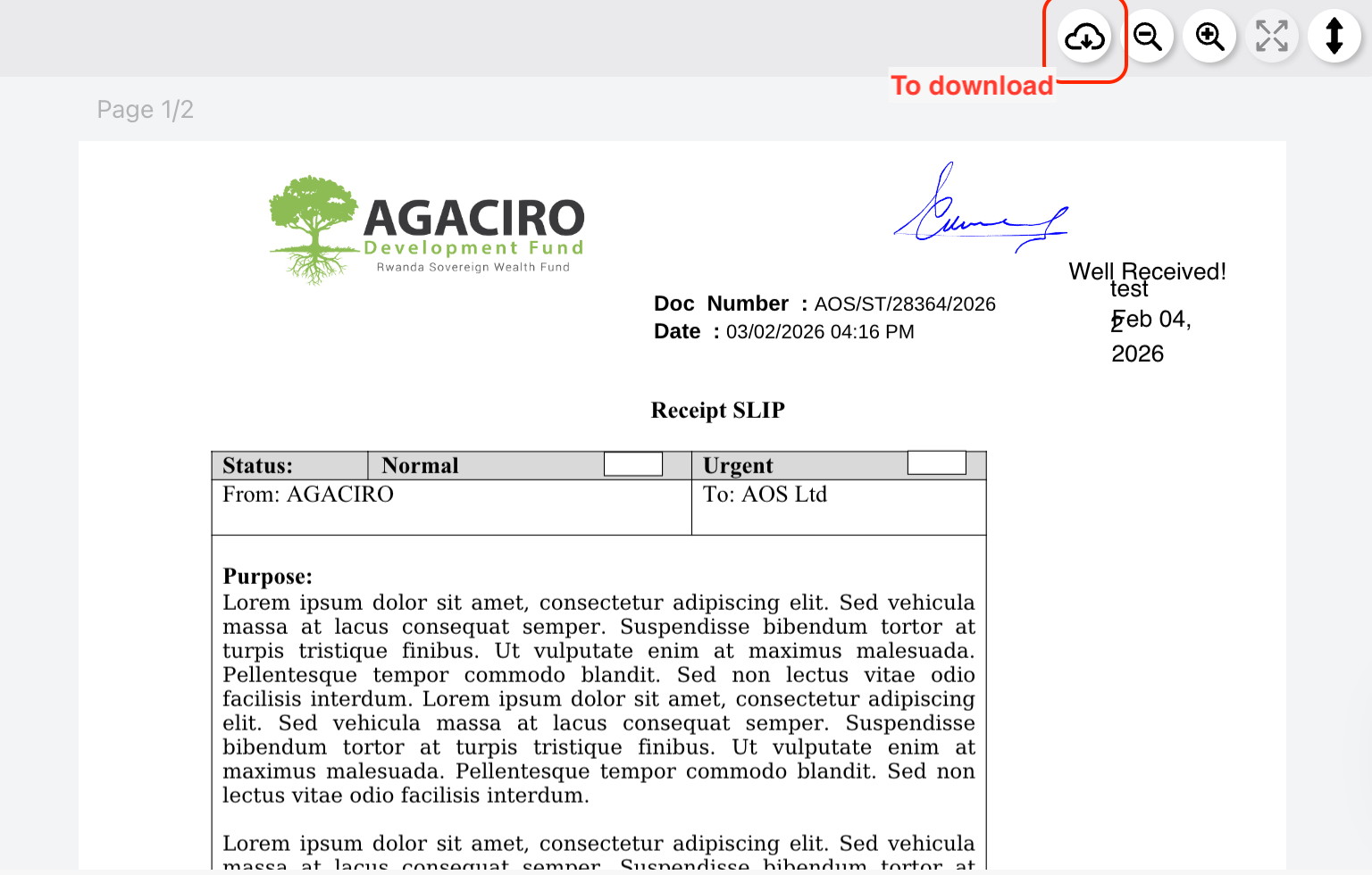
The drafter or approvers can now download, share, or view the completed document.
Notes
-
Ensure all required fields are filled out before saving the document.
-
Double-check the email addresses of the users you are inviting to sign up to avoid sending invitations to the wrong individuals.