Your dashboard
The Dashboard
When you log in, you are taken to your dashboard. It gives you a snapshot of your activity across the system so you can stay on top of pending items without navigating to each module individually.
What you'll find on your dashboard
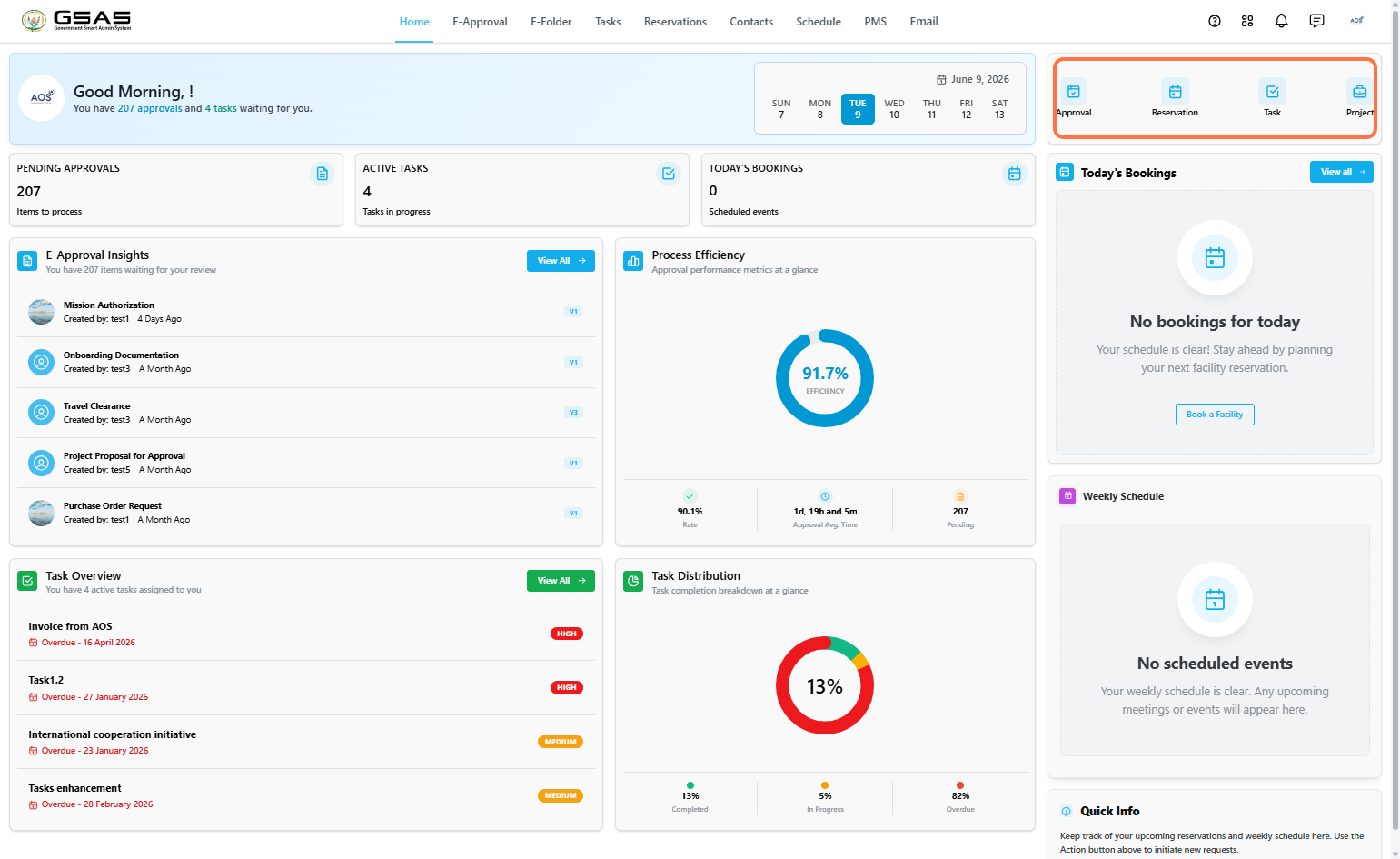
1. Quick Access Shortcuts
Shortcuts to the Approval, Reservation, Task, and PMS modules in the top right corner of the page. Each shortcut lets you take action directly from the homepage; initiate an approval request, book a facility, create a task, or create a new project.
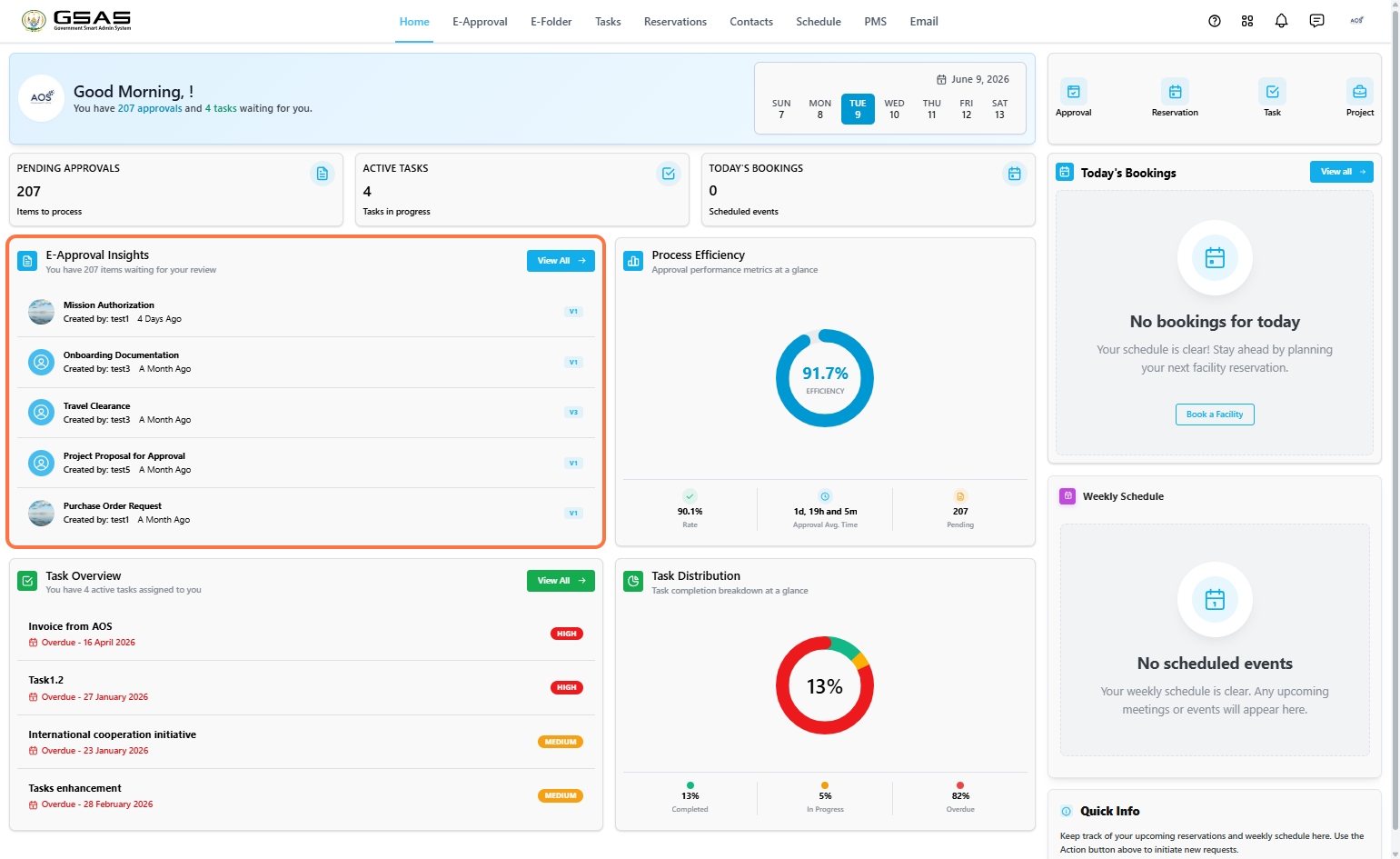
2. E-Approval Insights
A list of the most recent approval requests waiting for your review. Click View All to go directly to your internal approval folder.
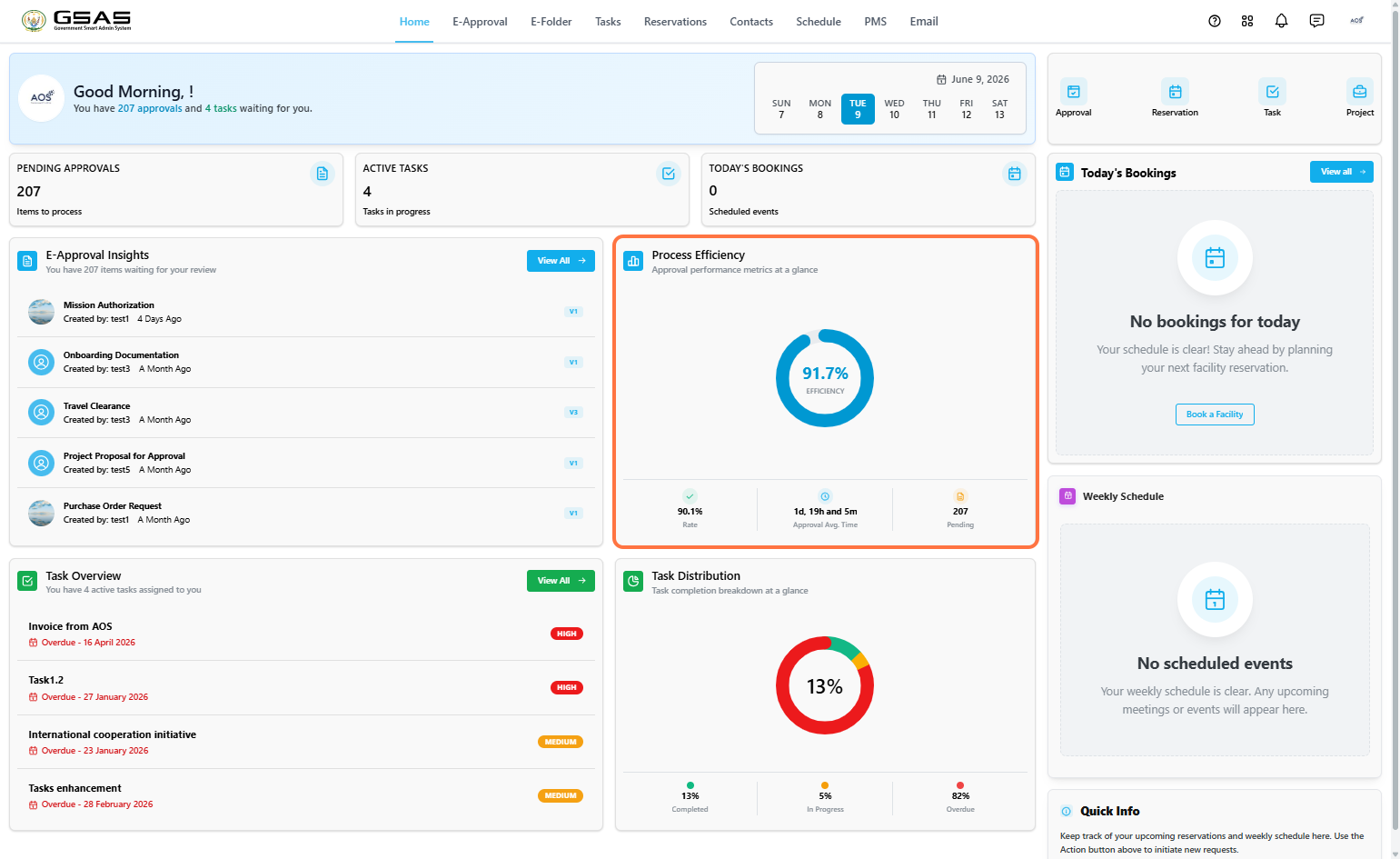
3. Process Efficiency
A visual overview of your approval performance, including your approval rate, average approval time, and number of pending items.
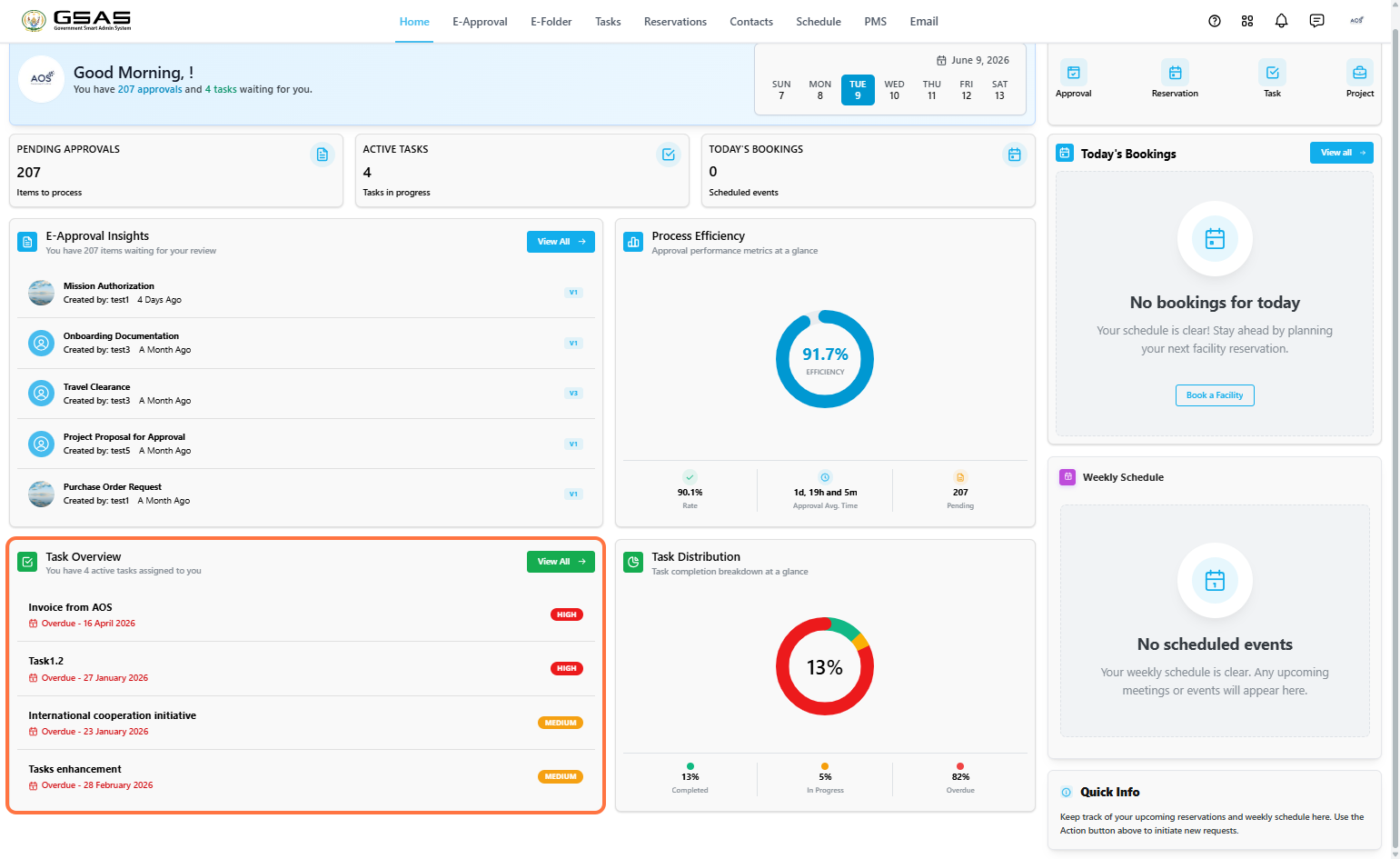
4. Task Overview
A list of your active tasks with their due dates and priority levels. Click View All to tasks assigned to you.
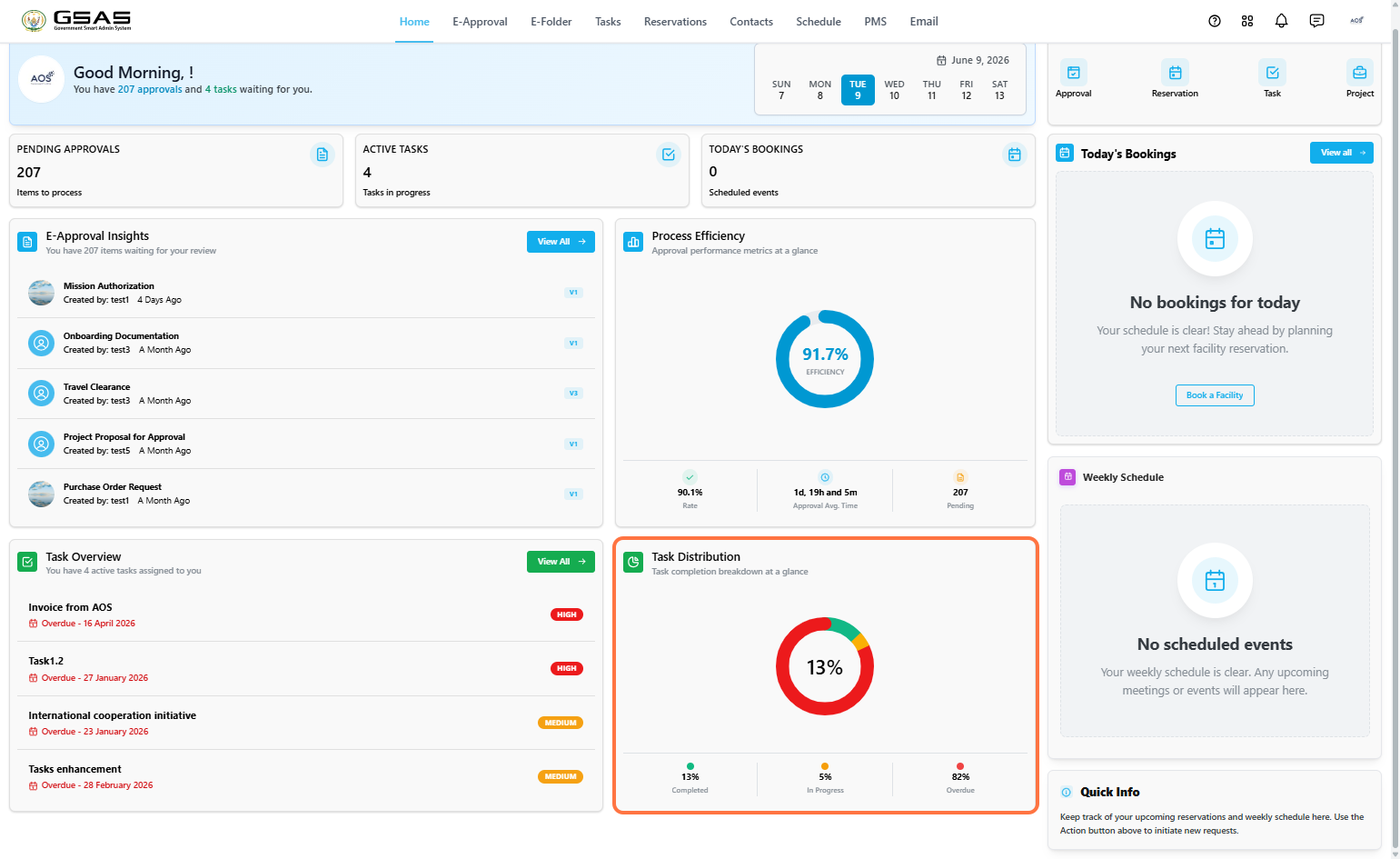
5. Task Distribution
A breakdown of your tasks by status; completed, in progress, and overdue.
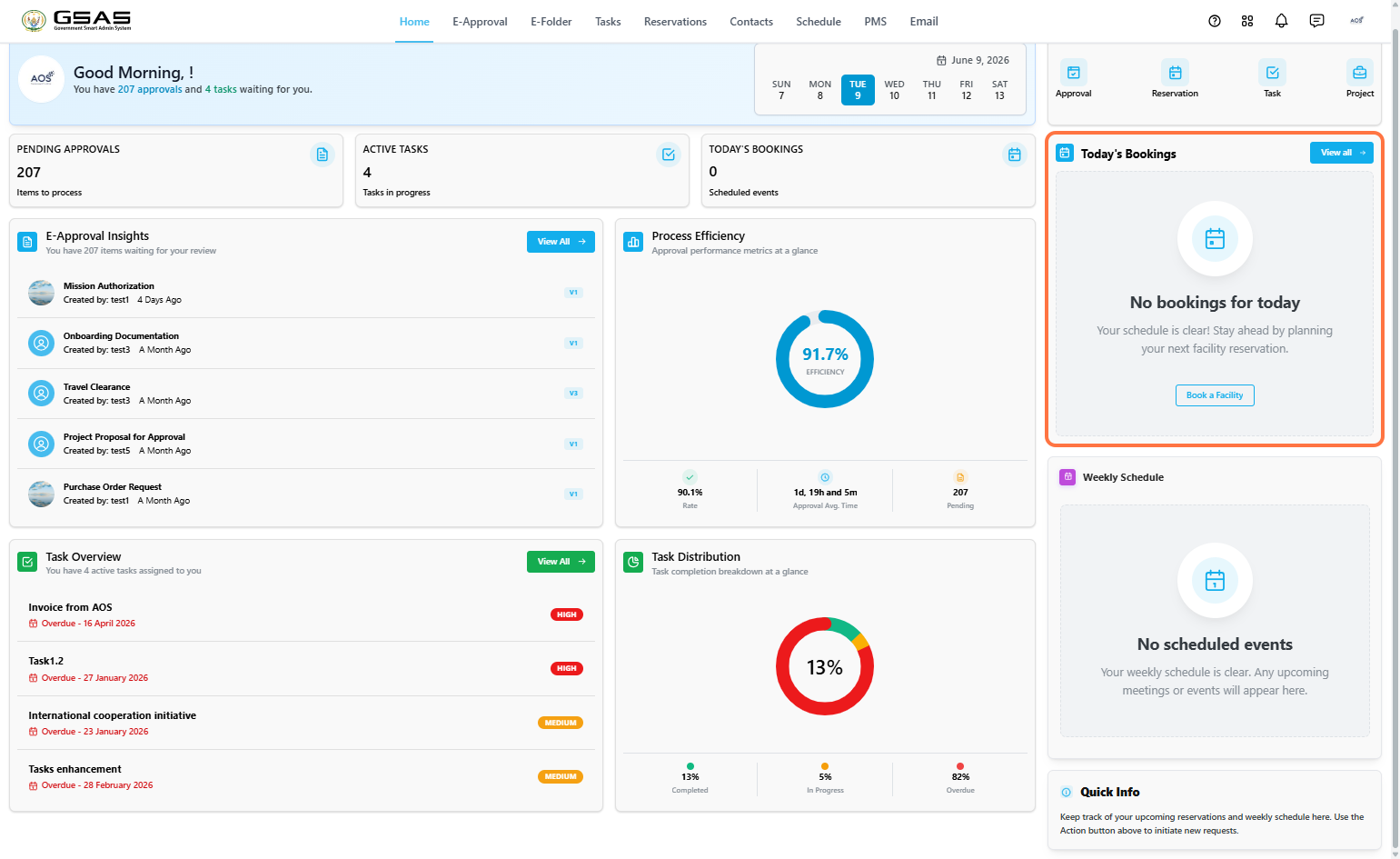
6. Today's Bookings
A detailed view of your facility reservations for the day. Click Book a Facility to make a new reservation.
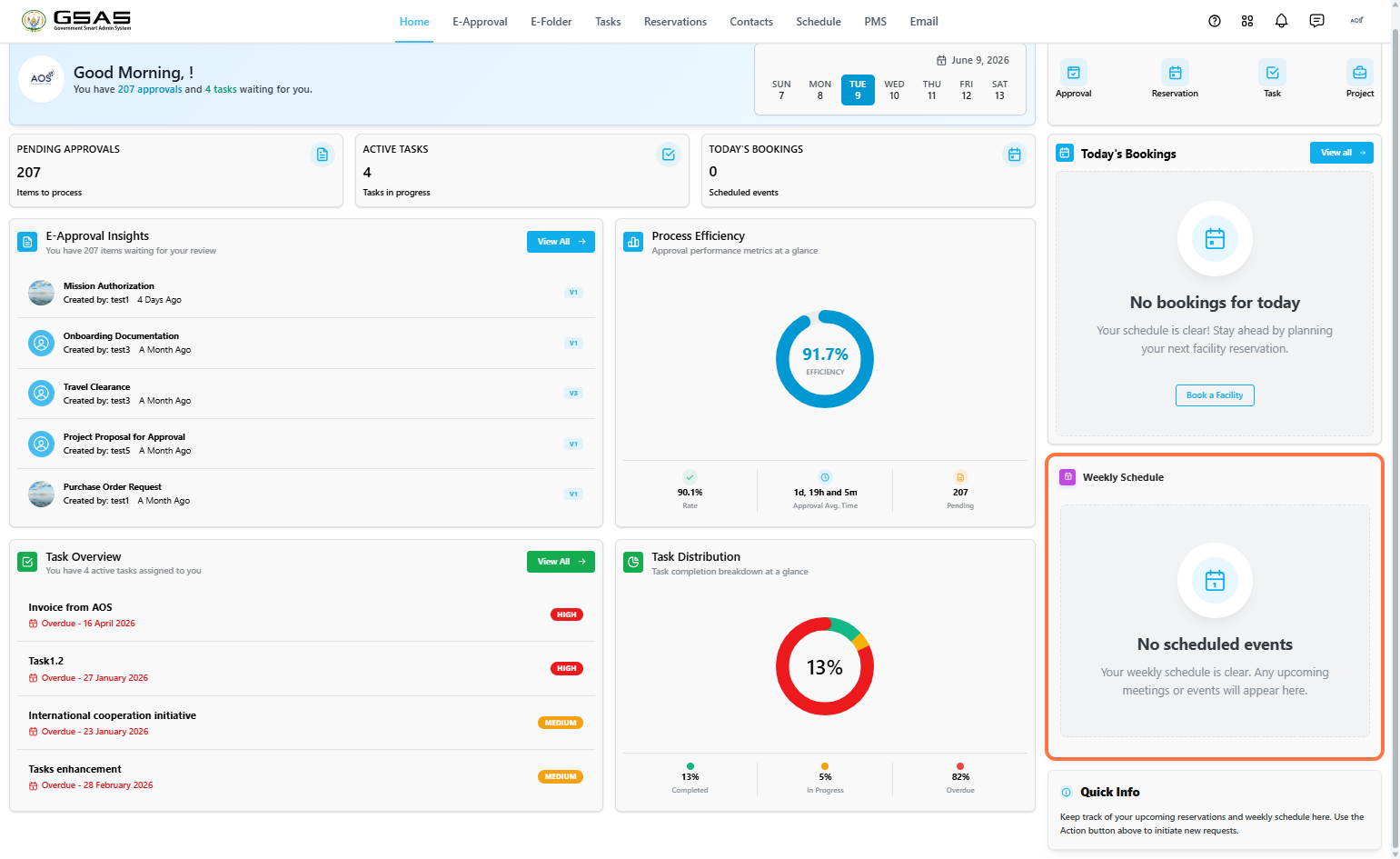
7. Weekly Schedule
Any upcoming meetings or events scheduled for the week.
A few shortcuts sit in the top right corner of every page.
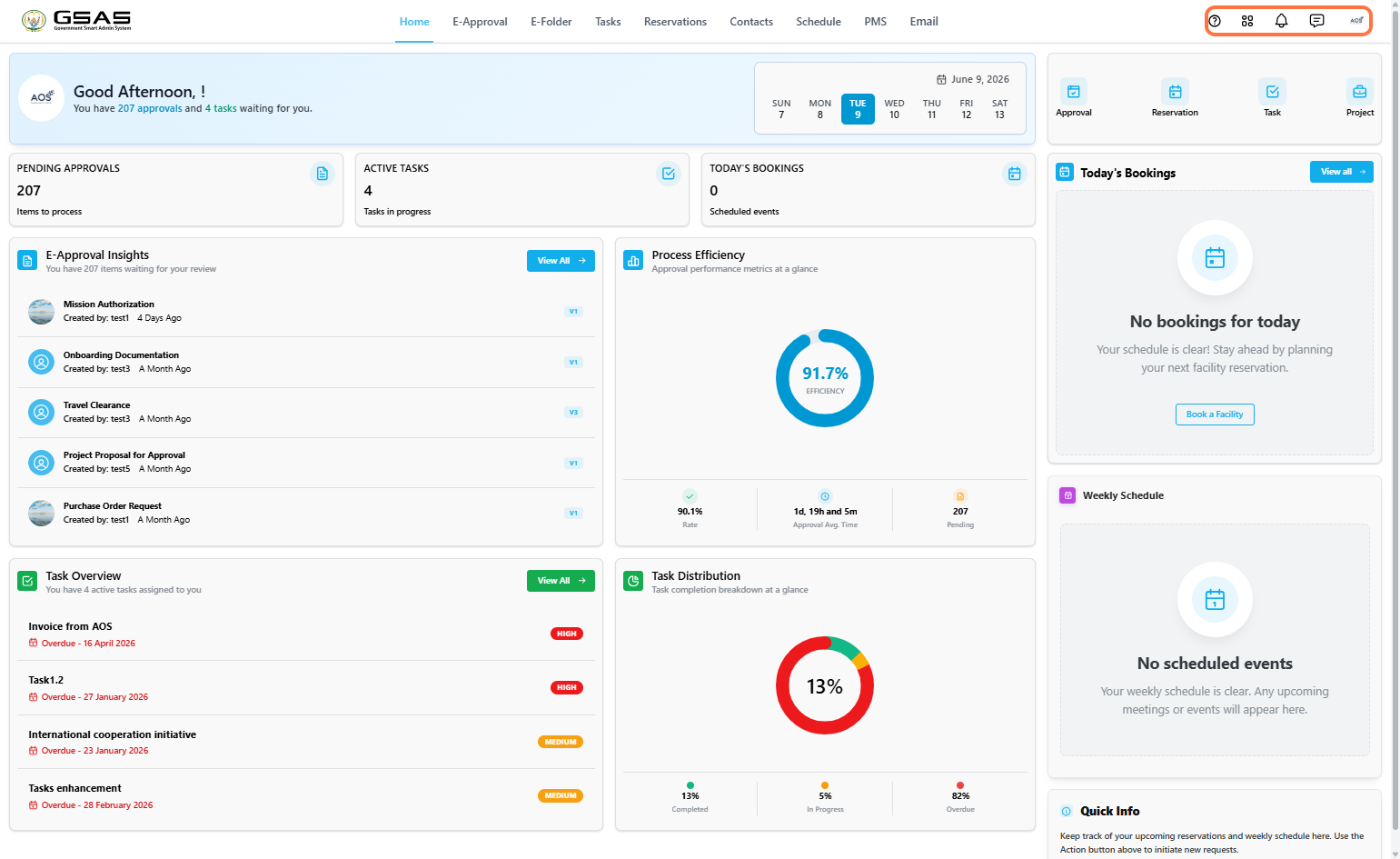
- The question mark icon drops down with links to the User Guide and a Contact Us modal with our phone number for any inquiries.
- Clicking the grid icon opens a dropdown with links to the GSAS mobile app for both iOS and Android.
- The bell icon opens your notifications panel.
- The chat icon redirects you to GSAS Talk, Smart Admin's messaging platform.
- The profile avatar opens a dropdown with your settings and a logout option.