Working with Files and Folders
This page walks you through the everyday tasks you will use in E-Folder. Most actions work the same way across the Public, Division, and Private folders, any differences are noted where they apply.
Opening a folder
- From E-Folder, double-click the folder card you want to open.
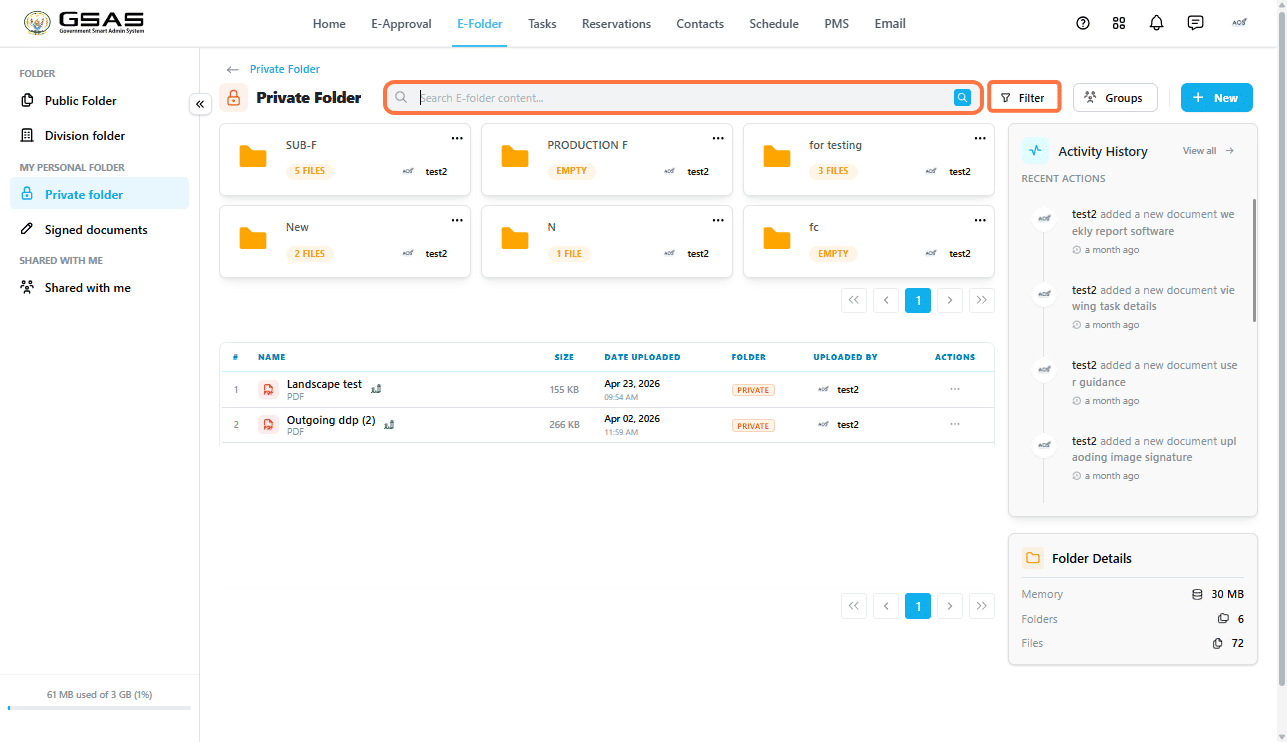
- Once inside, you will see the files and subfolders it contains. Use the search bar to find something by name, or click Filter to narrow the list.
Creating a new folder
- Click + New at the top right and select New Folder.
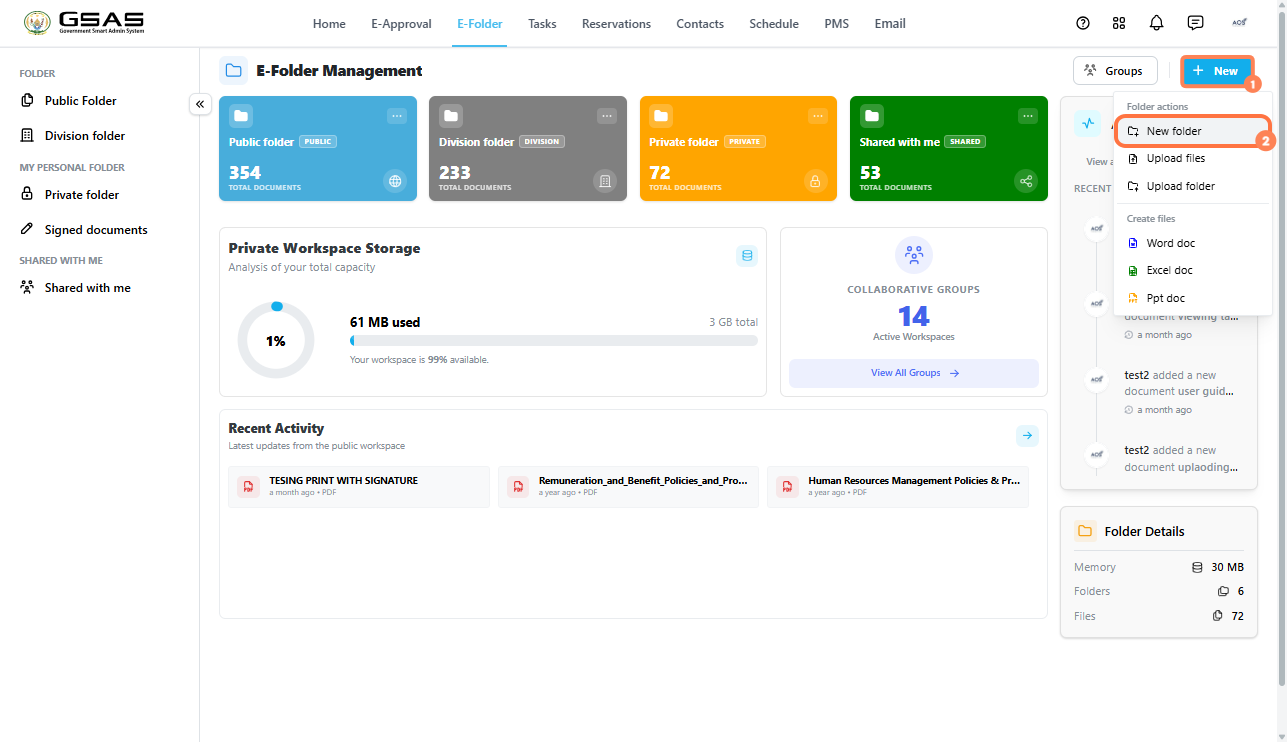
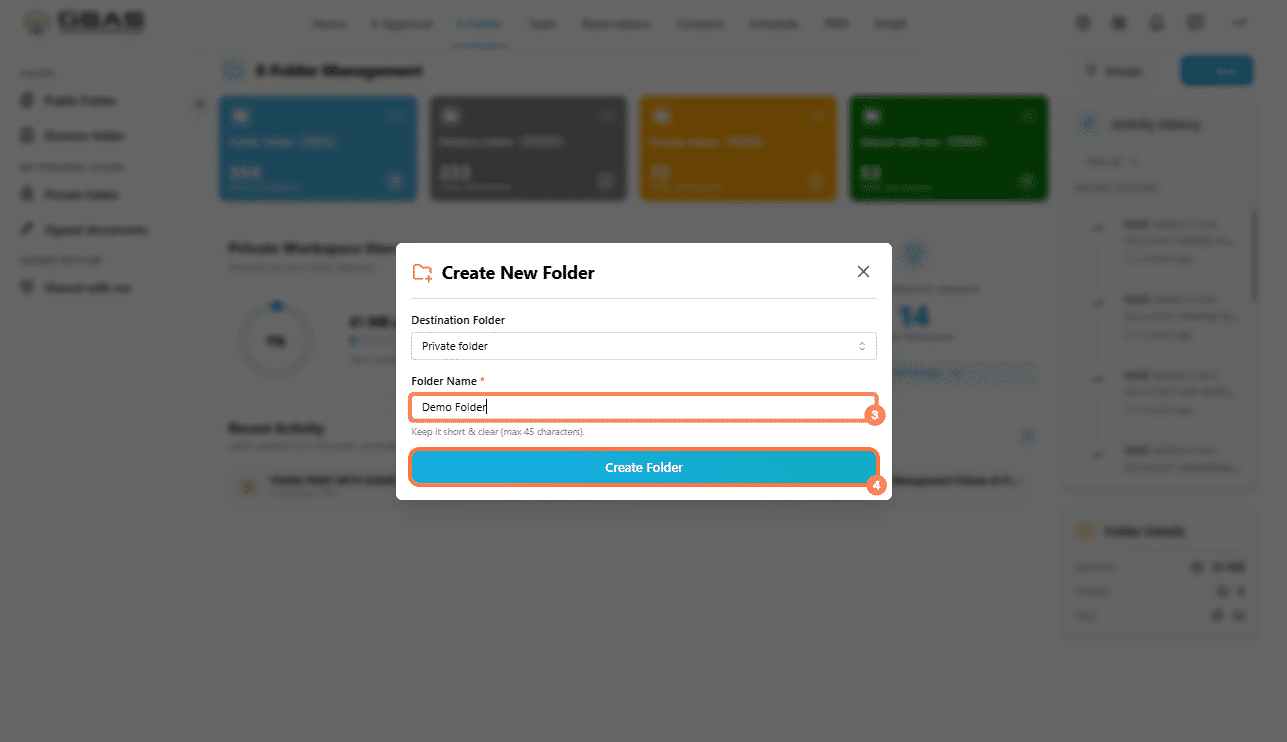
If you clicked + New from the home screen, you will be asked to choose which folder to create it in. If you are already inside a folder, it will be created there.
- Enter a name for the folder and confirm.
Uploading files or a folder
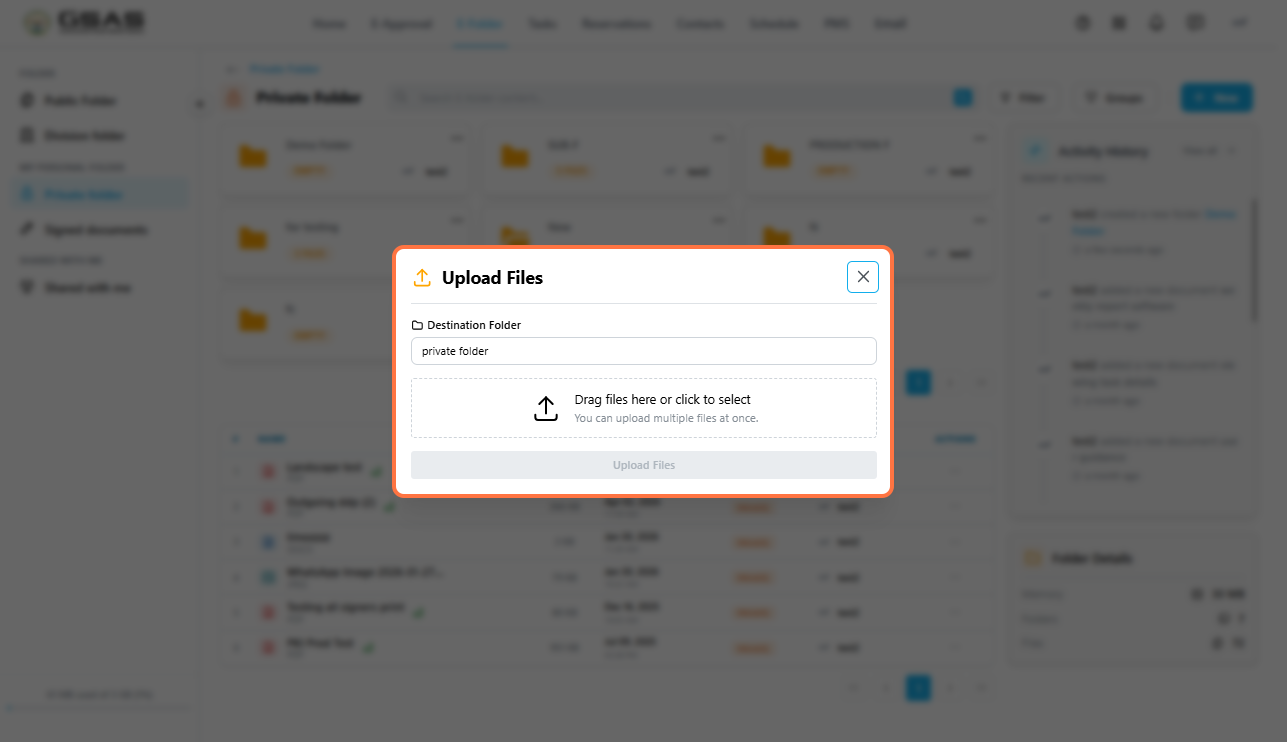
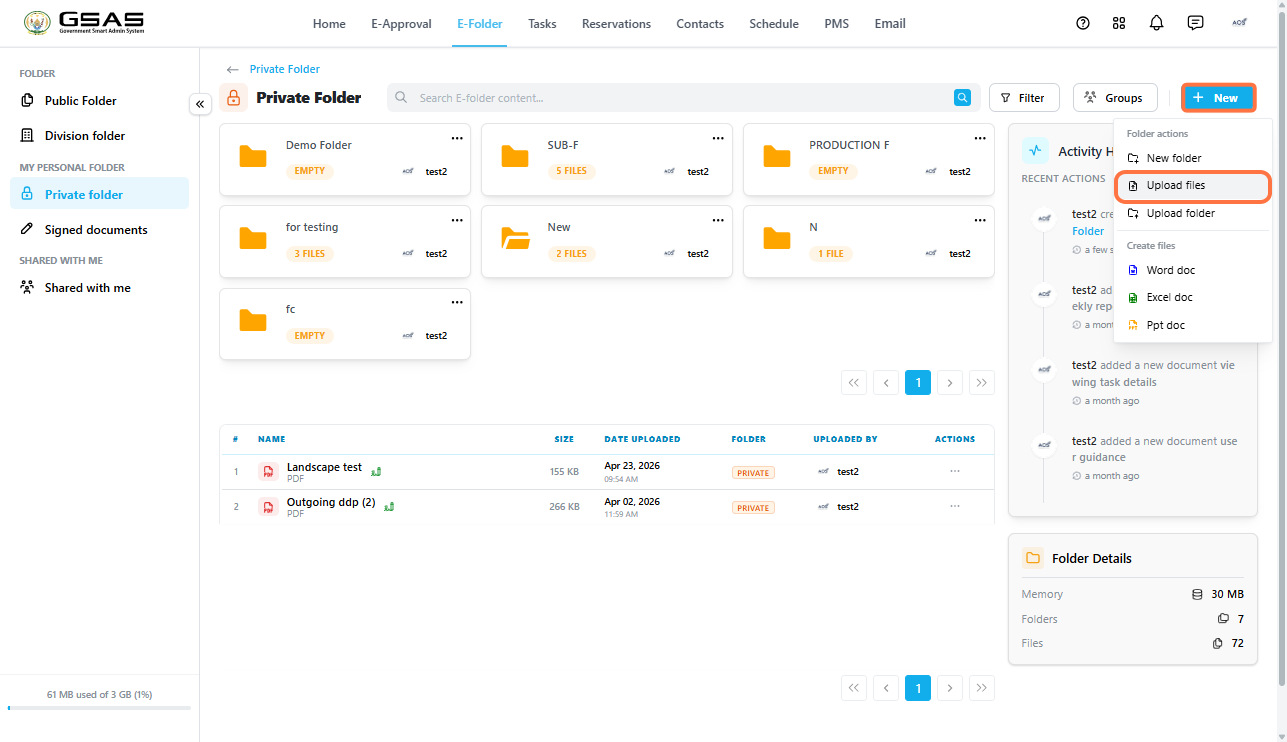
- Click + New at the top right and select Upload Files or Upload Folder.
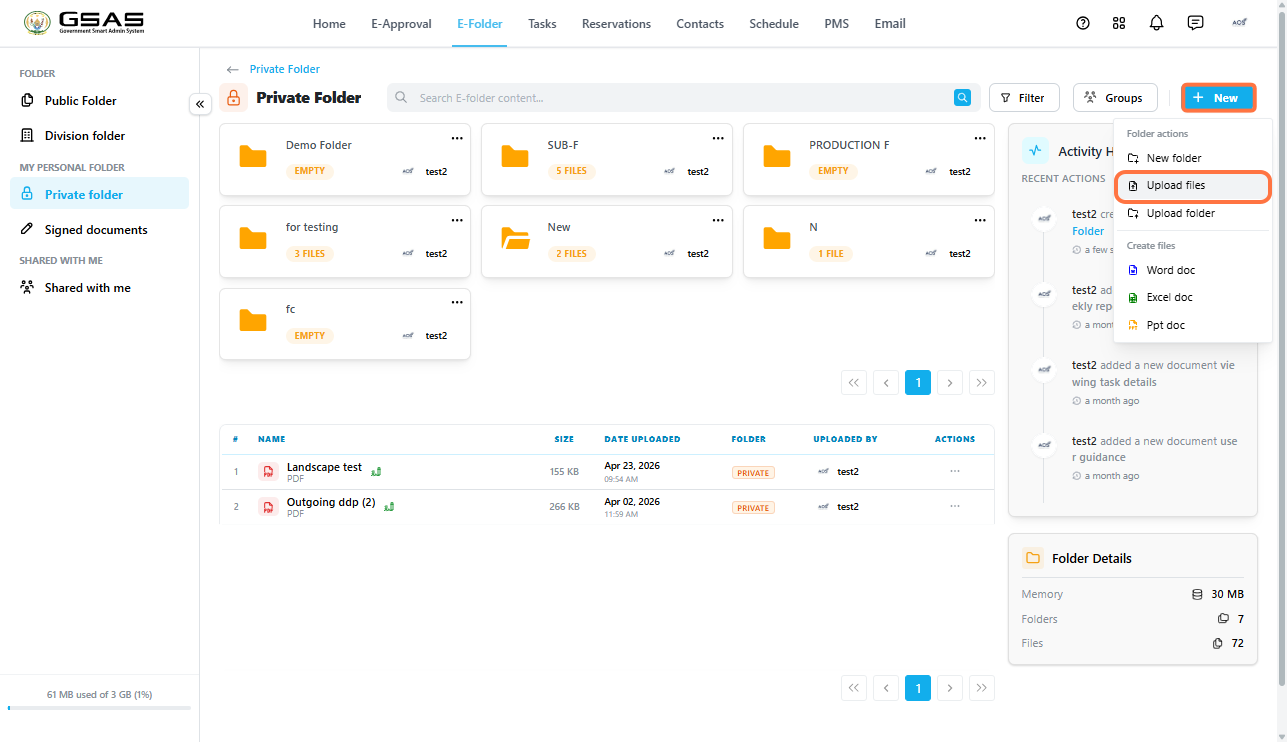
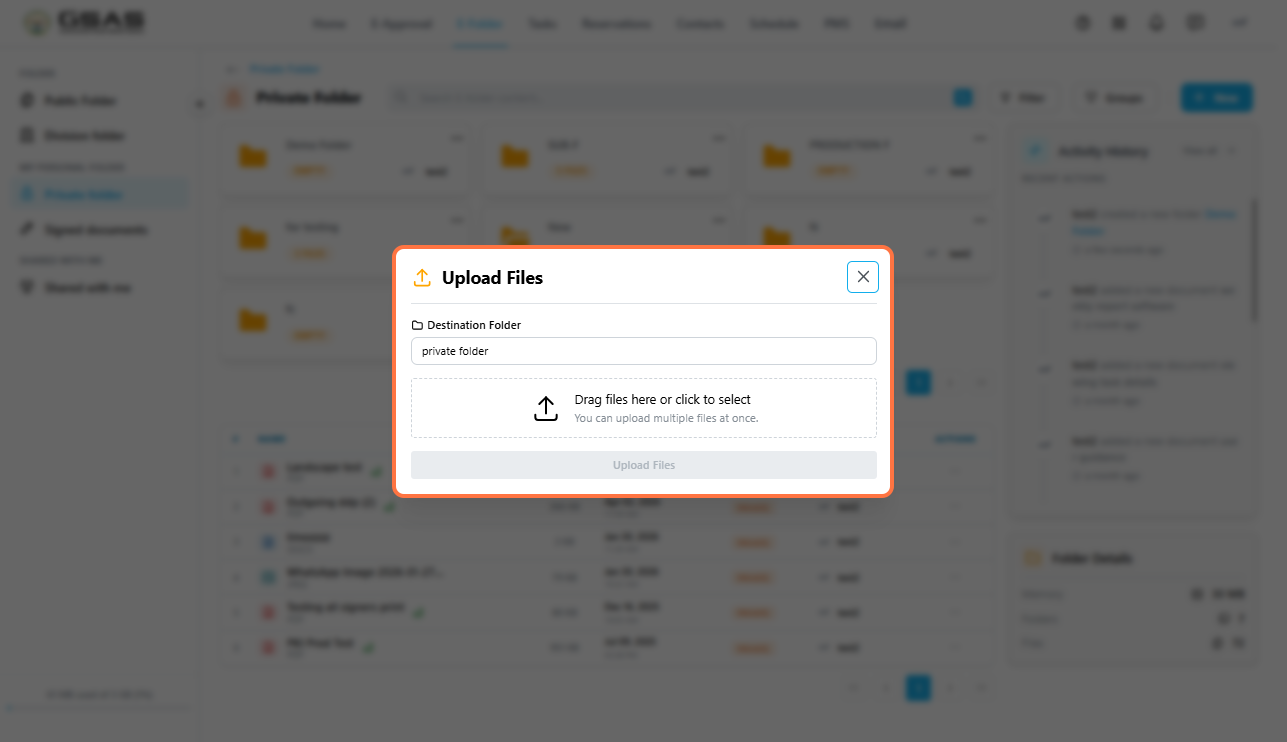
- If prompted, choose the destination folder.
- Browse your device, select the files or folder you want to upload, and confirm.
| Tip: You can also click ··· on any folder card from the home screen and select Upload |
Creating a document
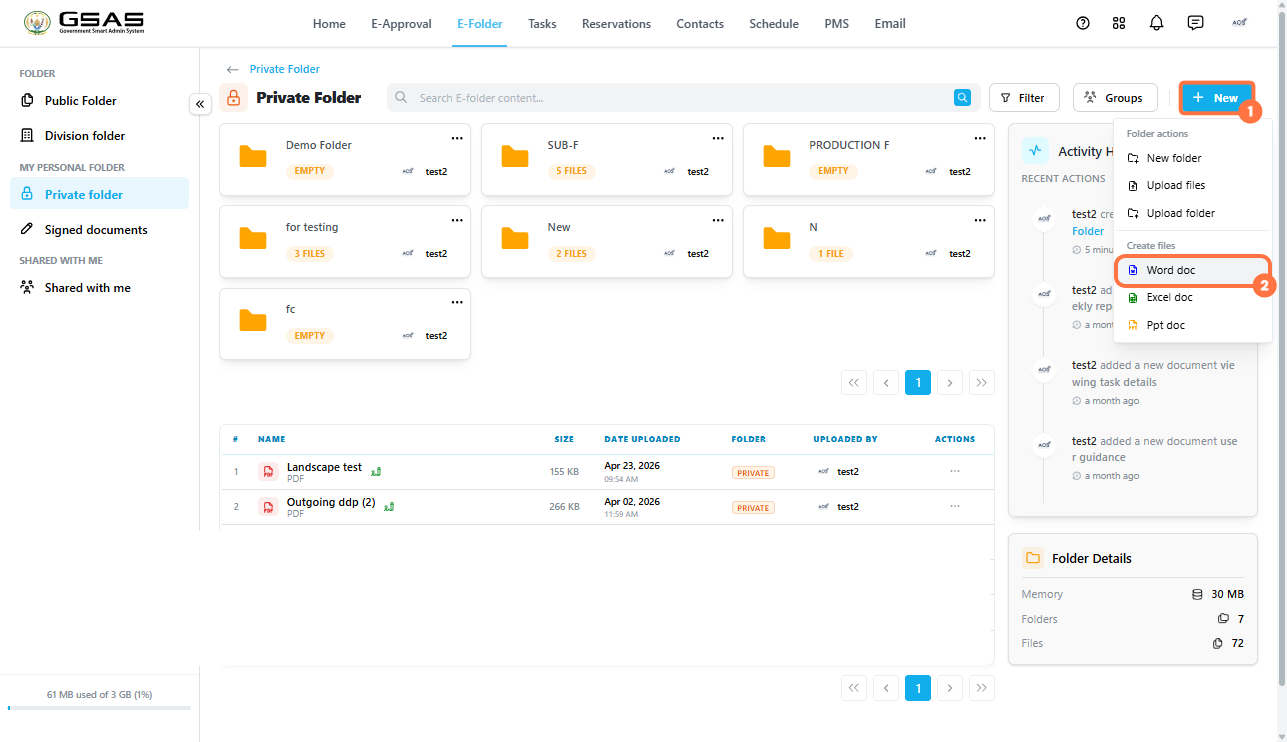
You can create a Word, Excel, or PowerPoint document directly in E-Folder without uploading anything from your device.
- Open the folder where you want the document to be.
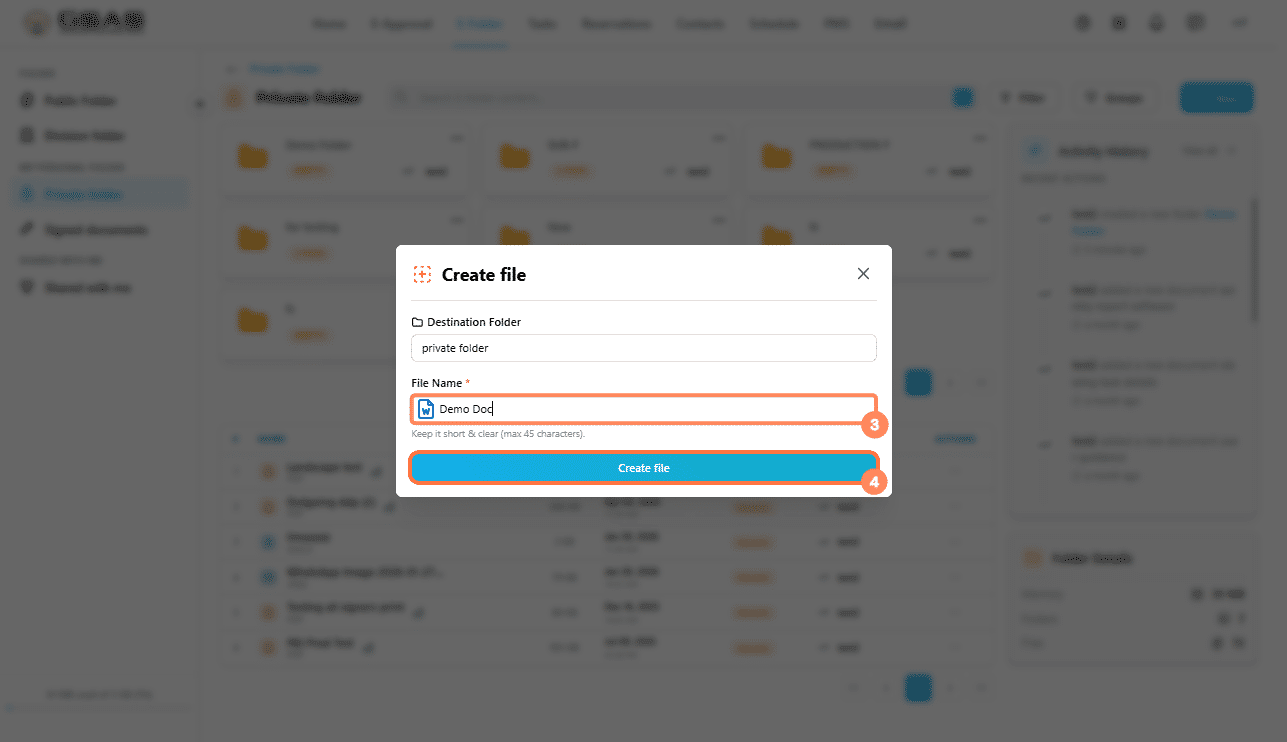
- Click + New and select Word doc, Excel doc, or Ppt doc.
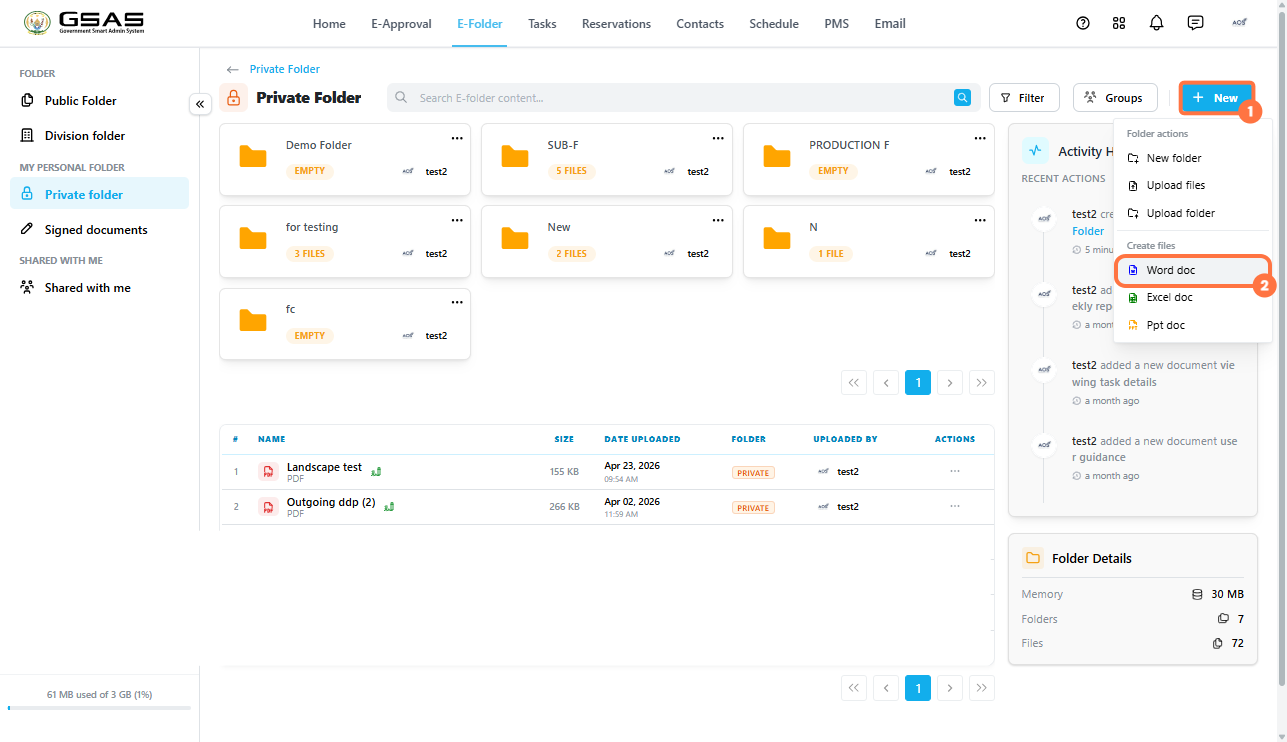
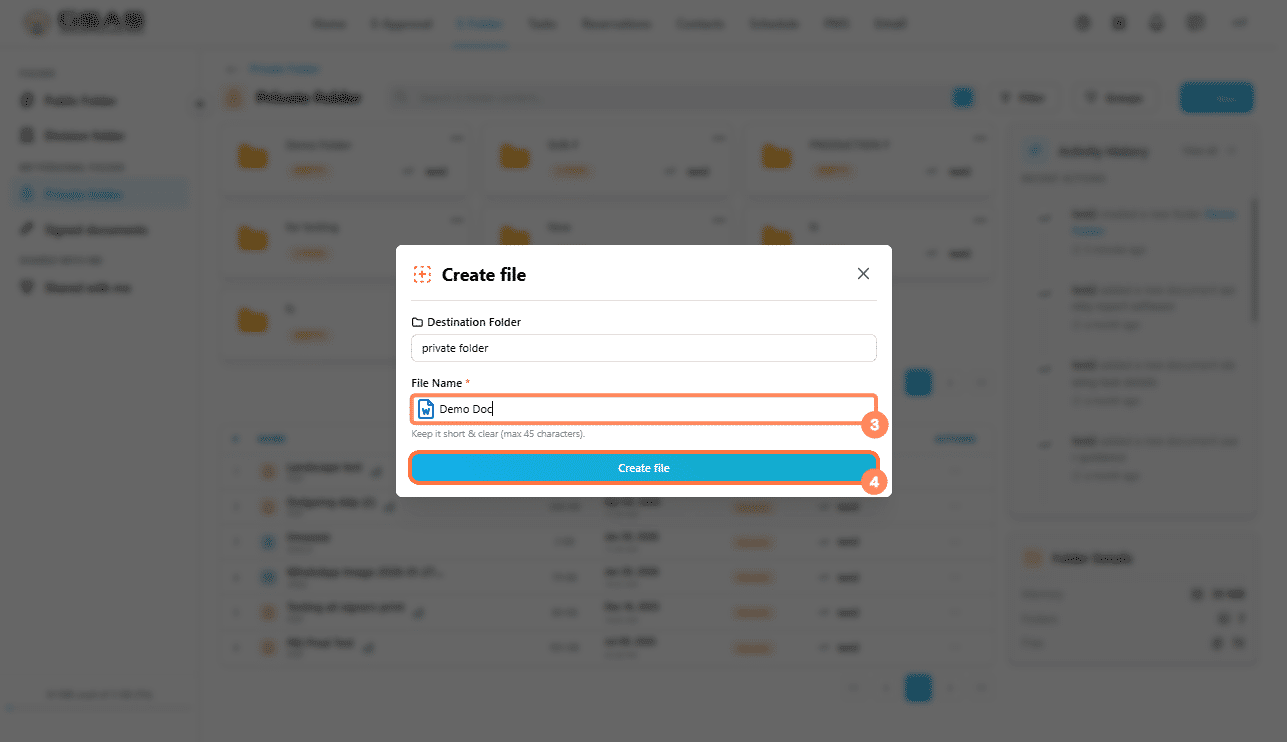
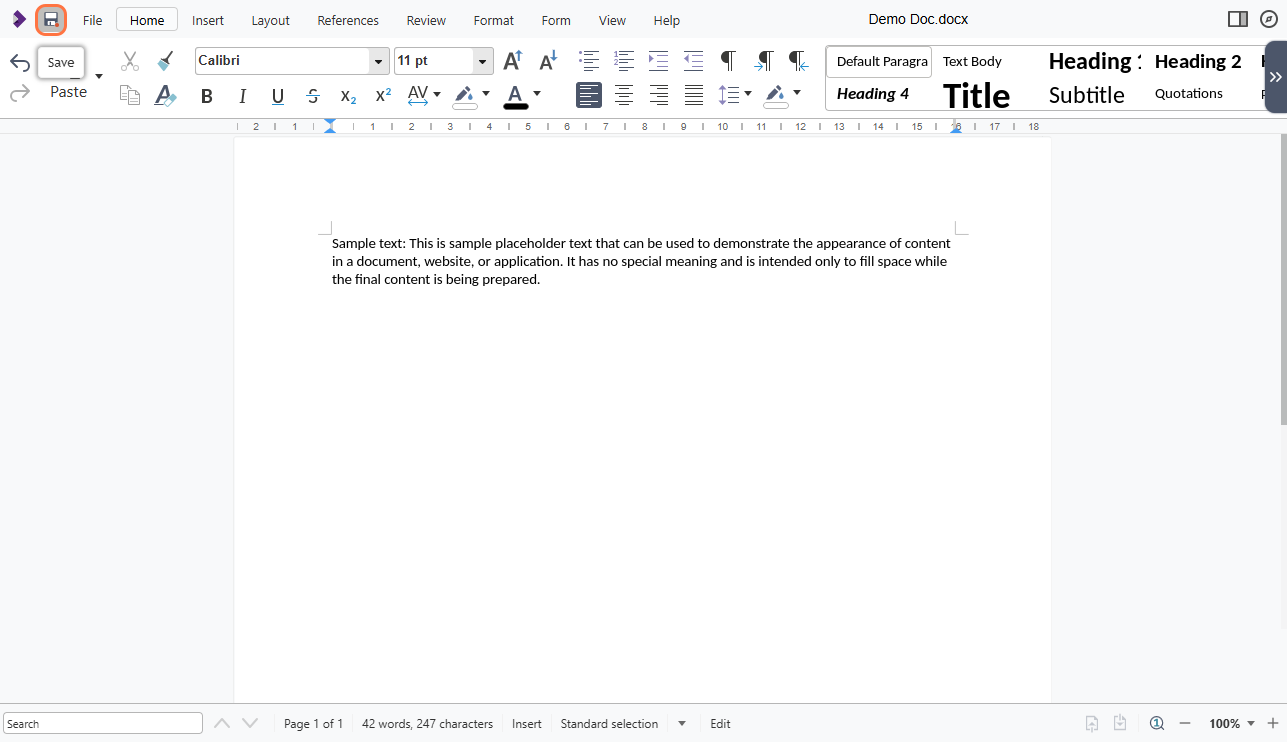
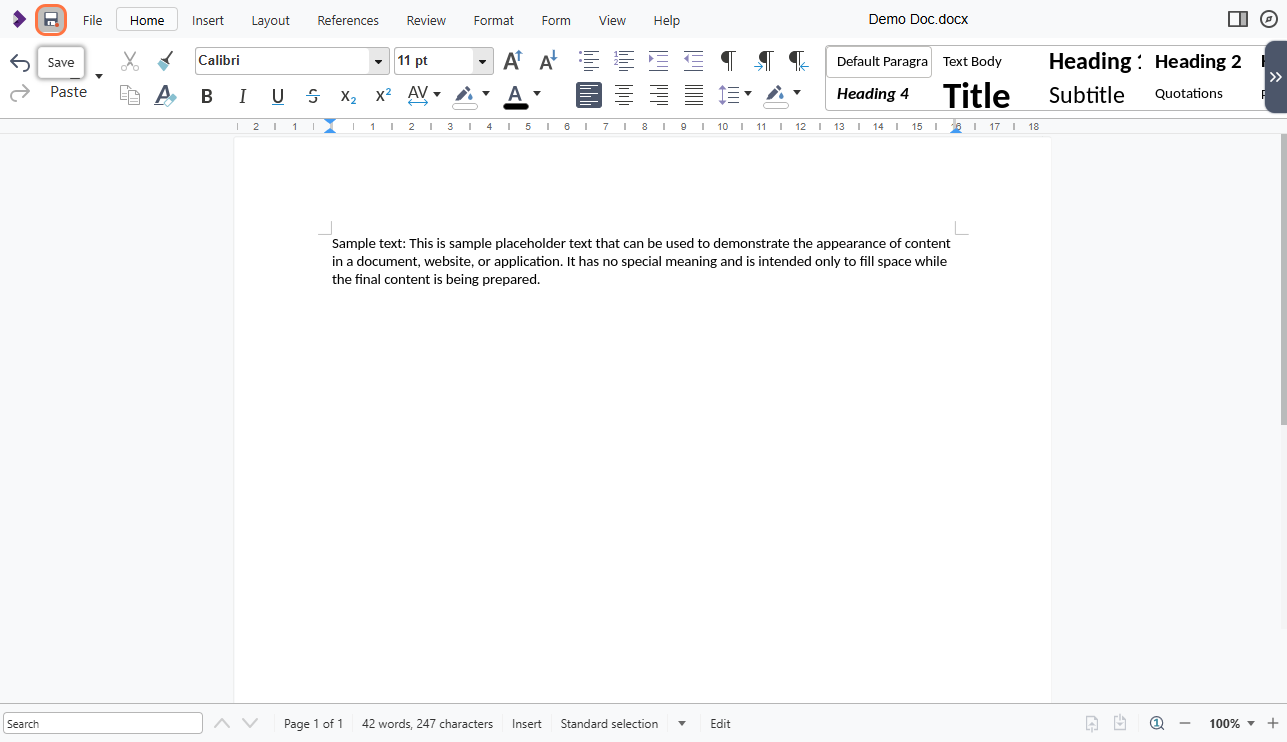
- The document will open in the system ready for you to edit.
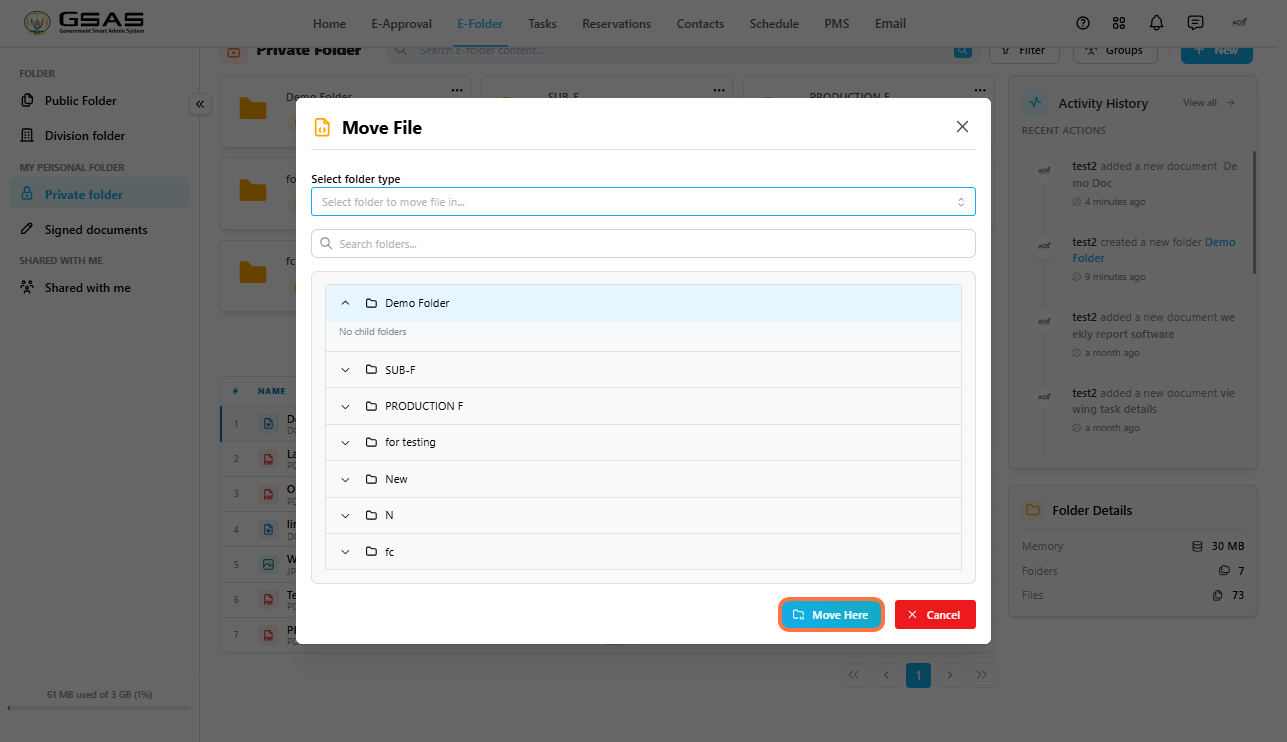
Moving a file
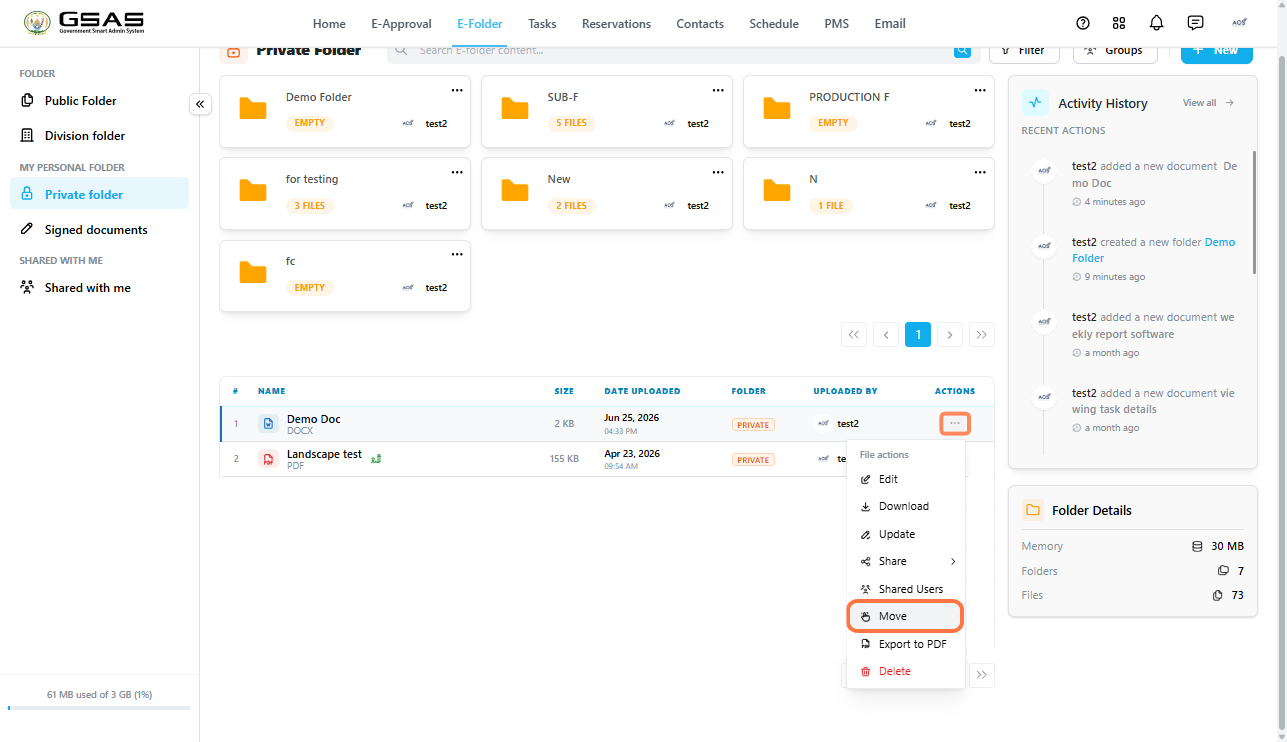
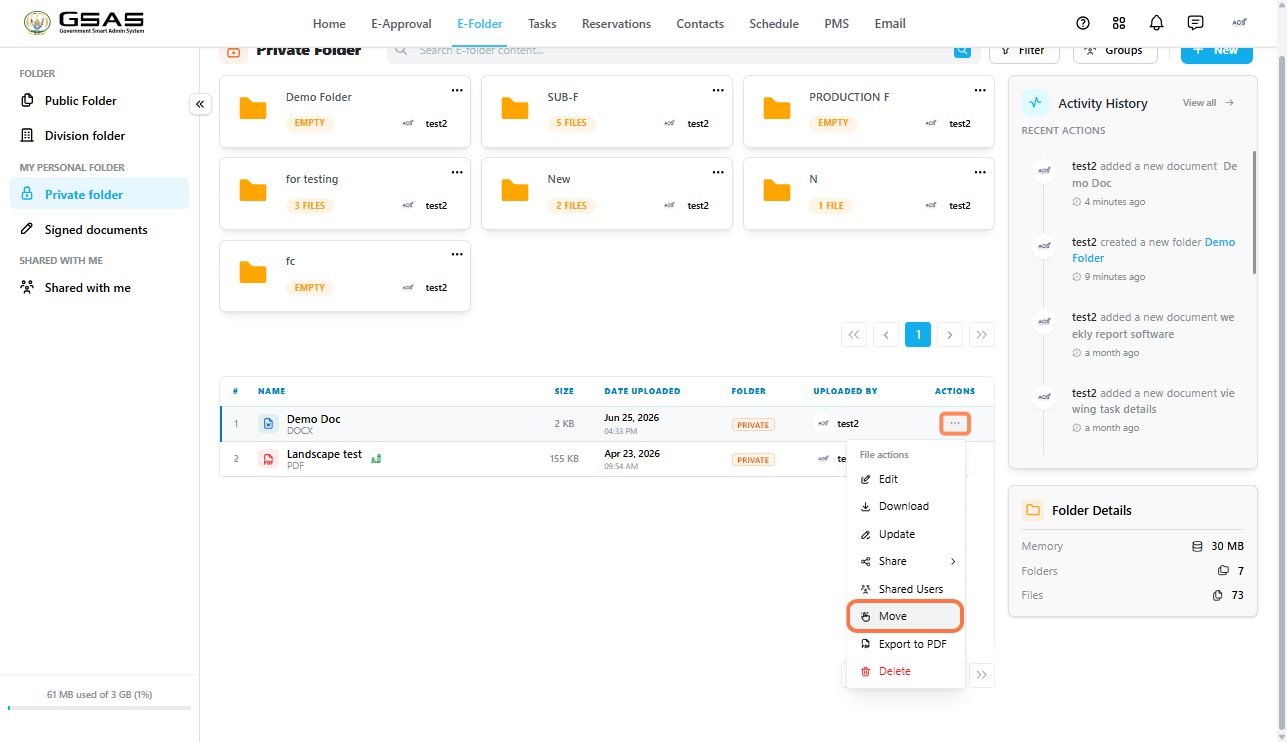
- Click ··· next to the file and select Move.
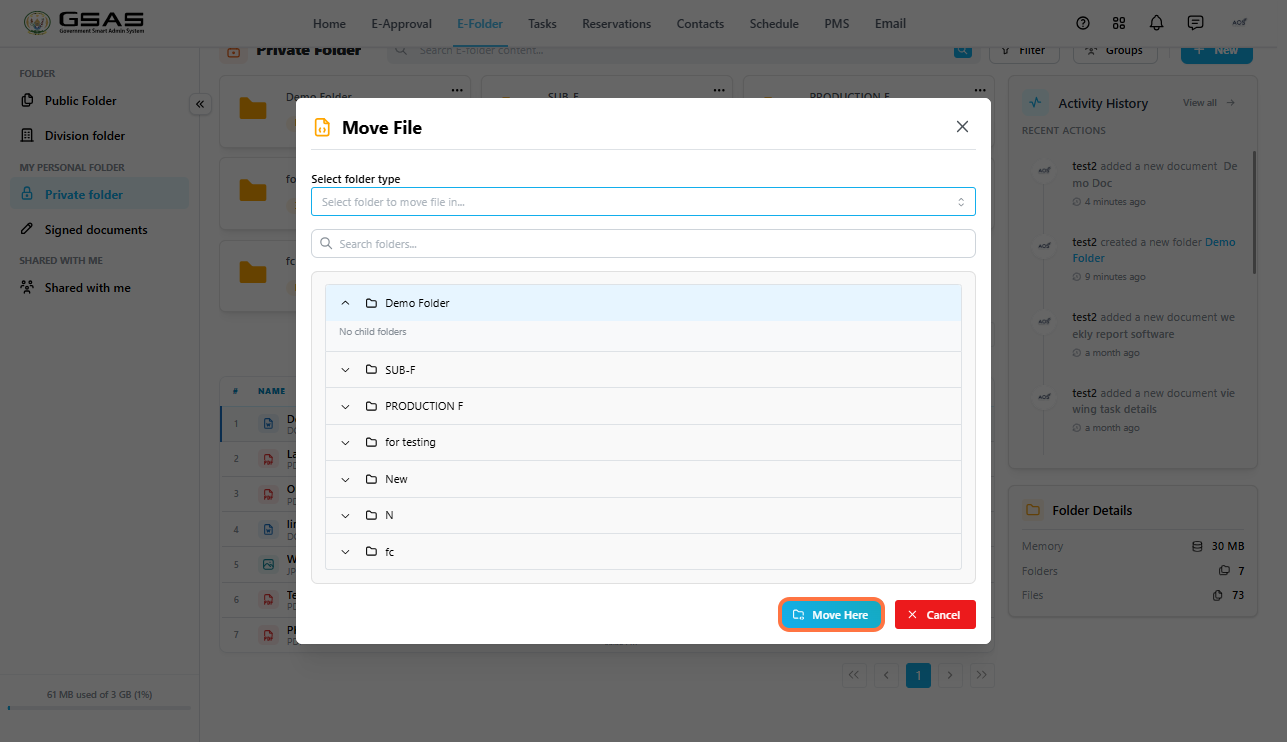
- A panel will open showing your folder structure , choose the destination folder.
- Confirm the move. The file will be removed from its current location and placed in the new one.
Downloading a file
- Click ··· next to the file and select Download.
- The file will be saved to your device.
Exporting a file to PDF
- Click ··· next to the file and select Export to PDF.
- A PDF version of the file will be saved in that same folder.
Sharing a file
- Click ··· next to the file and select Share.
- Choose how you want to share it from the options that appear.
For full details on sharing options and permissions, see the Sharing Files and Folders page.
Deleting a file
- Click on the three dots ( ··· ) on the file and select Delete. You can only delete files you own, i.e. files and folders you have created or uploaded.
- A confirmation prompt will appear click Delete to proceed.
| Warning: Deletion is permanent. There is no recycle bin in E-Folder, so once a file is deleted it cannot be recovered. Make sure you no longer need it before proceeding. |
- You can not upload or create files within the Shared with Me folder. Only files and folders shared with you appear in this folder.
- Editing shared word, excel, or ppt files depends on the permissions granted by the file owner;
| Read permission — you can only open the file. Write permission — you can edit, export to PDF, and share the file. |