Working with Files and Folders
This page walks you through the everyday tasks you will use in E-Folder. Most actions work the same way across the Public, Division, and Private folders, any differences are noted where they apply.
Opening a folder
- From E-Folder, double-click the folder card you want to open.
- Once inside, you will see the files and subfolders it contains. Use the search bar to find something by name, or click Filter to narrow the list.
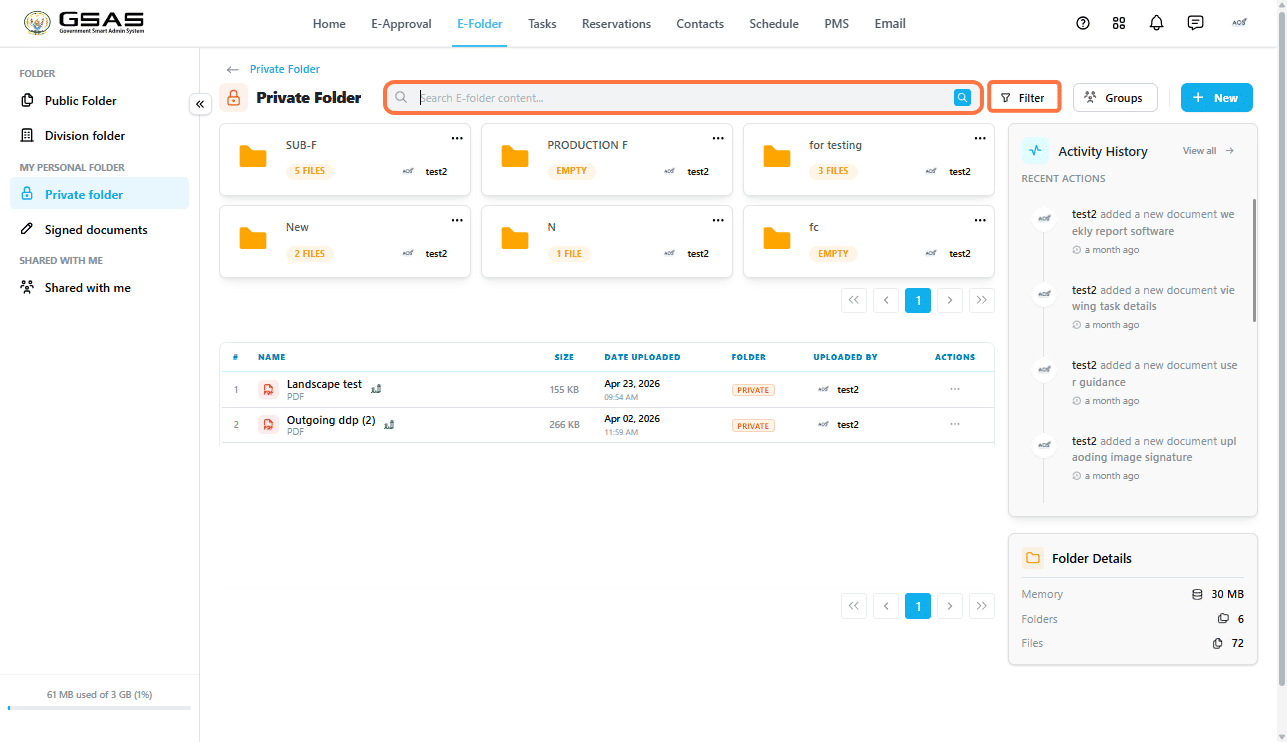
Creating a new folder
- Click + New at the top right and select New Folder.
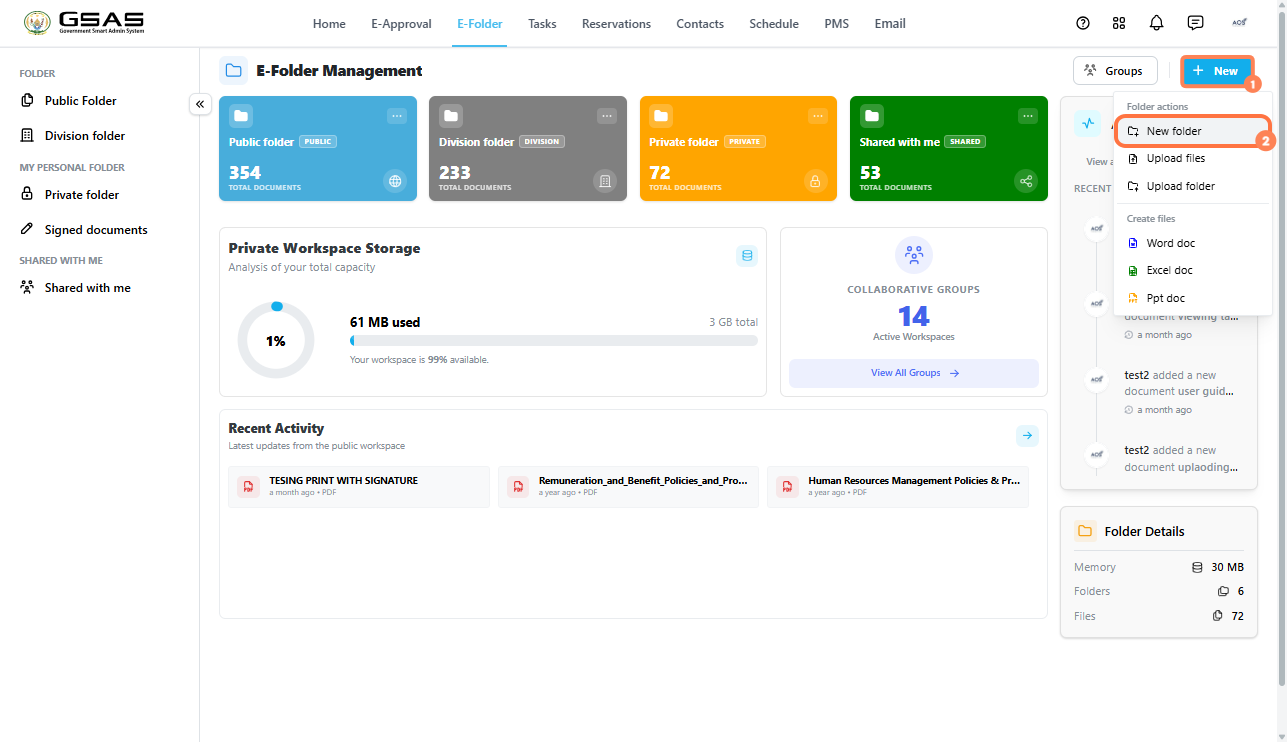
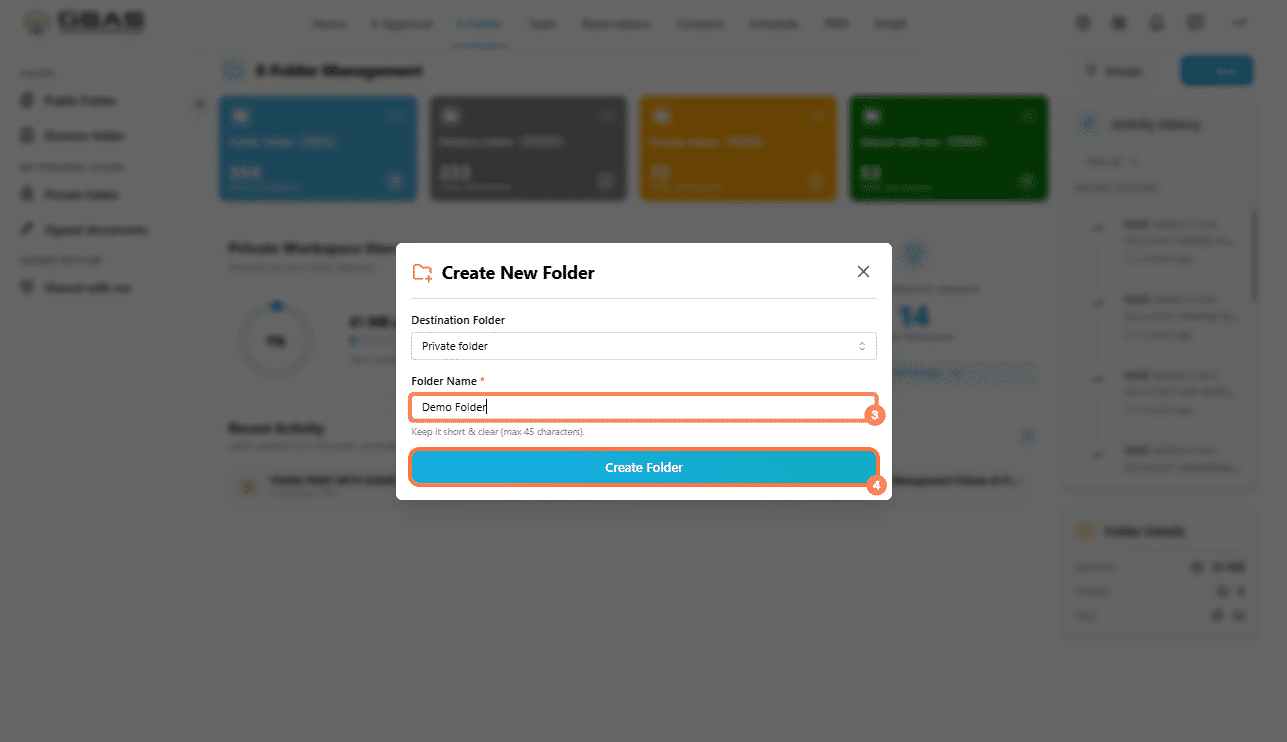
If you clicked + New from the home screen, you will be asked to choose which folder to create it in. If you are already inside a folder, it will be created there.
- Enter a name for the folder and confirm.
Uploading files or a folder
- Click + New at the top right and select Upload Files or Upload Folder.
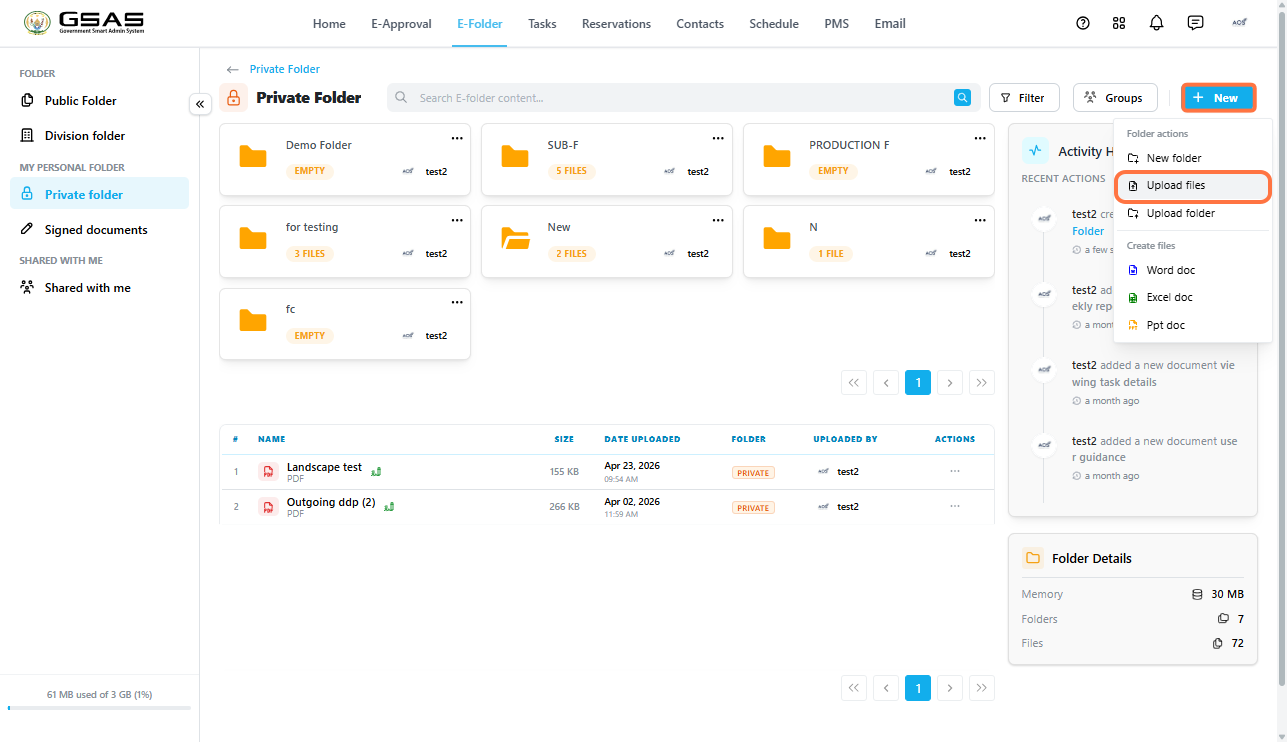
- If prompted, choose the destination folder.
- Browse your device, select the files or folder you want to upload, and confirm.
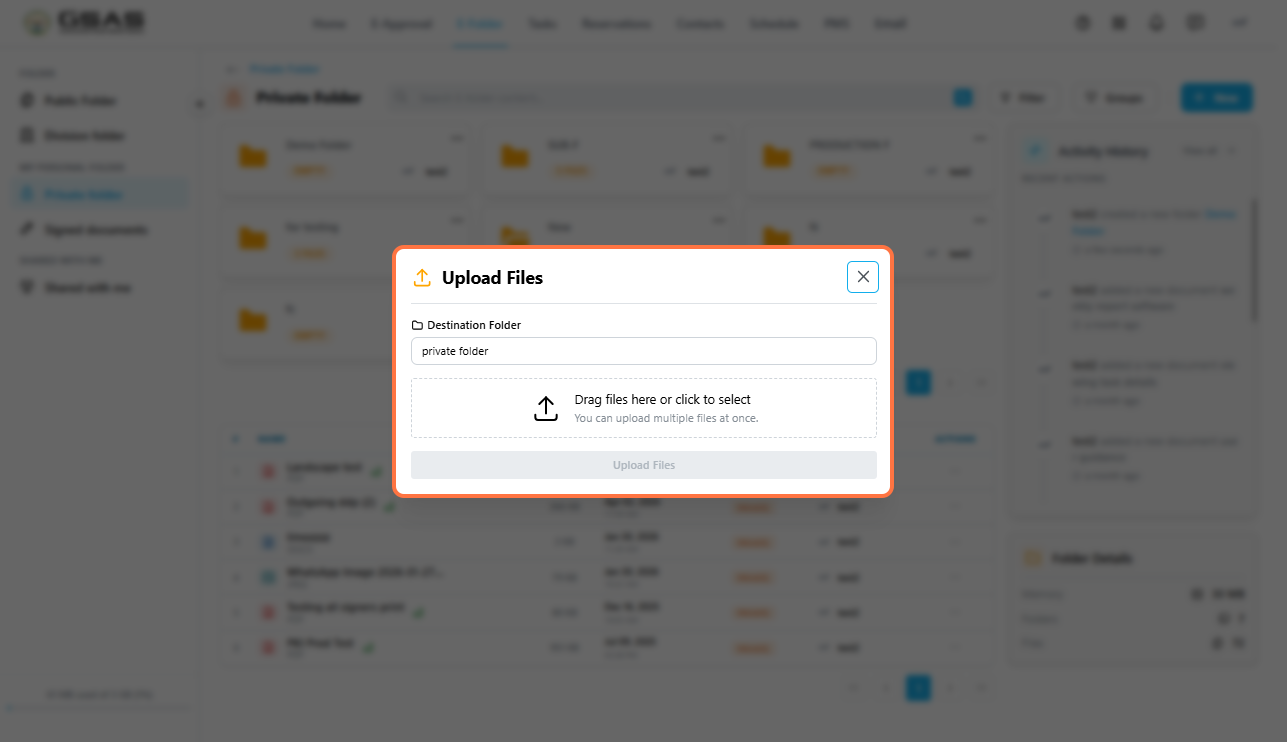
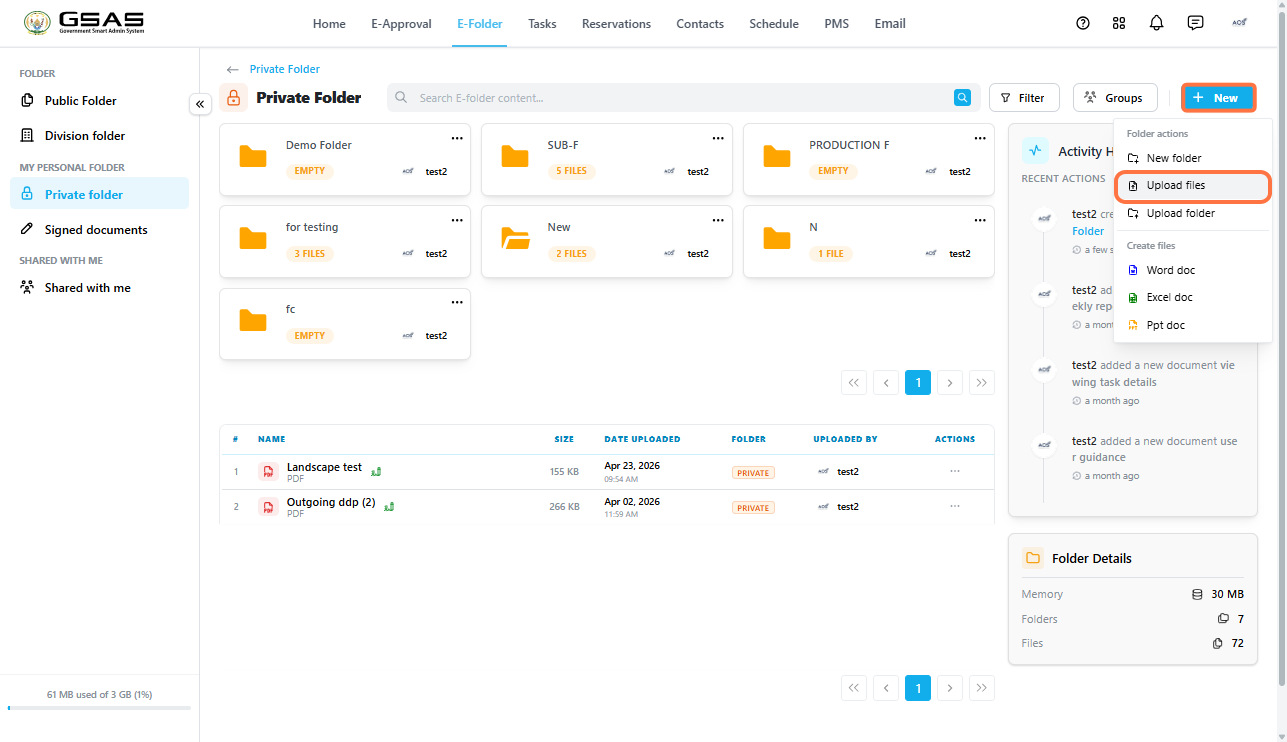
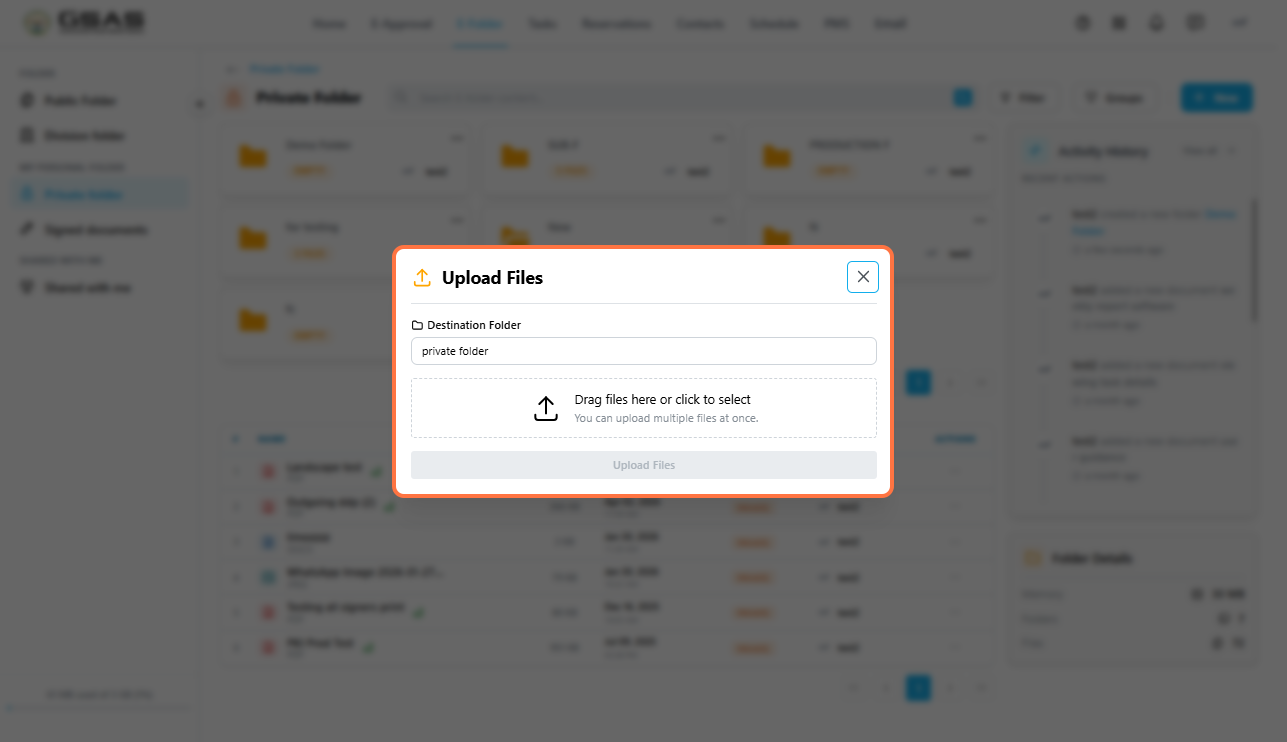
| Tip: You can also click ··· on any folder card from the home screen and select Upload Files or Upload Folder to add content directly into that folder without opening it first. |
Creating a document
You can create a Word, Excel, or PowerPoint document directly in E-Folder without uploading anything from your device.
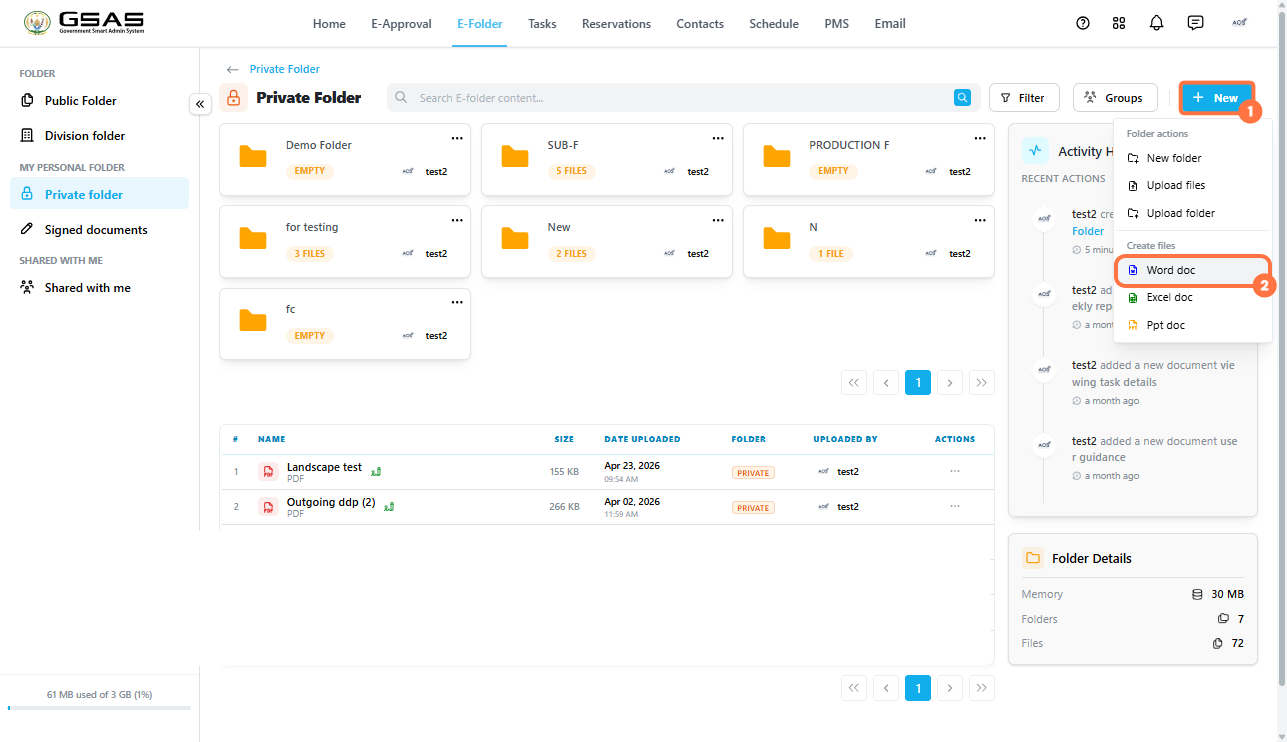
- Open the folder where you want the document to be.
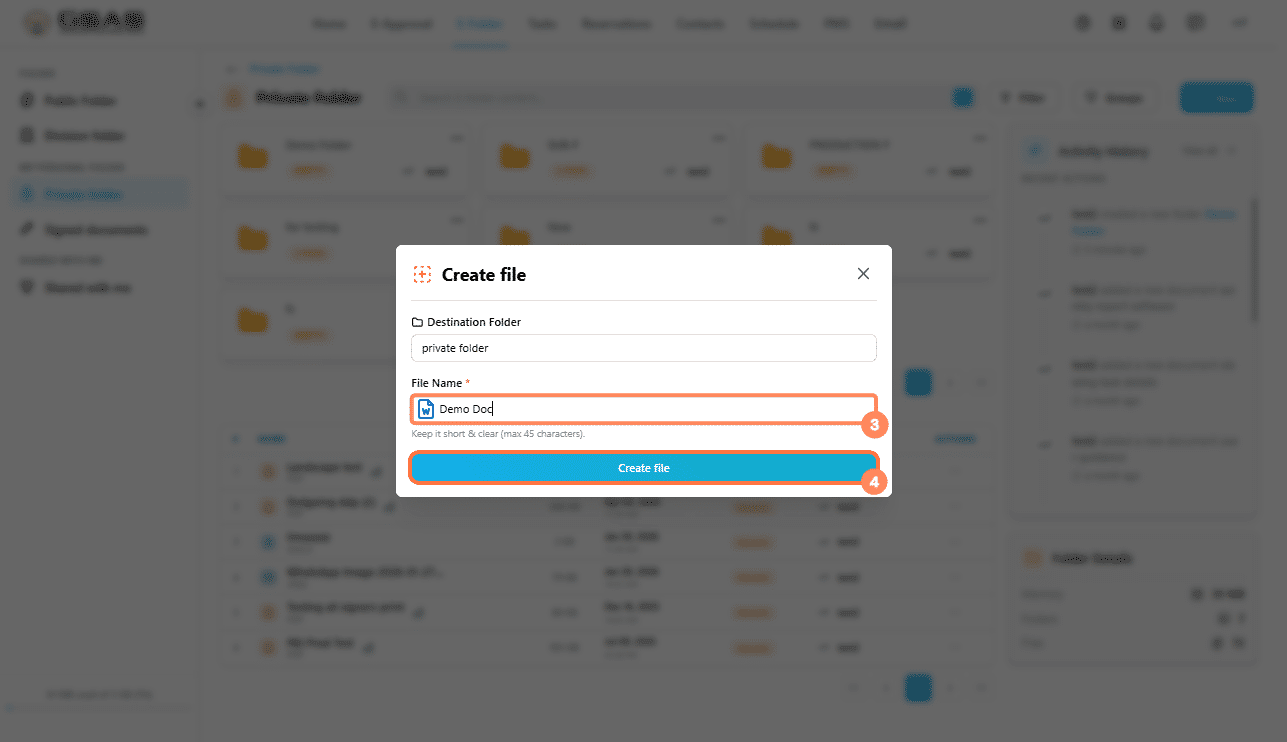
- Click + New and select Word doc, Excel doc, or Ppt doc.
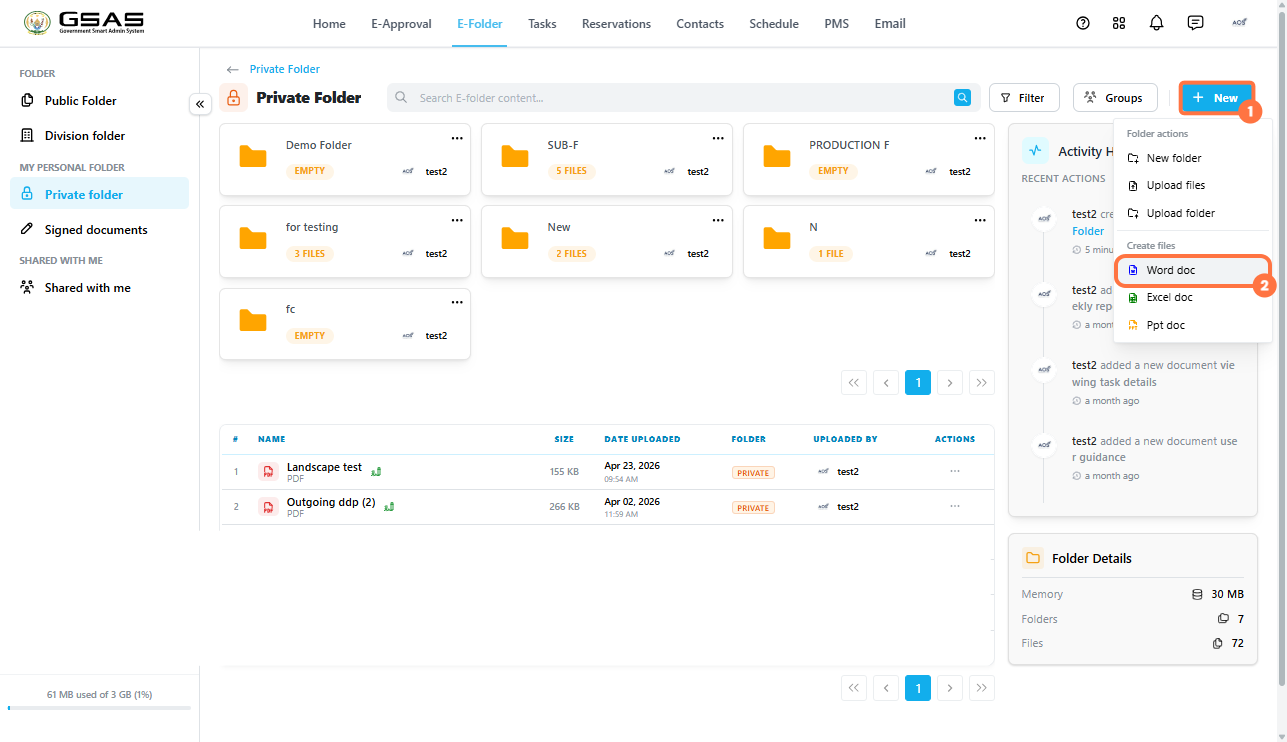
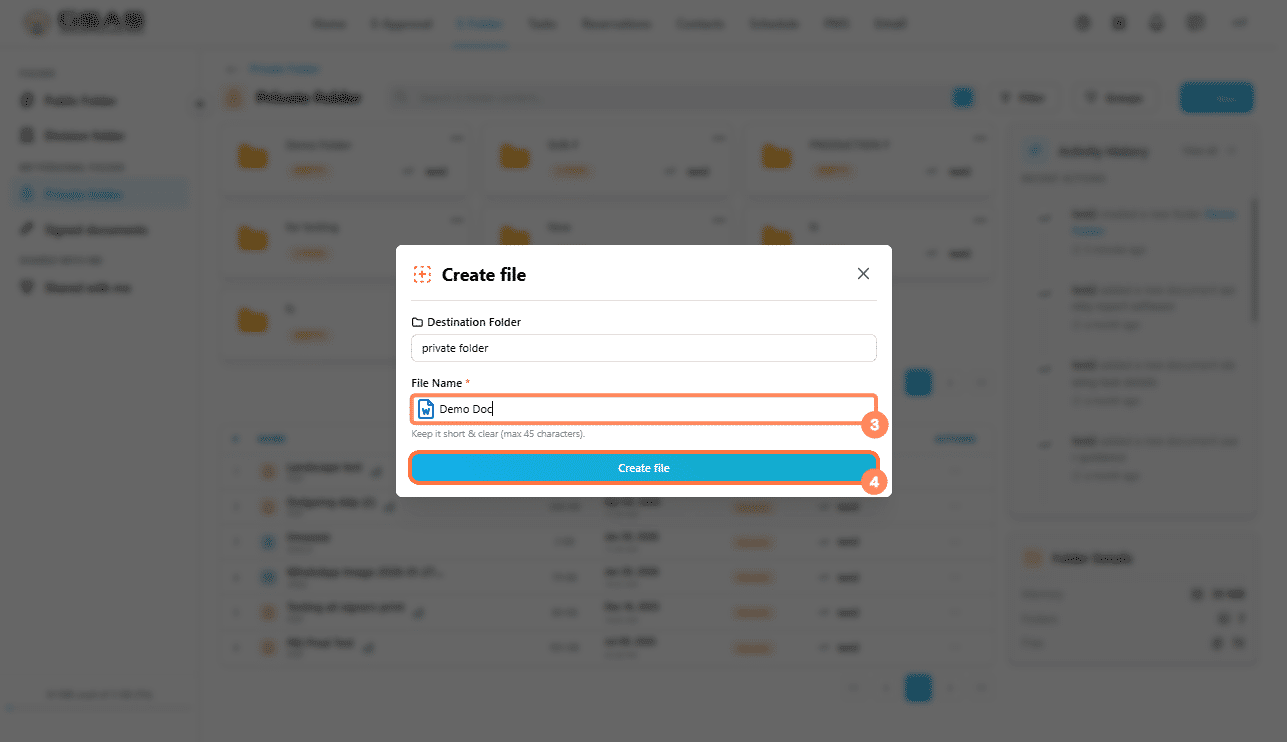
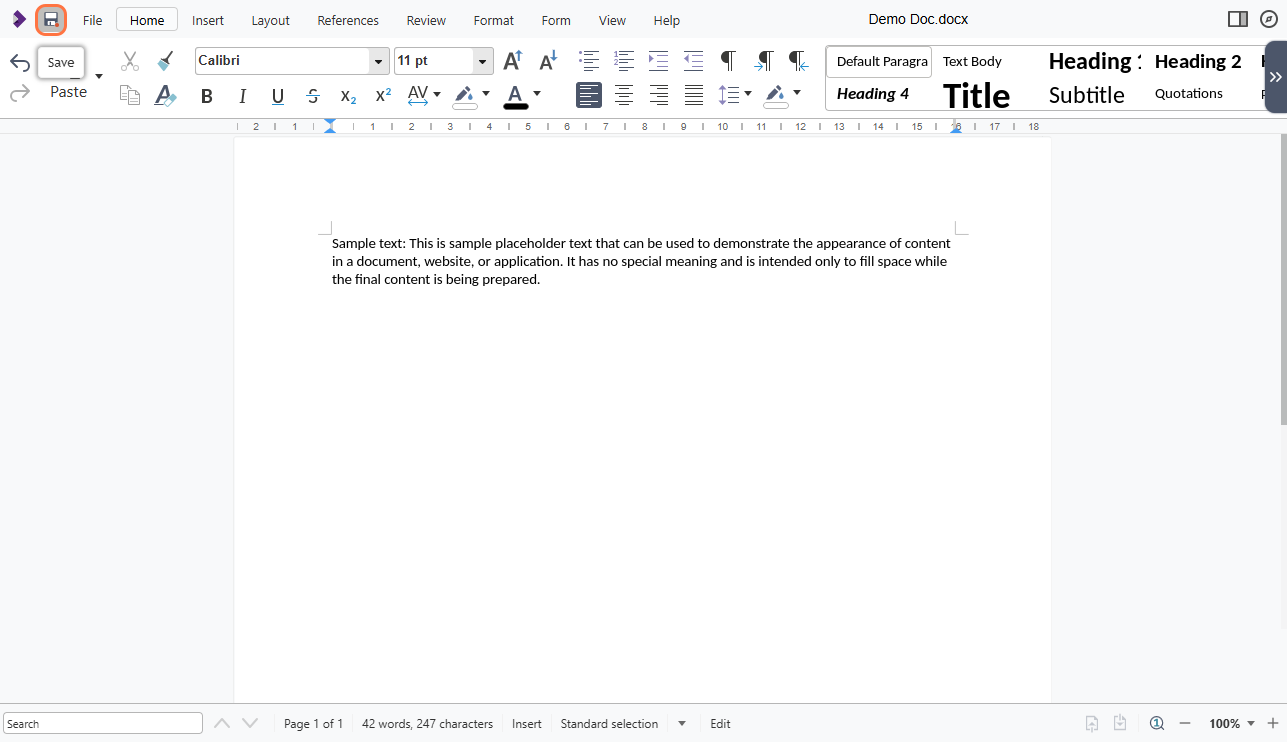
- The document will open in the system ready for you to edit.
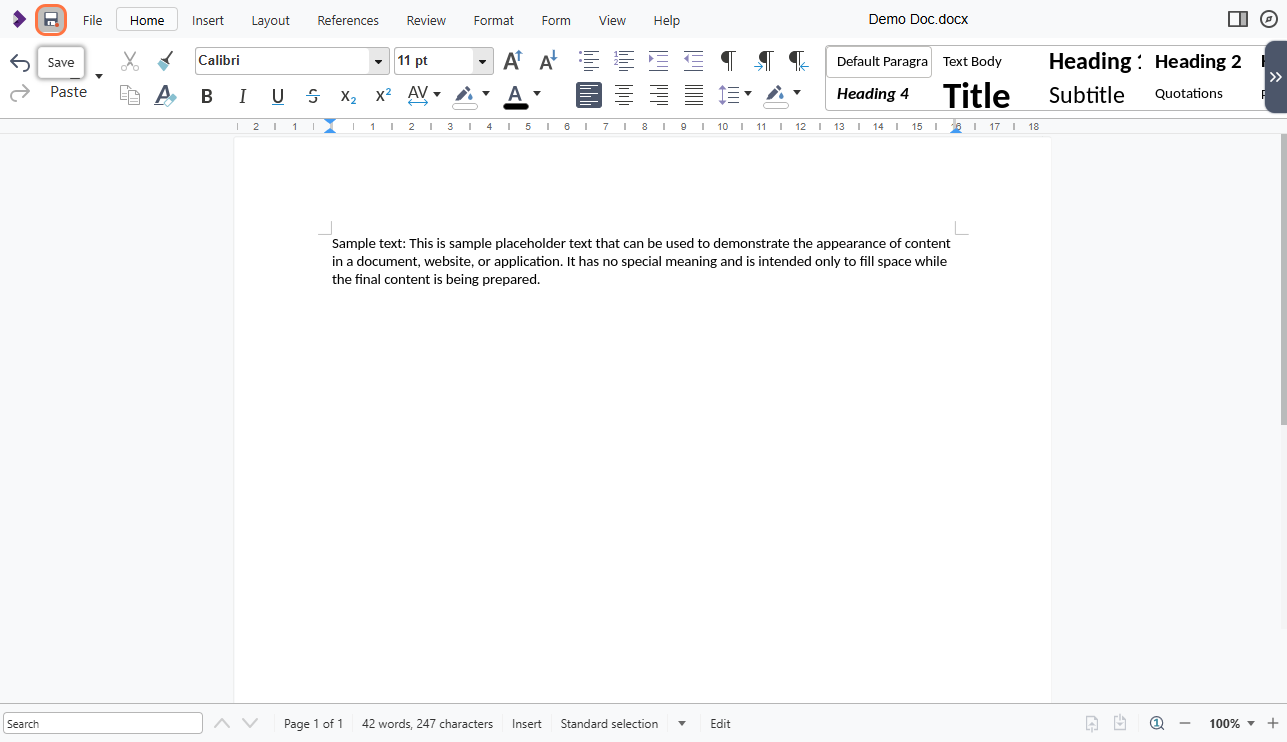
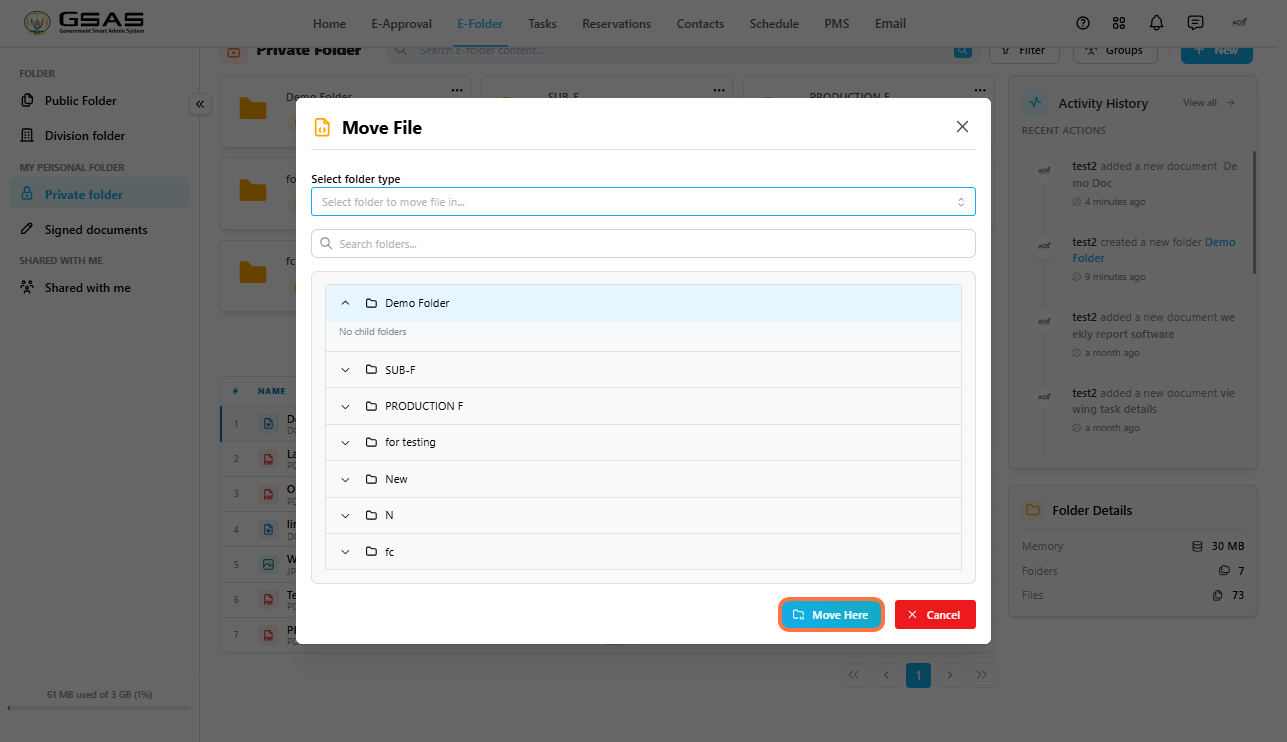
Moving a file
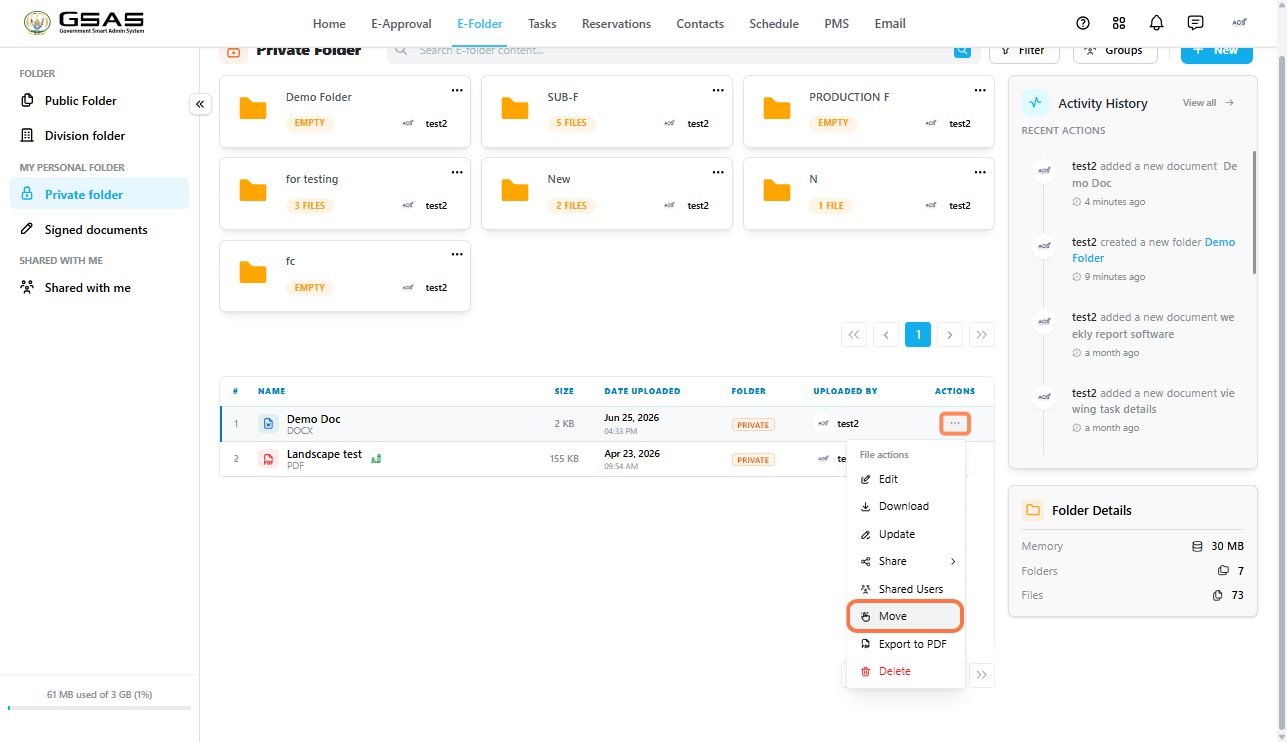
- Click ··· next to the file and select Move.
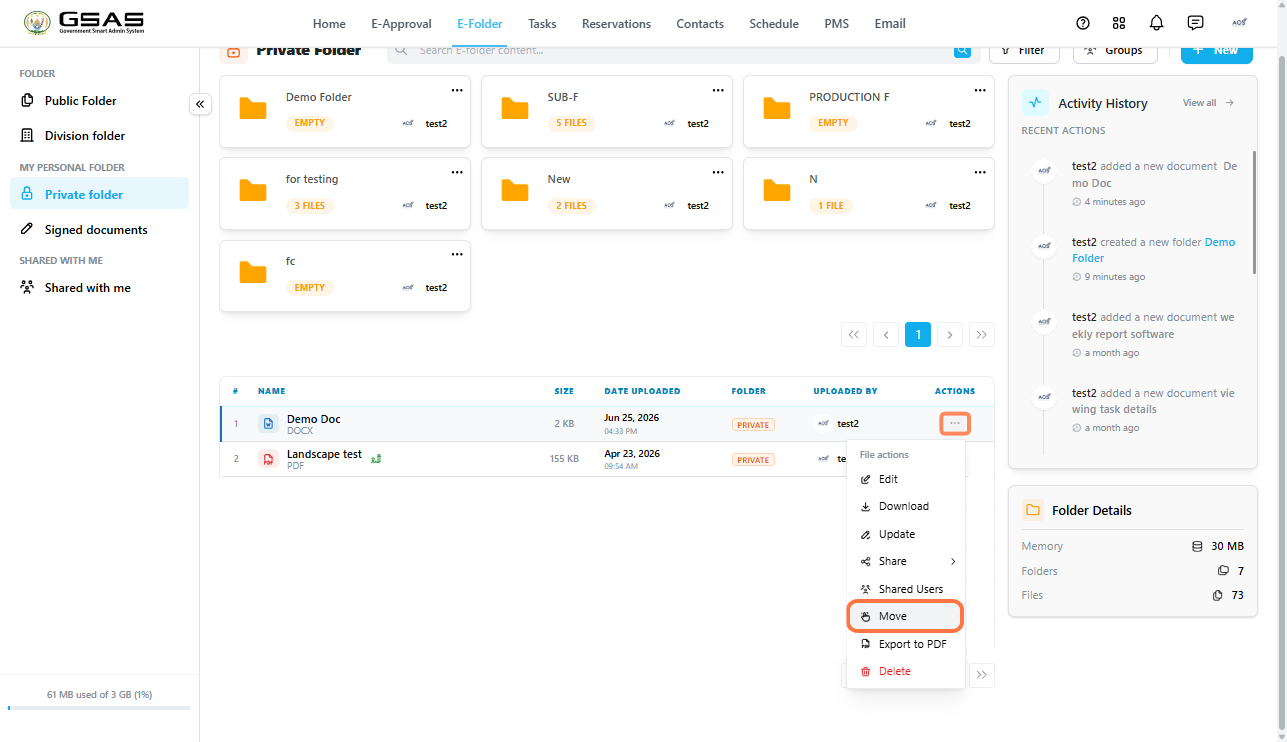
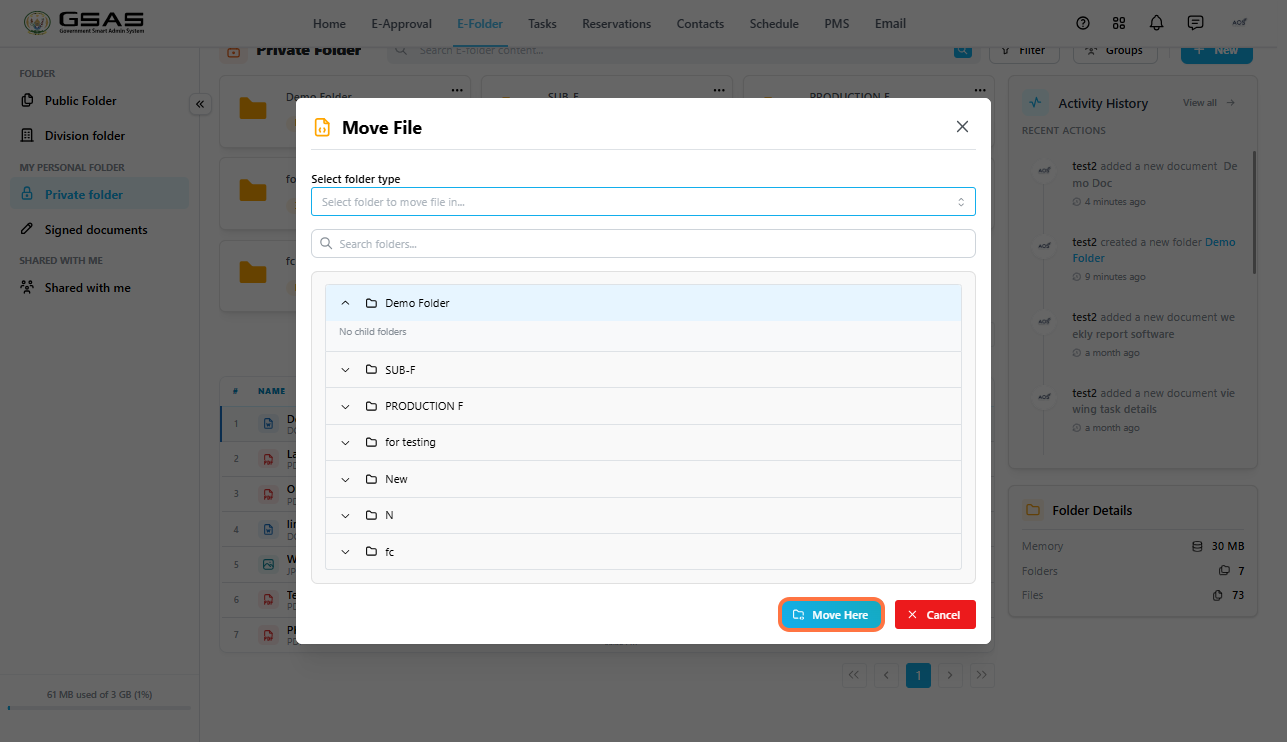
- A panel will open showing your folder structure , choose the destination folder.
- Confirm the move. The file will be removed from its current location and placed in the new one.
Downloading a file
- Click ··· next to the file and select Download.
- The file will be saved to your device.
Exporting a file to PDF
- Click ··· next to the file and select Export to PDF.
- A PDF version of the file will be saved to your device.
Sharing a file
- Click ··· next to the file and select Share.
- Choose how you want to share it from the options that appear.
For full details on sharing options and permissions, see the Sharing Files and Folders page.
Deleting a file
- Click ··· next to the file and select Delete. You can only delete files you own; files and folders you have created or uploaded.
- A confirmation prompt will appear
—click Delete to proceed.
| Warning: Deletion is permanent. There is no recycle bin in E-Folder, so once a file is deleted it cannot be recovered. Make sure you no longer need it before proceeding. |
You can not upload or create files within the Shared with Me folder. Only files and folders shared with you appear in this folder. What you can do depends on the permission the owner gave you:
| Read permission — you can only open the file. Write permission — you can edit, export to PDF, and share the file. |