Tracking Your Reservations
Once you've submitted a reservation, My Reservations is where you go to review it's status.
Open My Reservations
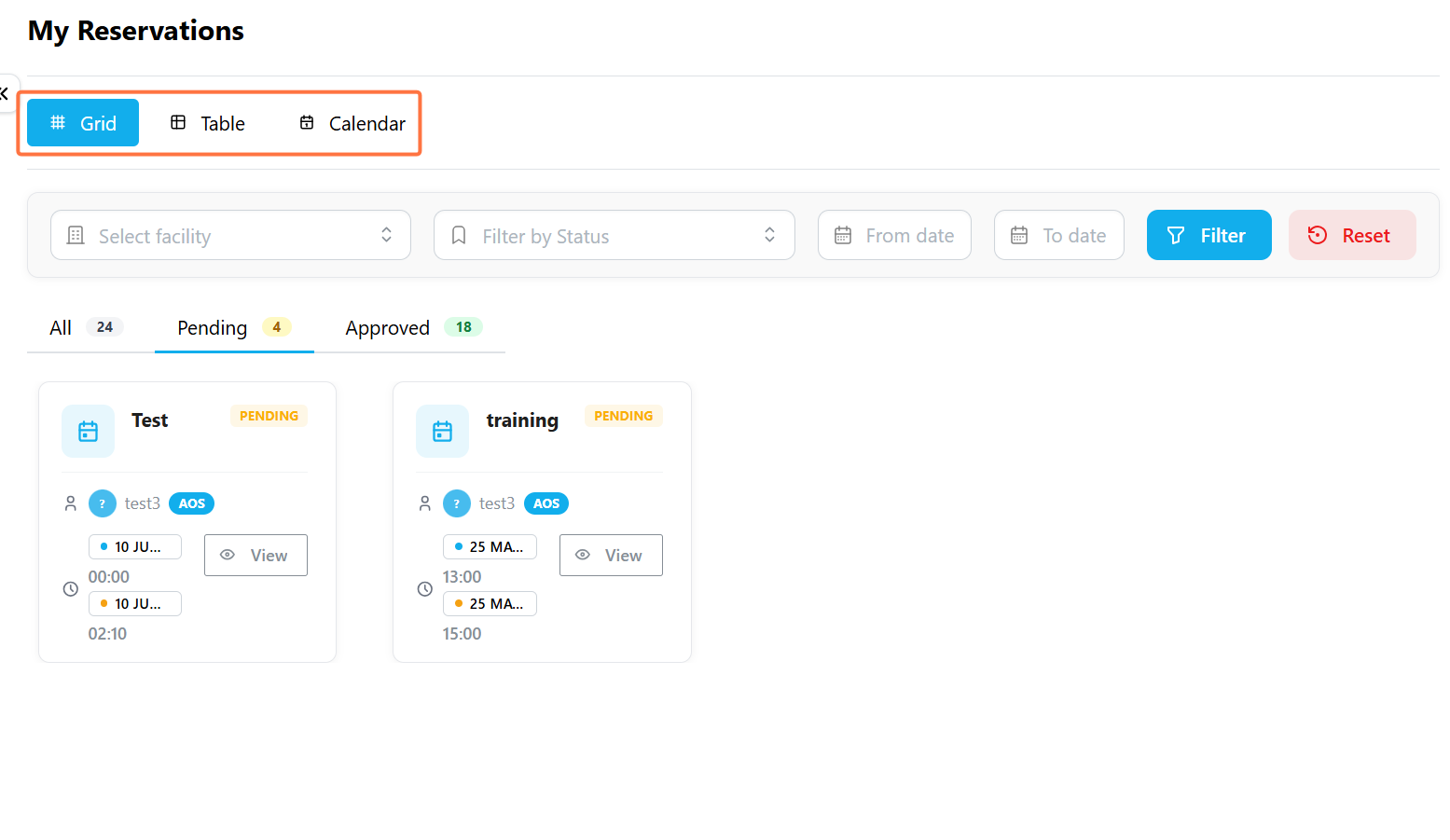
Go to Reservations → My Reservations. By default, your bookings appear in Grid view, but you can switch to whichever layout suits what you're trying to see.
| View | Best For |
|---|---|
| Grid | Browsing your reservations as individual cards, each showing status at a glance. |
| Table | Scanning a dense list of reservations side by side. |
| Calendar | Seeing your bookings laid out by date. |
View Reservation Status
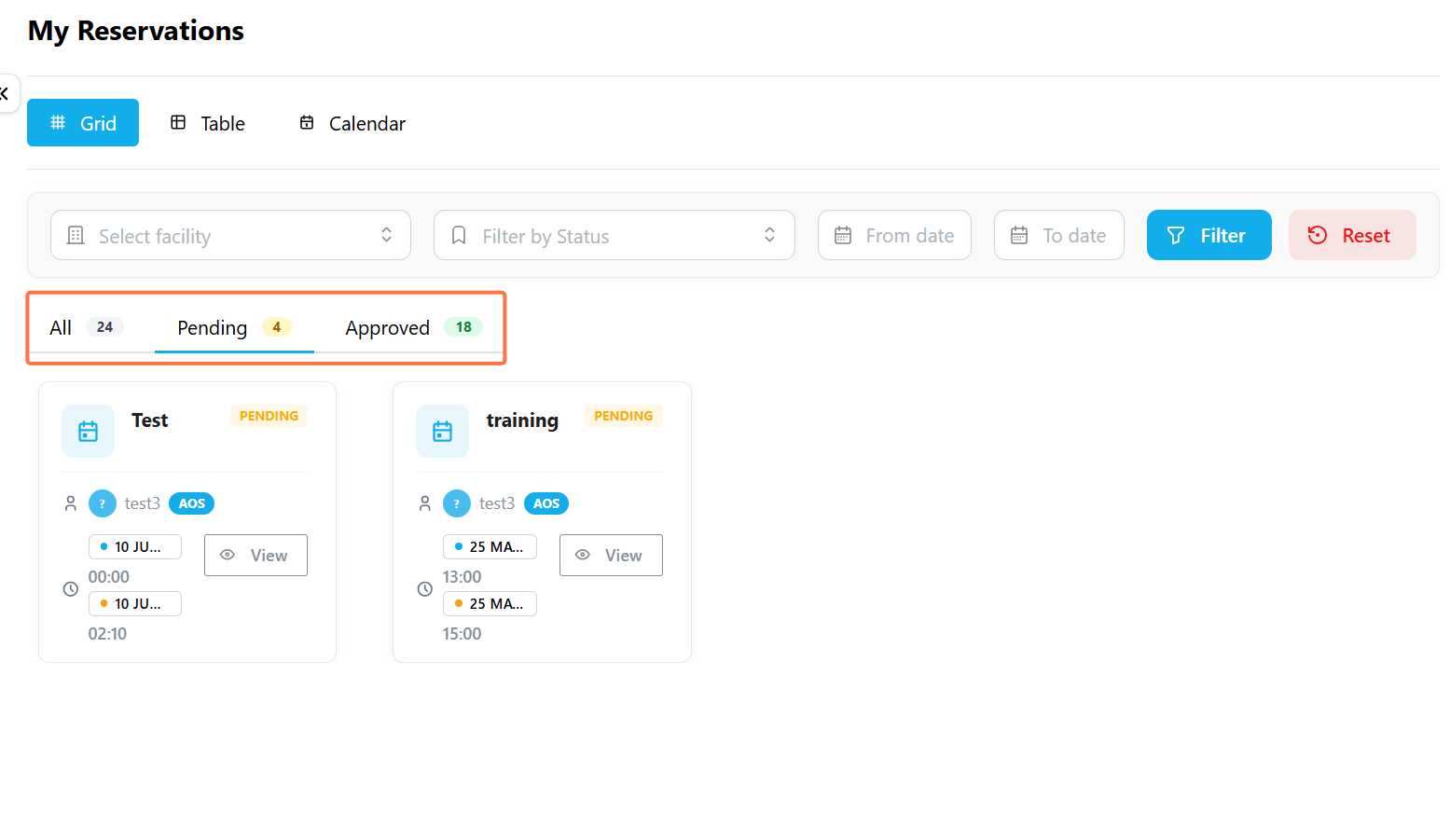
Every reservation that requires approval moves through one of three stages:
| Status | What it means |
|---|---|
| Pending | Awaiting review from the facility manager. The facility is not yet confirmed. |
| Approved | The facility manager reviewed and confirmed the booking for your requested time. |
| Rejected | The booking did not go through. |
Filter your Reservations
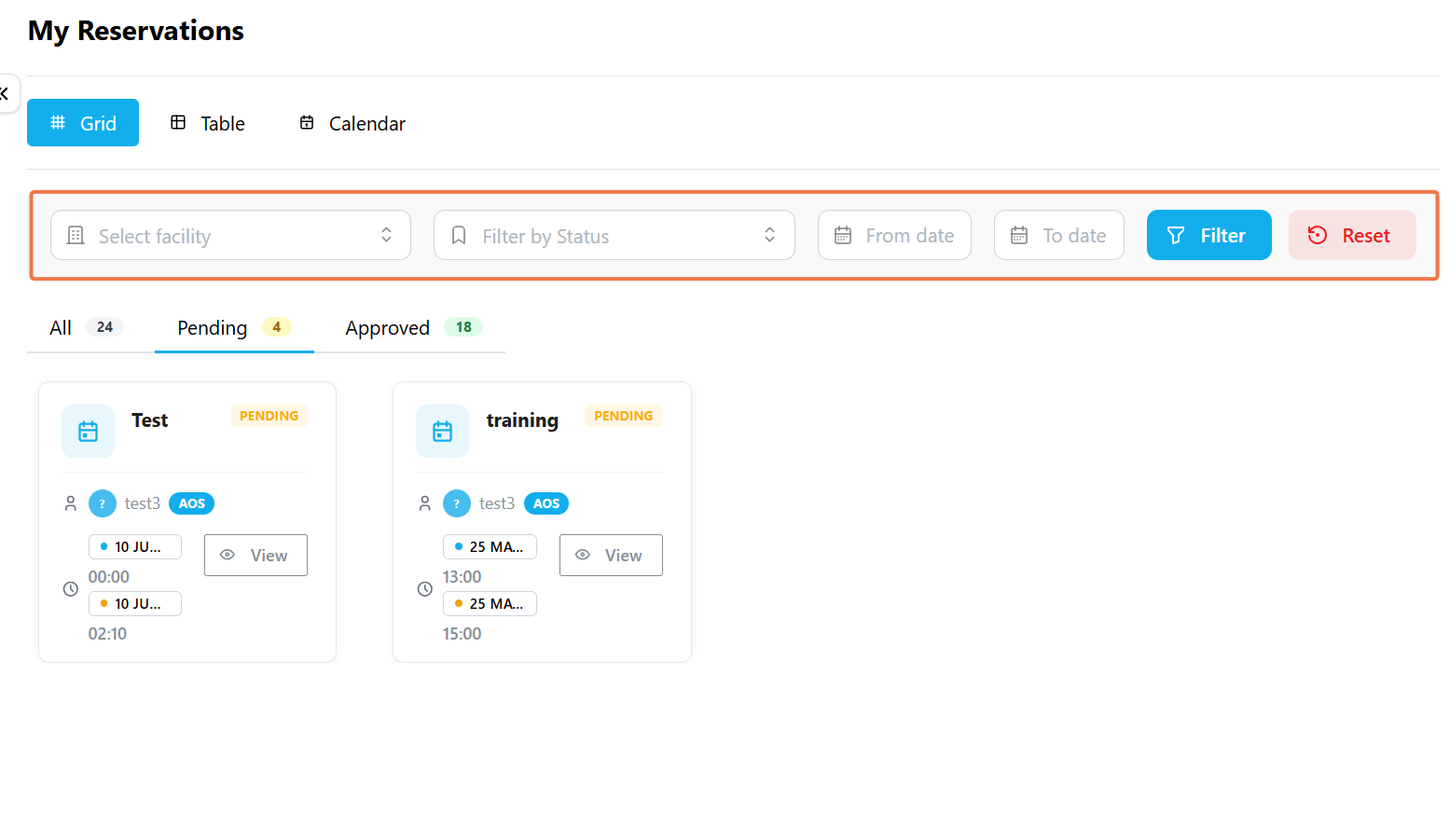
Use the filters above your reservation list to find a specific reservation:
- Select facility narrows the list to a single facility,
- Filter by Status shows only Pending, Approved, or Rejected reservations.
- You can also set a From date and To date to limit results to a specific period.
- Click Filter to apply your selection, or Reset to start over.
Viewing a Reservation's Details
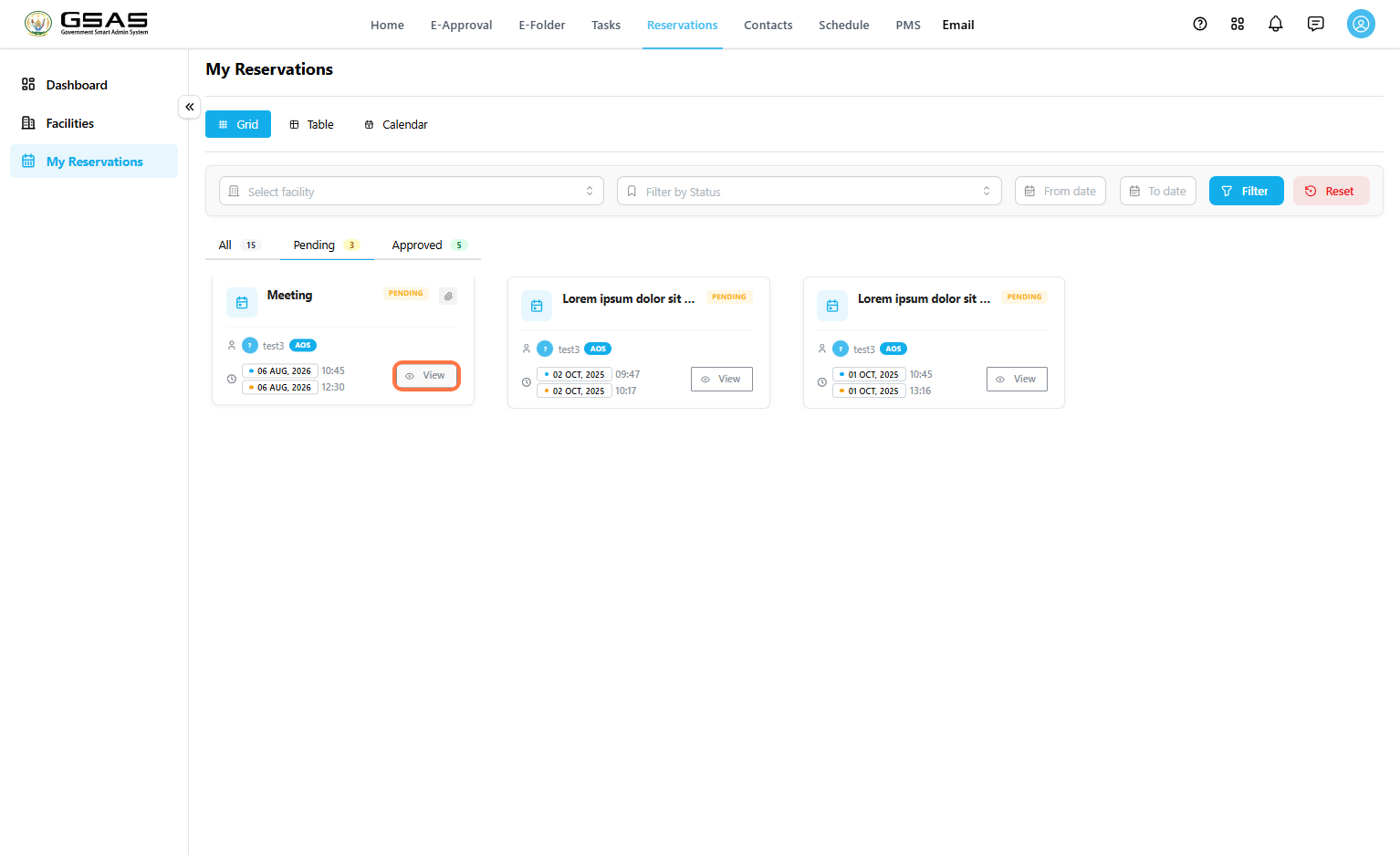
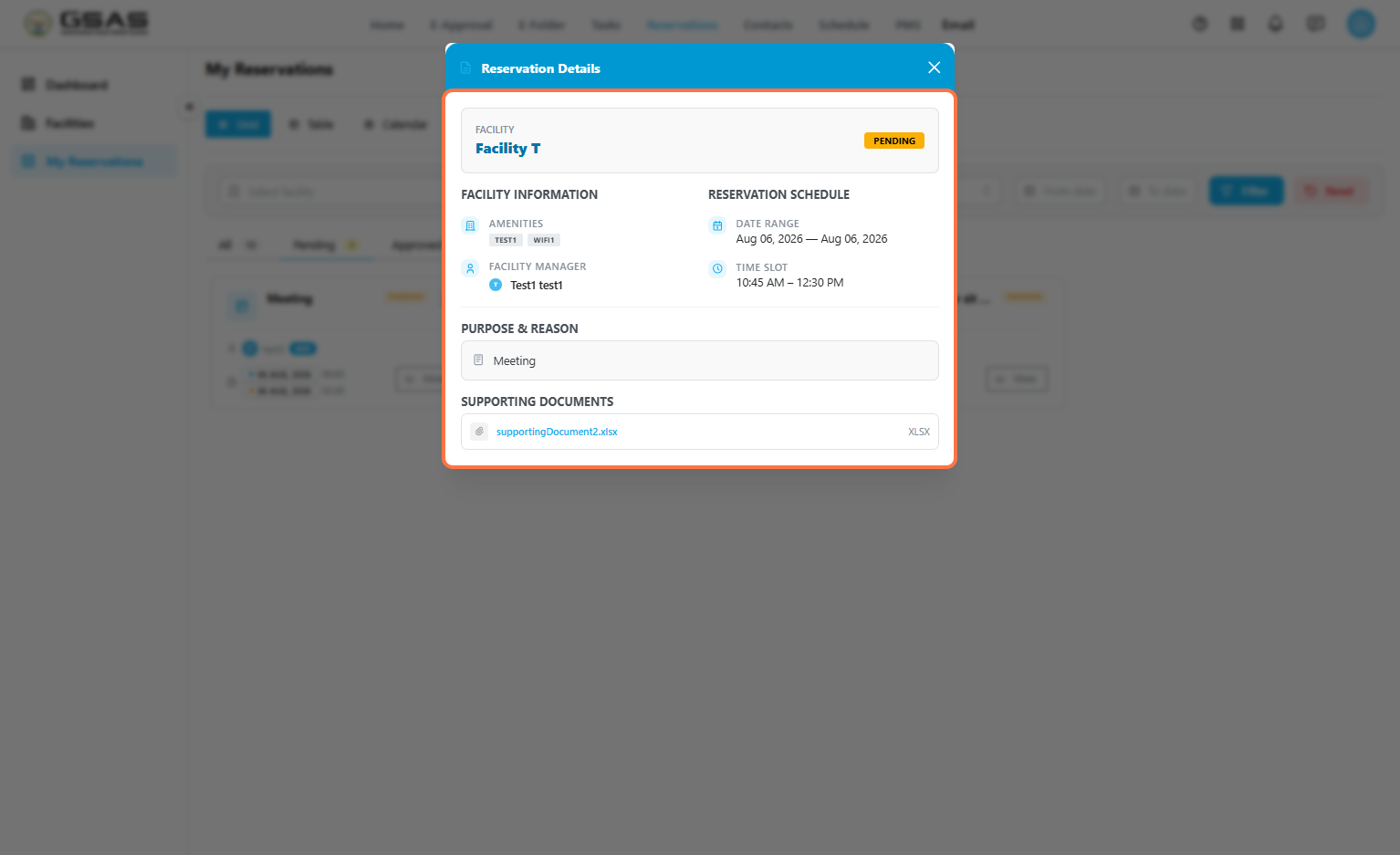
Click View on a reservation card to see it's full details.
- The Reservation Details window opens showing the facility name and current status, along with its amenities and manager under Facility Information.
- The Reservation Schedule section shows the exact date range and time slot you booked.
- Below that, you'll find the reason you gave when booking, and any supporting document you attached.
If your reservation is approved and scheduled for today, you'll also see it under Today's Bookings on the GSAS home page.