Tracking Your Reservations
Once you've submitted a reservation, use My Reservations is where you go to check its status, review itsit's details, or filter through past bookings.status.
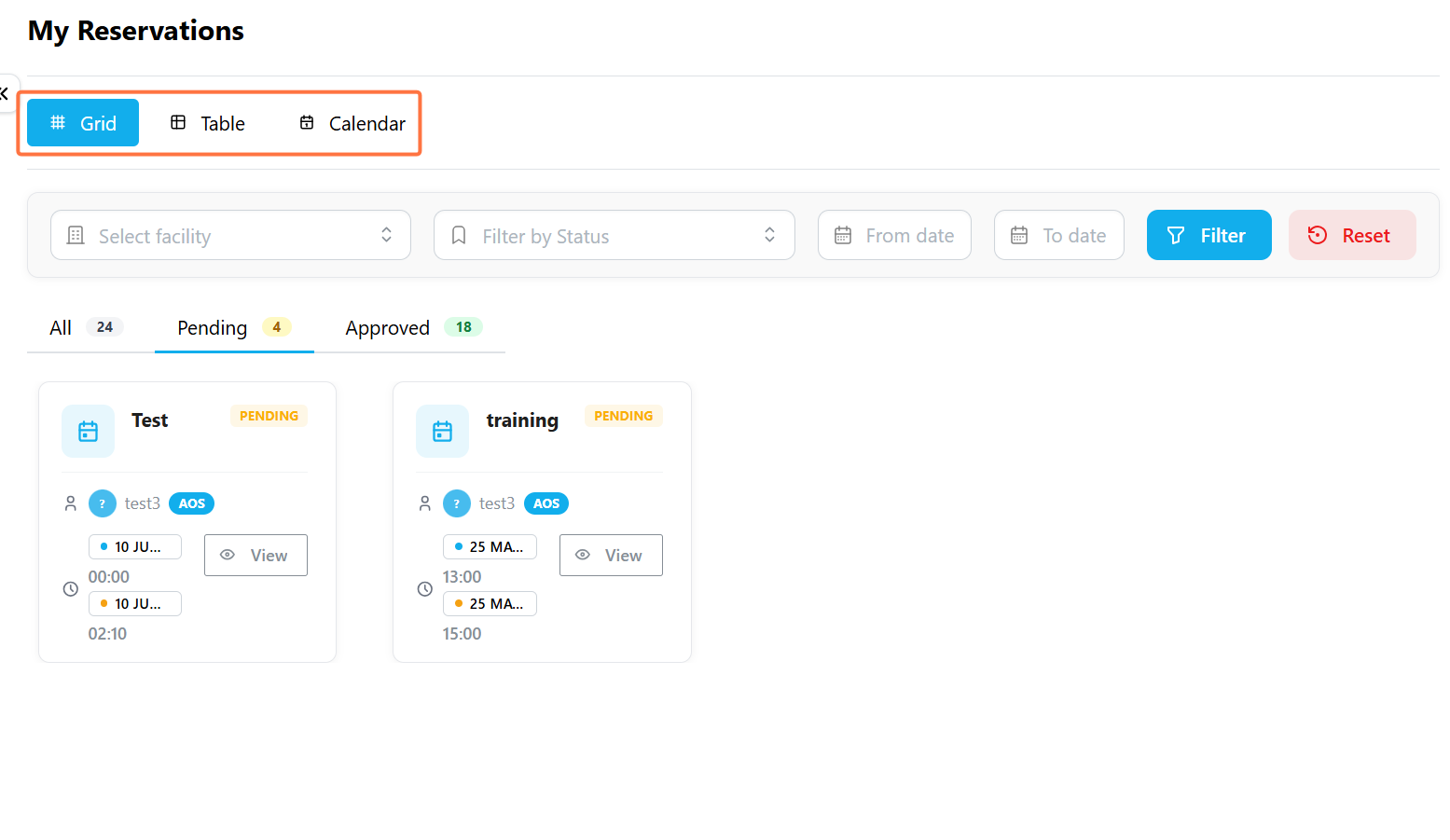
SwitchingOpen ViewsMy Reservations
Go to Reservations → My Reservations. YourBy default, your bookings can be displayedappear in threeGrid formats,view, dependingbut onyou can switch to whichever layout suits what you're trying to see.
| View | Best For |
|---|---|
| Grid | Browsing your reservations as individual cards, each showing status at a glance. |
| Table | Scanning a dense list of reservations side by side. |
| Calendar | Seeing your bookings laid out by date. |
UnderstandingView Reservation Status
Every reservation that requires approval moves through one of three statuses. Facilities that don't require approval skip this entirely and are confirmed the moment you submit the booking.stages:
| Status | What it means |
|---|---|
| Pending | Awaiting review from the facility manager. The facility is not yet confirmed. |
| Approved | The facility manager reviewed and confirmed the booking for your requested time. |
| Rejected | The booking did not go through. |
If your reservation is approved and scheduled for the current day, it will also appear under Today's Bookings on the GSAS home page.
FilteringFilter Youryour Reservations
Use the filters above your reservation list to find a specific reservation:
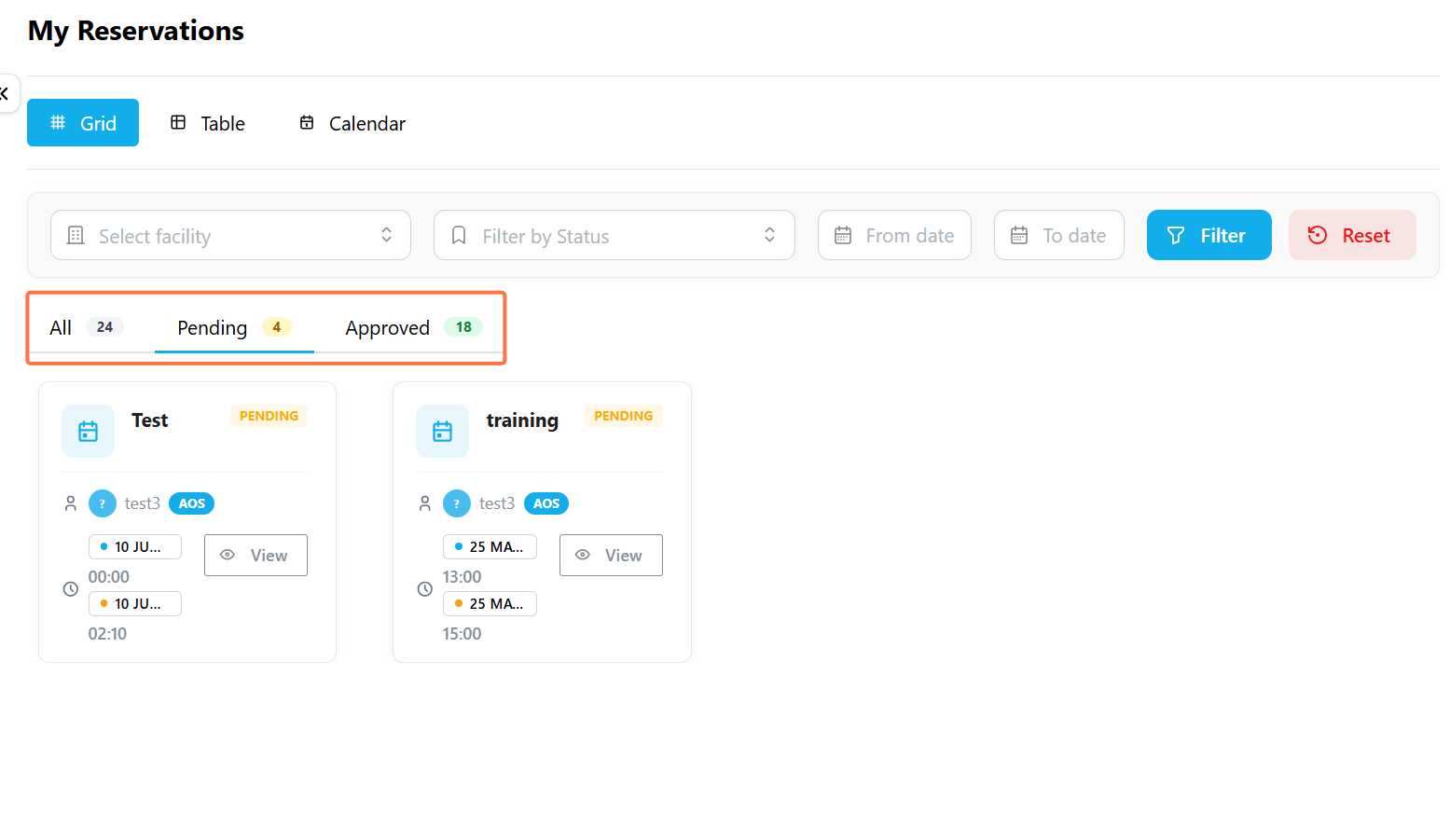
Above the list, the All, Pending, and Approved tabs give you a quick shortcut to the same filtering without opening the Filter by Status dropdown, along with a running count of how many reservations fall under each.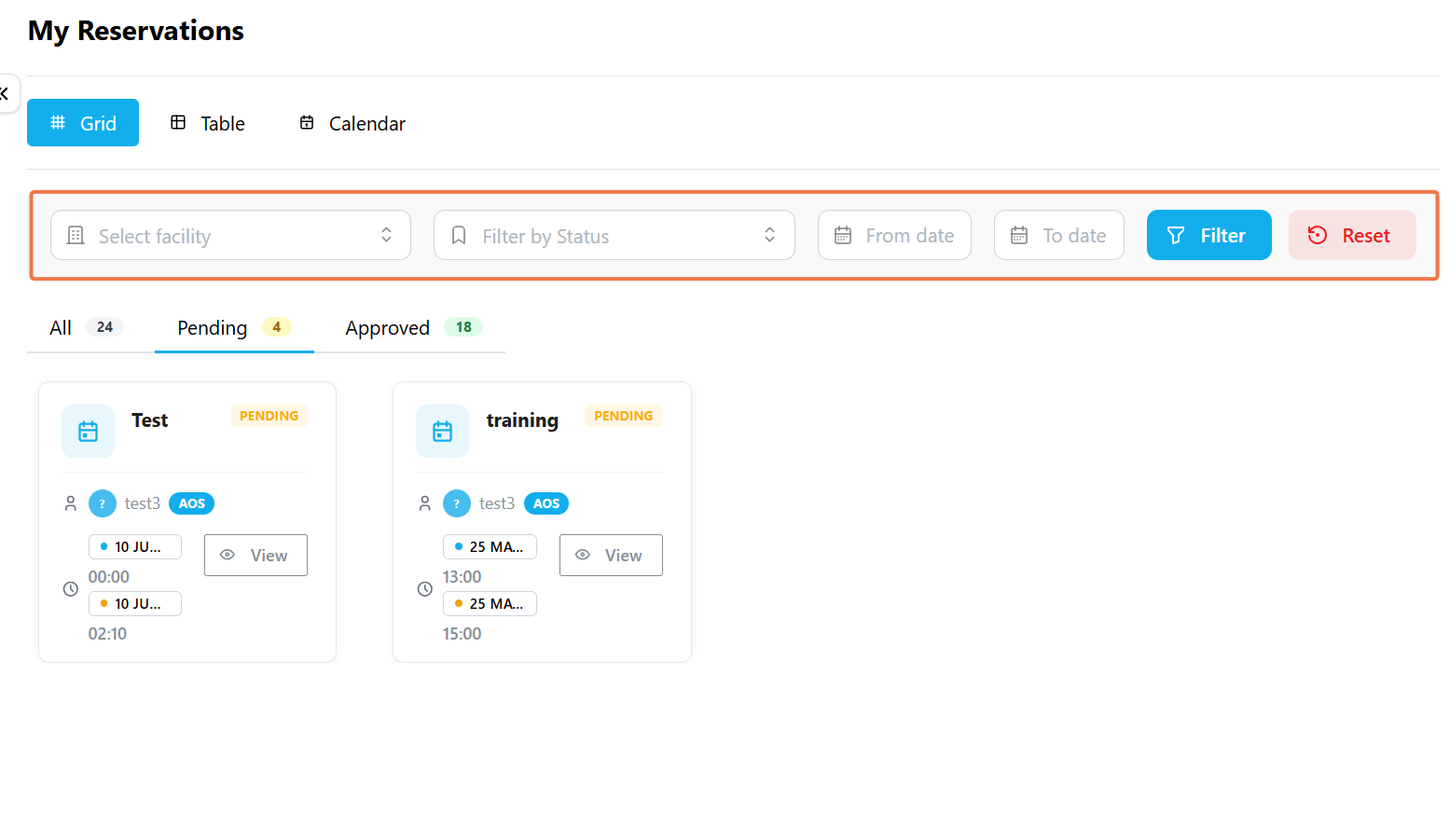
Viewing a Reservation's Details
Click View on anya reservation card to opensee itsit's full details.
The Reservation Details window shows the facility name and current status, along with its amenities and manager under Facility Information. The Reservation Schedule section shows the exact date range and time slot you booked. Below that, you'll find the reason you gave when booking, and any supporting document you attached.
If your reservation is approved and scheduled for today, you'll also see it under Today's Bookings on the GSAS home page, so you don't need to come back to Reservations just to check what's coming up.