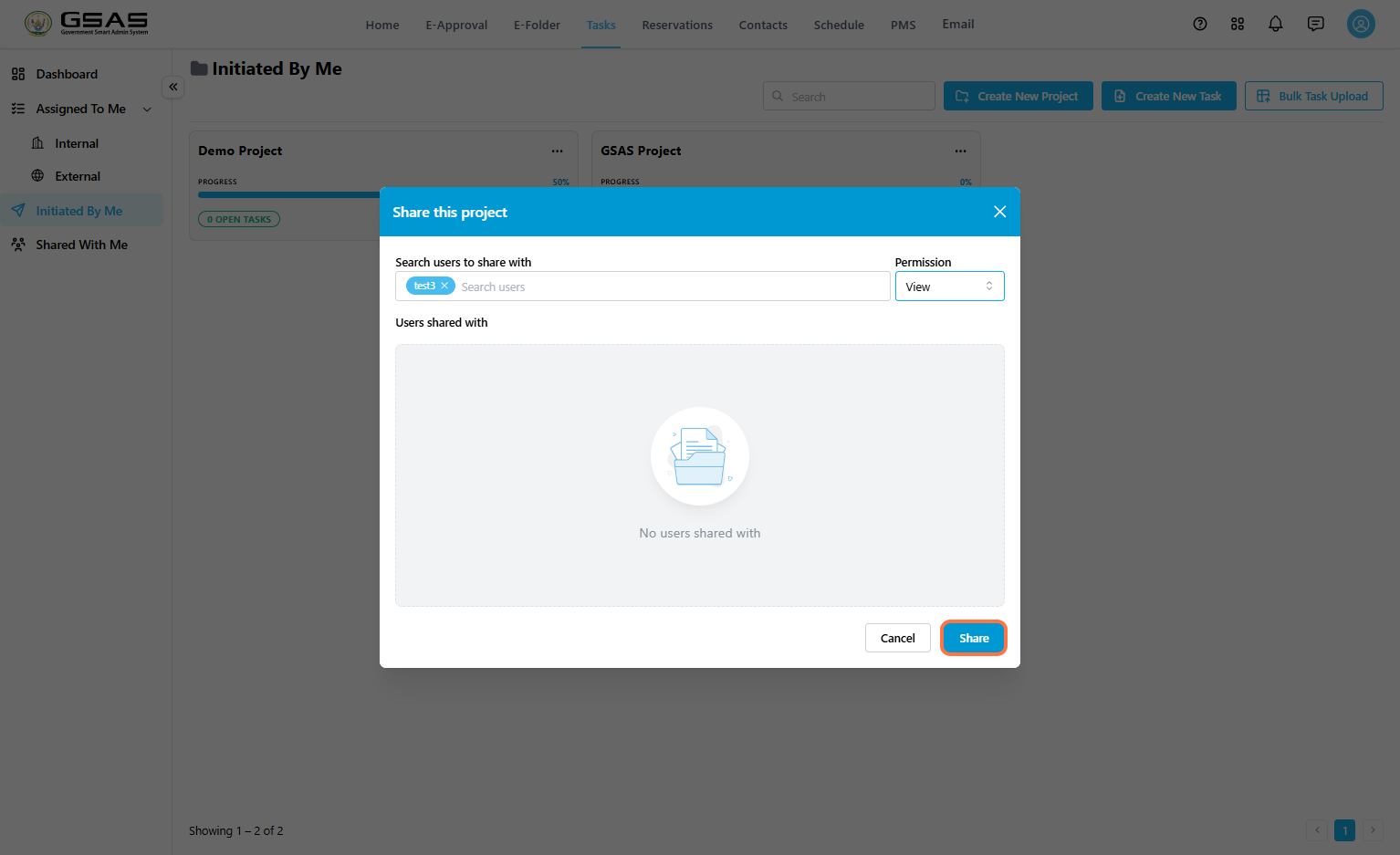
Sharing Tasks
Use Share to give another user access to a task project. The user the task has been shared with can access it from Shared with Me within the Tasks module.
Before you begin: You must have permission to manage or share the task project.
Open the Share Window
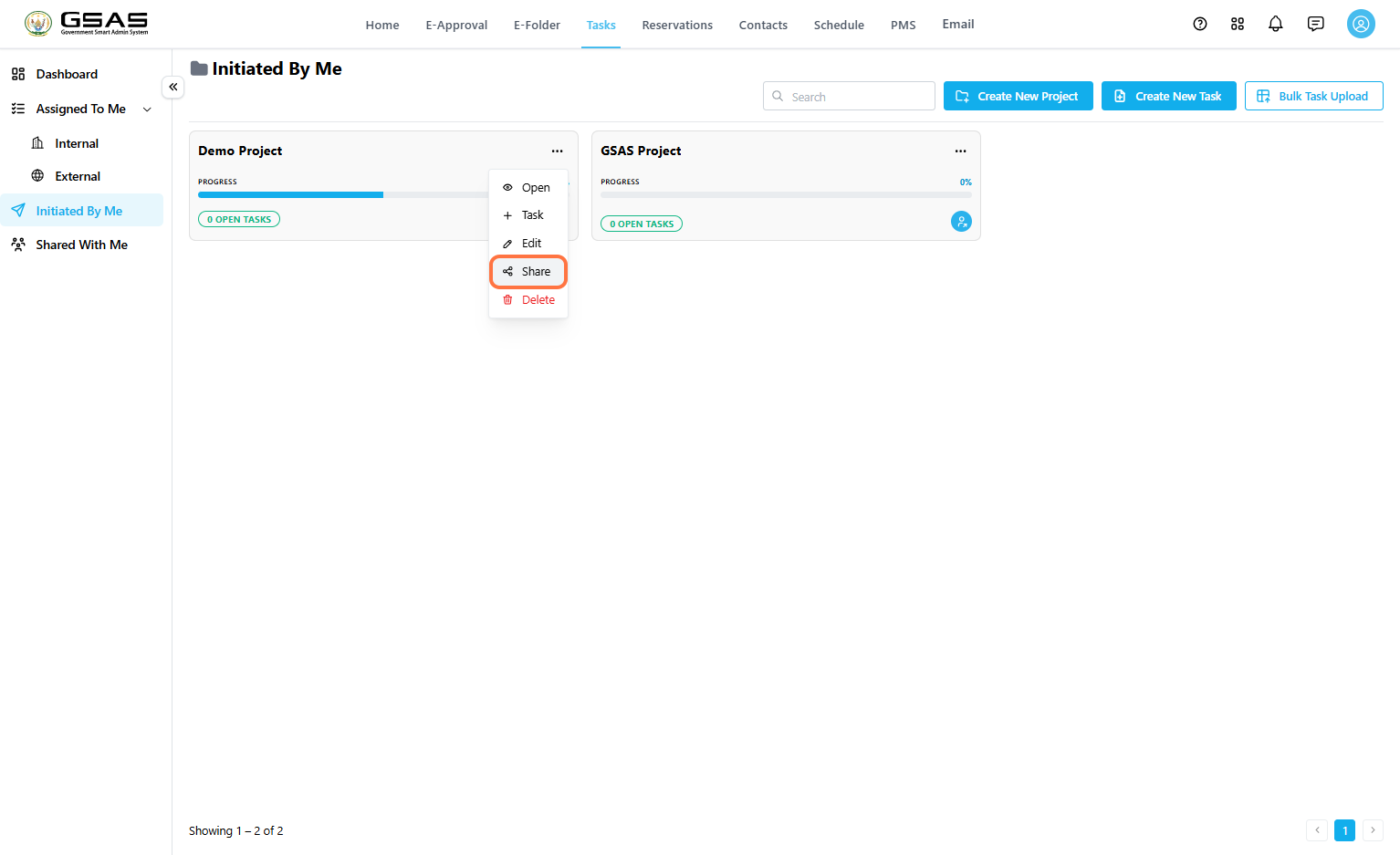
Go to Tasks.
Click Initiated By Me.
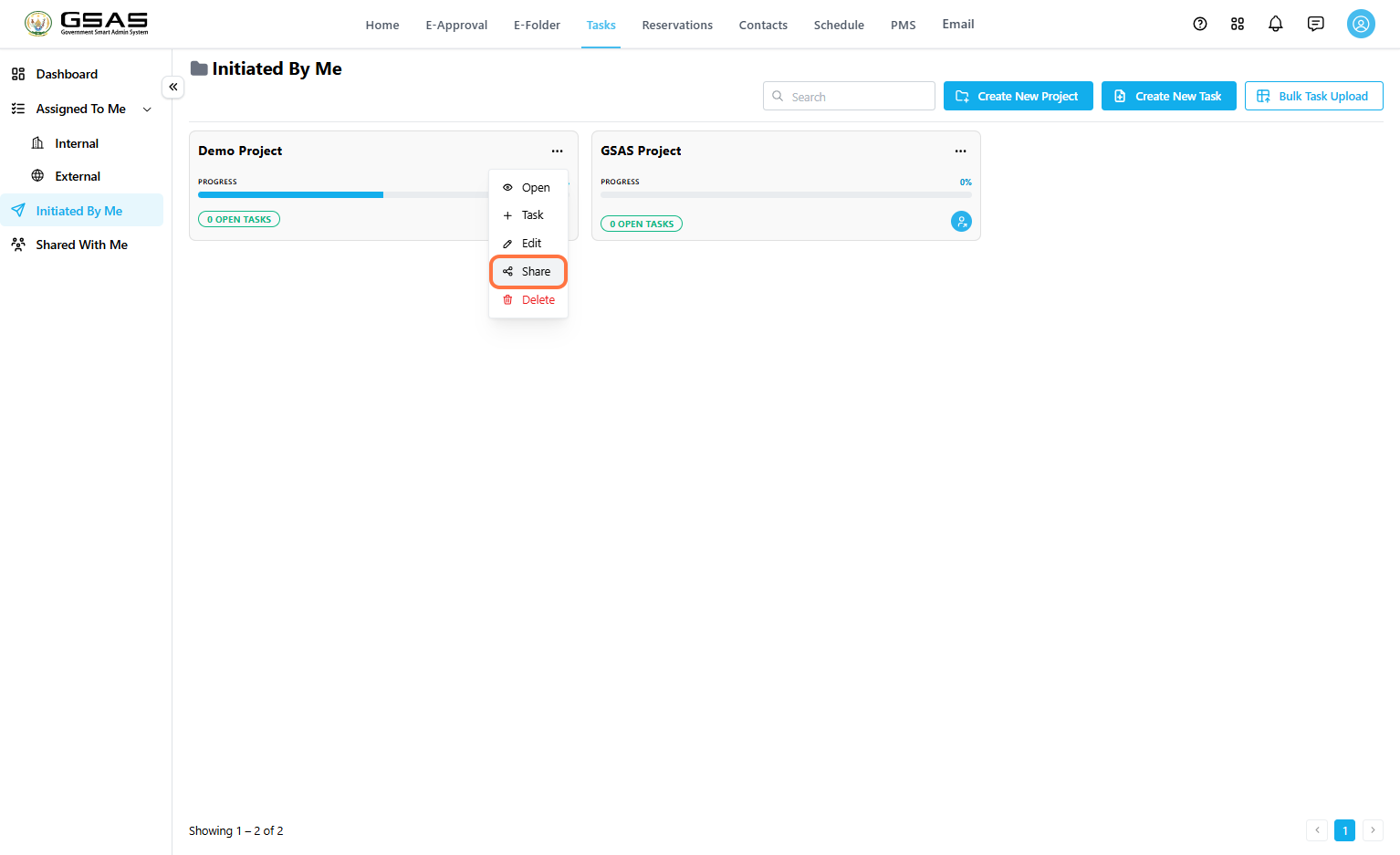
Find the project you want to share.
Open the project options menu and select Share.
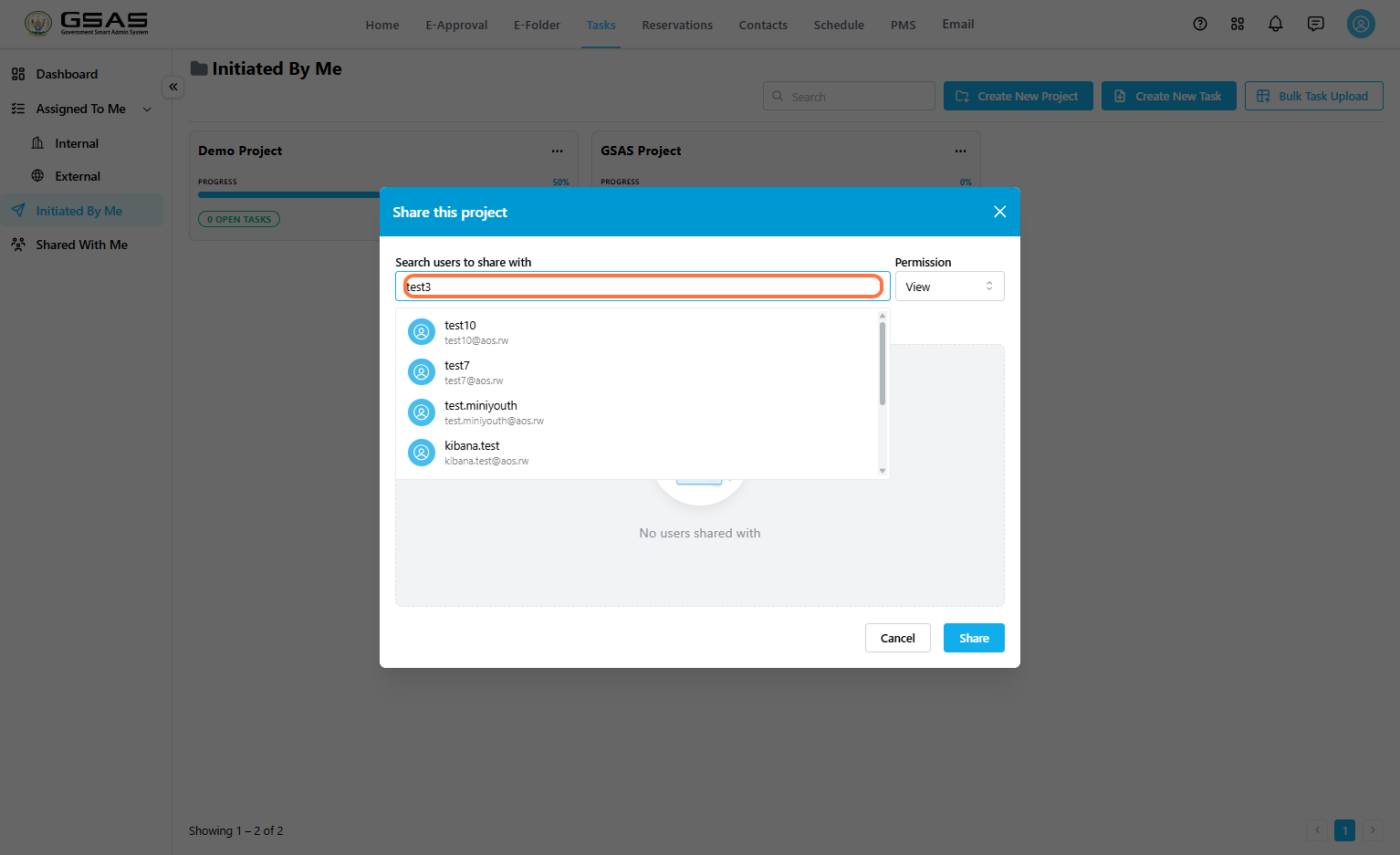
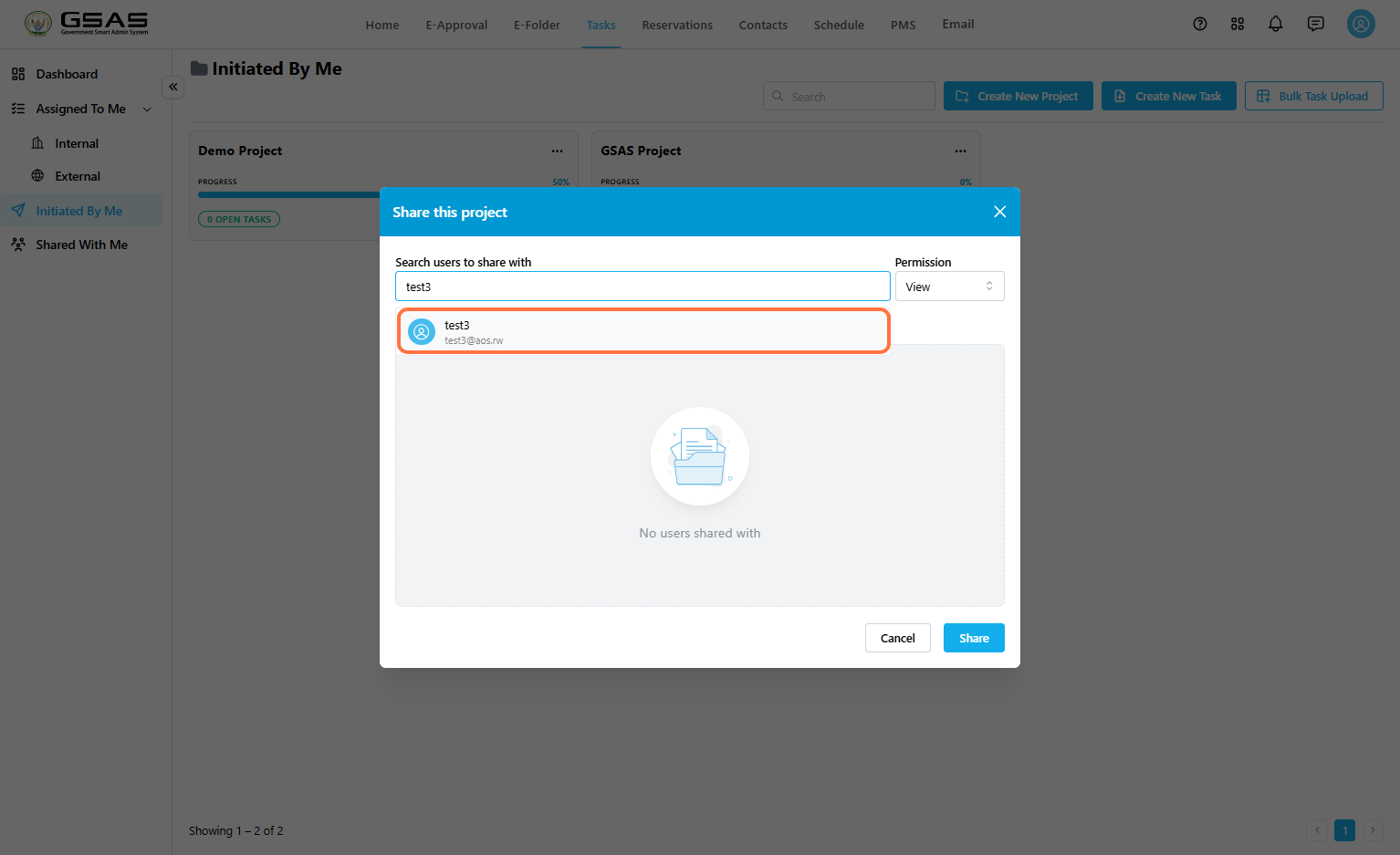
Search for the User
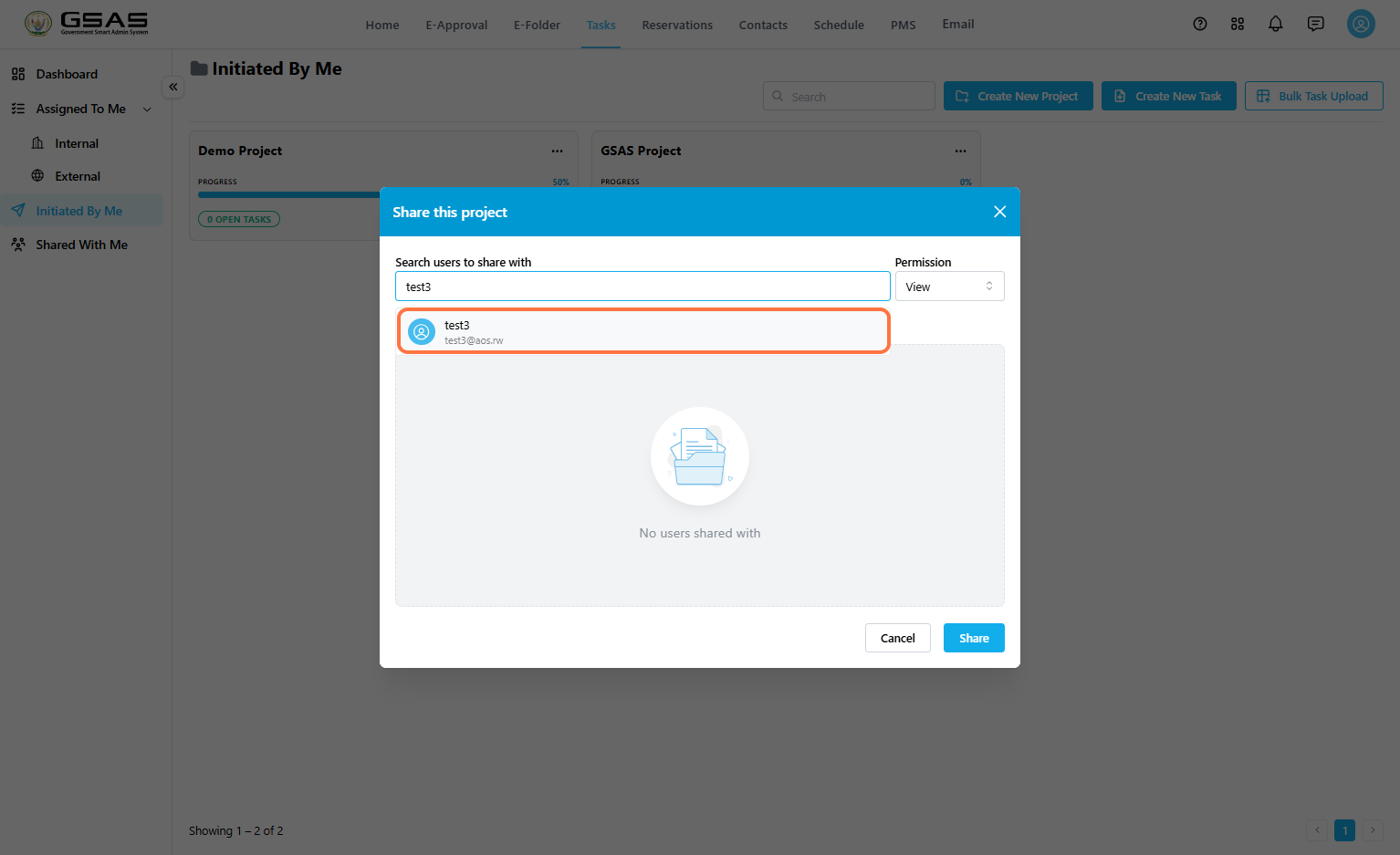
Search users to share with by user name.
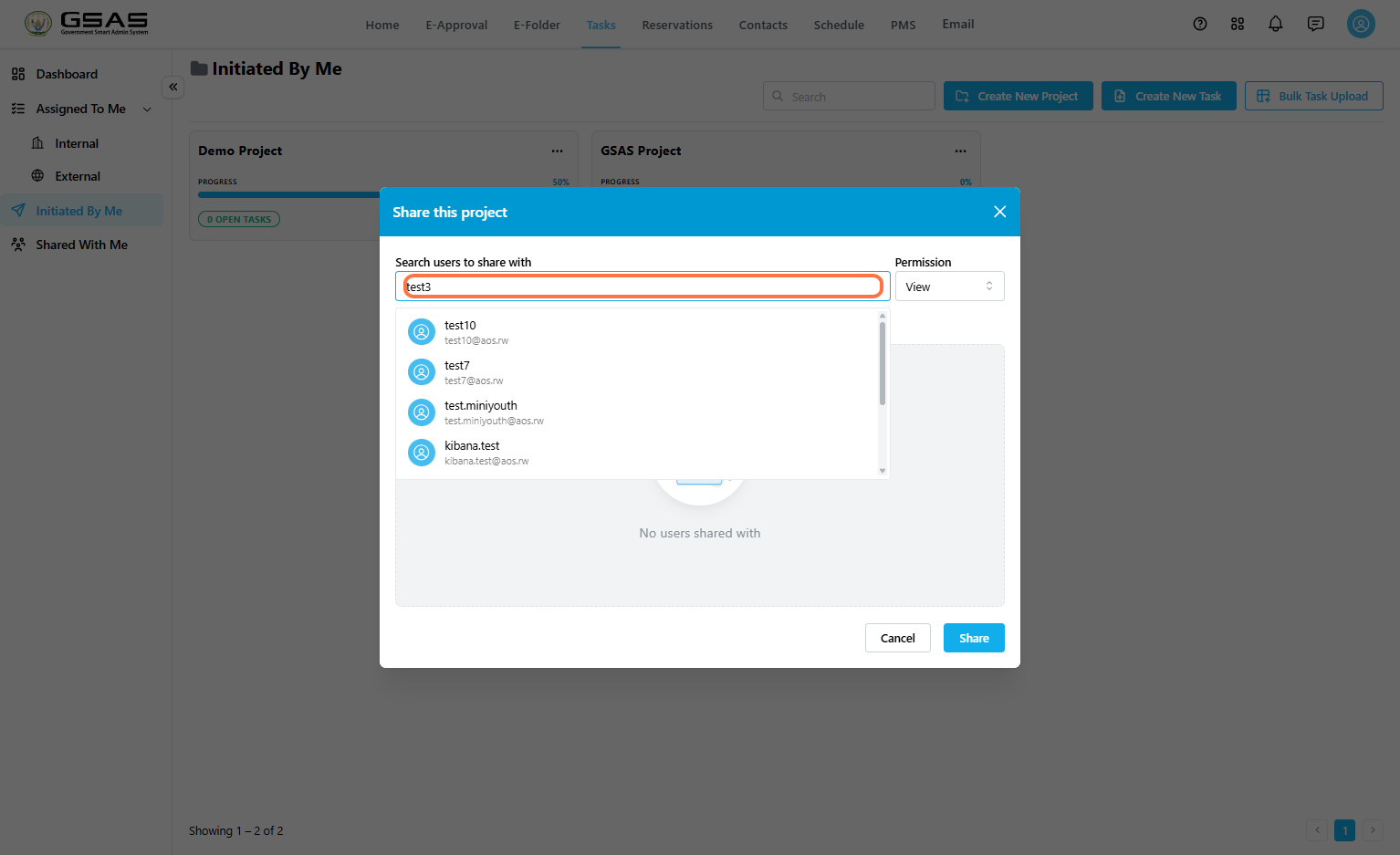
Select the matching user from the search result.
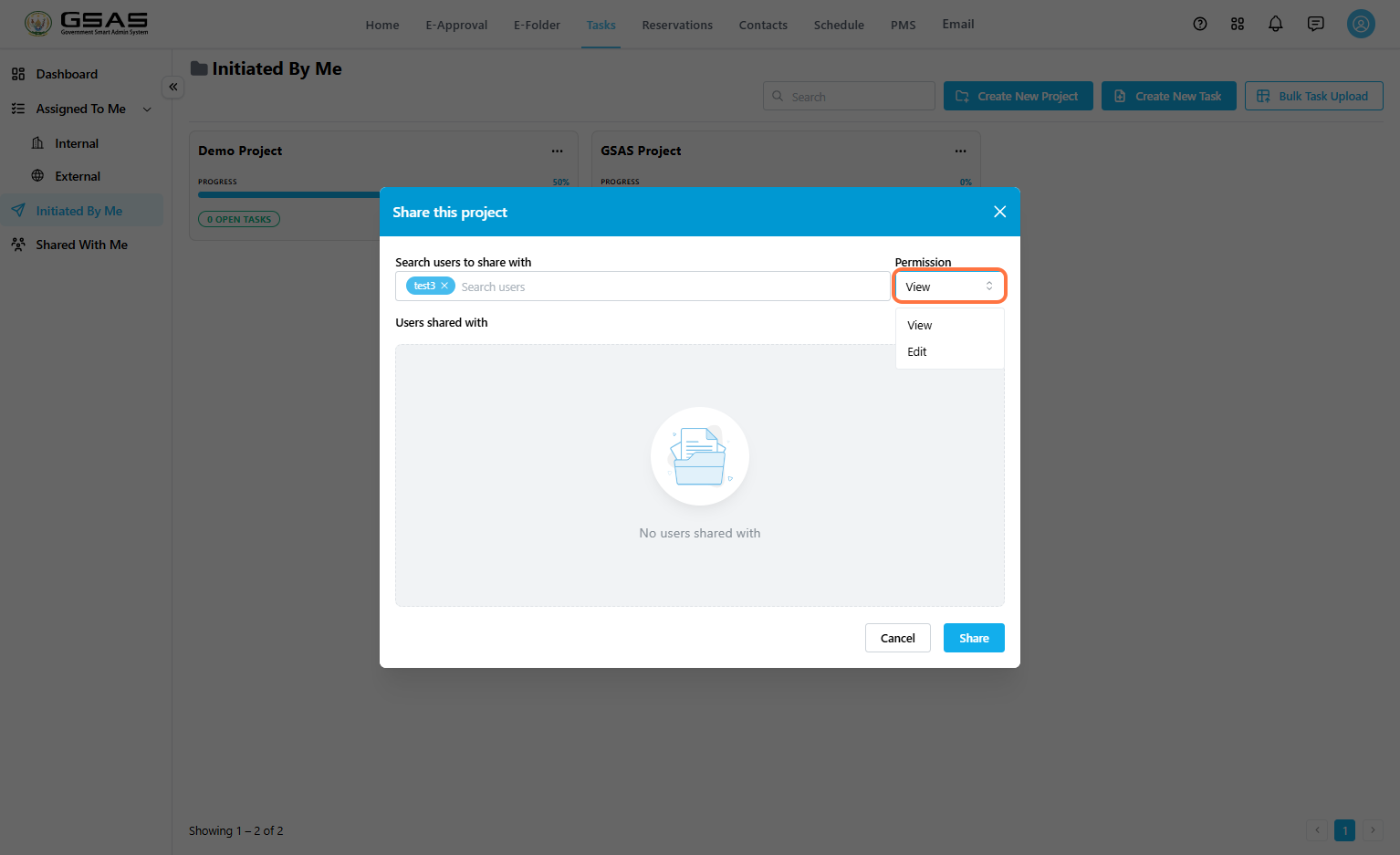
Choose Permission
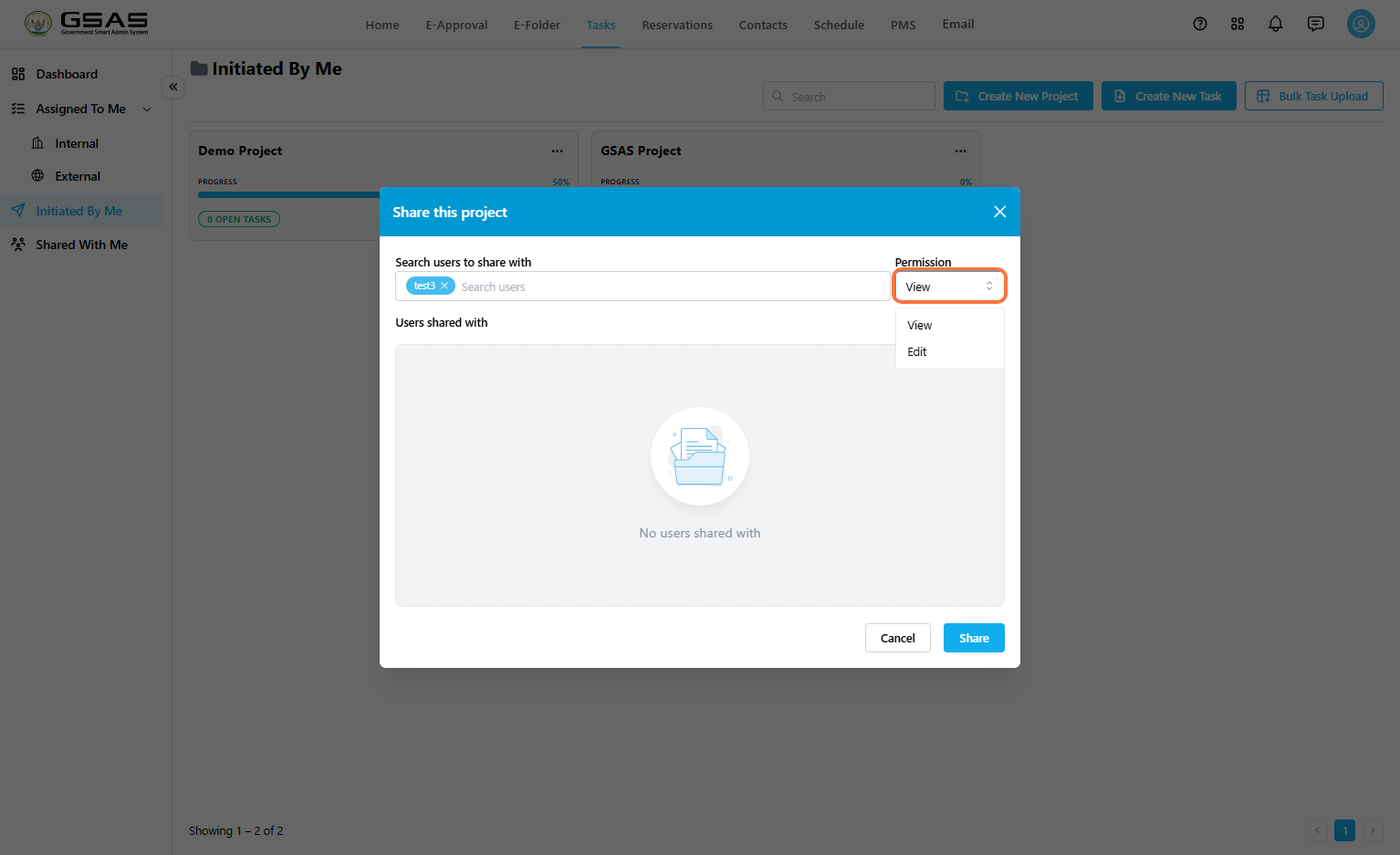
Use the Permission dropdown to choose what the shared user can do in the project.
View: Allows the user to view the shared project.
Edit: Allows the user to make changes to the tasks within the project, create new tasks within the project, and re-share the shared project.
Share the Project
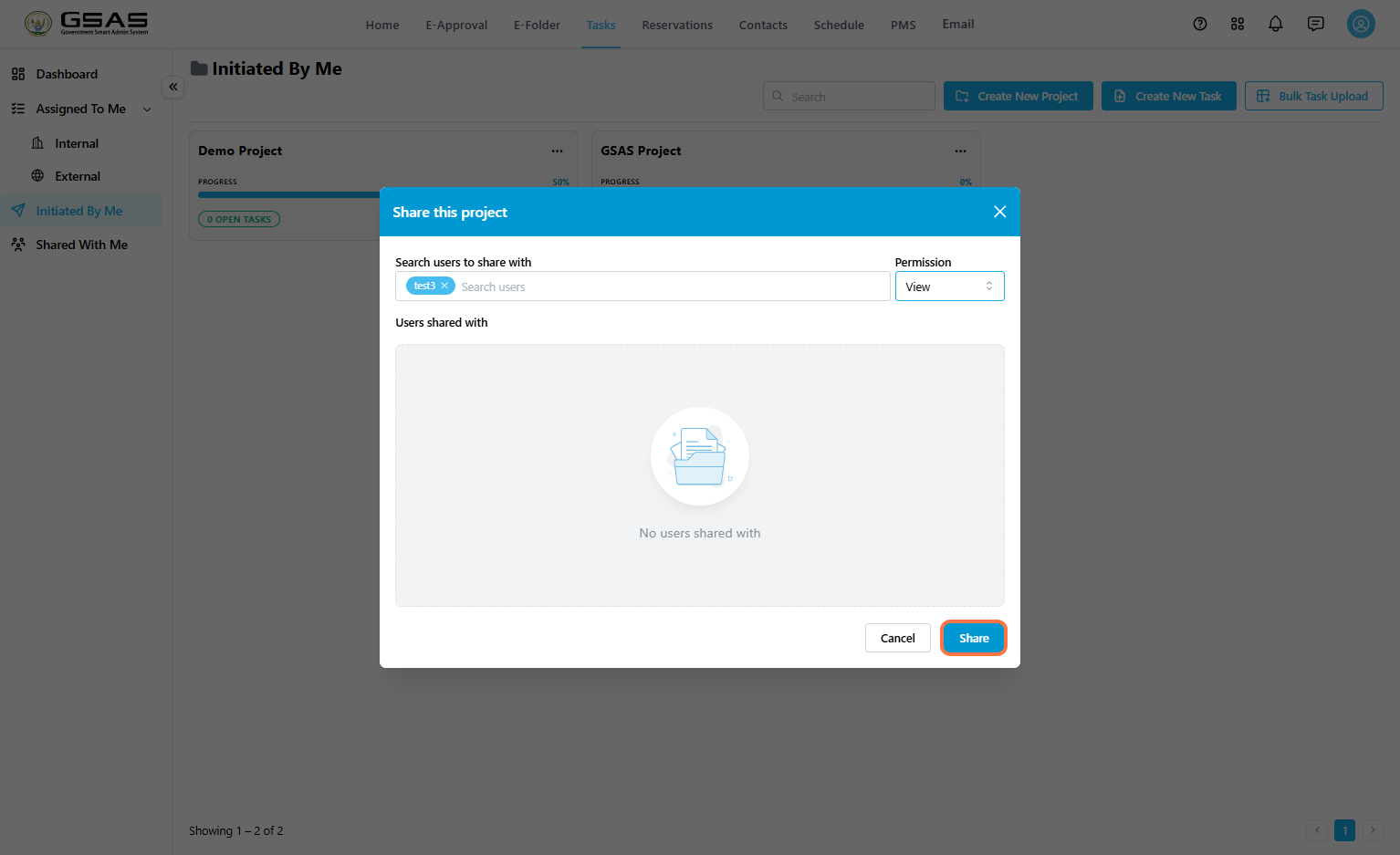
Confirm that the correct user is selected.
Confirm the selected permission.
Click Share.
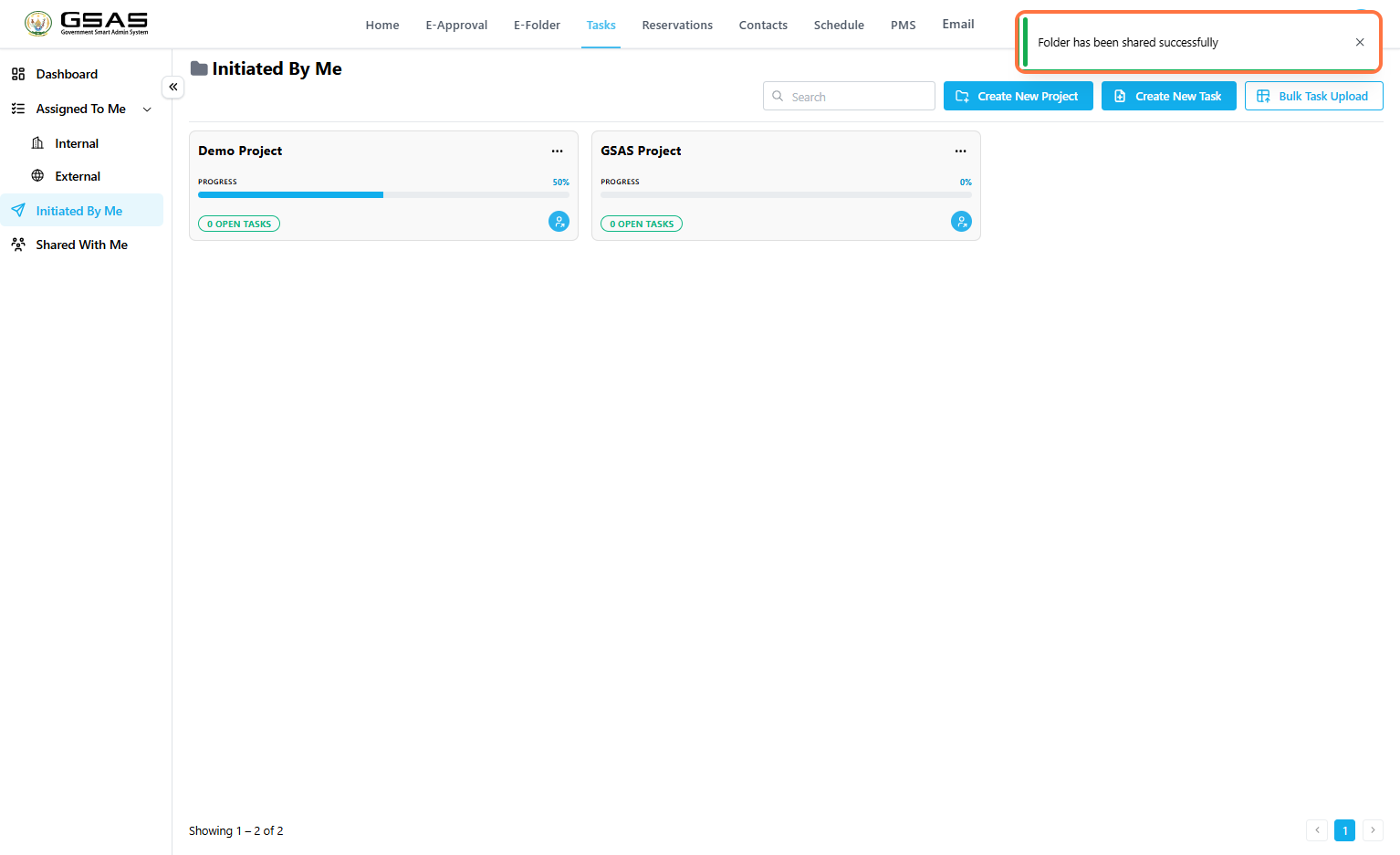
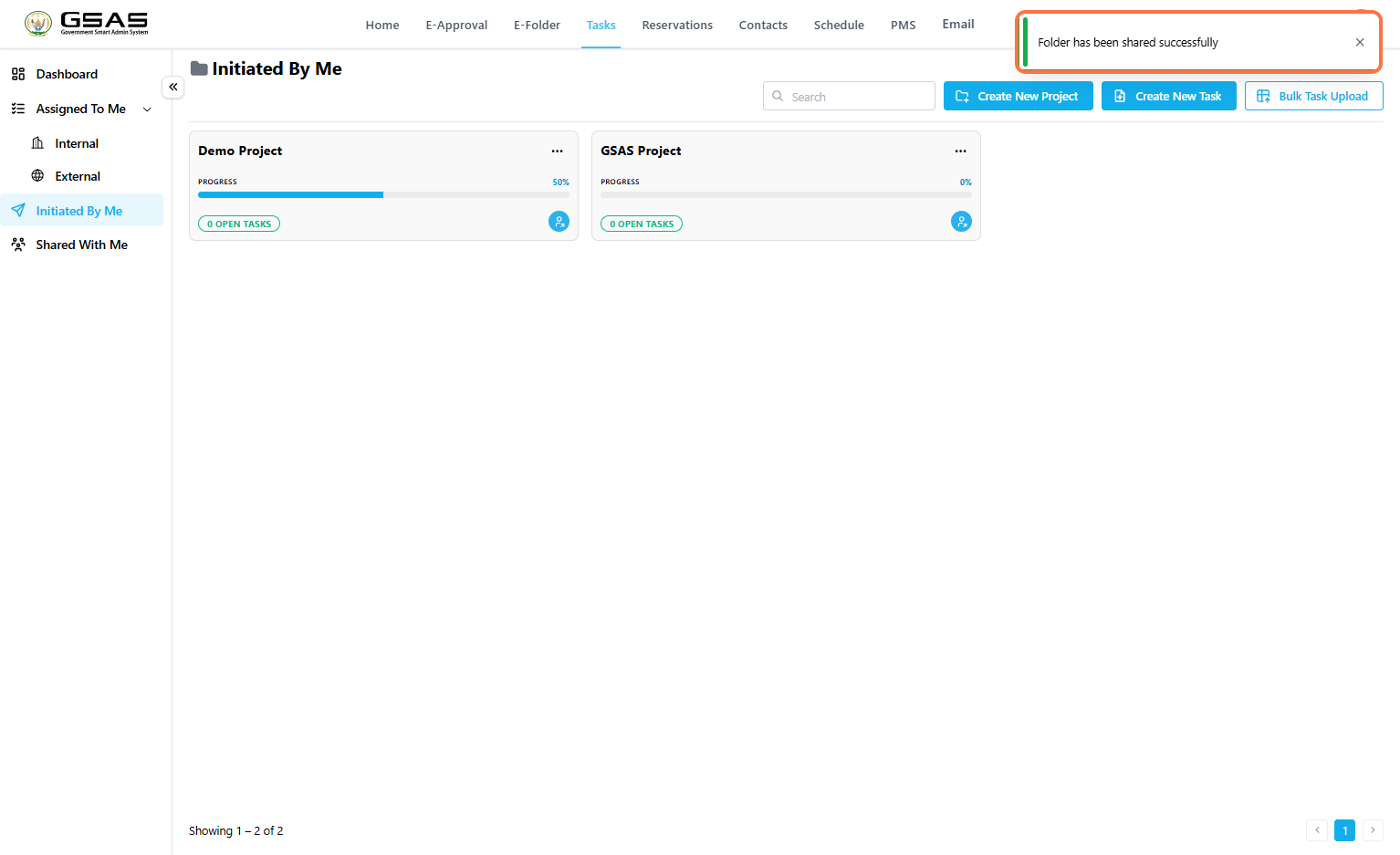
Confirm the Success Message
After sharing, the system displays a success message confirming that the project has been shared.
Expected Result
The selected user receives access to the shared task project. The level of access depends on the permission selected during sharing.
Notes
Sharing a project gives another user access to the project; it does not automatically assign tasks to that user.
Use View when the user only needs visibility.
Use Edit only when the user should be allowed to update the shared project.