Sharing Tasks
| Before you begin: You must have permission to manage or share the task project. |
Open the Share Window
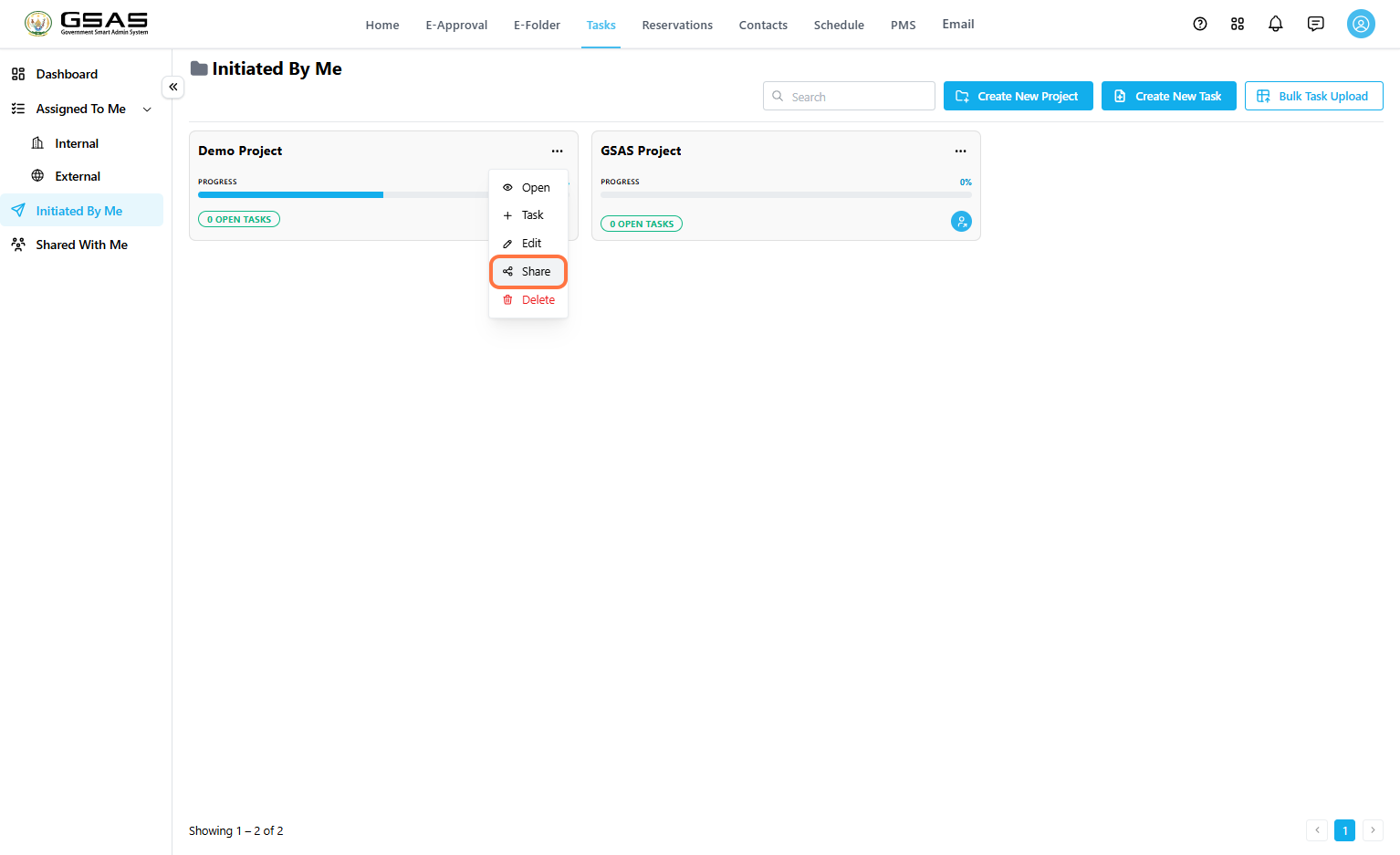
- Go to Tasks.
- Click Initiated By Me.
- Find the project you want to share.
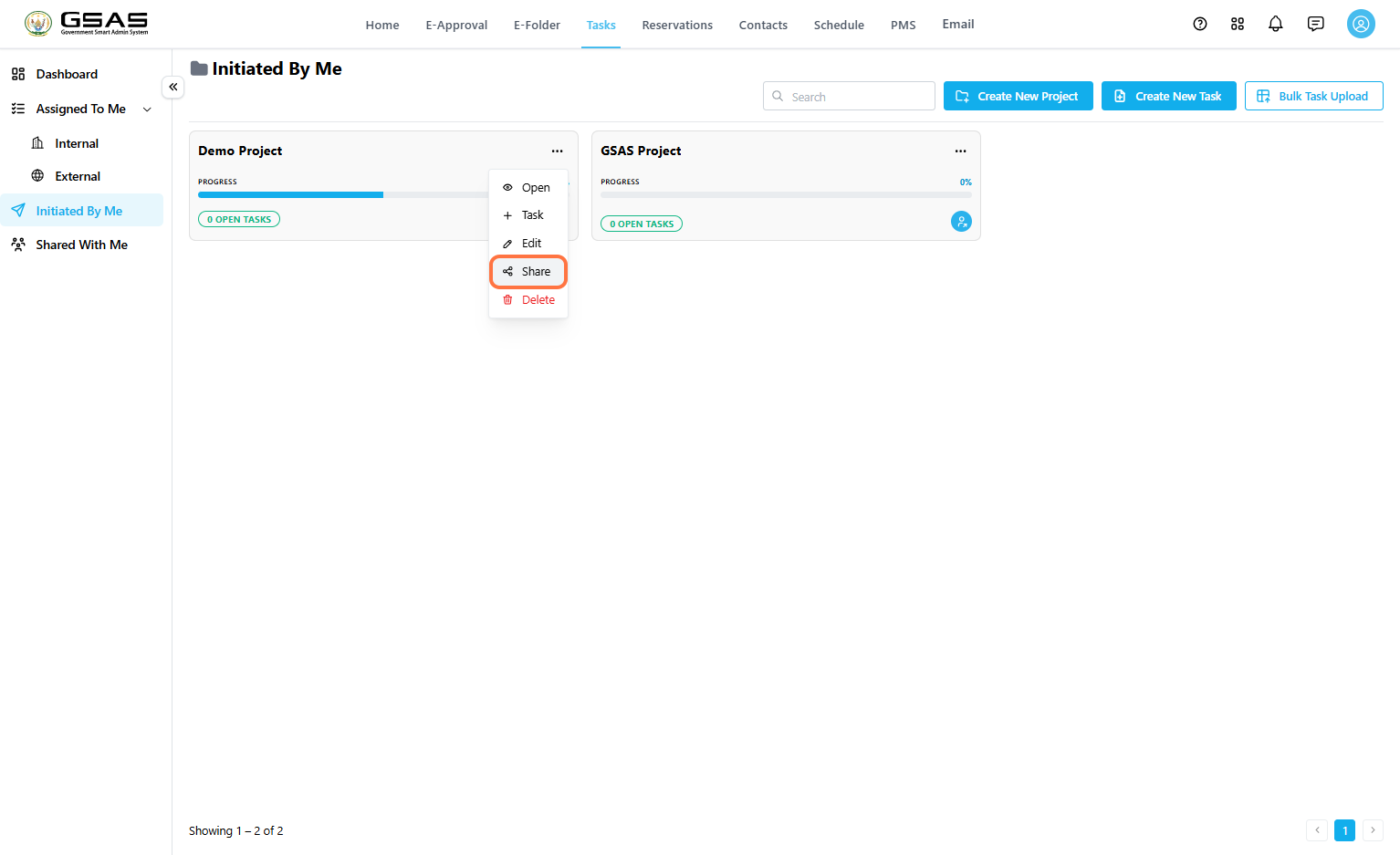
- Open the project options menu and select Share.
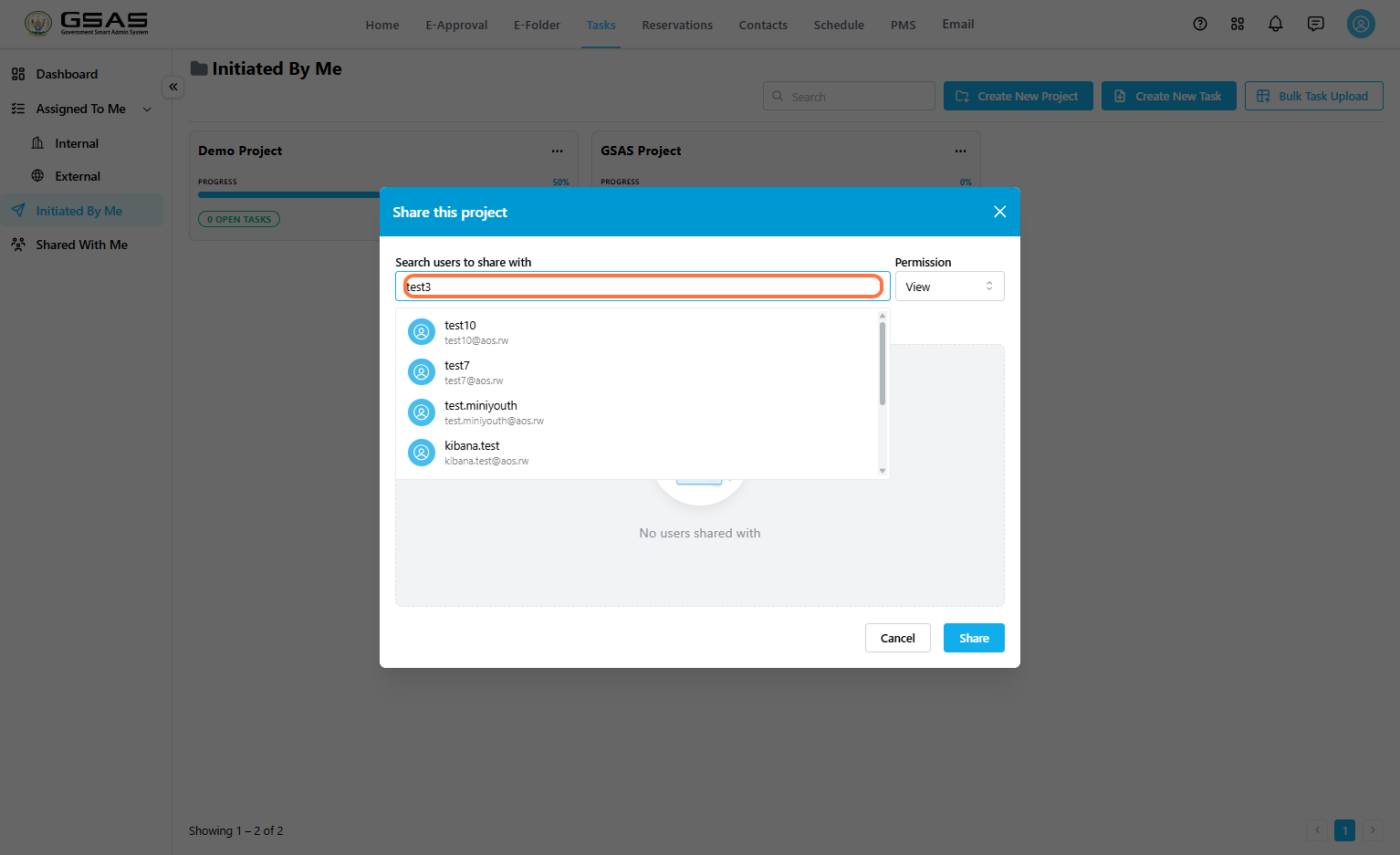
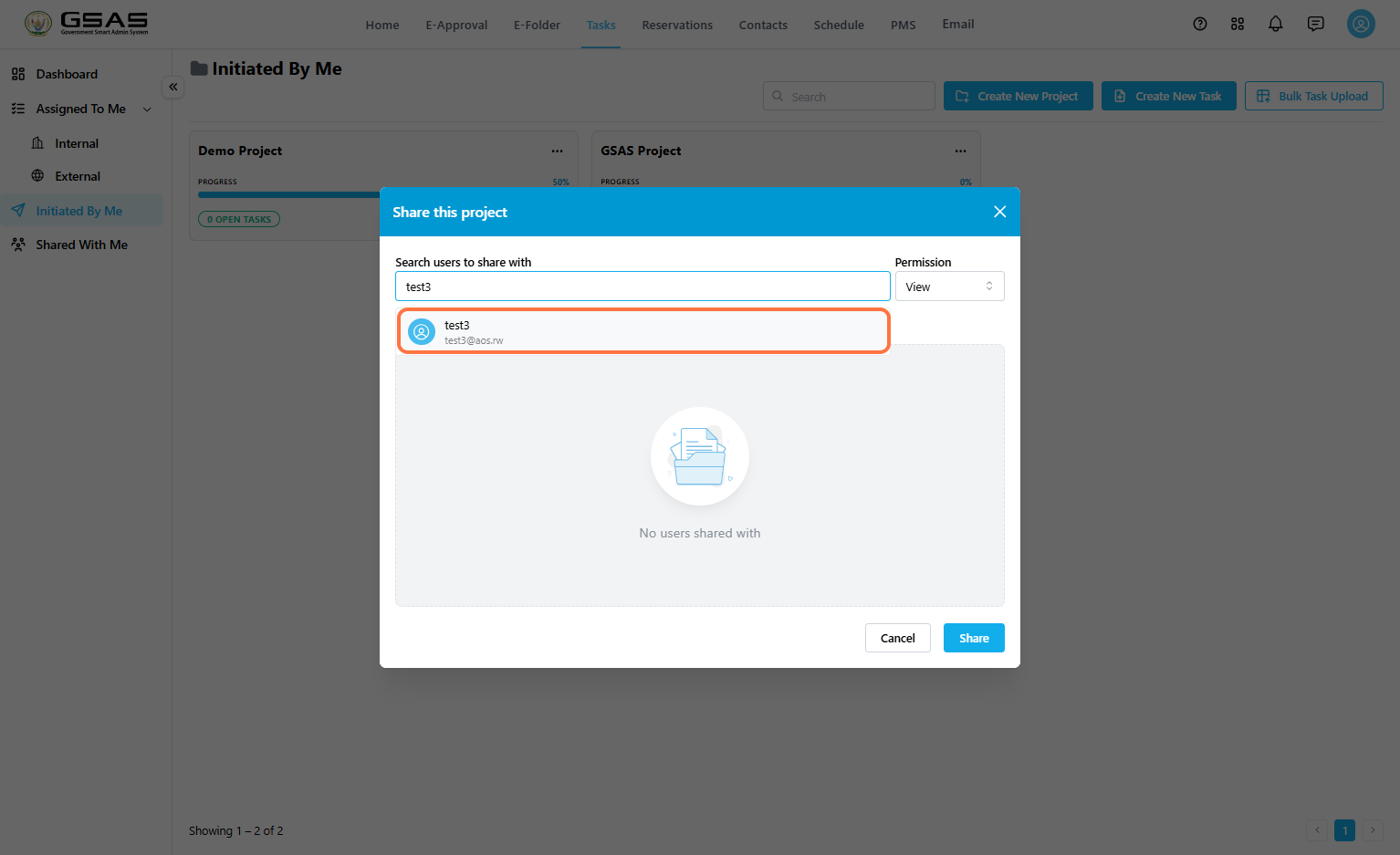
Search for the User
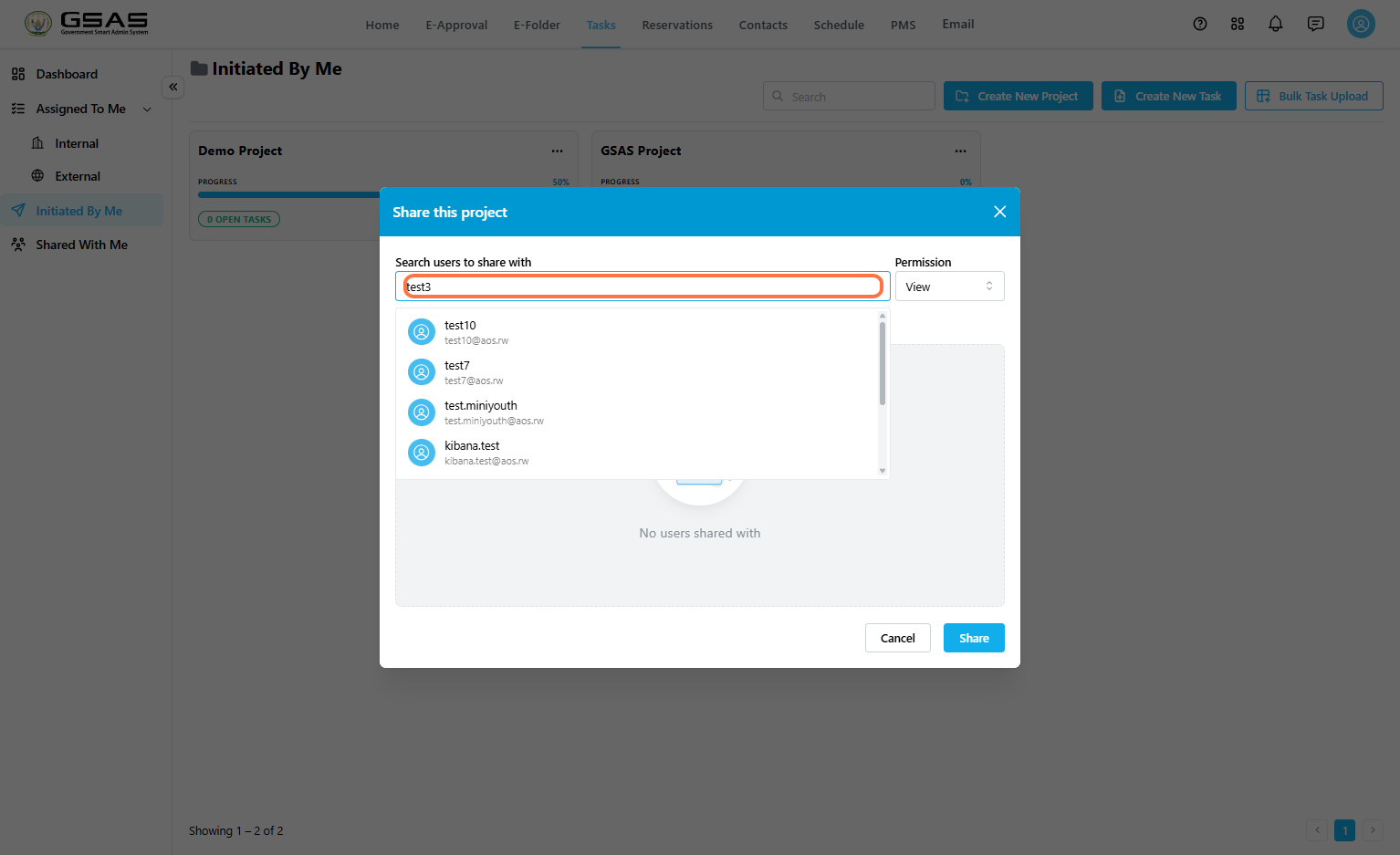
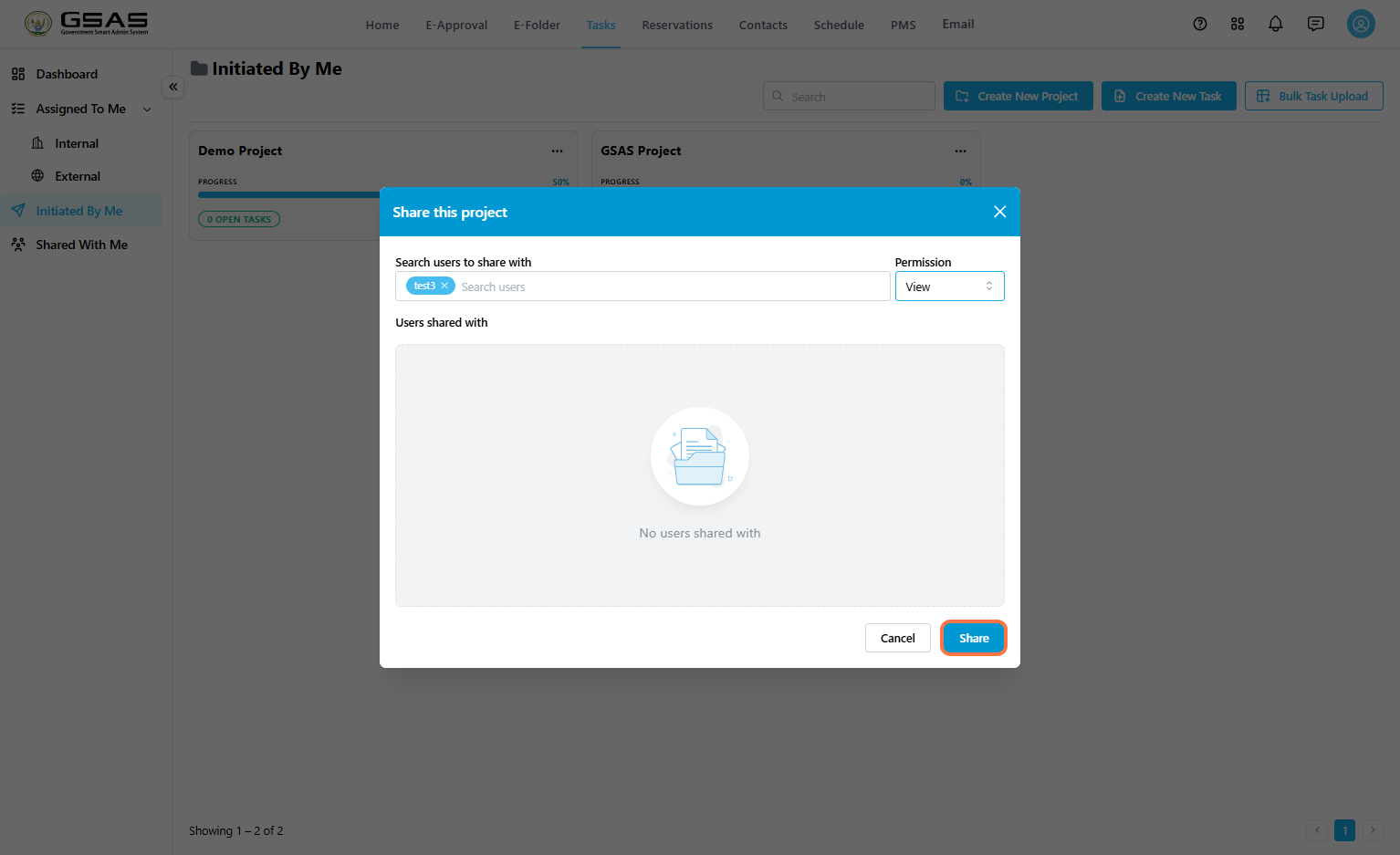
- Search users to share with by user name.
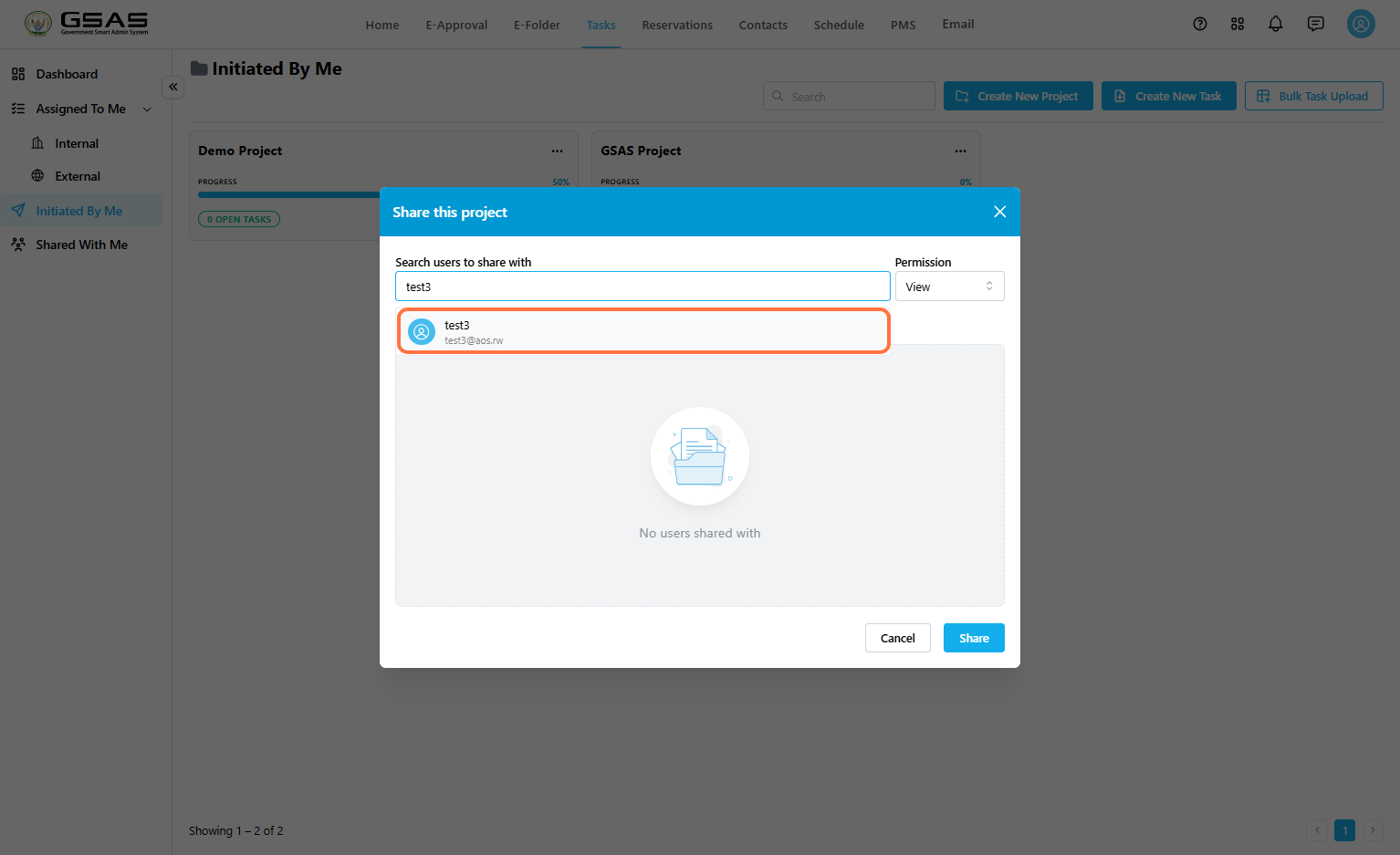
- Select the matching user from the search result.
Choose Permission
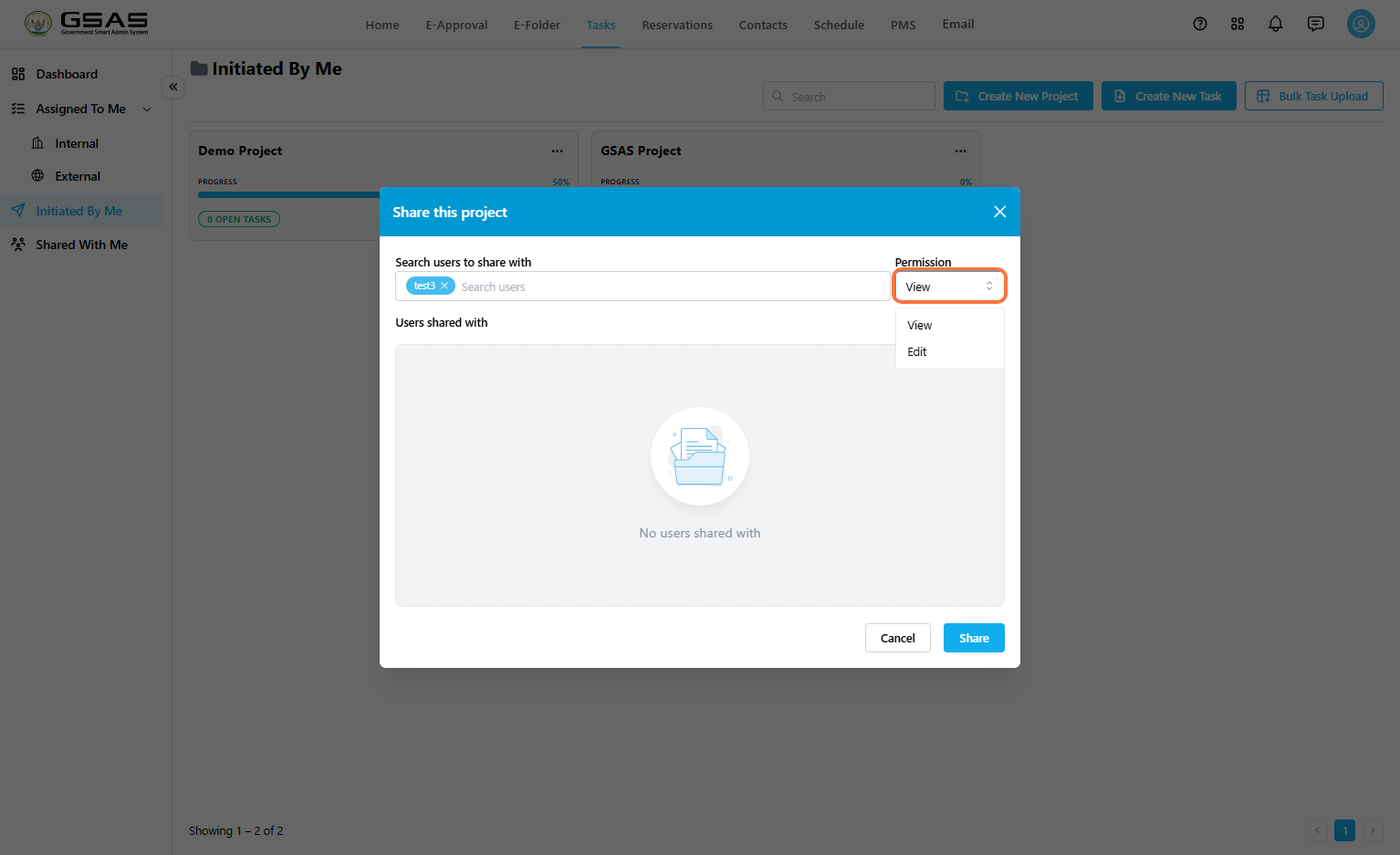
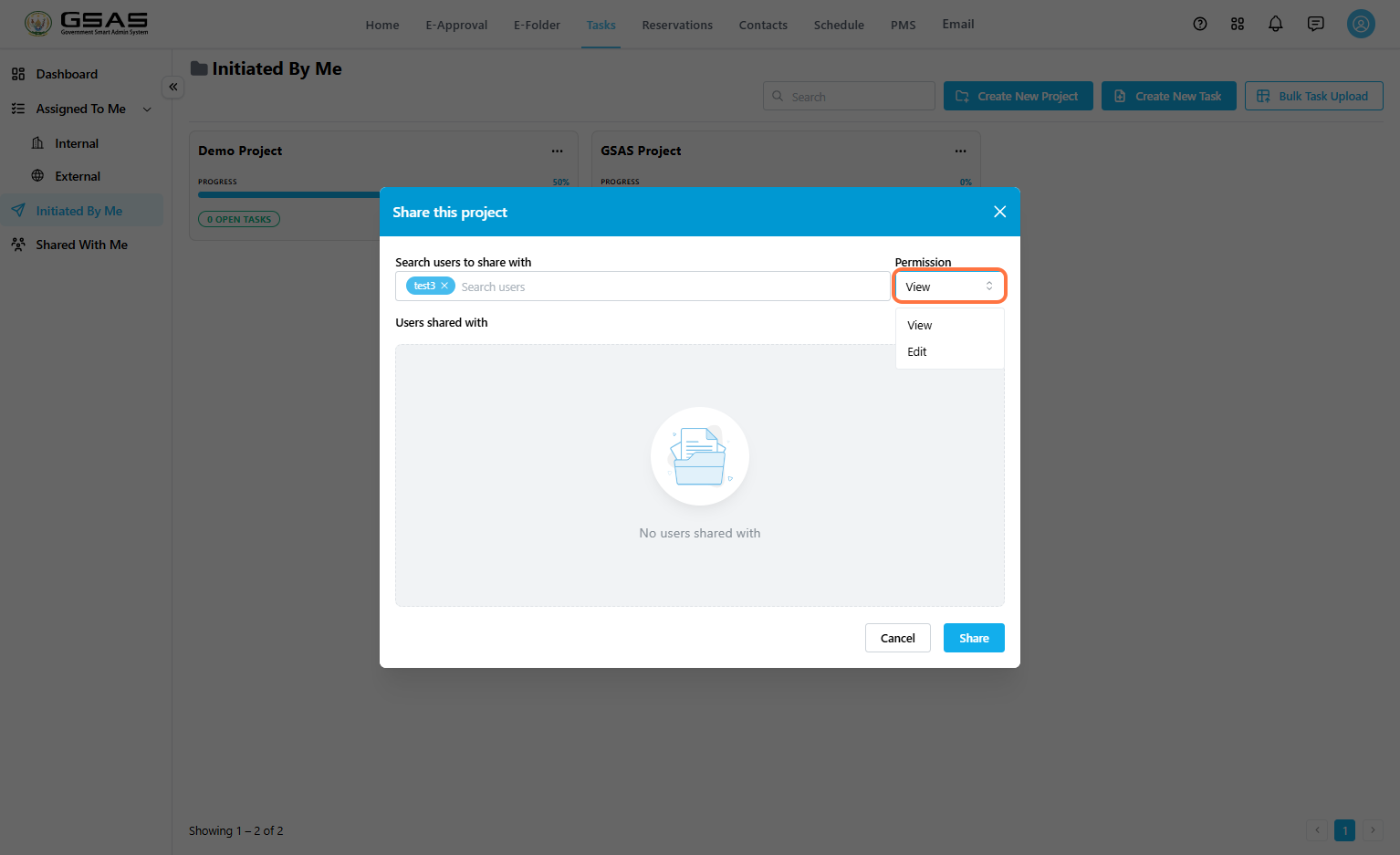
Use the Permission dropdown to choose what the shared user can do in the project.
- View: Allows the user to view the shared project.
- Edit: Allows the user to make changes to the tasks within the project, create new tasks within the project, and re-share the shared project.
Share the Project
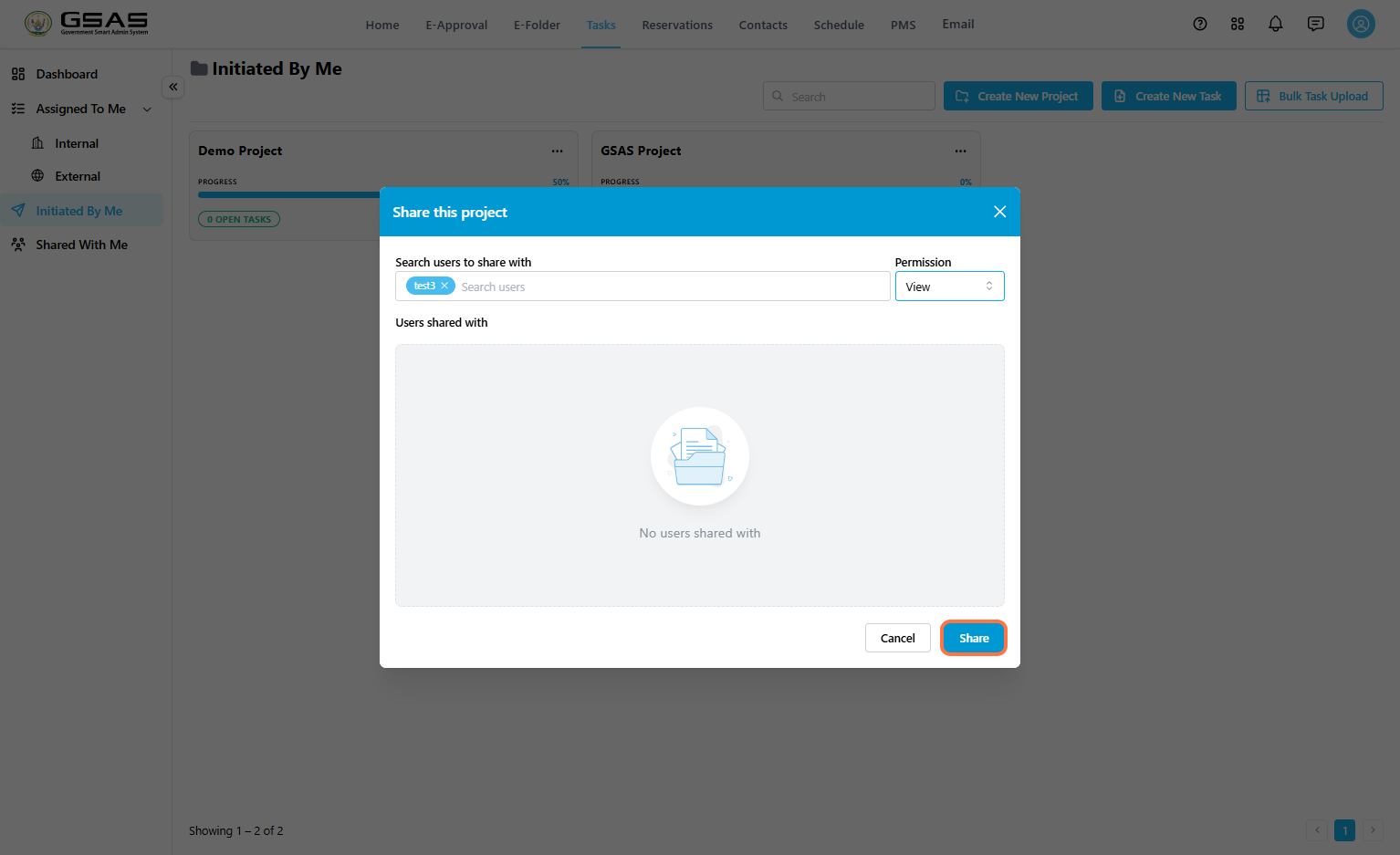
- Confirm that the correct user is selected.
- Confirm the selected permission.
- Click Share.
Confirm the Success Message
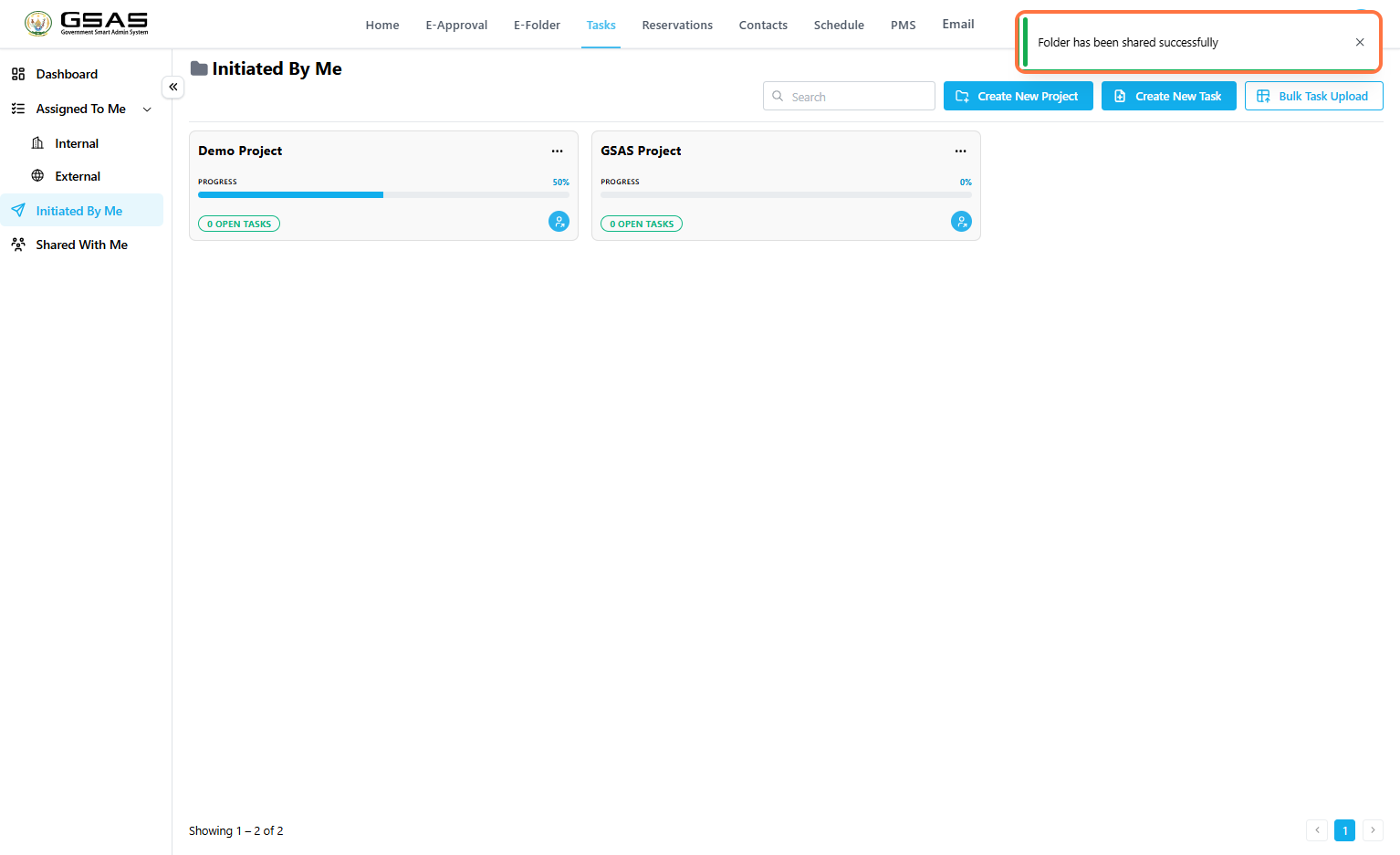
After sharing, the system displays a success message confirming that the project has been shared.
Expected Result
| The selected user receives access to the shared task project. The level of access depends on the permission selected during sharing. |
Notes
- Sharing a project gives another user access to the project; it does not automatically assign tasks to that user.
- Use View when the user only needs visibility.
- Use Edit only when the user should be allowed to update the shared project.