Sender and Receiver Manager Controls
Sender Manager
Once an outgoing request has been approved by everyone in its approval line, it lands in the Sender Manager's To Be Processed > Outgoing folder. This is the last stop before the document actually leaves the institution.
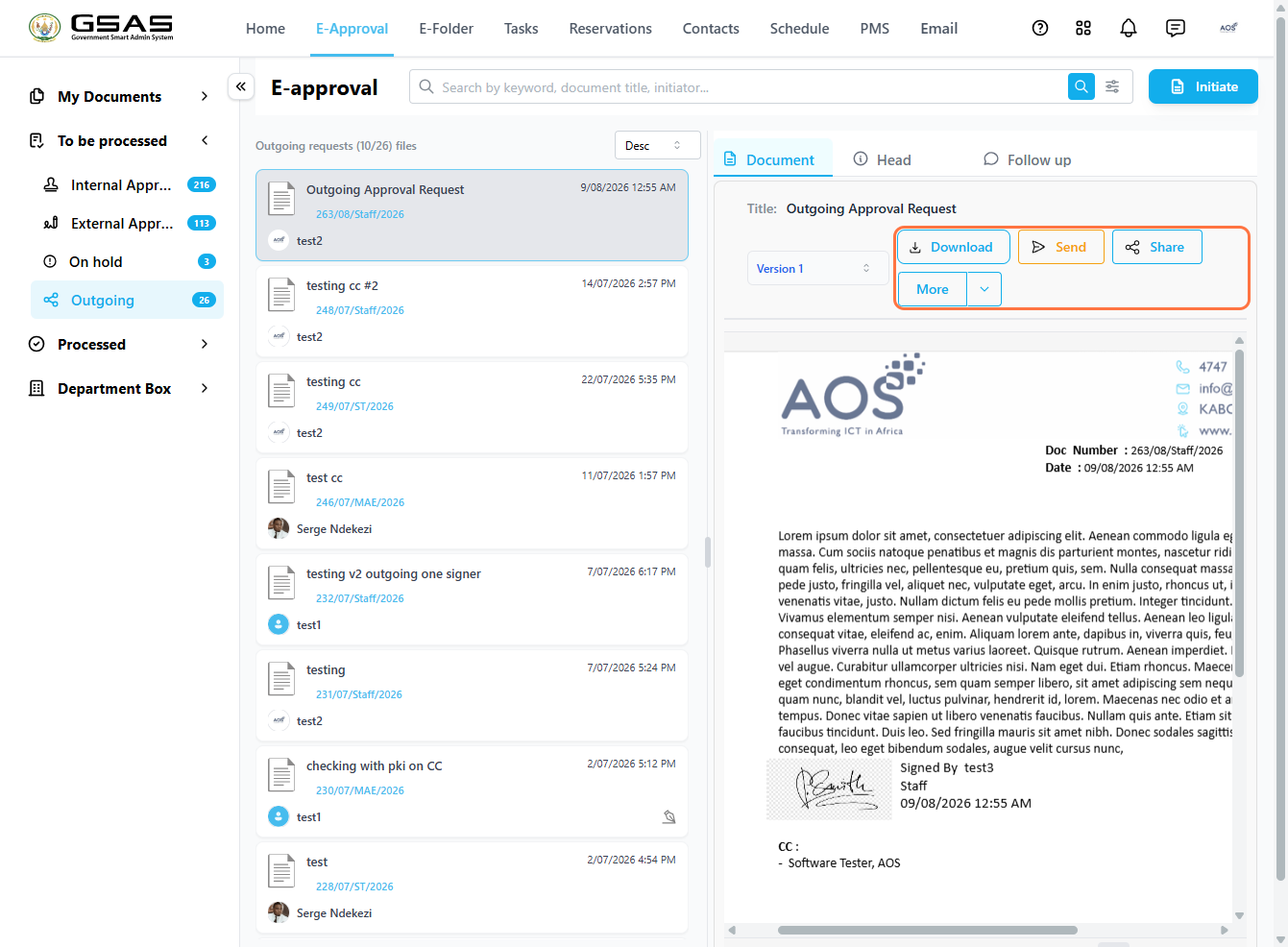
| Send | Dispatches the document to the addressed institutions and/ or individuals electronically. |
| Mark as sent | Found under More. This logs that you've sent it by other means and moves it out of the Outgoing folder. |
| Share | Gives another user inside your own institution visibility into the document. |
| Edit | Found under More. Lets you make changes to the details of the document before sending. |
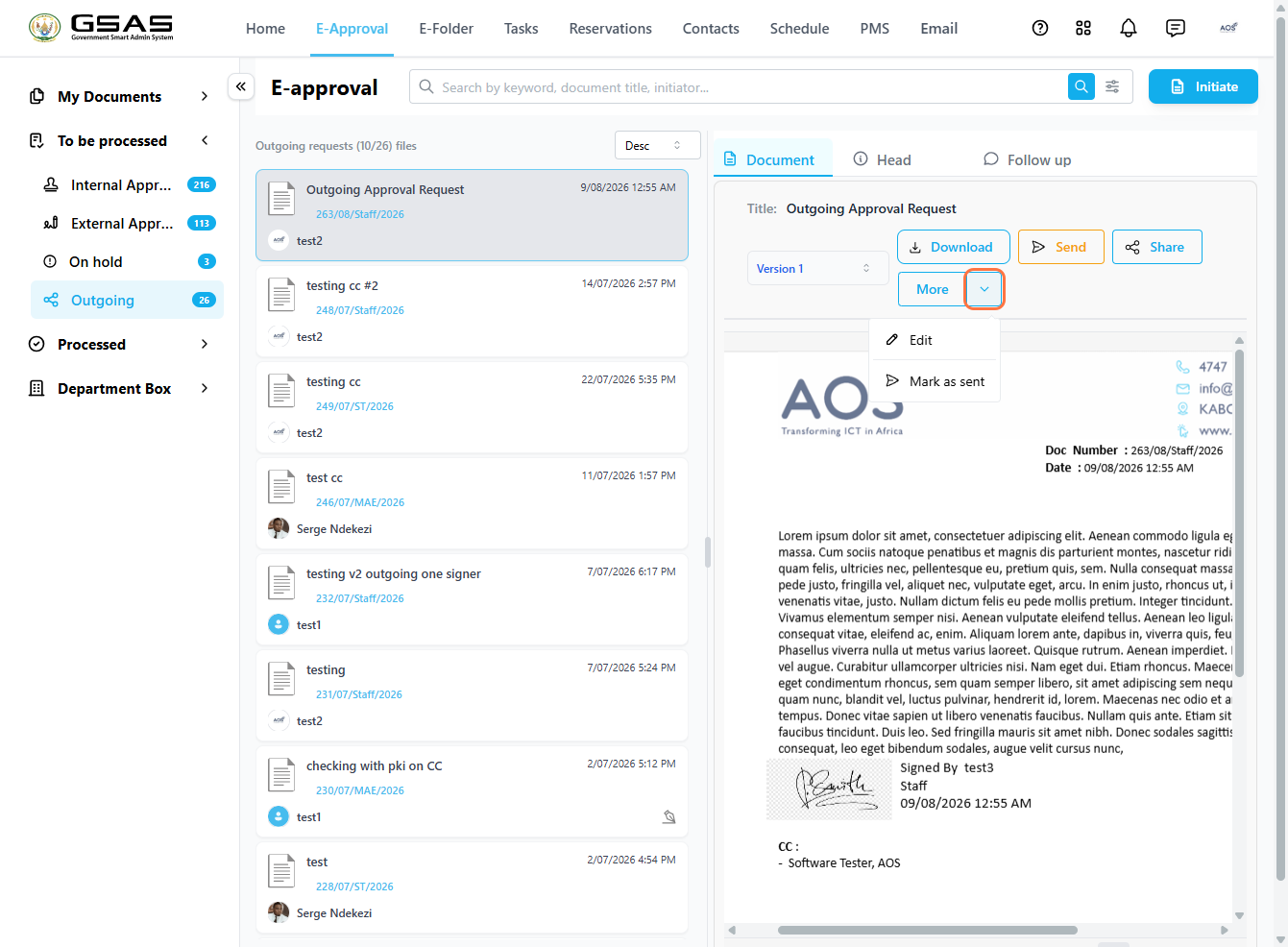
| Note: Once a document is sent or marked as sent, it moves out of Outgoing and into Processed > Dispatched. |
Receiver Manager
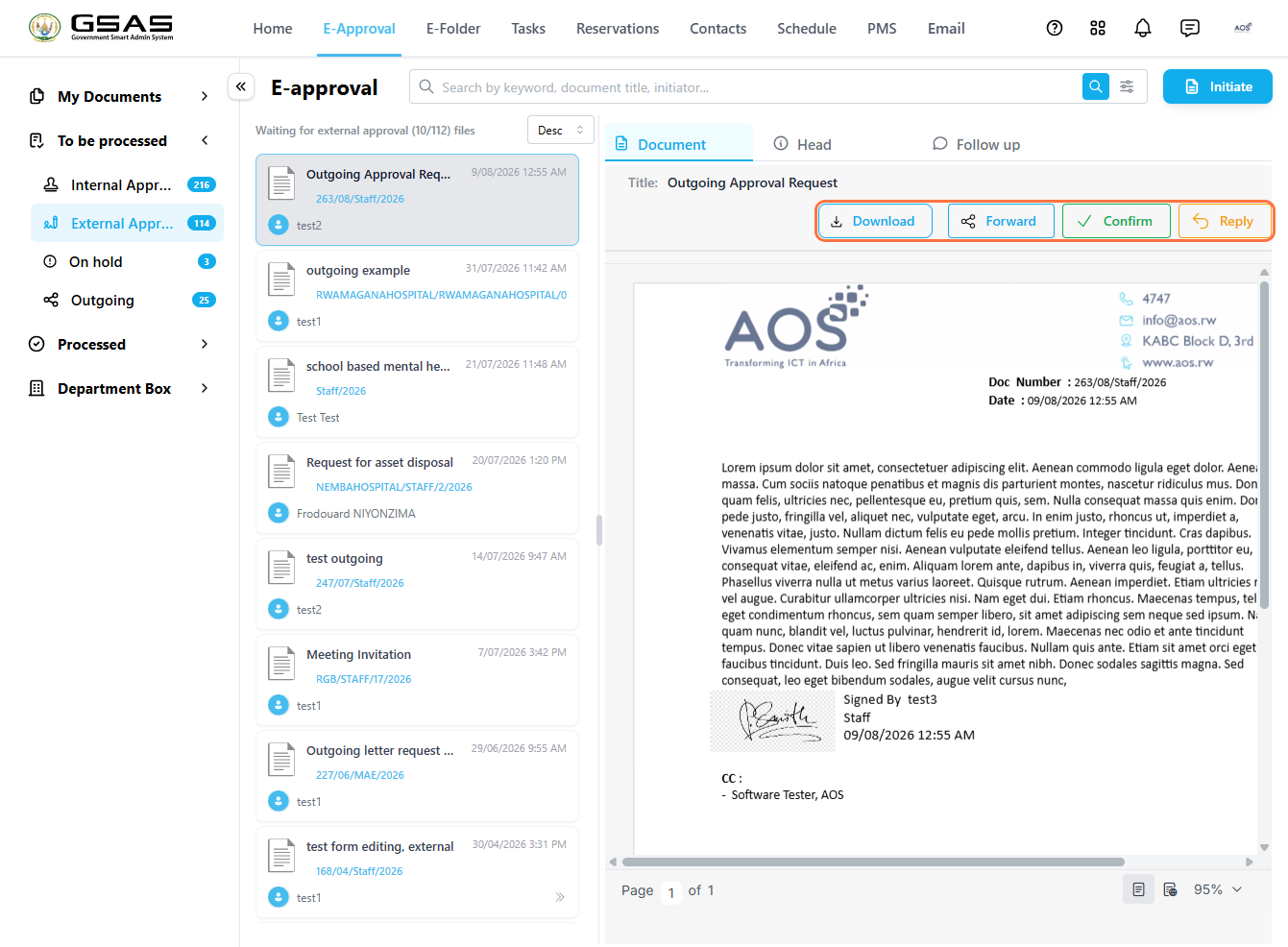
Every document your institution receives from an external institution lands first in the Receiver Manager's To Be Processed > External Approval folder before being routed to anyone else.
| Confirm | Acknowledges that the document has been officially received into the system. |
| Forward | Routes the document to whoever internally needs to see or act on it. |
| Reply | Opens a new outgoing request addressed back to the external sender. |
Forwarding a document
- Click Forward.
- Search for and select the people who need to see the document.
- Click Forward again, optionally add a message, then confirm.
Receiving a Forwarded Document
If a document is forwarded to a user, it appears in their own To Be Processed > External Approval folder. They'll have the same options the Receiver Manager had; Download, Forward, and Reply except Confirm, since that's the Receiver Manager's responsibility alone.