Sender and Receiver Manager Controls
Sender Manager
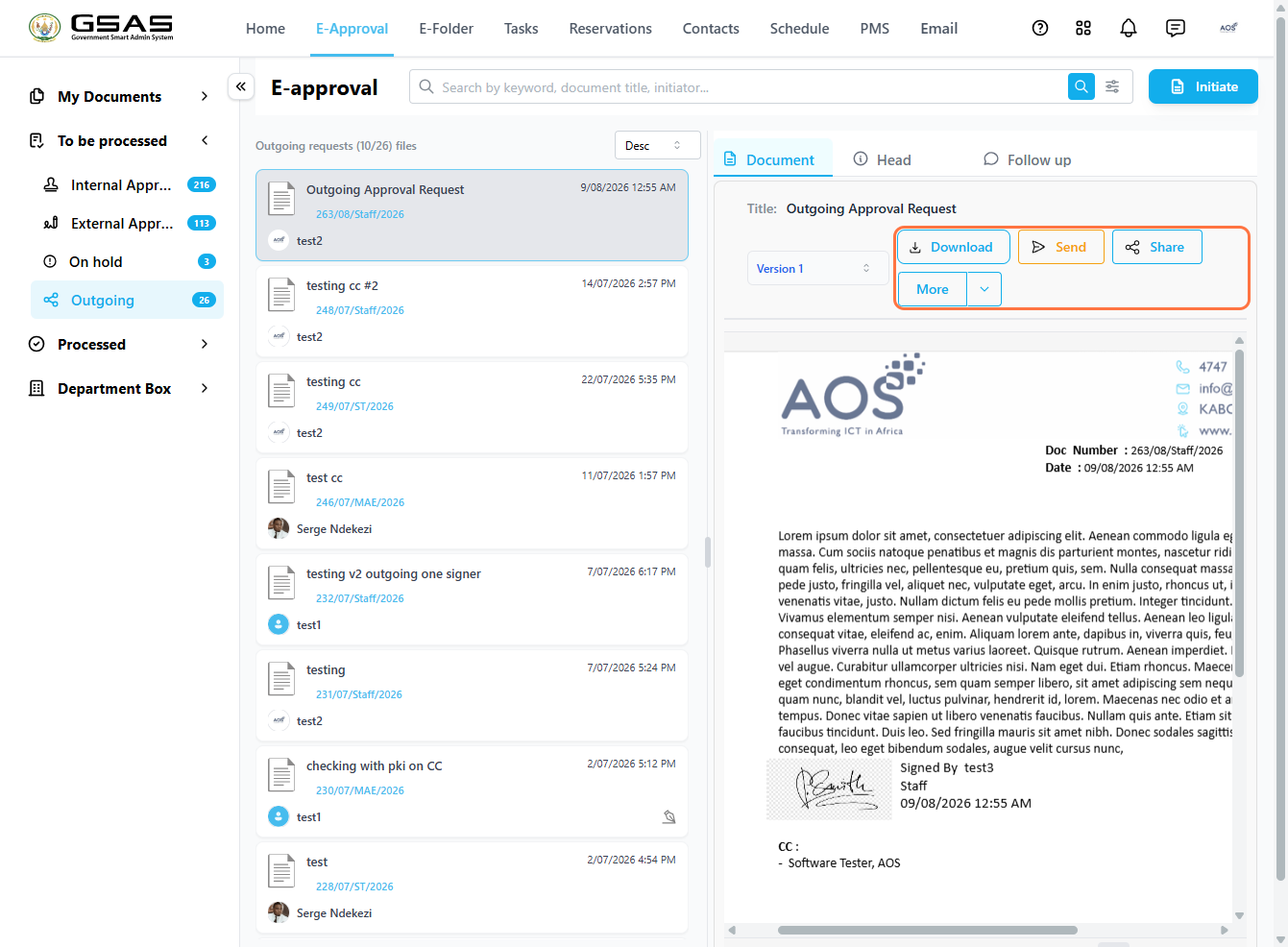
Once an outgoing request has been approved by everyone in its approval line, it lands in the Sender Manager's To Be Processed > Outgoing folder. This is the last stop before the document actually leaves the institution.
Send
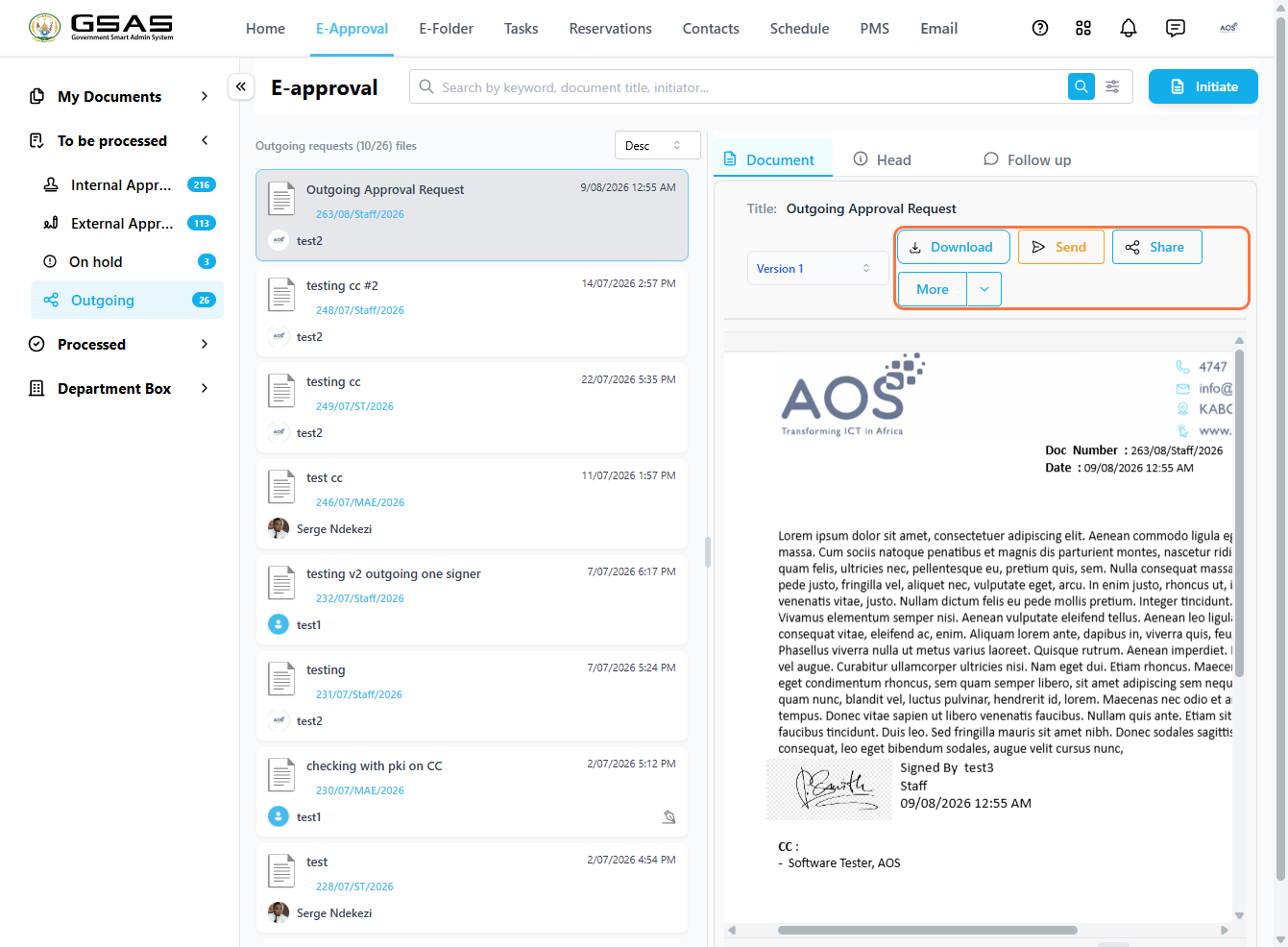
Dispatches the document to the addressed institutions and/ or individuals electronically.
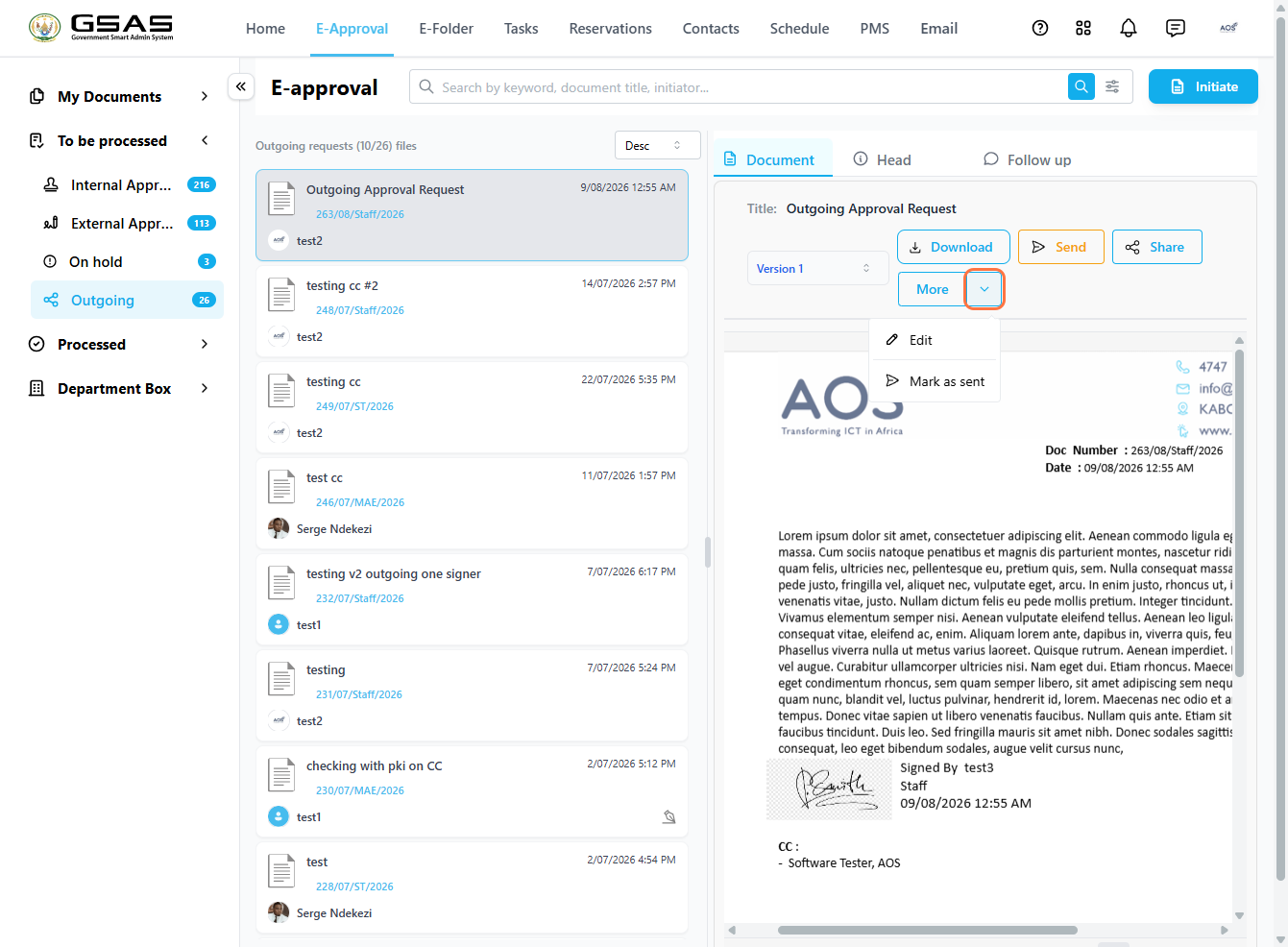
Mark as sent
Found under More. This logs that you've sent it by other means and moves it out of the Outgoing folder.
Share
Gives another user inside your own institution visibility into the document.
Edit
Found under More. Lets you make changes to the details of the document before sending.
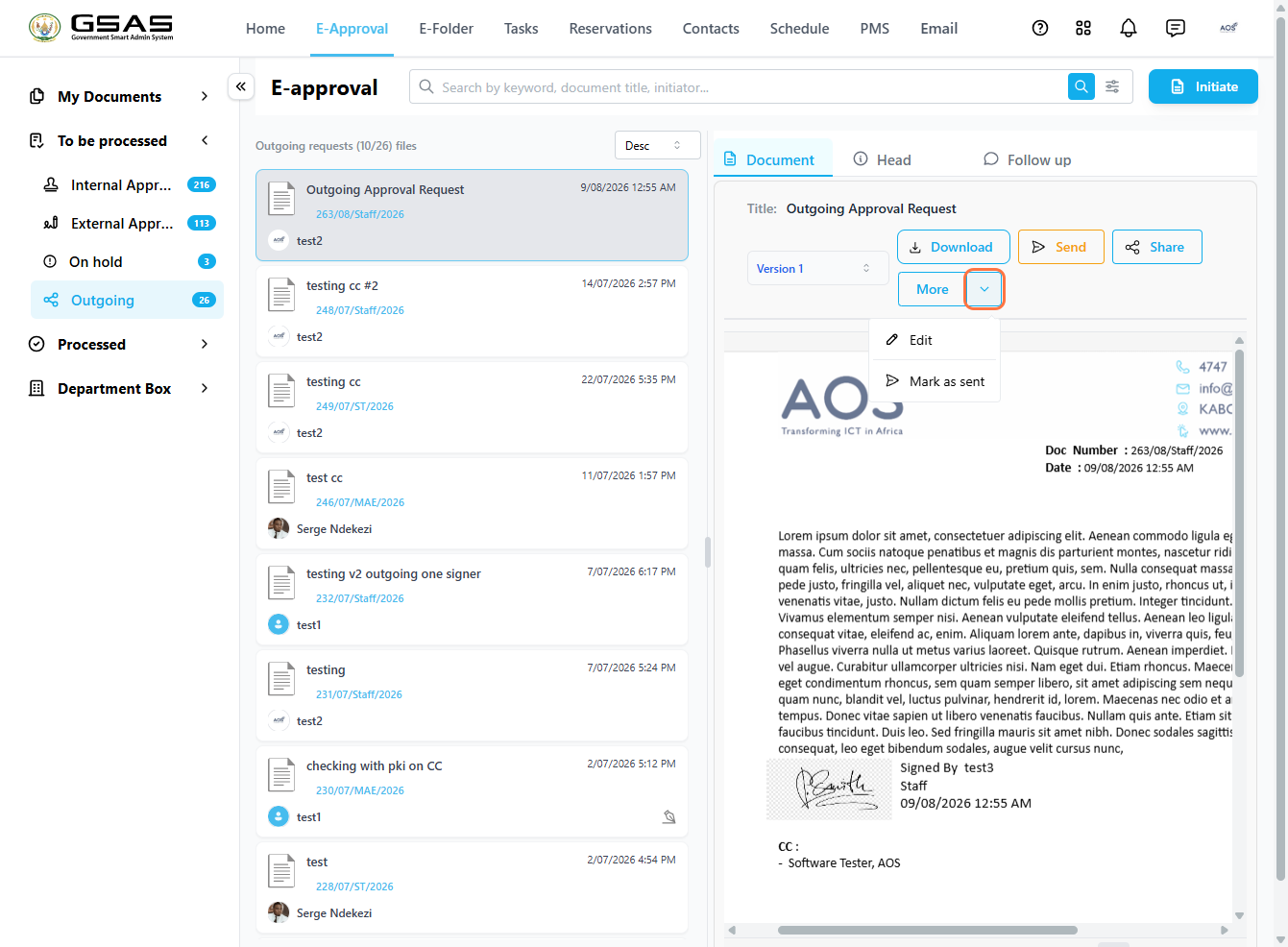
Note: Once a document is sent or marked as sent, it moves out of Outgoing and into Processed > Dispatched.
Receiver Manager
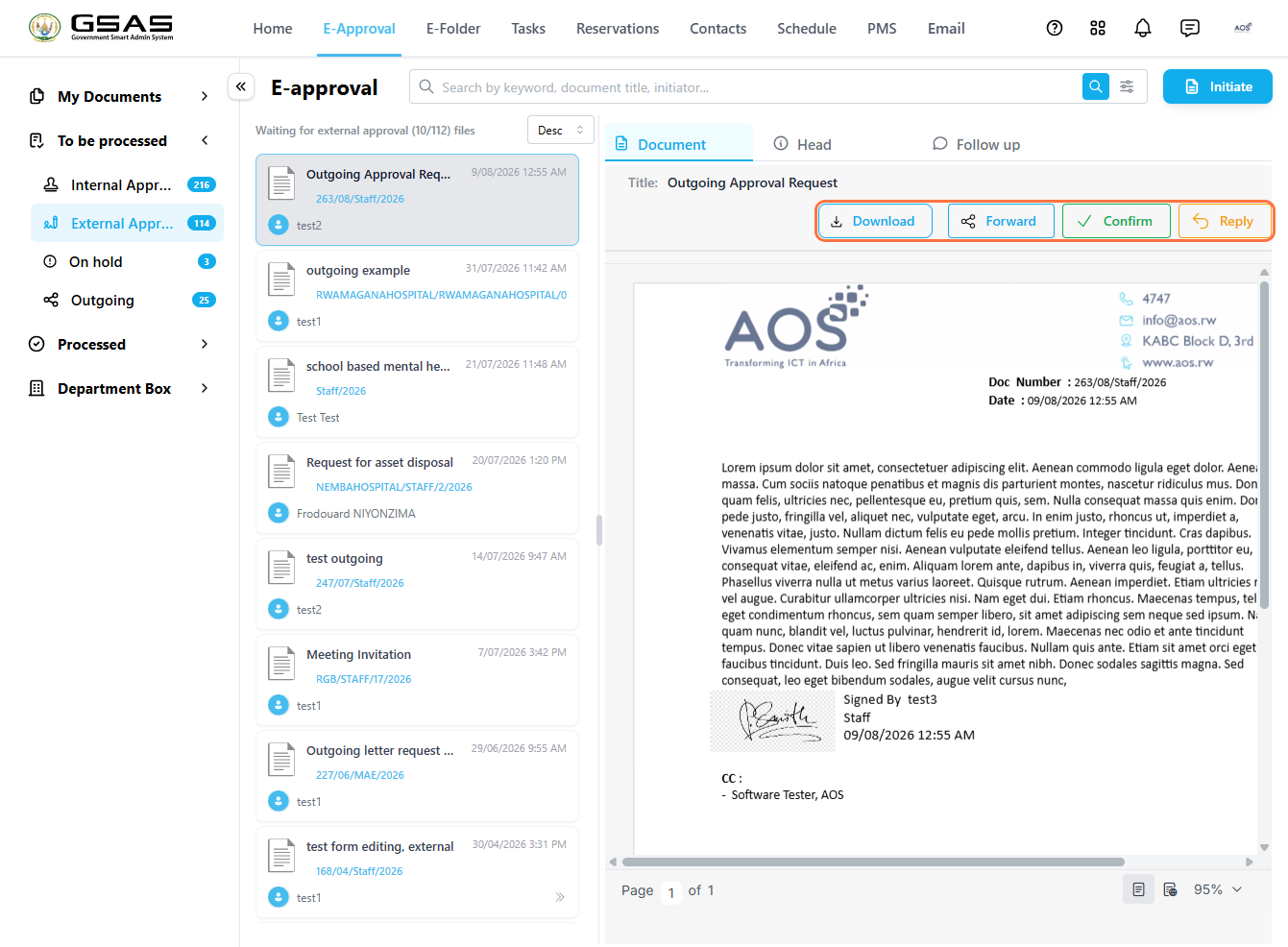
Every document your institution receives from an external institution lands first in the Receiver Manager's To Be Processed > External Approval folder before being routed to anyone else.
Confirm
Acknowledges that the document has been officially received into the system.
Forward
Routes the document to whoever internally needs to see or act on it.
Reply
Opens a new outgoing request addressed back to the external sender.
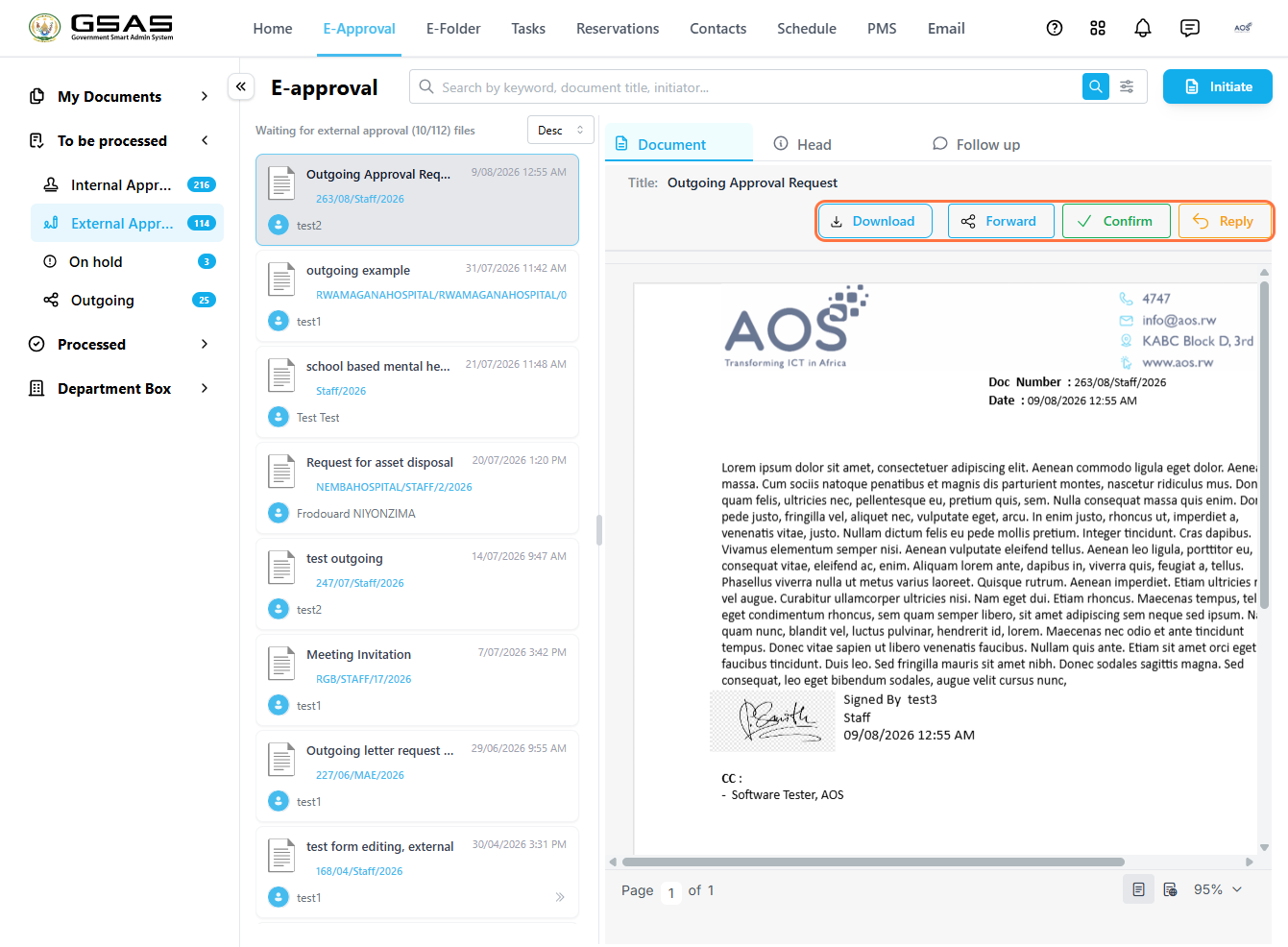
Forwarding a document
Click Forward.
Search for and select the people who need to see the document.
Click Forward again, optionally add a message, then confirm.
Receiving a Forwarded Document
If a document is forwarded to a user, it appears in their own To Be Processed > External Approval folder. They'll have the same options the Receiver Manager had; Download, Forward, and Reply except Confirm, since that's the Receiver Manager's responsibility alone.