Reserving a Facility
This page walks you through finding a facility and submitting a reservation for it.
Browse Facilities
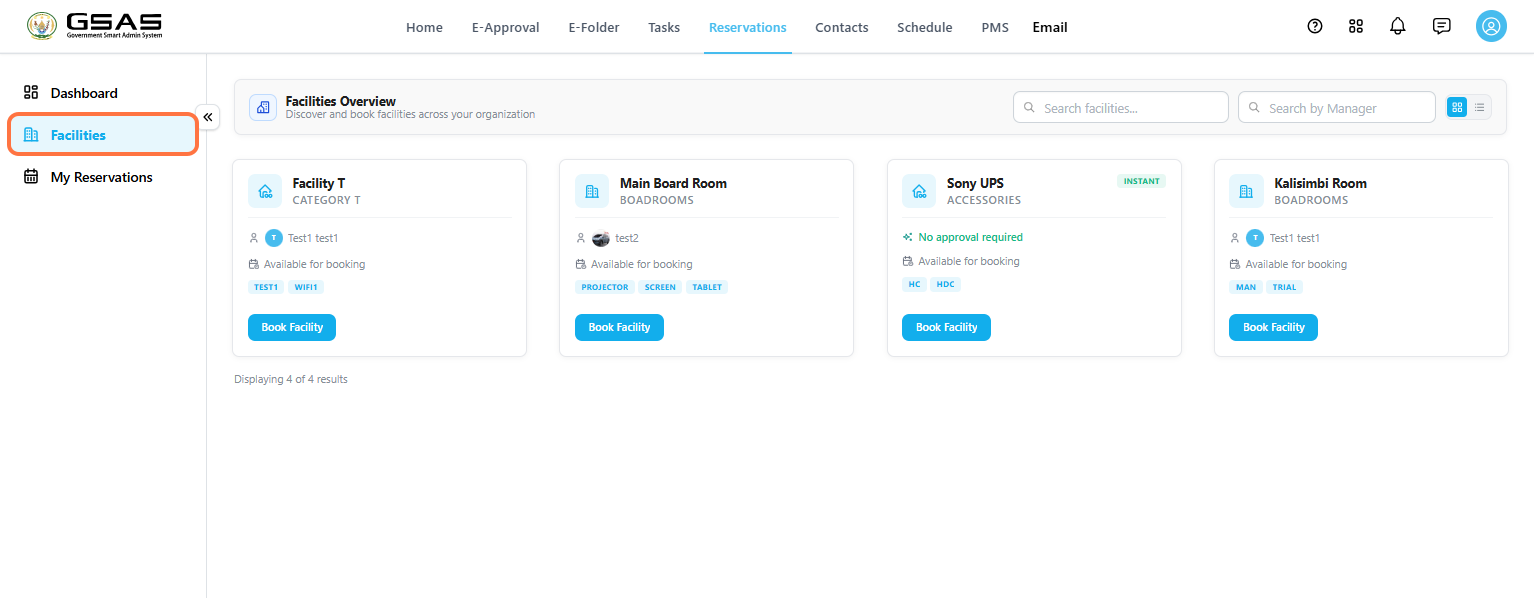
Go to Reservations → Facilities to see everything available to book.
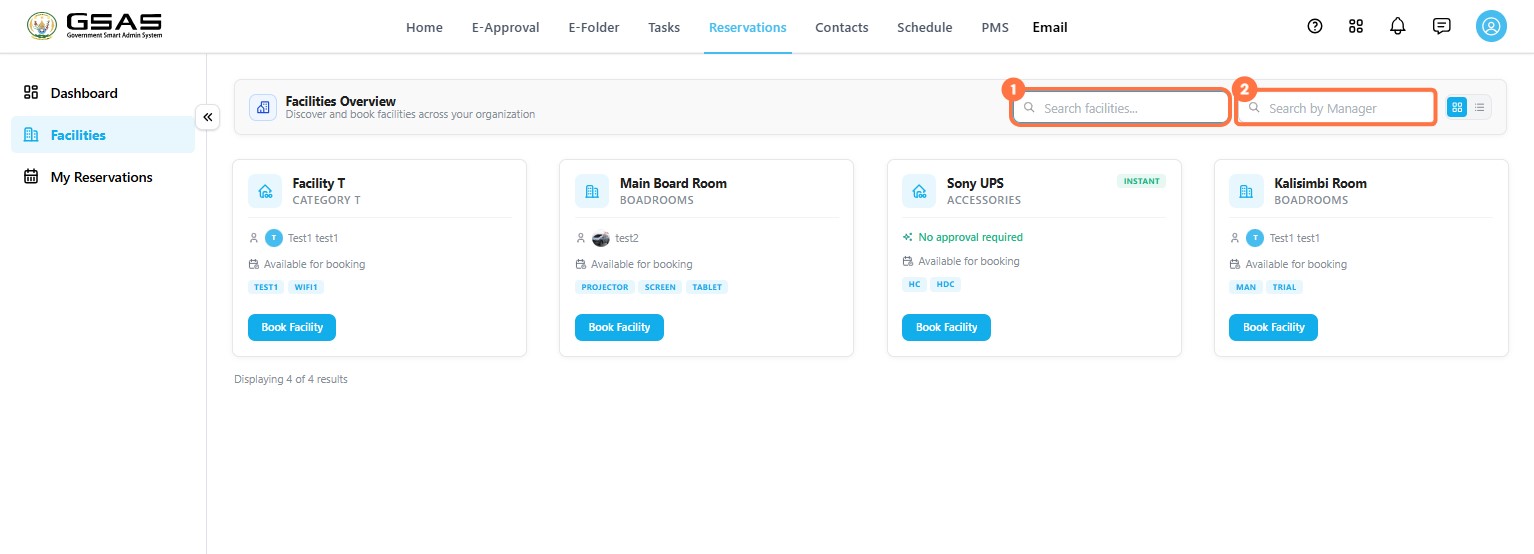
You can use Search facilities(1) to look up a facility by name, or Search by Manager(2) if you know who oversees it. Use the toggle next to the search bars to switch between a grid view, which shows one card per facility, and a list view, which shows facilities as compact rows.
Reading a Facility Card
Each facility card shows its category, the person managing it, its availability, and any relevant tags such as available equipment. Some cards also show No approval required, meaning the booking is confirmed the moment you submit it.
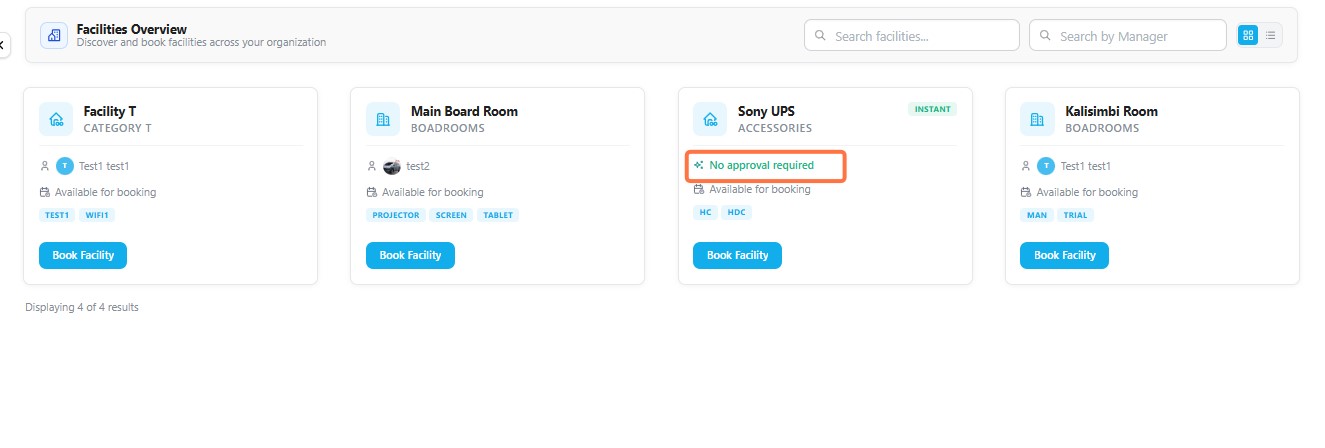
Facilities without this label need approval from the facility manager before the booking is finalized.
Reserve a Facility
You can start a reservation directly from a facility card, or from the calendar if you're already viewing a facility's availability.
Step 1
Open the Booking Form
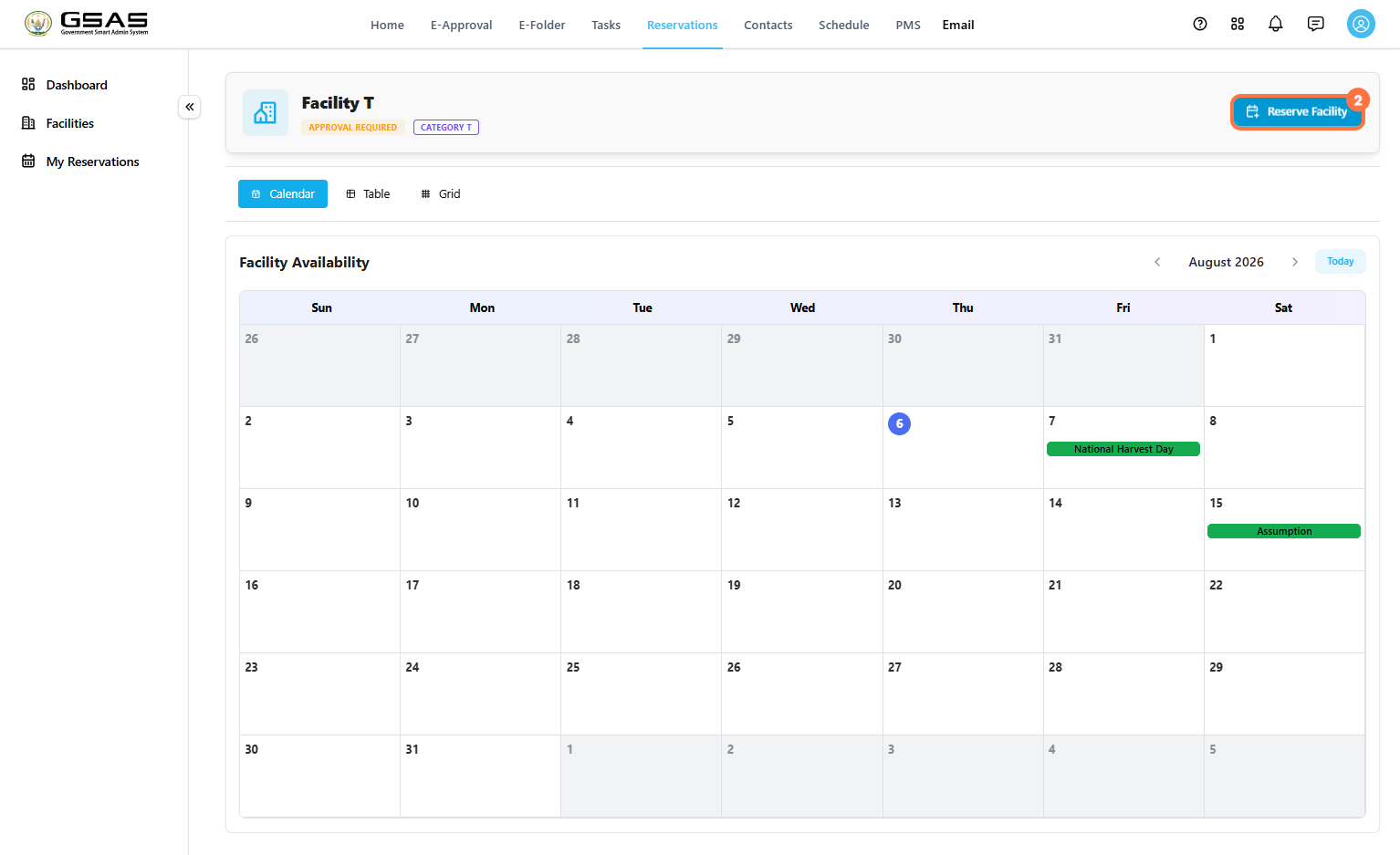
Click Book Facility on the facility you want to reserve. If you're viewing the facility's calendar instead, click Reserve Facility in the top right.
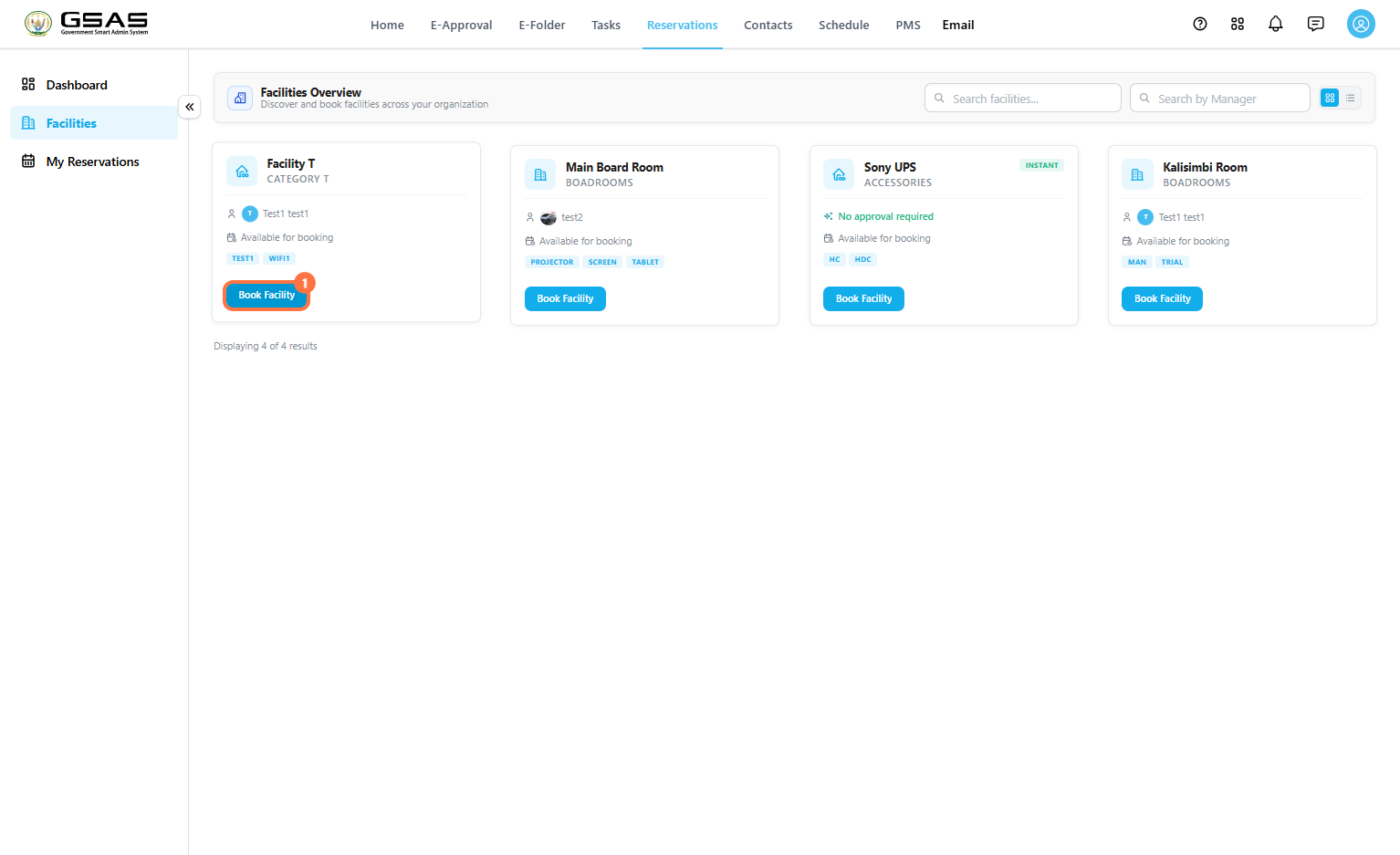
You will then see a calendar view showing you the facility's availability, click Reserve Facility in the top right.
Step 2
Set the Date and Time
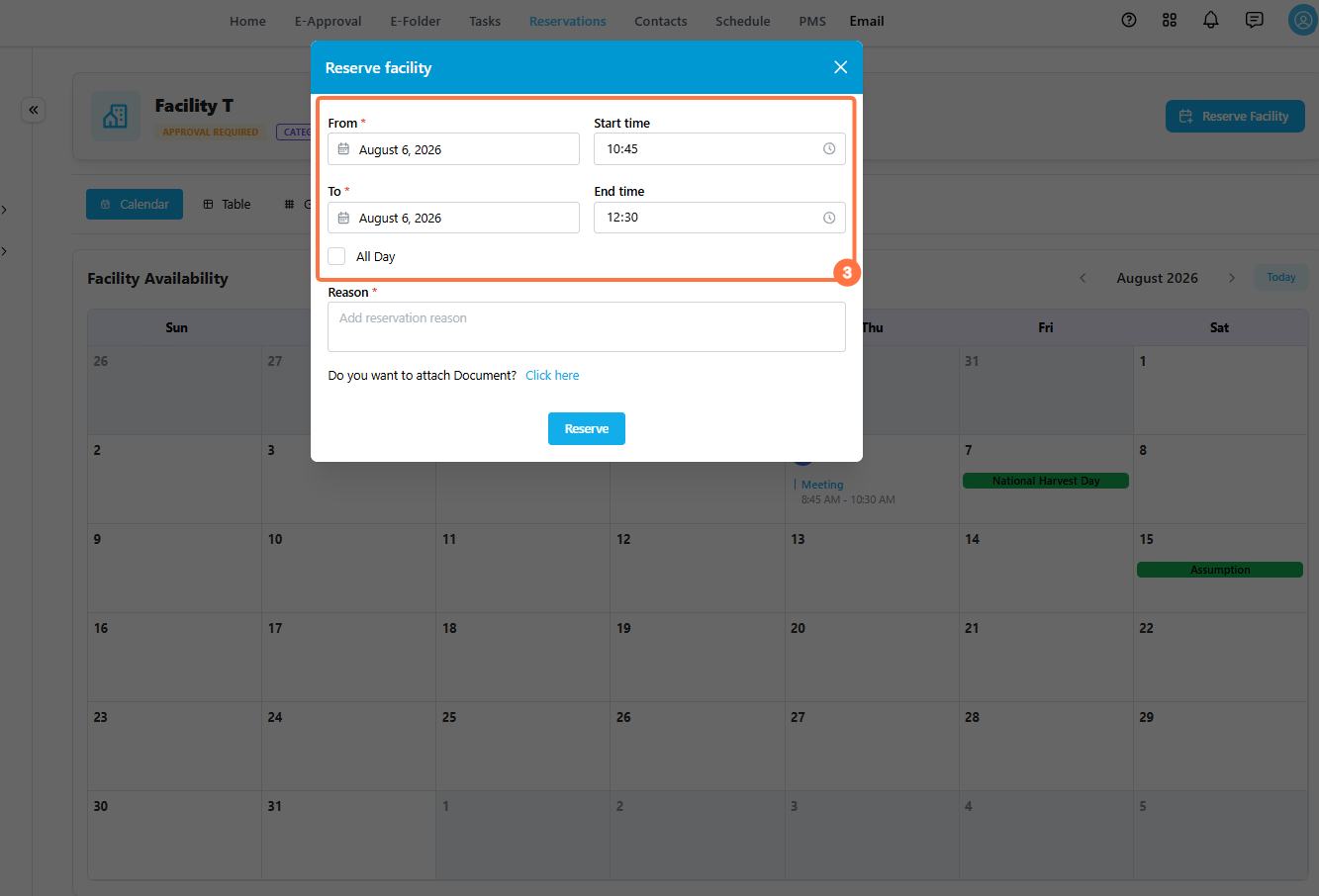
Enter the From and To dates, along with a Start time and End time. If the booking covers the entire day, tick All Day instead of setting specific times.
Step 3
Add a Reason
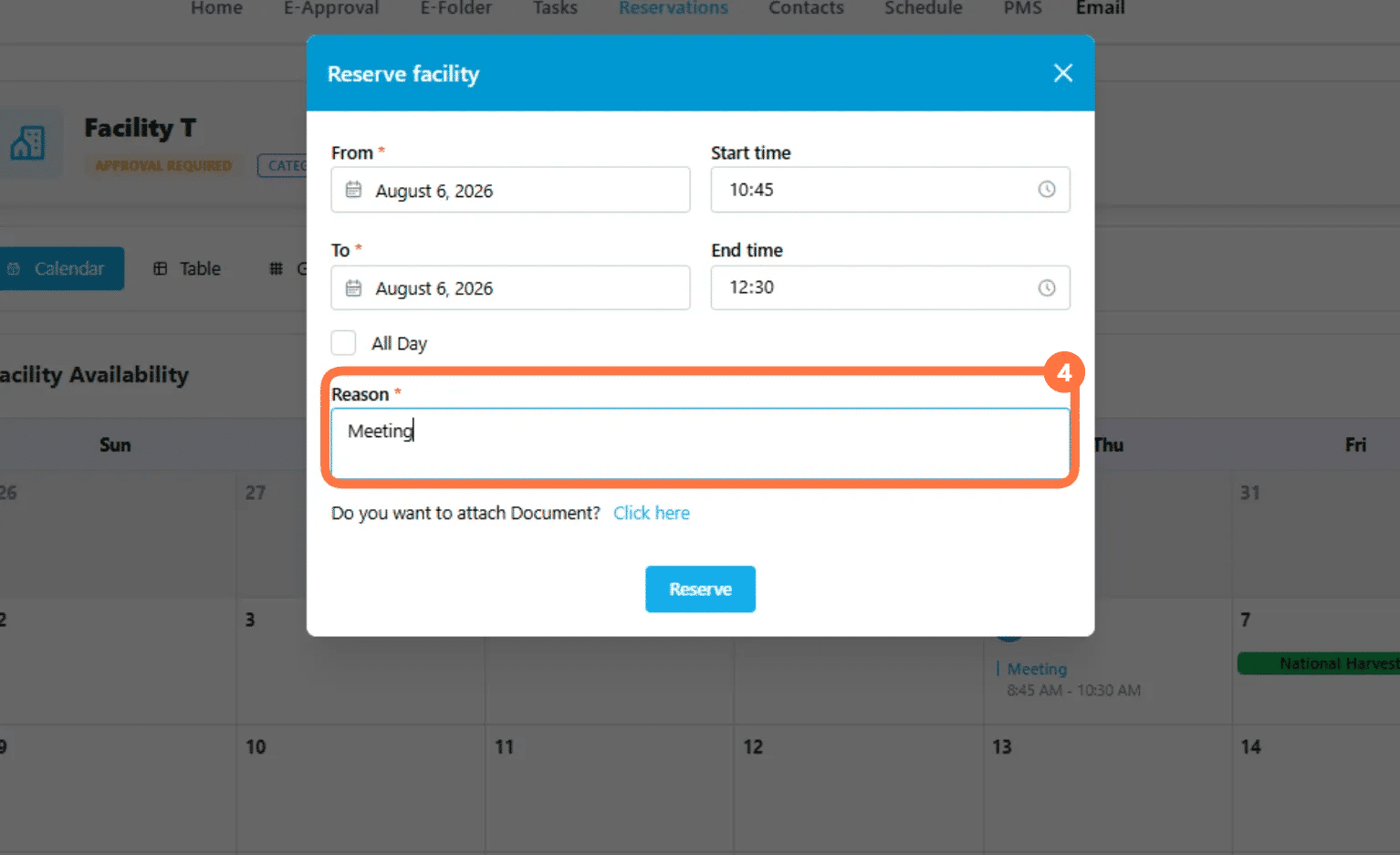
Enter a short reason for the booking. This helps the facility manager understand the purpose of your reservation when reviewing it, and appears on your reservation record for future reference.
If you need to include a supporting document, click Click here next to Do you want to attach Document? and select the file from your computer. This is optional and can be left blank for straightforward bookings.
Step 4
Submit the Reservation
Click Reserve to submit the booking.
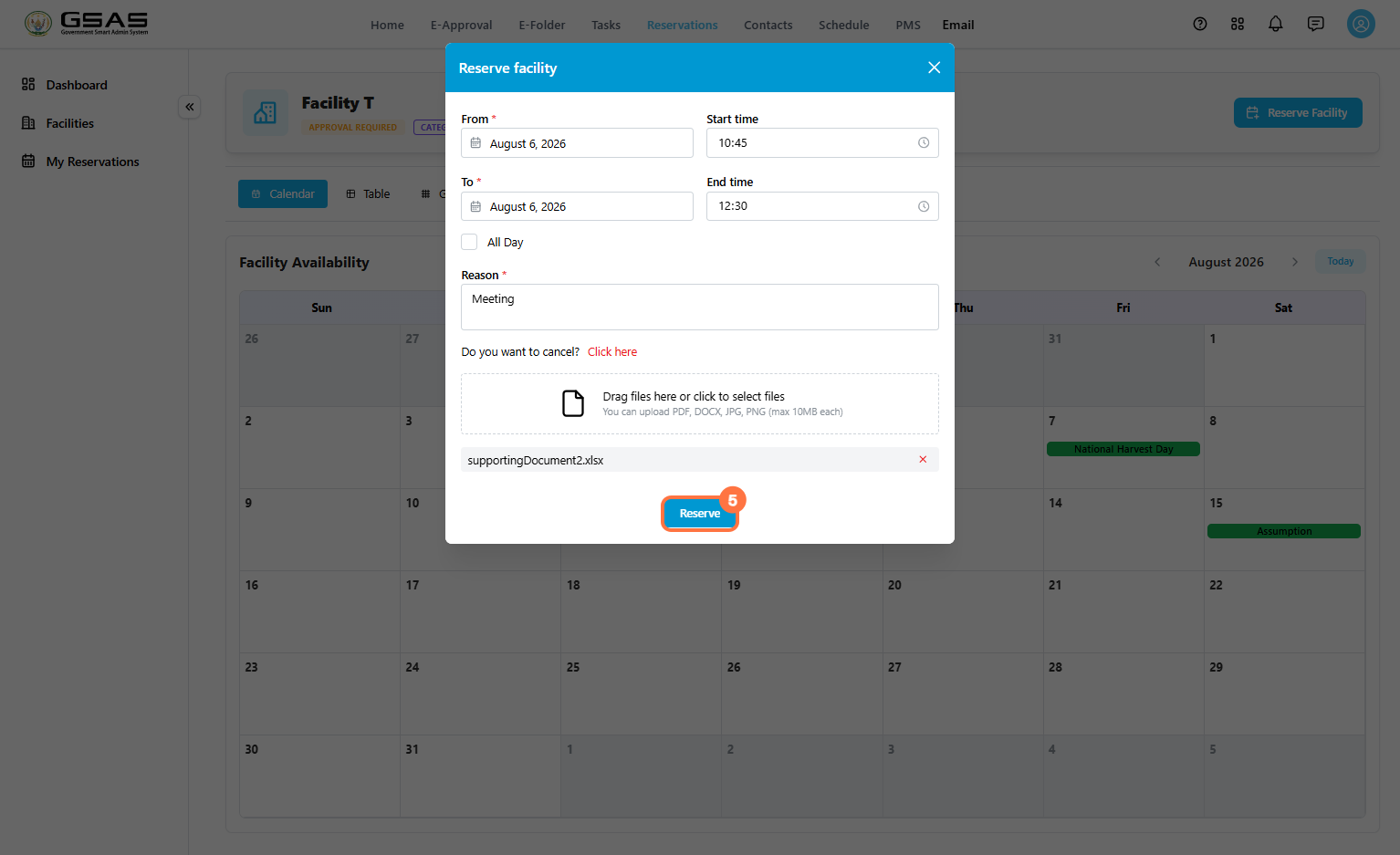
A confirmation message appears once your reservation is submitted.
If the time slot you selected overlaps with an existing booking on the same facility, you will see an error message "Booking already overlaps with existing booking start and end date" and the reservation won't go through. Choose a different time or date and try again.
See Tracking Your Reservations page to learn how to check the status of your request.