Registering documents
This section outlines the steps for users to register incoming documents that were not received through the Government Smart Administration System for archiving and sharing.
Key Steps
Step 1:1
Access eApproval
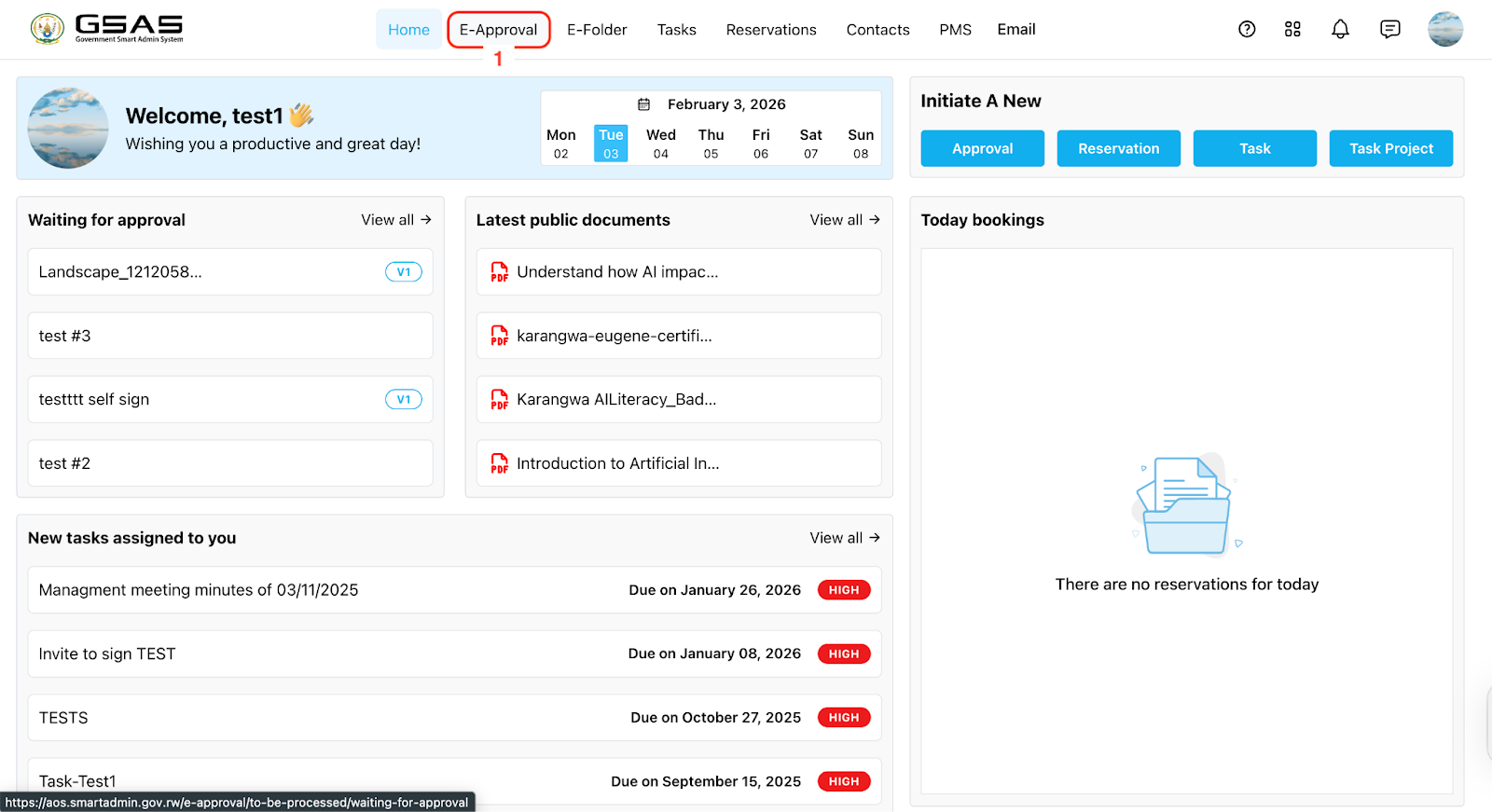
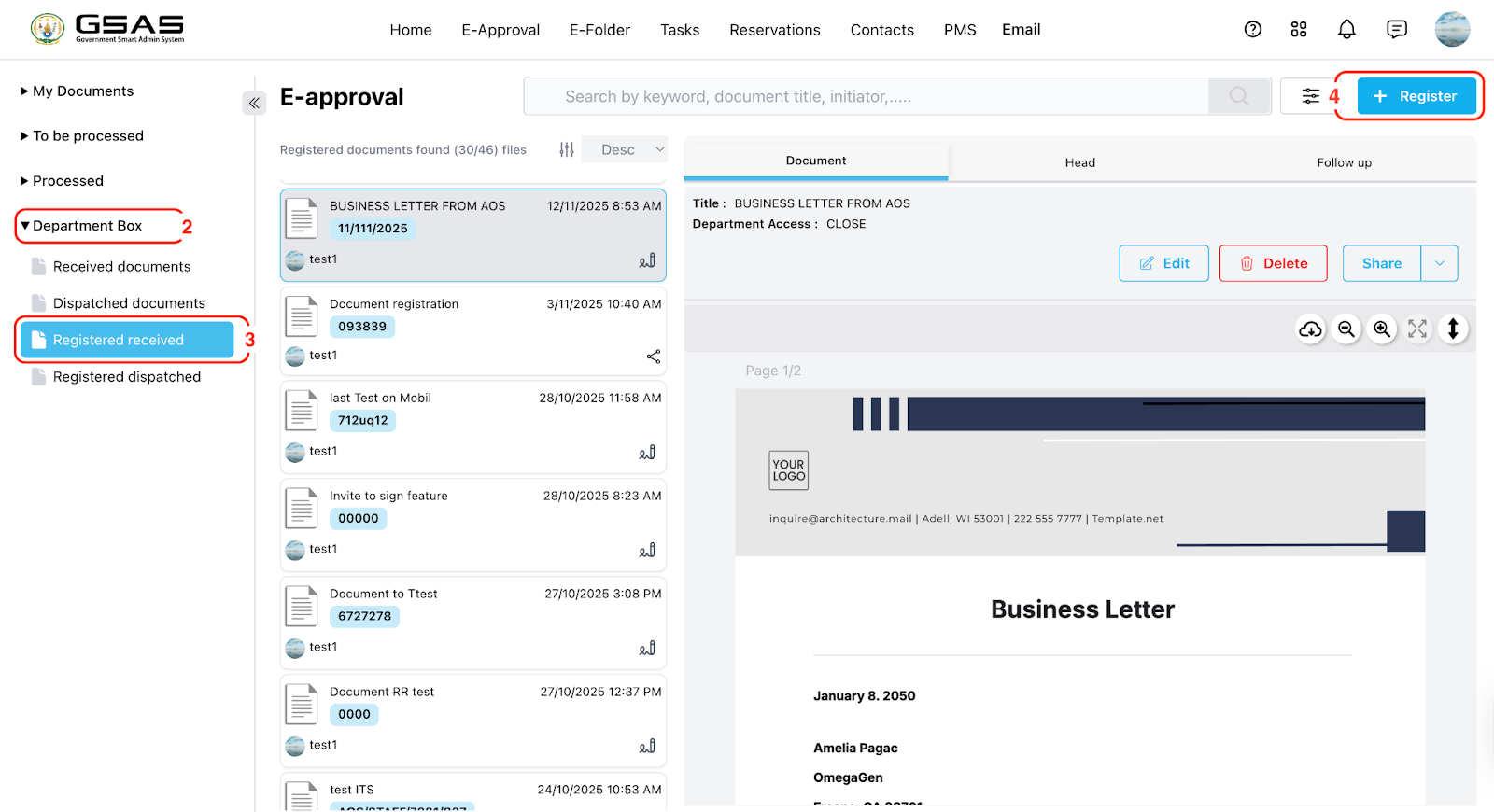
Step 2:2
Document Details Entry
-
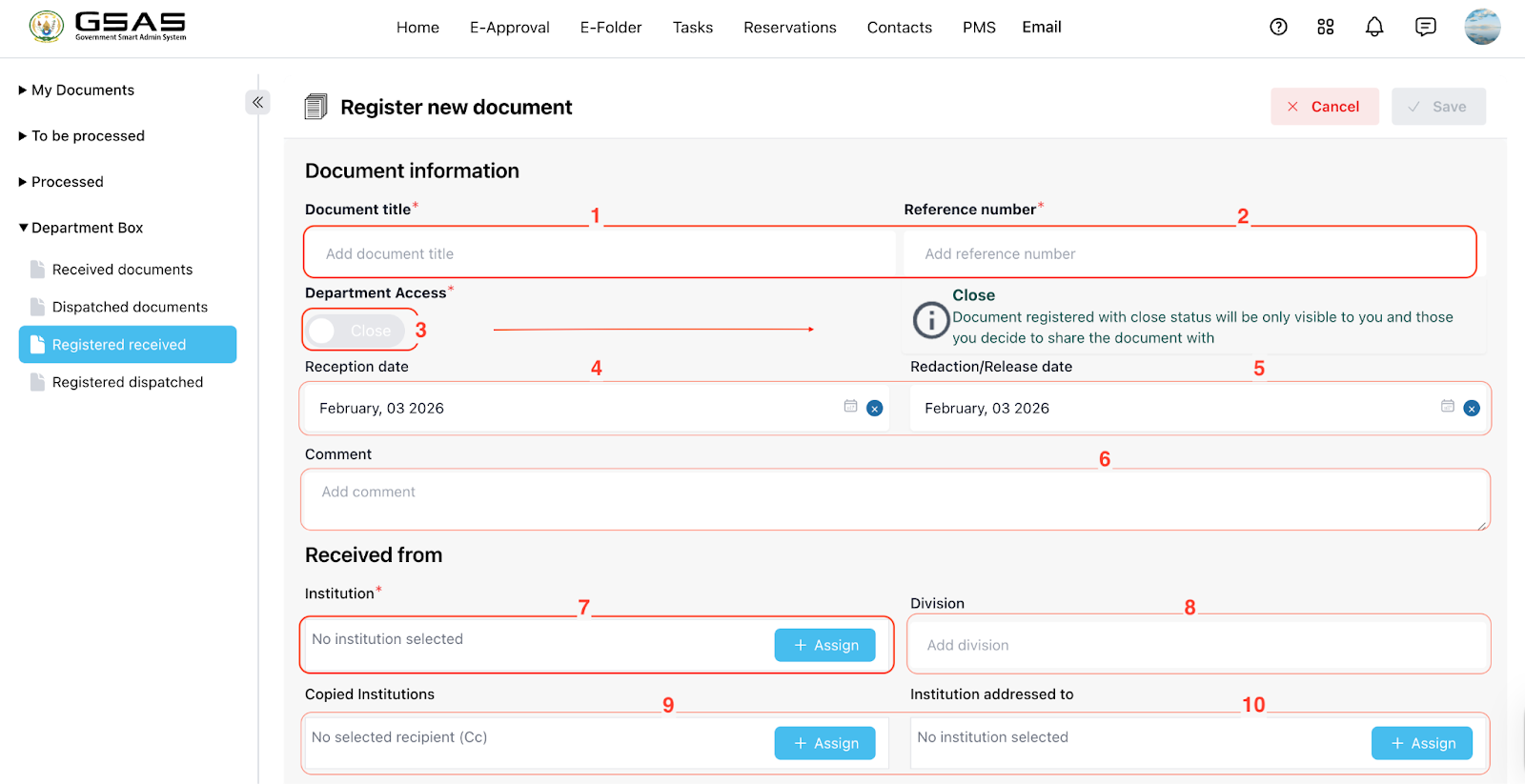
Input the title of your document.
-
Add the document’s reference number.
-
Determine access to the document for other team members in your department. (Refer to the cautious message on the side.)
-
Add reception date
-
Add redaction date (Date of when the document is/will be handled)
-
Optionally, add comments summarizing your document.
-
Enter the institution name (e.g., AOS).
-
Specify the division (e.g., HR) if necessary.
-
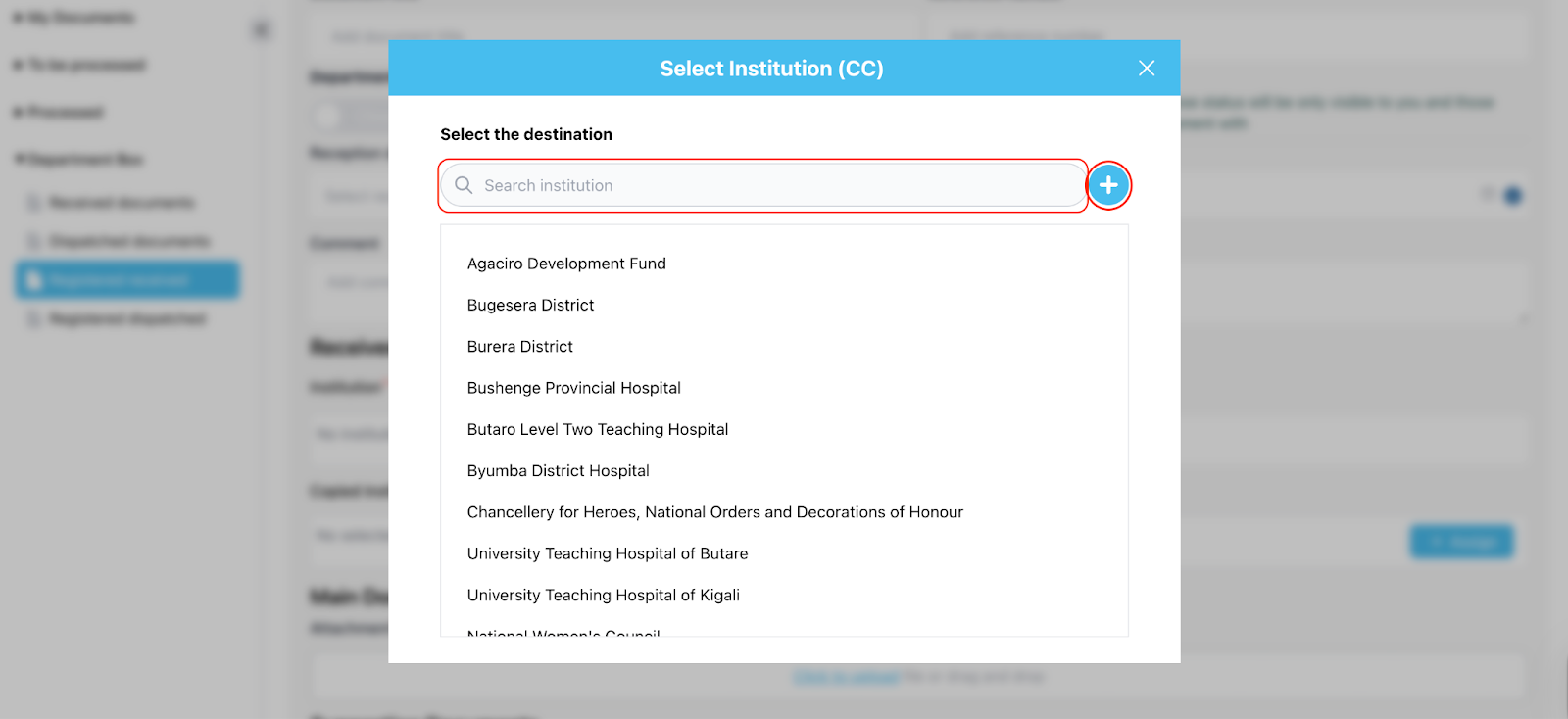
Select/Enter the copied institution or type it using the add (+) button.
-
Select/Enter the addressed institution or type it using the add (+) button.
→ After clicking the “+ Assign” button, a new model will open.
-
Attach the main PDF document.
-
If applicable, attach any supporting documents.
