Overview
E-Folder is a secure digital file storage for work documents integrated directly into the system. Upload, create, organize, and share documents all in one place, accessible from anywhere. Because it lives within the system, your work files are always where you need them, securely stored and easy to access.
Getting to E-Folder
Click the E-Folder tab in the top navigation bar. This opens the E-Folder home screen, which shows your four main folders, your storage usage, recent activity, and a summary of your collaborative groups.
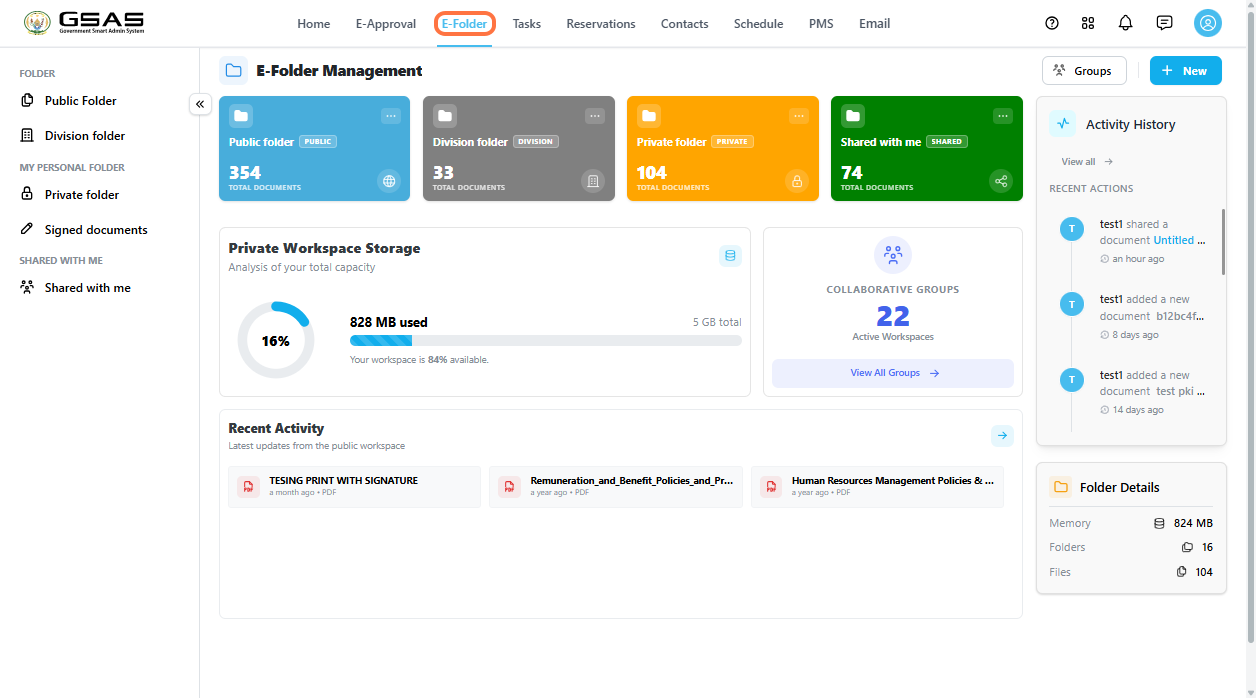
Your four main folders
Your files are organized across four main folders, each with a different audience and purpose. Each has a different audience and purpose.
| Public Folder | Contents are visible to all staff in your institution. Use it for documents that everyone should be able to access. |
| Division Folder | Contents shared with your department or division only. |
| Private Folder | Only you can see |
| Shared with Me | Contains files and folders that other users have shared directly with you. What you can do on the share documents depends on the permission the owner |
| Note: In the Shared with Me folder, what you can do with a file depends on the permission the owner gave you. With Read permission you can view and download the file. With Write permission you can also edit, export, and re-share it. |
Storage
The E-Folder home screen shows how much of your private storage you have used. Each user starts with a 1 GB storage allowance. If you need more space, your institution's systemadministrator administrator(IT) can increase this limit.
Activity History
On the right side of the home screen, the Activity History panel shows a log of recent actions taken across your folders — such as documents added or updated. Click View all to see the full history.
Collaborative Groups