Outgoing Approval Requests
Submitting an Outgoing Approval Request
Outgoing requests are used when you need to send an official document to another institution, both those that use Smart Admin and those that do not. The process is largely the same as submitting an internal request, but with two key differences: you select a template with the type Outgoing, and you specify who the document is being sent to before submitting.
| Before you begin: This page focuses on what is unique to outgoing requests. If you have not |
Step 1
Choosing a template
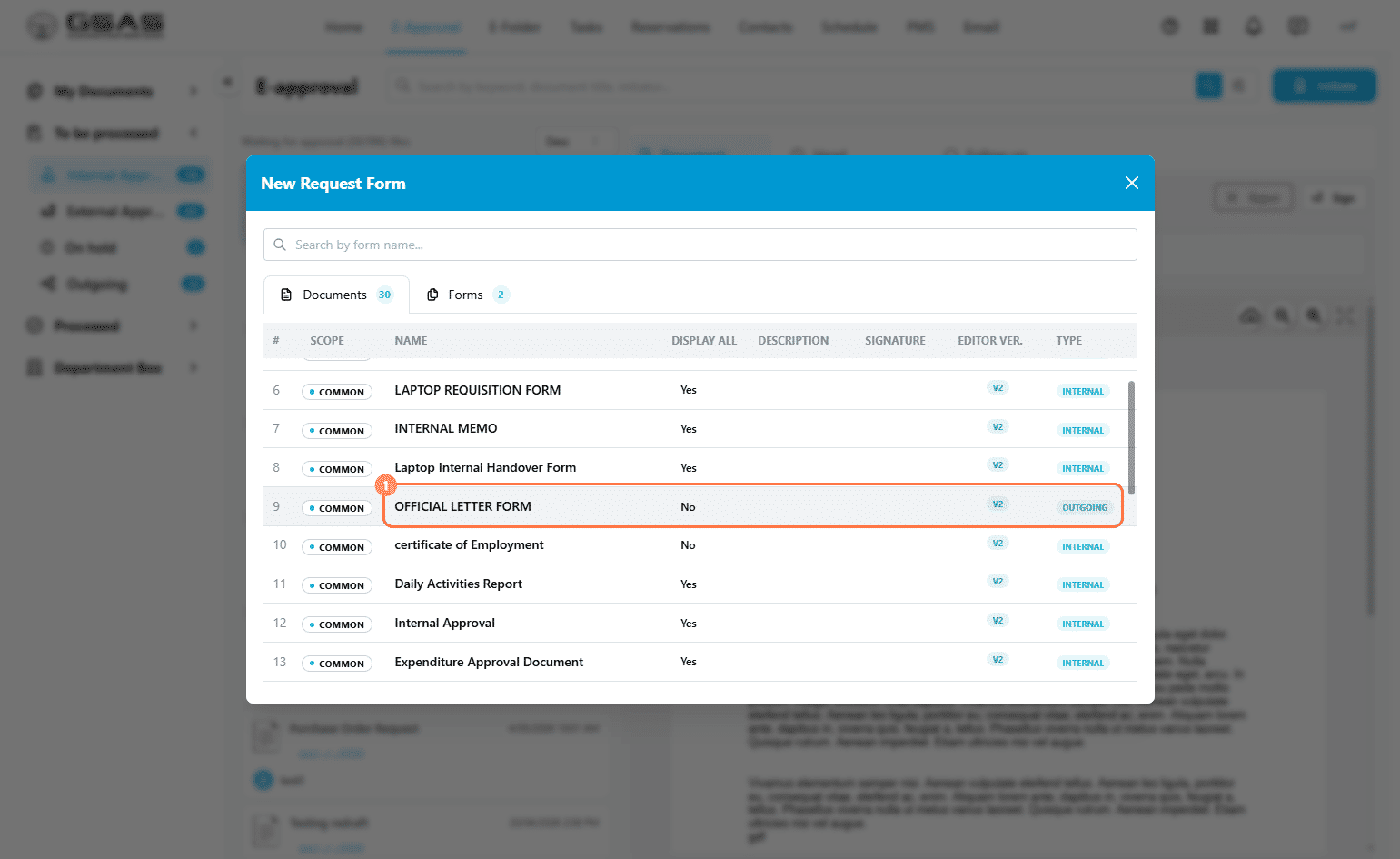
Click Initiate and select a template from the list. For outgoing requests, look for templates with the type Outgoing in the last column.
Step 2
Filling in the Head tab
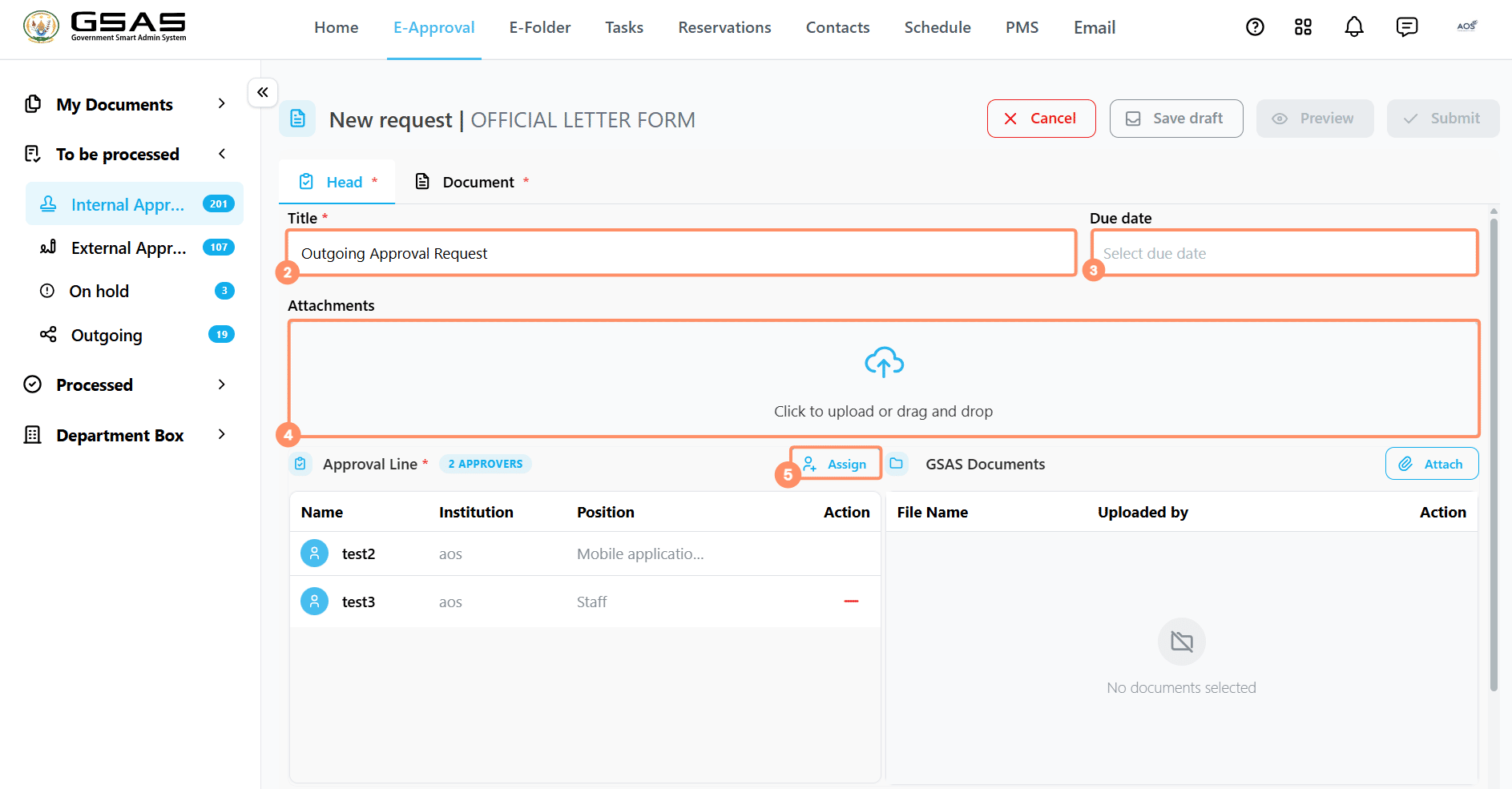
Fill in the title, due date, attachments, and approval line as you would for an internal request. You can also attach documents from E-Folder using the GSAS Documents section on the right.
Step 3
Adding recipients
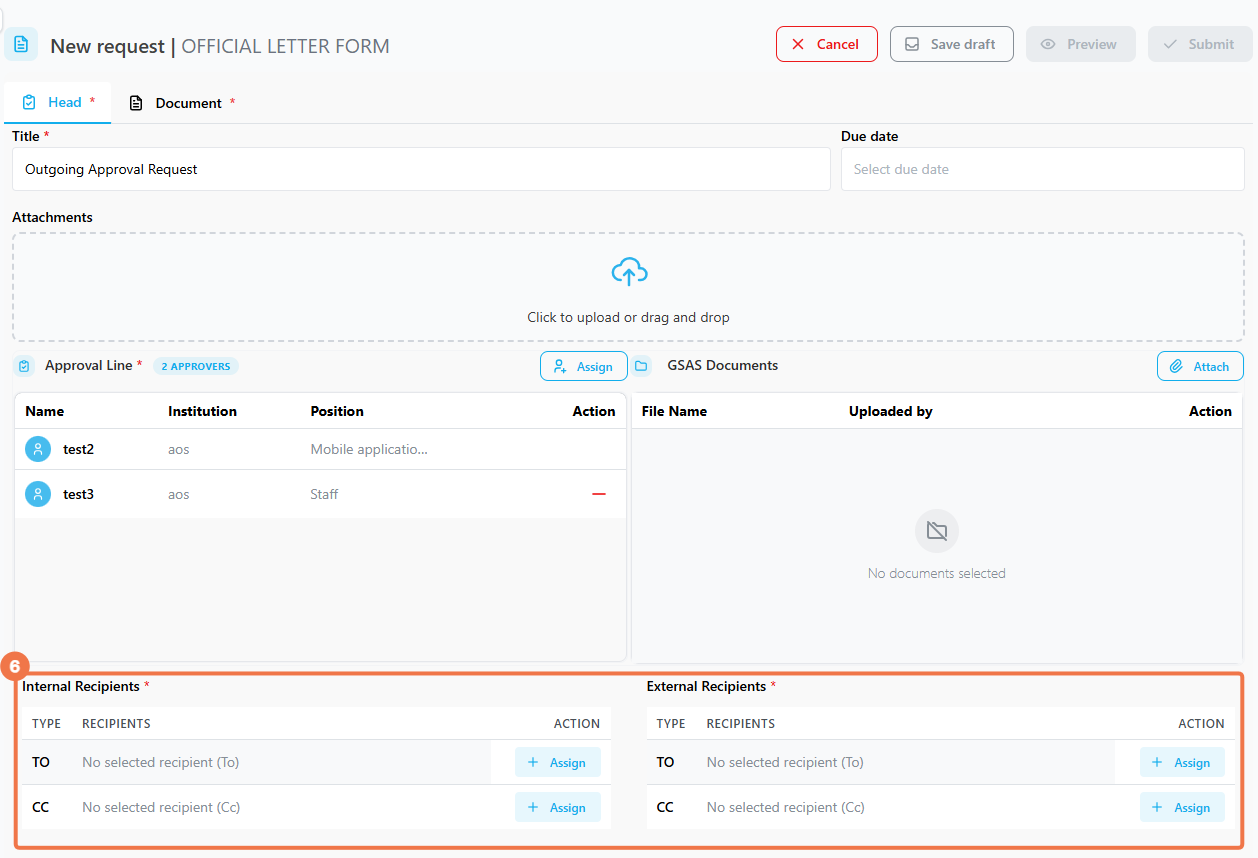
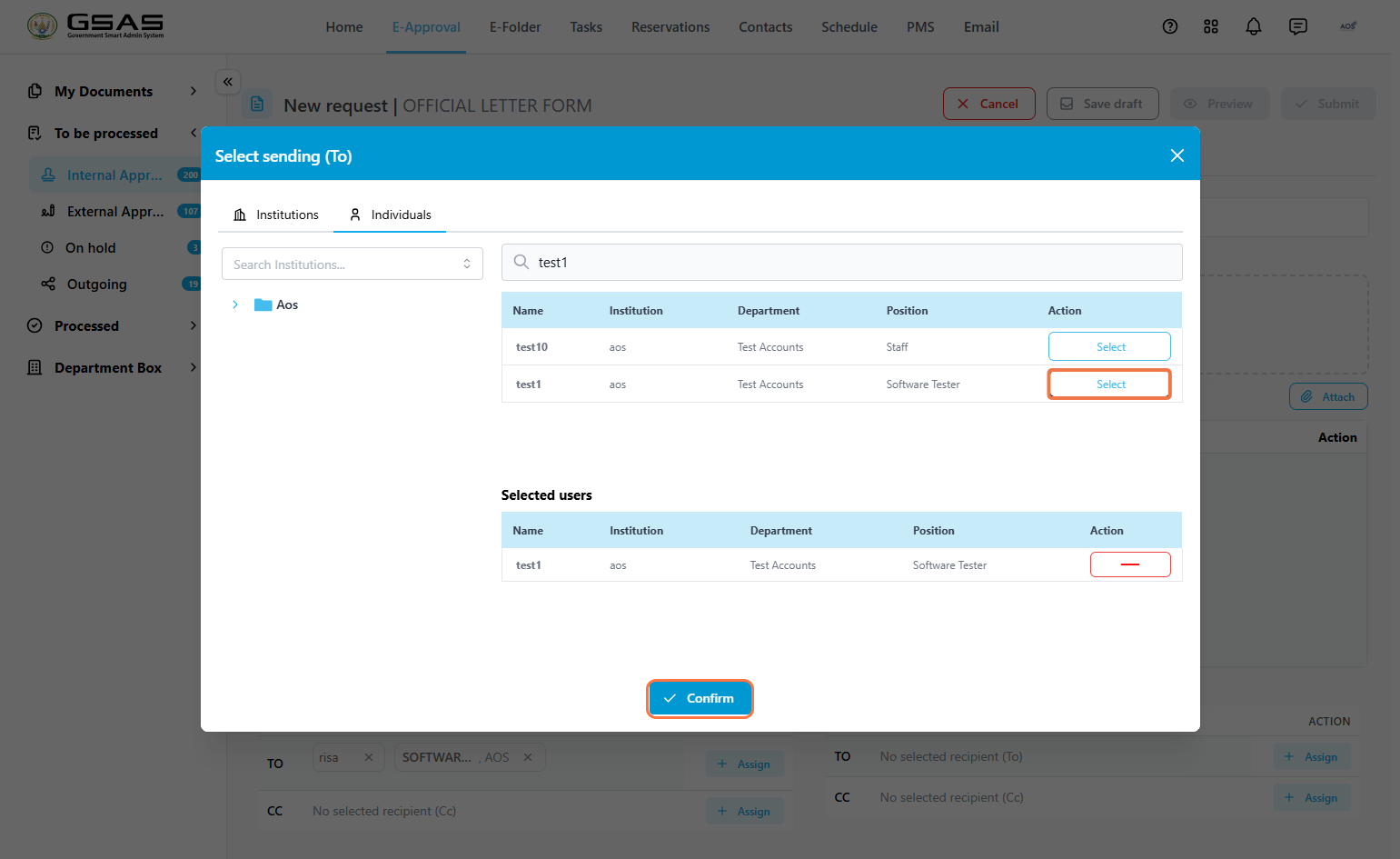
You will see two sections — Internal Recipients for institutions and individuals who use Smart Admin, and External Recipients for those who do not. You can fill in one or both.
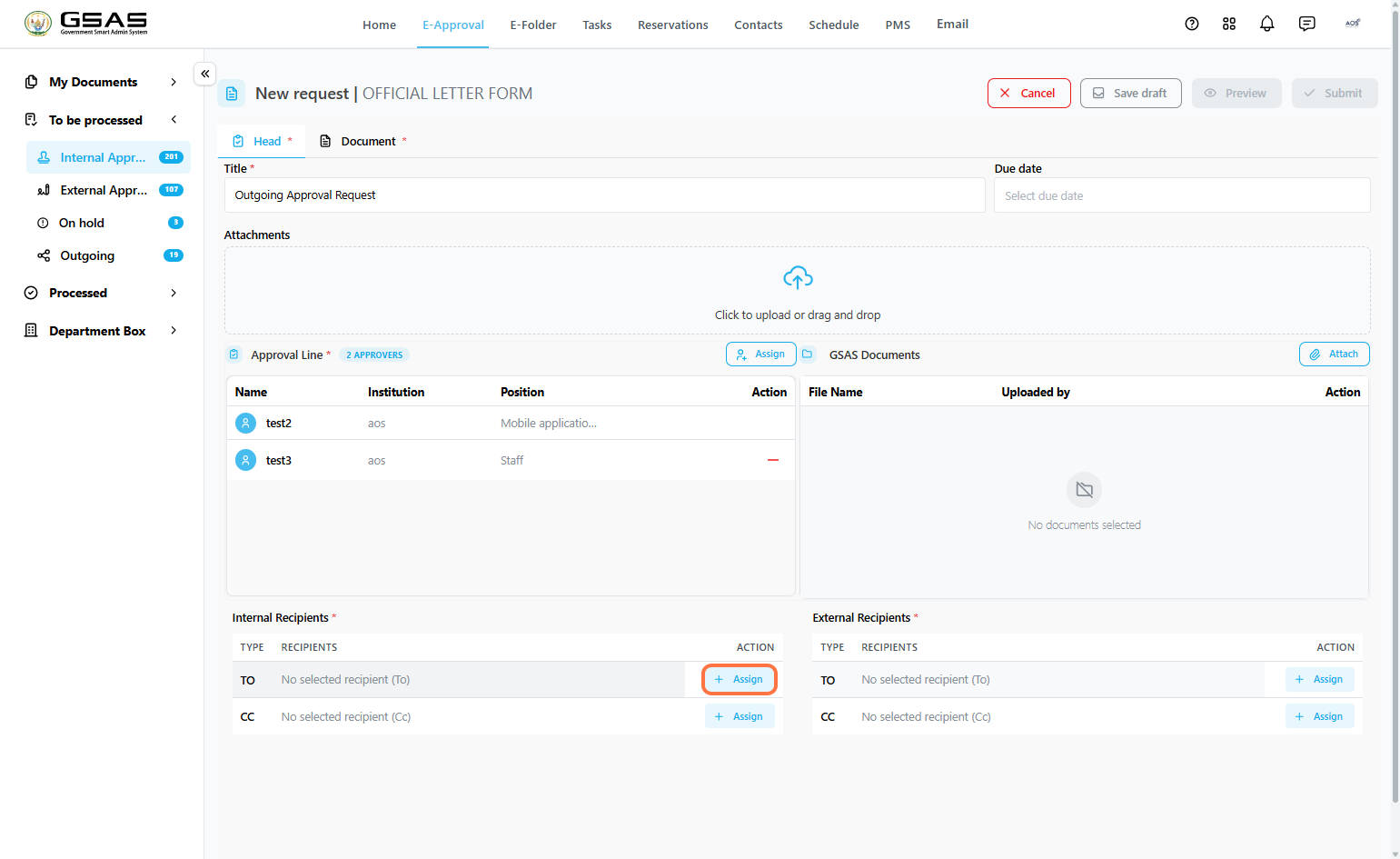
3.1 Internal Recipients/Public InstitutionsRecipients that use Smart Admin
→ Send to an institution (Internal)
→ Send to an individual (Internal)
CC To copy someone in, click Assign next to the CC field and follow the same steps above. |
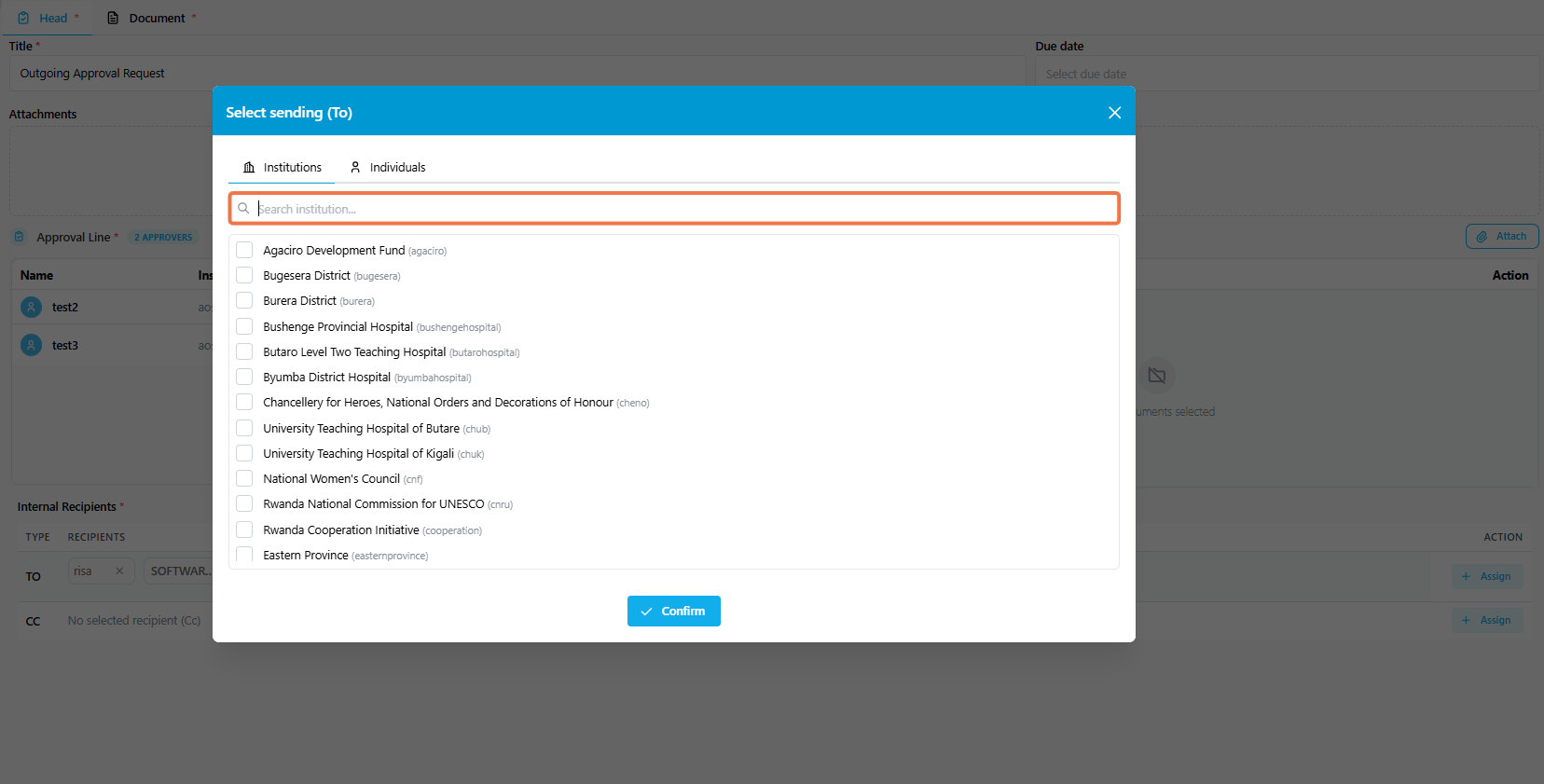
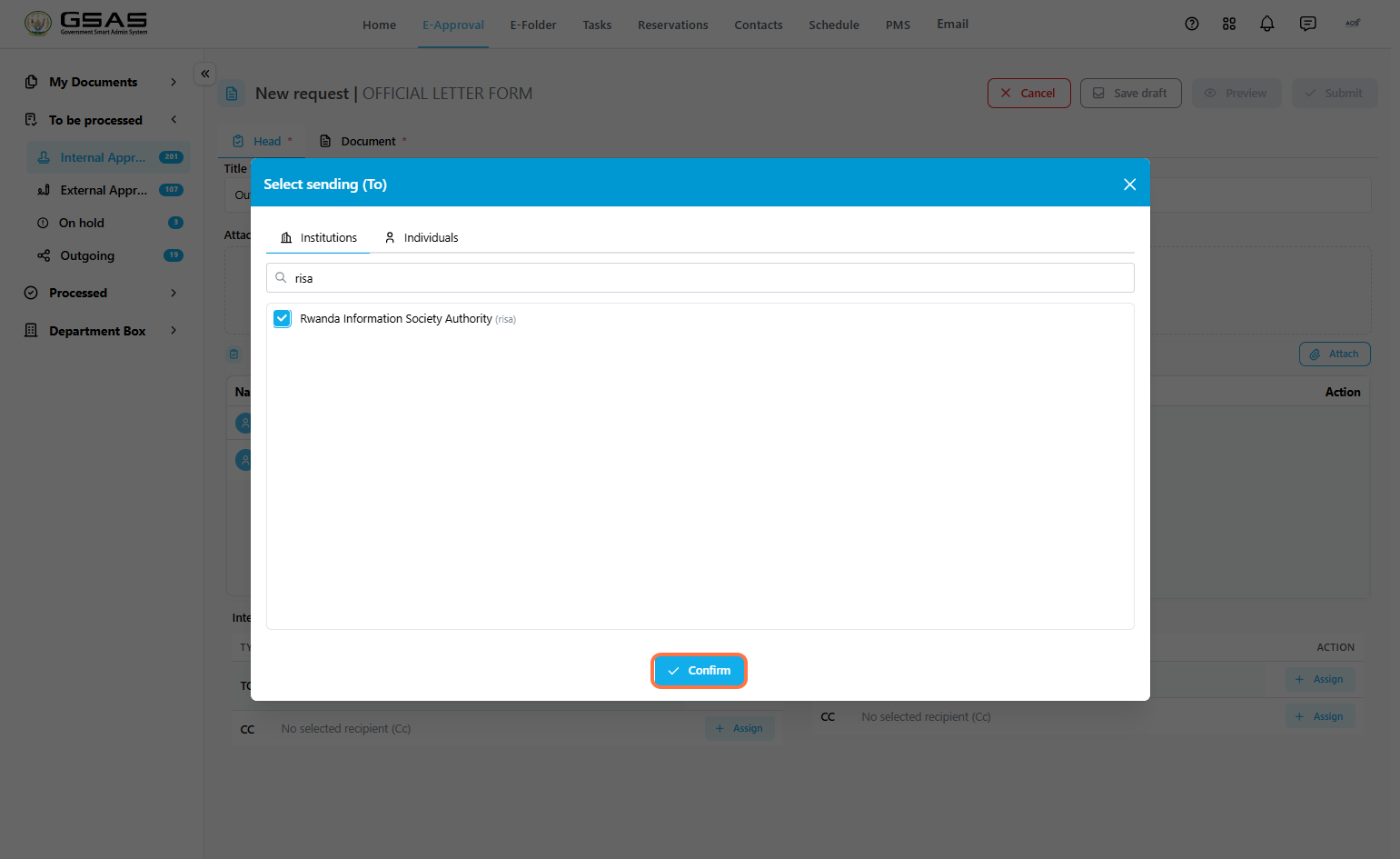
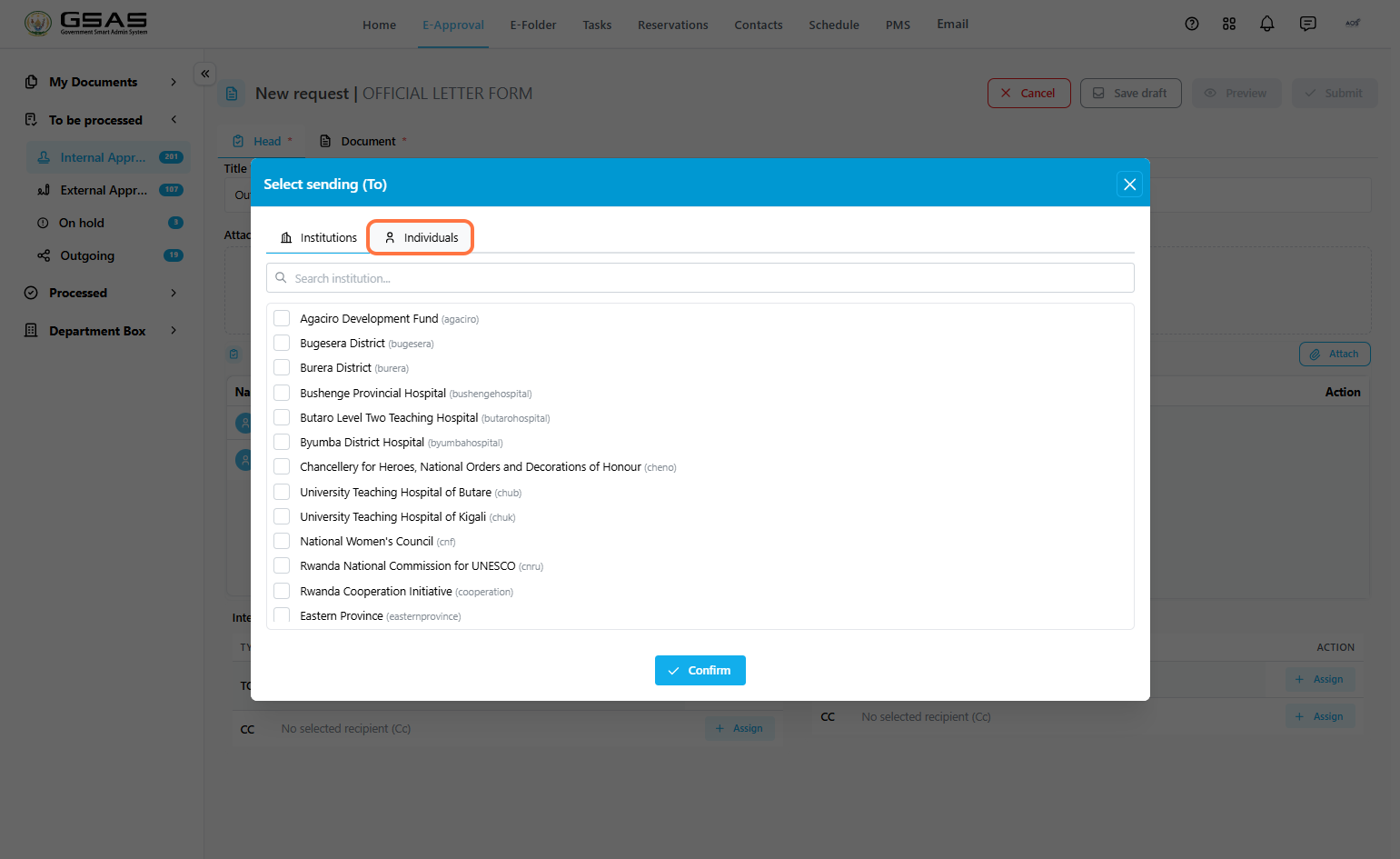
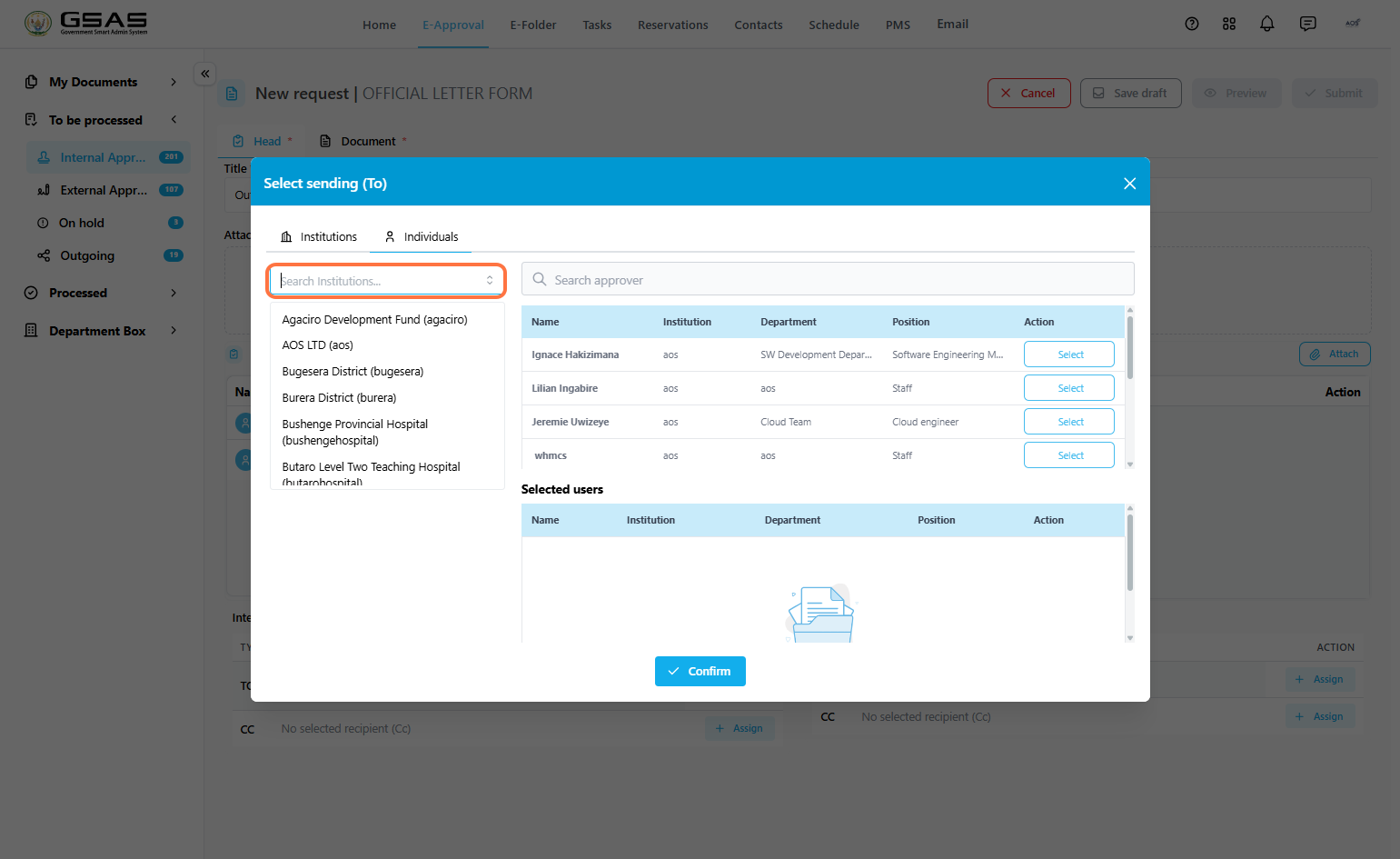
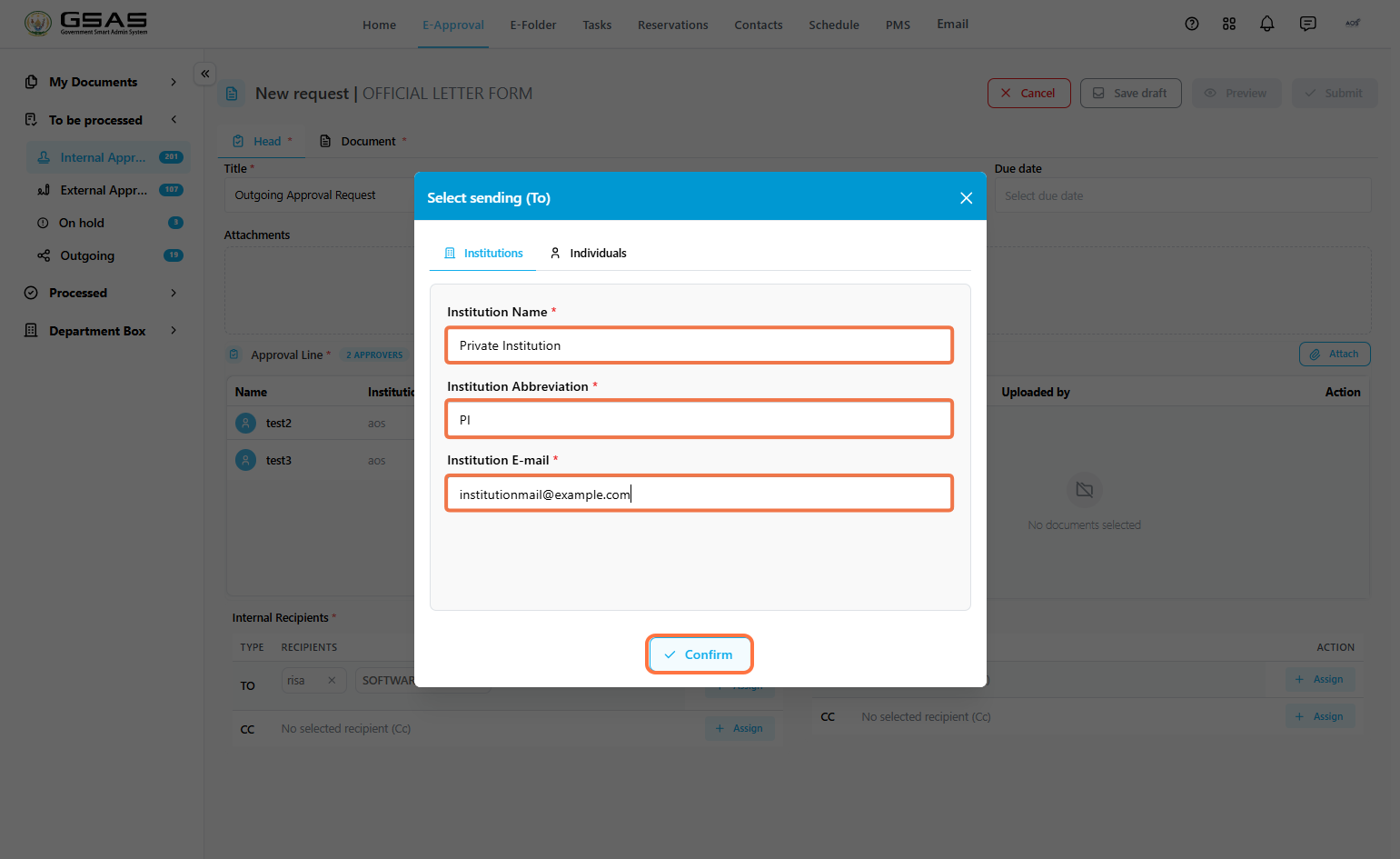
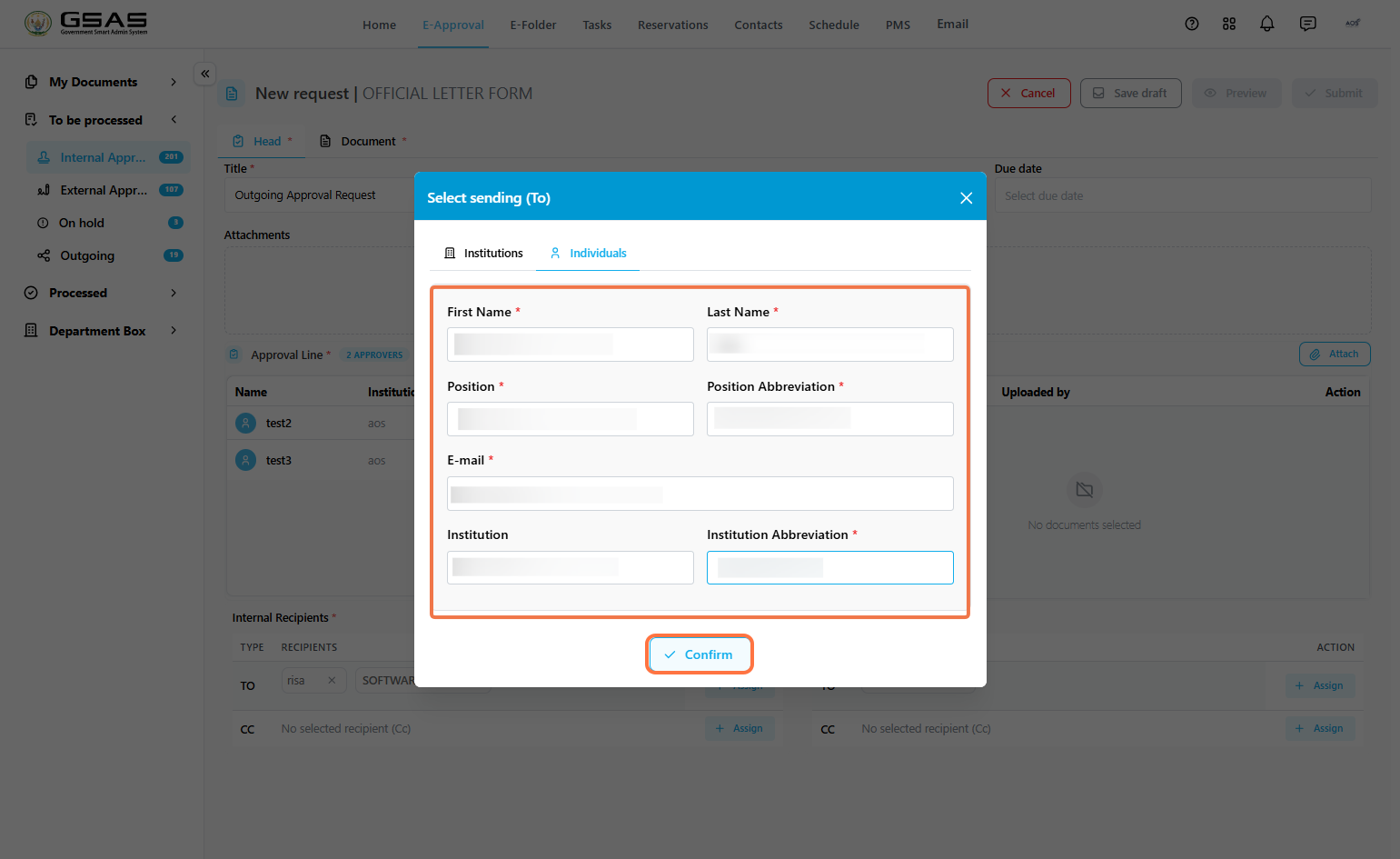
3.2 External Recipients/Private InstitutionsFor recipients who do not use Smart Admin, their details have to be entered manually. → Sending to an institution (External)
→ Sending to an individual (External)
|
Step 4
Filling in the Document tab and submitting
Fill in the content of the request in the Document tab just like it's done with internal approvals and click Submit.
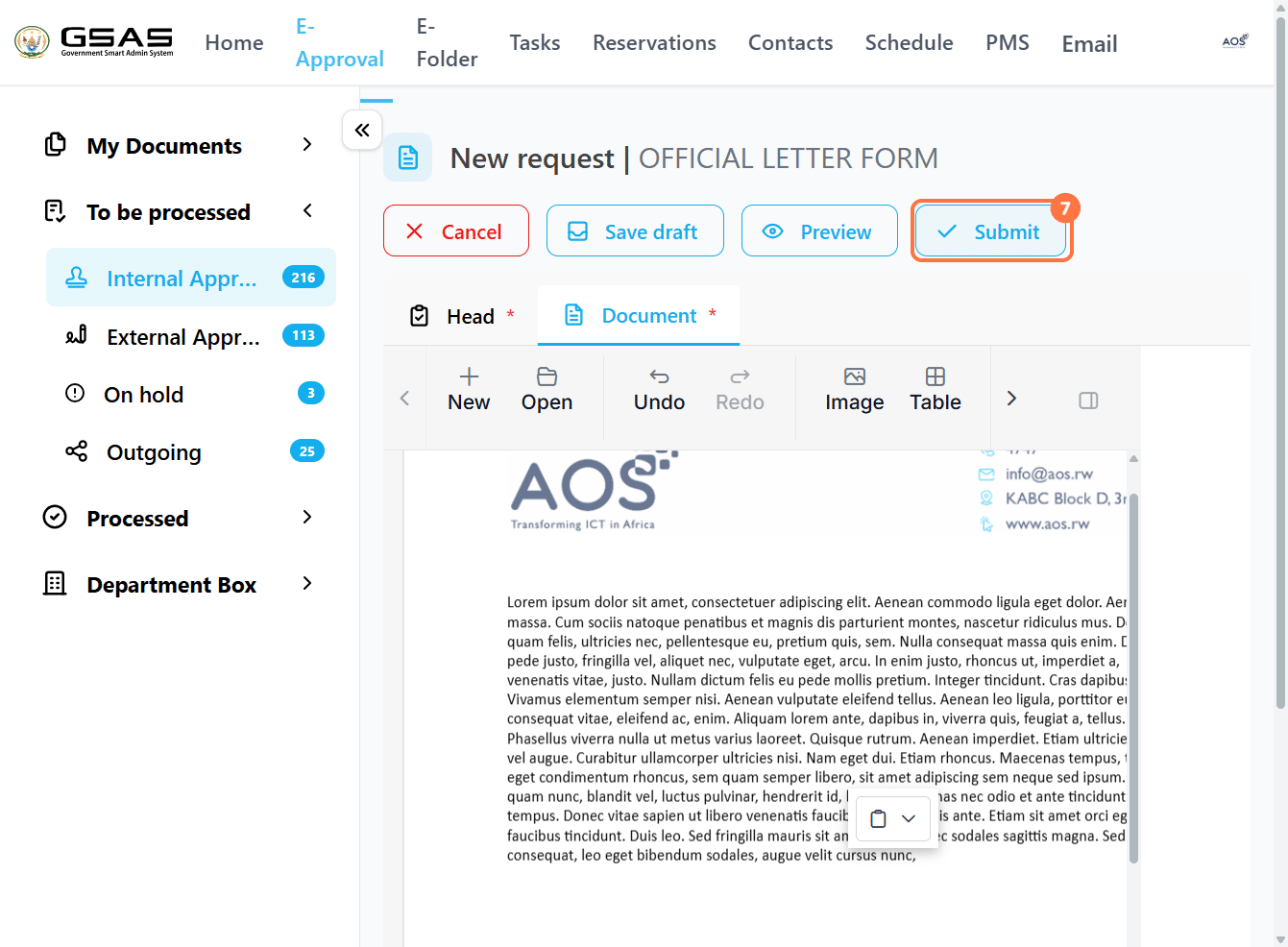
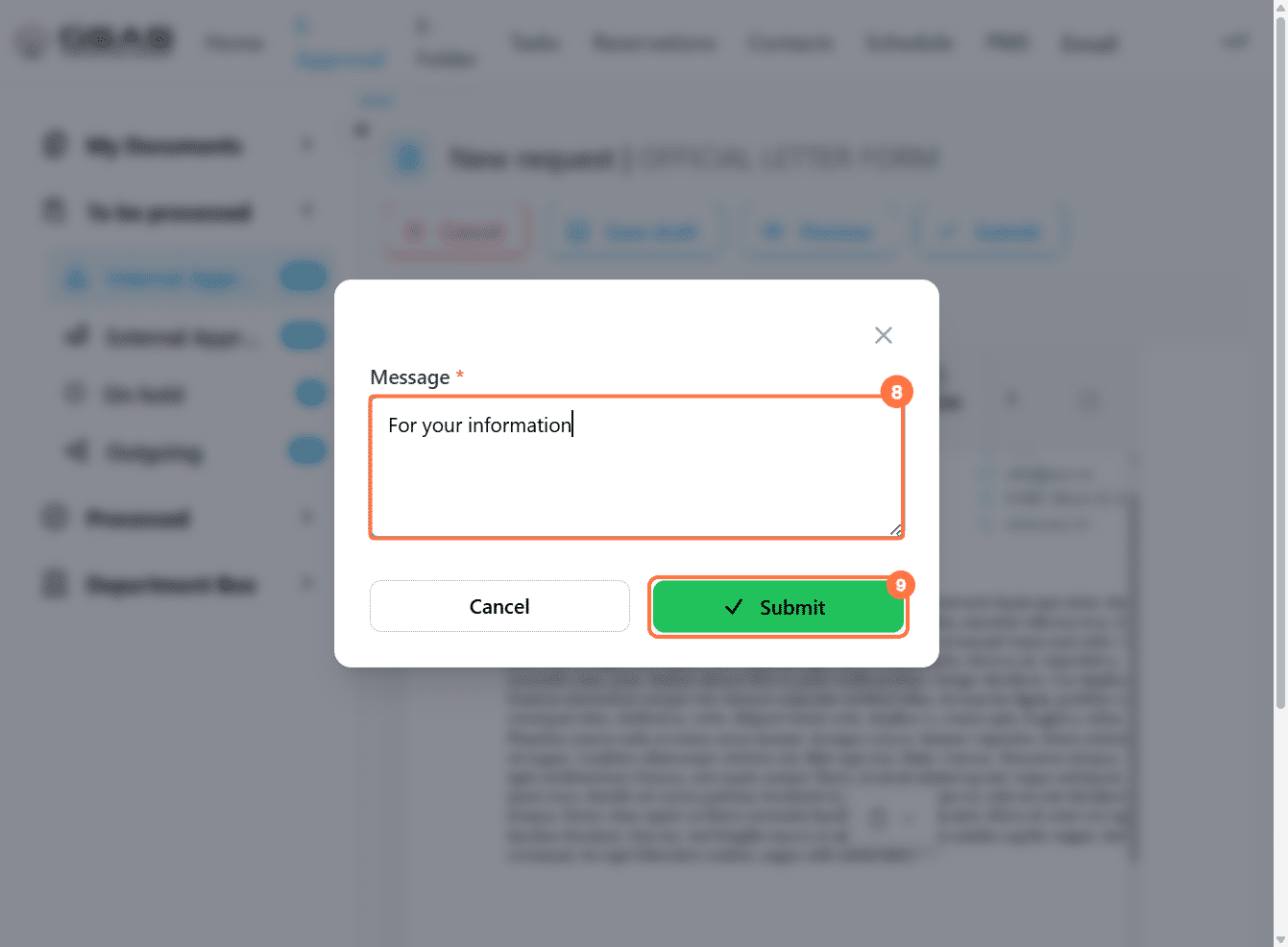
Enter a message to the external recipients, it will be included in the email sent to them along with your request, then submit.
Once all approvers have approved, the request will appear in the Sender Manager's Outgoing folder to be dispatched. (See Sender and Receiver Manager Controls).
The addressed institutions and individuals will receive the request once it's been sent by the Sender Manager.
Proceed to the Managing approval requests page to learn how to keep track of your request after it has been submitted.