Tracking approval requests
After submitting a request, you can monitor its progress in the system at any point without needing to contact your approvers directly.
Understanding request statuses
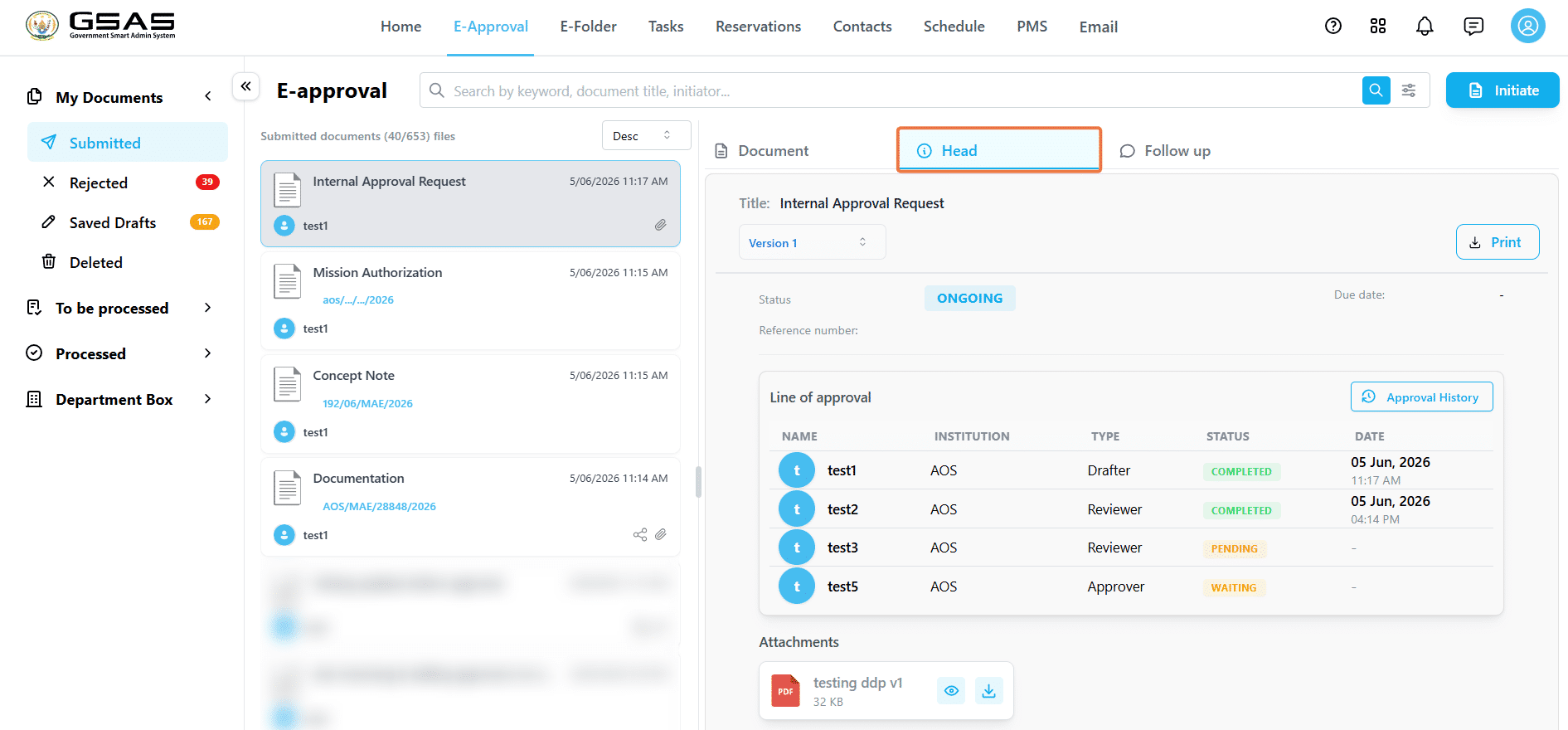
Each person in the approval line has an individual status that updates as the request moves forward.
| Waiting | The request has not yet reached this person. |
| Pending | The request has reached this approver and is currently waiting for their action. |
| Completed | This person has approved the request. The date and time of their action is recorded alongside their name. |
If you are the drafter
Once submitted, your request appears under My Documents → Submitted. Click on it and open the Head tab to see a full picture of where the request stands; the approval line, each approver's status, and the date they acted.
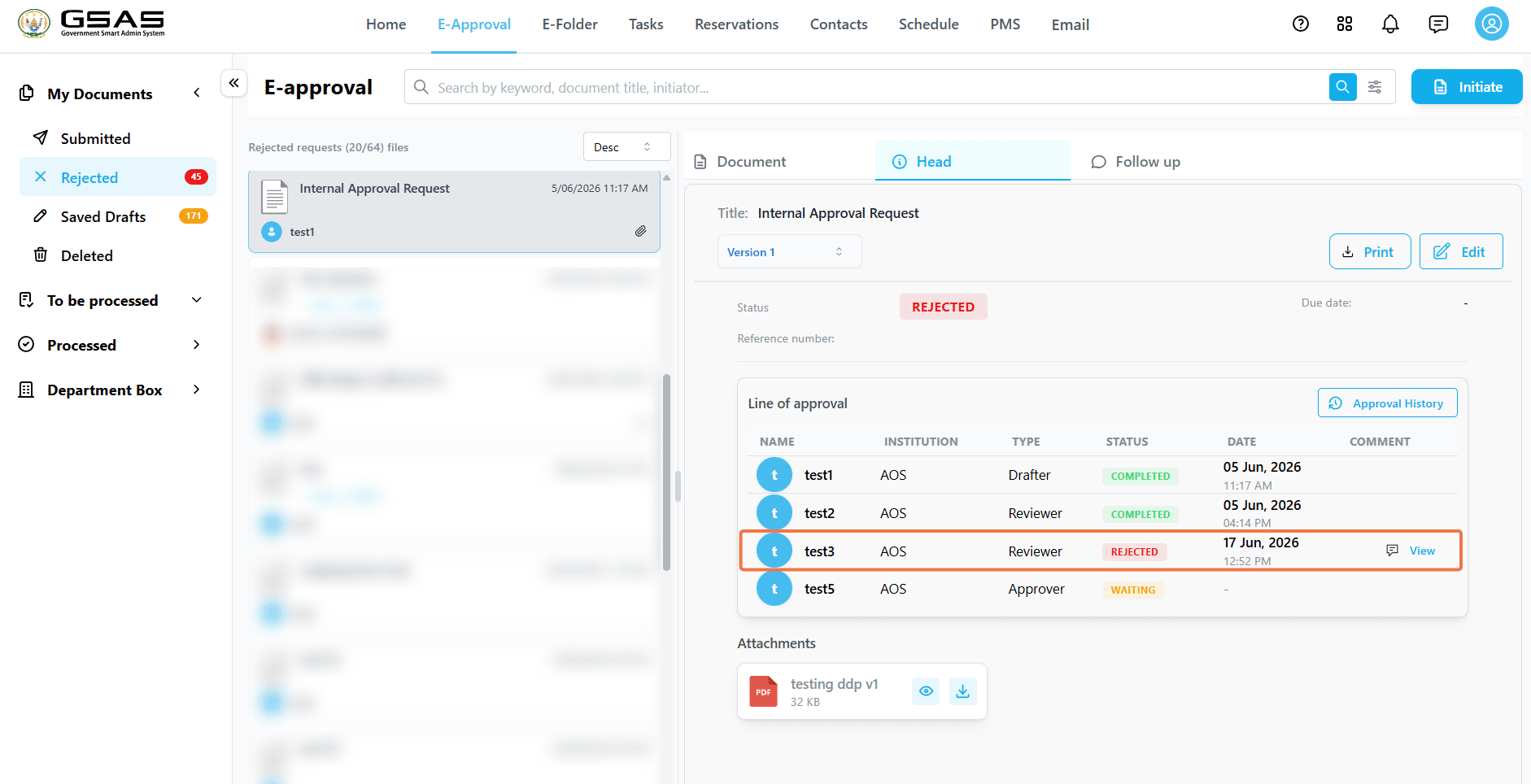
If your request is rejected, you'll find it in My Documents → Rejected. The approver's reason for rejecting will appear as a comment icon alongside their date & time of rejection in the approval line, which you can view.
Click on "Edit" to make the necessary changes, and resubmit. Once resubmitted, it returns to the first approver again, and moves through the approval line.
If a request has been edited and resubmitted by you or updated by approvers during the process, the Version dropdown lets you view and compare earlier versions of the document.

If you are an approver
In case you are assigned to a request as an approver and it's pending on your end, you will find it in:
- To Be Processed → Internal Approval: if a user from your institution assigned it to you, or
- To Be Processed → External Approval: if a user from another institution assigned it to you.
Once you approve the request will move to:
- Processed → Completed: if you are the final approver.
- Processed → Ongoing: if you're not the final approver.
Once everyone has approved, it moves to completed.
If you reject, the document will be in your Rejected folder until the drafter edits and resubmits.
The content and details of a request can only be edited by approvers if the form template used is Editable. A template is made editable by the admin of your institution.
How to edit a request as an approver
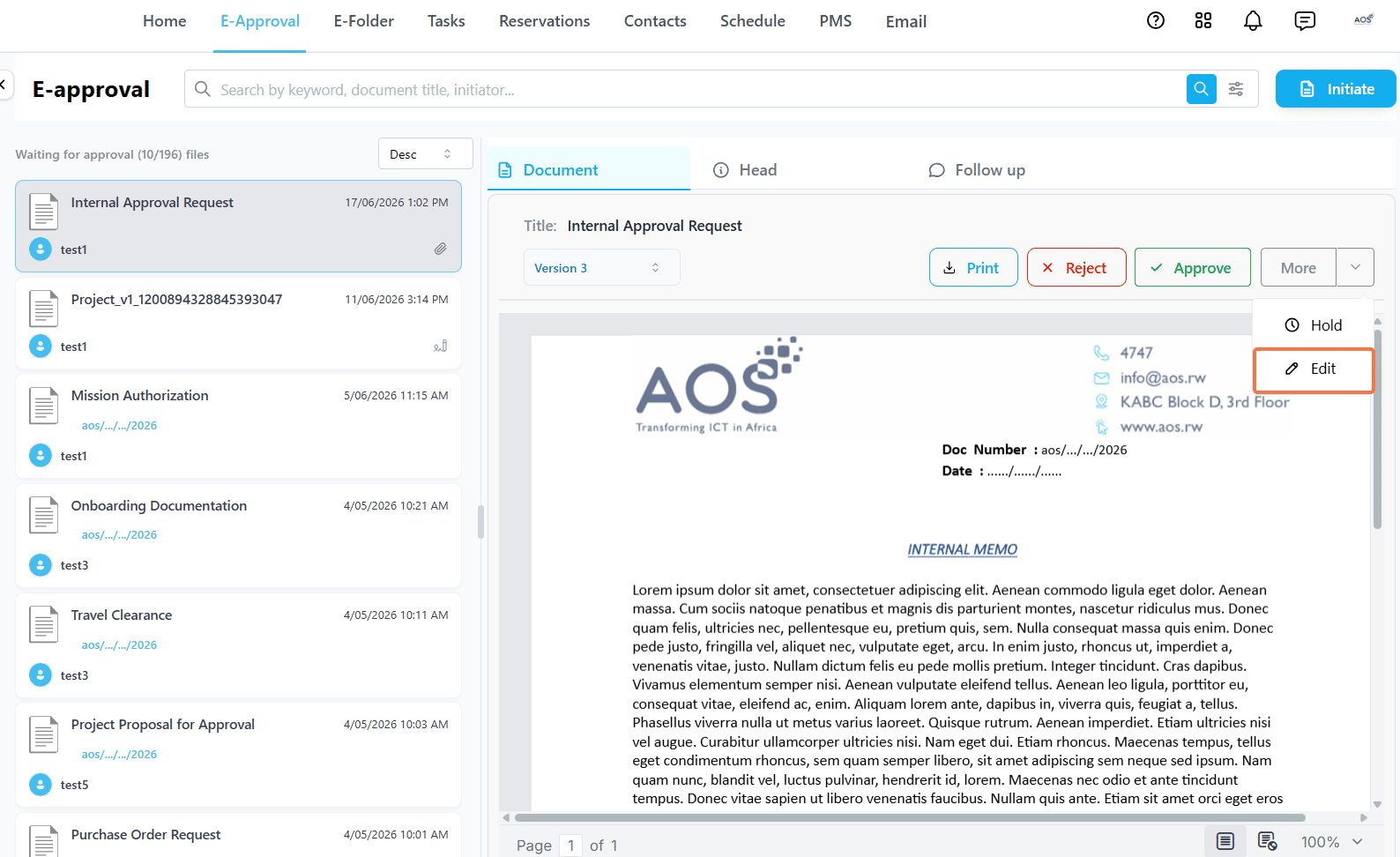
- Open a request that requires your approval, and click on the More dropdown. Then click on Edit.
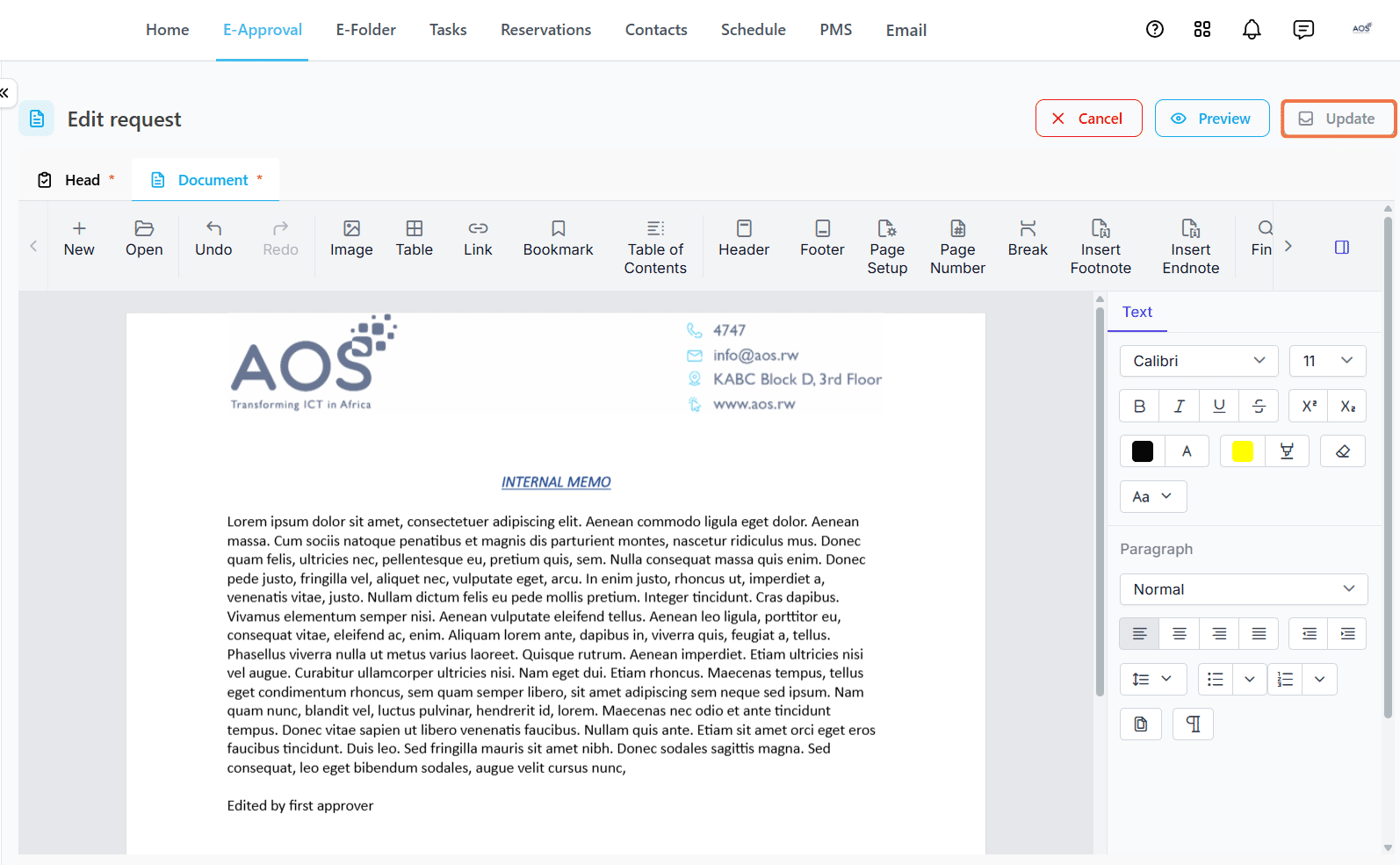
- Make any necessary changes to the details of the request on Head, or to the content of the request on Document. then click Update.
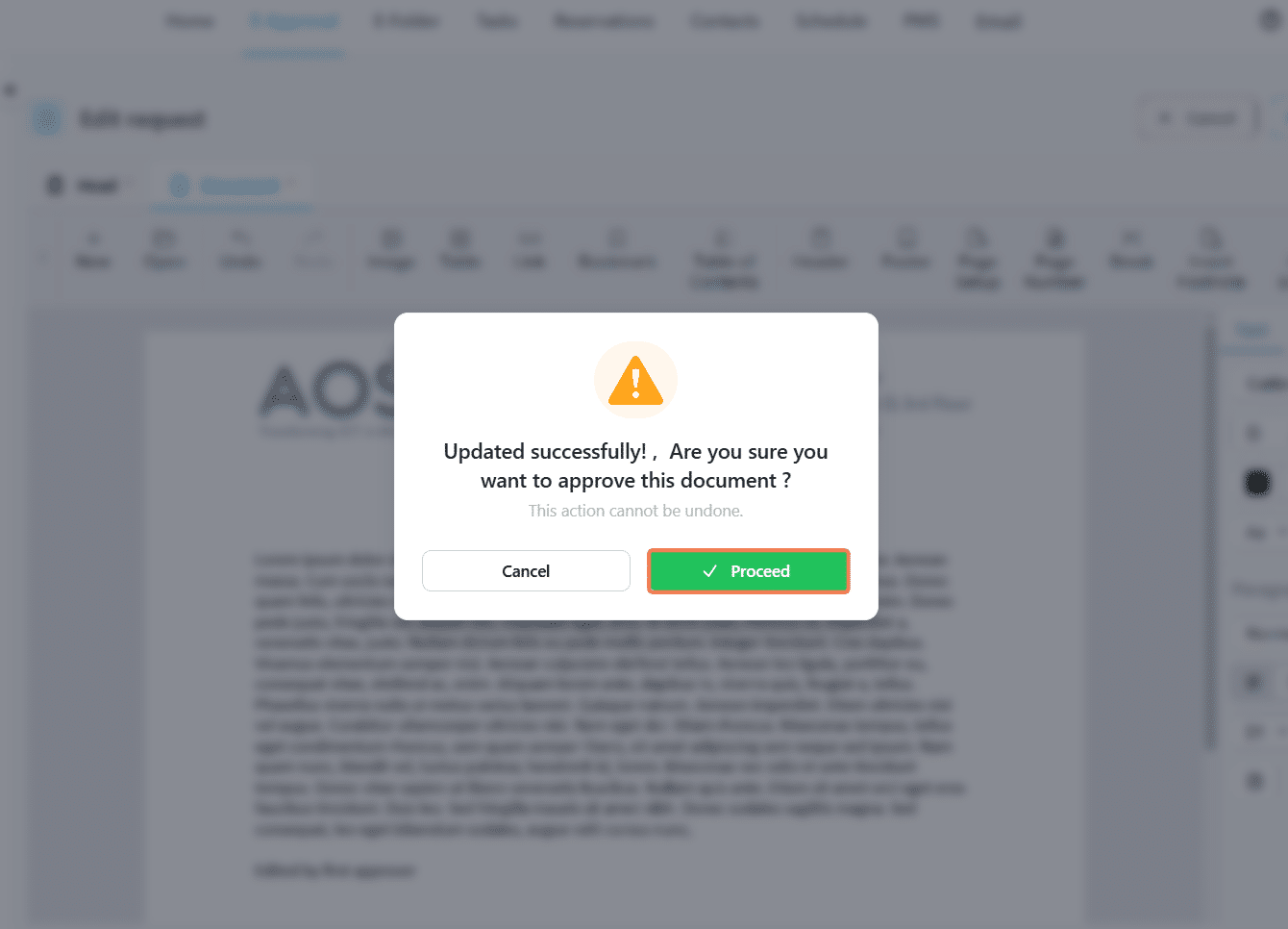
- You will get a confirmation message, once you click Proceed all the changes made are saved and the document gets approved. If you click Cancel the changes made will be saved, but the document will not be approved.
Drafter's final check
Some forms are configured with a Drafter's Final Check. When enabled, the request returns to the drafter after all approvers have approved for confirmation, before it is marked as completed. You will find it in To Be Processed → Internal Approval with your role listed as Confirmer. Review the document and click Confirm to finalize it.
Completed requests
Once fully approved, the reference number, date of completion, and each approver's signature with their date and time of signing are all visible on the document at this point.
For outgoing requests, once completed the document appears in the Sender Manager's Outgoing folder to be dispatched to the recipients.
The Sender Manager of your institution can edit the details of the request before sending, i.e. Attachments, Title, and Assigned institutions or individuals.
Follow up
The Follow Up tab is available on any request to everyone in the approval line. Use it to ask questions or provide additional context at any point during the process.
Sharing a completed request
Completed documents can be shared with other users within your institution either with a single user or with a group. The recipient will find the document in their Processed → Shared with Me folder.