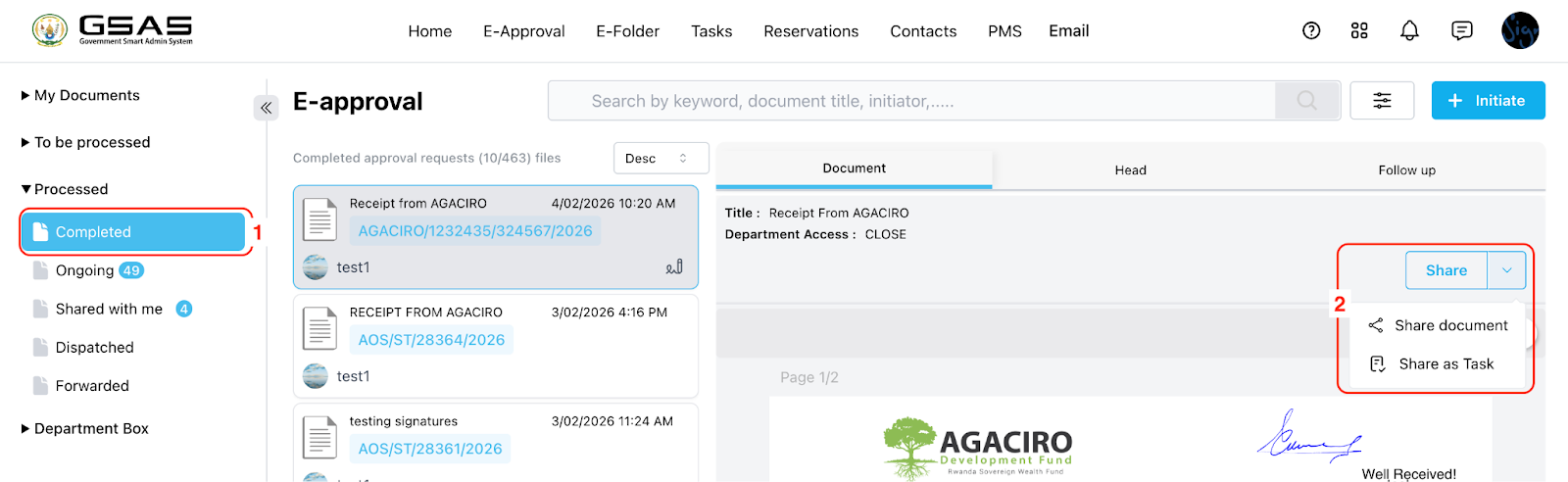
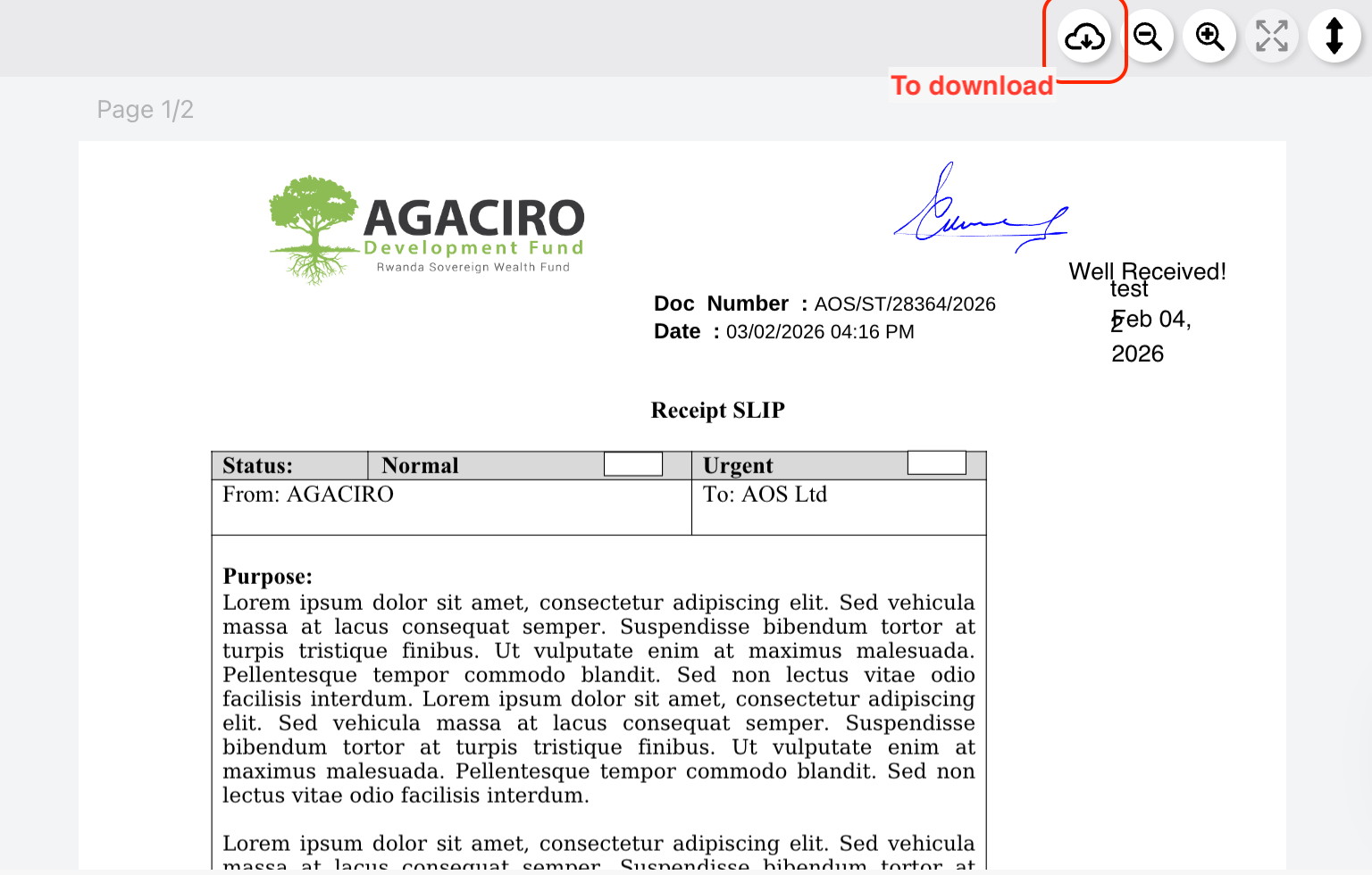
Invite to sign on Received PDF documents
This feature allows you to invite internal users to sign a PDF document directly within GSAS.
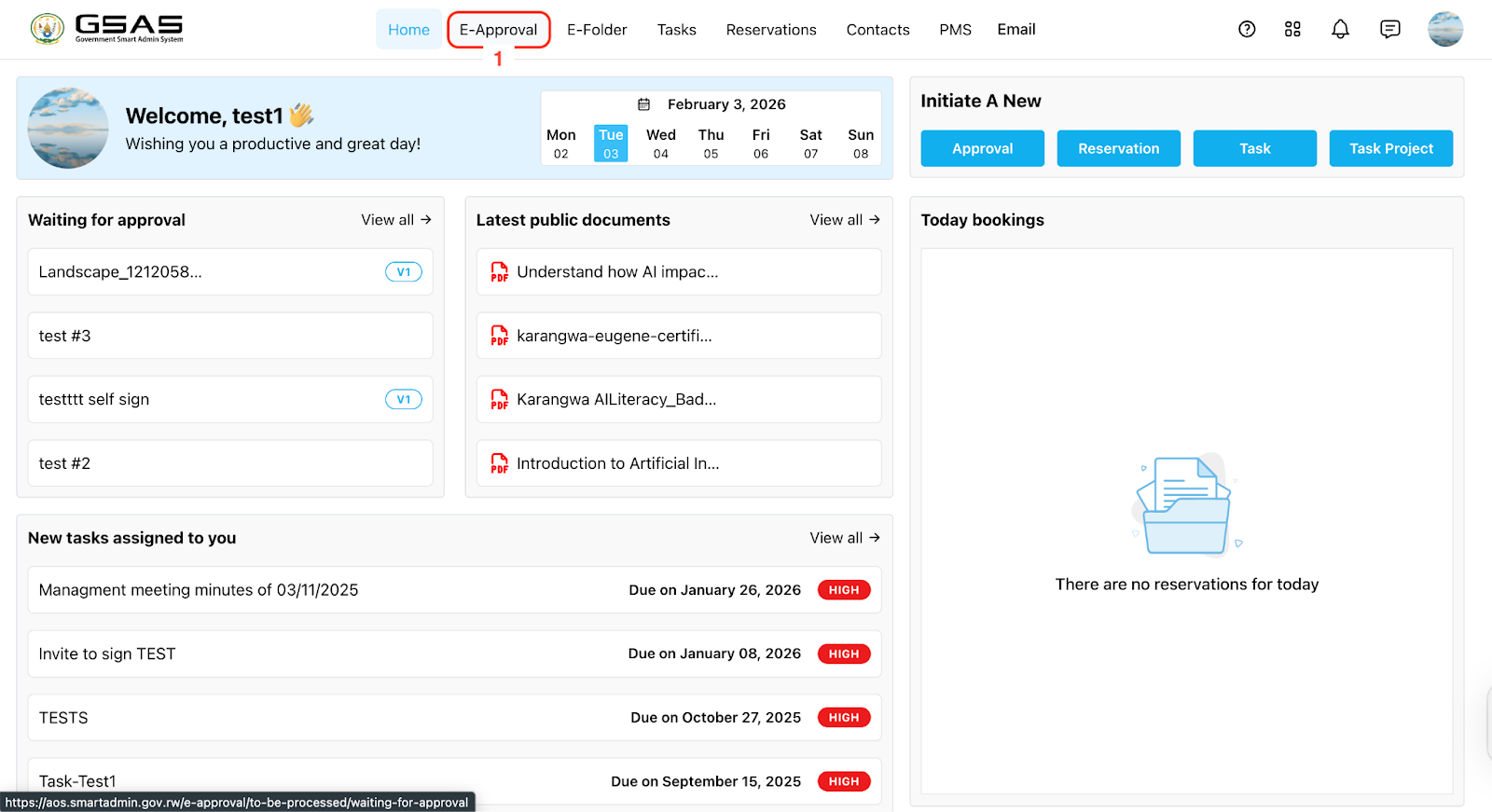
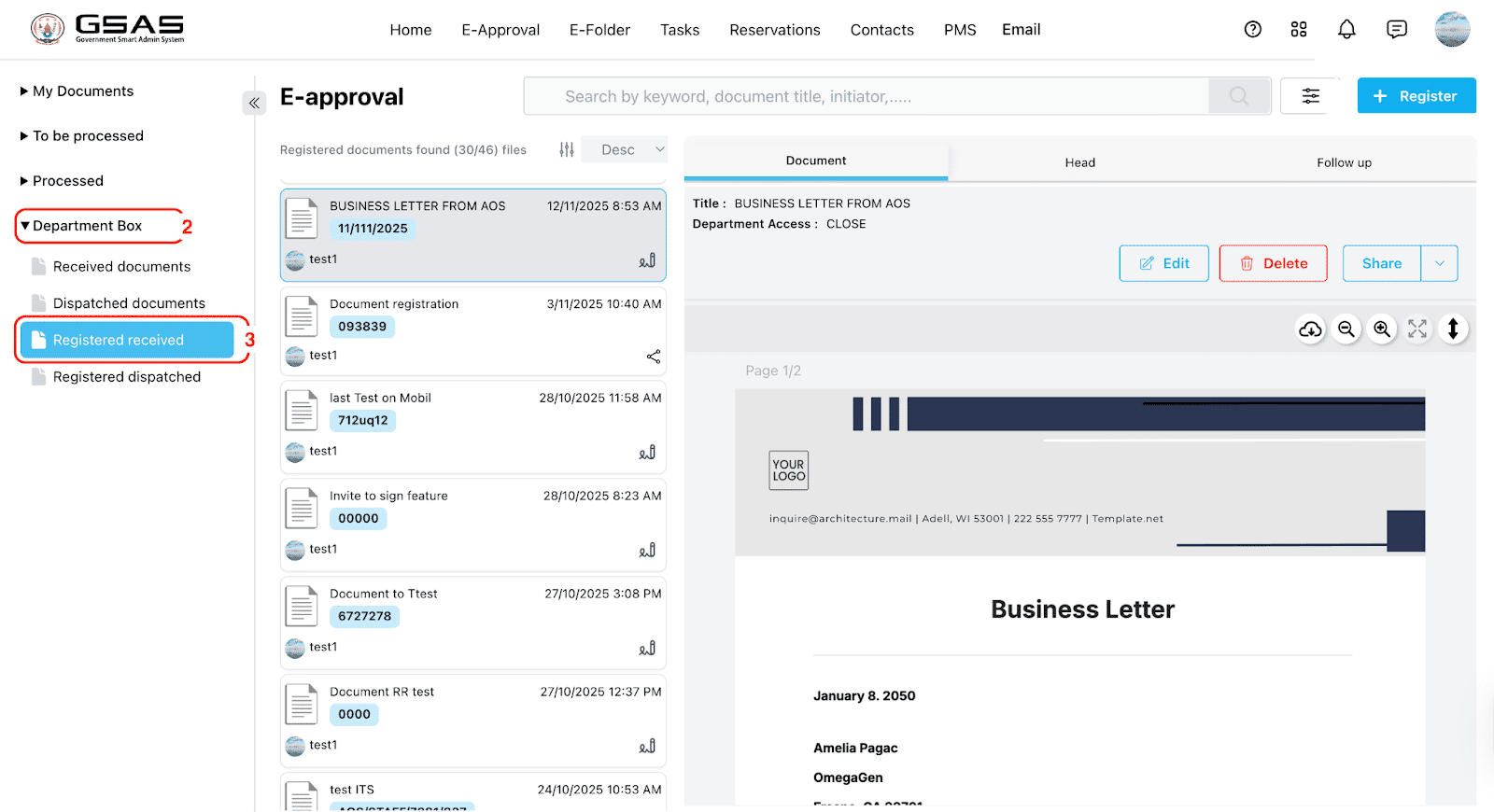
Step 1
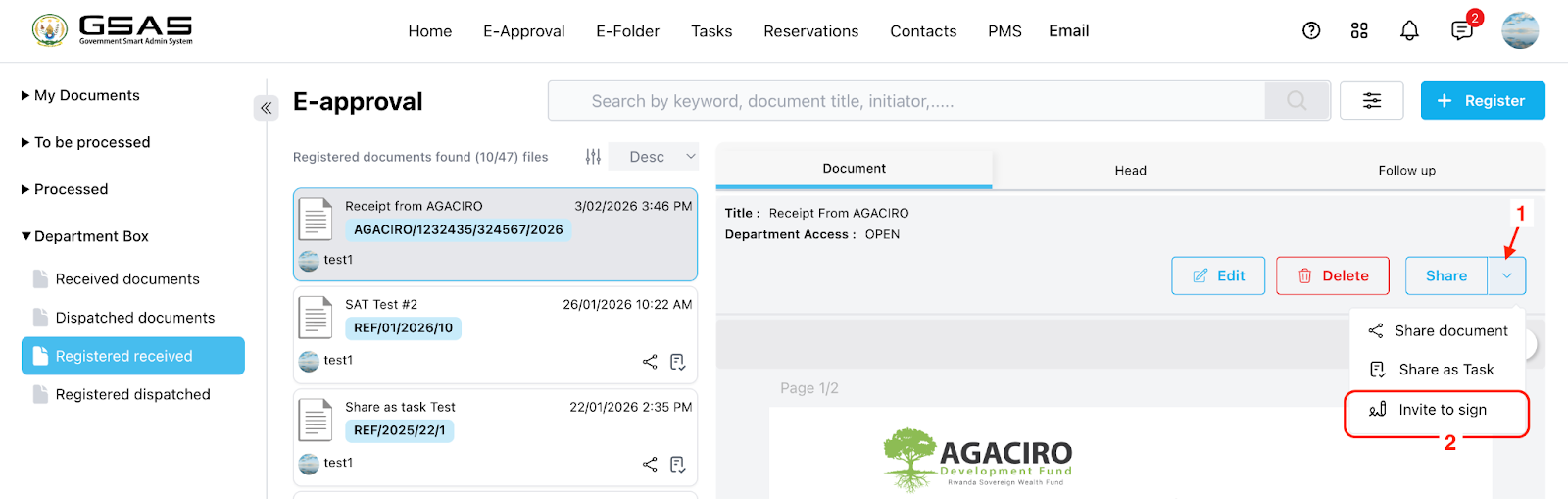
Open the document
Step 2
Share via Invite to Sign
Step 3
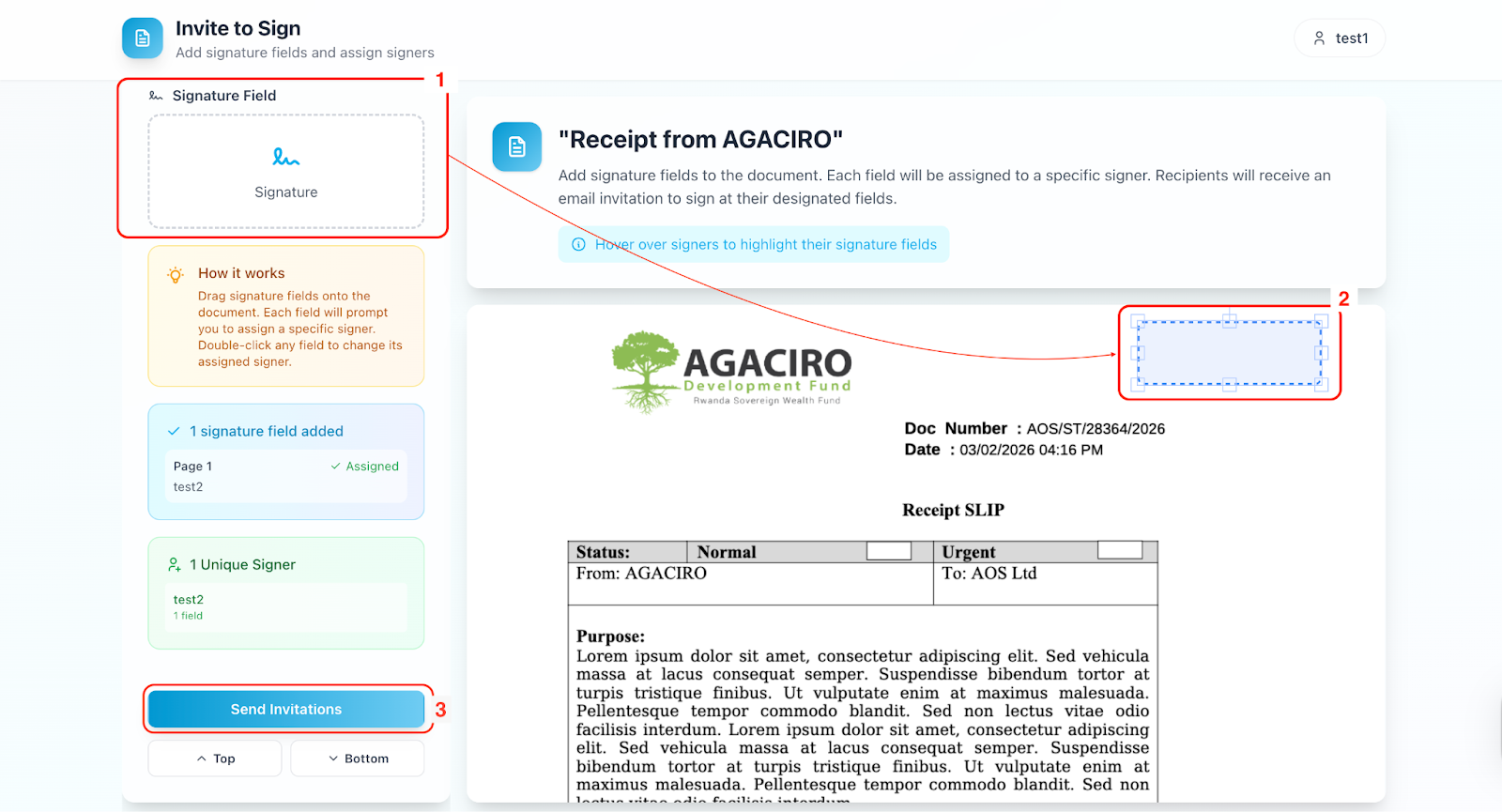
Assign signers
Search for the user(s) who need to sign the document, then drag and drop the signature field to the desired location on the document. Adjust the signature fields as needed, then click Send Invitation to notify the selected users.
Step 4
Signing the document
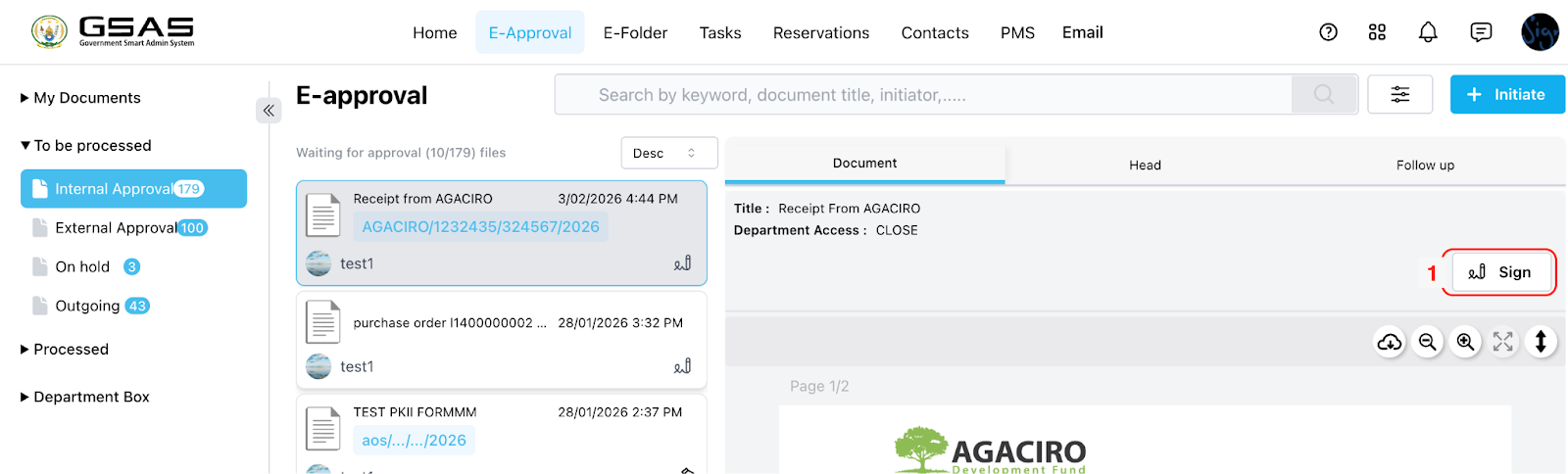
- The invited user will find the document in their To Be Processed → Internal Approval folder.
- They can open it and click Sign. In the newly opened tab, drag and drop their signature to the highlighted field.
- Other fields such as date, name, or custom text can also be added. Once done, click Complete.

Step 5
Access the completed document
Once all signatures have been collected, the document is marked as complete. It can now be downloaded, shared, or viewed by the drafter or any of the signers.signers from their Completed folder.