Internal Approval Requests
Submitting an Internal Approval Request
Follow this guide to create and submit an internal approval request.
| How it works: You |
Step 1
Click Initiate
Click the Initiate button in the top right corner of the E-Approval page.

Step 2
Choose a form template
A dialog will appear listing available templates. Select the one that matches your request type and click it to proceed.
Templates are organized into two tabs: Documents for forms created by your institution's administrator, and Forms for common templates shared across all institutions.
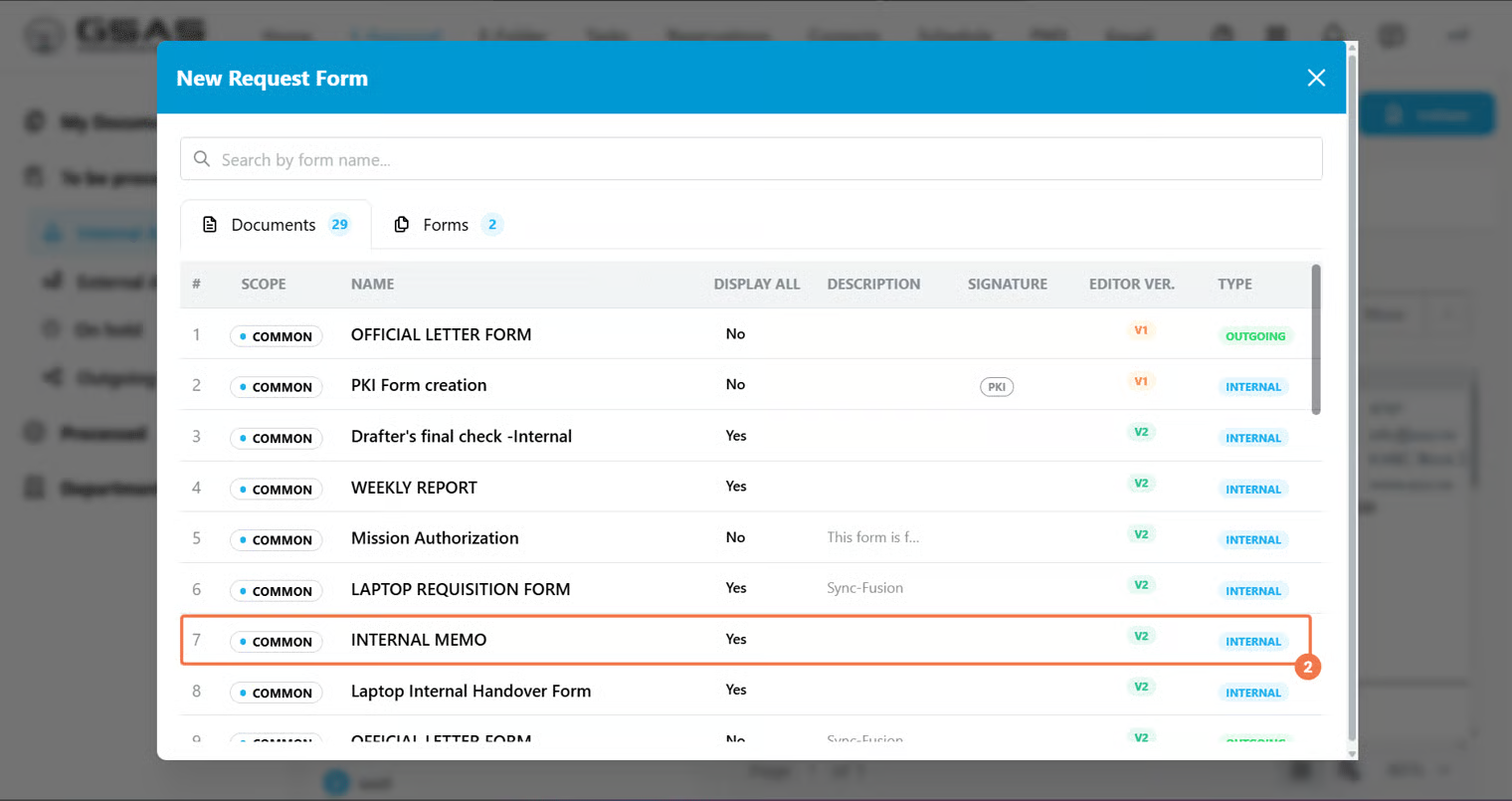
Not sure which template to pick? Use the columns in the list to guide you.
| Scope | Whether the template is common to your whole institution or specific to your department |
| Display All | If Yes, all approvers' and the drafter's signatures appear on the completed document. If No, only the final approver's signature is shown. |
| Signature | Whether the form requires a PKI signature or not to be approved. |
| Type | Whether the request is internal or outgoing. |
Step 3
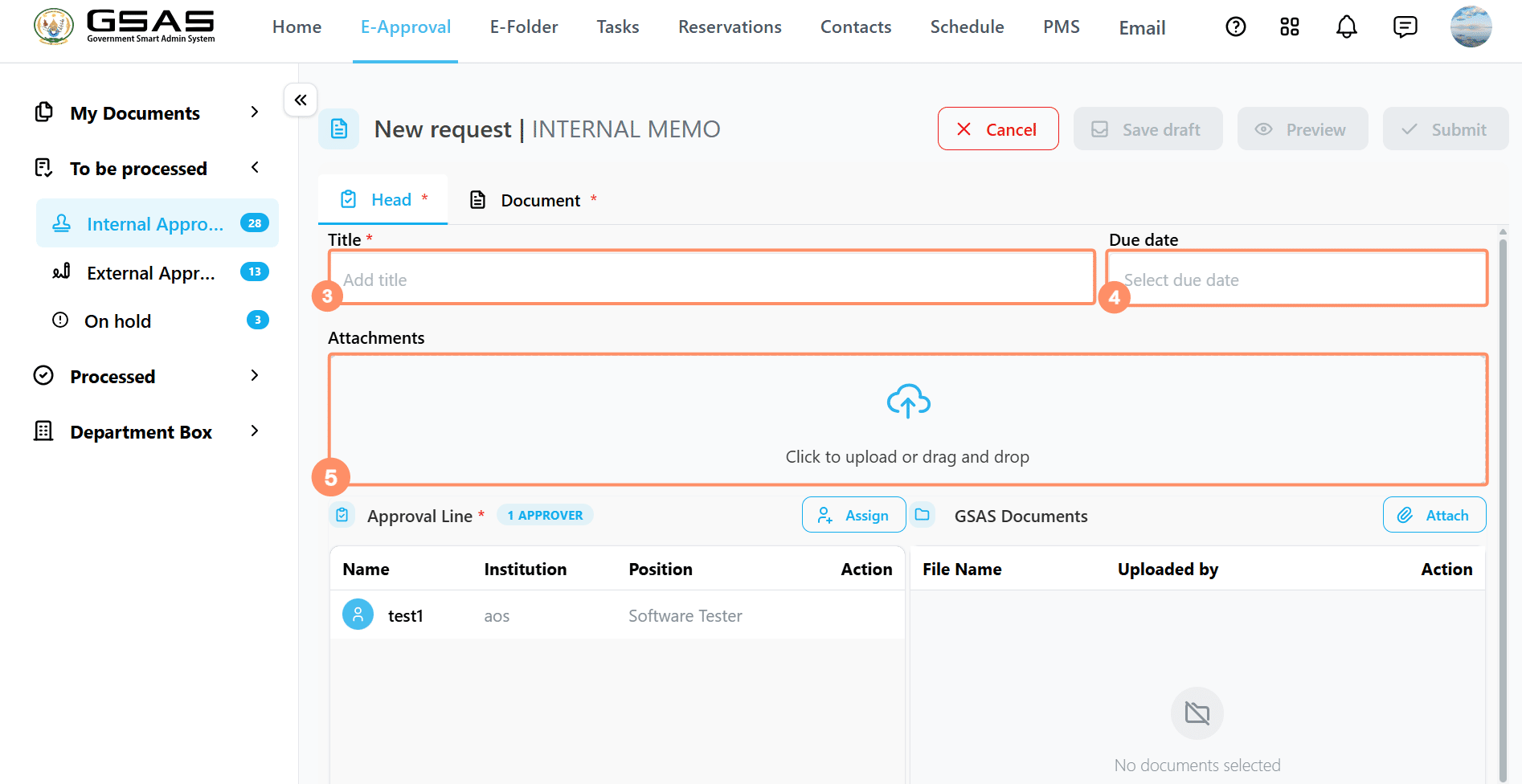
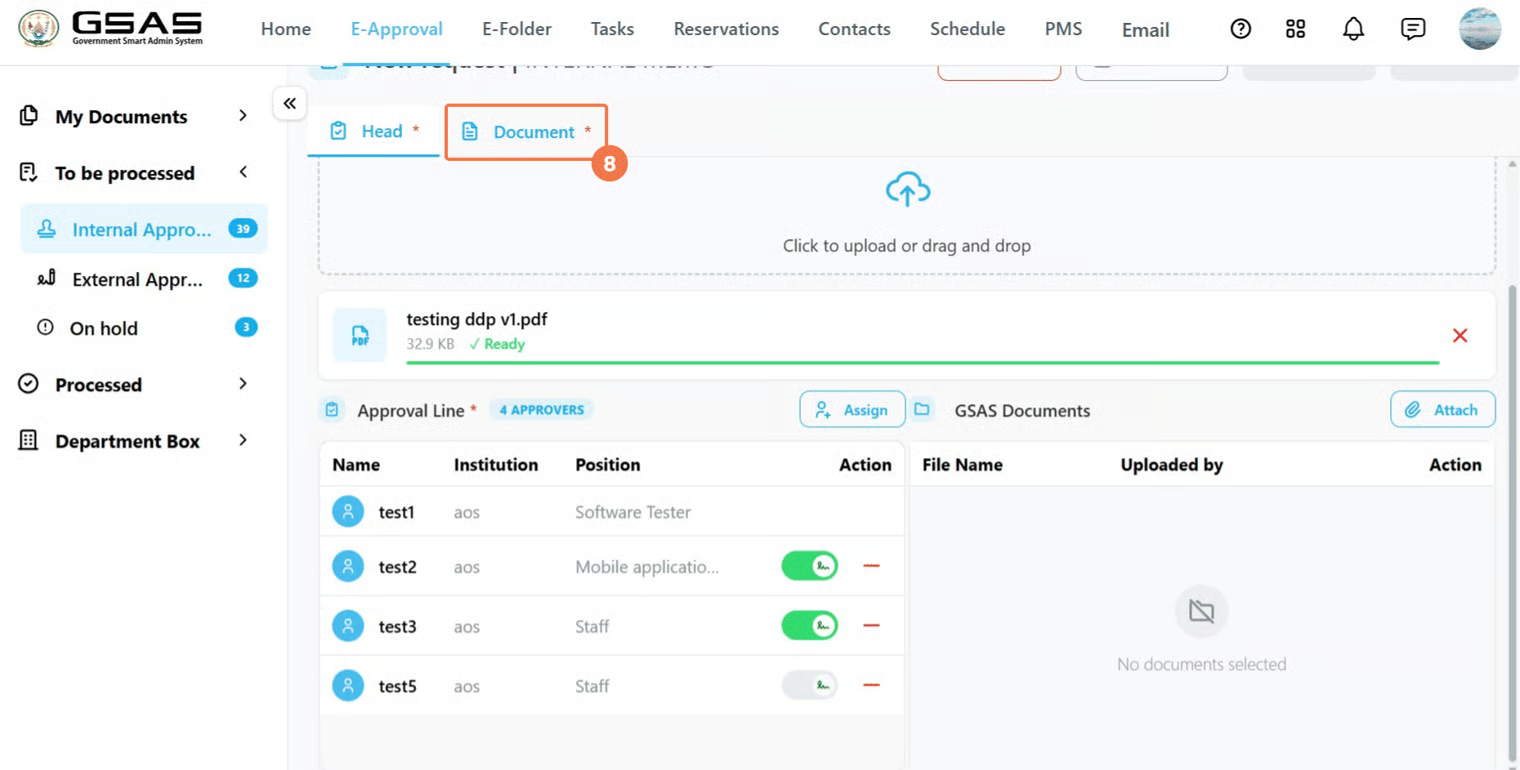
Fill in the Head tab
- Enter a Title for your request and optionally set a Due Date.
- You can also upload any supporting files in the Attachments area.
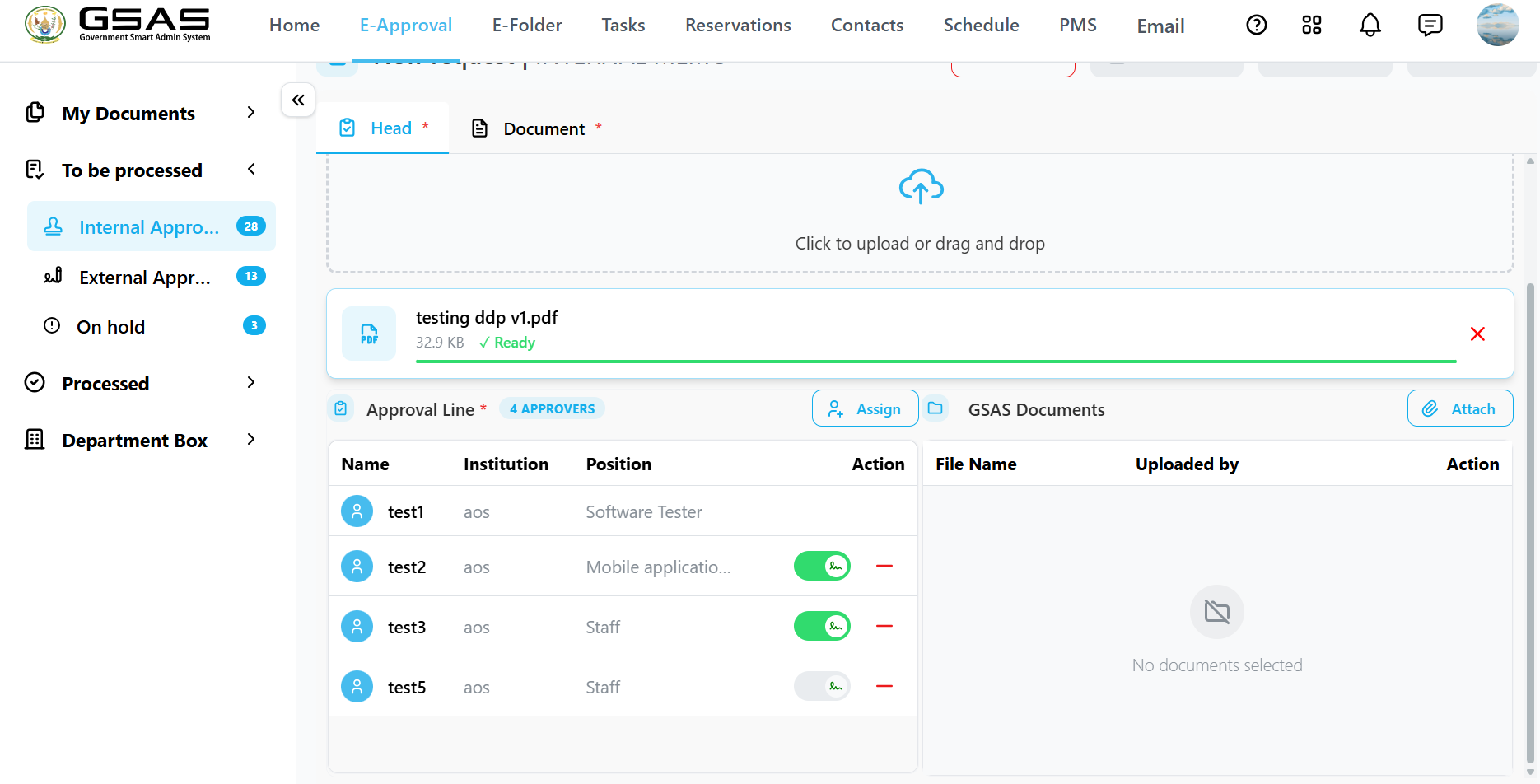
Approval Line
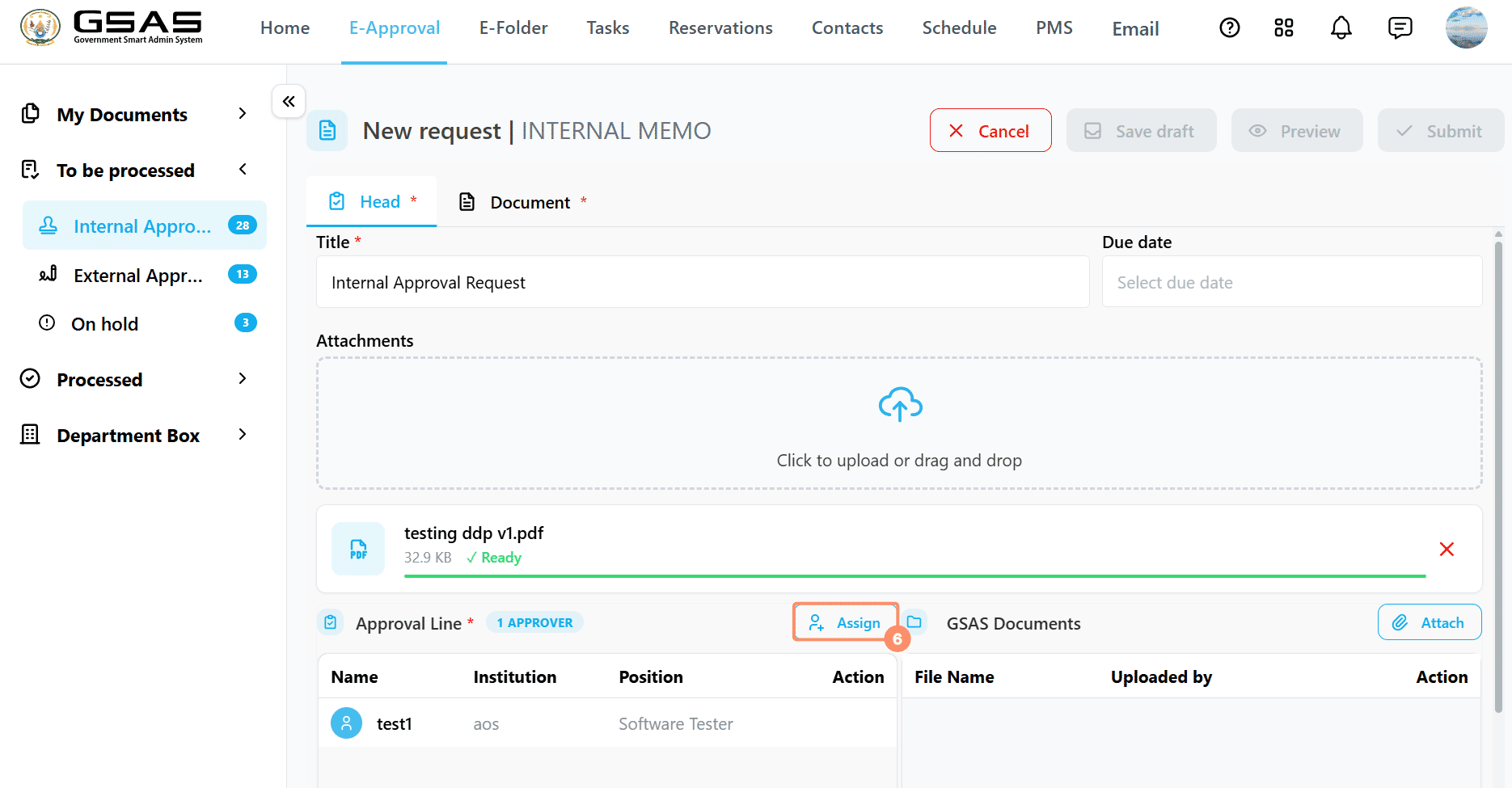
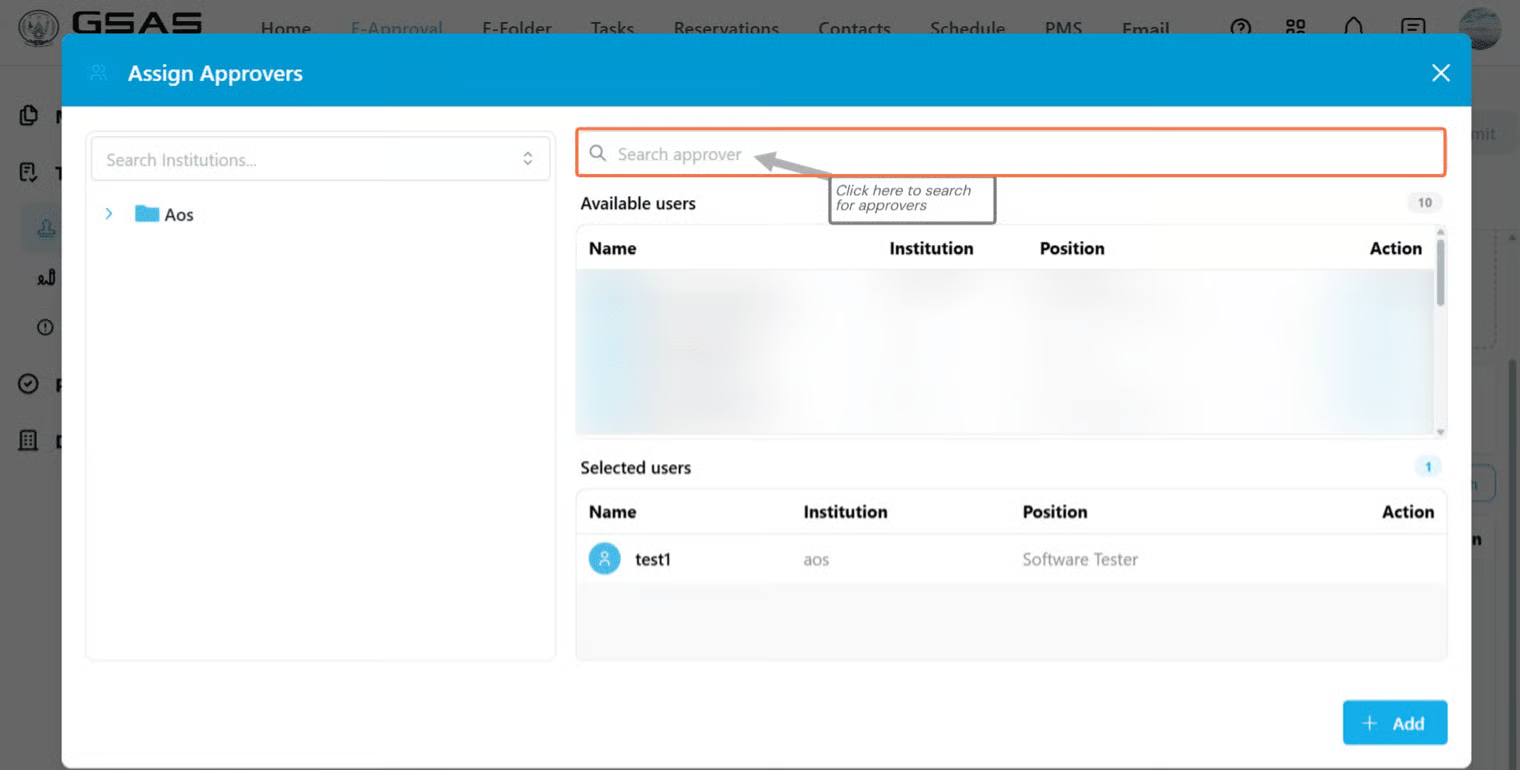
You can assign people from within your institution or from other institutions that use the system.
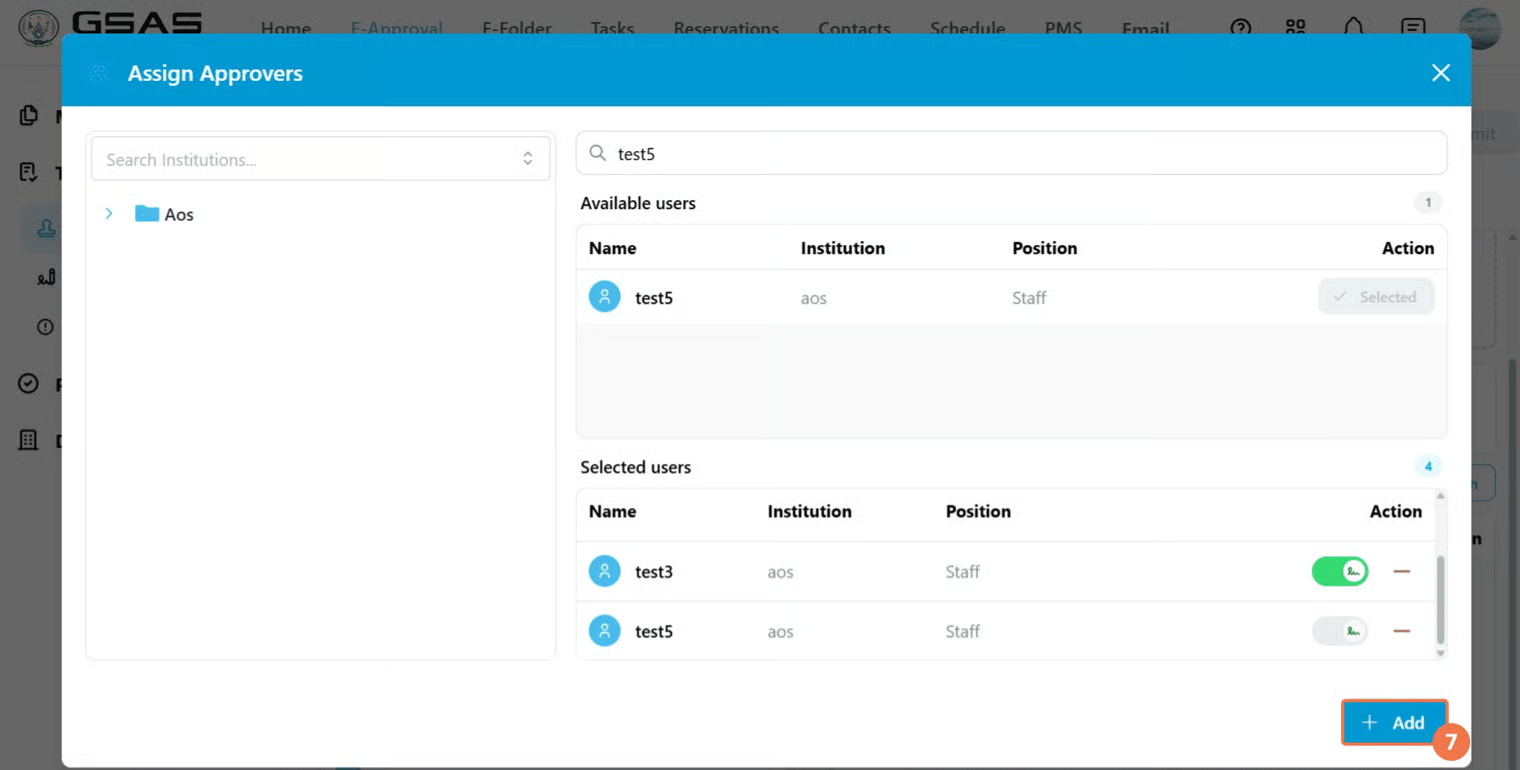
Signatures
Every assigned approver's signature appears on the document once they approve.
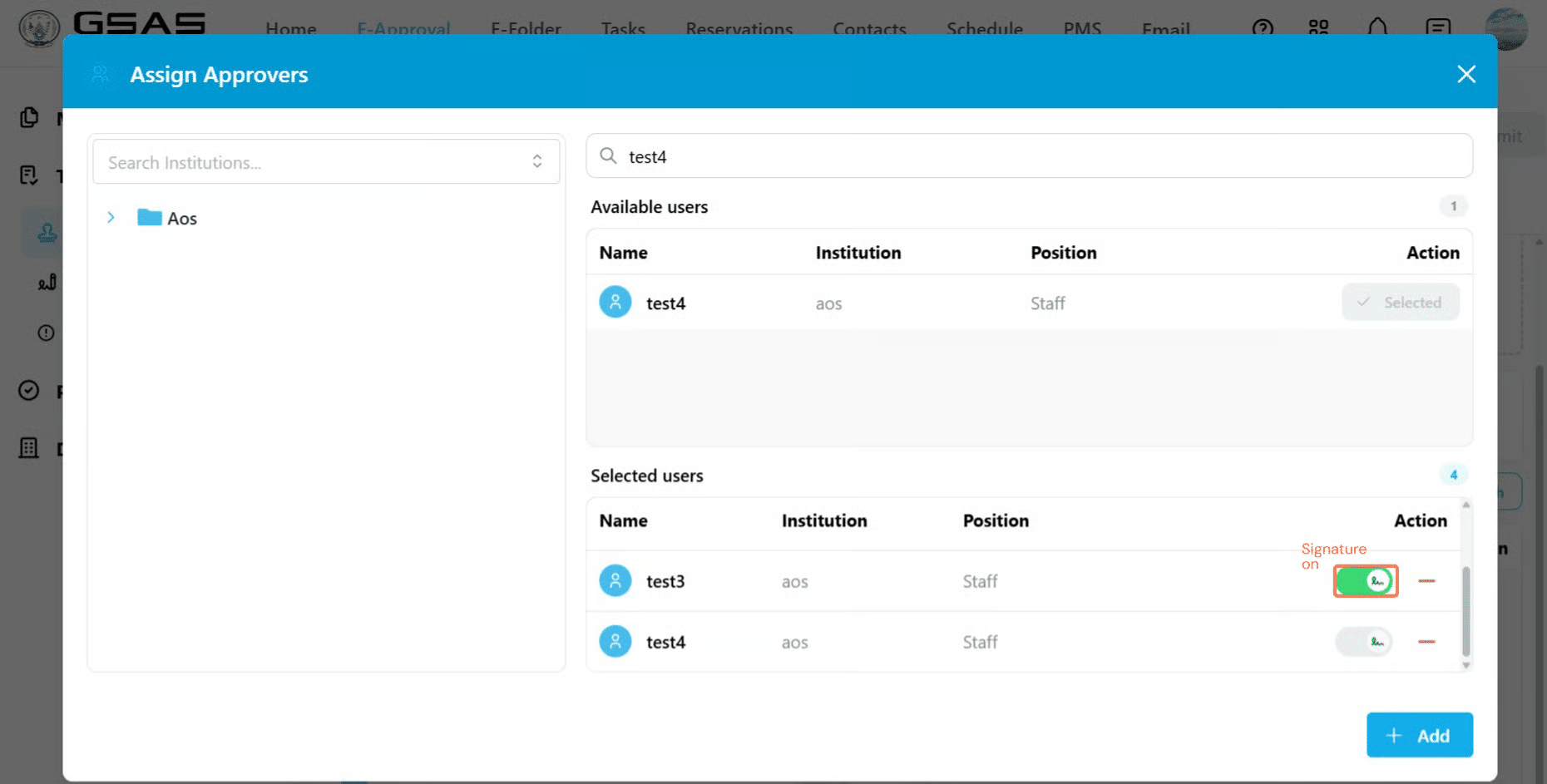
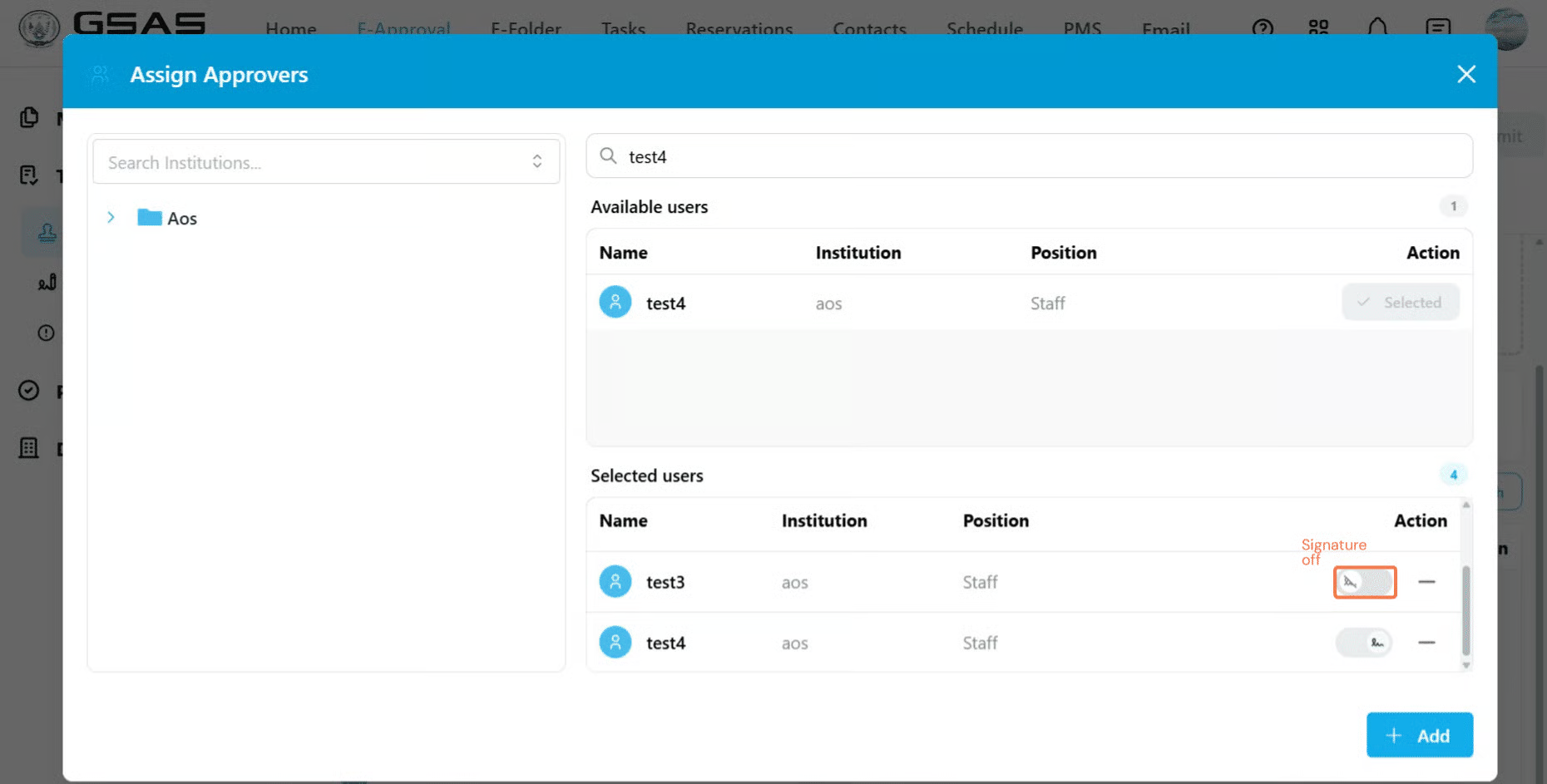
Each approver has a signature toggle next to their name. The last approver's and your own signature are on by default.default and can not be turned off. You can toggle others on or off as needed.
Toggle on and off approvers' signatures
The toggle looks like this when the approver's signature is ON
The toggle looks like this if the approver's signature is OFF
Note that some forms are configured by your administrator to display only the final approver's signature, in which case this toggle will not appear.

Step 4
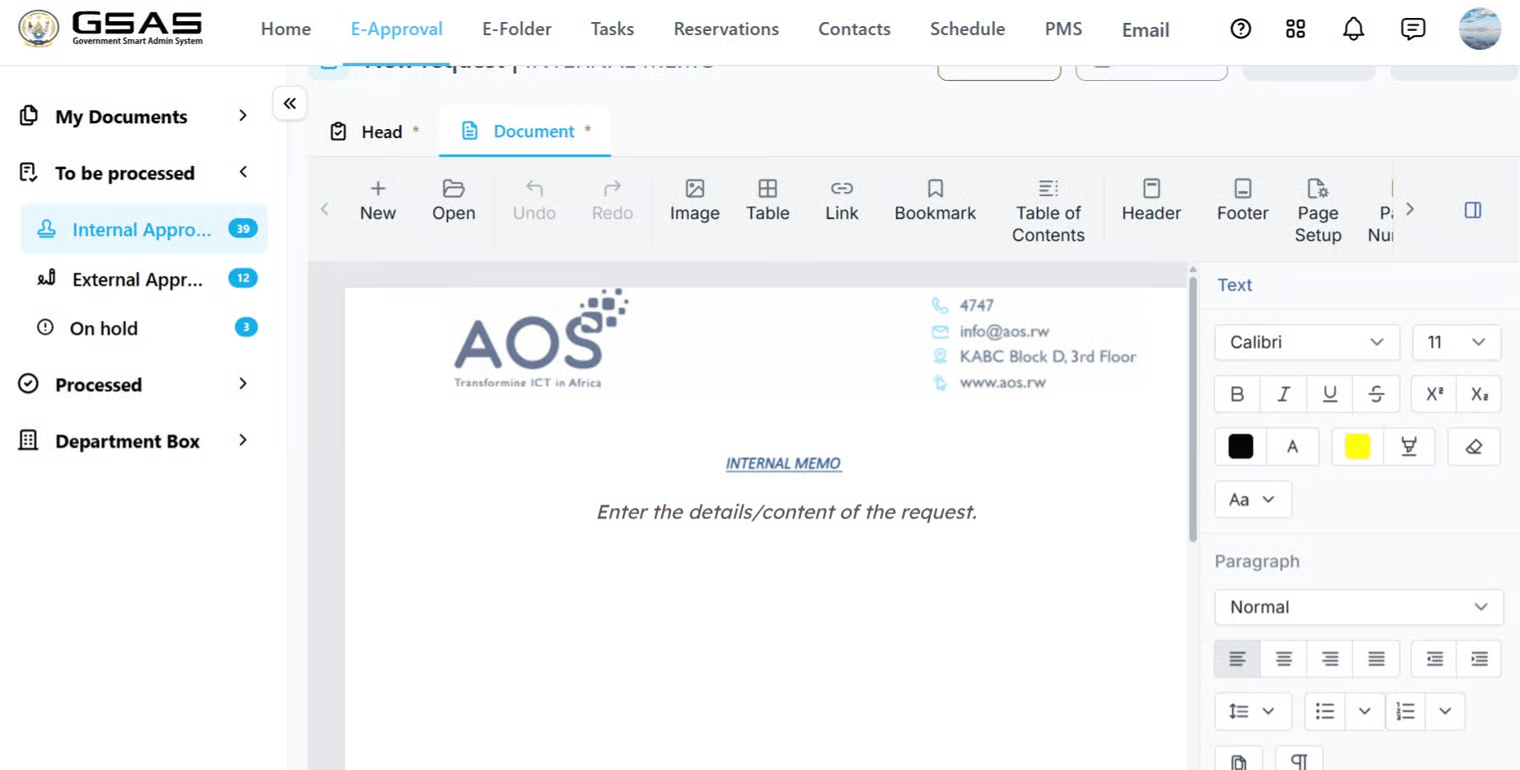
Fill in the Document tab

Step 5
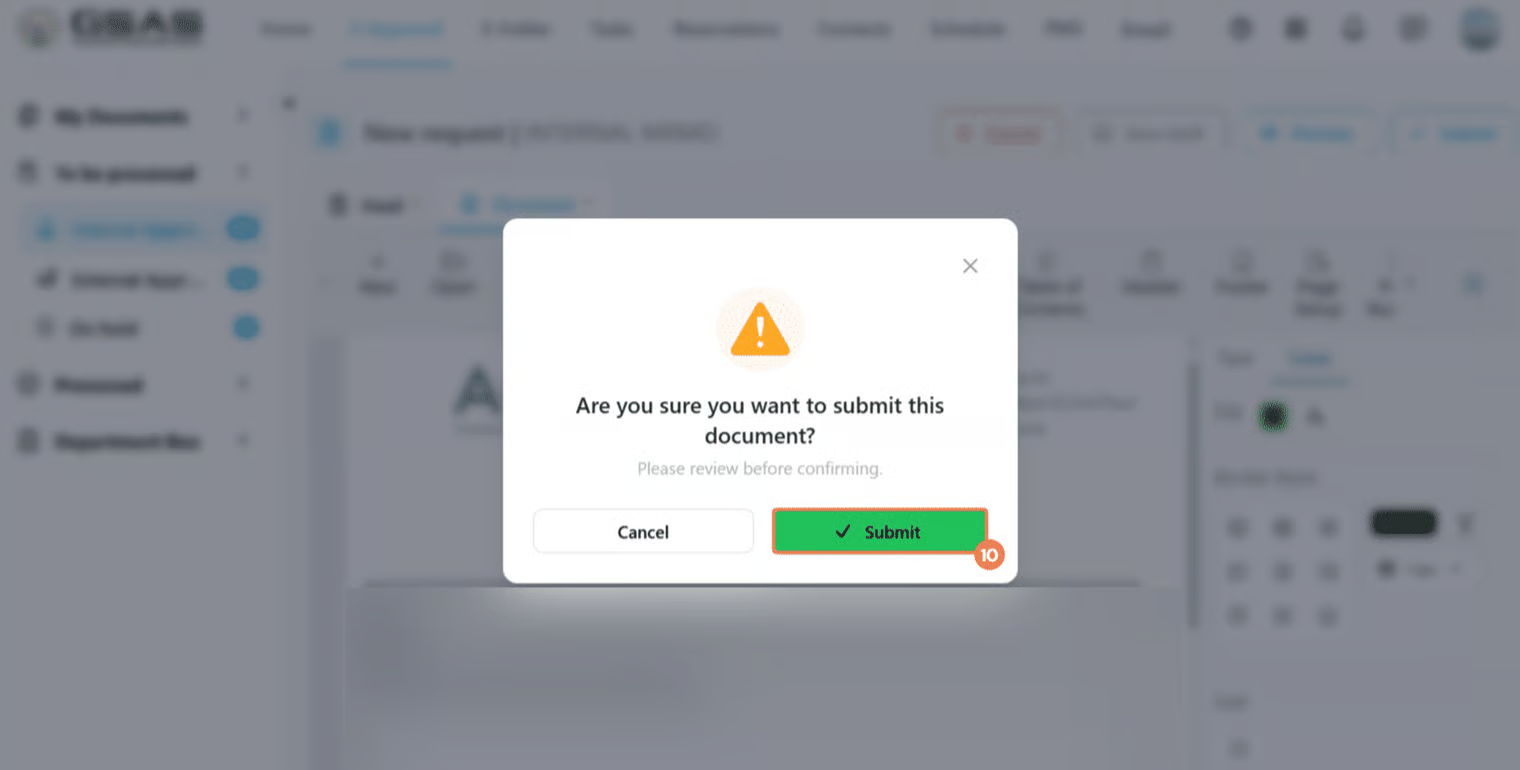
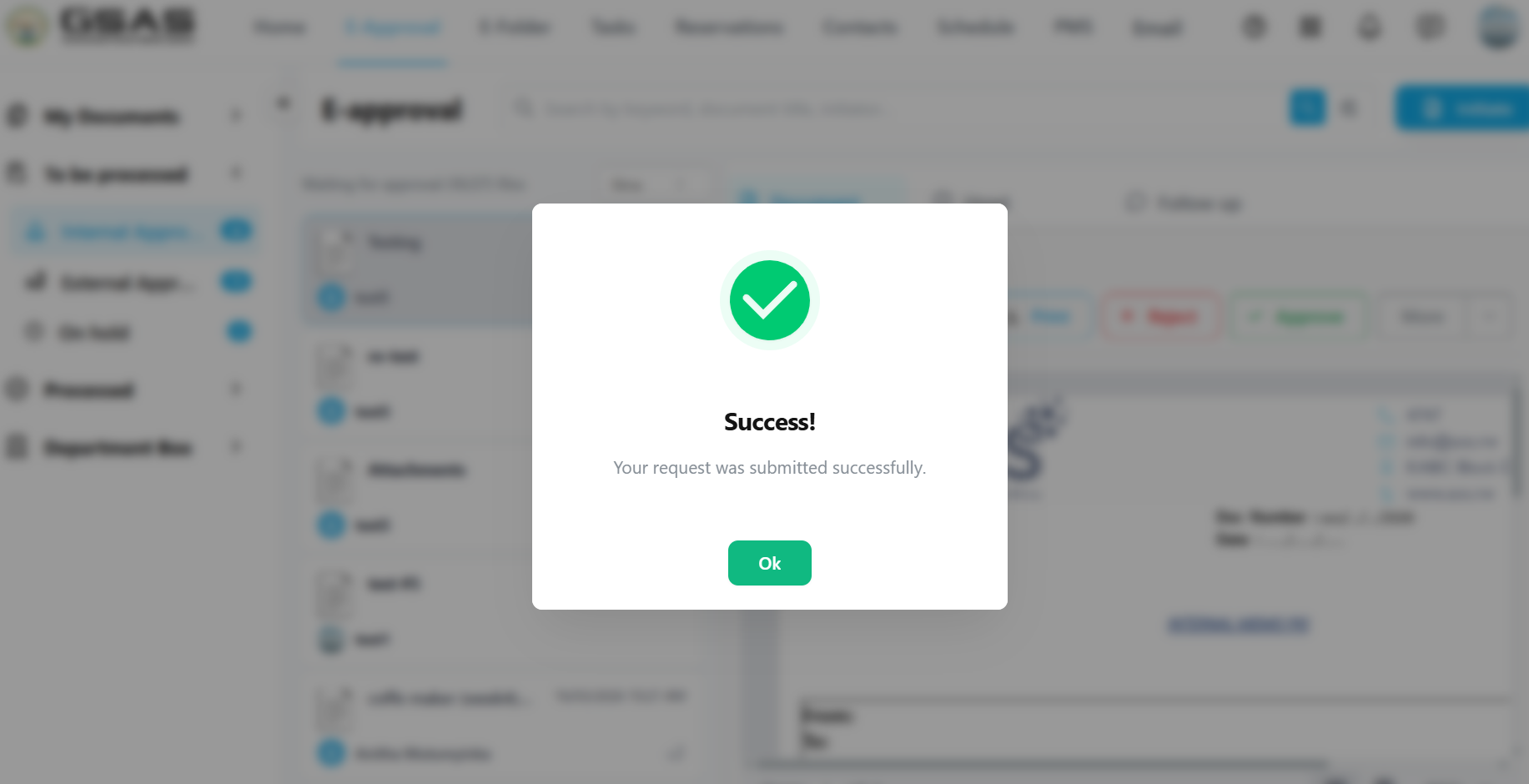
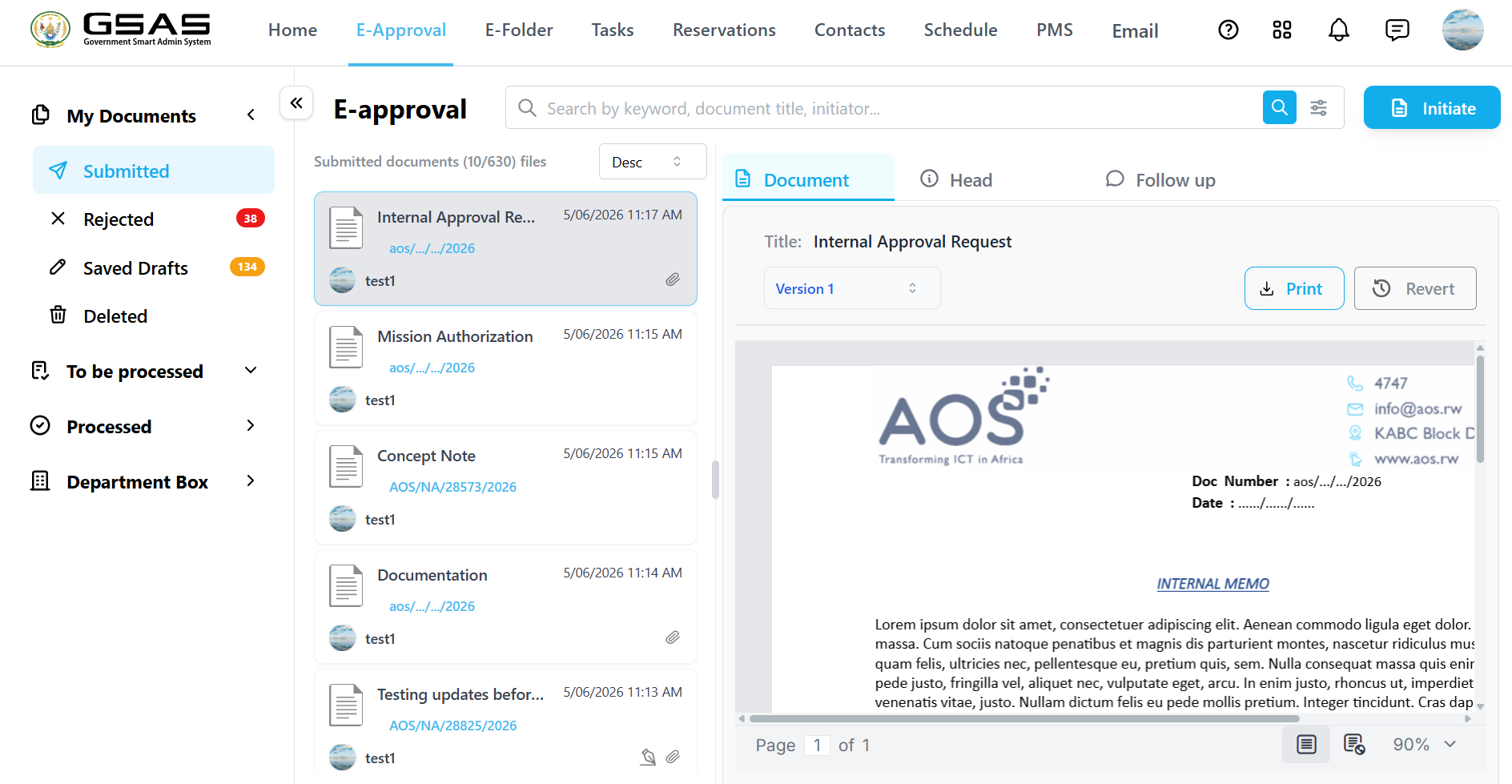
Submit your request
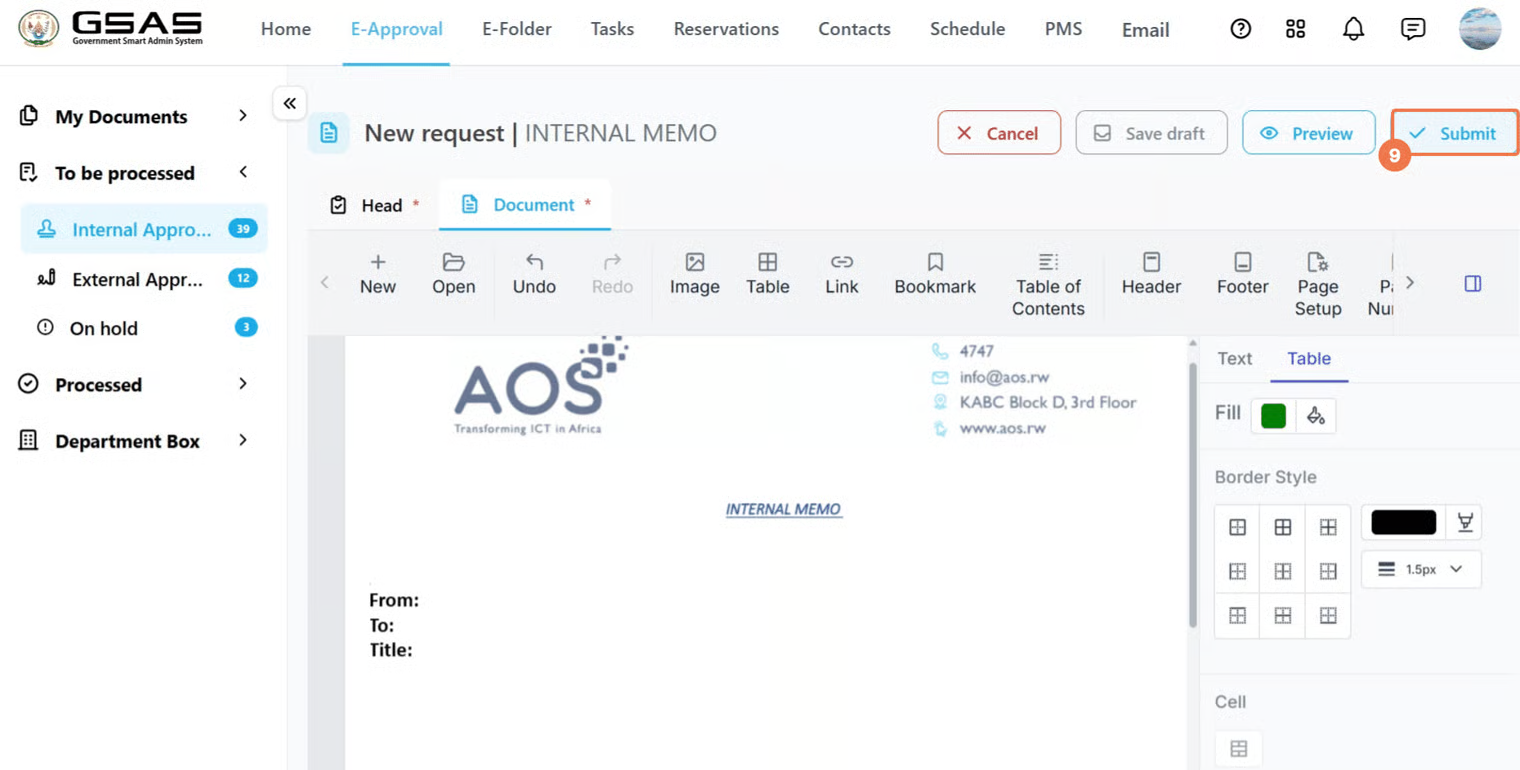



| Not ready to submit? Click Save Draft at any point to save your progress. You can find it later under My Documents → Saved Drafts to continue editing before submitting. |