How to login
|
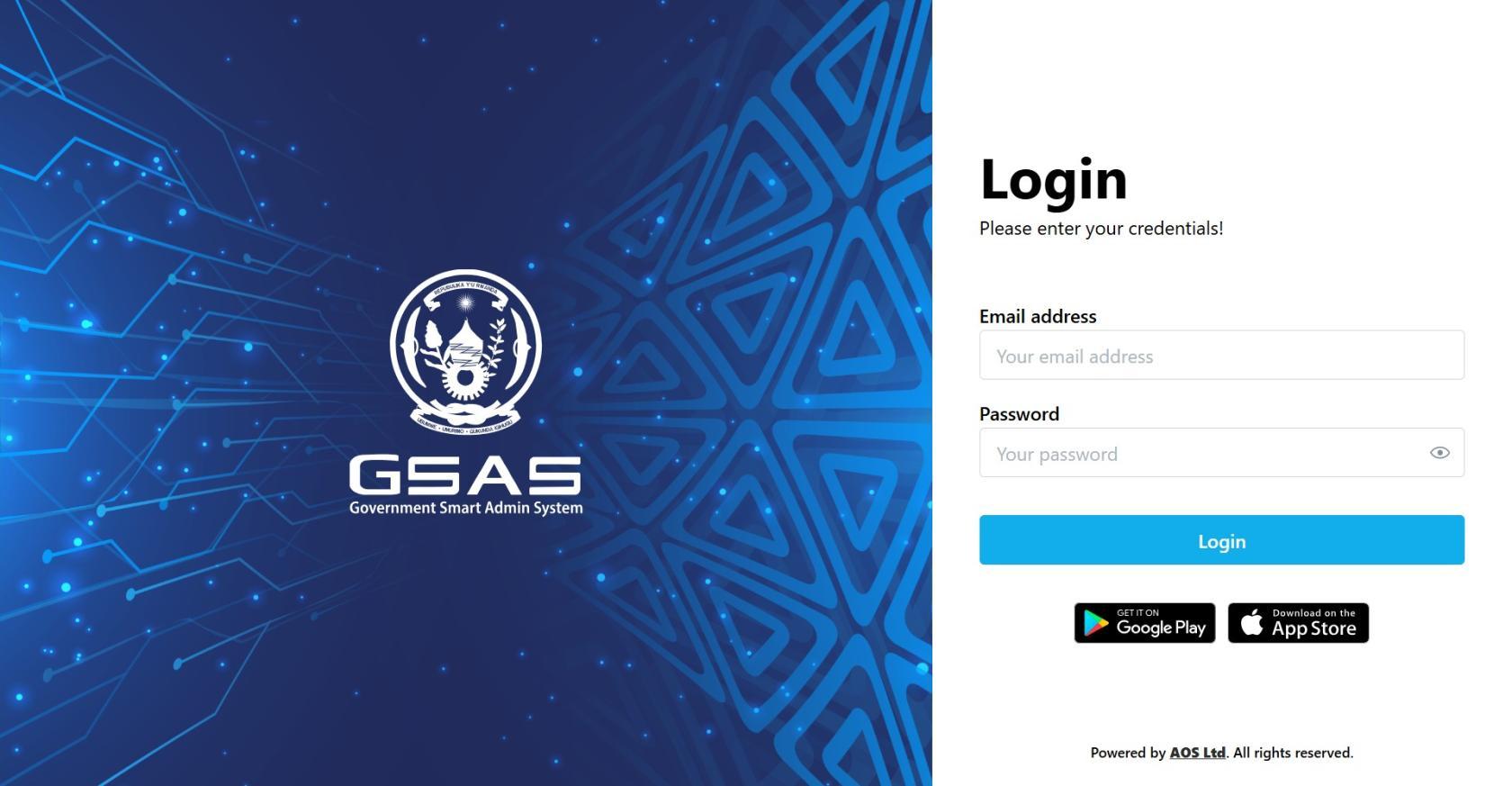
Step 1 Open Smart Admin Navigate to your institution's Smart Admin URL in any web browser. You'll land on the login screen shown here. |
 |
|
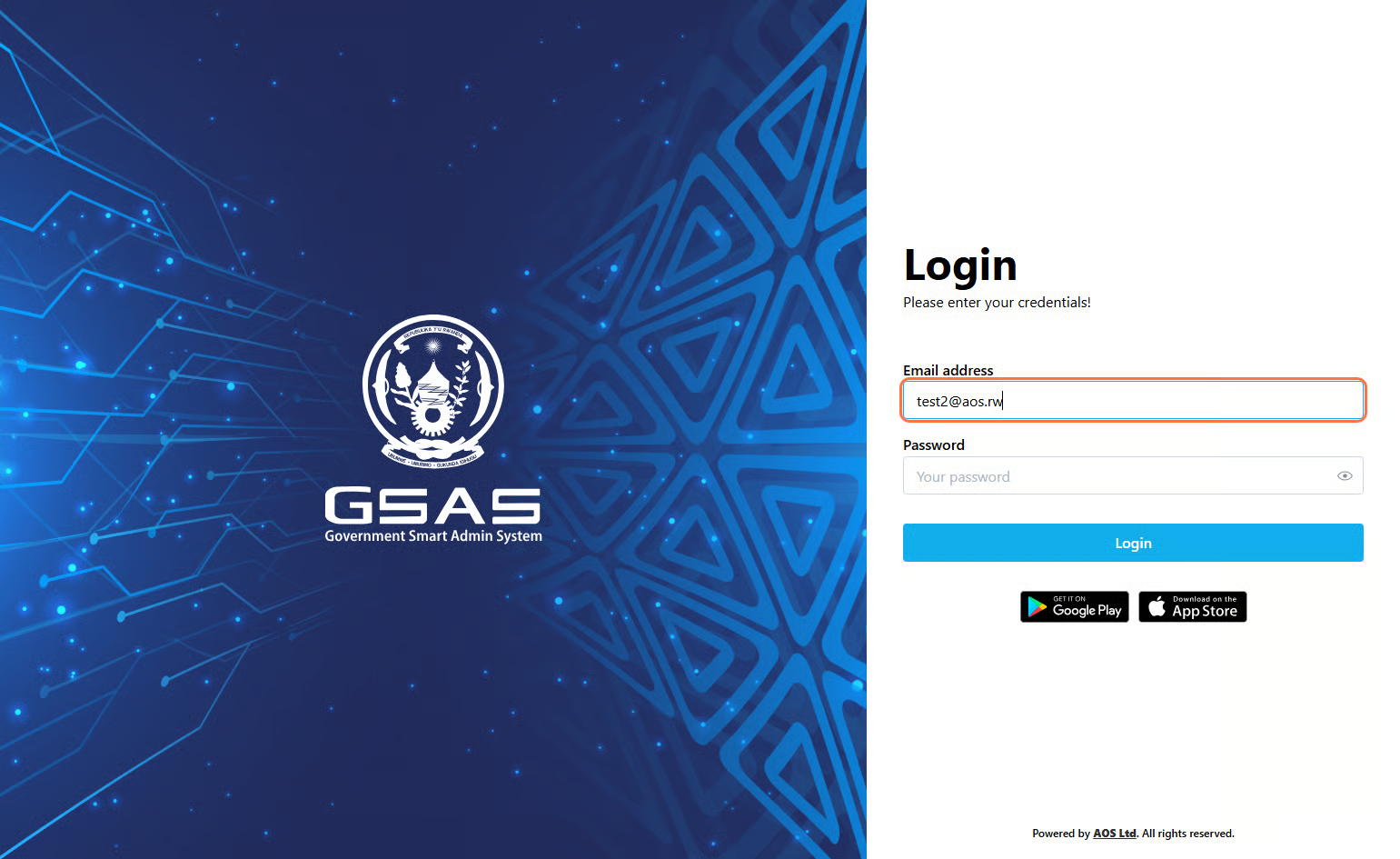
Step 2 Enter your email address Type in the email address your administrator registered you with. If you're not sure which one to use, check with your IT department. |
 |
|
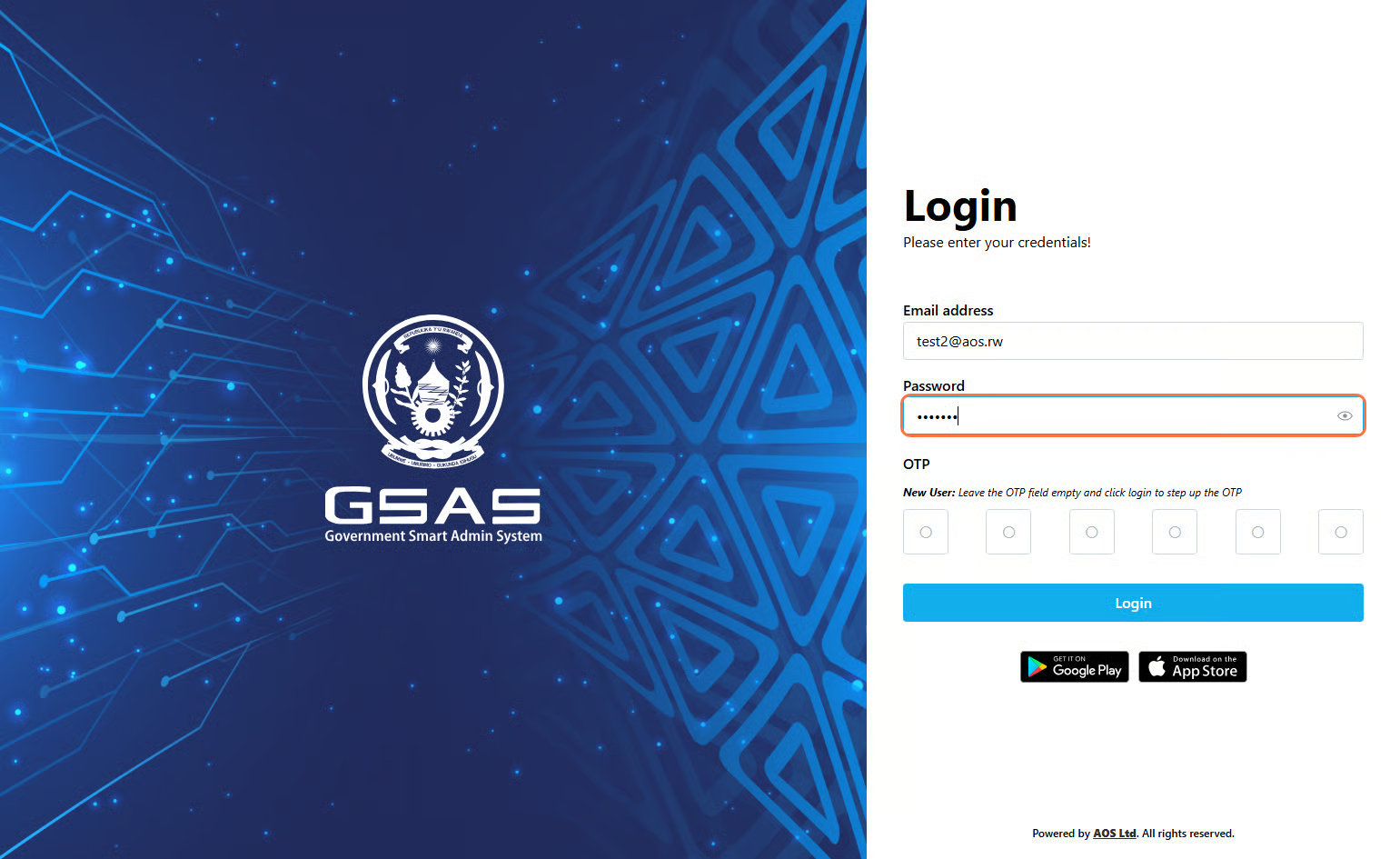
Step 3 Enter your password Type your password, then click Login. Your password is case-sensitive, so make sure Caps Lock is off. |
 |
|
Step 4 Authentication If your account uses two-factor authentication, you'll be asked to verify your identity. Check your authenticator app for the current 6-digit code and enter it when prompted.
🔒 First time login? Follow these steps to set up your OTP:
Future logins will require you to enter the current code in your authenticator app every time you log in. 🔄 Returning user? If you have previously set up OTP authentication:
|
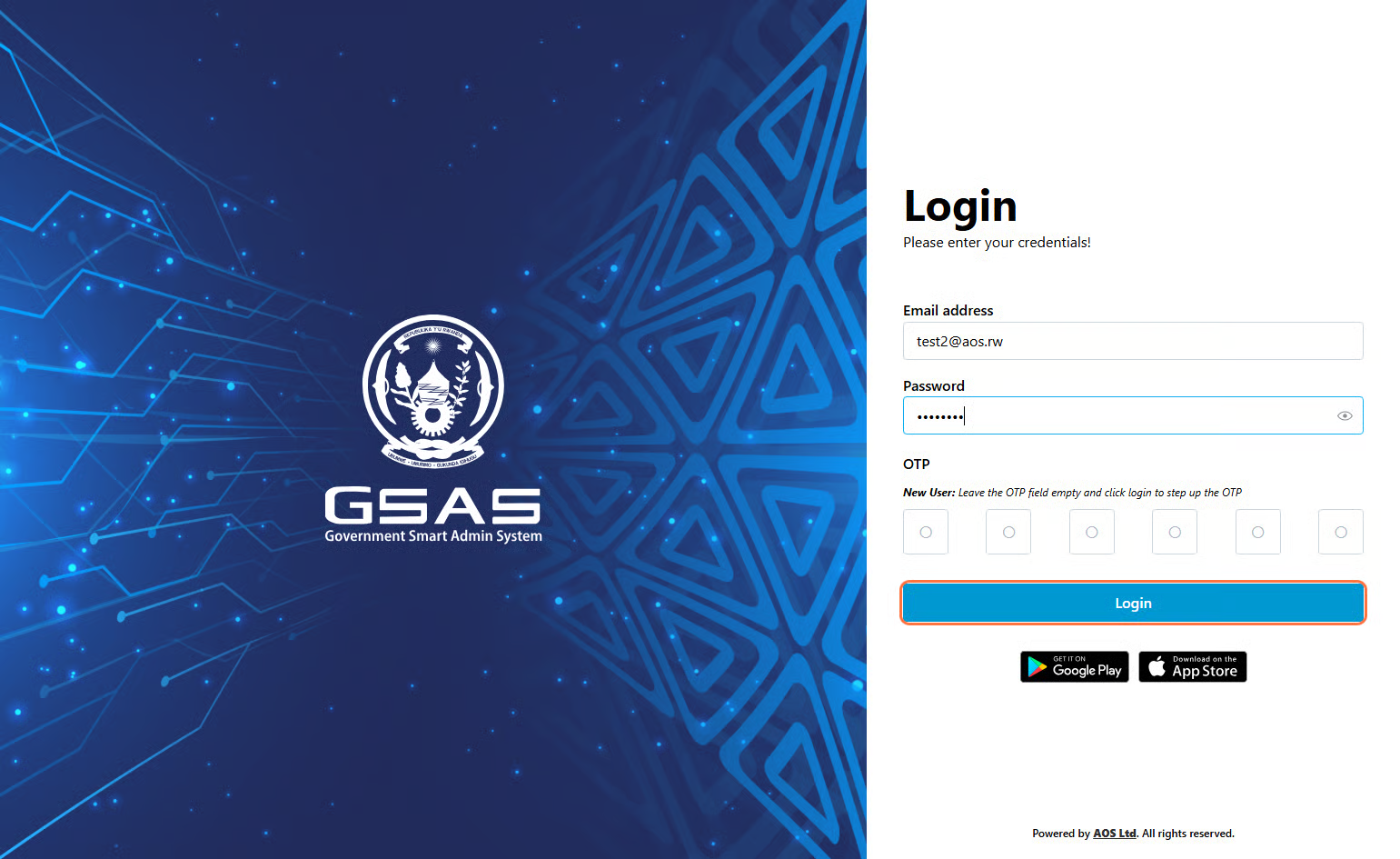
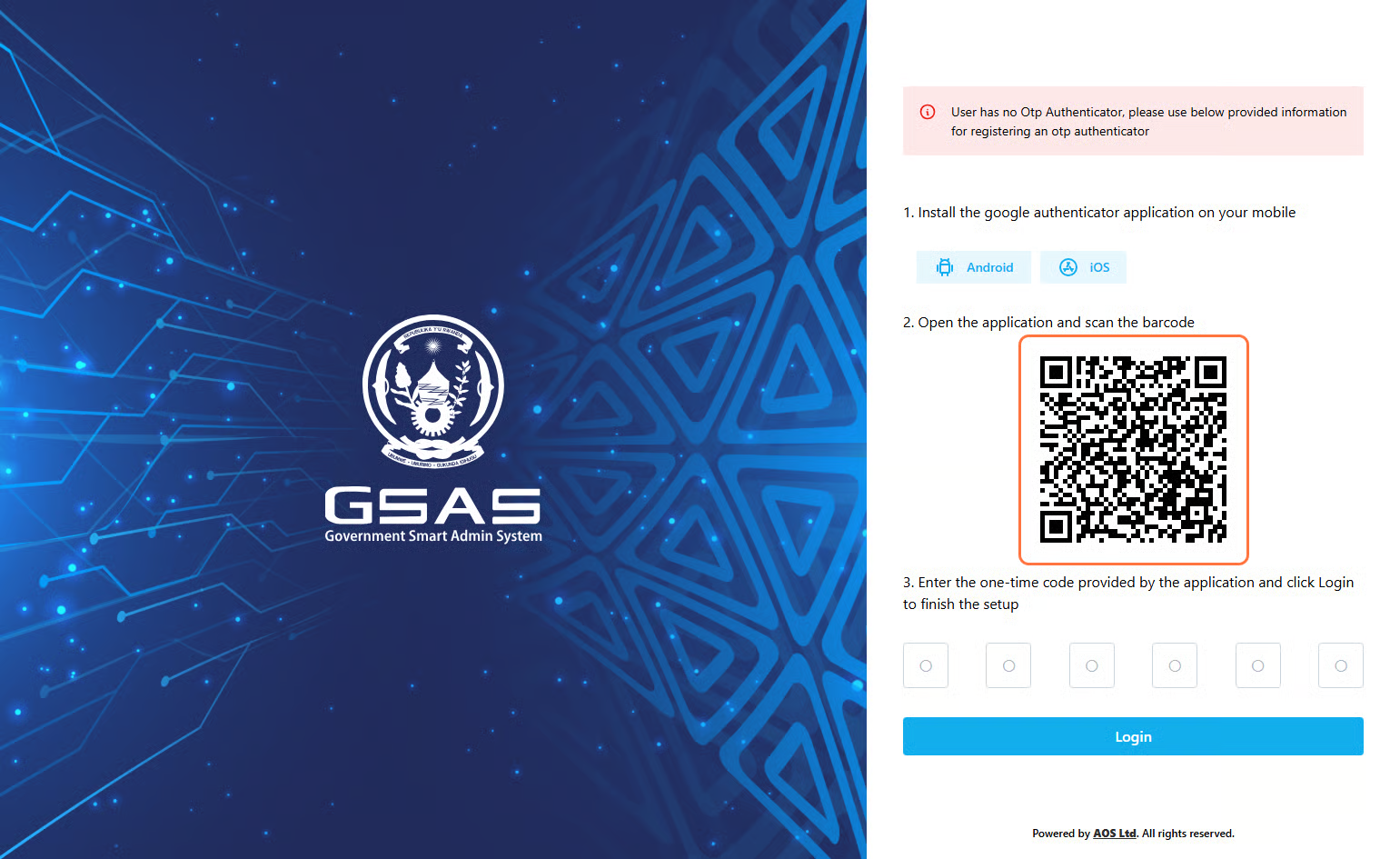
Don't see an OTP field? Your account is using Simple Authentication — skip the OTP step and click Login directly.
For stronger account security, we recommend enabling OTP Authentication. Reach out to your administrator to get it set up.
Future logins will require you to enter the current code in your authenticator app every time you log in.
|
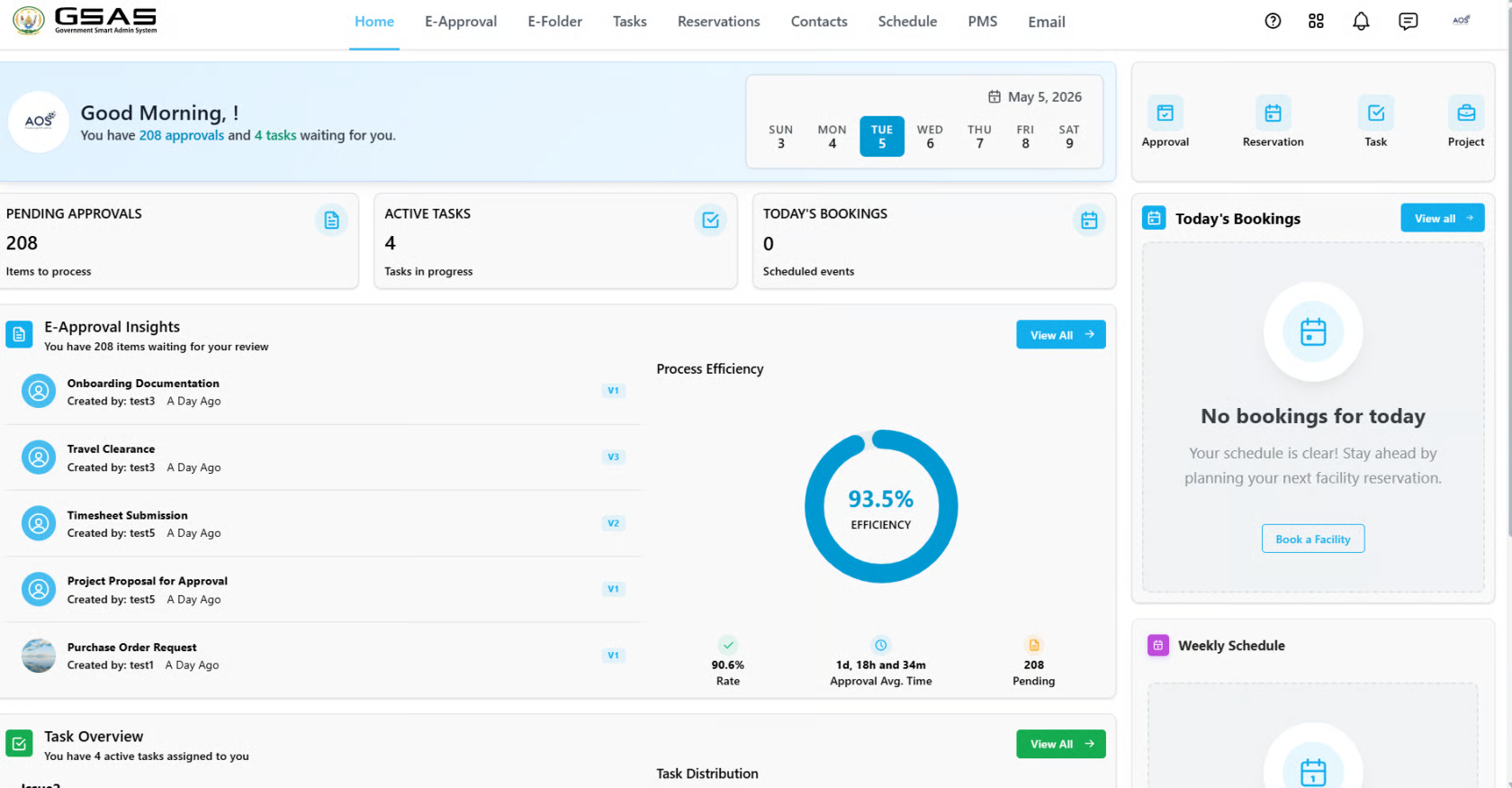
Step 5 Access granted You'll be redirected to your dashboard upon successful login. |
 |