How to login

button in the editor toolbar to open it. HOW TO ADD YOUR SCREENSHOTS: - Upload each image in BookStack first - Right-click the uploaded image and copy the image URL - Replace each YOUR_IMAGE_URL_HERE with that URL HOW TO ADD A NEW STEP: - Copy any full step block (from one STEP comment to the next) - Paste it below the last step - Update the step number, heading, description, and image URL -->


Step 1

Open Smart Admin

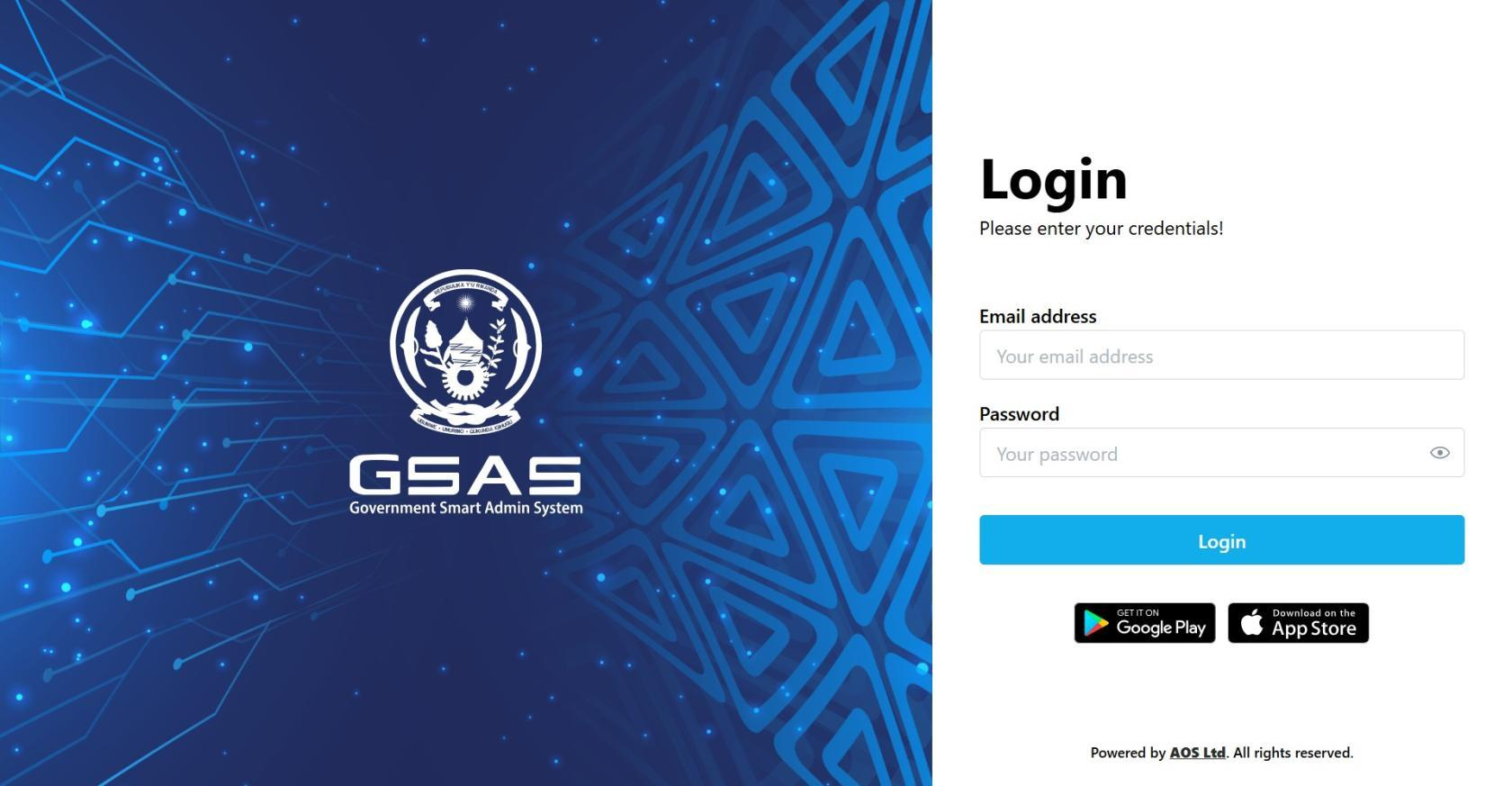
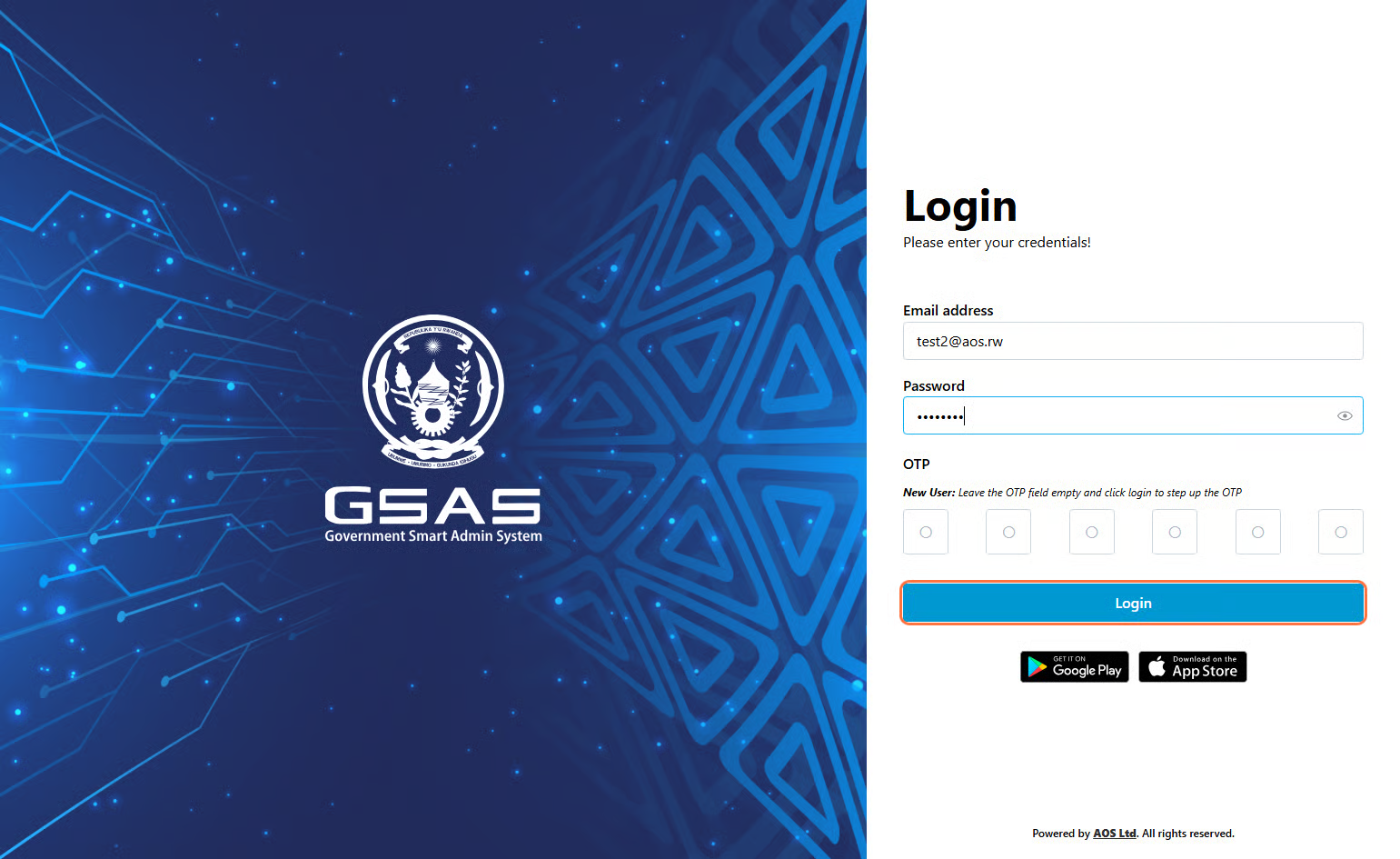
Navigate to your institution's Smart Admin URL in any web browser. You'll land on the login screen shown here.


image.pngSmart Admin login screen

Step 2

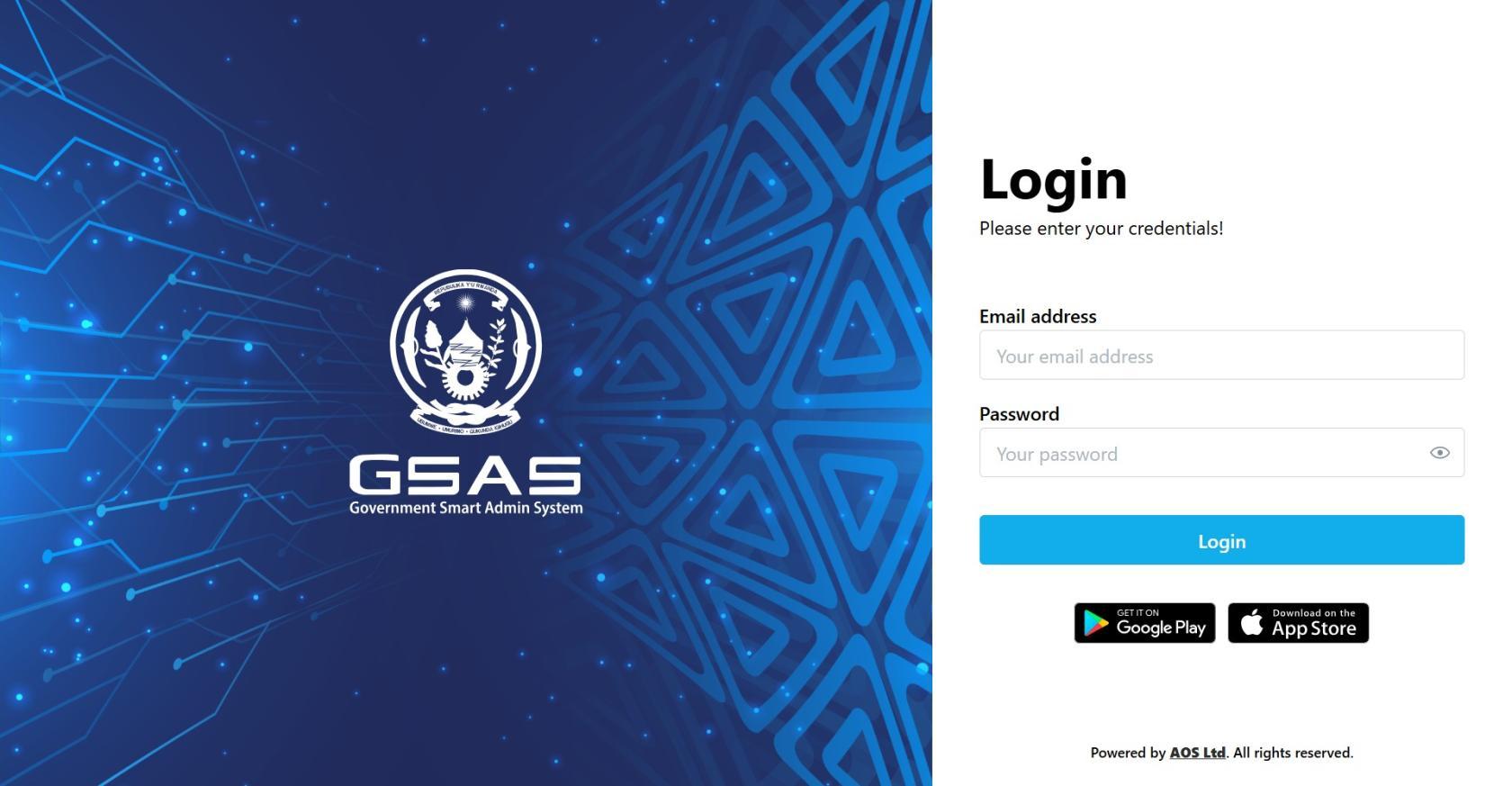
Enter your email address

Type in the email address your administrator registered you with. If you're not sure which one to use, check with your IT department.

Email field on the login screenEmail field on the login screen

Step 3

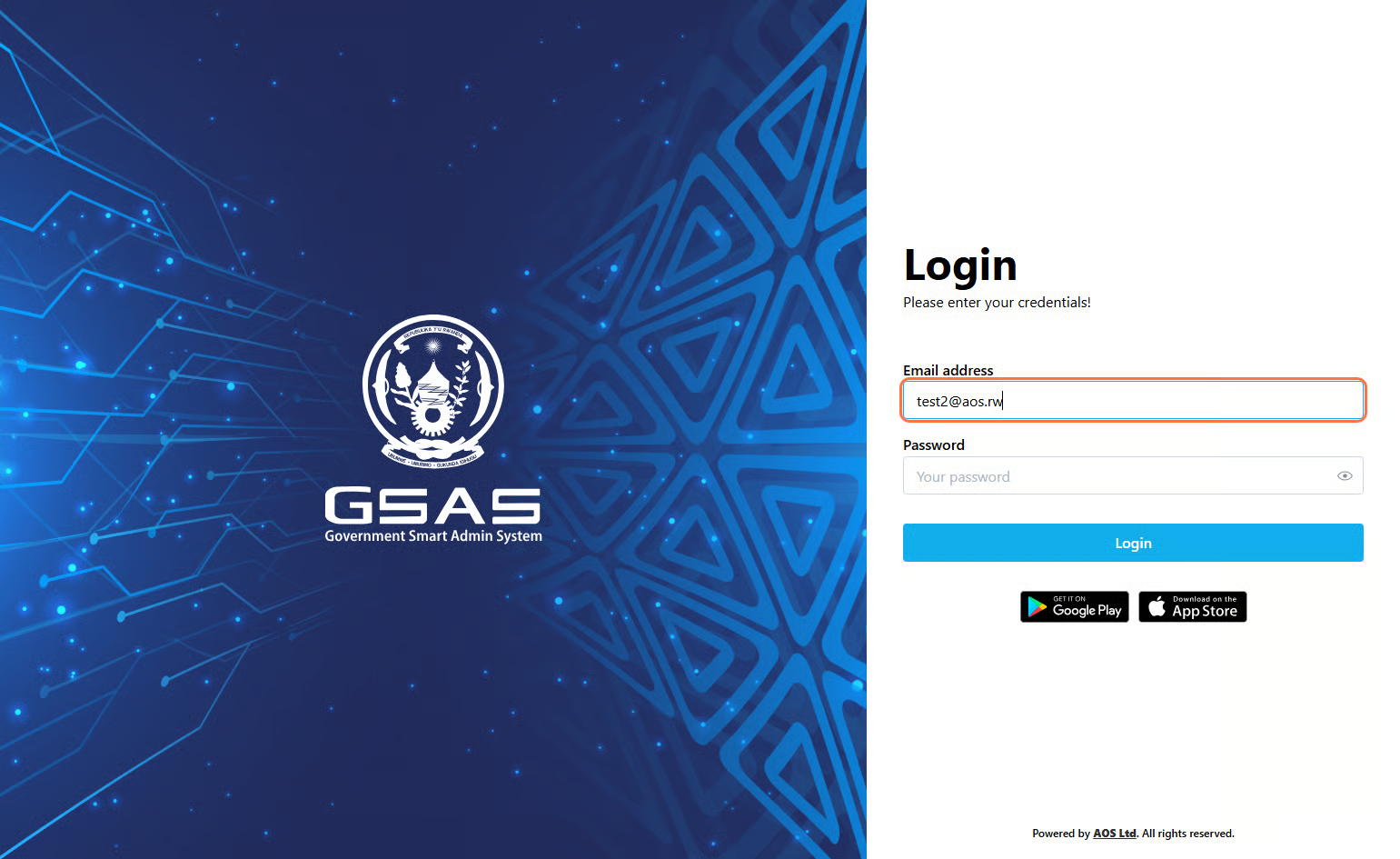
Enter your password

Type your password, then click Login. Your password is case-sensitive, so make sure Caps Lock is off.

🔒 First time logging in? You may be prompted to set a new password before continuing.

Password field on the login screenPassword field on the login screen

Step 4

Authentication

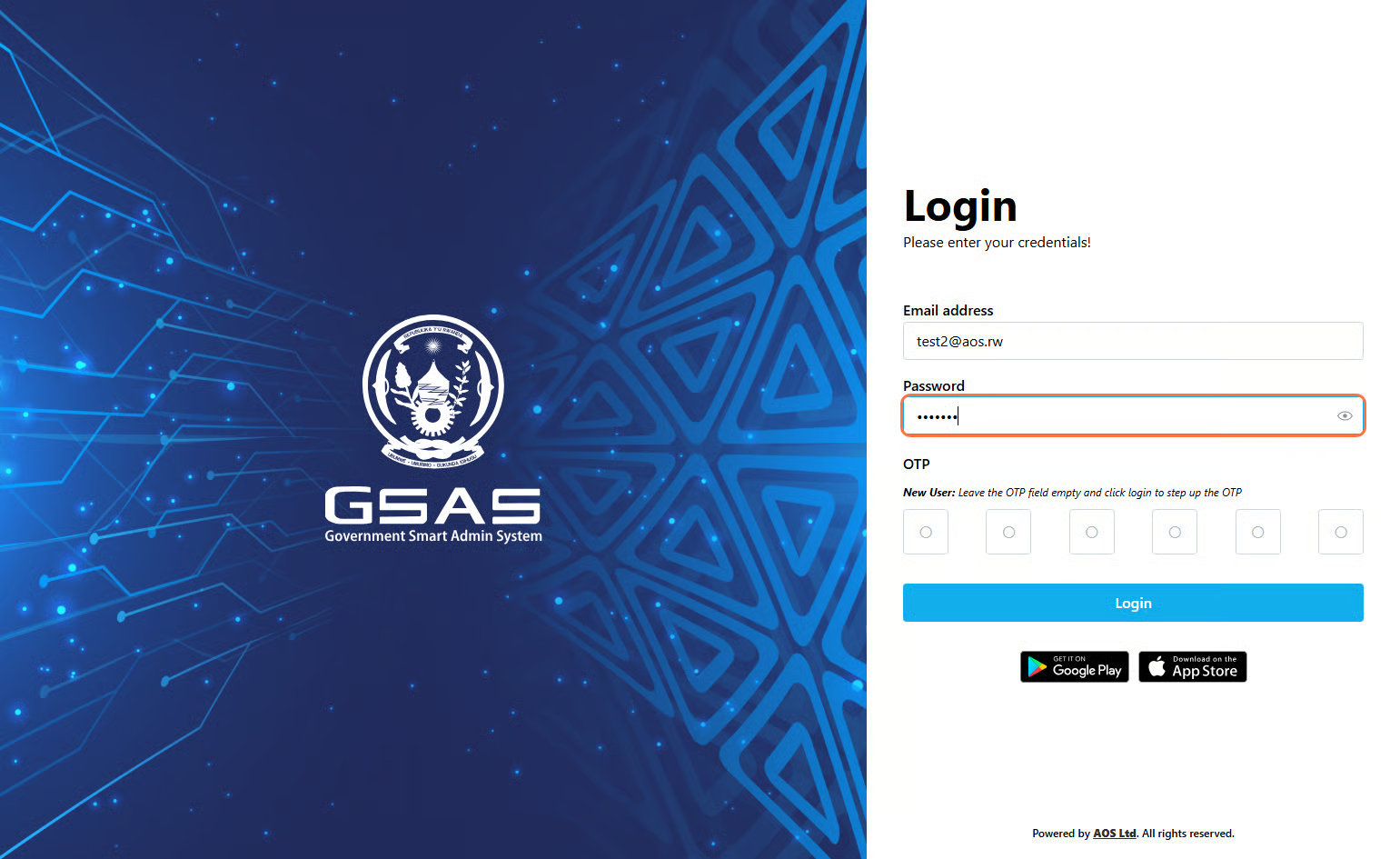
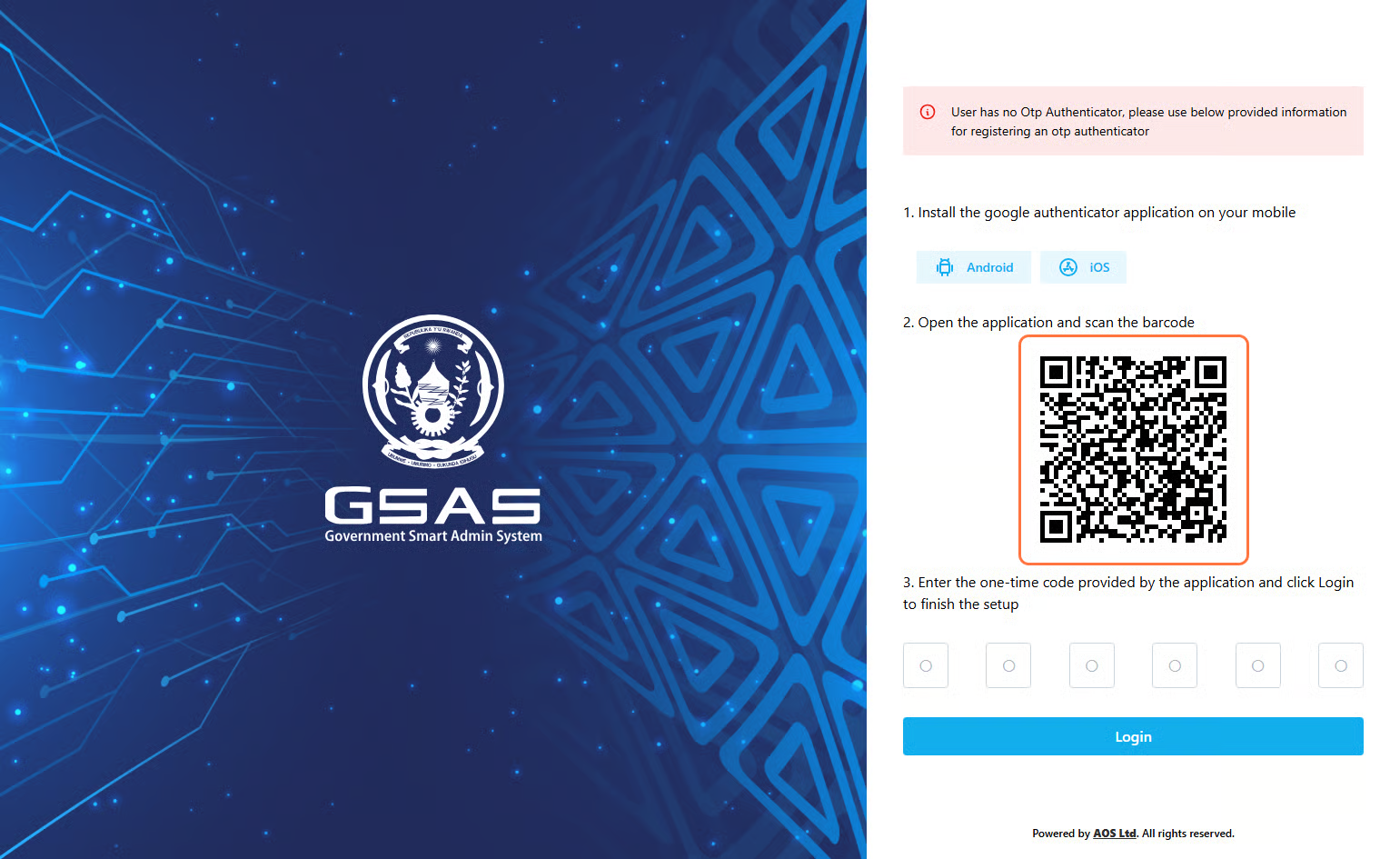
If your account uses two-factor authentication, you'll be asked to verify your identity. Check your authenticator app for the current 6-digit code and enter it when prompted.

🔒 First time login? Follow these steps to set up your OTP:

    Leave the OTP field empty and click Login. A QR code will appear — scan it using the Google Authenticator app, available on Google Play or App Store. Your account is now saved in the app and will generate a new 6-digit code every 15 seconds. Enter the code displayed in your authenticator app and click Login.

    🔄 Returning user? If you have previously set up OTP authentication:

      Open your authenticator app and view the current 6-digit code. Enter it in the OTP field, just above the Login button. Click Login.

      ℹ️ NotDon't suresee ifan OTP field? Your account is using Simple Authentication — skip the OTP step and click Login directly.

       For stronger account security, we recommend enabling OTP Authentication. Reach out to your accountadministrator usesto 2FA?get Askit set up.

      Future logins will require you to enter the current code in your ITauthenticator administrator.app every time you log in.

      Two-factor authentication screenTwo-factor authentication screen
      QR code screen

      Step 5

      Access granted

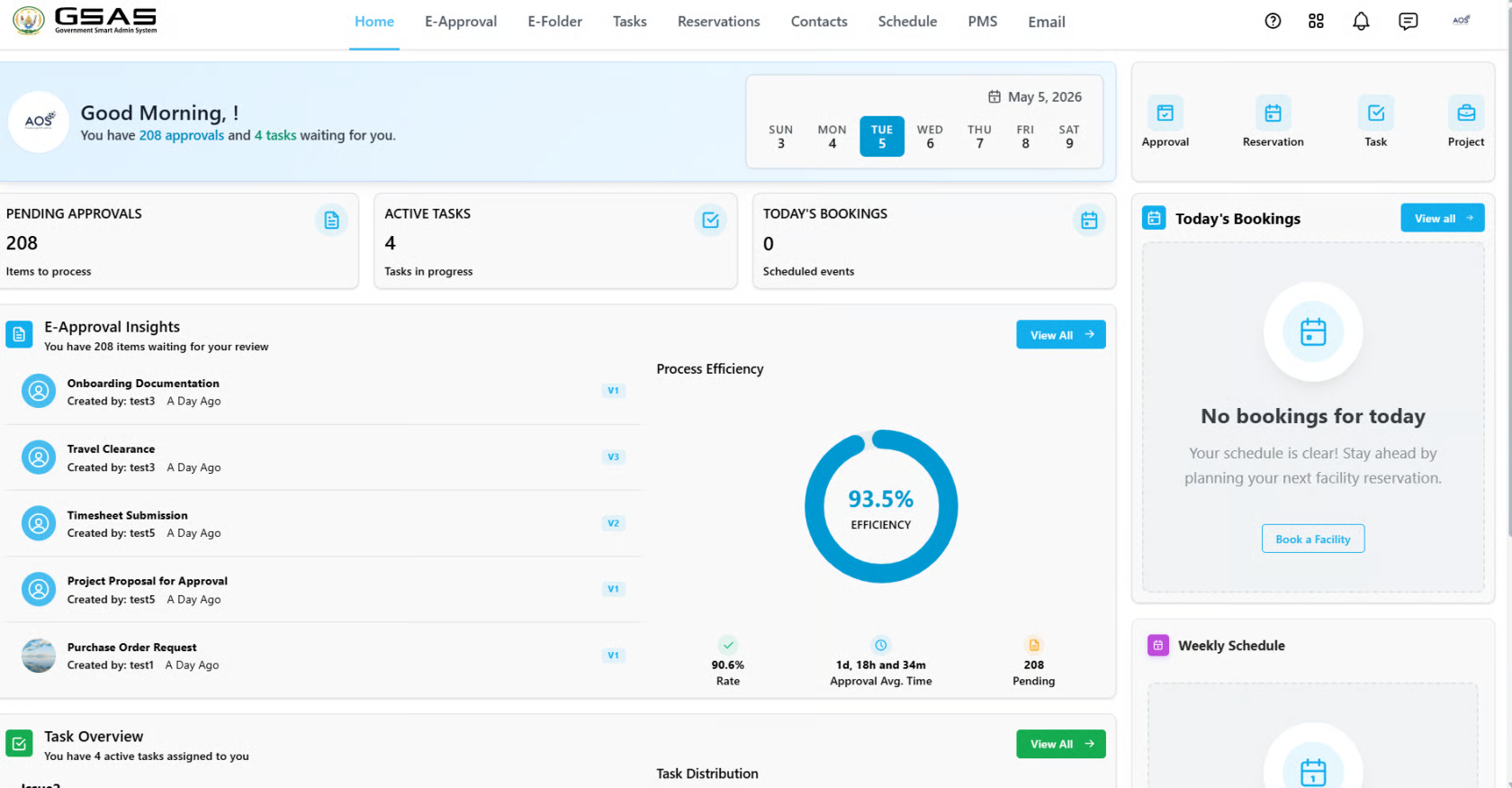
      You'll be redirected to your dashboard upon successful login.

      Smart Admin dashboard after loginSmart Admin dashboard after login