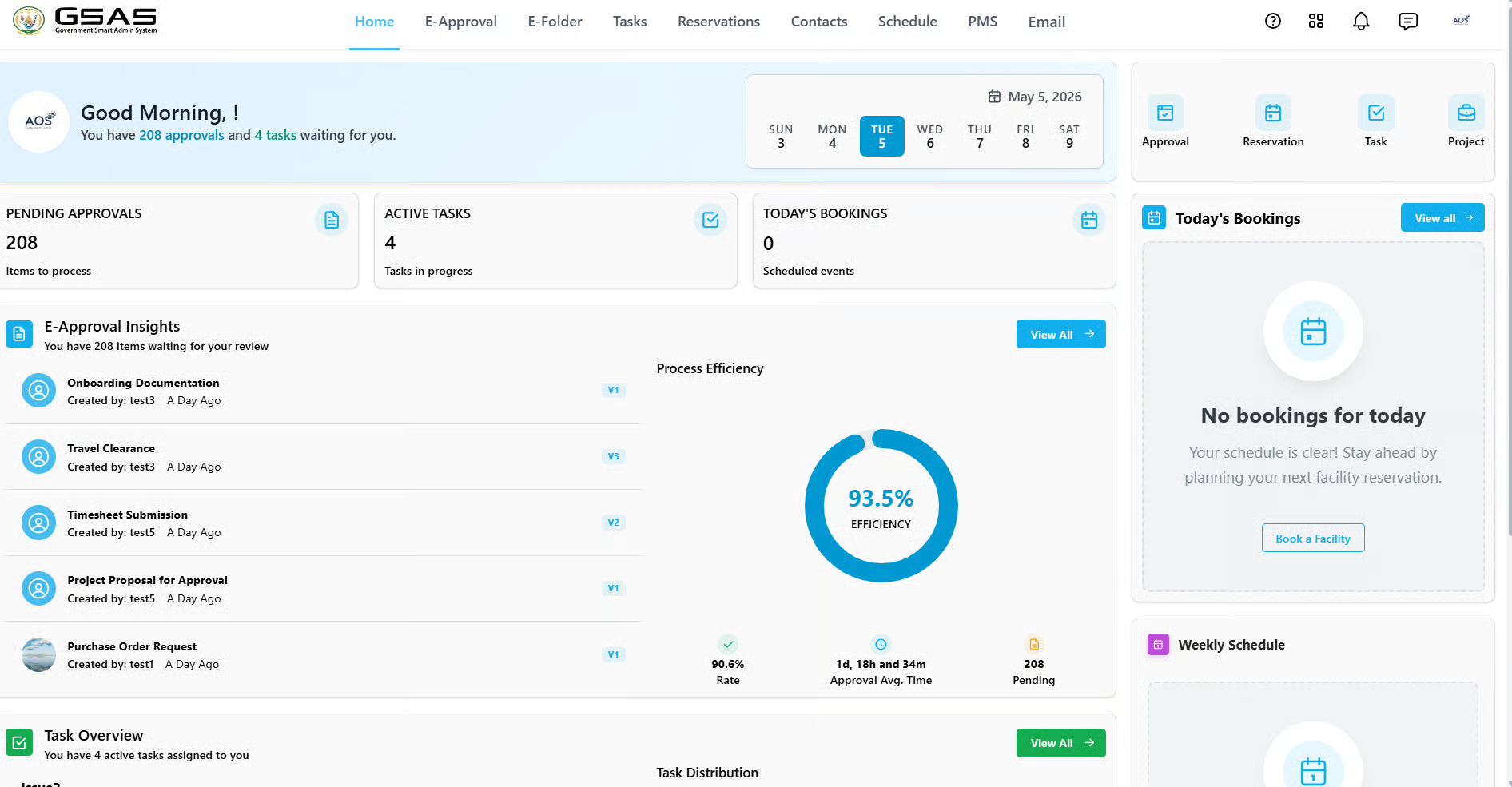
How to login
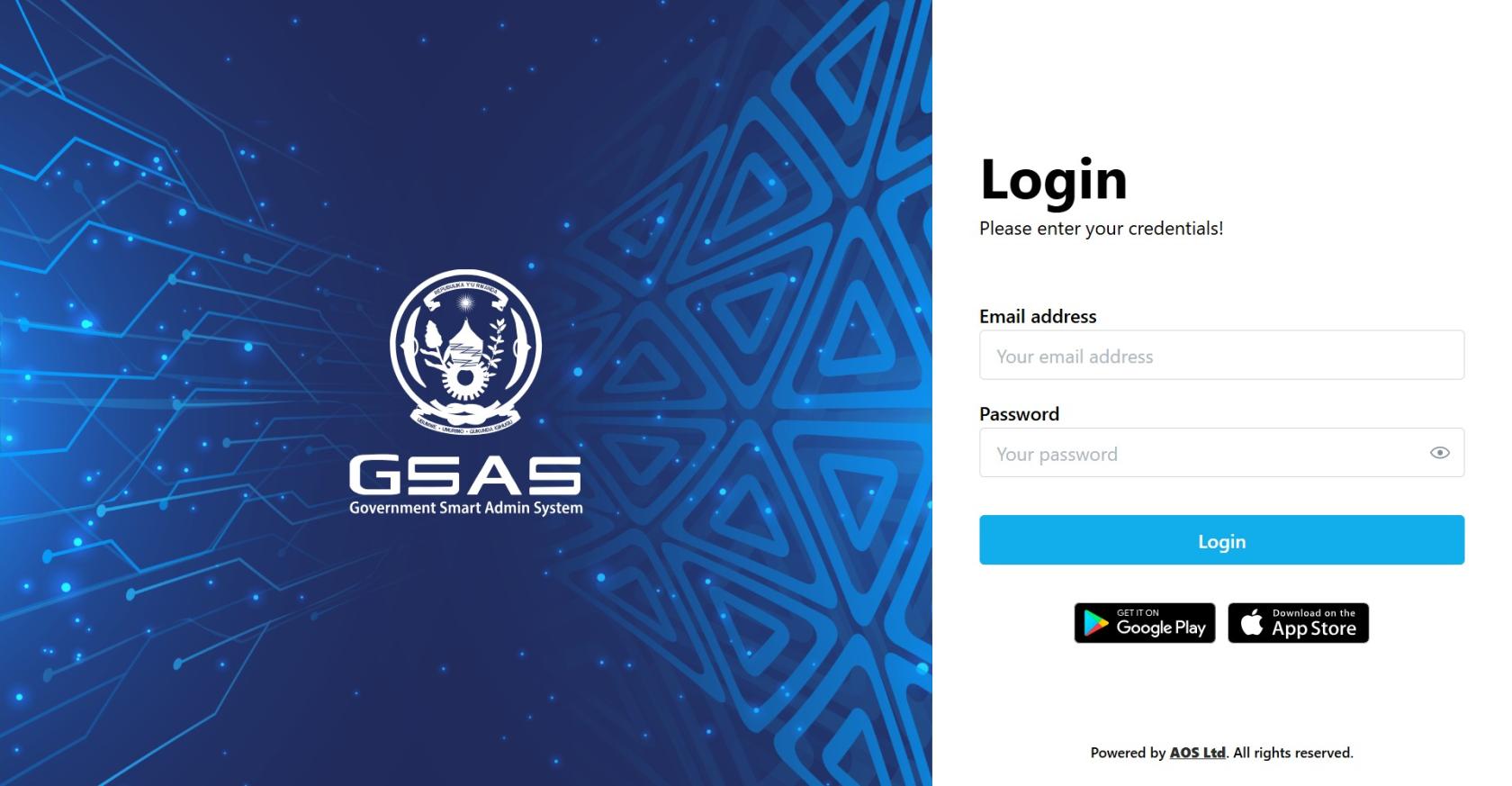
Step 1
Open Smart Admin
You'll land on the login screen shown here.
Step 2
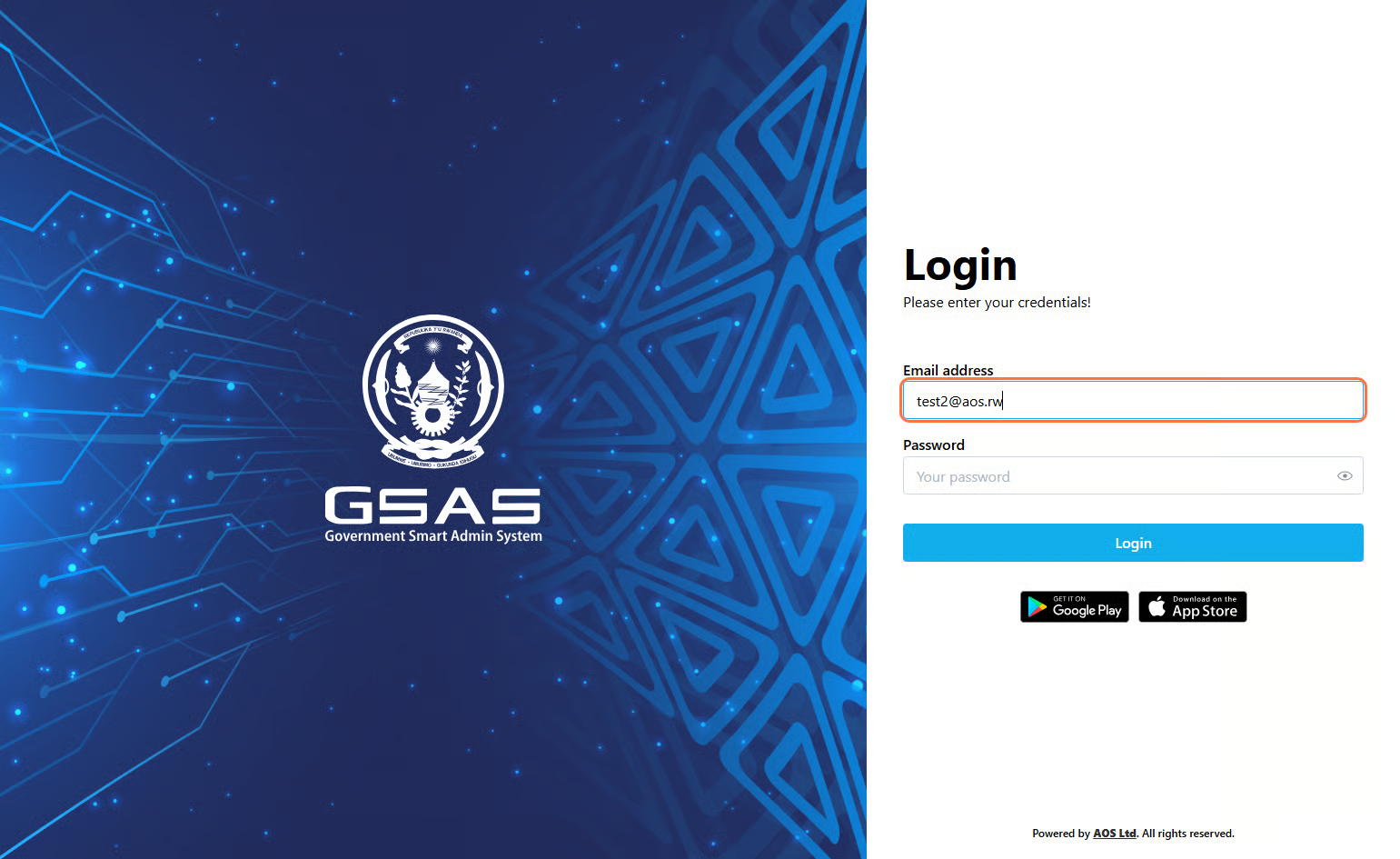
Enter your email address
Type in the email address your administrator registered you with.
If you're not sure which one to use, check with your IT department.
Step 3
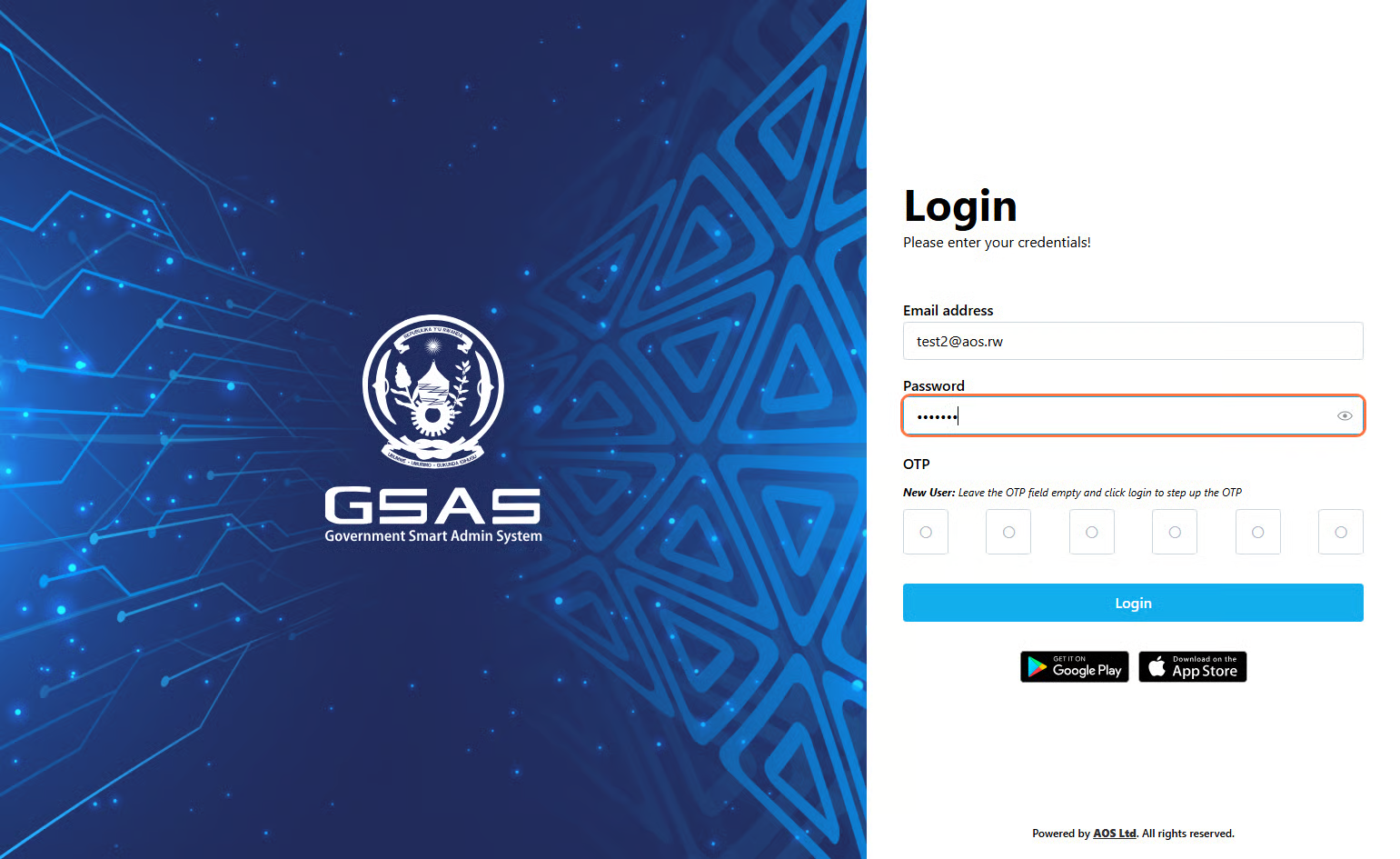
Enter your password
Type your password.
Step 4
Authentication
If your account uses two-factor authentication, you'll be asked to verify your identity.
First time login?
Follow these steps to set up your OTP:
- Leave the OTP field empty and click Login.

- A QR code will appear; scan it using the Google Authenticator app, downloadable on Google Play or App Store.
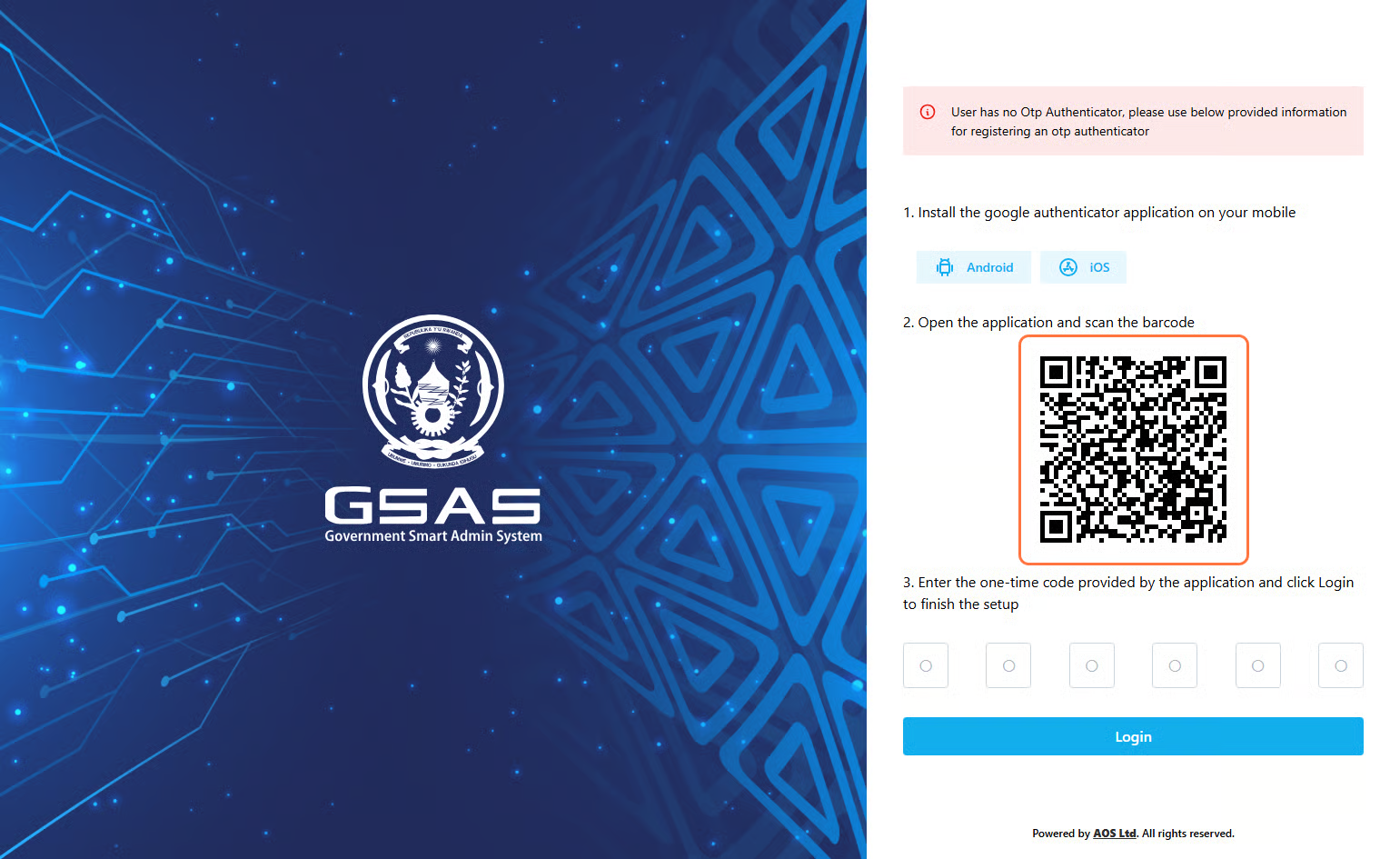
- Your account is now saved in the app and will generate a new 6-digit code every 15 seconds.
- Enter the code displayed in your authenticator app and click Login.

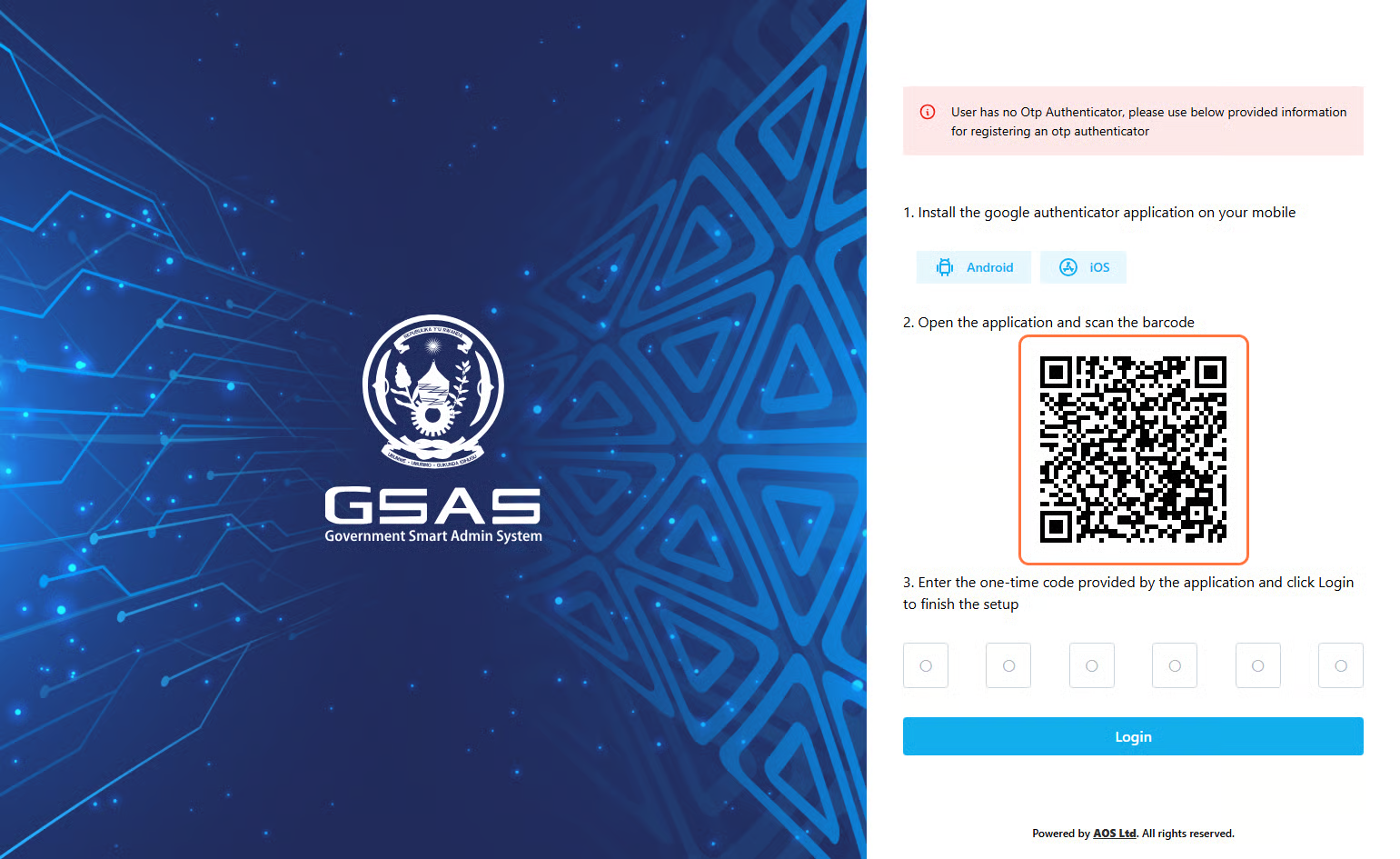
Future logins will require you to enter the current code in your authenticator app every time you log in.
- Open your authenticator app and view the current 6-digit code
-
Enter it in the OTP field, just above the Login button
- Click Login.
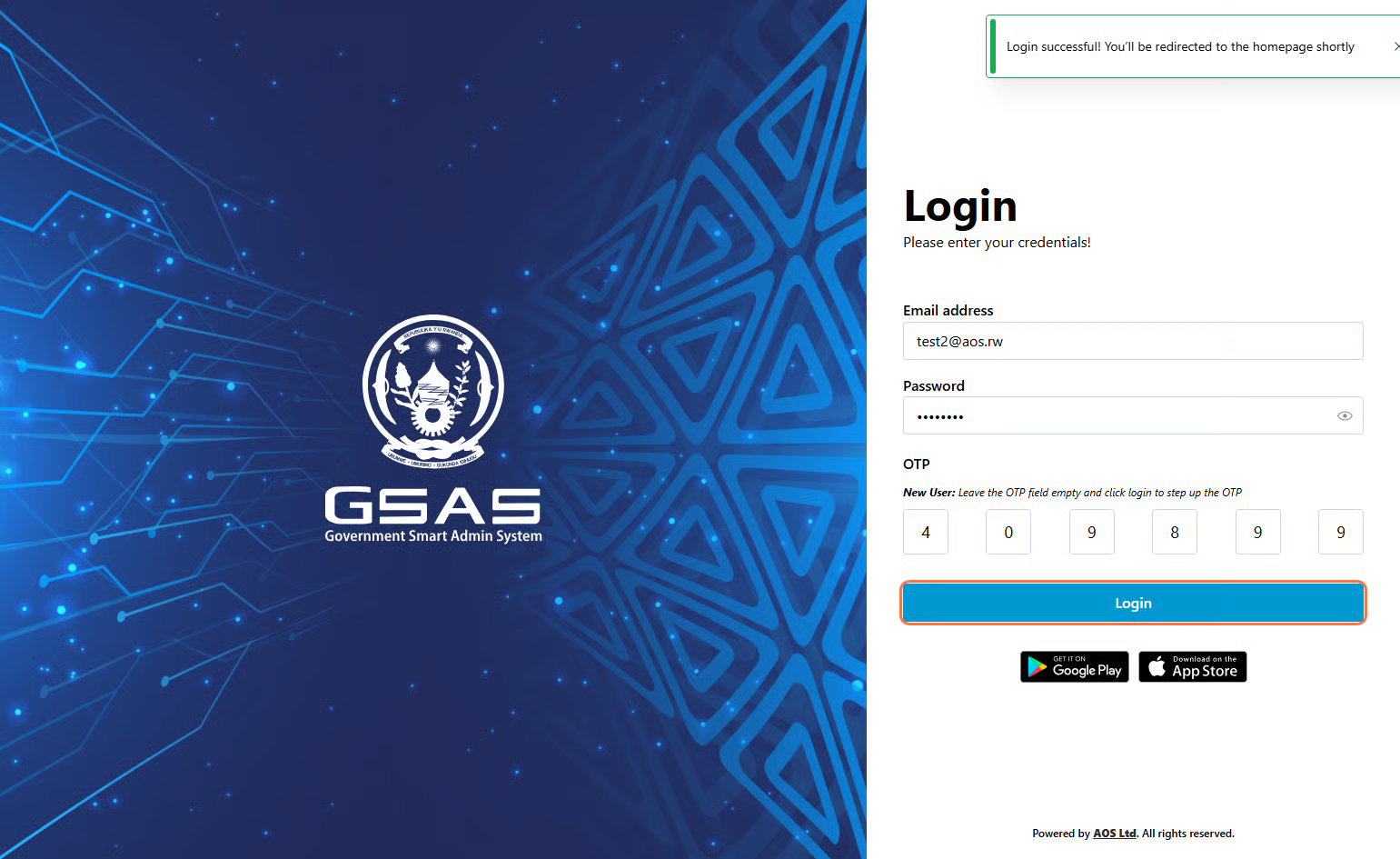
Don't see an OTP field? Your account is using Simple Authentication — skip Step 3 and click Login directly. For stronger account security, we recommend enabling OTP Authentication. Reach out to your administrator to get it set up
Step 5
Access Granted
You will be redirected to your dashboard upon successful login.