How to login
Follow this quick guide to log into your account
|
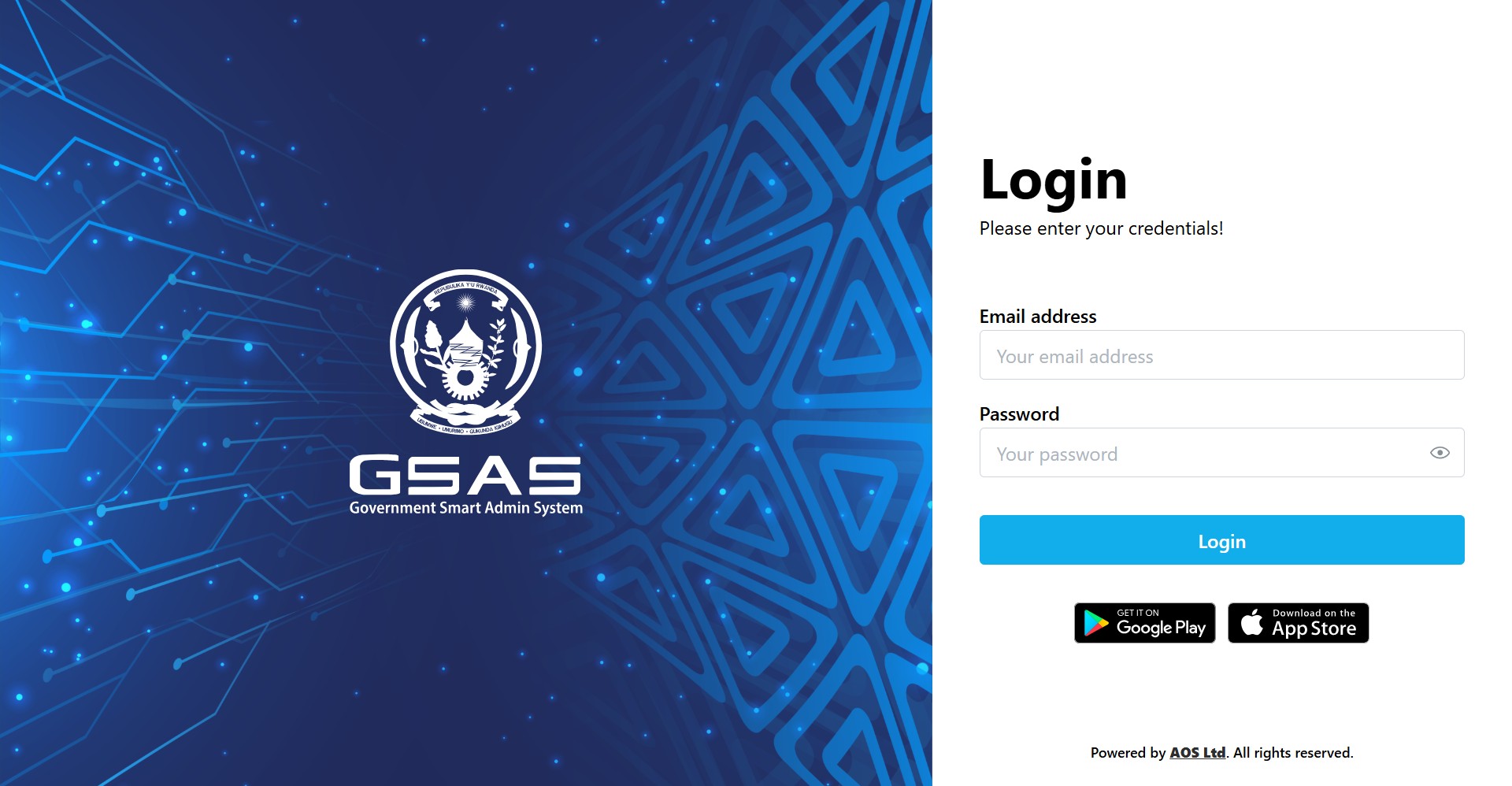
Step 1 Open Smart Admin Navigate to your institution's Smart Admin URL in any web browser. You'll land on the login screen shown here. |
 |
|
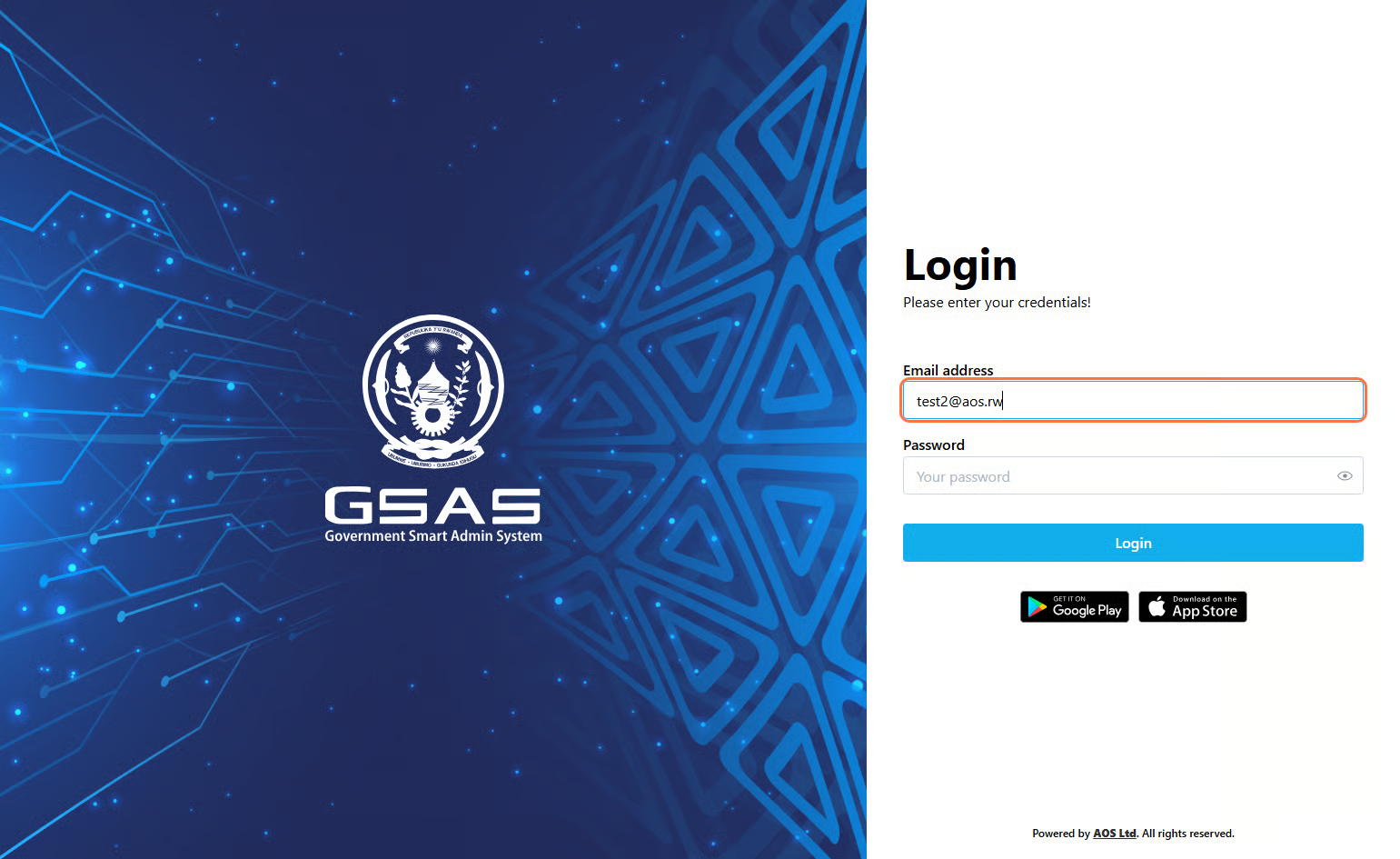
Step 2 Enter your email address Type in the email address your administrator registered you with. If you're not sure which one to use, check with your IT department. |
 |
|
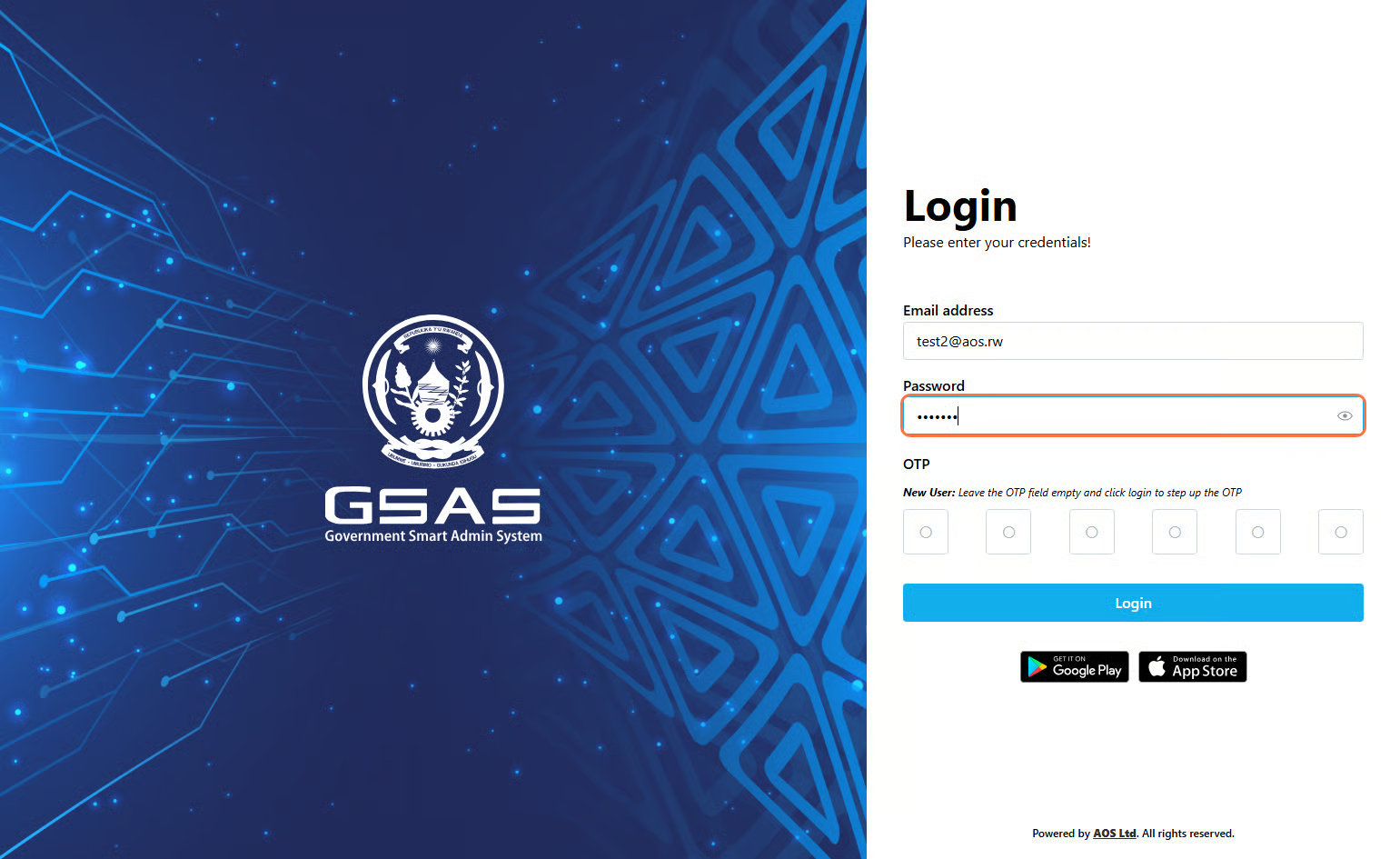
Step 3 Enter your password Type your password, then click Login |
 |
Step 4
Authentication
If your account uses two-factor authentication, you'll be asked to confirm your identity.
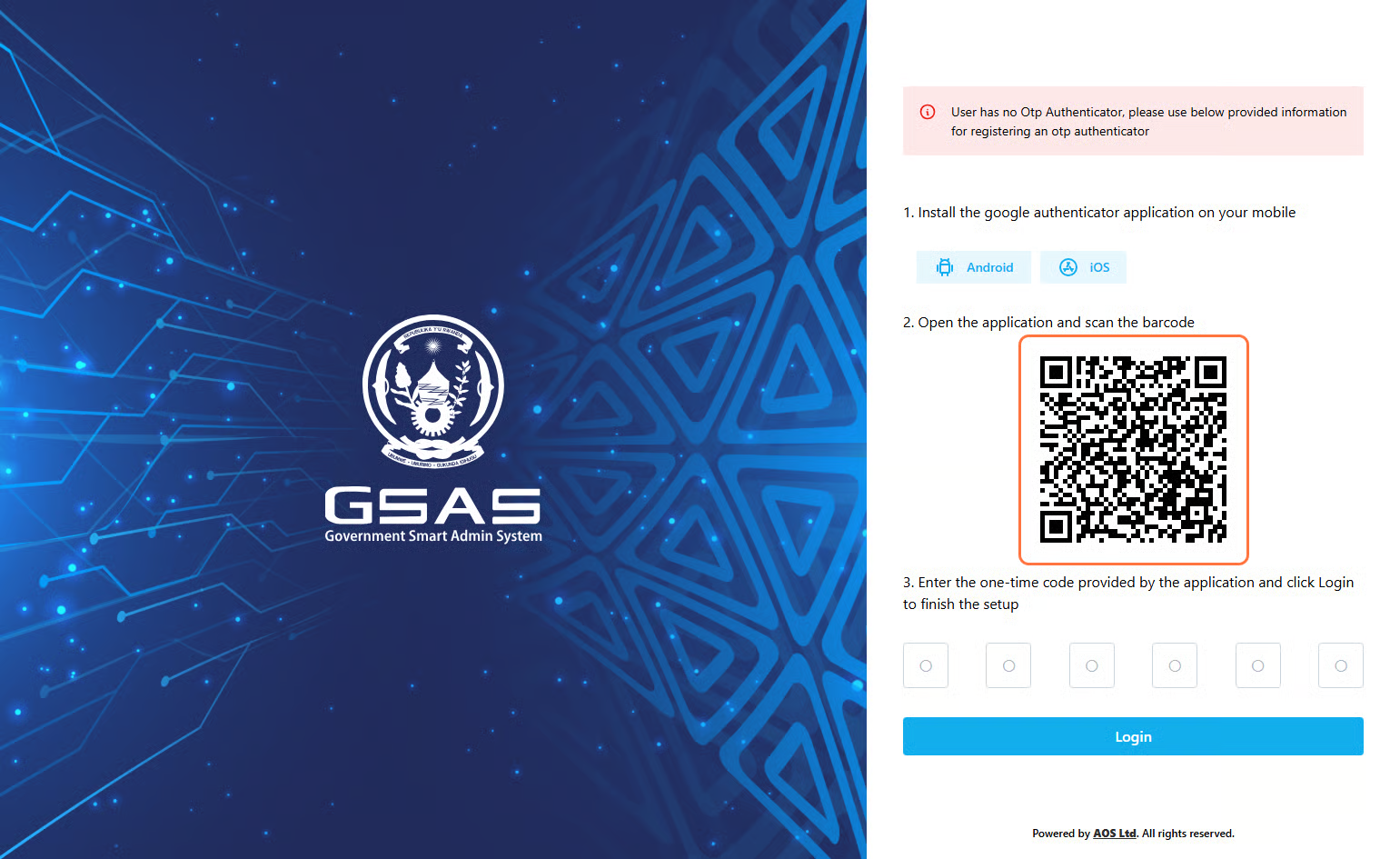
First time login? (If you've logged in before, scroll down to the Returning User section.)
Follow these steps to set up your OTP:
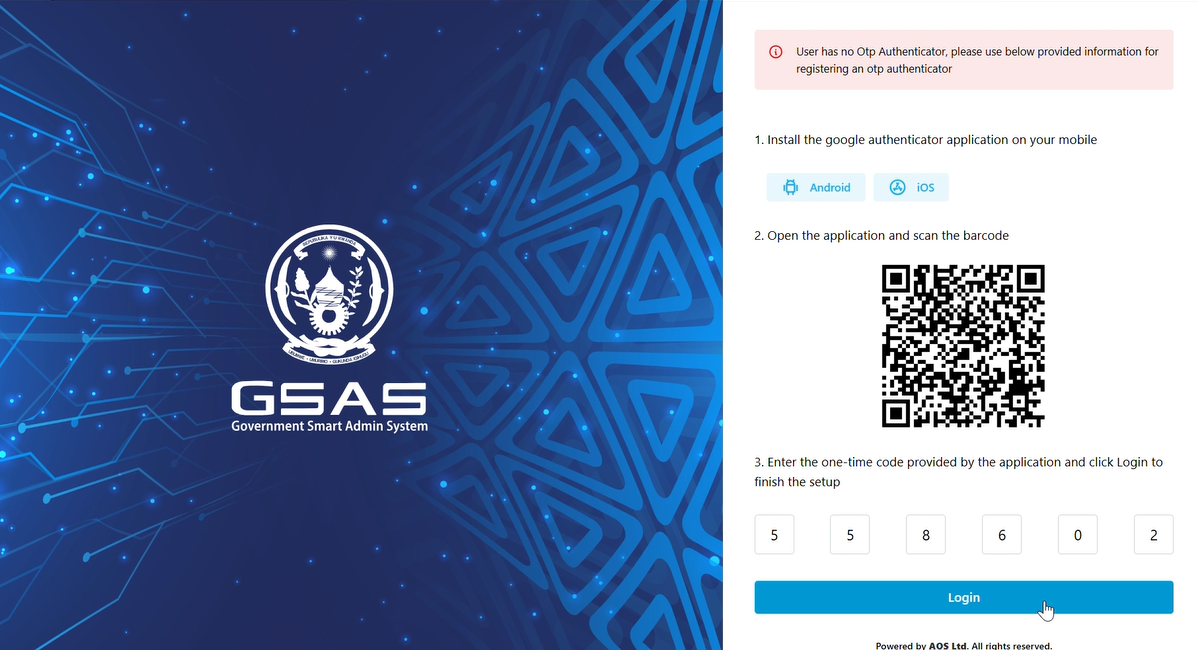
Returning user?
If you have previously set up OTP authentication:
Open your authenticatorGoogle appAuthenticator and view the current 6-digit code.
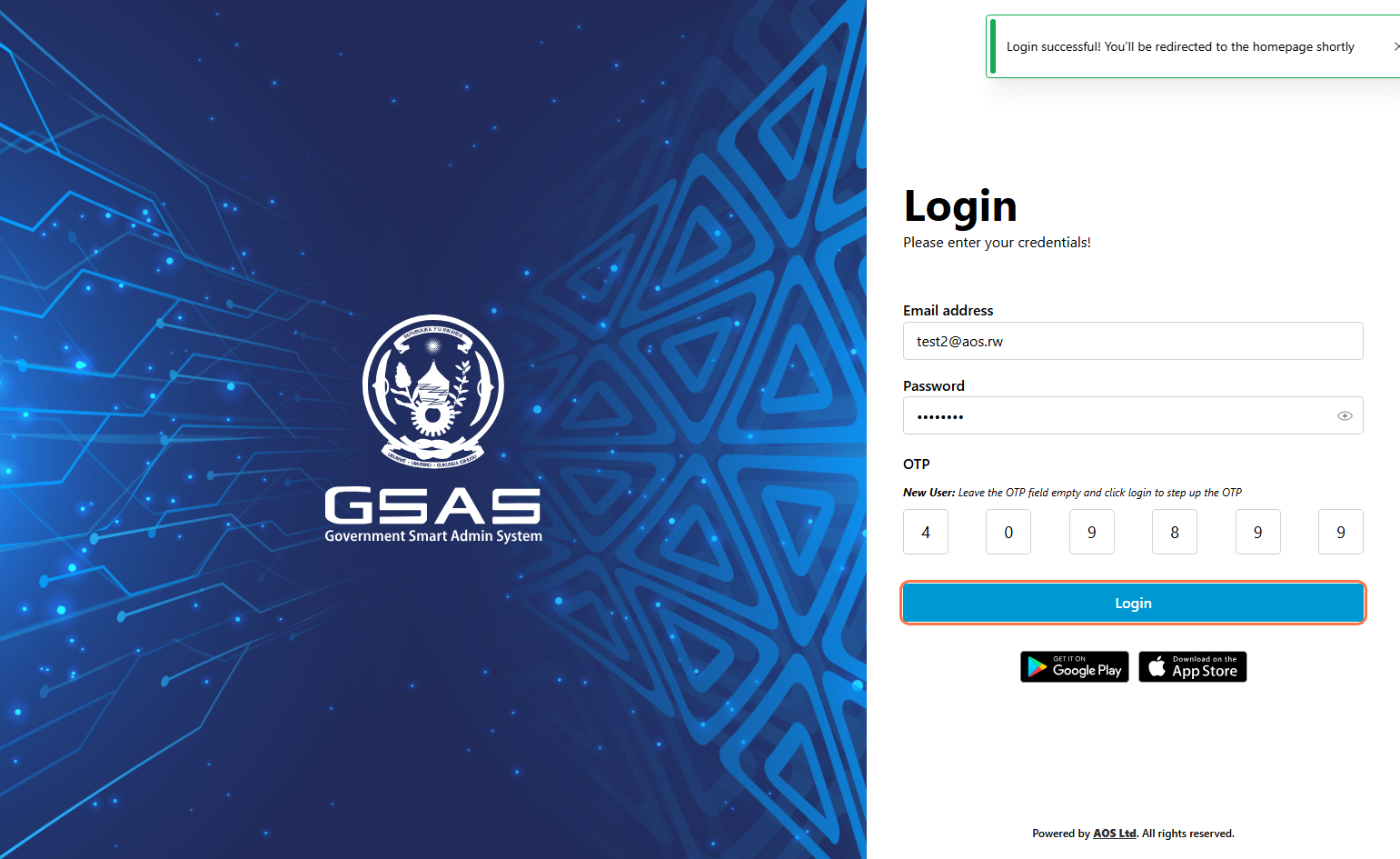
Don't see an OTP field? Your account is using Simple Authentication, skip the OTP step and click Login directly. For stronger account security, we recommend enabling OTP Authentication. Reach out to your administrator to get it set up.
|
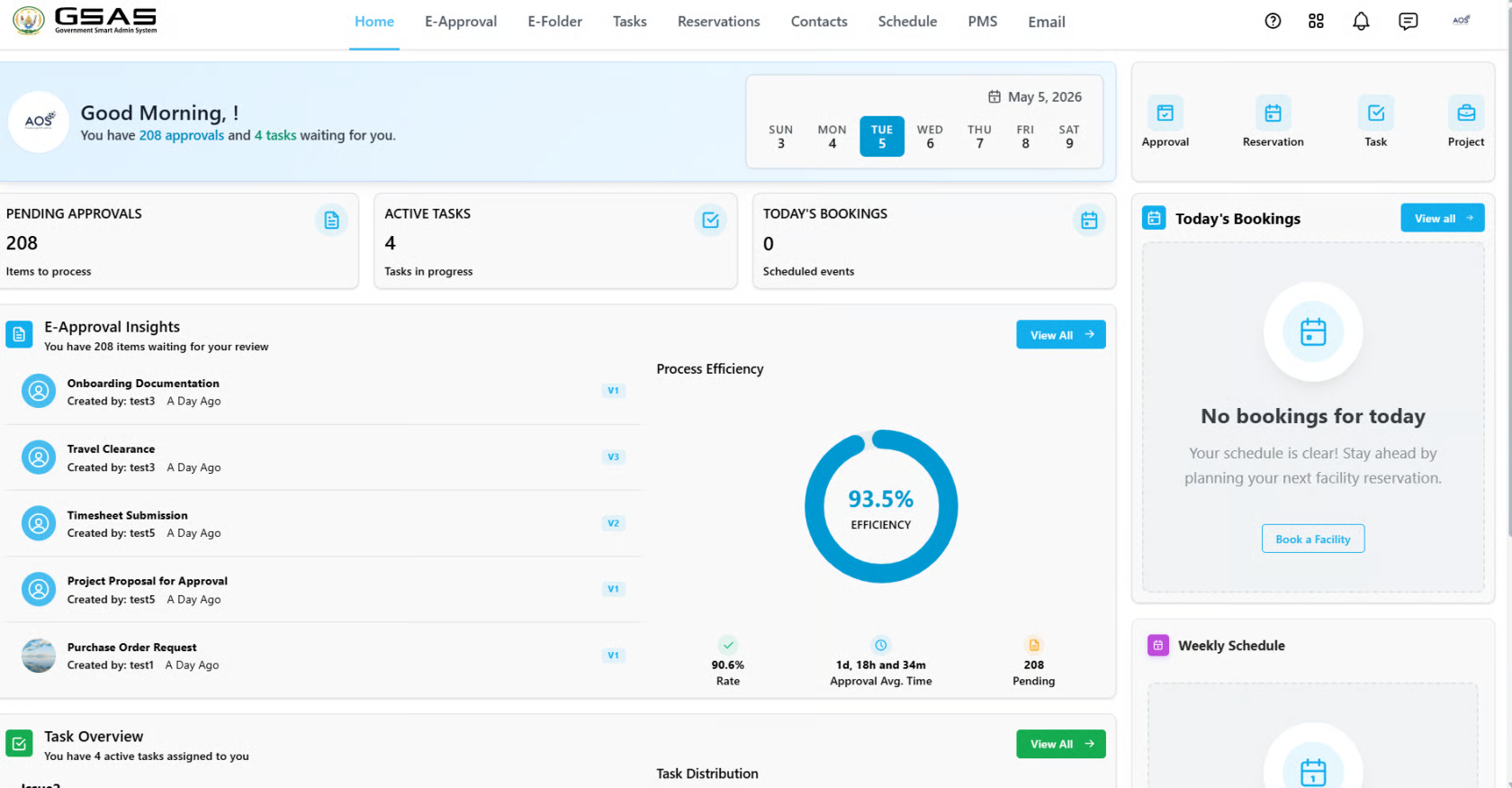
Step 5 Access granted You'll be redirected to your dashboard upon successful login.
|
Troubleshoot common log in issues
- Login failed. Please check your credentials and try again.
Possible causes:
- Your password is incorrect.
- Your OTP does not match the current code in Google Authenticator.
Make sure your laptop and phone are using a similar time zone. If not, update your time zone settings and ask your administrator to reset your OTP and sign in again as a first-time user.
- No user was found with provided information.
Possible cause:
- Your email address was entered incorrectly.
- Invalid credentials. Please contact your system administrator.
- Call us or text us on +250 792 108 784 or use our toll free number 4747.