Creating and Assigning Tasks
Use Initiated By Me to create task projects, add tasks, assign users, and organize work with due dates, priorities, labels, and subtasks.
| Before you begin: A task must belong to a task project. If the project does not already exist, create the project first. |
Create a Task Project
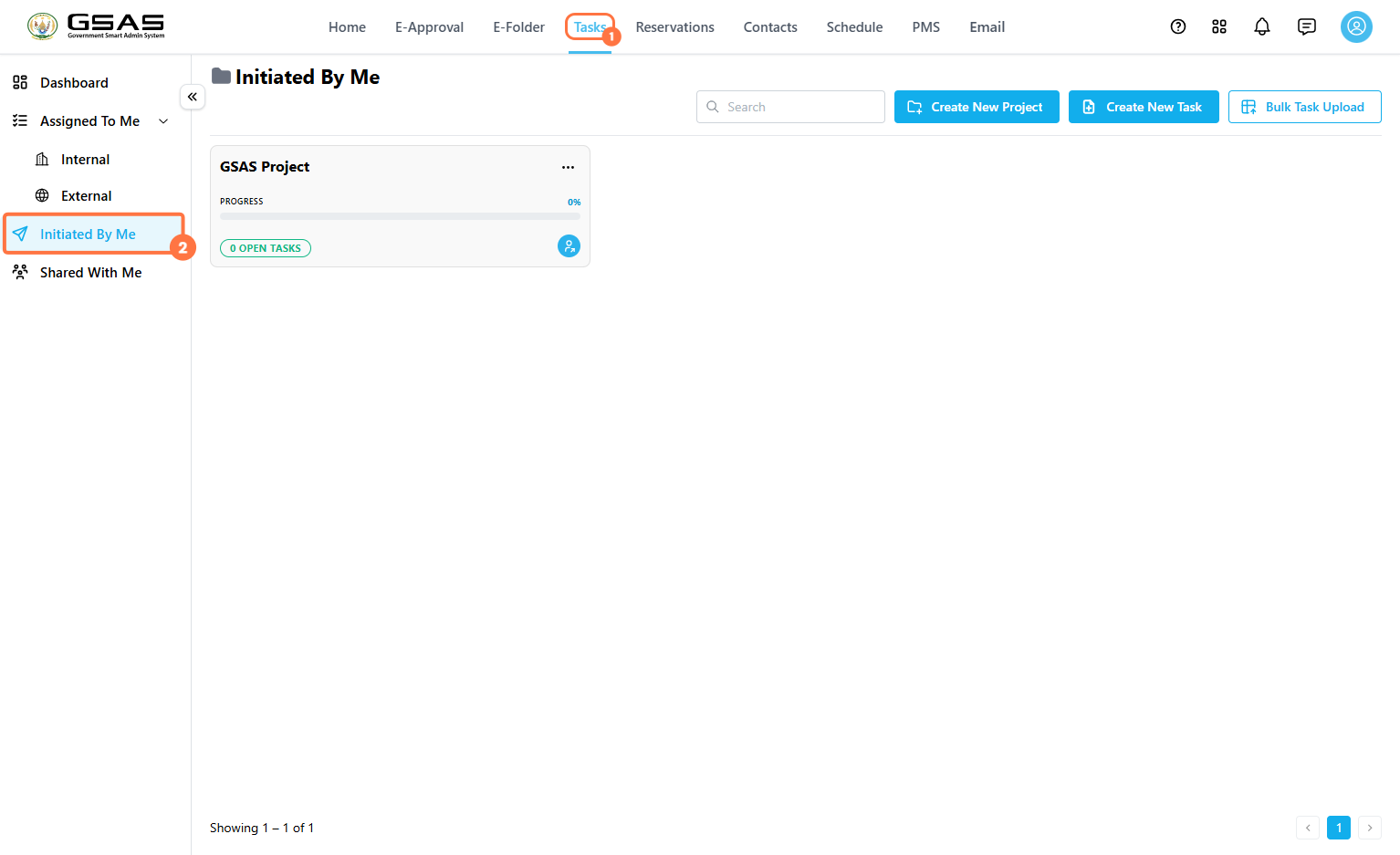
- Go to Tasks.
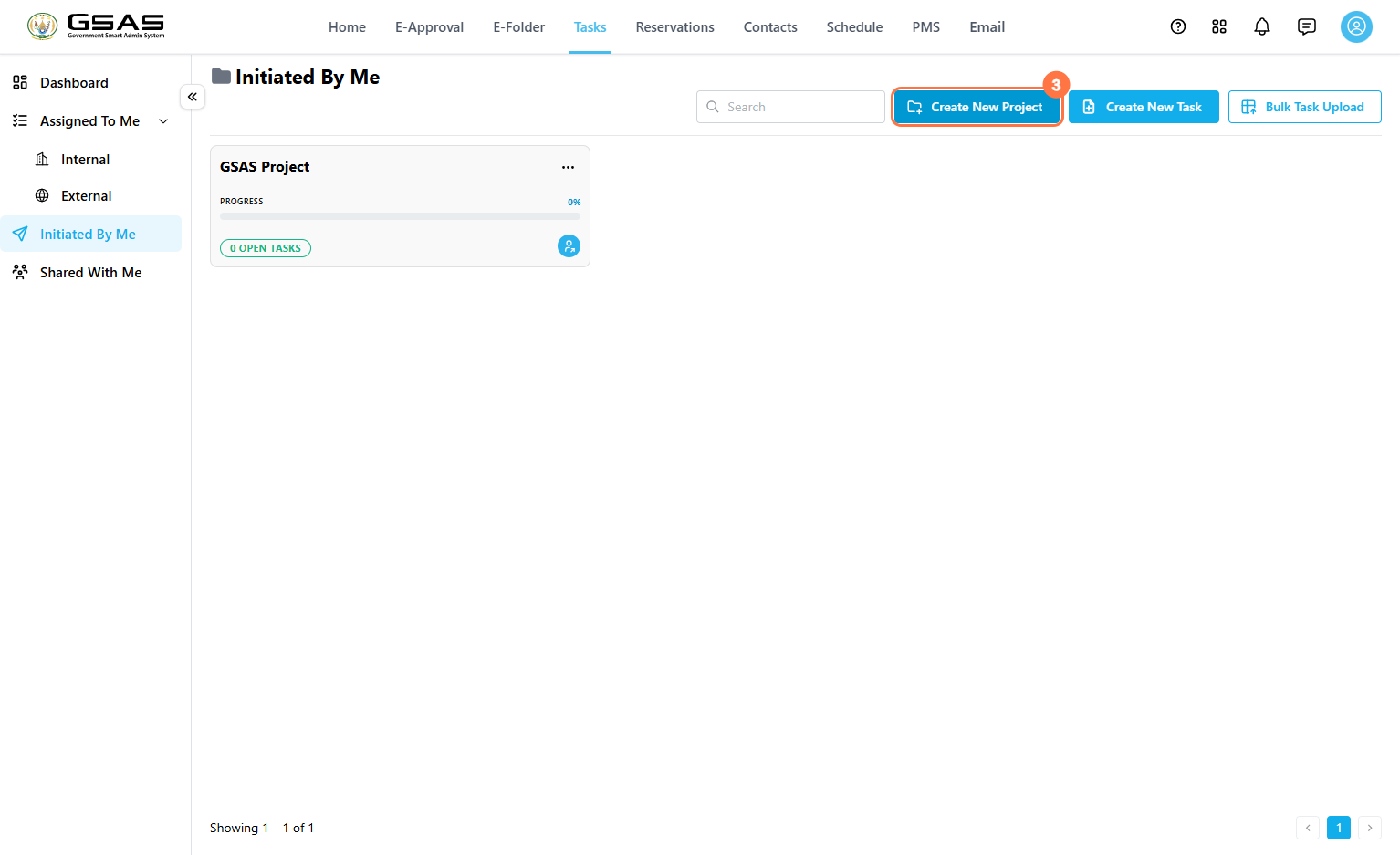
- Click Initiated By Me.
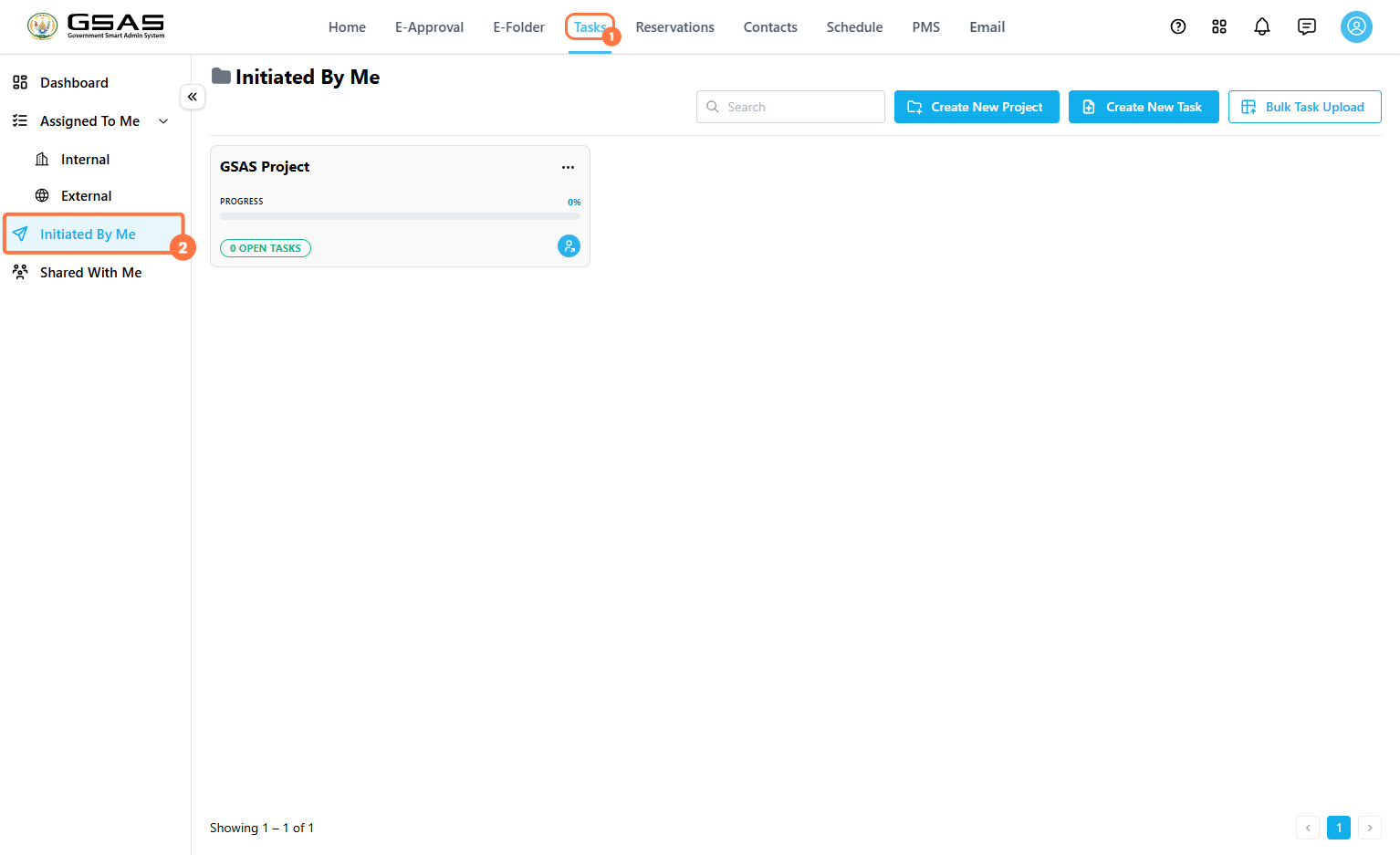
- Click Create New Project.
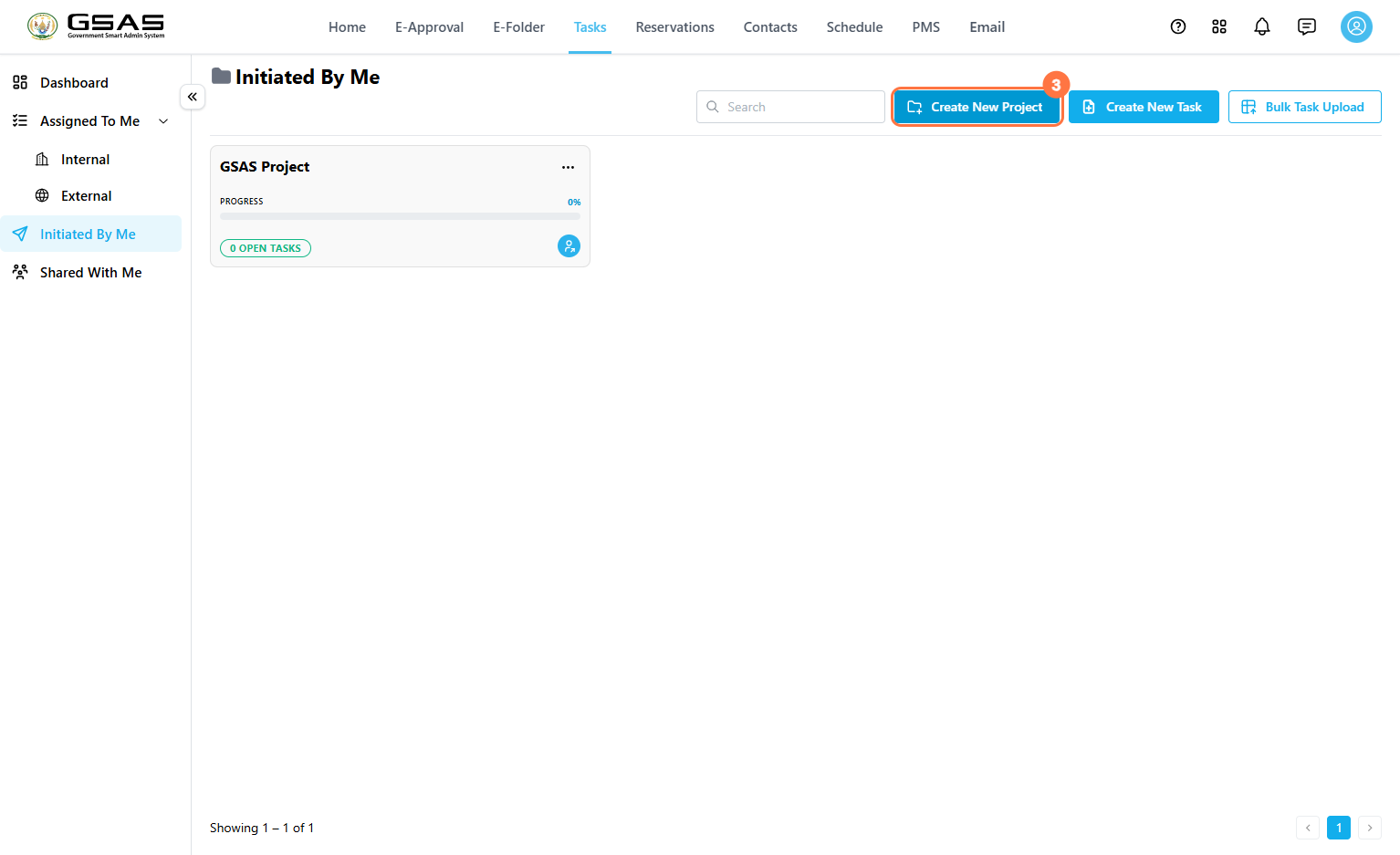
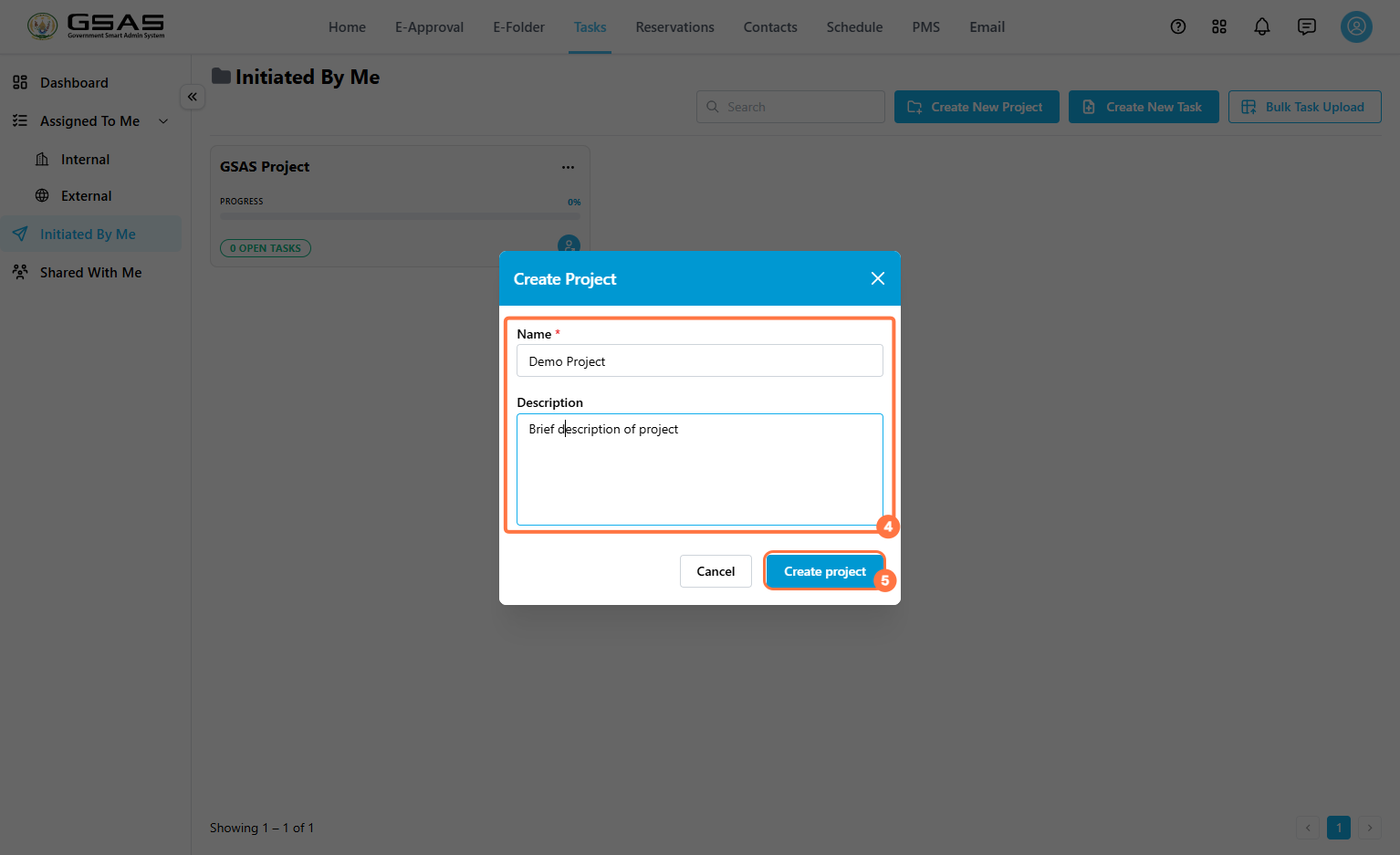
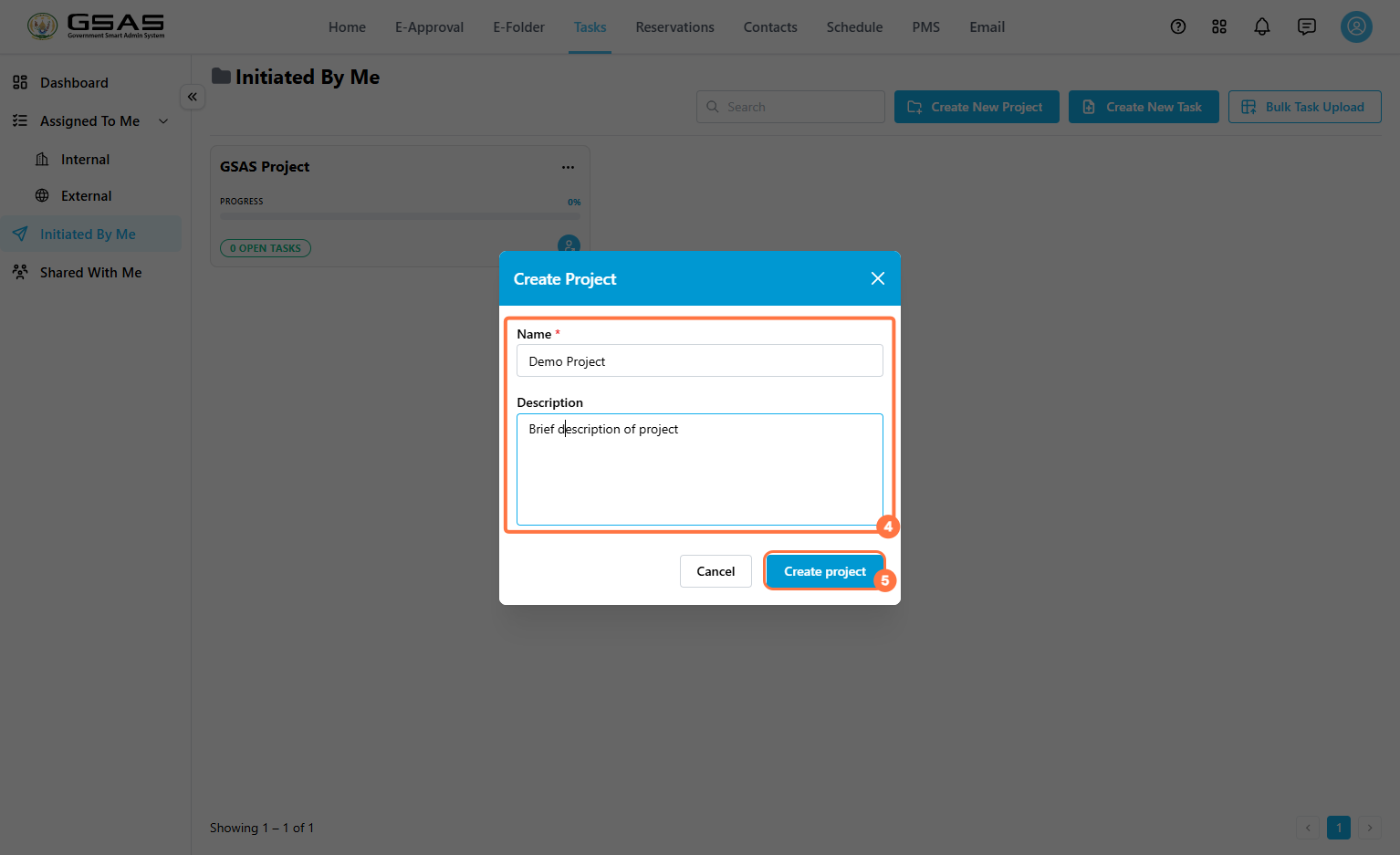
- Enter the project Name
. Enterand an optional Descriptionexplaining the project purpose..- Click Create project.
Create a Task
Step
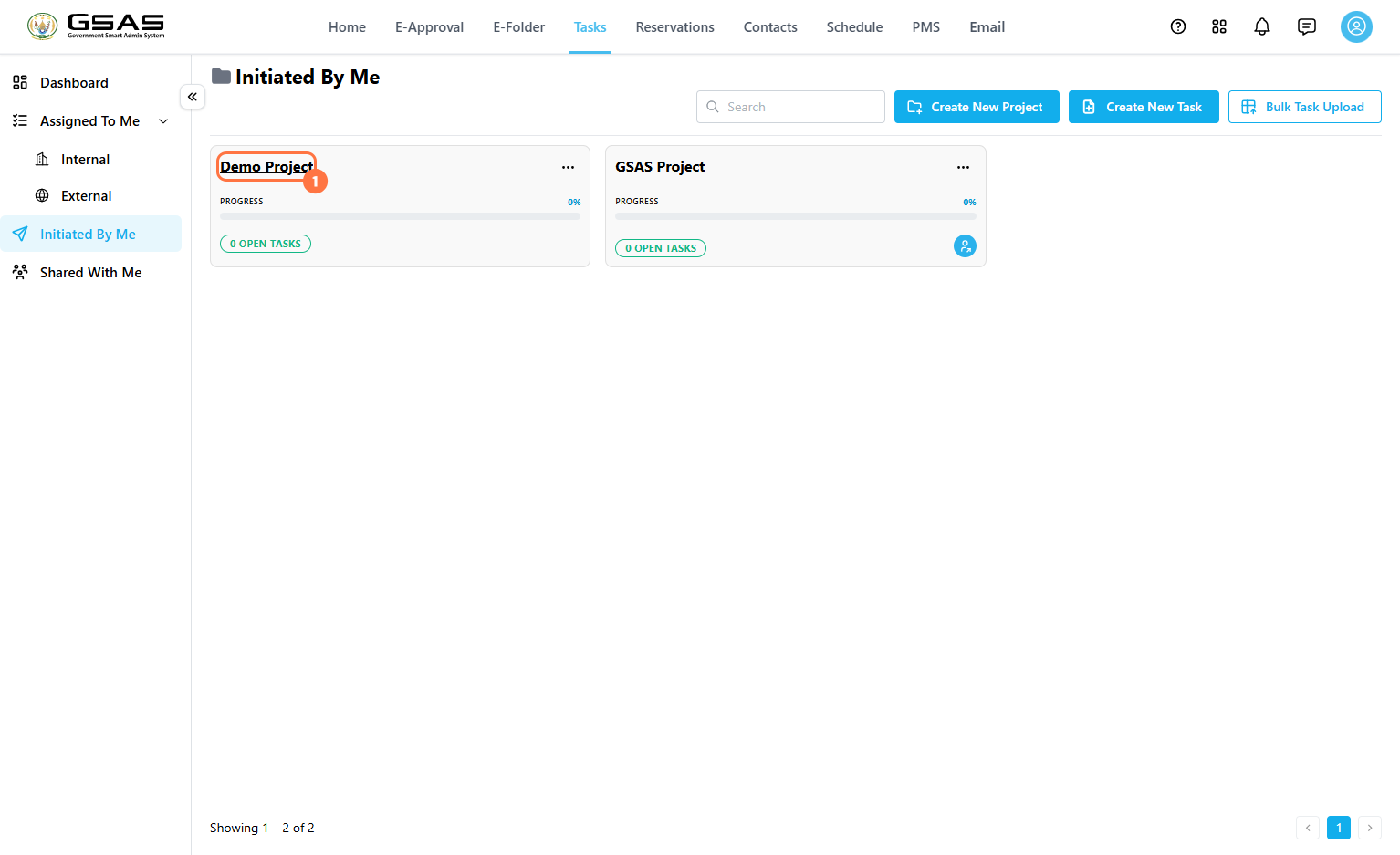
Open the Task Project Workspace
After creating the project, click on
Step 2
Fill in the Task Details
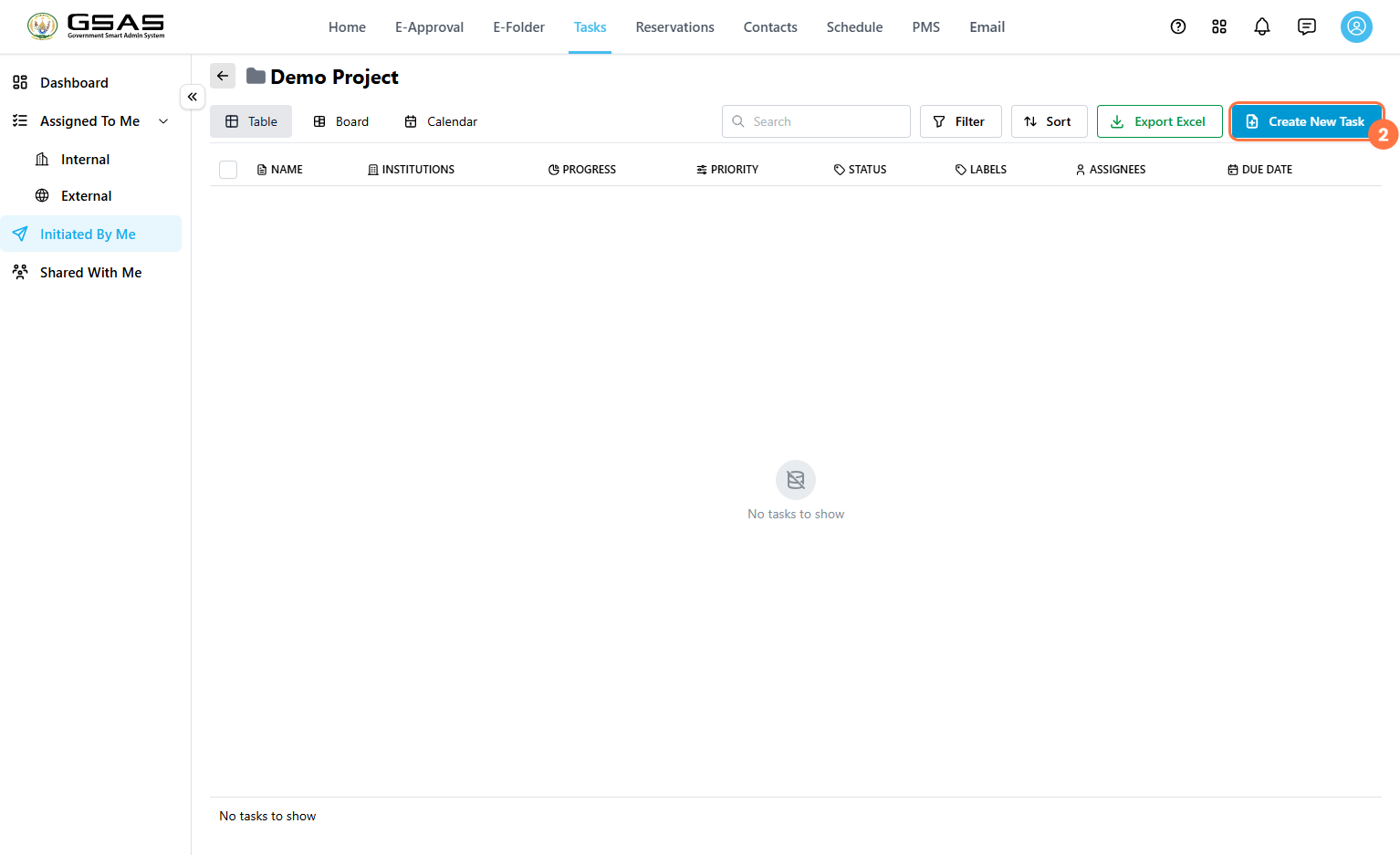
Inside the project workspace, click
3. Name and Status — enter the task Name.name, Theand set its Project NameStatus will(such beas auto-filled,Backlog, ifDoing, it'sReview, notor clickDone) to reflect where it stands in the field to choose one.
3. Status sets where the task currently stands in its workflow, such as Backlog (not started), Doing (in progress), Review, or Done.
The remaining fields are not mandatory.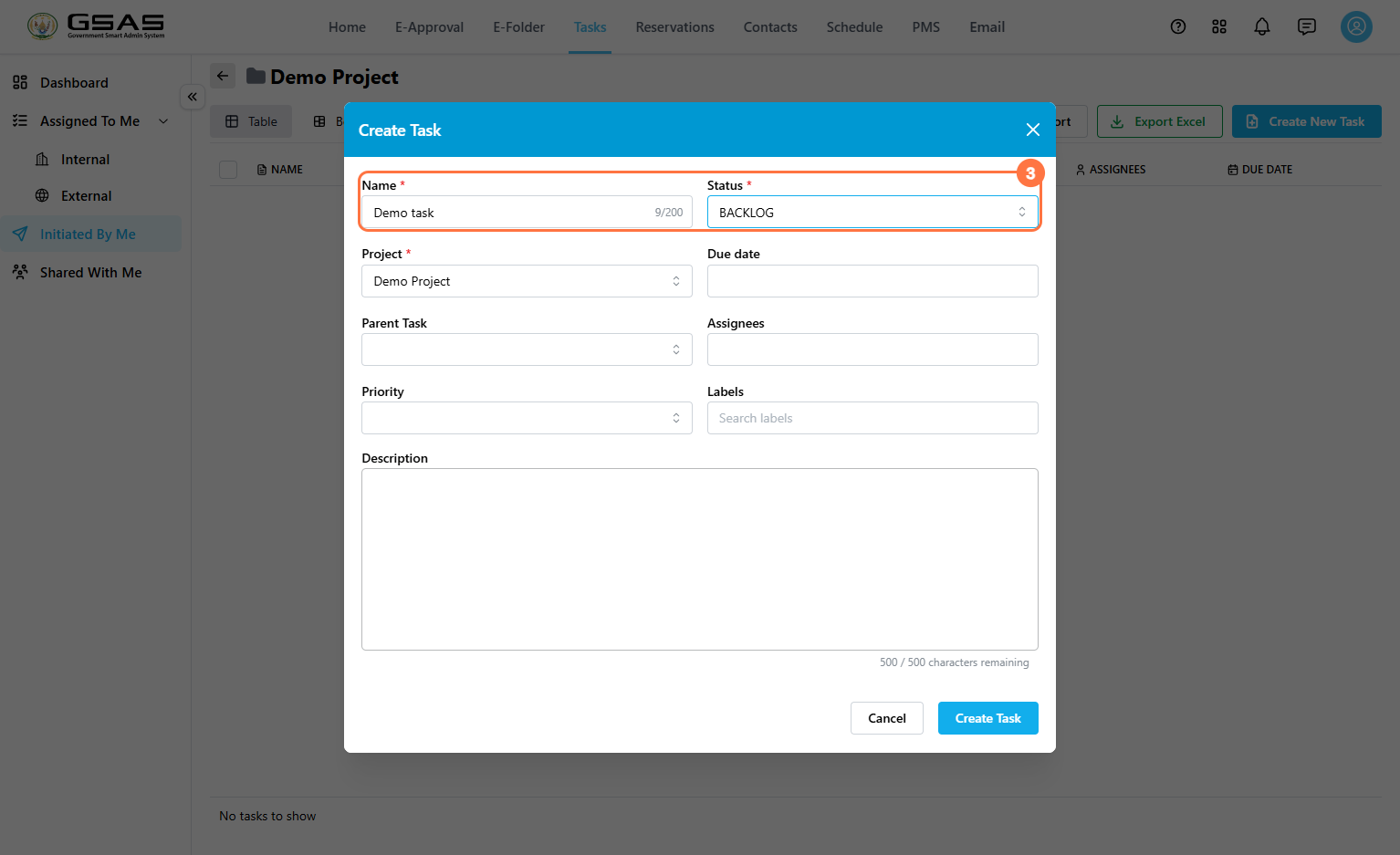 4. Project and Due date
 click— the Project field andauto-fills based on where you created the task; change it if needed. Click the Due date field to select a deadline from the calendar picker.calendar.
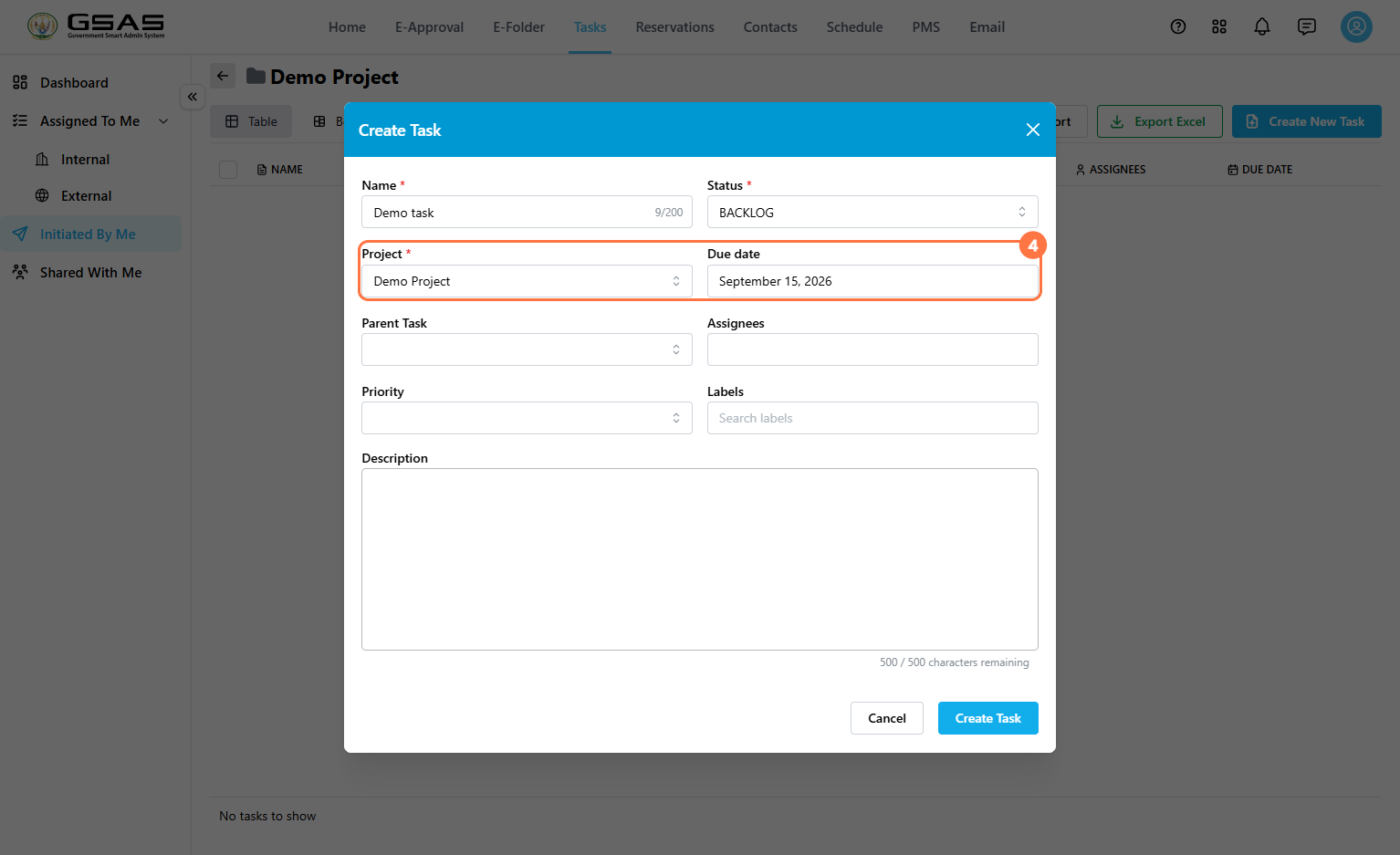 Only fields with the red asterisk beside their name are mandatory. This means all fields after project are optional.
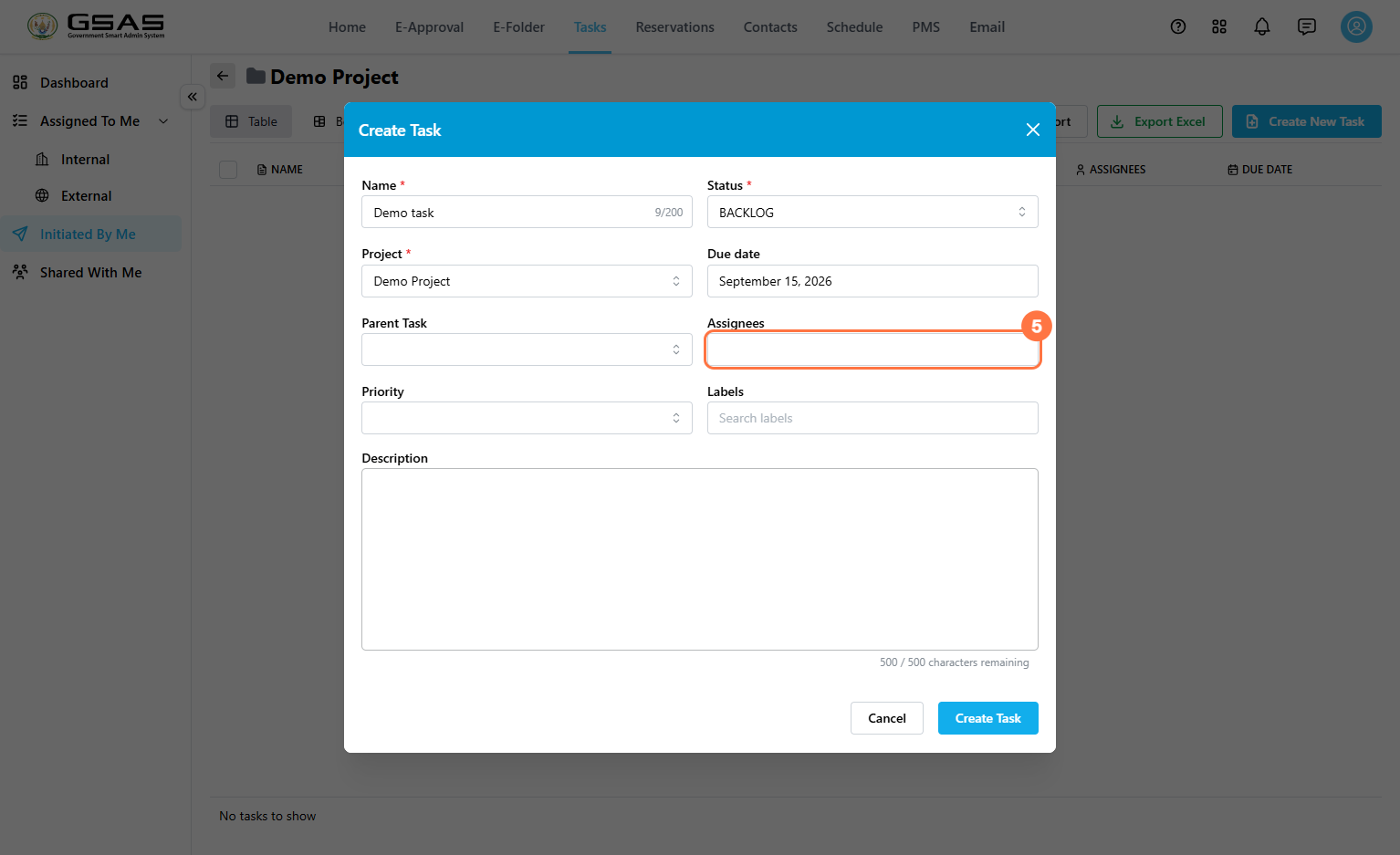
5. Parent Task useis thisavailable fieldin the same form, but only needs to be set when the task you're creating is a subtask of an existing task.one. SelectingLeave athis parentfield blank otherwise.
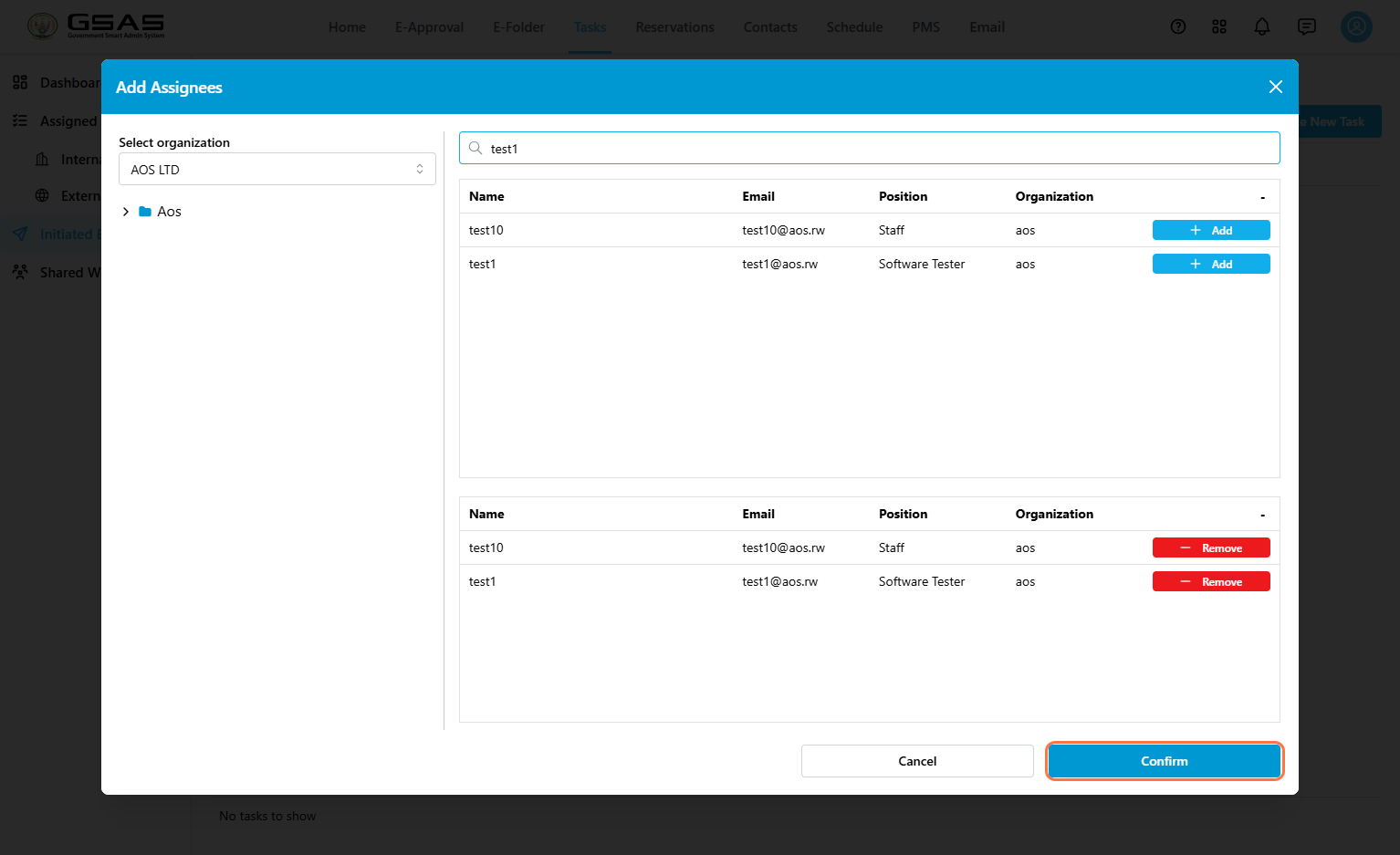
5. Assignees — click the Assignees field to open the Add Assignees window.
 5.1 Select the organization.
5.2 Search for the user.
5.3 Click Add next to their name.
5.1 Select the organization.
5.2 Search for the user.
5.3 Click Add next to their name.
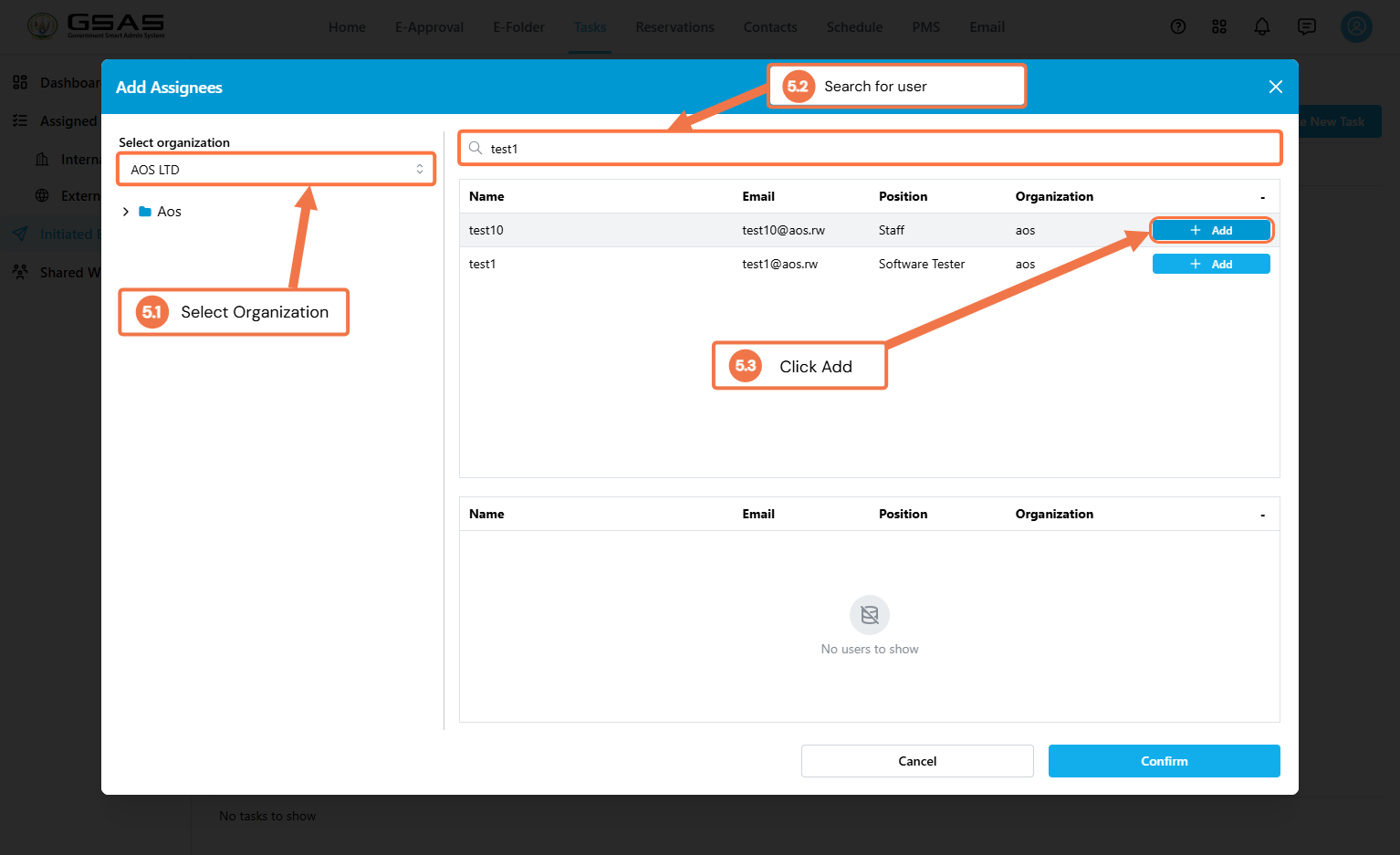 Review the selected users, then click Confirm.
 6. Priority sets how urgent the task
 nestsis: thisHigh, taskMedium, underneathor it,Low. soIt its progress rolls upfeeds into the largerPriority taskBreakdown rather than standingchart on its own. Leave this blank if the task doesn't belong under another one.
6.7. Labels help you group related tasks and easily find them later through filtering. Select an existing label or click Create new label to add one.
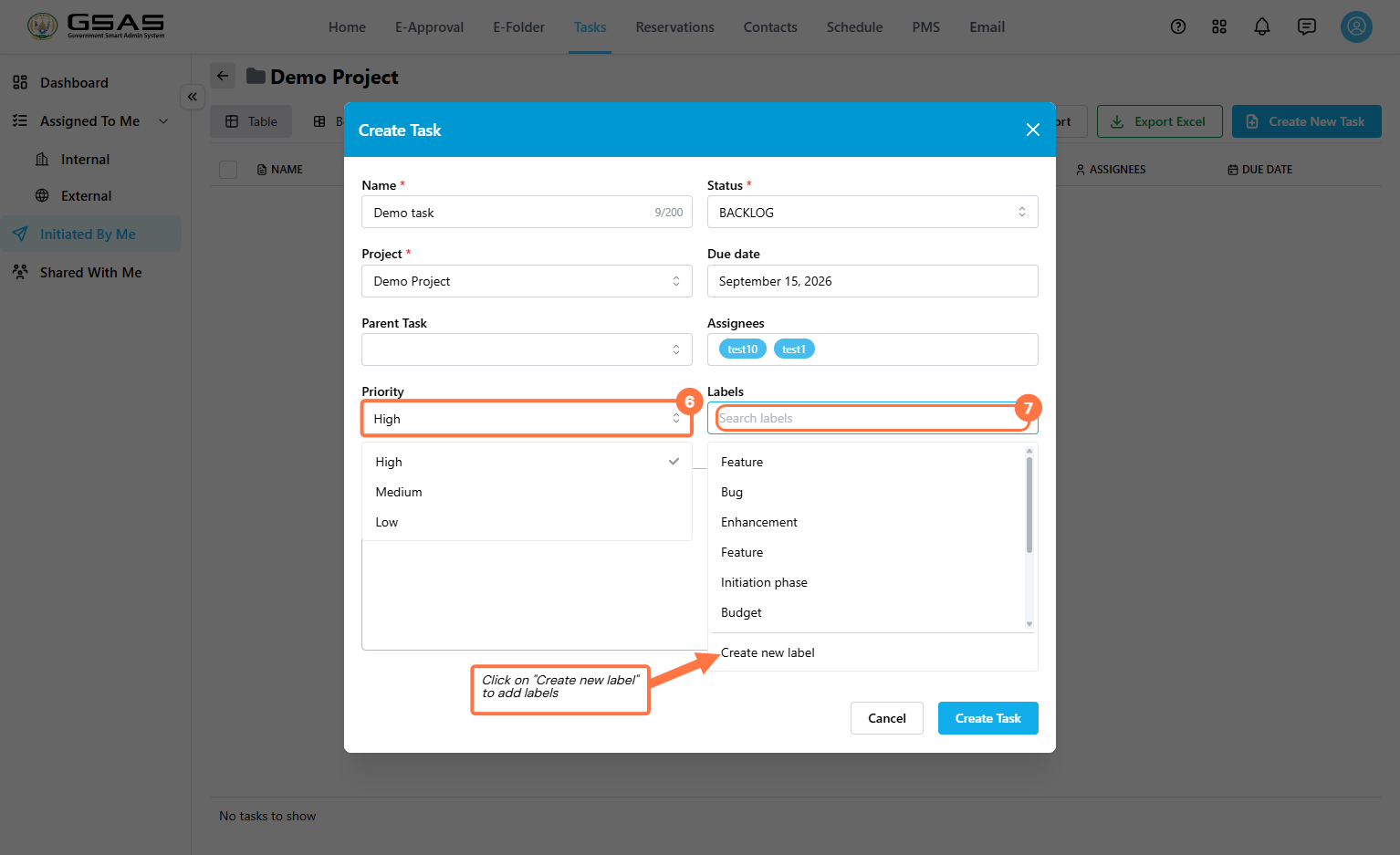
7.8. PriorityDescription sets— howenter urgent the task is: High, Medium, or Low. It feeds directly into the Priority Breakdown chart on the dashboard, so managers can spot how much urgent work is on the board at a glance.
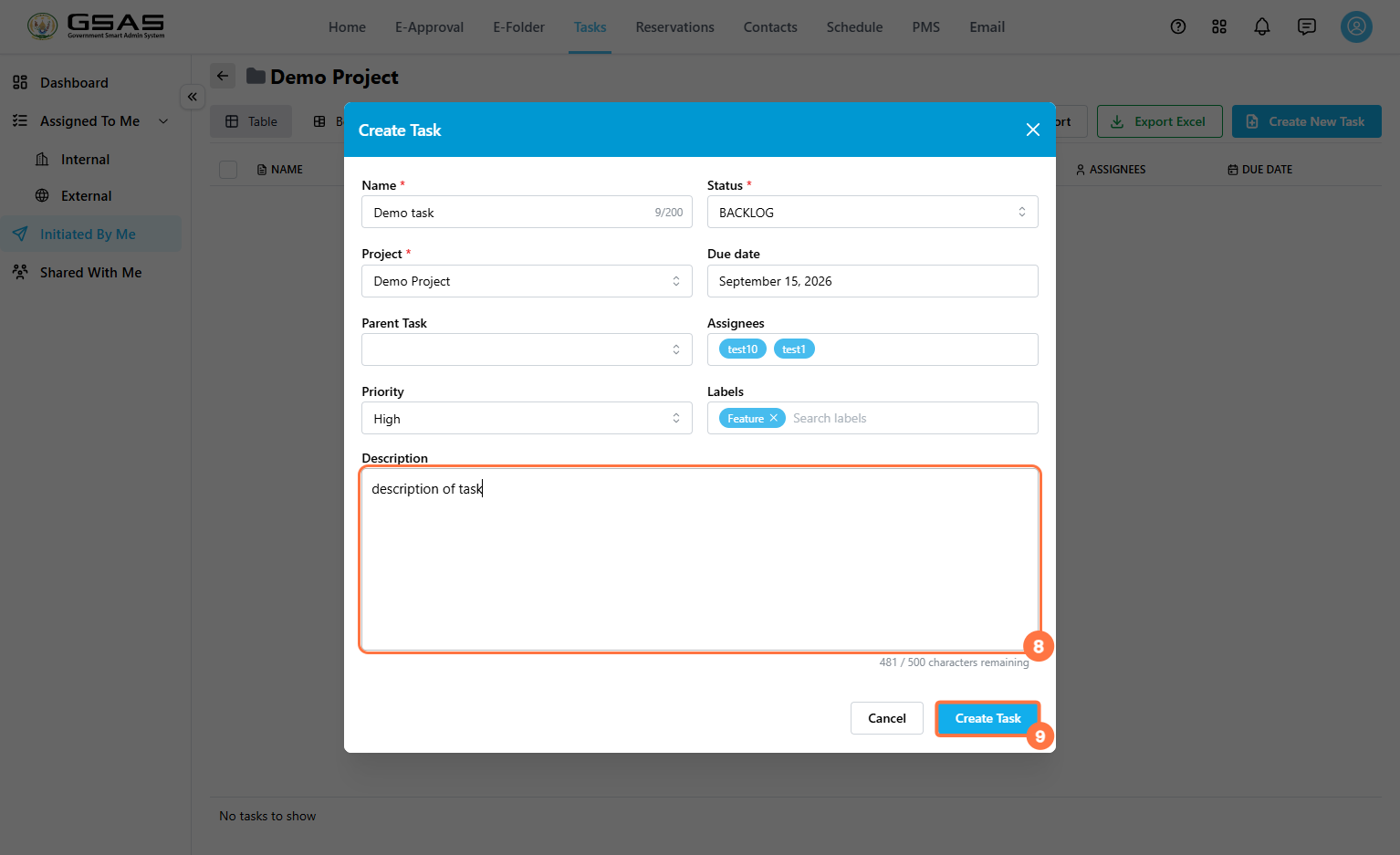
Enter a short,an optional Descriptiondescription explaining what needs to be done.
StepOnce 3
Add Assignees
Click the Assignees field.
Select the relevant organization, if needed.
Search for the user you want to assign.
Click Add next to each user.
Review the selected users, then click Confirm.
Step 4
Save the Task
After completing the required fields,finished, click Create Task (9).
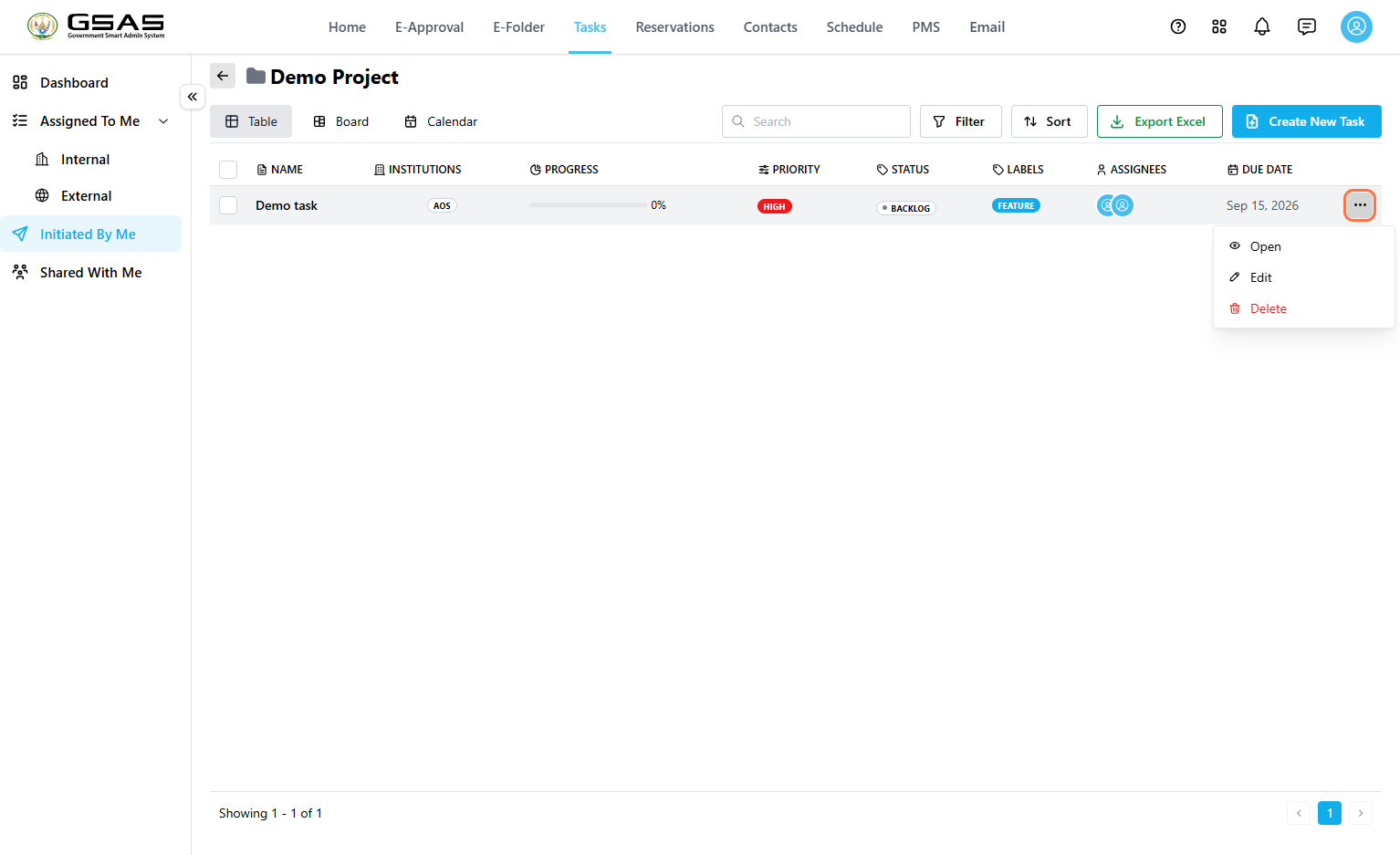
Additional:Open, EditEdit, or Delete a Task
Click the … icon on the task row to view additional options, such as editing to modify the details if the task or deleting the task, only visible to the task creator.
date, priority,date and assigneespriority when creating the task.
Related Pages
See Navigating Tasks to understand dashboard cards, charts, filters, and task categories.
See Responding to a Task to learn how assigned users open tasks and update their progress.
See Tracking Tasks for subtasks,more attachments,details progresson updates,how comments,to activity history,update and markingkeep taskstrack asof complete.your tasks.