# Managing Reservations and Facilities
---
If you manage one or more facilities, this page covers how to review incoming reservation requests and how to update a facility's settings. You can only see these options if you've been assigned as a facility manager.
### Approving or Rejecting a Reservation
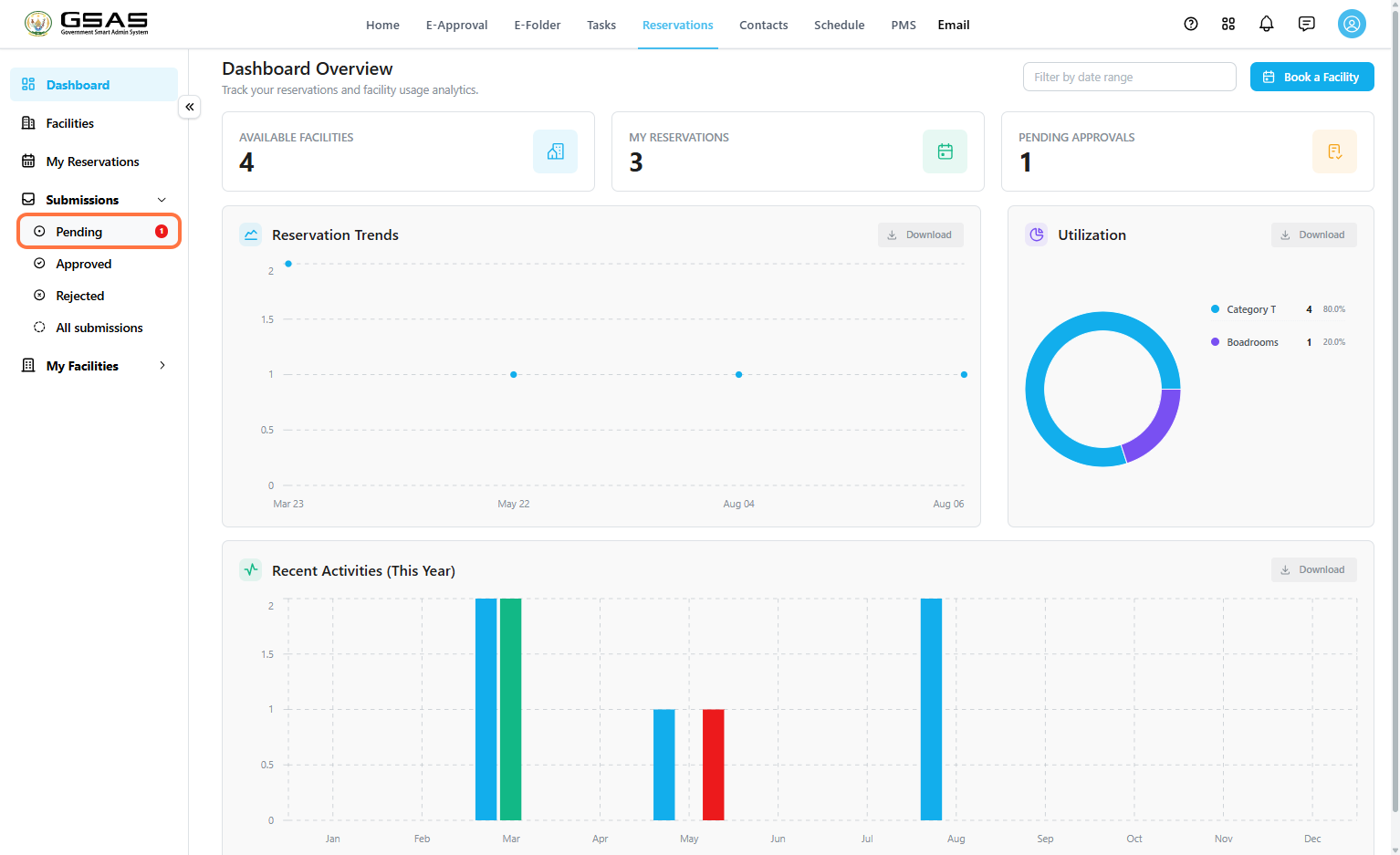
Go to **Reservations → Submissions → Pending** to see reservation requests waiting on your review. You can also check **Approved**, **Rejected**, or **All submissions** for a full history.
[](https://docs.smartadmin.rw/uploads/images/gallery/2026-08/h2Cimage.png)
Step 1
Review the Request
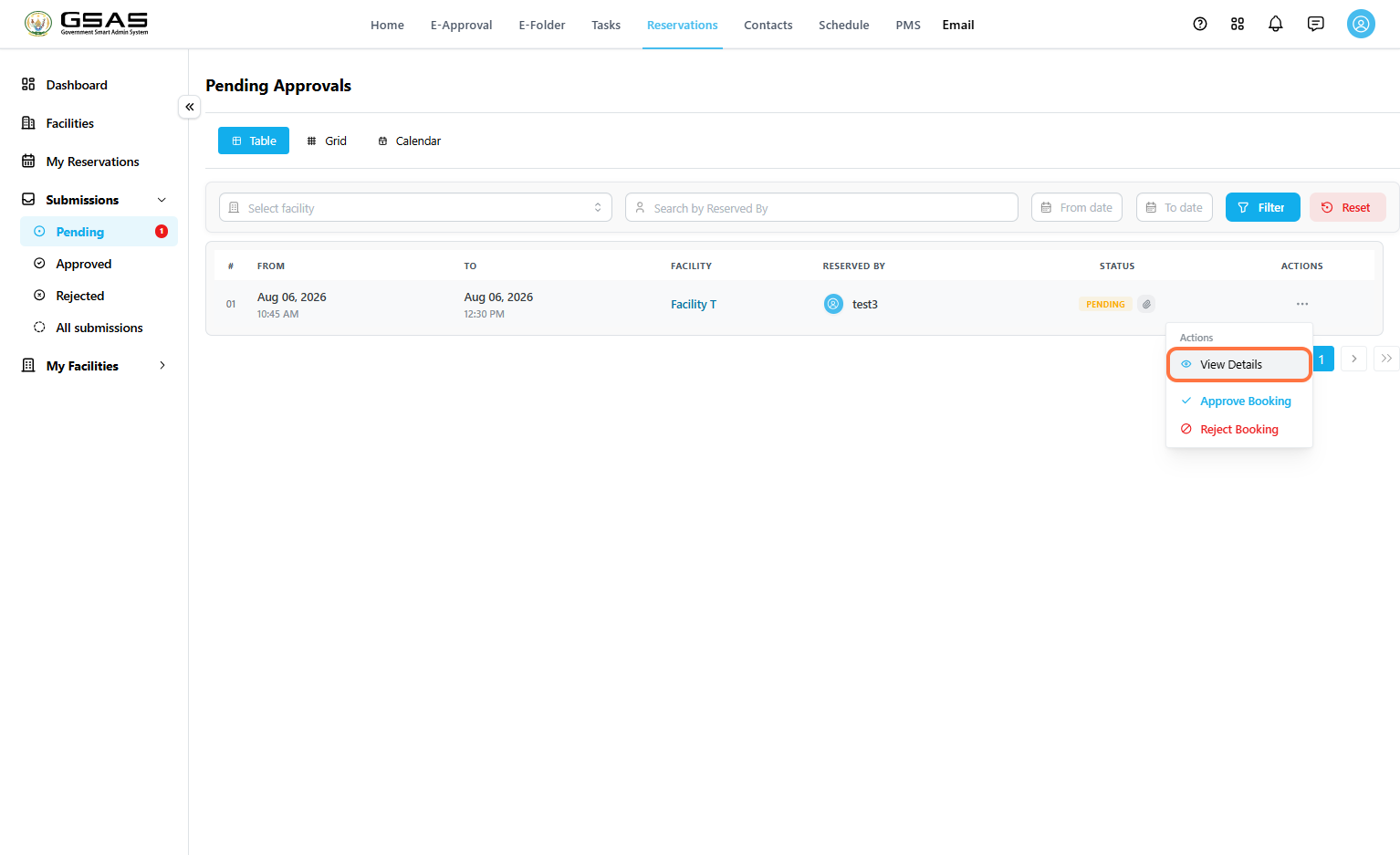
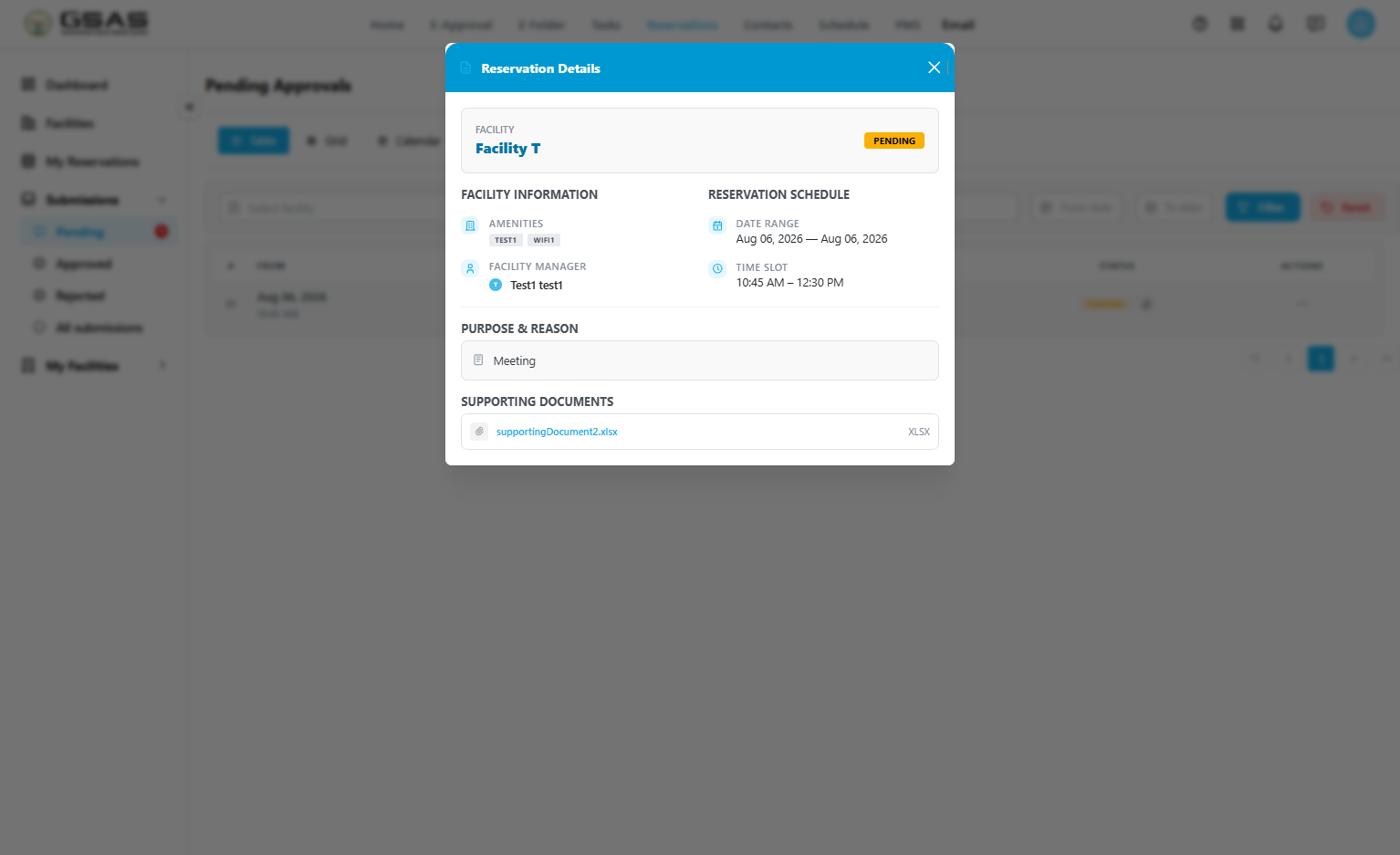
Each row shows who reserved the facility and the current status. Click the **…** icon under **Actions**, then select **View Details** to see the full reservation, including the requested schedule, reason, and any supporting document.
[](https://docs.smartadmin.rw/uploads/images/gallery/2026-08/iwNimage.png)
[](https://docs.smartadmin.rw/uploads/images/gallery/2026-08/oLaimage.png)
Step 2
Approve or Reject
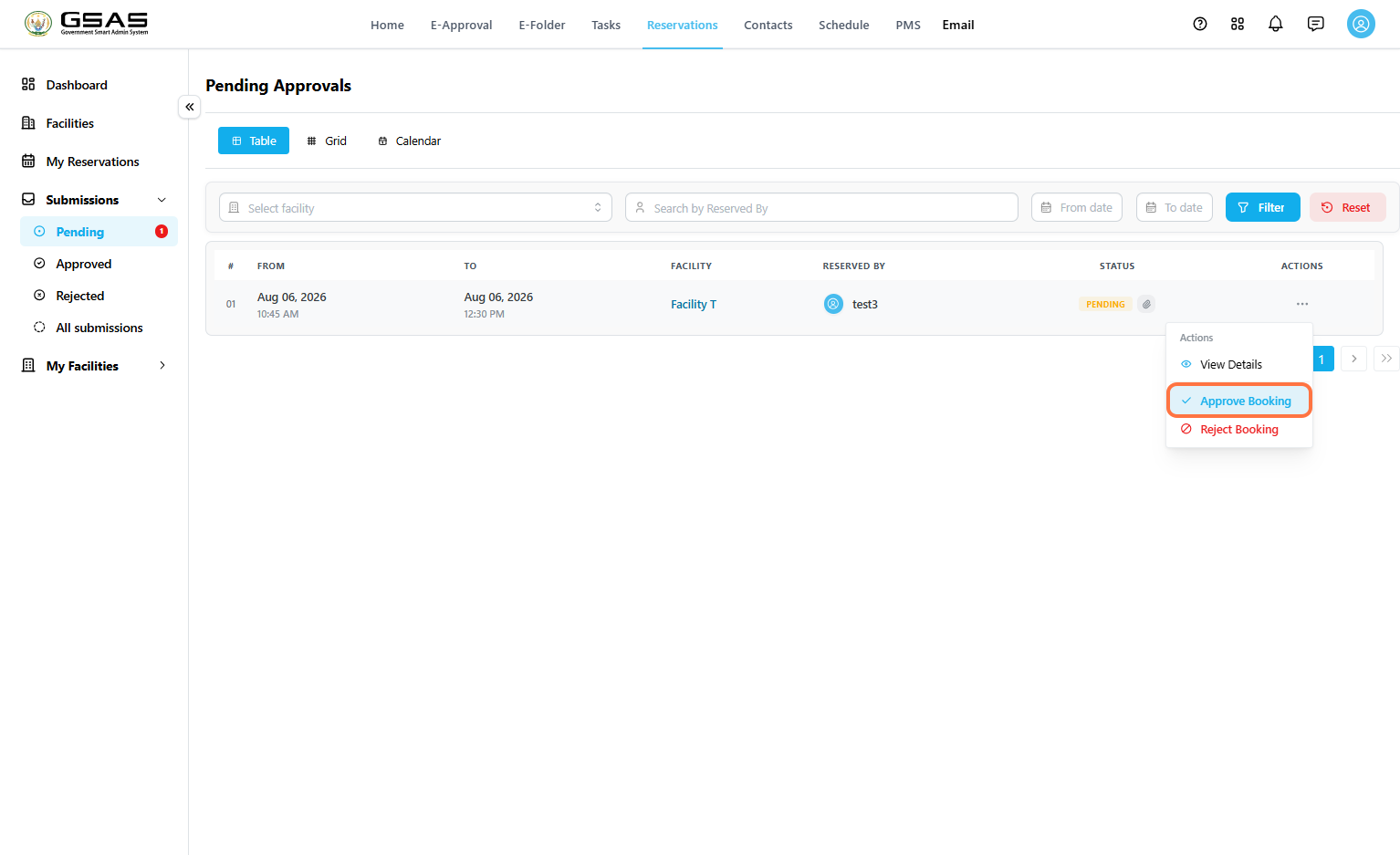
From the same **Actions** menu, select **Approve Booking** or **Reject Booking**.
[](https://docs.smartadmin.rw/uploads/images/gallery/2026-08/eWbimage.png)
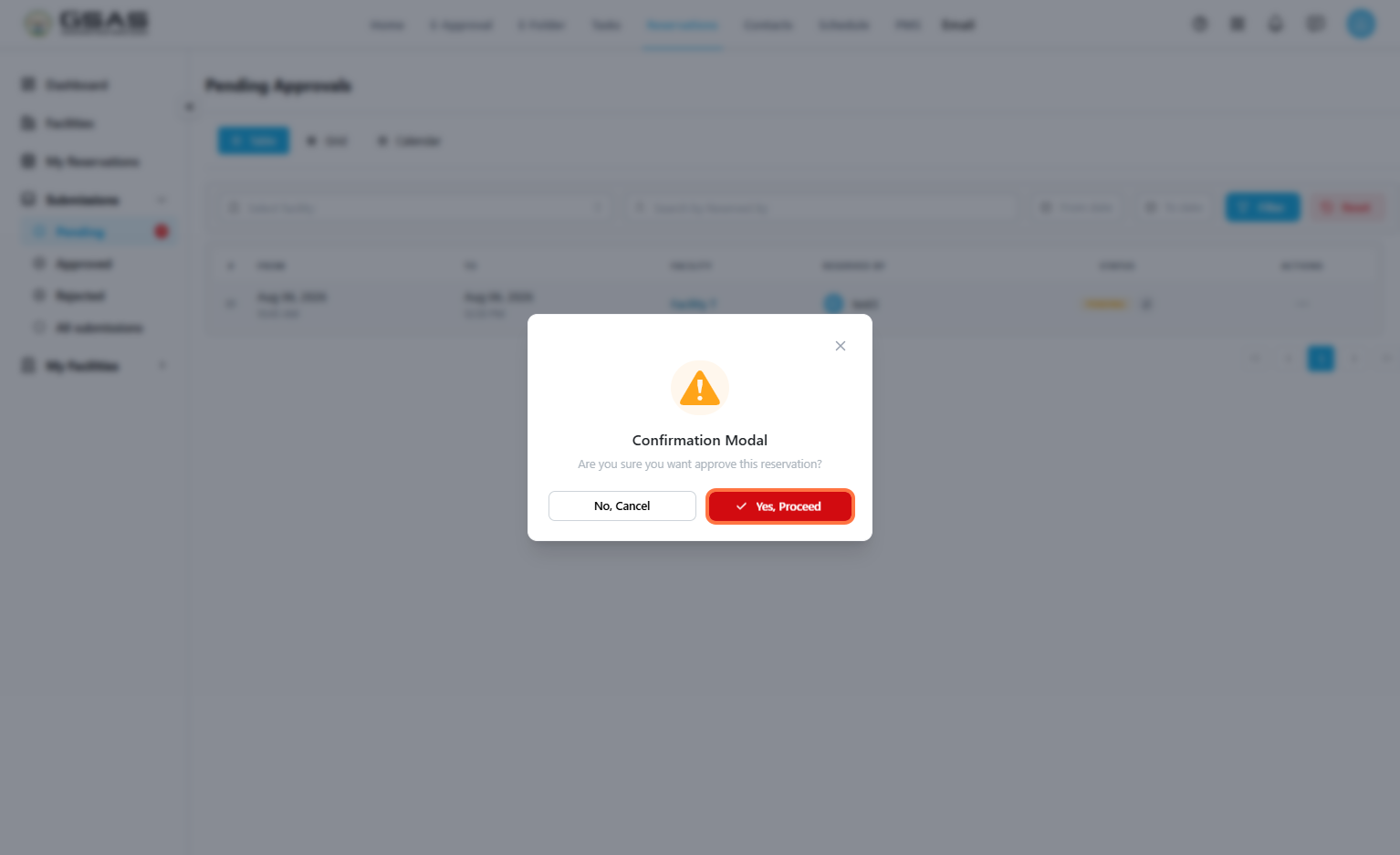
A confirmation window appears before the action is finalized. Click **Yes, Proceed** to confirm, or **No, Cancel** to back out.
[](https://docs.smartadmin.rw/uploads/images/gallery/2026-08/3NJimage.png)
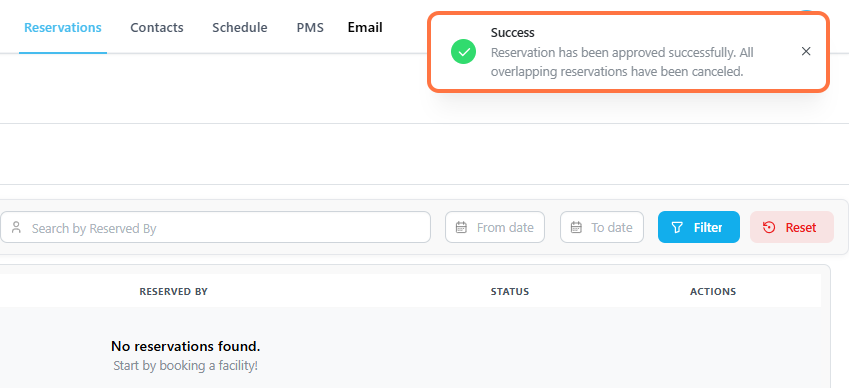
**Note:** Approving a reservation automatically cancels any other pending reservation that overlaps with the same facility and time slot. Double-check the schedule before approving if multiple requests are waiting on the same booking window.
[](https://docs.smartadmin.rw/uploads/images/gallery/2026-08/d7820626-d6f8-4596-a843-df7f56c22a76.png)
---
### Managing a Facility
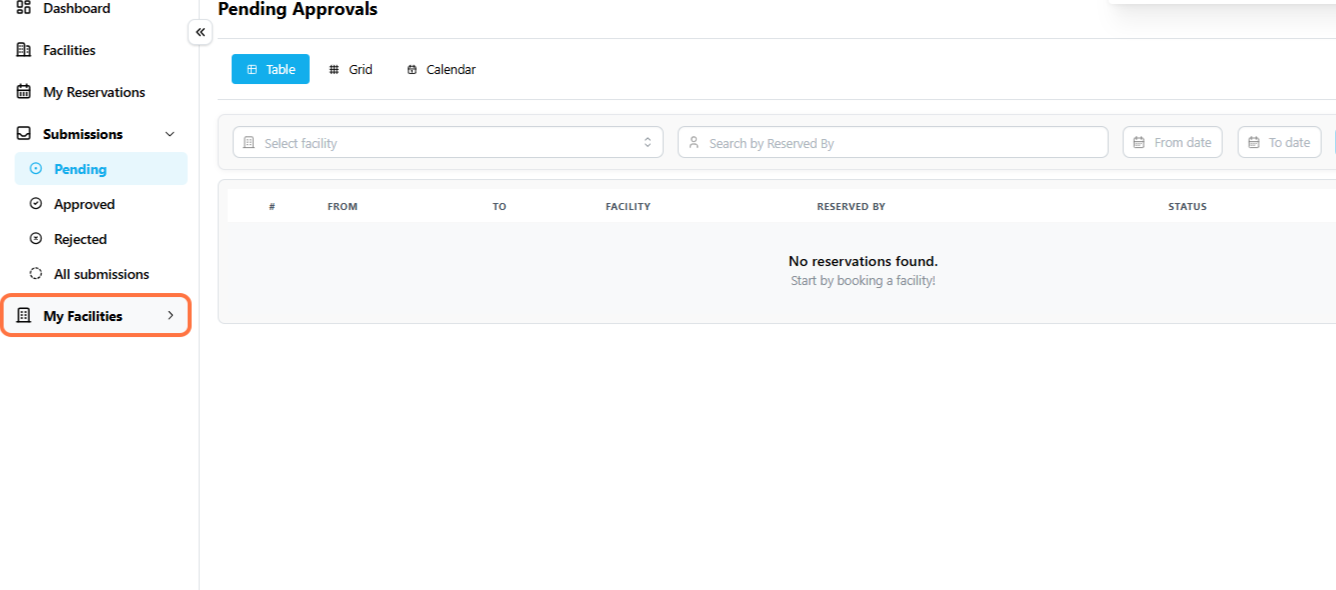
Go to **Reservations → My Facilities** to see the facilities you're responsible for.
[](https://docs.smartadmin.rw/uploads/images/gallery/2026-08/df4237c7-ca9d-48c8-bb25-ea2a2ca9c141.png)
Step 1
Open Facility Actions
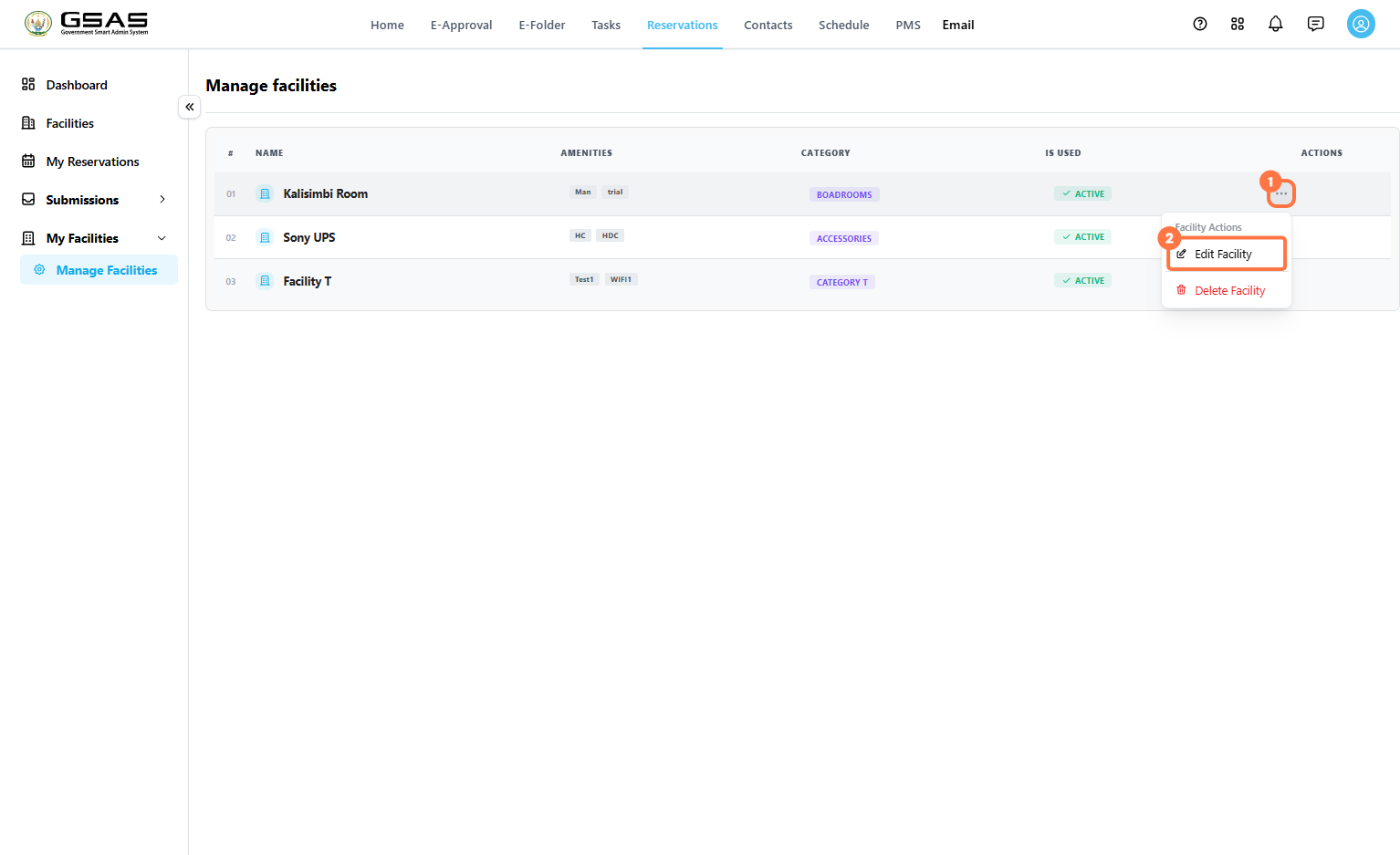
Click the **…** icon next to a facility, then select **Edit Facility** to change its settings, (or **Delete Facility** to remove it entirely.)
[](https://docs.smartadmin.rw/uploads/images/gallery/2026-08/j54image.png)
Step 2
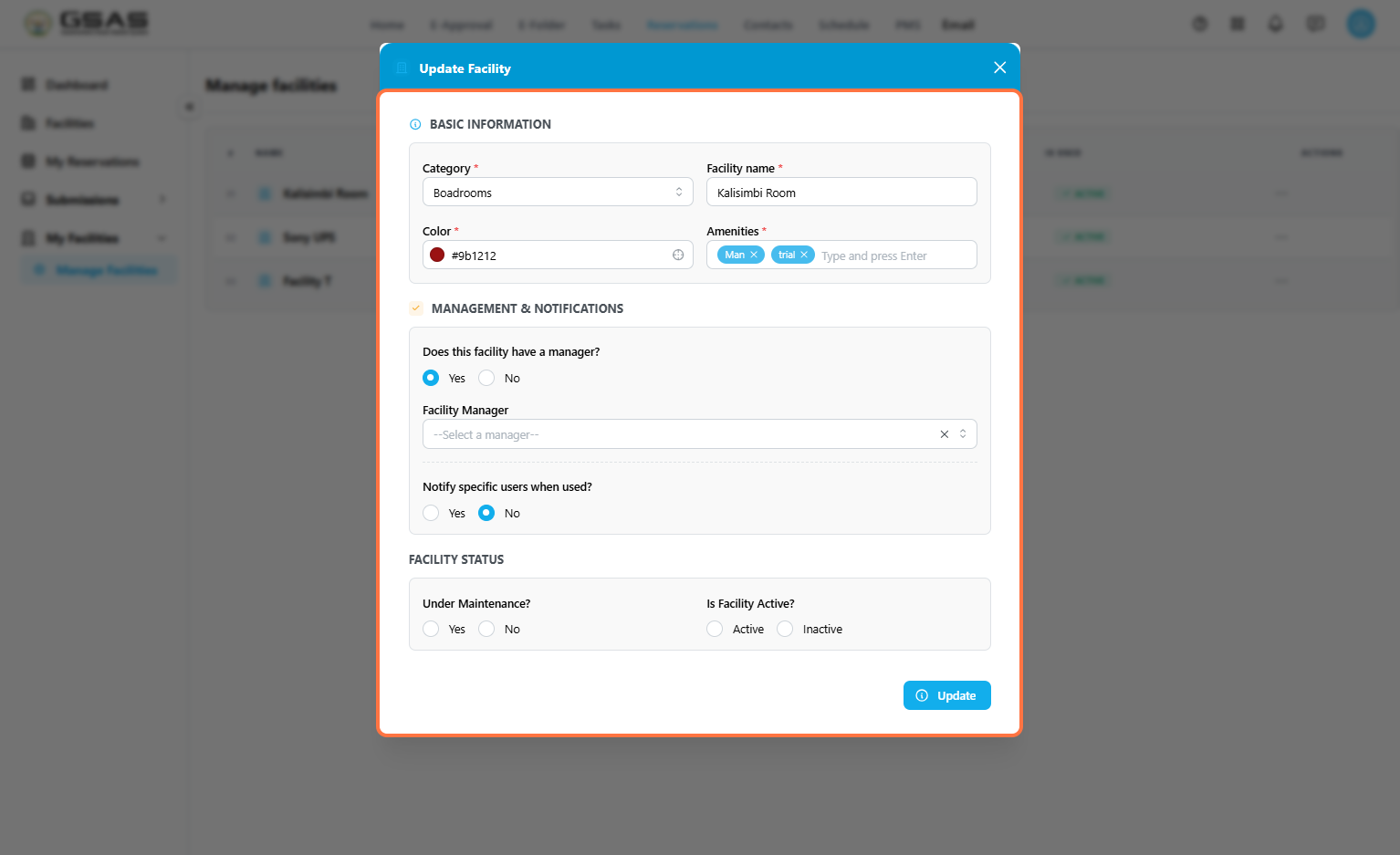
Update Basic Information
- If necessary, edit the facility's **Category** and **Facility name**, along with a **Color** used to identify it on the calendar.
- Add or remove **Amenities** to help people know what to expect when booking it.
- **Does this facility have a manager?** controls what manager is responsible for the facility.
- **Notify specific users when used?** lets you send a notification to selected users every time the facility is booked.
Under **Facility Status**, set **Under Maintenance?** to **Yes** if the facility is temporarily out of use, and set **Is Facility Active?** to **Inactive** if it should no longer appear as bookable at all.
[](https://docs.smartadmin.rw/uploads/images/gallery/2026-08/kTtimage.png)
Click **Update** to save changes.