# Navigating Reservations
---
The Reservations module lets you book shared facilities, such as meeting rooms, boardrooms, and equipment, and keep track of your requests in one place.
### Sidebar Sections
The sidebar on the left gives you access to the main areas of the module. **Dashboard**, **Facilities**, and **My Reservations** are available to everyone. **Submissions** and **My Facilities** only appear if you manage one or more facilities, since they're used to review bookings and edit facility settings.
- **Dashboard** — an overview of facility availability and reservation activity.
- **Facilities** — browse the facilities available to book.
- **My Reservations** — view and track the bookings you've made.
- **Submissions** — review reservation requests made against facilities you manage.Facility Manager only
- **My Facilities** — edit or manage the facilities under your responsibility.Facility Manager only
---
### Reading the Dashboard
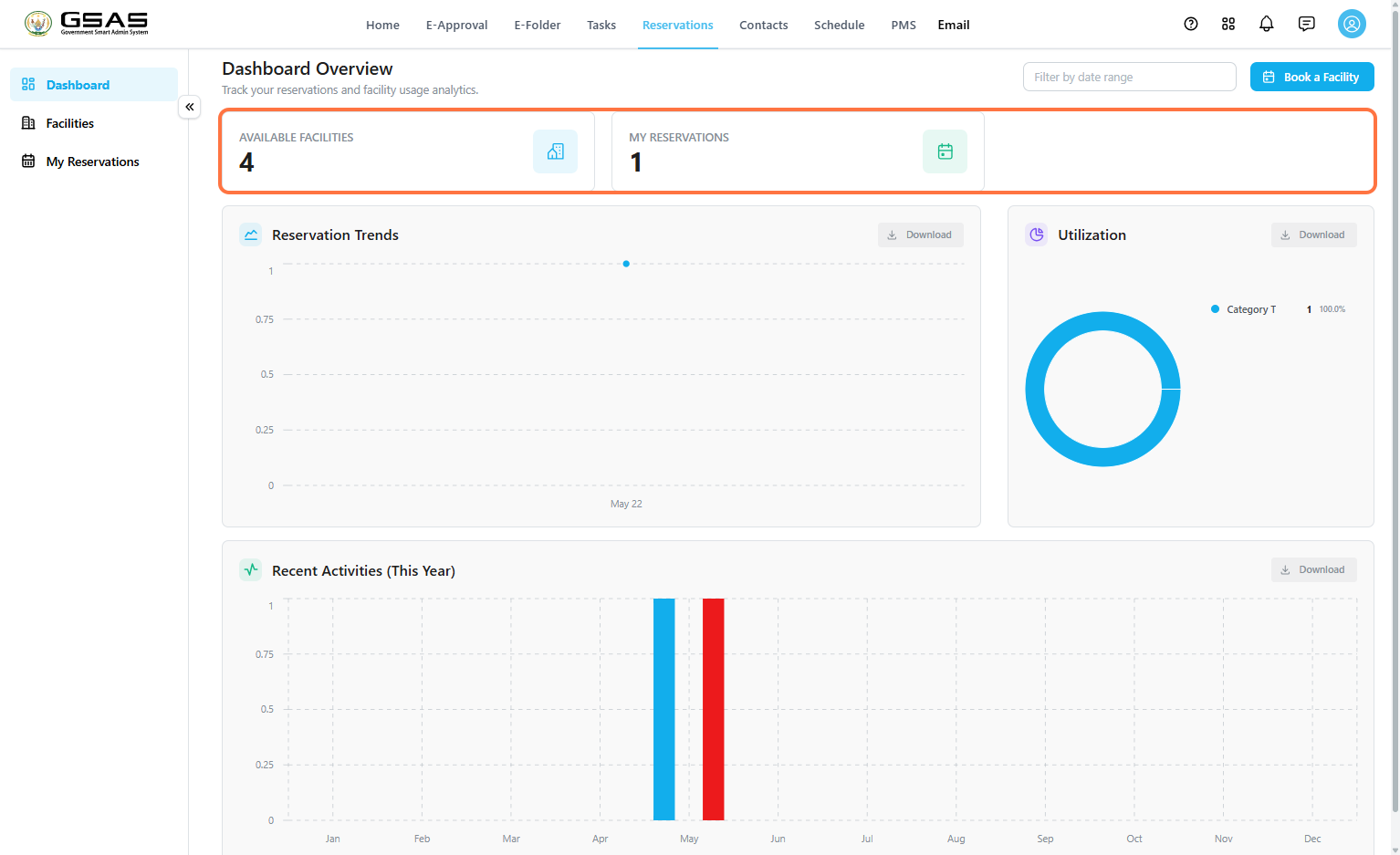
The Dashboard gives you a quick snapshot of facility availability and your own reservation activity. Use the **Filter by date range** field at the top to narrow the charts below to a specific period.
Two summary cards sit at the top of the page. **Available Facilities** shows how many facilities are currently bookable, and **My Reservations** shows how many bookings you personally have on record.
[](https://docs.smartadmin.rw/uploads/images/gallery/2026-08/3IAimage.png)
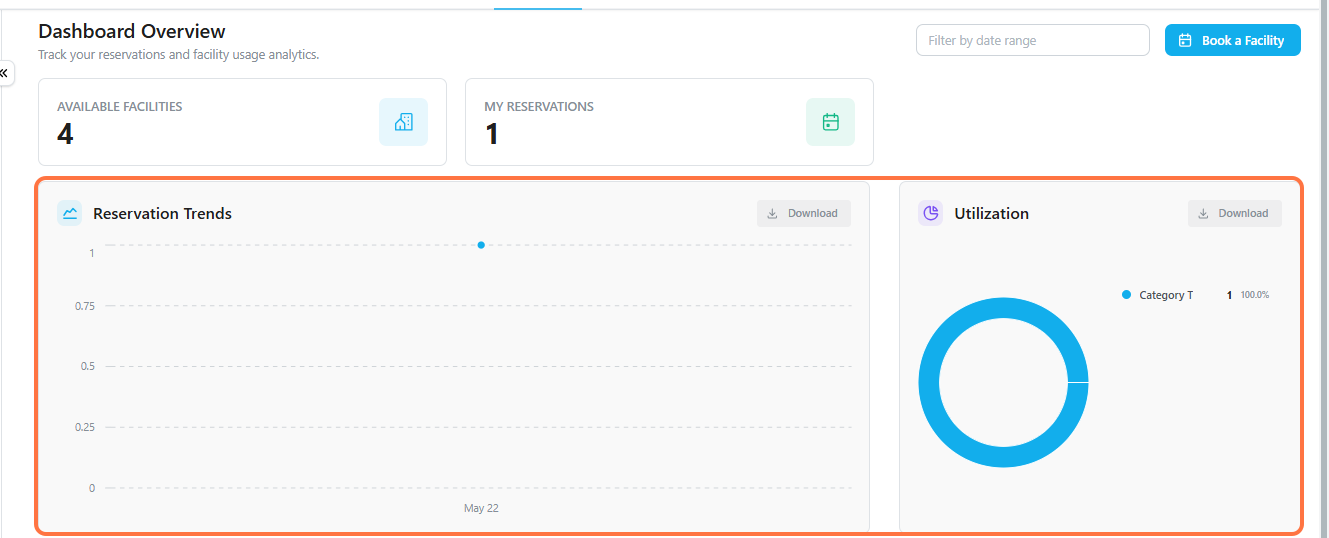
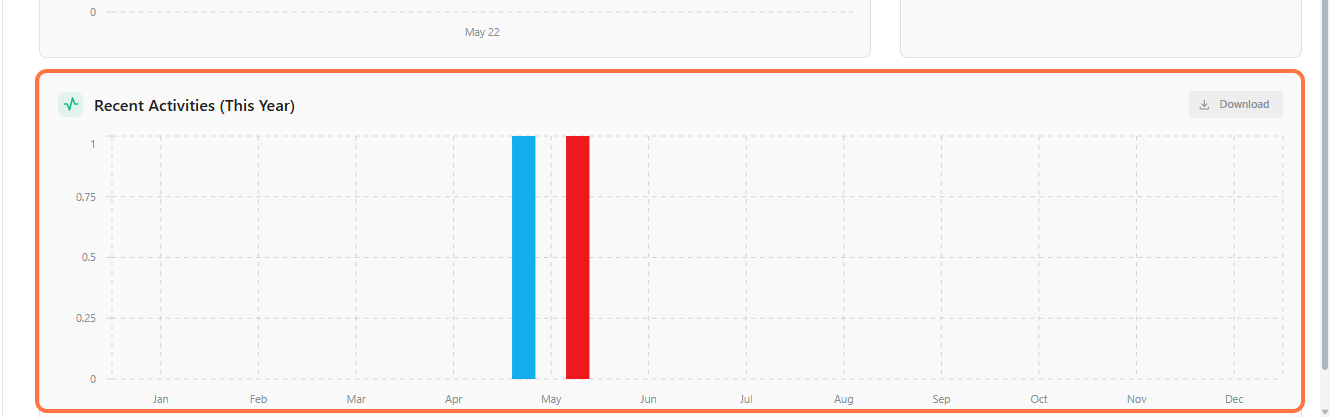
Below the summary cards, three charts break down activity in more detail.
[](https://docs.smartadmin.rw/uploads/images/gallery/2026-08/21d9c932-8740-41ed-97e6-f400830d284f.png)
[](https://docs.smartadmin.rw/uploads/images/gallery/2026-08/67f3c55c-52aa-404f-b128-69e9734dd823.png)
Chart
Shows
**Reservation Trends**
How many reservations have been made over time.
**Utilization**
Which facility categories are booked most often.
**Recent Activities**
A monthly breakdown of reservation activity for the current year.
Each chart has a **Download** option if you need to export the data. To start a new booking from anywhere on the dashboard, click **Book a Facility** in the top right.
---
If you manage a facility, see [**Managing Facilities and Reservations**](https://docs.smartadmin.rw/link/51#bkmrk-page-title) to learn how to review incoming reservation requests and edit facility details.