Managing Reservations and Facilities
If you manage one or more facilities, this page covers how to review incoming reservation requests and how to update a facility's settings. You can only see these options if you've been assigned as a facility manager.
Approving or Rejecting a Reservation
Go to Reservations → Submissions → Pending to see reservation requests waiting on your review. You can also check Approved, Rejected, or All submissions for a full history.

Step 1
Review the Request
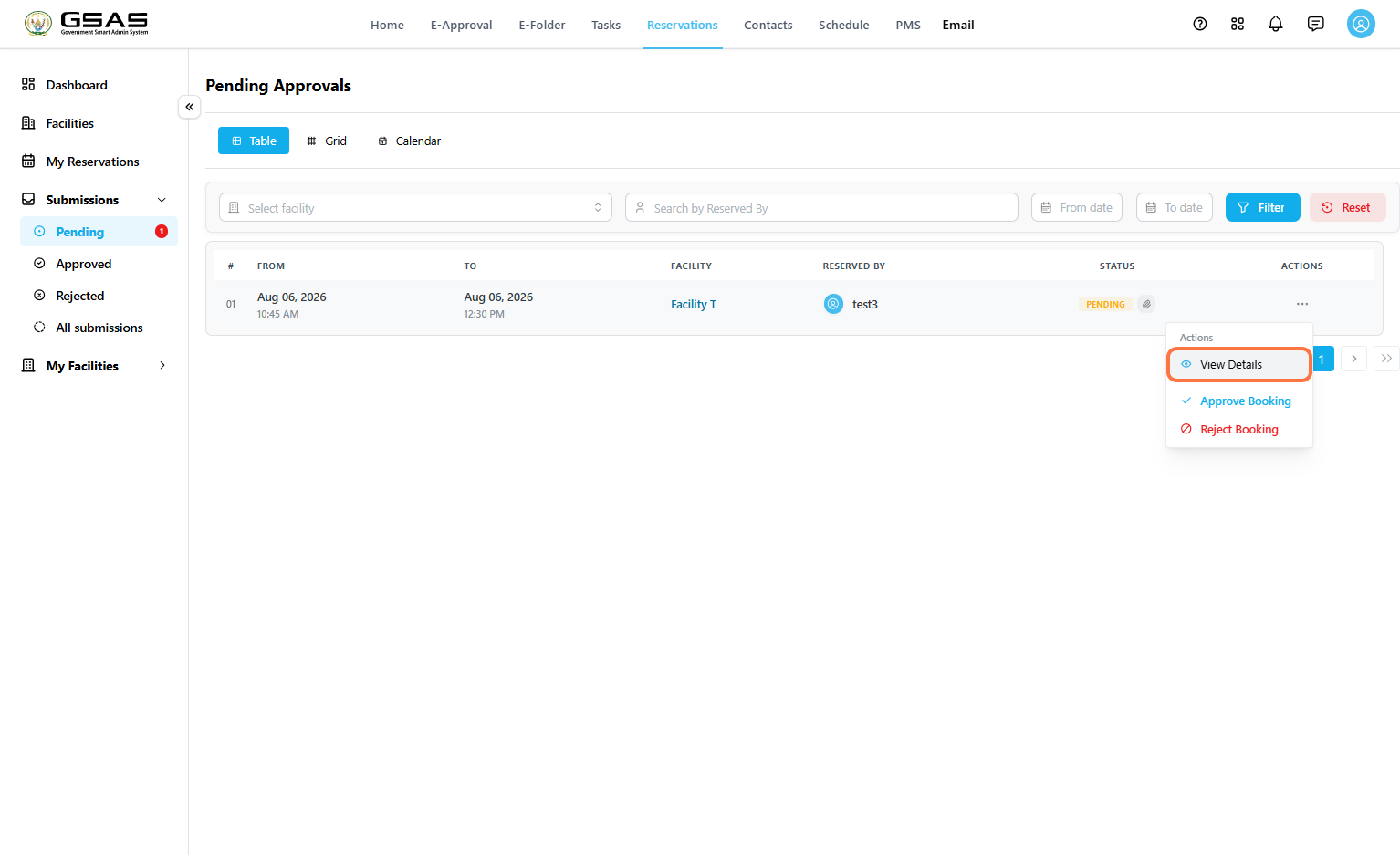
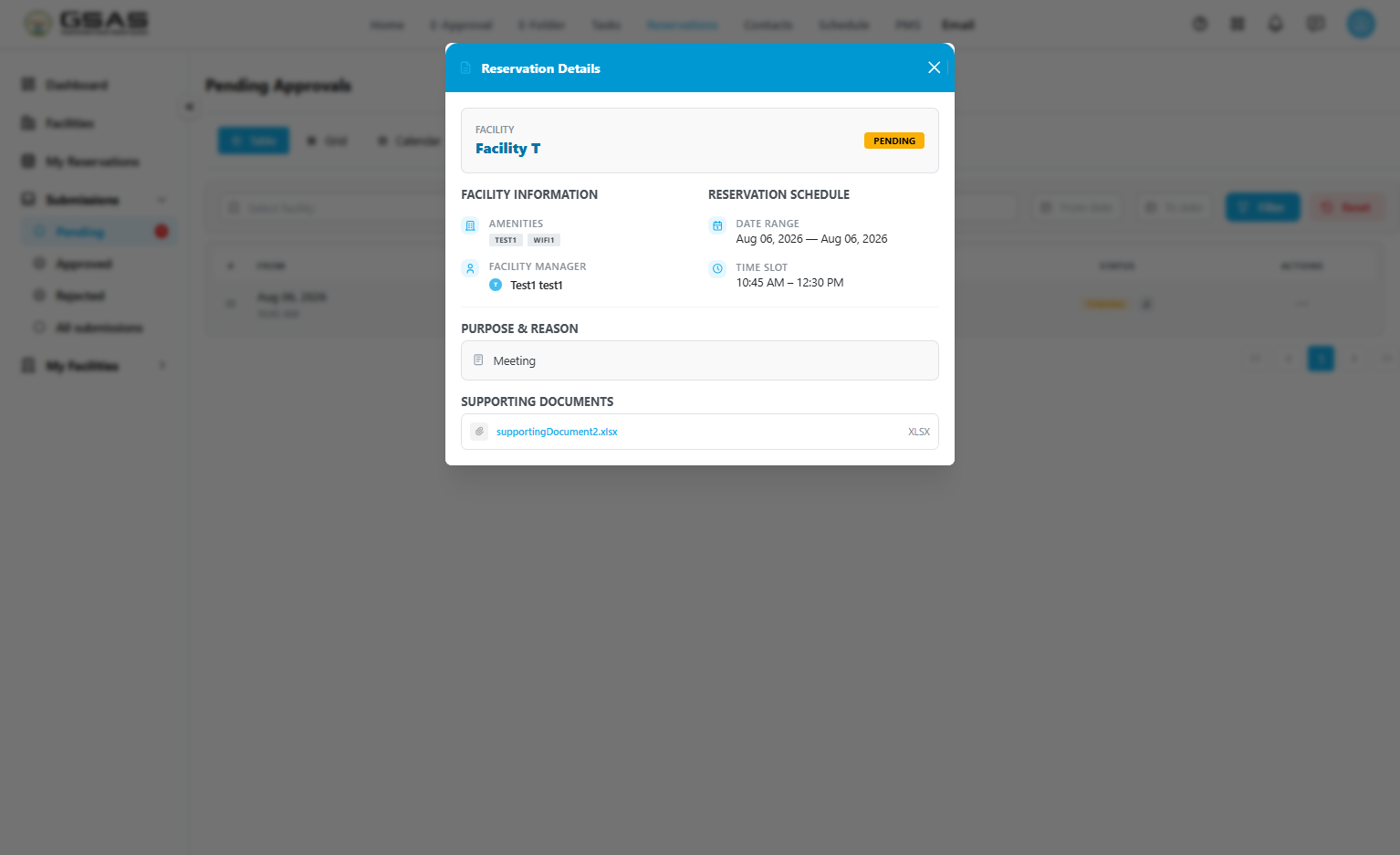
Each row shows who reserved the facility and the current status. Click the … icon under Actions, then select View Details to see the full reservation, including the requested schedule, reason, and any supporting document.
Step 2
Approve or Reject
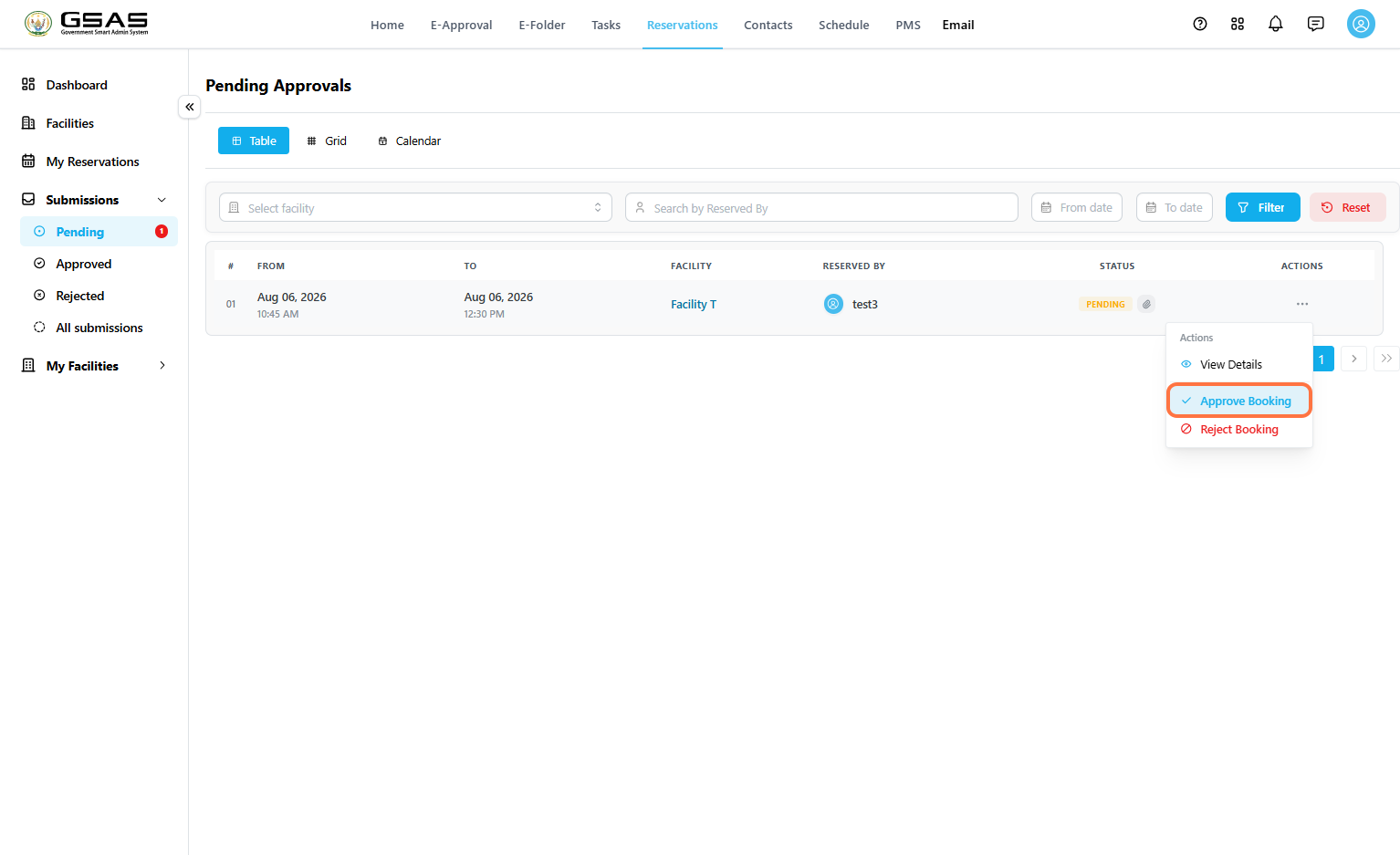
From the same Actions menu, select Approve Booking or Reject Booking.
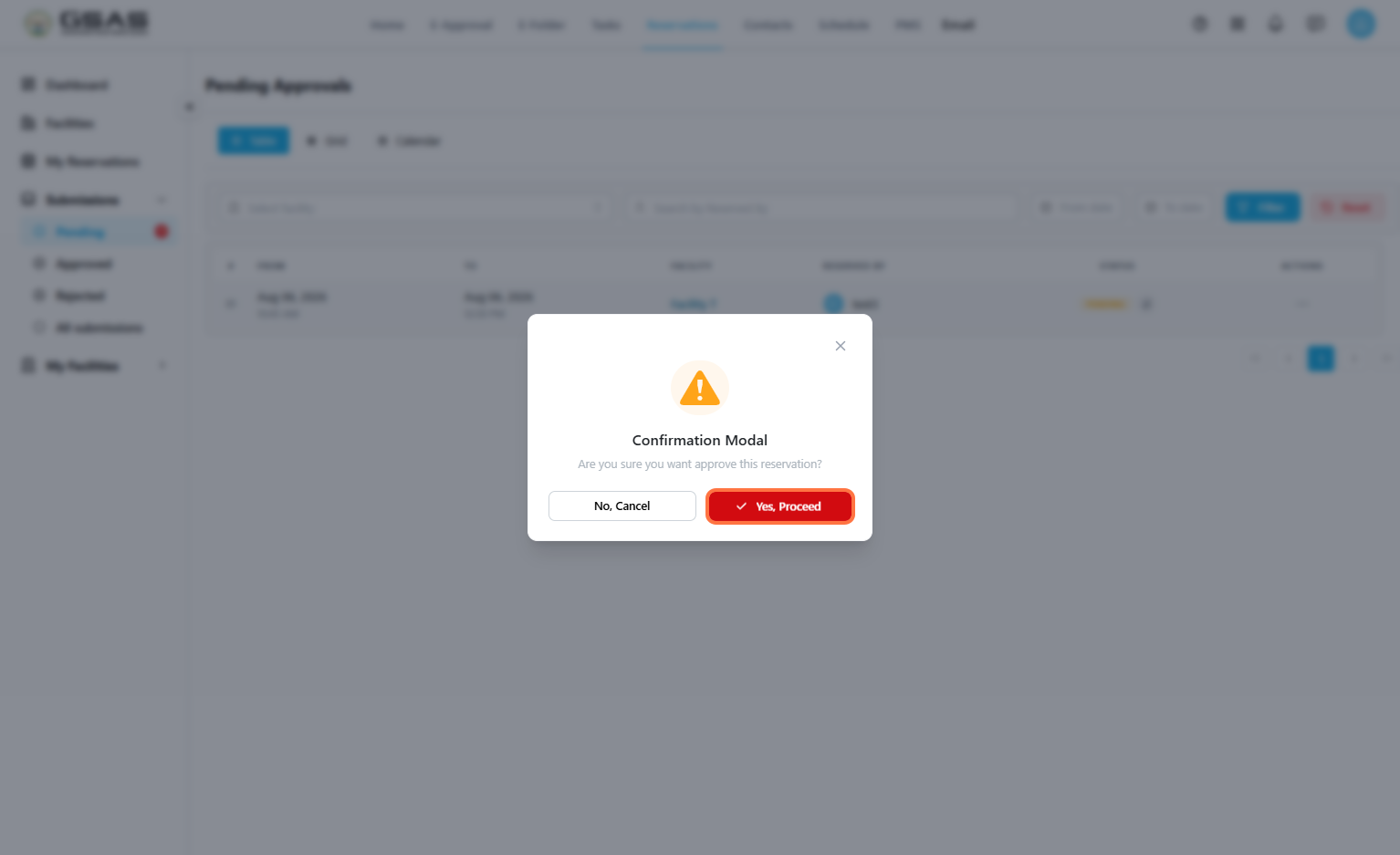
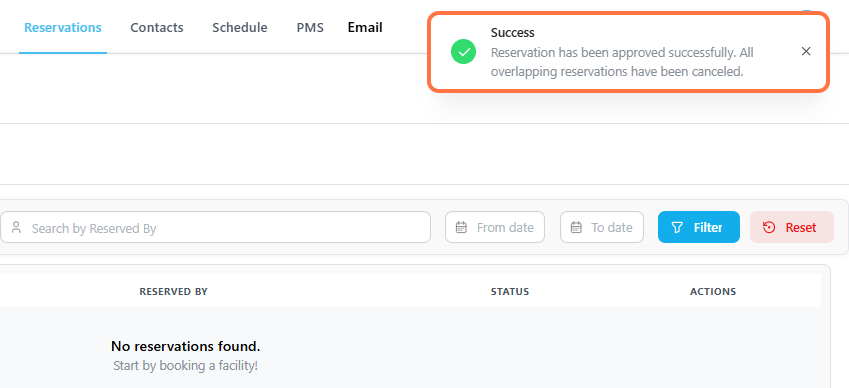
A confirmation window appears before the action is finalized. Click Yes, Proceed to confirm, or No, Cancel to back out.
| Note: Approving a reservation automatically cancels any other pending reservation that overlaps with the same facility and time slot. Double-check the schedule before approving if multiple requests are waiting on the same booking window. |
Managing a Facility
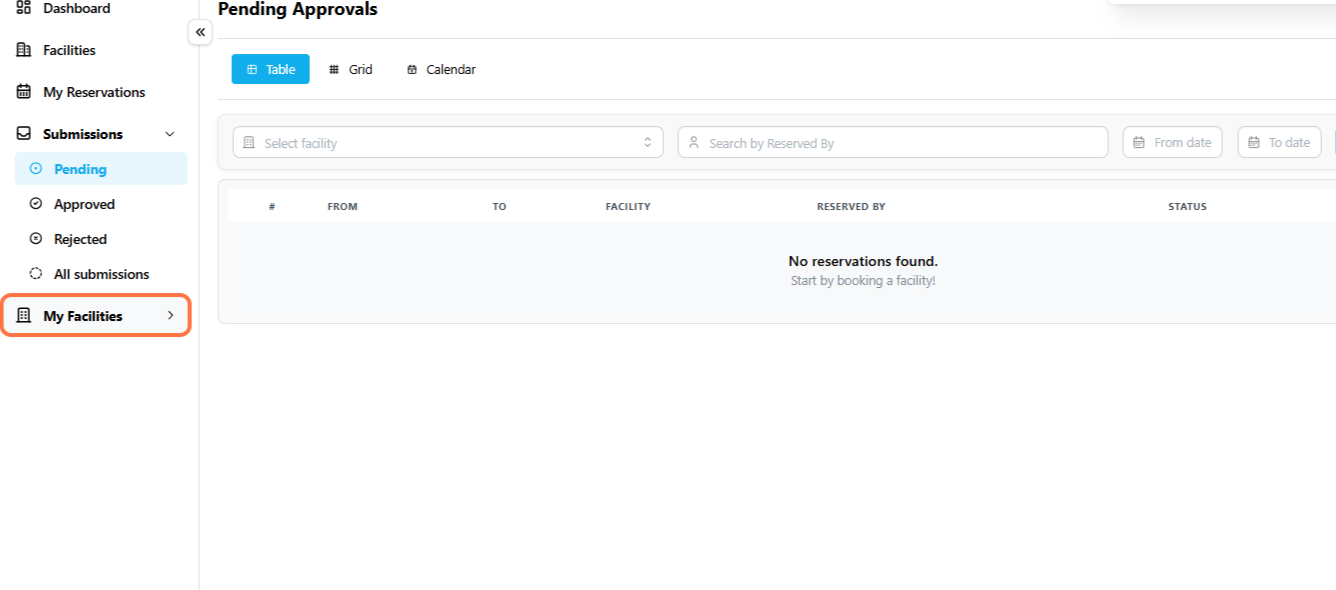
Go to Reservations → My Facilities to see the facilities you're responsible for.
Step 1
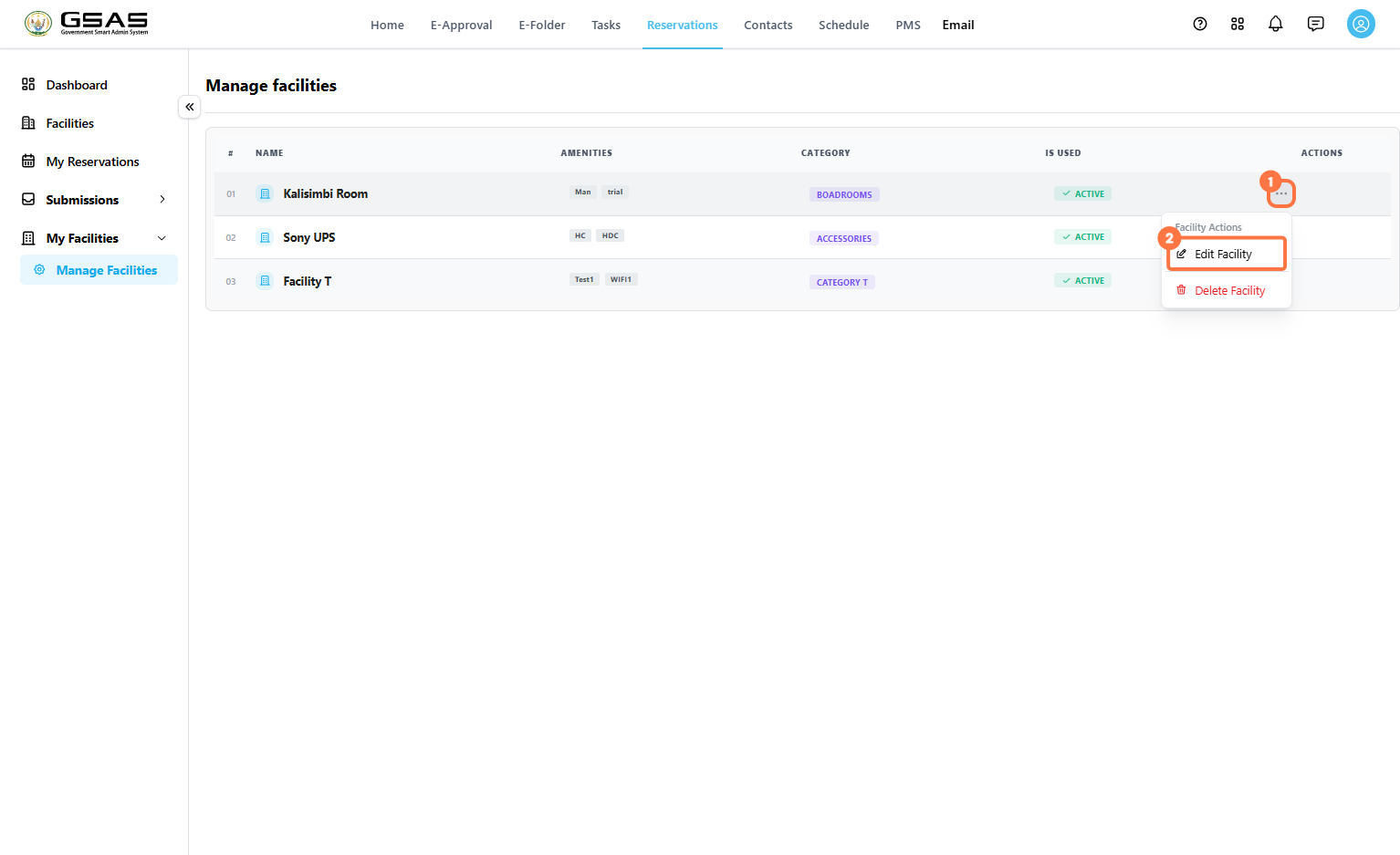
Open Facility Actions
Click the … icon next to a facility, then select Edit Facility to change its settings, (or Delete Facility to remove it entirely.)
Step 2
Update Basic Information
- If necessary, edit the facility's Category and Facility name, along with a Color used to identify it on the calendar.
- Add or remove Amenities to help people know what to expect when booking it.
- Does this facility have a manager? controls what manager is responsible for the facility.
- Notify specific users when used? lets you send a notification to selected users every time the facility is booked.
Under Facility Status, set Under Maintenance? to Yes if the facility is temporarily out of use, and set Is Facility Active? to Inactive if it should no longer appear as bookable at all.
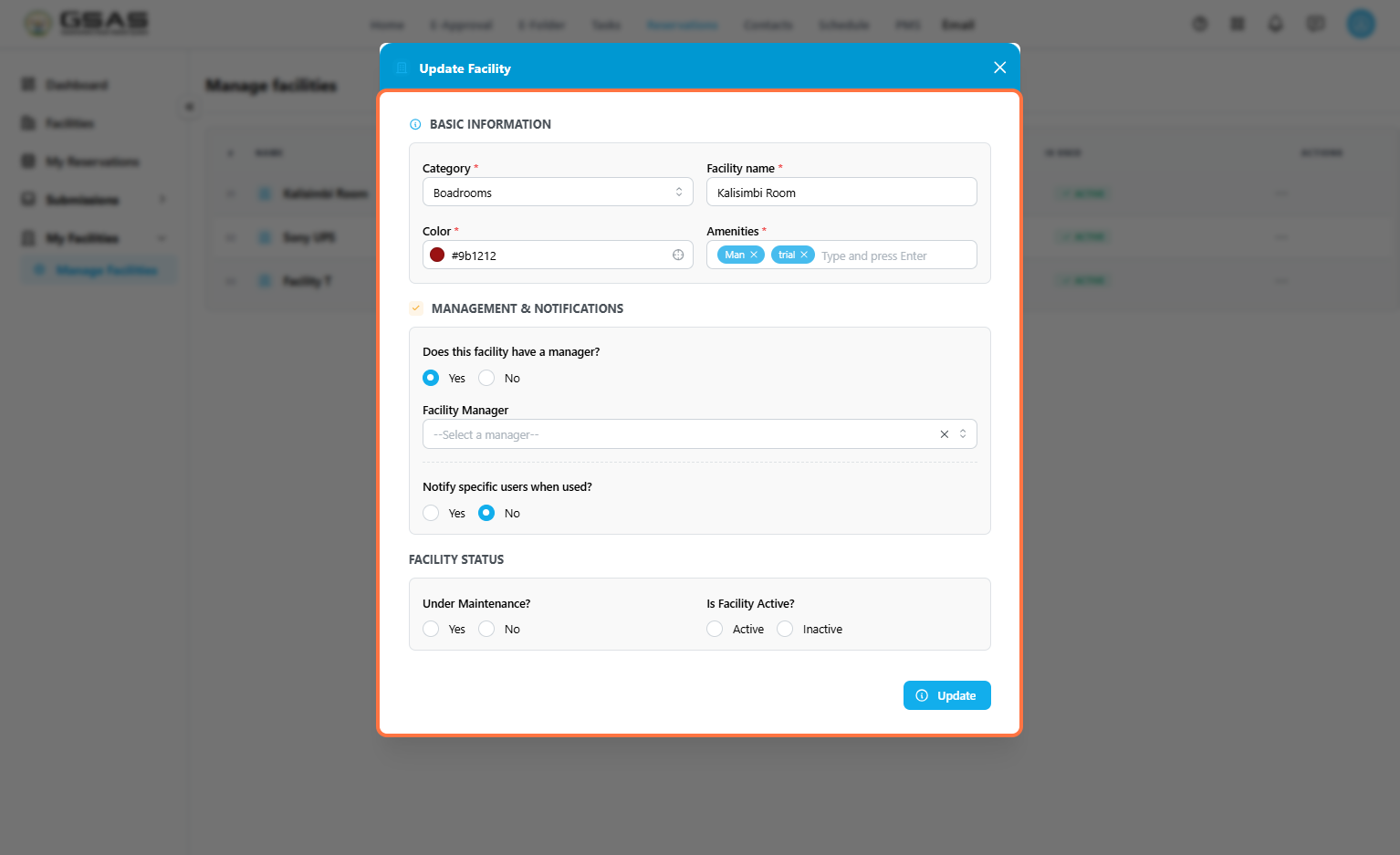
Click Update to save changes.