# How to login

---

<span style="color: rgb(52, 73, 94);">Follow this quick guide to log into your account </span>

<span style="color: rgb(52, 73, 94);"> </span>

<table id="bkmrk-step-1-open-smart-ad" style="width: 100%; border-collapse: collapse; border: none; margin-bottom: 28px;"><tbody><tr><td style="vertical-align: top; padding-right: 24px; width: 36.4474%; border-image: initial; border: medium none currentcolor;">Step 1

### Open Smart Admin

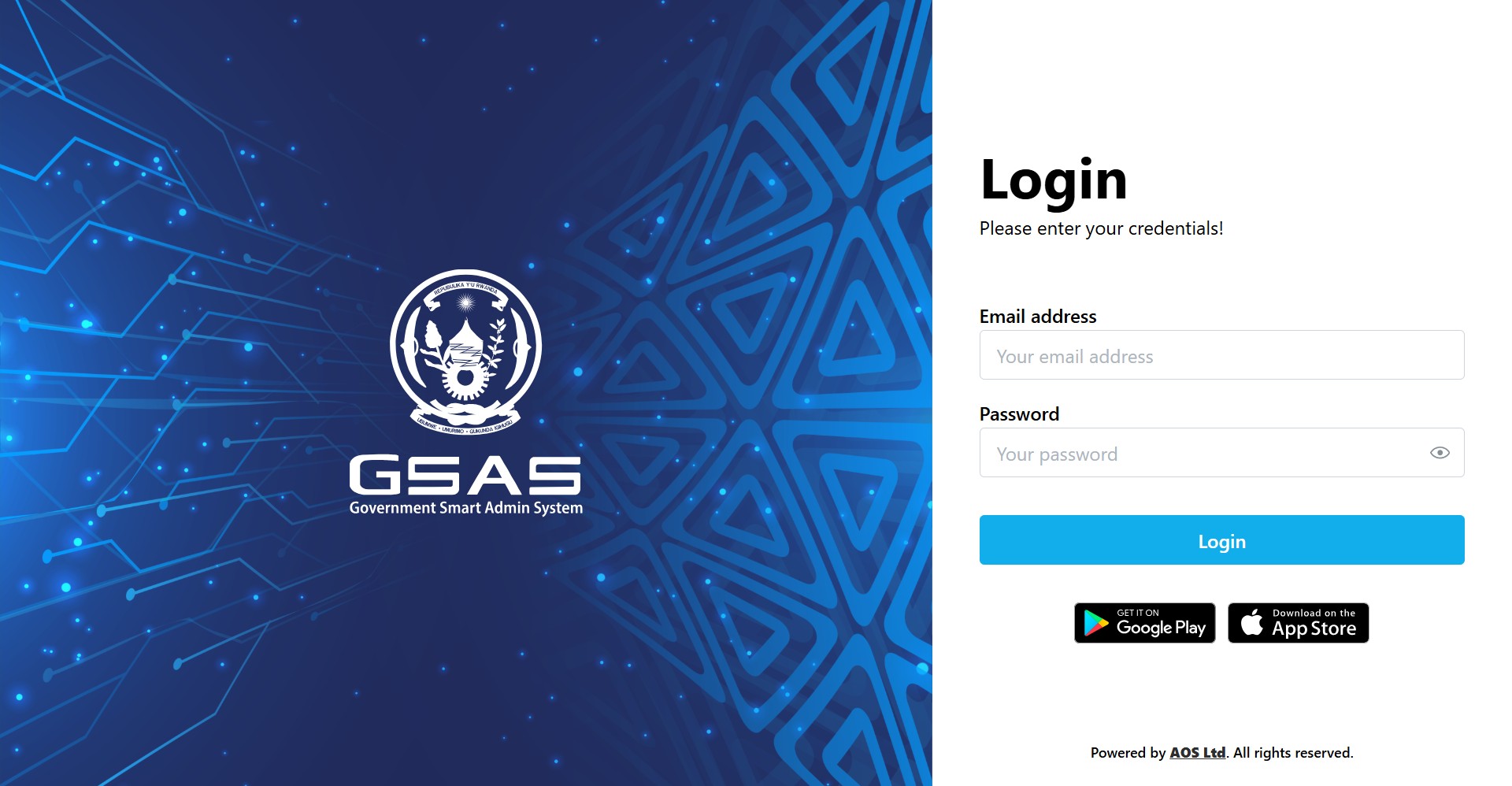
Navigate to your institution's Smart Admin URL in any web browser. You'll land on the login screen shown here.

</td><td style="vertical-align: top; width: 63.5526%; border-image: initial; border: medium none currentcolor;">![ascreenshot.jpeg](https://docs.smartadmin.rw/uploads/images/gallery/2026-05/ascreenshot.jpeg)</td></tr></tbody></table>

---

<table id="bkmrk-step-2-enter-your-em" style="width: 100%; border-collapse: collapse; border: none; margin-bottom: 28px;"><tbody><tr><td style="vertical-align: top; padding-right: 24px; width: 36.4474%; border-image: initial; border: medium none currentcolor;">Step 2

### Enter your email address

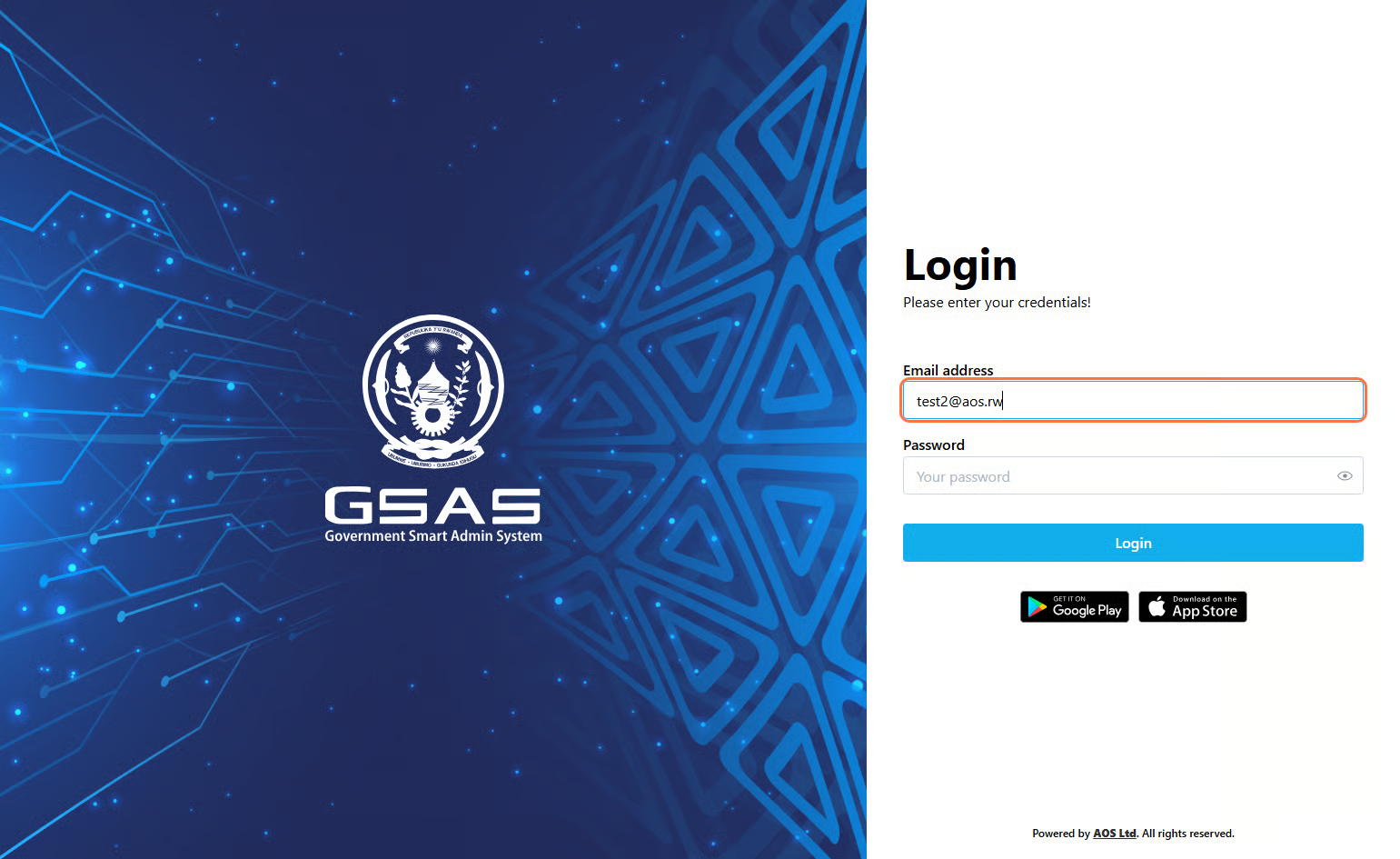
Type in the email address your administrator registered you with. If you're not sure which one to use, check with your IT department.

</td><td style="vertical-align: top; width: 63.5526%; border-image: initial; border: medium none currentcolor;">![Email field on the login screen](https://docs.smartadmin.rw/uploads/images/gallery/2026-05/fziimage.png)</td></tr></tbody></table>

---

<table id="bkmrk-step-3-enter-your-pa" style="width: 100%; border-collapse: collapse; border-image: initial; margin-bottom: 28px; height: 318.665px; border: medium none currentcolor;"><tbody><tr style="height: 318.665px;"><td style="vertical-align: top; padding-right: 24px; width: 36.3158%; height: 318.665px; border-image: initial; border: medium none currentcolor;">Step 3

### Enter your password

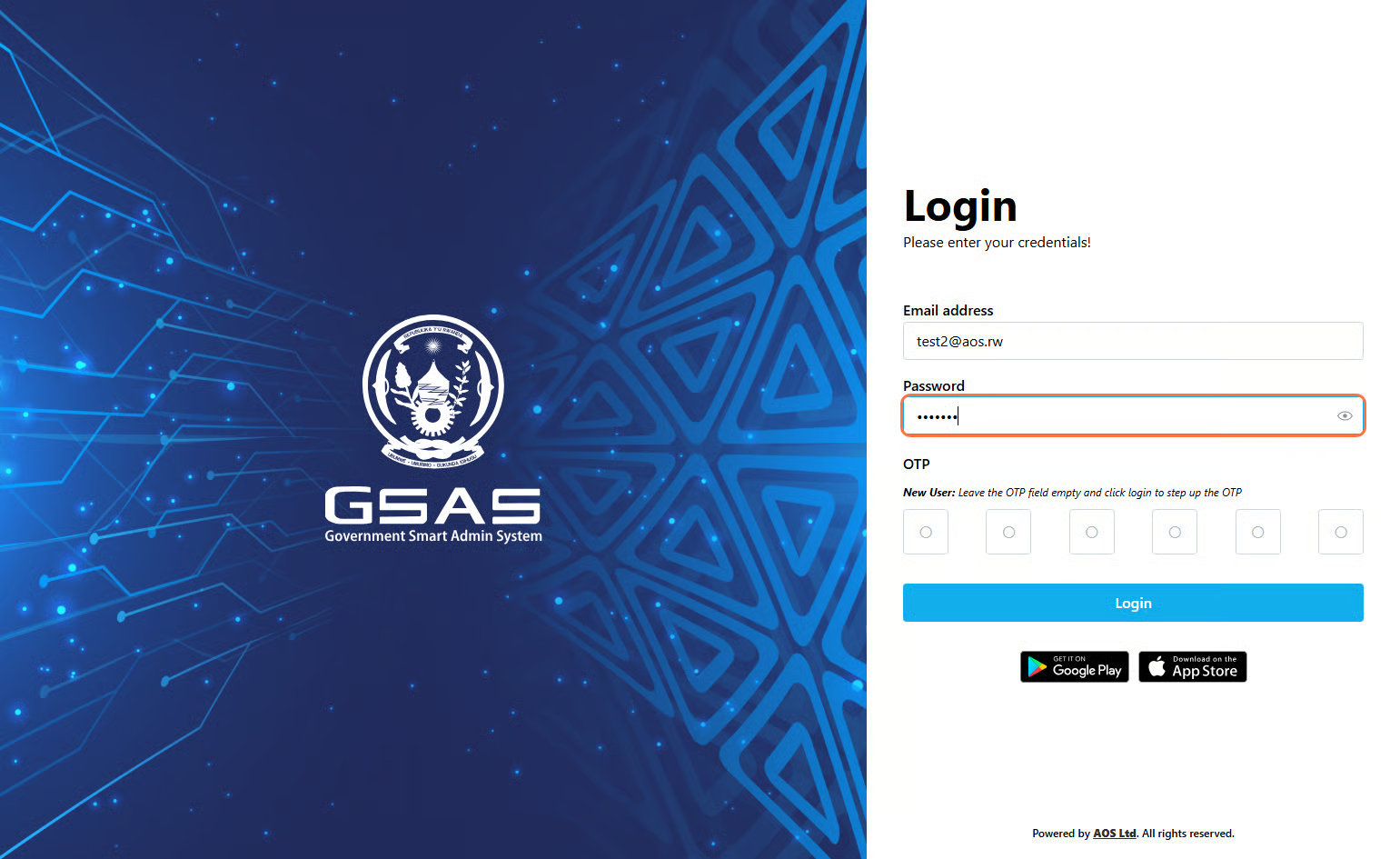
Type your password, then click **Login**

</td><td style="vertical-align: top; width: 63.6842%; height: 318.665px; border-image: initial; border: medium none currentcolor;">![Password field on the login screen](https://docs.smartadmin.rw/uploads/images/gallery/2026-05/scaled-1680-/gwUimage.png)</td></tr></tbody></table>

<div id="bkmrk--3" style="max-width: 760px; font-family: sans-serif;">---

</div>Step 4

### Authentication

If your account uses two-factor authentication, you'll be asked to confirm your identity.

#### ***First time login?*** (If you've logged in before, scroll down to the [**Returning User** ](https://docs.smartadmin.rw/books/gsas-user-guide/page/how-to-login/#bkmrk-returning-user)section.) 

##### Follow these steps to set up your OTP:

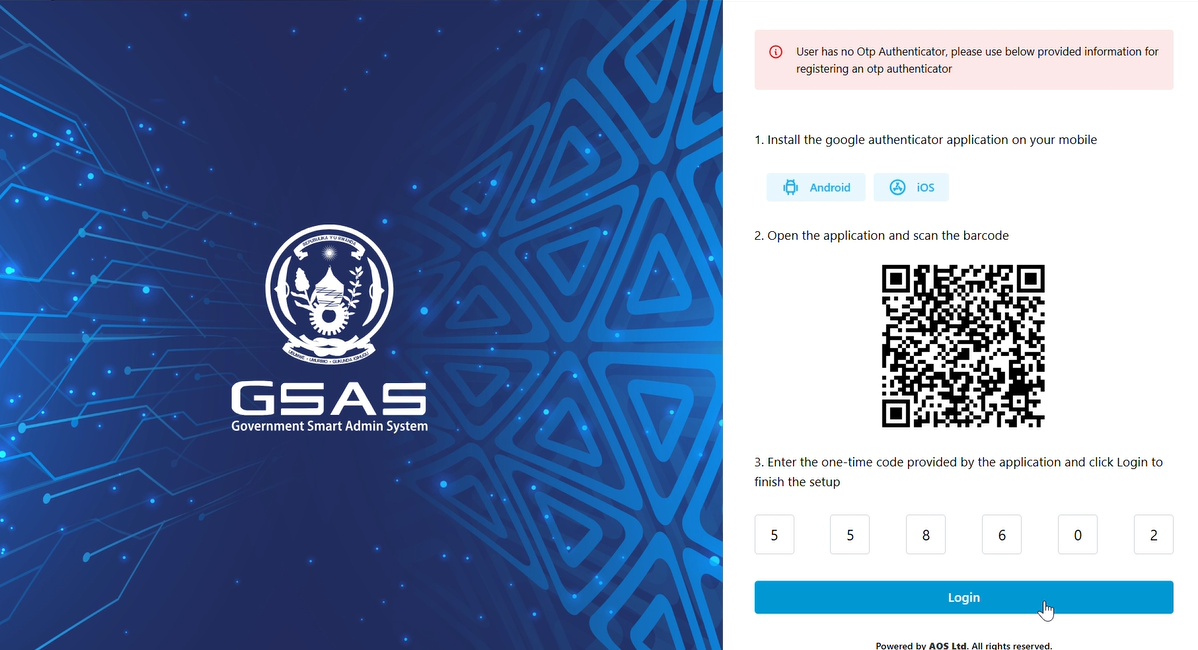
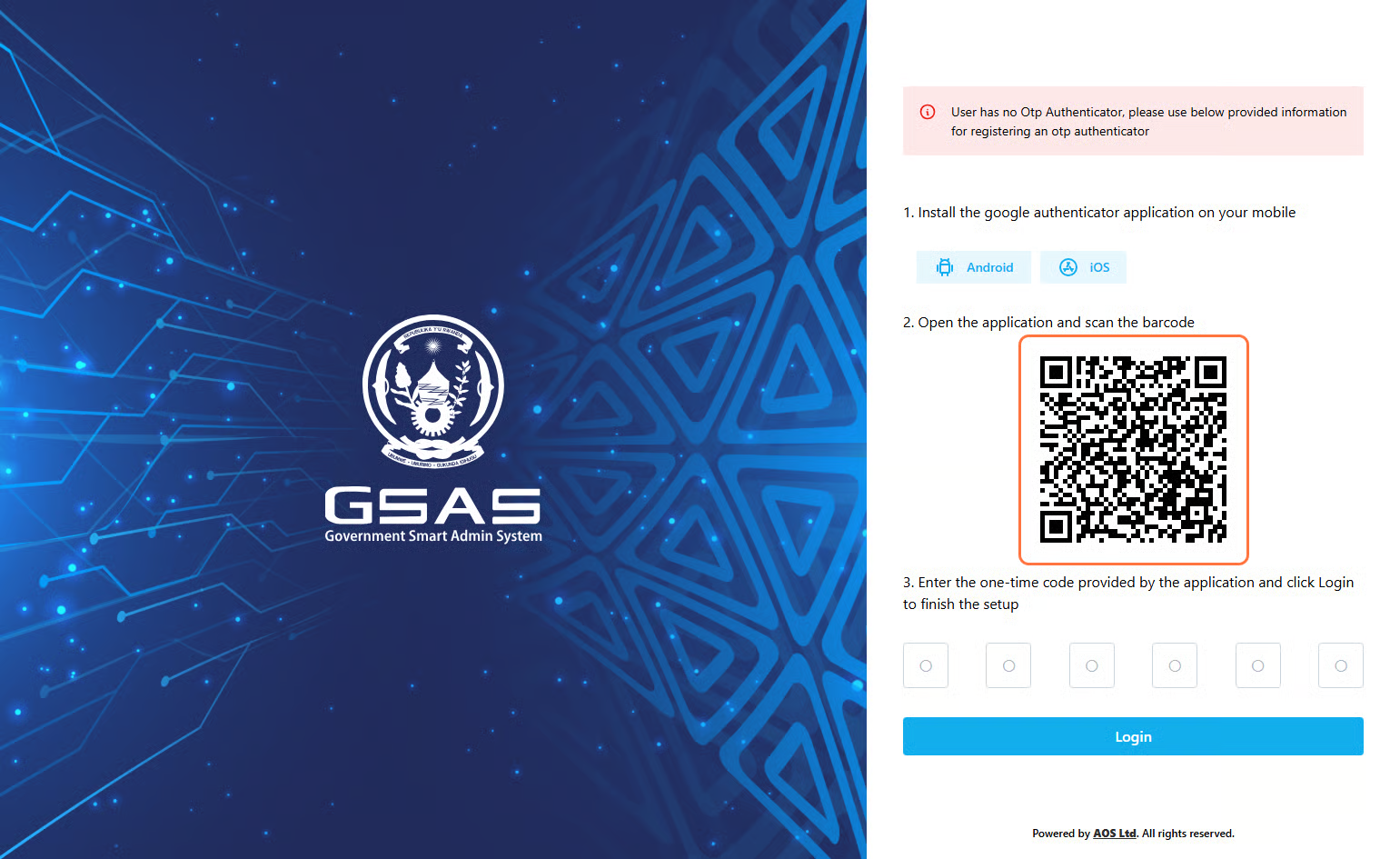
<div id="bkmrk-leave-the-otp-field-" style="margin-top: 12px; background-color: rgb(245, 247, 250); border-radius: 6px; padding: 0px 12px; overflow: hidden;">1. Leave the OTP field empty and click **Login.**
2. A QR code will appear, scan it using the Google Authenticator app, available on [Google Play](https://play.google.com/store/apps/details?id=com.google.android.apps.authenticator2) or [App Store](https://apps.apple.com/us/app/google-authenticator/id388497605). Your account is now saved in the app and will generate a new 6-digit code every 15 seconds.  
    ![image.png](https://docs.smartadmin.rw/uploads/images/gallery/2026-06/scaled-1680-/xSHimage.png)
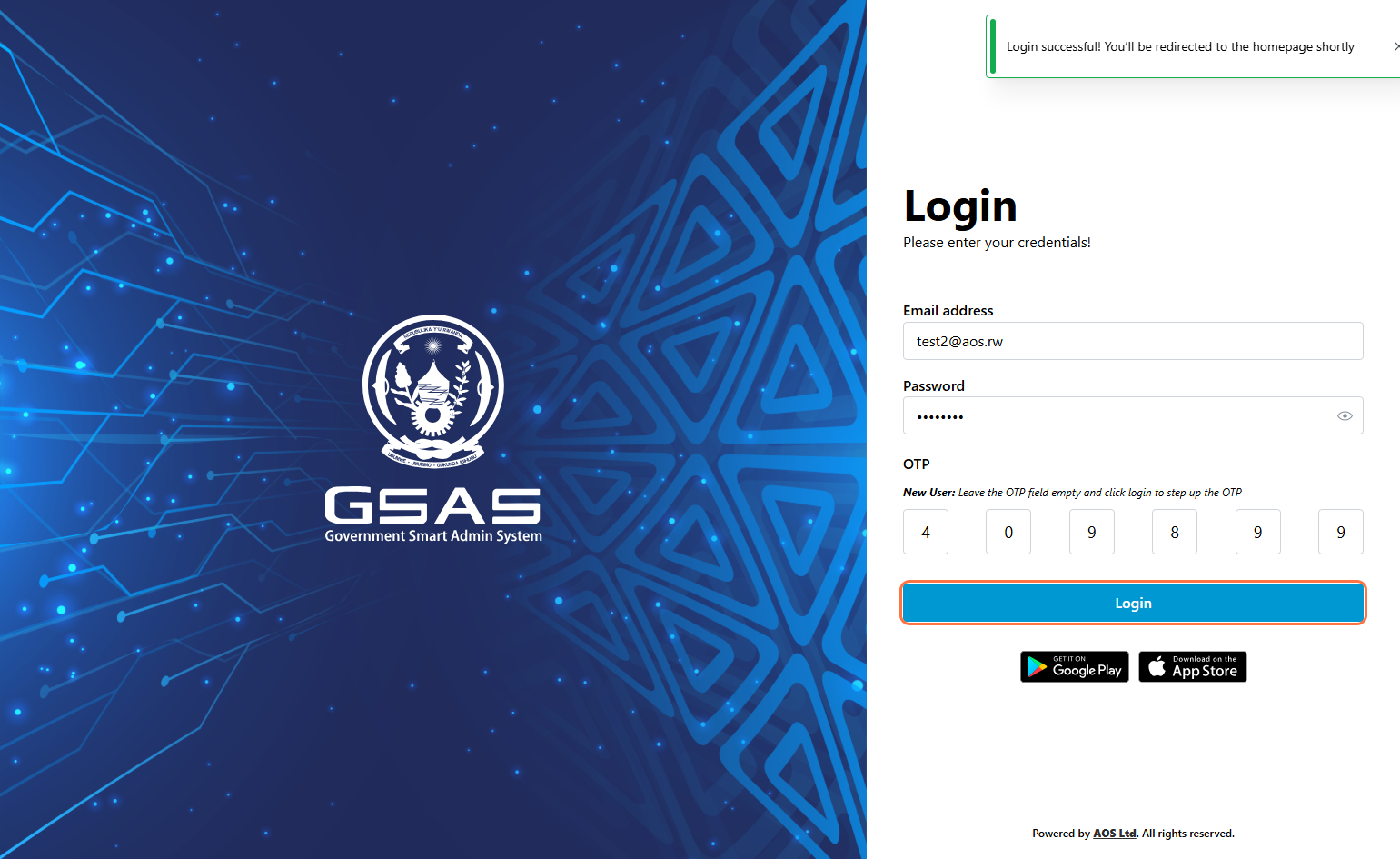
3. Enter the code displayed in your authenticator app and click **Login**<span style="color: rgb(68, 68, 68);">.</span>

[![Screenshot 2026-06-02 172418.png](https://docs.smartadmin.rw/uploads/images/gallery/2026-06/scaled-1680-/f7Hscreenshot-2026-06-02-172418.png)](https://docs.smartadmin.rw/uploads/images/gallery/2026-06/f7Hscreenshot-2026-06-02-172418.png)  
</div>#### ***Returning user?***

Open your Google Authenticator and view the current 6-digit code.

<div id="bkmrk-enter-it-in-the-otp-" style="margin-top: 10px; background-color: #f5f7fa; border-radius: 6px; padding: 0 12px; overflow: hidden;">1. Enter it in the **OTP** field, just above the **Login** button.
2. Click **Login**.

[![returninguser.png](https://docs.smartadmin.rw/uploads/images/gallery/2026-06/scaled-1680-/returninguser.png)](https://docs.smartadmin.rw/uploads/images/gallery/2026-06/returninguser.png)</div>##### **Don't see an OTP field?** Your account is using Simple Authentication, skip the OTP step and click **Login** directly. For stronger account security, we recommend enabling OTP Authentication. Reach out to your administrator to get it set up.
---

<div id="bkmrk-step-5-access-grante" style="max-width: 760px; font-family: sans-serif;"><table style="width: 100%; border-collapse: collapse; border: none;"><tbody><tr><td style="vertical-align: top; padding-right: 24px; width: 95.3947%; border-image: initial; border: medium none currentcolor;">Step 5

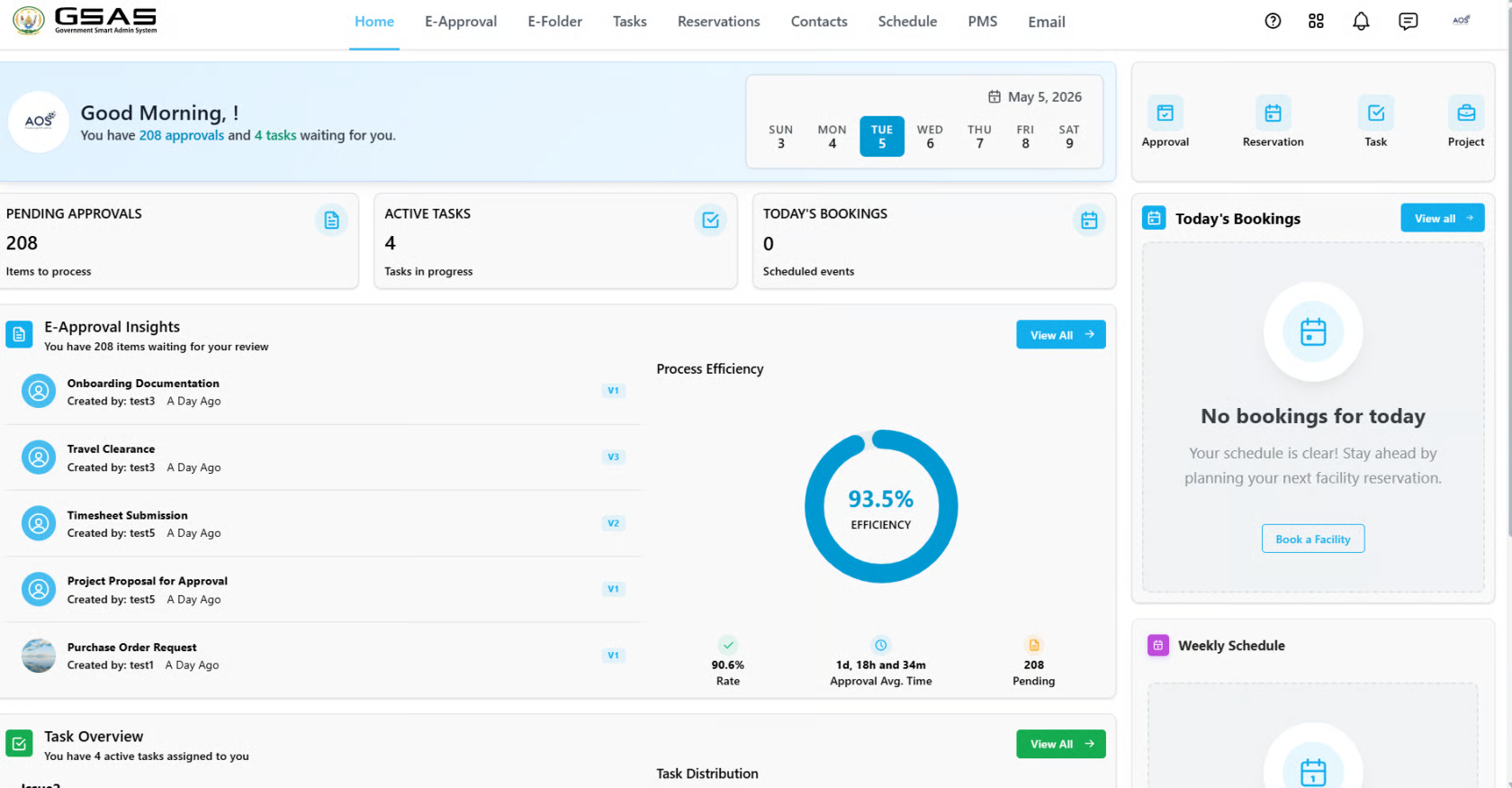
### Access granted

You'll be redirected to your dashboard upon successful login.
![Smart Admin dashboard after login](https://docs.smartadmin.rw/uploads/images/gallery/2026-06/scaled-1680-/CYMimage.png)

</td><td style="vertical-align: top; width: 4.60526%; border-image: initial; border: medium none currentcolor;">  
</td></tr></tbody></table>

</div>---

Troubleshoot common log in issues

1. **Login failed. Please check your credentials and try again.**Possible causes:
    
    
    - Your password is incorrect.
    - Your OTP does not match the current code in Google Authenticator.
    
    <p class="callout info">Make sure your laptop and phone are using a similar time zone. If not, update your time zone settings and ask your administrator to reset your OTP and sign in again as a first-time user.</p>
2. **No user was found with provided information.**Possible cause:
    
    
    - Your email address was entered incorrectly.
3. **Invalid credentials. Please contact your system administrator.**
    - Call us or text us on <span data-slate-fragment="JTdCJTIyb2JqZWN0JTIyJTNBJTIyZG9jdW1lbnQlMjIlMkMlMjJkYXRhJTIyJTNBJTdCJTdEJTJDJTIybm9kZXMlMjIlM0ElNUIlN0IlMjJvYmplY3QlMjIlM0ElMjJibG9jayUyMiUyQyUyMnR5cGUlMjIlM0ElMjJwYXJhZ3JhcGglMjIlMkMlMjJpc1ZvaWQlMjIlM0FmYWxzZSUyQyUyMmRhdGElMjIlM0ElN0IlN0QlMkMlMjJub2RlcyUyMiUzQSU1QiU3QiUyMm9iamVjdCUyMiUzQSUyMnRleHQlMjIlMkMlMjJsZWF2ZXMlMjIlM0ElNUIlN0IlMjJvYmplY3QlMjIlM0ElMjJsZWFmJTIyJTJDJTIydGV4dCUyMiUzQSUyMiUyQjI1MCUyMDc5MiUyMDEwOCUyMDc4NCUyMiUyQyUyMm1hcmtzJTIyJTNBJTVCJTdCJTIyb2JqZWN0JTIyJTNBJTIybWFyayUyMiUyQyUyMnR5cGUlMjIlM0ElMjJib2xkJTIyJTJDJTIyZGF0YSUyMiUzQSU3QiU3RCU3RCU1RCU3RCU1RCUyQyUyMmtleSUyMiUzQSUyMjQ5M05ZVVoxTE5hcCUyMiU3RCU1RCUyQyUyMmtleSUyMiUzQSUyMnNCT3hlSnV2b2d0QiUyMiU3RCU1RCUyQyUyMmtleSUyMiUzQSUyMnJldklaZWRMMzRvTSUyMiU3RA==">**+250 792 108 784** <span data-offset-key="QcvToaeLIhtx:2">or use our toll free number </span>**4747.**</span>