Reservations
Book meeting rooms, boardrooms, and other shared facilities across your institution, then keep an eye on your bookings from request to confirmation. Facility managers will also find what they need to review and approve incoming requests.
- Navigating Reservations
- Reserving a Facility
- Tracking Your Reservations
- Managing Reservations and Facilities
Navigating Reservations
The Reservations module lets you book shared facilities, such as meeting rooms, boardrooms, and equipment, and keep track of your requests in one place.
Sidebar Sections
- Dashboard — an overview of facility availability and reservation activity.
- Facilities — browse the facilities available to book.
- My Reservations — view and track the bookings you've made.
- Submissions — review reservation requests made against facilities you manage.Facility Manager only
- My Facilities — edit or manage the facilities under your responsibility.Facility Manager only
Reading the Dashboard
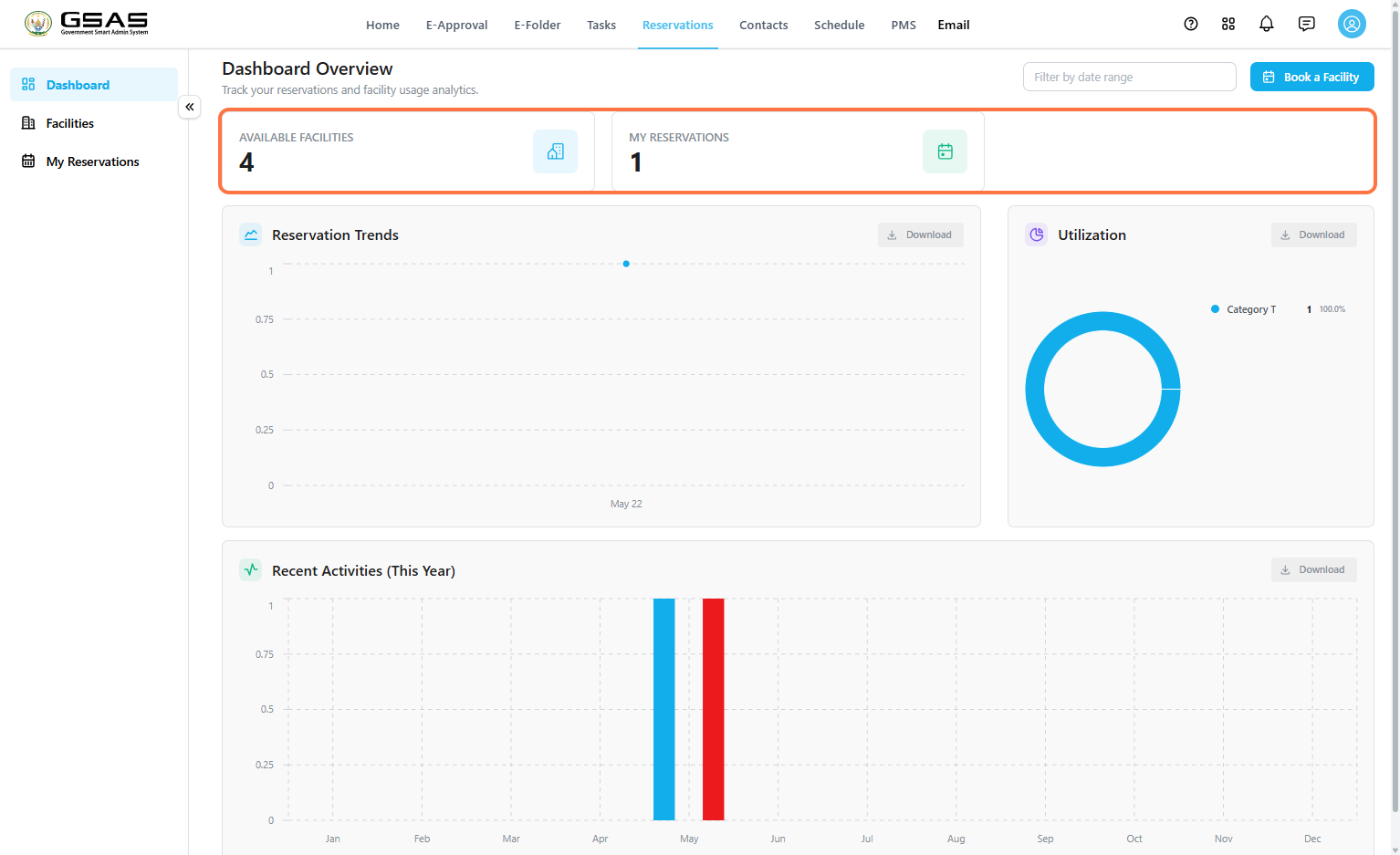
The Dashboard gives you a quick snapshot of facility availability and your own reservation activity. Use the Filter by date range field at the top to narrow the charts below to a specific period.
Two summary cards sit at the top of the page. Available Facilities shows how many facilities are currently bookable, and My Reservations shows how many bookings you personally have on record.
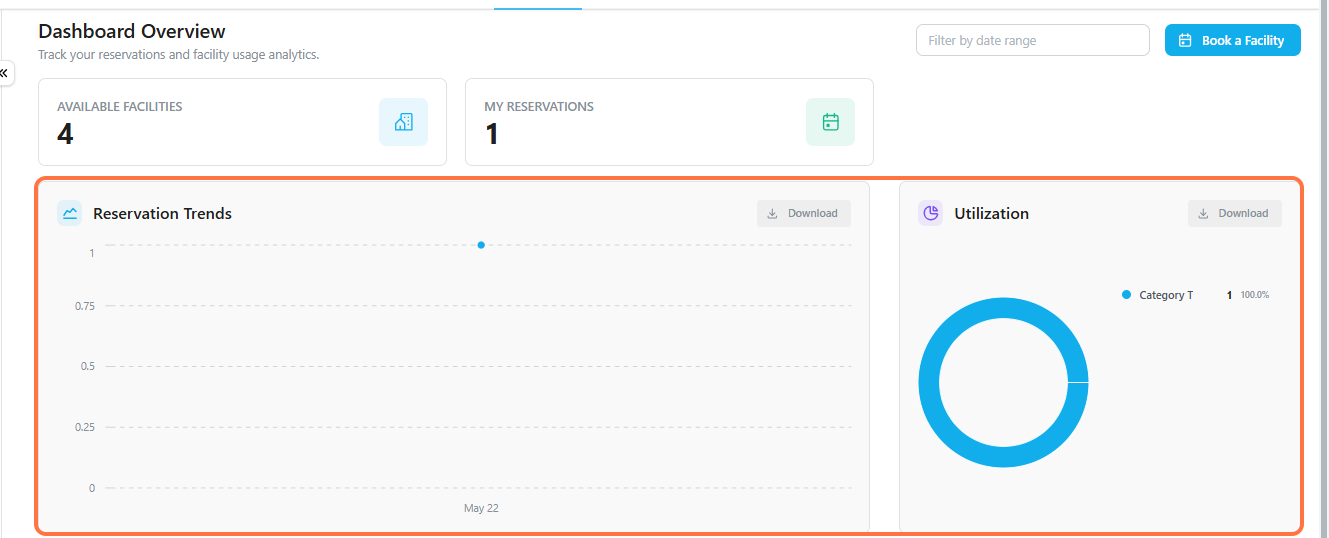
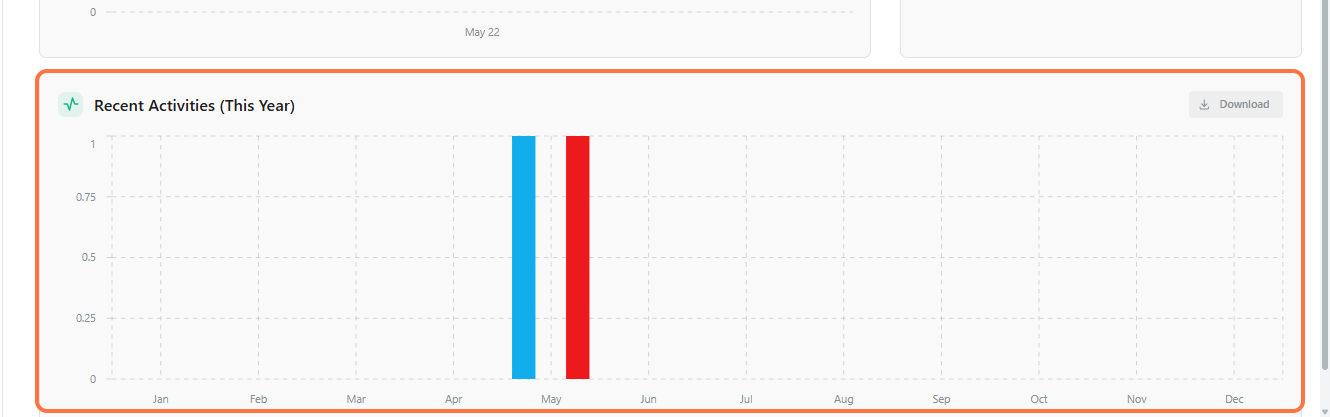
Below the summary cards, three charts break down activity in more detail.
| Chart | Shows |
|---|---|
| Reservation Trends | How many reservations have been made over time. |
| Utilization | Which facility categories are booked most often. |
| Recent Activities | A monthly breakdown of reservation activity for the current year. |
Each chart has a Download option if you need to export the data. To start a new booking from anywhere on the dashboard, click Book a Facility in the top right.
If you manage a facility, see Managing Facilities and Reservations to learn how to review incoming reservation requests and edit facility details.
Reserving a Facility
This page walks you through finding a facility and reserving it.
Browse Facilities
Go to Reservations → Facilities to see everything available to book.
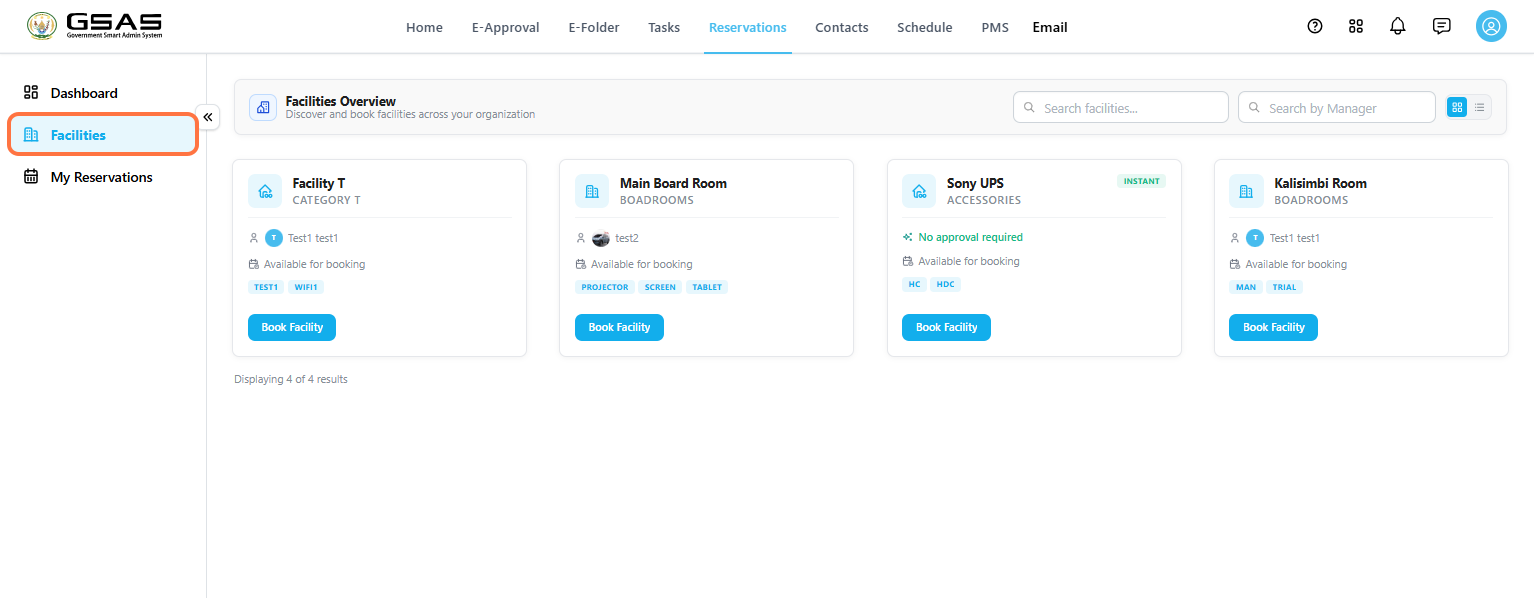
You can use Search facilities(1) to look up a facility by name, or Search by Manager(2) if you know who oversees it. Use the toggle next to the search bars to switch between a grid view and a list view.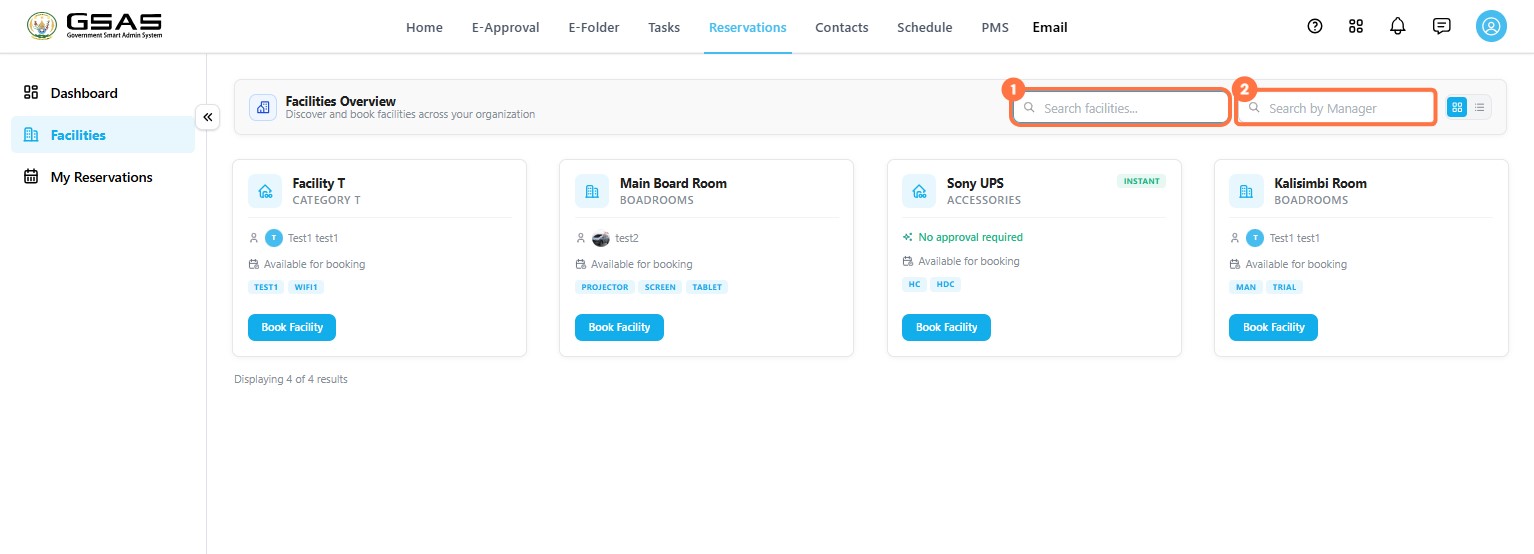
Reading a Facility Card
Each facility card shows its category, the person managing it, its availability, and any relevant tags such as available equipment. Some cards also show No approval required, meaning the booking is confirmed the moment you submit it.
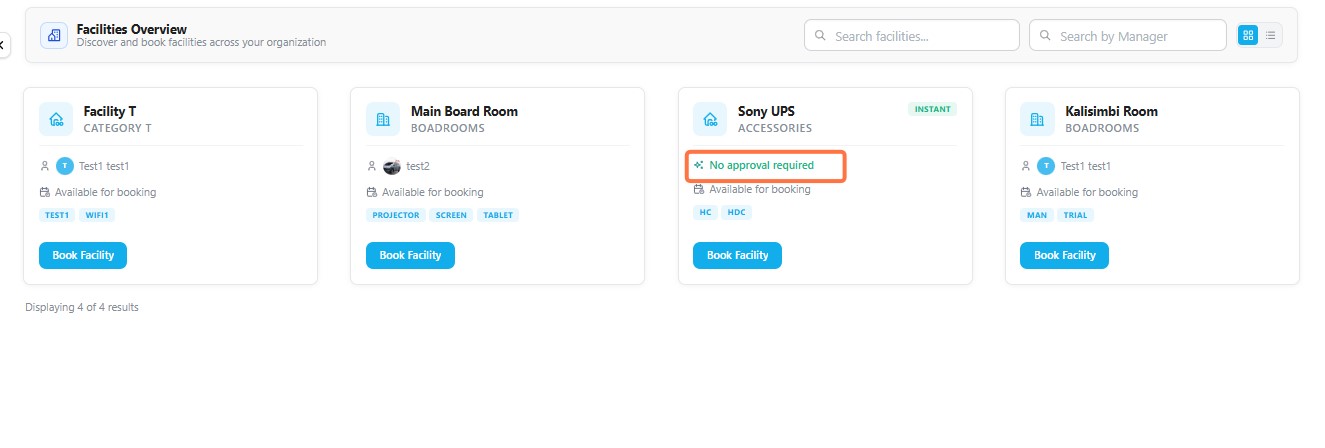
Facilities without this label need approval from the facility manager before the booking is finalized.
Reserve a Facility
You can start a reservation directly from a facility card, or from the calendar if you're already viewing a facility's availability.
Step 1
Open the Booking Form
Click Book Facility on the facility you want to reserve.
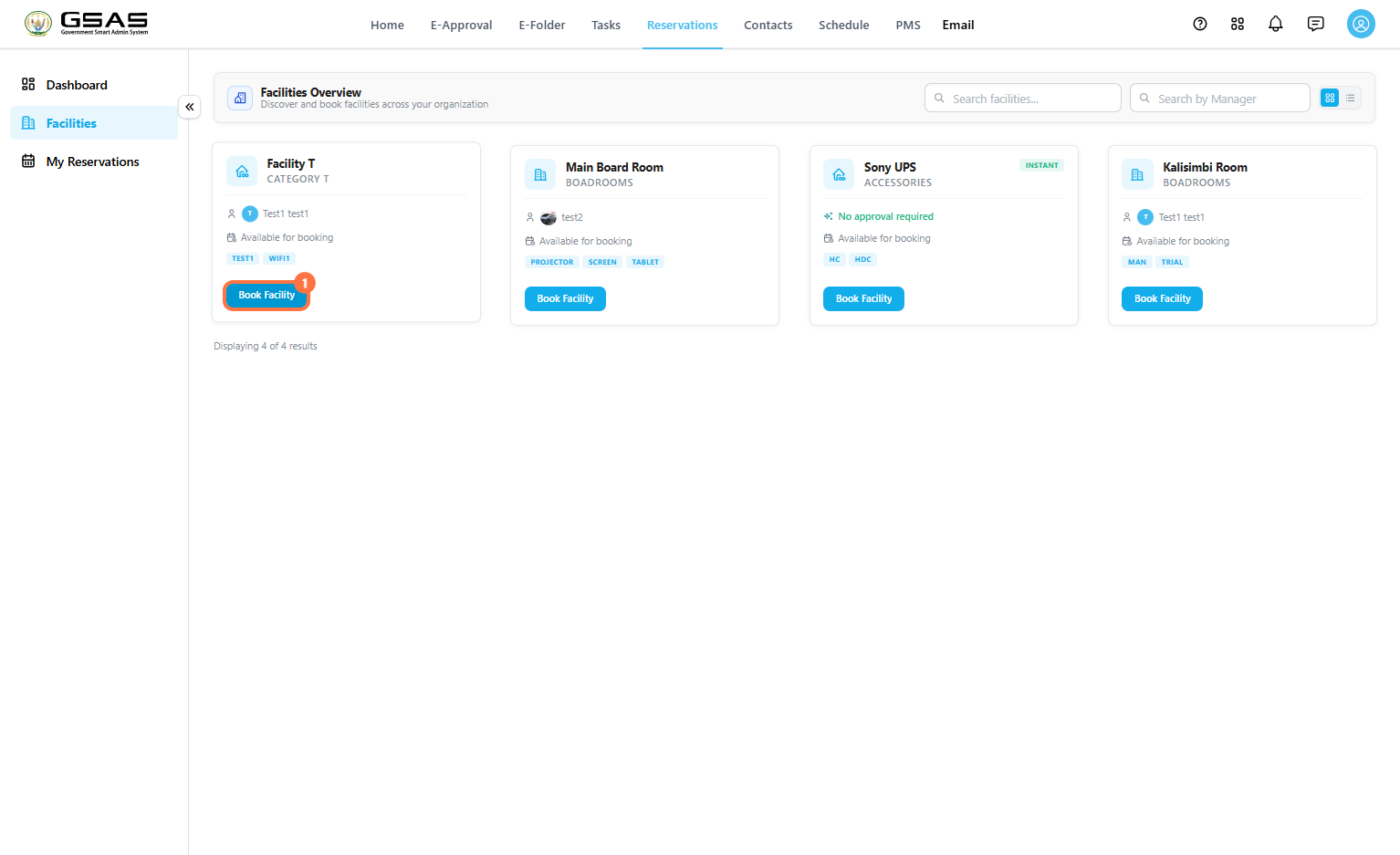
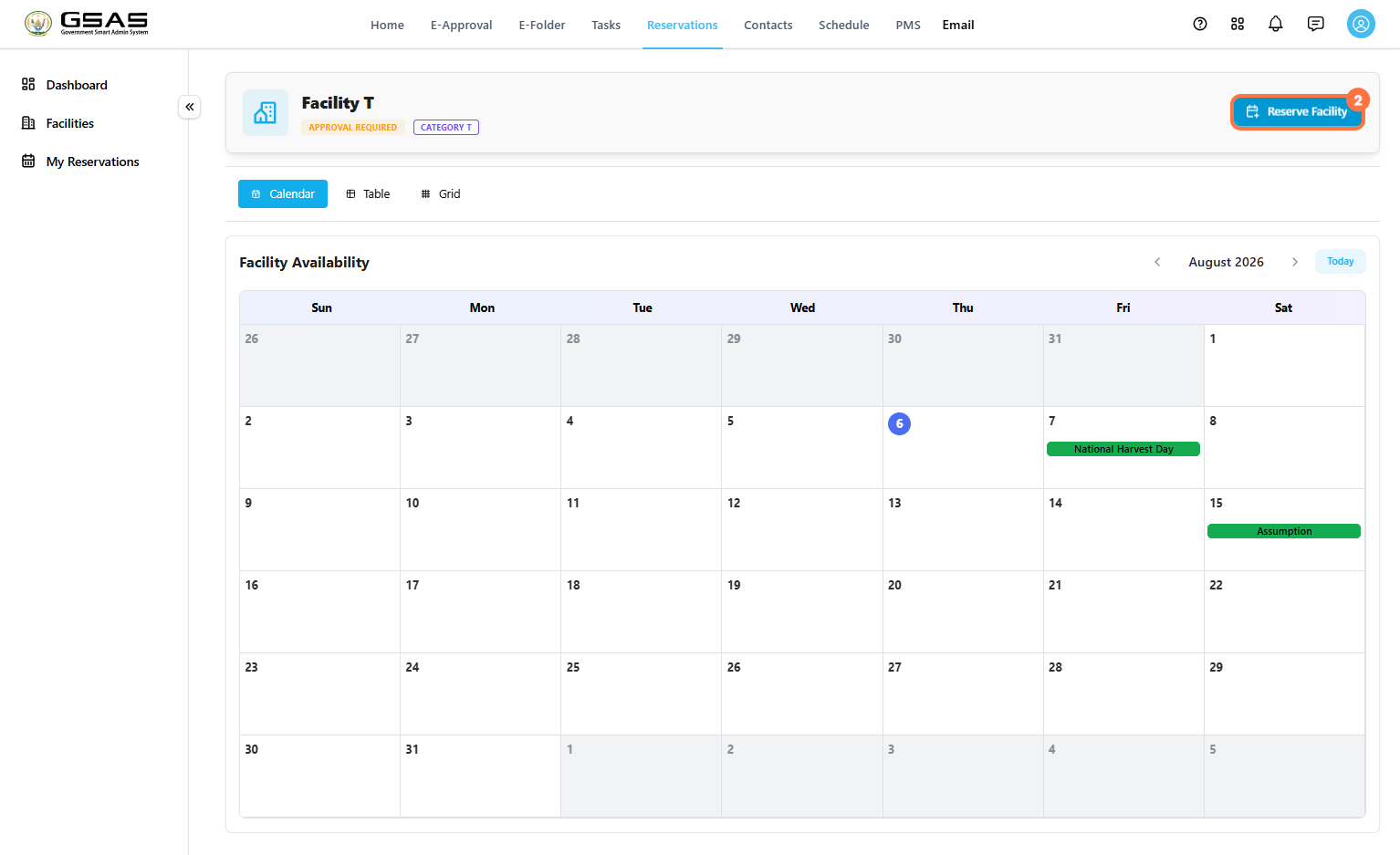
You will then see a calendar view showing you the facility's availability, click Reserve Facility in the top right.
Step 2
Set the Date and Time
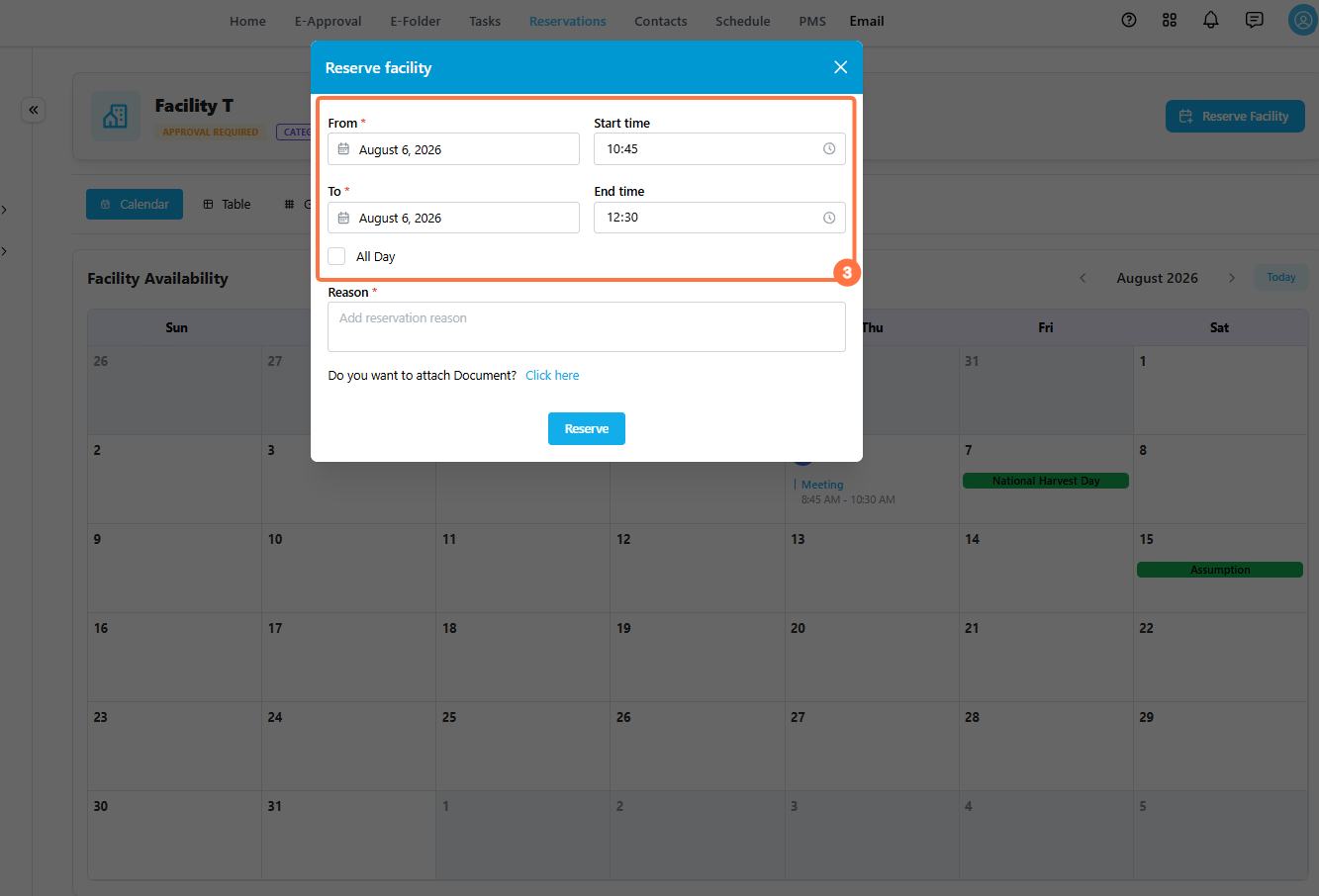
Enter the From and To dates, along with a Start time and End time. If the booking covers the entire day, tick All Day instead of setting specific times.
Step 3
Add a Reason
Enter a short reason for the booking. This helps the facility manager understand the purpose of your reservation when reviewing it, and appears on your reservation record for future reference.
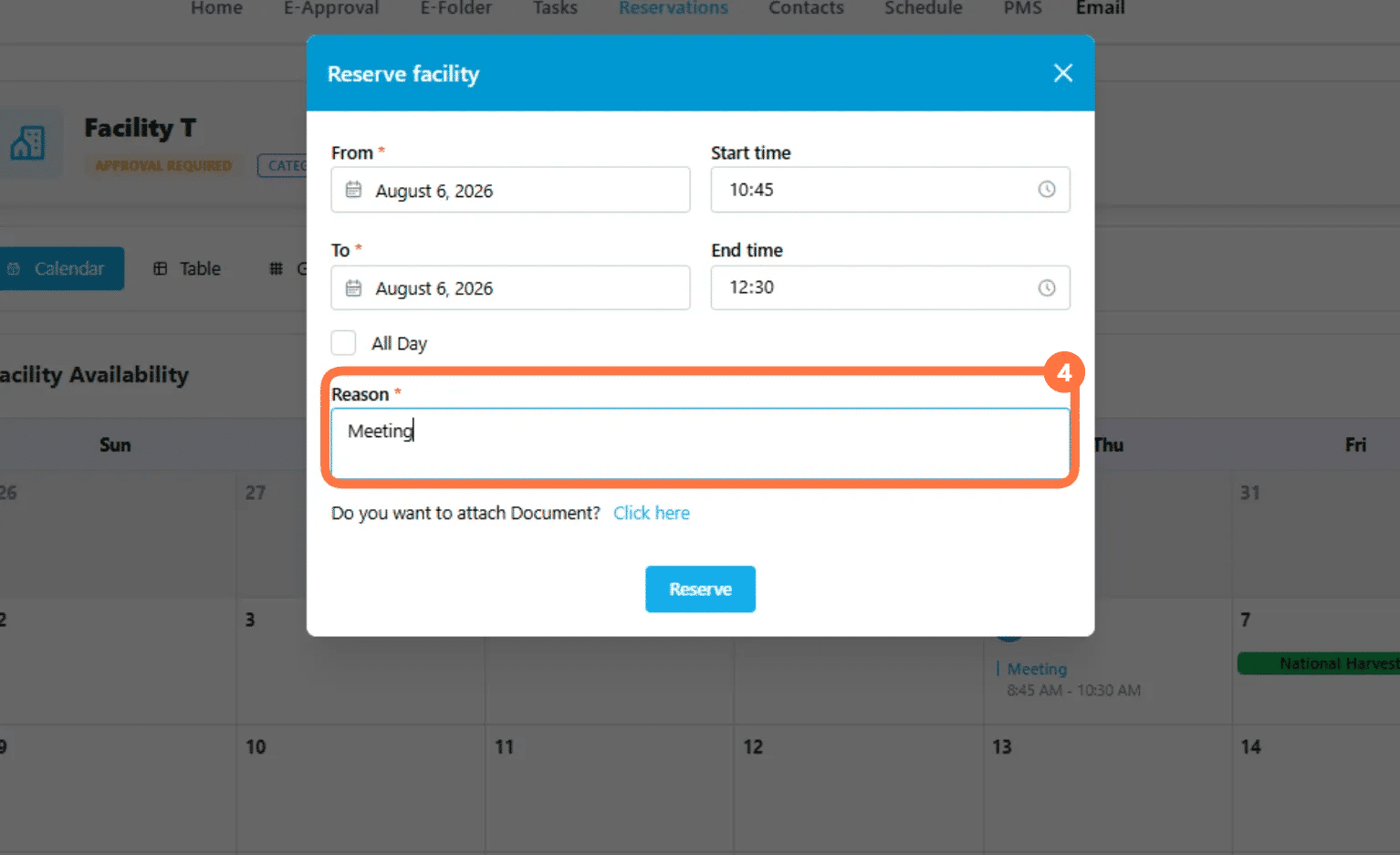
If you need to include a supporting document, click Click here next to Do you want to attach Document? and select the file from your computer. This is optional and can be left blank for straightforward bookings.
Step 4
Submit the Reservation
Click Reserve to submit the booking.
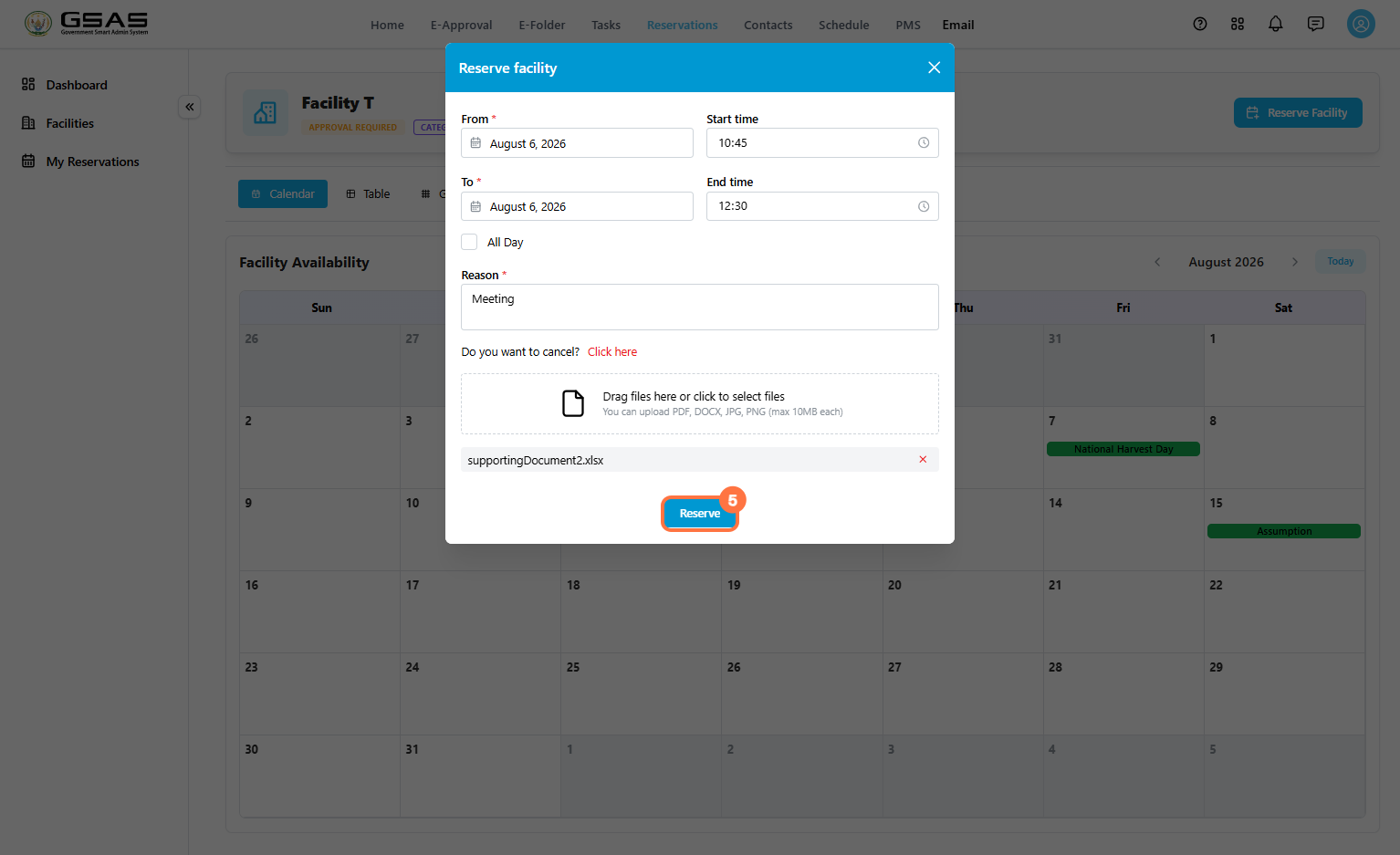
A confirmation message appears once your reservation is submitted.
If the time slot you selected overlaps with an existing booking on the same facility, you will see an error message "Booking already overlaps with existing booking start and end date" and the reservation won't go through. Choose a different time or date and try again.
See Tracking Your Reservations page to learn how to check the status of your booking request.
Tracking Your Reservations
Once you've submitted a reservation, My Reservations is where you go to review it's status.
Open My Reservations
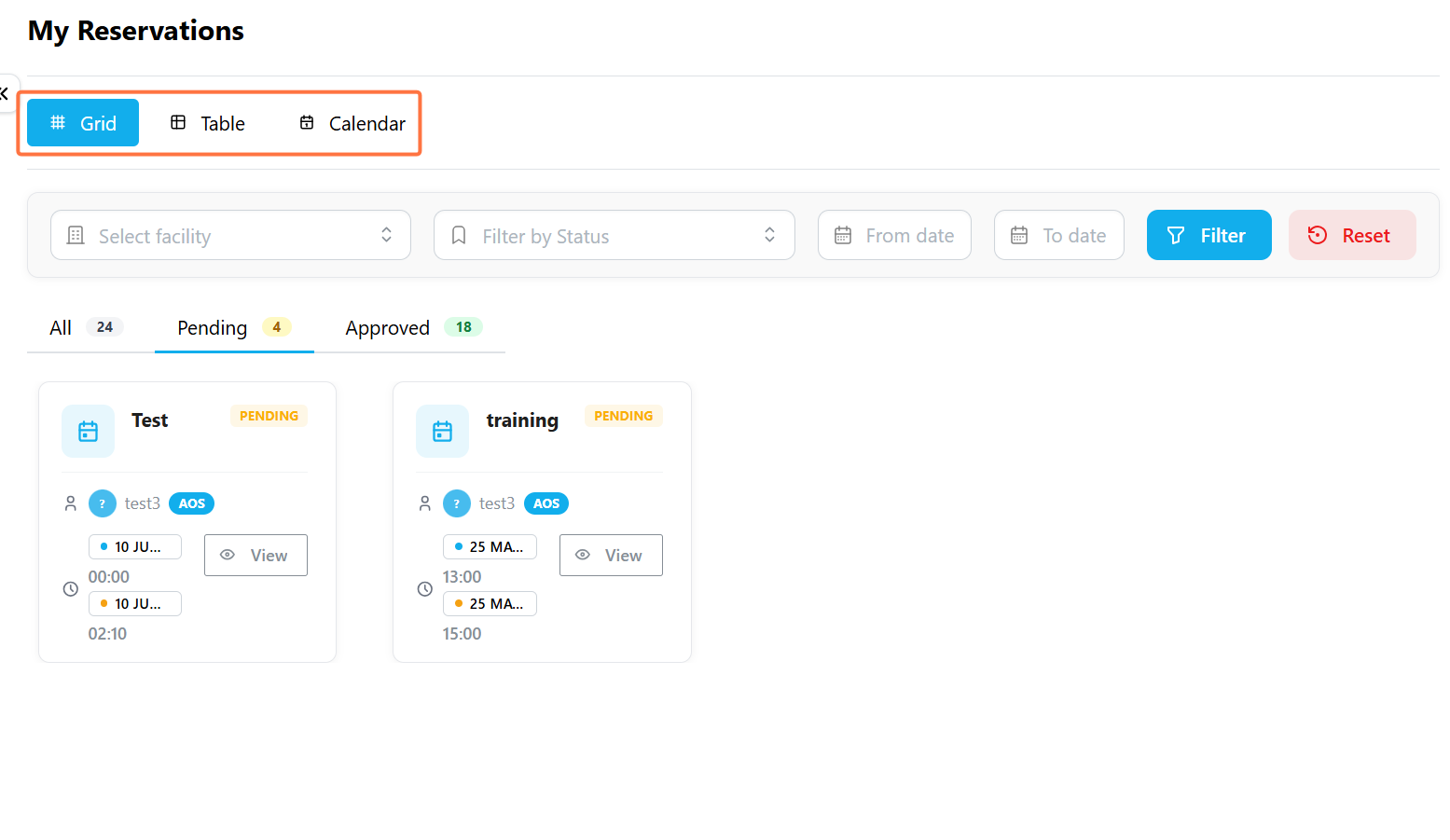
Go to Reservations → My Reservations. By default, your bookings appear in Grid view, but you can switch to whichever layout suits what you're trying to see.
| View | Best For |
|---|---|
| Grid | Browsing your reservations as individual cards, each showing status at a glance. |
| Table | Scanning a dense list of reservations side by side. |
| Calendar | Seeing your bookings laid out by date. |
View Reservation Status
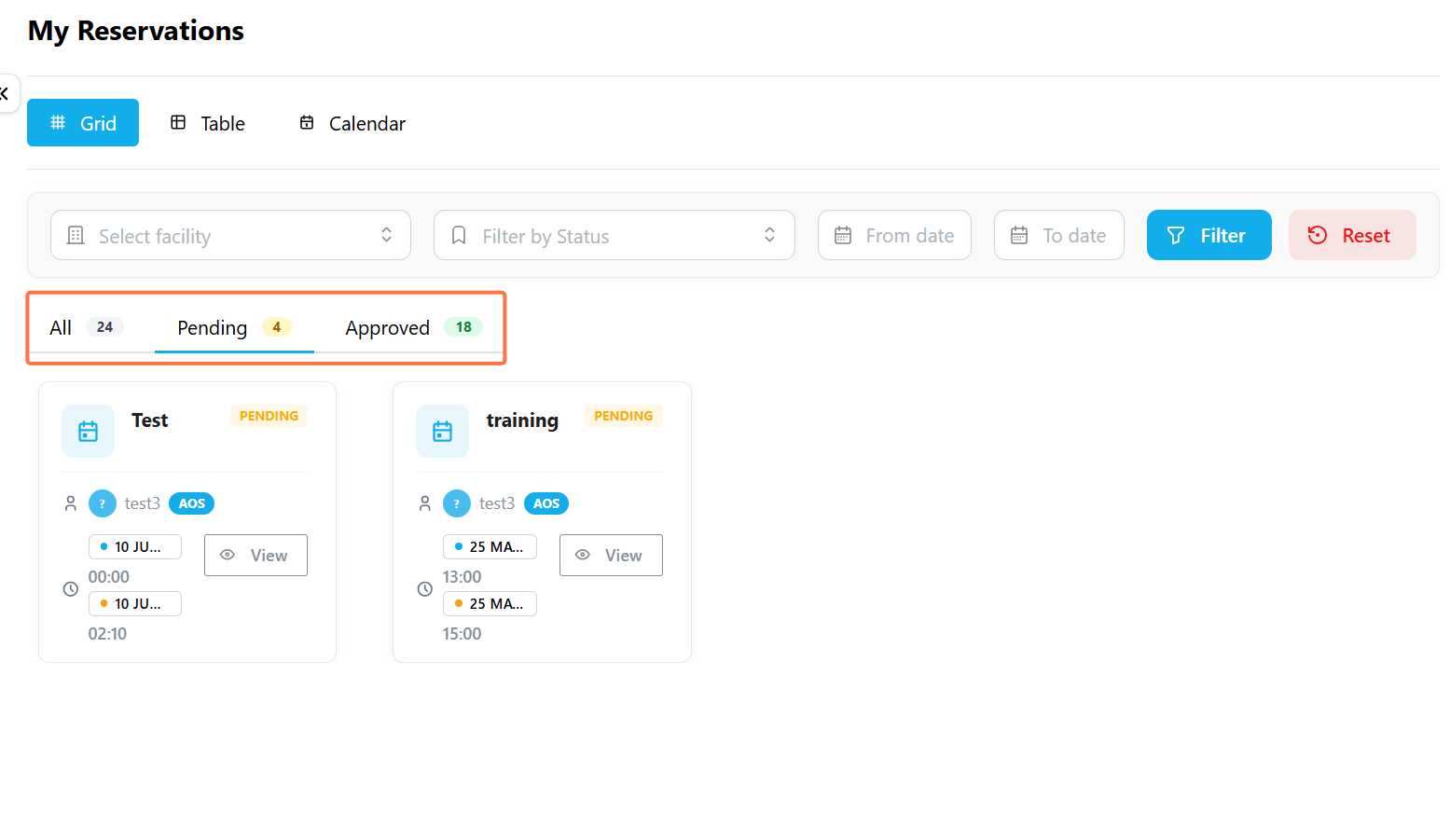
Every reservation that requires approval moves through one of three stages:
| Status | What it means |
|---|---|
| Pending | Awaiting review from the facility manager. The facility is not yet confirmed. |
| Approved | The facility manager reviewed and confirmed the booking for your requested time. |
| Rejected | The booking did not go through. |
Filter your Reservations
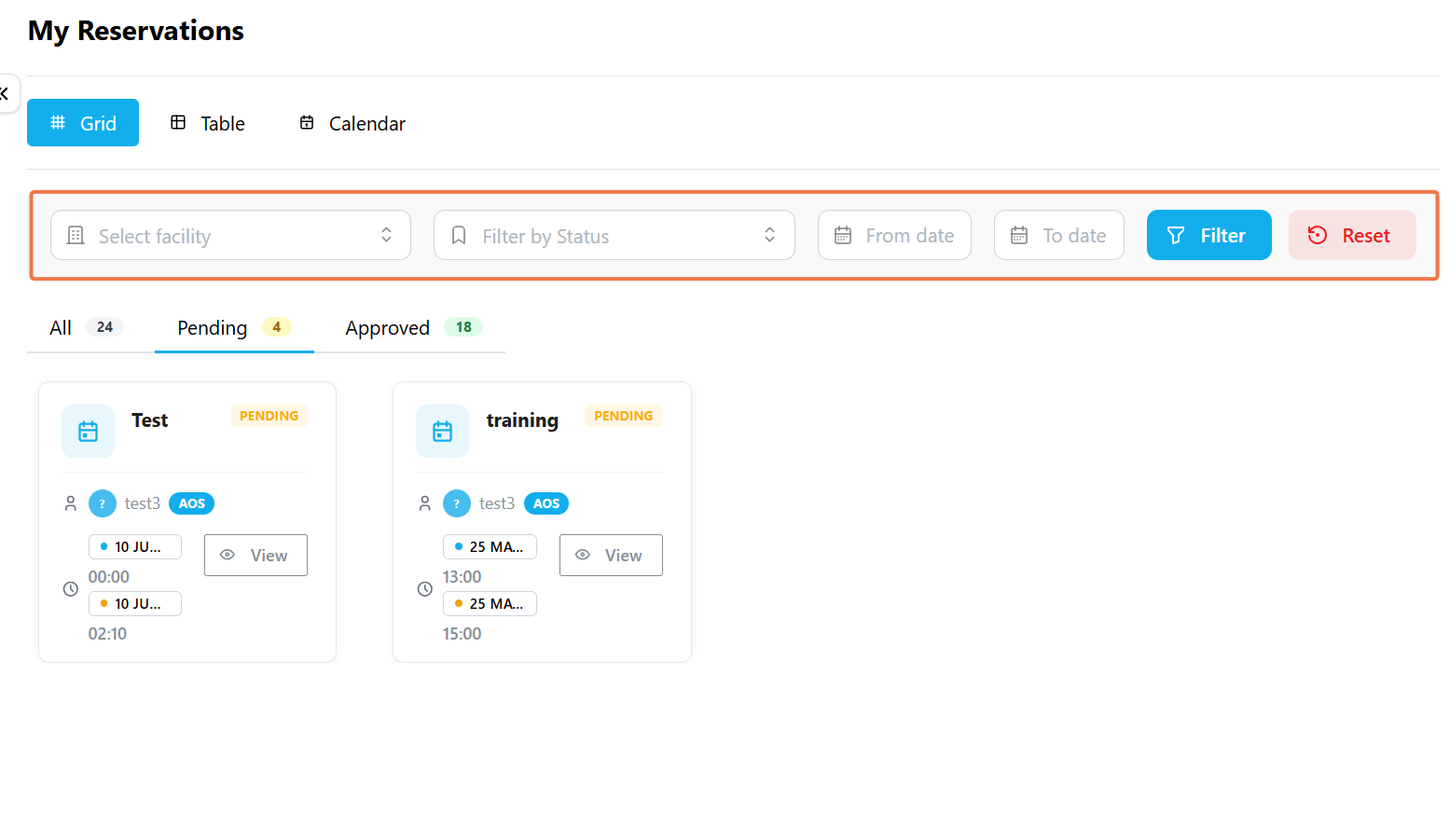
Use the filters above your reservation list to find a specific reservation:
- Select facility narrows the list to a single facility,
- Filter by Status shows only Pending, Approved, or Rejected reservations.
- You can also set a From date and To date to limit results to a specific period.
- Click Filter to apply your selection, or Reset to start over.
Viewing a Reservation's Details
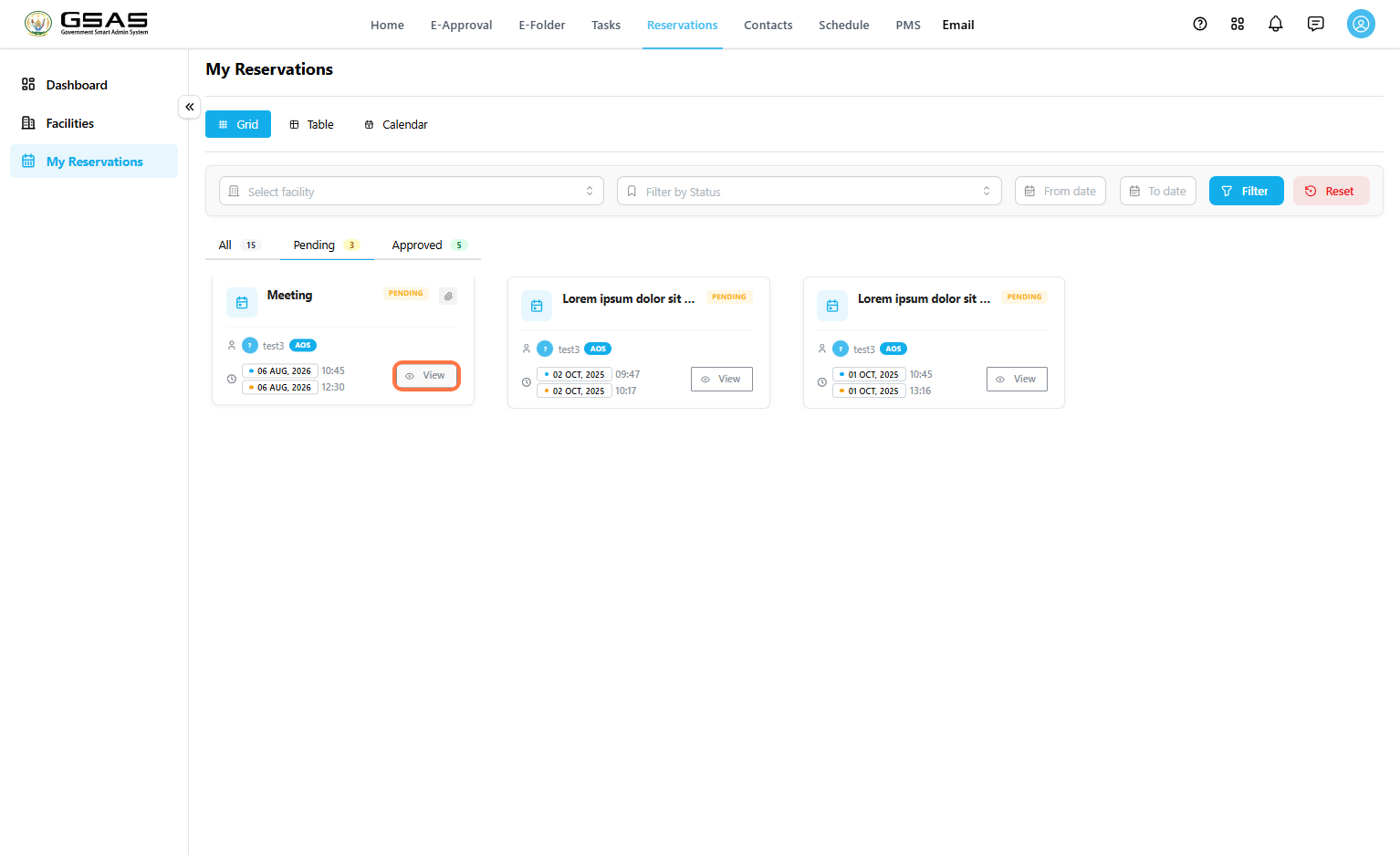
Click View on a reservation card to see it's full details.
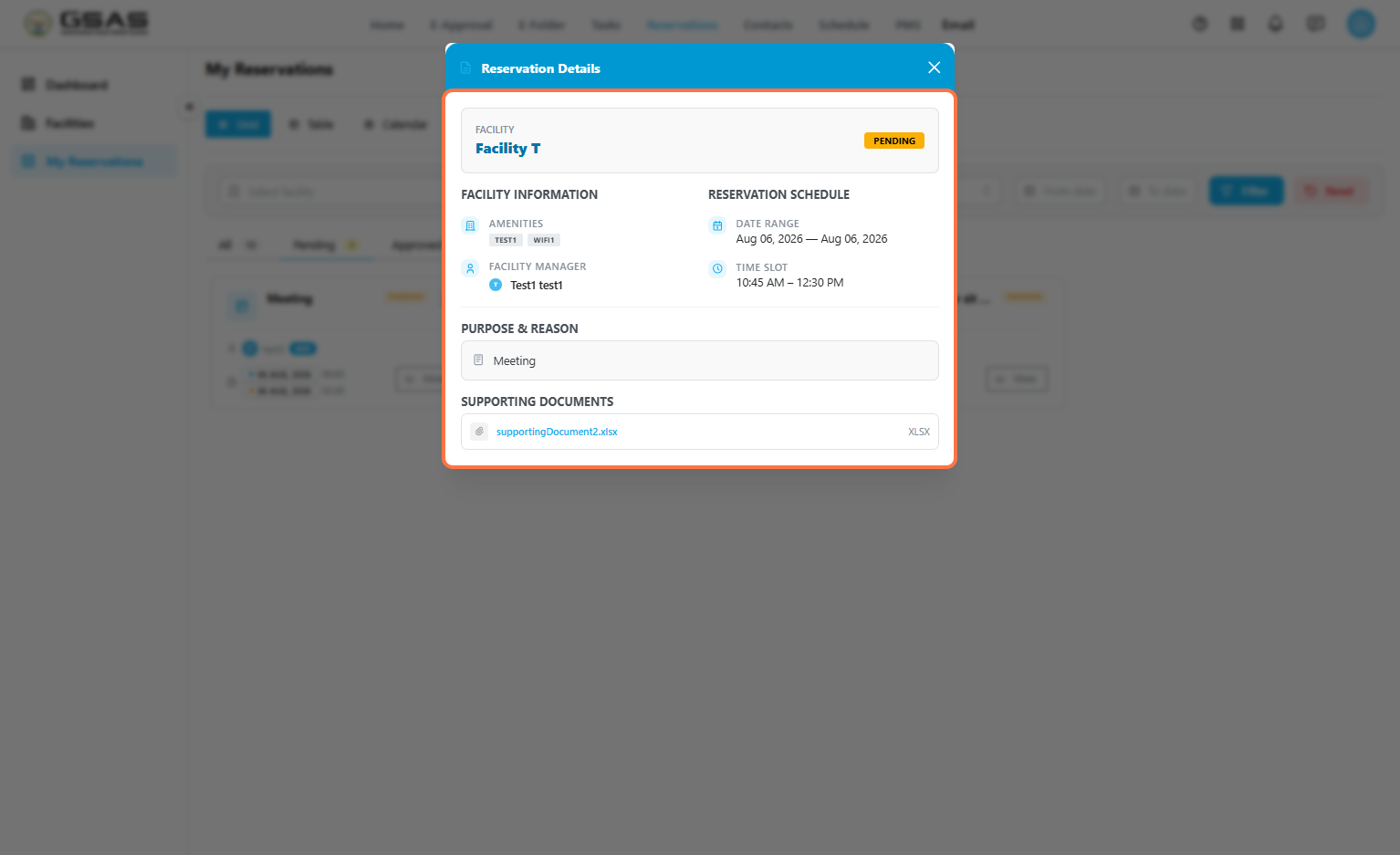
- The Reservation Details open showing the facility name and current status, along with its amenities and manager under Facility Information.
- The Reservation Schedule section shows the exact date range and time slot you booked.
- Below that, you'll find the reason you gave when booking, and any supporting document you attached.
If your reservation is approved and scheduled for today, you'll also see it under Today's Bookings on the GSAS home page.
Managing Reservations and Facilities
If you manage one or more facilities, this page covers how to review incoming reservation requests and how to update a facility's settings. You can only see these options if you've been assigned as a facility manager.
Approving or Rejecting a Reservation
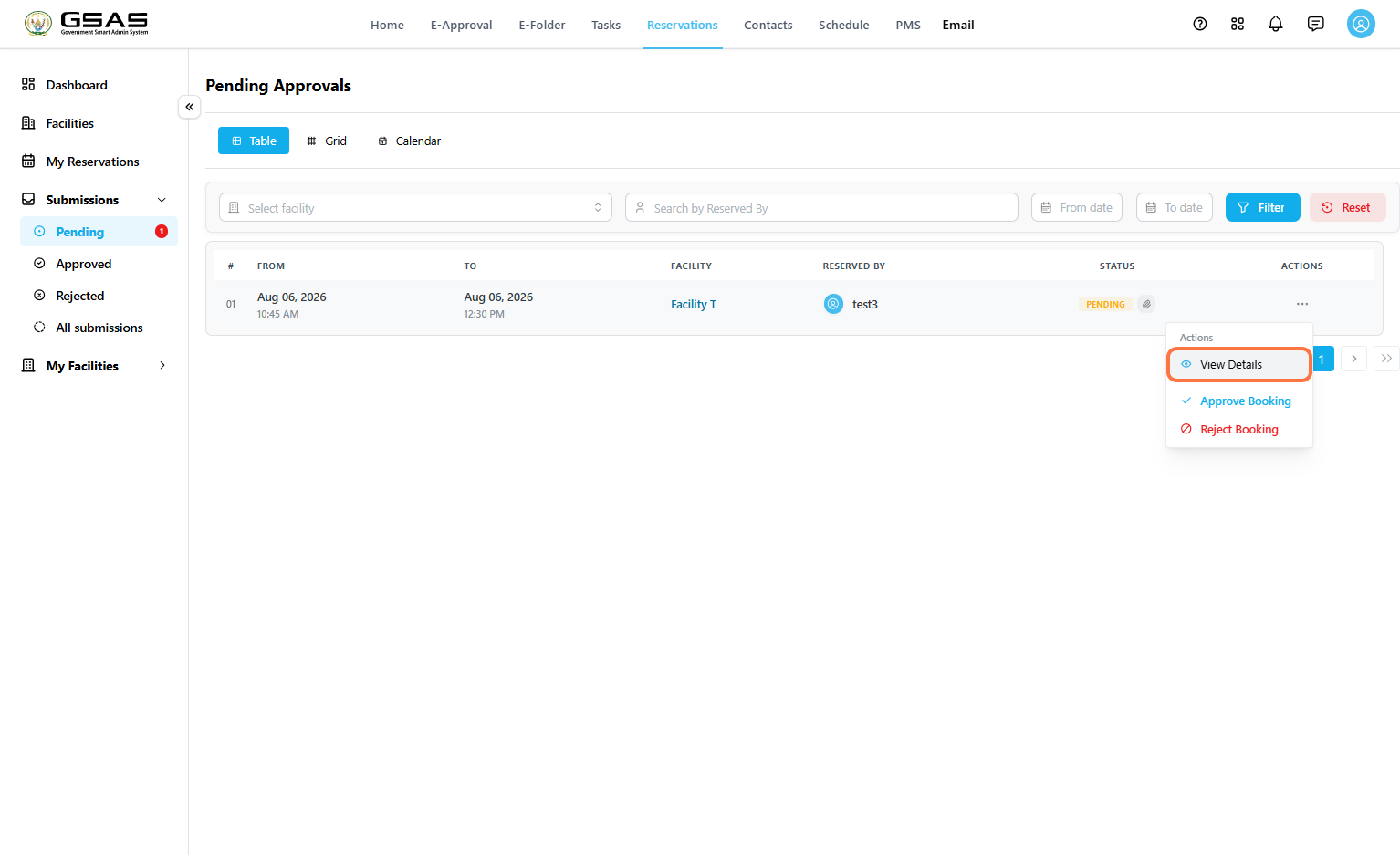
Go to Reservations → Submissions → Pending to see reservation requests waiting on your review. You can also check Approved, Rejected, or All submissions for a full history.

Step 1
Review the Request
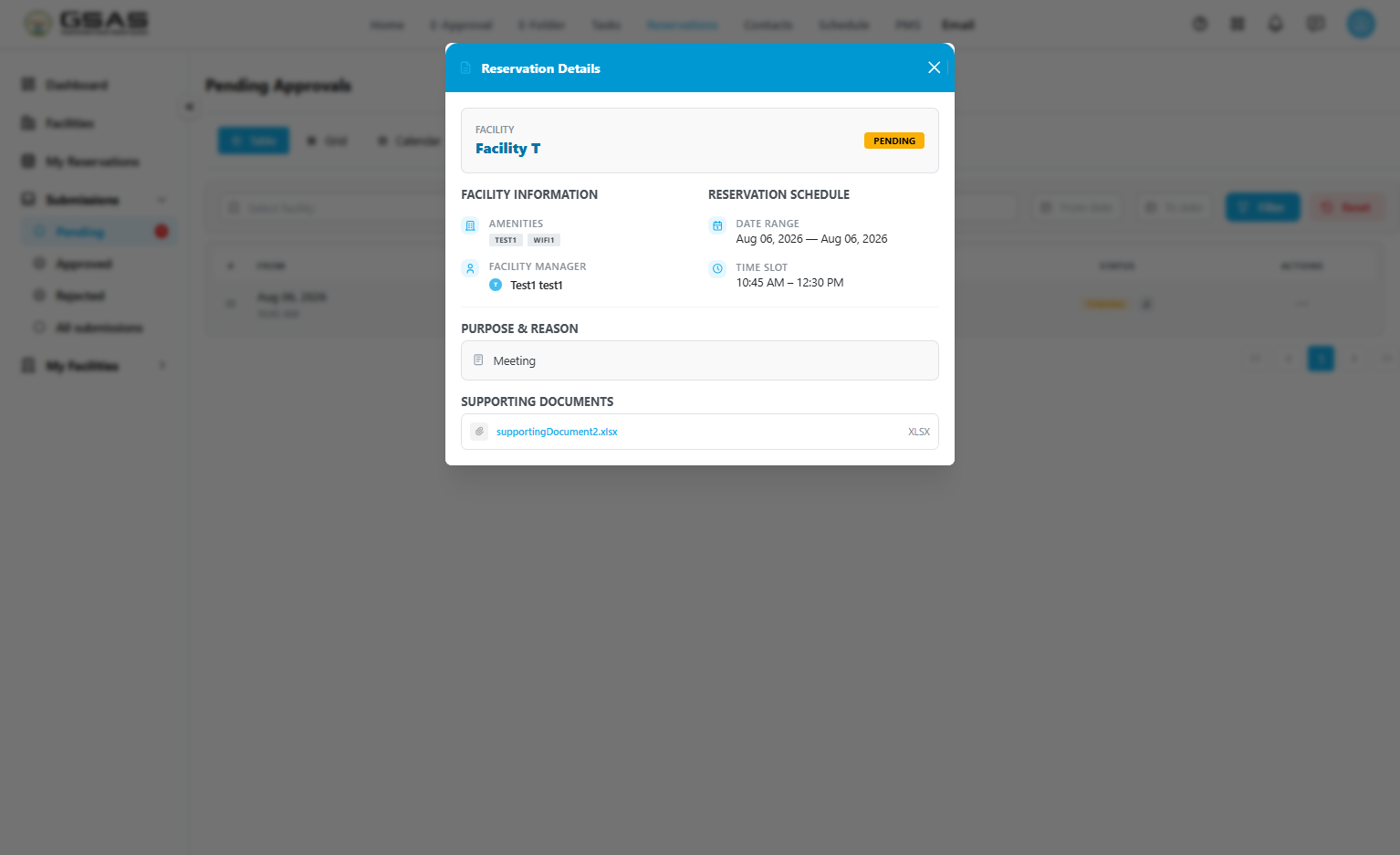
Each row shows who reserved the facility and the current status. Click the … icon under Actions, then select View Details to see the full reservation, including the requested schedule, reason, and any supporting document.
Step 2
Approve or Reject
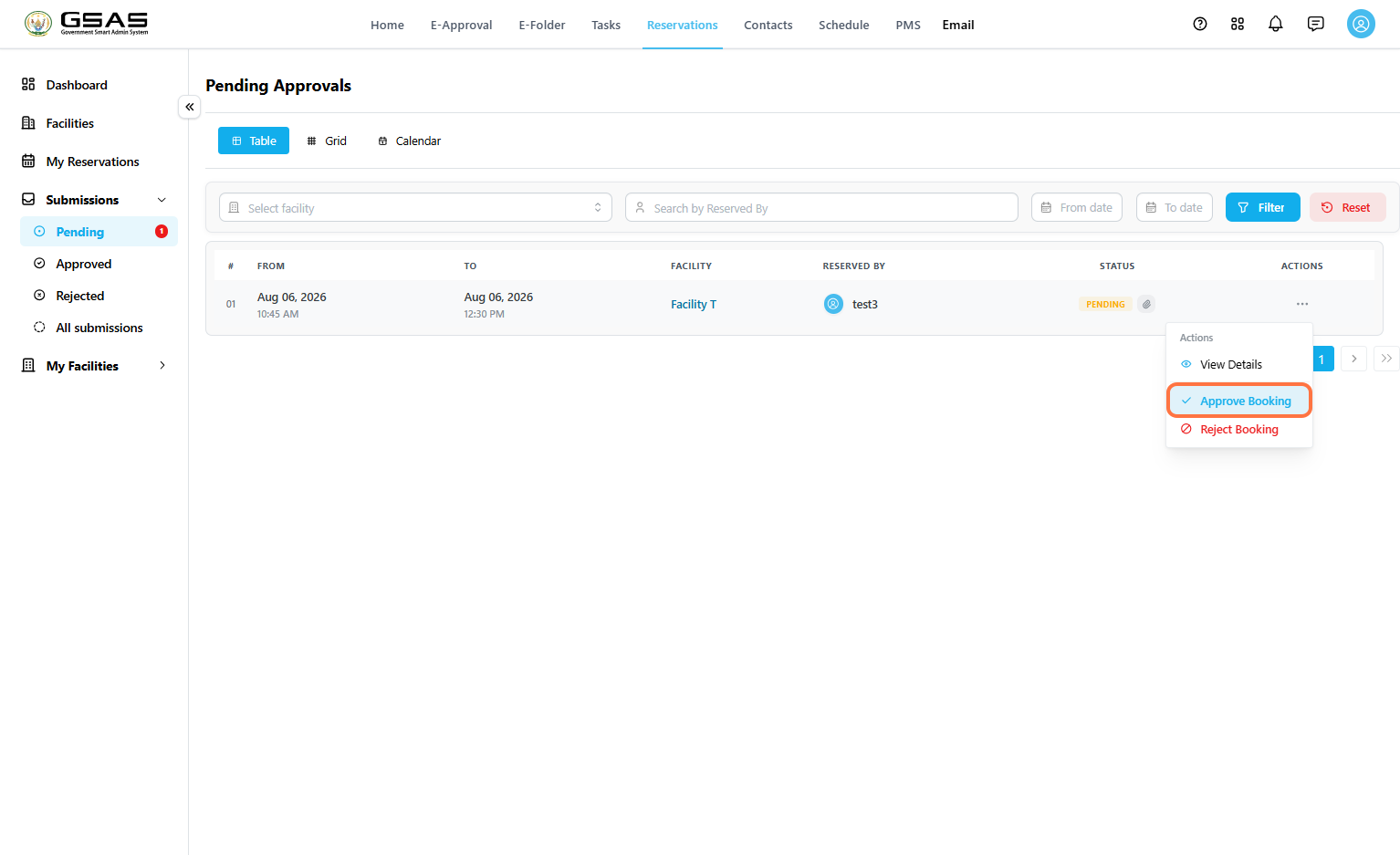
From the same Actions menu, select Approve Booking or Reject Booking.
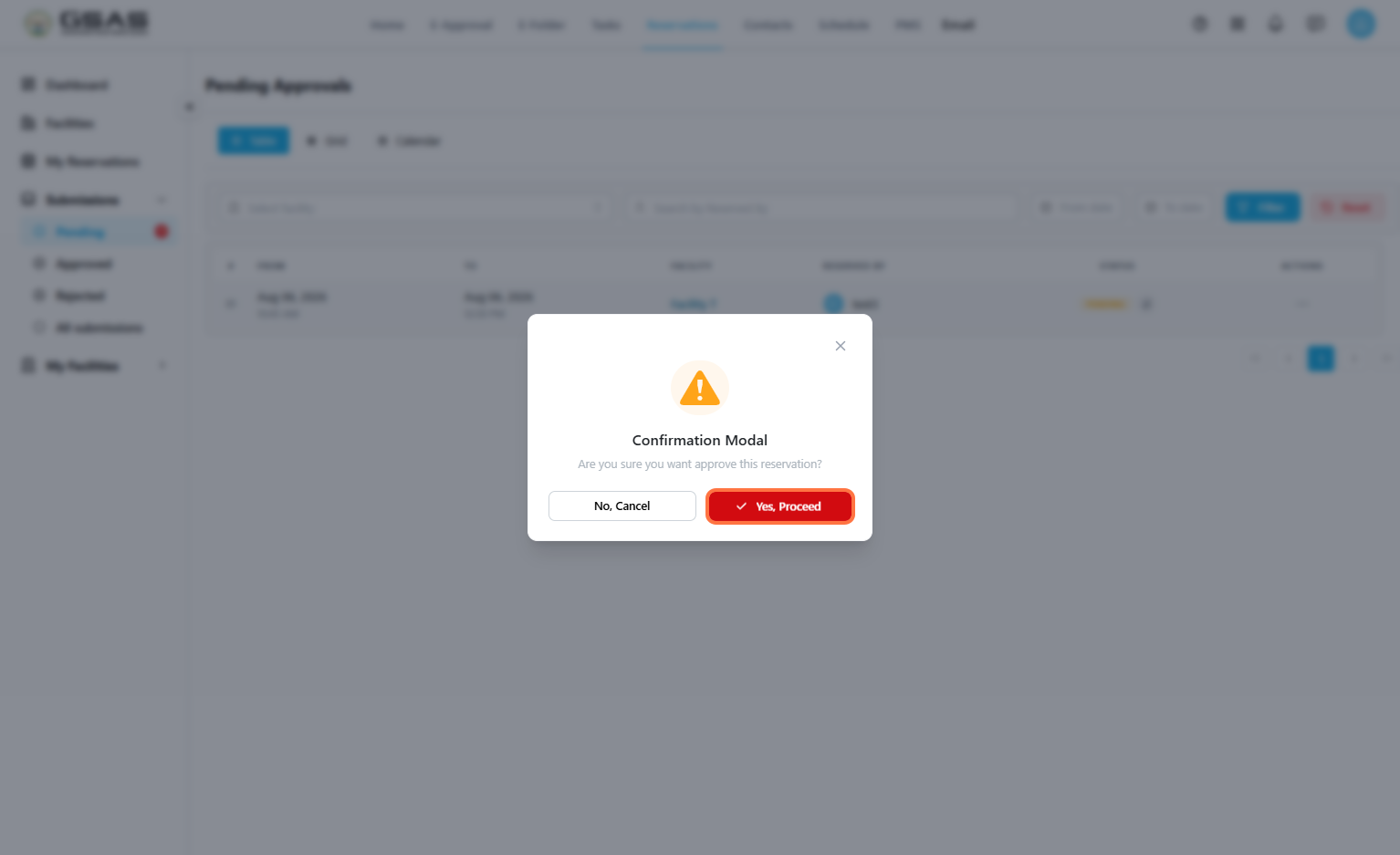
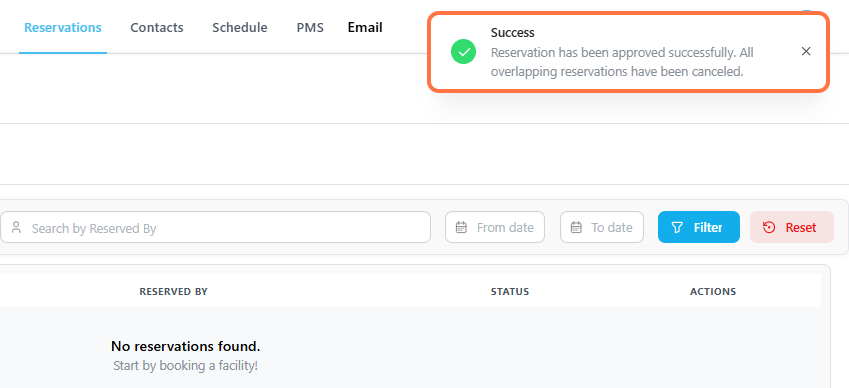
A confirmation window appears before the action is finalized. Click Yes, Proceed to confirm, or No, Cancel to back out.
| Note: Approving a reservation automatically cancels any other pending reservation that overlaps with the same facility and time slot. Double-check the schedule before approving if multiple requests are waiting on the same booking window. |
Managing a Facility
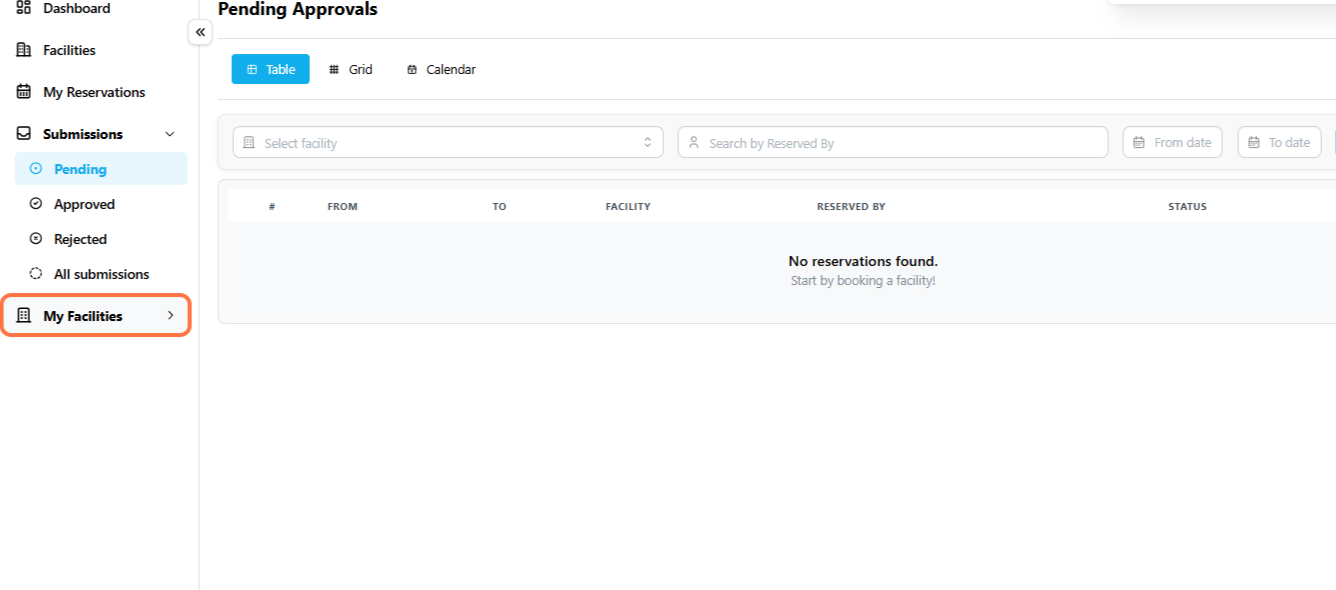
Go to Reservations → My Facilities to see the facilities you're responsible for.
Step 1
Open Facility Actions
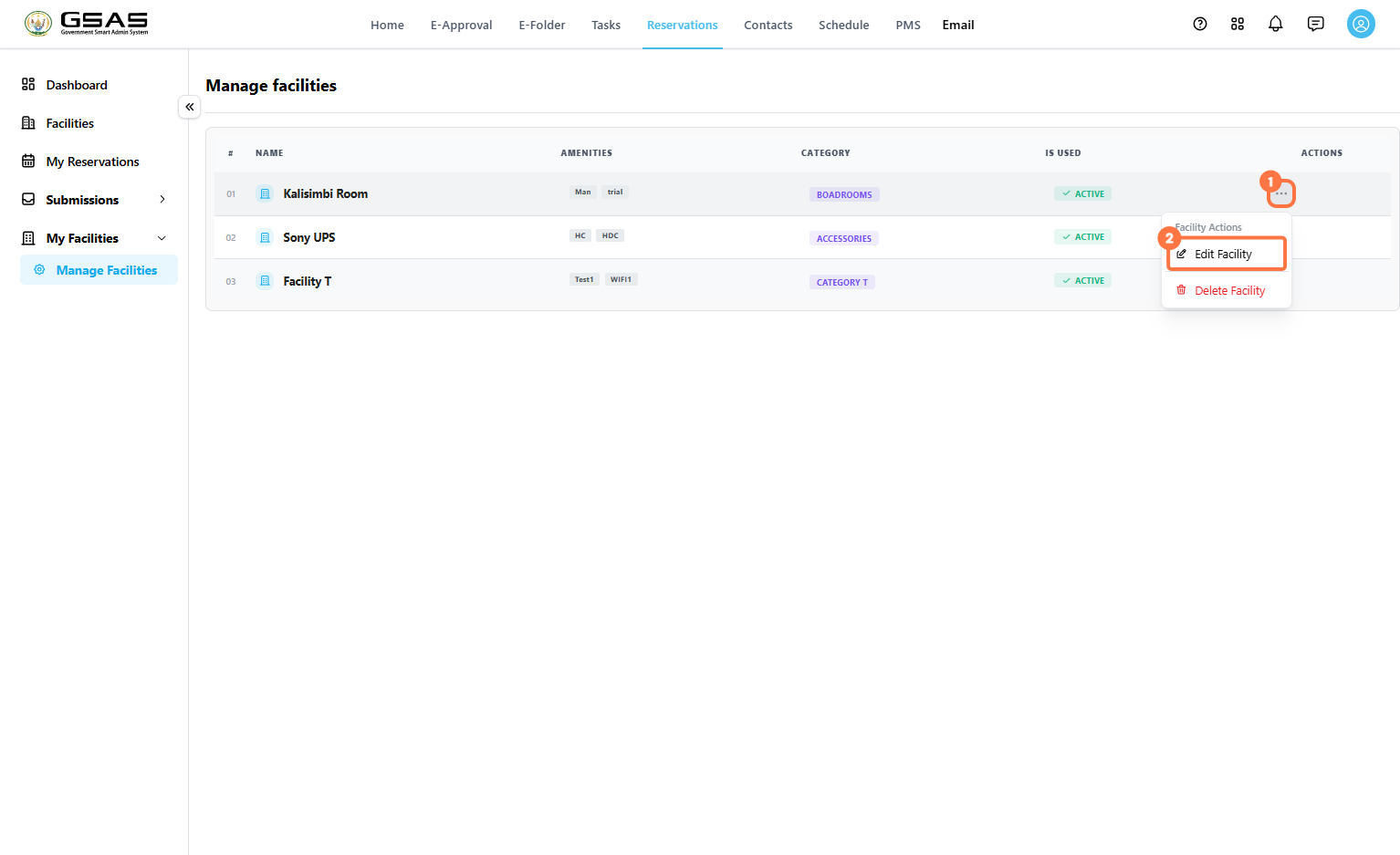
Click the … icon next to a facility, then select Edit Facility to change its settings, (or Delete Facility to remove it entirely.)
Step 2
Update Basic Information
- If necessary, edit the facility's Category and Facility name, along with a Color used to identify it on the calendar.
- Add or remove Amenities to help people know what to expect when booking it.
- Does this facility have a manager? controls what manager is responsible for the facility.
- Notify specific users when used? lets you send a notification to selected users every time the facility is booked.
Under Facility Status, set Under Maintenance? to Yes if the facility is temporarily out of use, and set Is Facility Active? to Inactive if it should no longer appear as bookable at all.
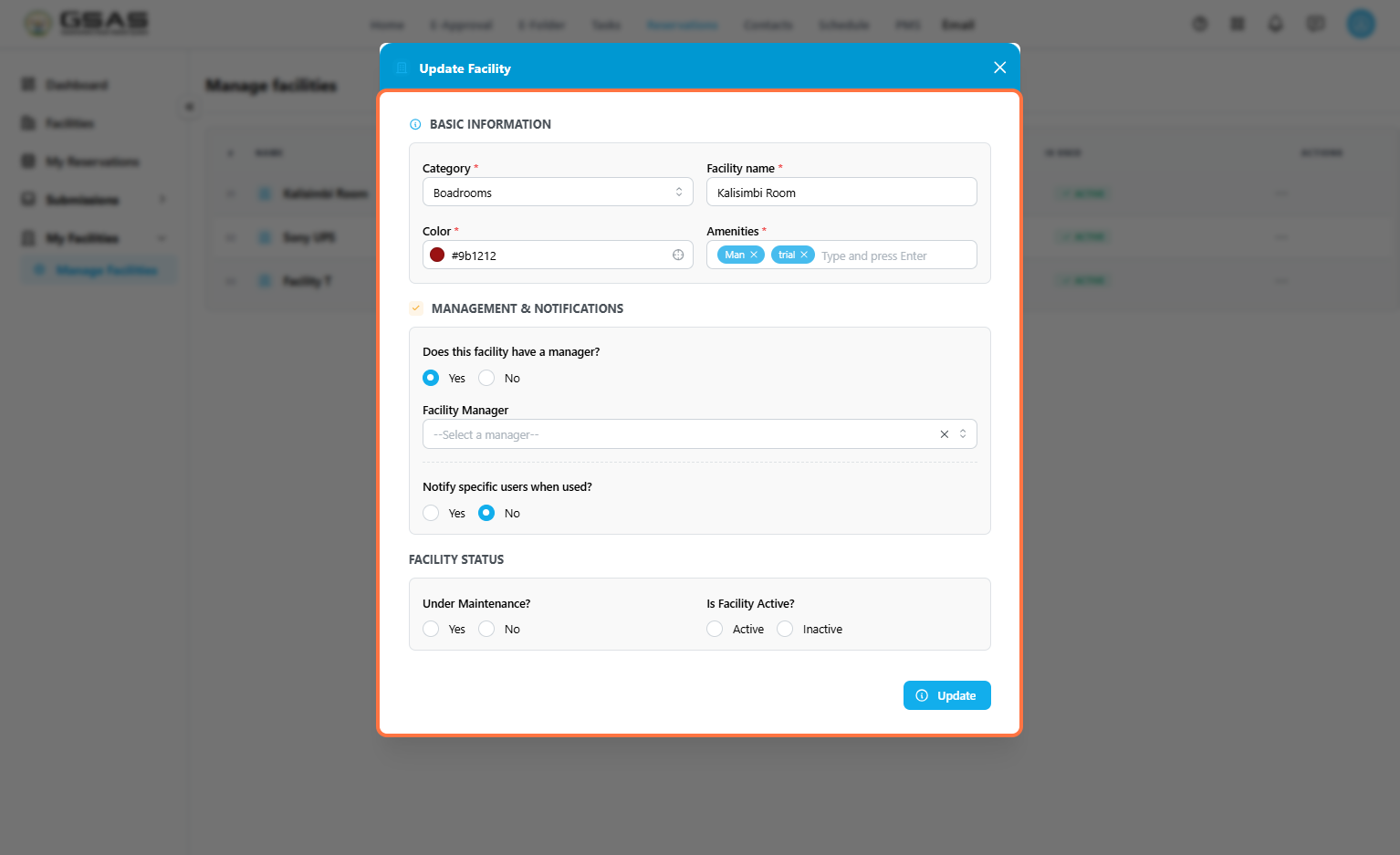
Click Update to save changes.